
How to fix Windows update error 0x80004002?

Prefer to fix it yourself? The manual steps follow.
- 8methods
- 5 to 90 minutes
- Easy
Applies to Windows 11 and Windows 10, Settings > Windows Update, monthly updates, Defender and driver updates, and Microsoft Store downloads
8 methods in this guide
Hello, I have been trying to install the newest updates for my Windows machine for months now, to no avail. I keep getting the 0x80004002 error instead. It has kept telling me to wait or contact support for several weeks now, so I'm looking for help with this one. All tips are appreciated.
Windows update error 0x80004002 is the Windows code E_NOINTERFACE, "No such interface supported": a part of Windows Update asked another component for something it could not give. It usually shows as Download error - 0x80004002 when a service the download needs is disabled or stuck. Restart and retry first, then undo any privacy or tweak tool that turned services off.
0x80004002 means "No such interface supported": a Windows Update component could not talk to a part it needs, most often a download service that is disabled or stuck. Restart the PC and select Retry (Fix 1). If every download fails at once, undo any privacy or debloat tool that disabled Delivery Optimization or other update services (Fix 2), then check the services (Fix 3) and reset the update cache (Fix 5).
| Error | Download error - 0x80004002 next to updates in Settings > Windows Update, or Error 0x80004002 in Update history. Microsoft names the code E_NOINTERFACE, "No such interface supported". |
|---|---|
| Where it appears | In Windows Update right after Check for updates finds updates and the download starts. The same code can also show in the Microsoft Store, in DISM and in some other programs. |
| Main cause | A service the download needs is disabled or stuck, for example Delivery Optimization, BITS or Windows Update, often after a privacy or tweak tool. Less often a damaged update cache or system files. |
| Fastest fix | Restart and retry (Fix 1). If all downloads fail at once, undo the tool that disabled services (Fix 2) and check the services (Fix 3). |
| Also written as | 0x80004002, error 80004002, code: 0x80004002, Download error - 0x80004002, E_NOINTERFACE, No such interface supported. |
| Affects | Windows 11 and Windows 10: cumulative updates, Microsoft Defender updates, driver updates and updates for other Microsoft products. |
| Microsoft's status | A general Windows error code, not a known issue of one update. Microsoft lists no patch for it. Microsoft community staff answer it with the troubleshooter, an update reset, a Store cache reset and SFC with DISM. |
| Close relatives | 0x80004005 (E_FAIL, unspecified failure) and 0x80004004 (E_ABORT, operation aborted). Different meanings. |
| Time to fix | 5 to 15 minutes for Fix 1 to 4. About 15 minutes for the cache reset. Up to 90 minutes for an in-place repair. |
Facts checked on 15 October 2026. Steps written for Windows 11 (25H2 and 26H2) and Windows 10 22H2.
What Windows update error 0x80004002 means
0x80004002 is not a Windows Update code of its own. Microsoft's list of common HRESULT values gives it the name E_NOINTERFACE and the description "No such interface supported". It is a general Windows code: one component asked another one for a function it does not offer, or could not reach it at all. Windows Update then stops the job and shows the code.
In practice that points to a service or a system component that is missing, disabled or broken, not to a bad update file. So the fixes below first check what was turned off, then reset the update cache, and only then repair Windows itself.
| What you see | Where | What it tells you |
|---|---|---|
| Download error - 0x80004002 | Settings > Windows Update, next to each update | The update was found, but the download could not start. When every update shows it, a download service is the likely cause. |
| Error 0x80004002 with a KB number | Settings > Windows Update > Update history | A record of the failed attempt and the update it belongs to. |
| Error: 0x80004002 No such interface supported | DISM in Command Prompt | The repair tool itself cannot use a system component. Go to Fix 8. |
| Error code 0x80004002 | Microsoft Store, while an app downloads or updates | The Store uses the same download services. See the Store question in the FAQ. |
Microsoft lists 0x80004005 as E_FAIL ("Unspecified failure") and 0x80004004 as E_ABORT ("Operation aborted"). They come from the same family but have other causes, so look them up on their own. The same 0x80004002 code also appears in programs that have nothing to do with Windows Update, such as backup tools and download managers. This page covers Windows Update and the Microsoft Store.
What causes Windows update error 0x80004002
Because the code says a component could not be used, the causes are the components that the update download depends on. The table ranks them from the most common to the rarest, each with the fix that answers it.
| Cause | How often | How to tell | Fix |
|---|---|---|---|
| A temporary hang of the update services after a failed run or a pending restart. | Most often | The error came after an interrupted update, or another update says Restart required. | Fix 1 |
| A privacy, debloat or tweak tool disabled Delivery Optimization, update services or update servers. | Often | Updates are found, but every download fails at once. The Store may say you are not online. | Fix 2 |
| Windows Update, BITS or Cryptographic Services is disabled or will not start. | Often | In Services, one of them shows Disabled or is not running when you retry. | Fix 3, Fix 4 |
| A damaged download in the update cache. | Sometimes | One update keeps failing while others install. | Fix 5, Fix 6 |
| Damaged system files or a damaged component store. | Rarely | SFC cannot start its repair service, or DISM itself stops with 0x80004002. | Fix 7, Fix 8 |
The tool cause is well documented. In a bug report on the privacy.sexy project, a user on Windows 11 2024 LTSC (build 26100.2454) wrote that Windows Update could still find updates, but every download failed at once with 0x80004002, while the Store said 0x800704C6, you are not online. Another user confirmed that the option to disable the Delivery Optimization service alone broke update downloads on Windows 11 24H2. The project stopped recommending that option in version 0.13.8.
How to fix Windows update error 0x80004002
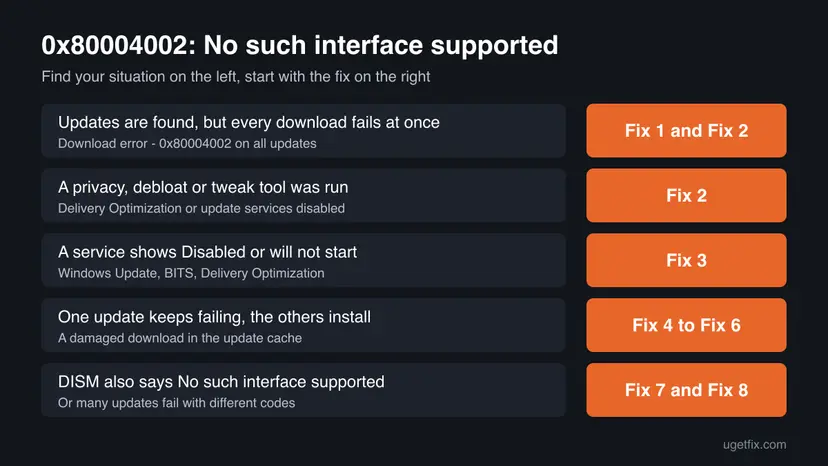
Fix 1 takes a few minutes and clears a temporary hang. Fixes 2 to 4 bring back the services the download needs. Fixes 5 and 6 deal with a damaged download. Fixes 7 and 8 repair Windows itself.
| What you see or have | Start with |
|---|---|
| The error came after an interrupted update or a pending restart. | Fix 1 |
| You ran a privacy, debloat or tweak tool, or a script that turns off telemetry. | Fix 2 |
| Every download fails at once, and the Store says you are not online. | Fix 2, then Fix 3 |
| A service shows Disabled or will not start. | Fix 3 |
| One update keeps failing, the others install. | Fix 5, then Fix 6 |
| DISM also stops with No such interface supported. | Fix 8 |
| Many updates fail, also with other codes. | Fix 7, then Fix 8 |
Fix 1. Restart the PC and retry the update
5 to 15 minutesNo riskAlways first, most of all when the error came after an interrupted update or another update says Restart required.
A service that hangs after a failed run can refuse calls from Windows Update, which is reported as "No such interface supported". A real Restart starts all update services again in a clean state.
- Save your work and plug a laptop into power.
- Open Start, select the power button and choose Restart. Do not use Shut down for this step.
- After Windows starts, wait two or three minutes for background tasks to finish.
- Open Settings > Windows Update. If you see Resume updates, select it.
- Select Retry next to the failed update, or Check for updates.
- Leave the PC on and connected until the update finishes or says Restart now.
It worked if: The download passes 0 %, and the update installs or asks for a restart.
If not: If every download fails at once again, go to Fix 2.
Fix 2. Undo the privacy or tweak tool that disabled update downloads
10 minutesLow riskYou ran a privacy, debloat or telemetry script or app, even months ago, and now updates are found but every download fails at once.
Such tools often disable Delivery Optimization, the service Windows 11 uses to download updates and Store apps. Users of one such tool confirmed that this one option was enough to make every update download fail with 0x80004002.
- Open the tool you used. Look for its Revert, Restore, Undo or Default option.
- Revert the parts that touch Windows Update, Delivery Optimization, update peering or telemetry. In privacy.sexy, revert Disable Windows Update data collection or the Delivery Optimization option.
- Restart the PC with Restart.
- Press Win + R, type
services.mscand press Enter. - Find Delivery Optimization and check that its Startup Type is not Disabled.
- Open Settings > Windows Update and select Retry.
We could not confirm the default startup type of Delivery Optimization for every Windows build, so we do not give one here. If you cannot run the tool's revert, the Windows 11 repair install in Fix 8 puts the default service settings back and keeps your files and apps.
In the same report, update servers stayed unreachable after the revert. Some tools also block Microsoft addresses in the hosts file at C:\Windows\System32\drivers\etc\hosts or in firewall rules. Open the file in Notepad as administrator and look for lines with microsoft.com or windowsupdate. Remove only lines you know a tool added, and keep a copy of the file first.
It worked if: Updates download again and the Store installs apps without an "offline" message.
If not: Check all the update services by hand in Fix 3.
Fix 3. Check and restart the Windows Update, BITS and Cryptographic services
5 minutesLow riskA service is disabled or stopped, or Fix 2 did not apply because you never ran a tweak tool.
Windows Update hands the download to BITS and Delivery Optimization and checks the files with Cryptographic Services. If one of them cannot start, Windows Update has no component to call, which is what 0x80004002 reports.
Check these services: Windows Update (wuauserv), Background Intelligent Transfer Service (BITS), Cryptographic Services (CryptSvc) and Delivery Optimization (DoSvc). A stopped service is fine when its startup type is Manual: Windows starts it when needed. Disabled is the problem. For a disabled one, set Startup type to Manual, select Apply and then Start.
- Open Services. Press Windows+R, type the command below and press Enter. You can also type Services in the search box on the taskbar and open the app.
services.msc - Find the service. The list is sorted by Name. Click any row and type the first letter of the service to jump to it. Check the Status column (Running or empty) and the Startup Type column.
- Restart the service. Right-click the service and select Restart. If the service is not running, select Start instead. Wait until the progress window closes.
- Open its properties to change the startup type. Only if your guide says so: double-click the service. The General tab shows the Service name (used in commands), the Startup type and the Service status.
- Set the startup type and apply. Choose the type from the Startup type list (Automatic, Automatic (Delayed Start), Manual or Disabled), select Apply, then Start if the service should run now, and OK.
These steps were written for Windows 11 and Windows 10 (the steps are the same). The full page with the other versions and what each result means: Check and restart Windows services
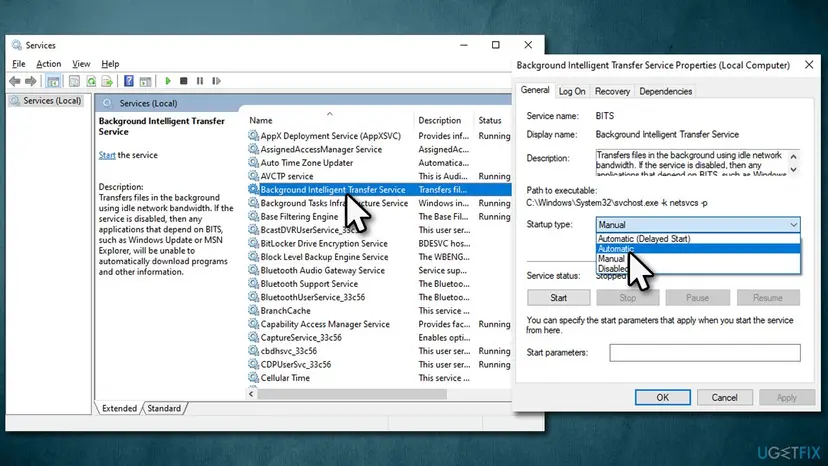
It worked if: No update service shows Disabled, and the download starts on the next Retry.
If not: Let the troubleshooter check the rest with Fix 4.
Fix 4. Run the Windows Update troubleshooter
5 minutesNo riskThe services look fine but the download still fails.
Microsoft community staff name it first for this code. It checks the update services and settings, including ones that are hard to see in the Services window, and resets them.
- Open Troubleshoot settings. Select Start > Settings > System > Troubleshoot.
- Open the list of troubleshooters. Select Other troubleshooters.
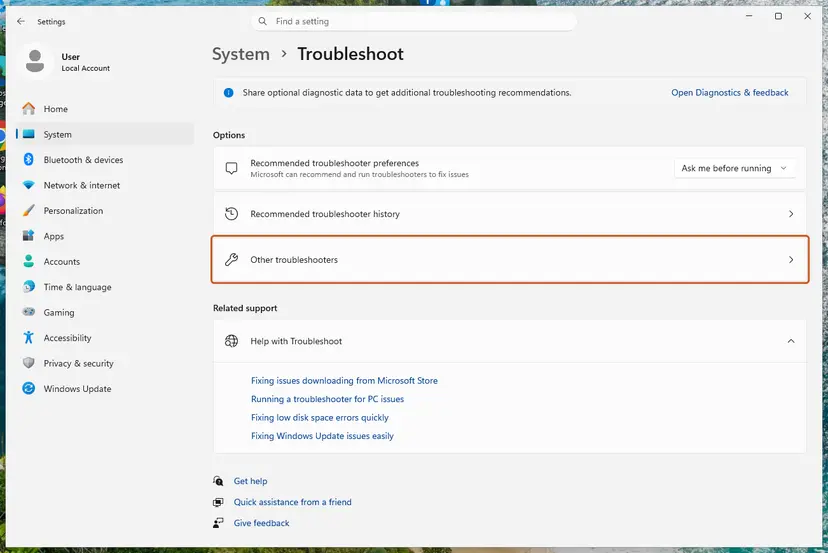
Settings, System, Troubleshoot: select Other troubleshooters. Screenshot: Windows 11 26H2. - Run the Windows Update troubleshooter. Under Most frequent, select Run next to Windows Update. The Get Help app opens and starts the checks.
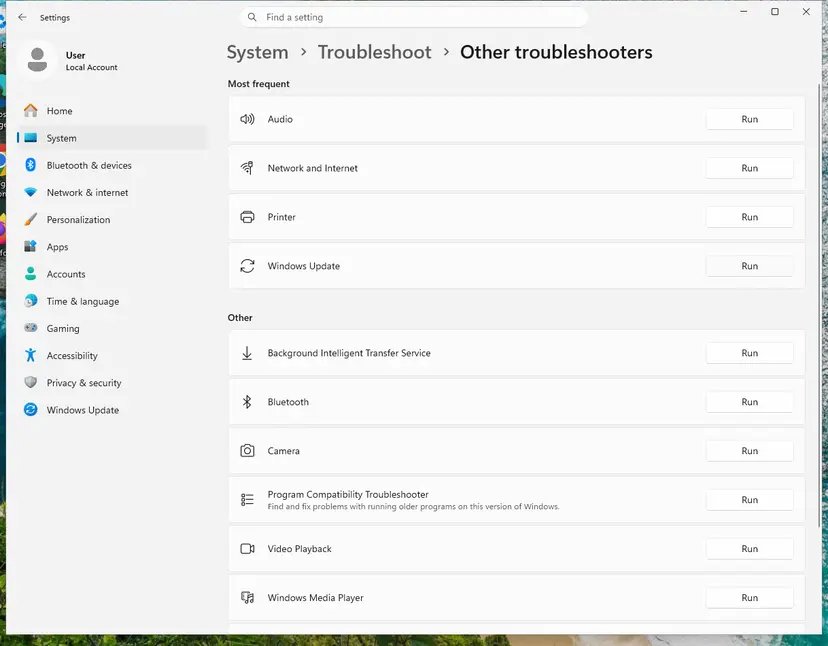
Windows Update is in the Most frequent group; select Run on its row. Screenshot: Windows 11 26H2. - Read the result. Wait until Get Help finishes. If it found and fixed a problem, it says so and asks whether this solved the problem. Answer the question so it can offer the next step.
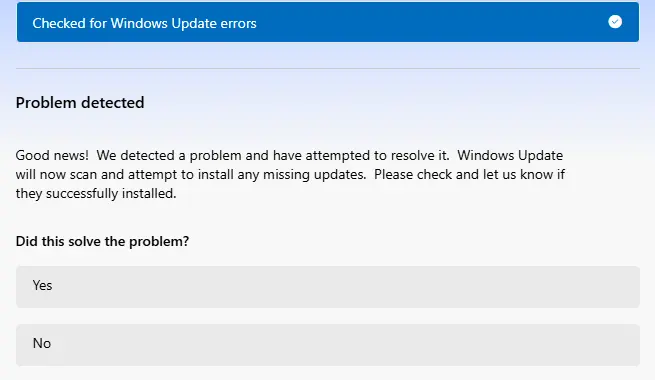
Get Help reports what it found and asks if the problem is solved. Screenshot: Windows 11 26H2. - Restart the PC. Restart when the troubleshooter finishes, even if it does not ask you to.
- Check for updates again. Select Start > Settings > Windows Update > Check for updates, and install the updates it finds.
These steps were written for Windows 11 (screenshots: 26H2). The full page with the other versions and what each result means: Run the Windows Update troubleshooter
It worked if: The troubleshooter reports that it fixed something, and the update downloads on the next check.
If not: Reset the update cache with Fix 5.
Fix 5. Reset the Windows Update components and cache
15 minutesLow riskOne update keeps failing, or Fixes 1 to 4 did not help.
A damaged download in SoftwareDistribution or damaged catalog data in catroot2 can stop the job each time. Microsoft community staff give this reset for 0x80004002: stop the services, rename both folders and start the services again.
- Open Command Prompt as administrator. Type cmd in the search box, right-click Command Prompt and select Run as administrator. Select Yes when Windows asks for permission.
- Stop the update services. Type the commands below and press Enter after each one. If Windows says that other services depend on Cryptographic Services, it stops them too. A message that a service is not started is fine.
net stop wuauserv net stop bits net stop cryptsvc - Delete the download queue files. This clears the list of downloads that the Background Intelligent Transfer Service keeps. If Windows says it cannot find the files, continue.
del "%ALLUSERSPROFILE%\Application Data\Microsoft\Network\Downloader\qmgr*.dat" - Rename the update cache folders. Renaming keeps a copy in case you need it; Windows creates new, empty folders when the services start again. If you get Access is denied, a service is still running: repeat the previous step.
ren %systemroot%\SoftwareDistribution SoftwareDistribution.old ren %systemroot%\System32\catroot2 catroot2.old - Start the services again. Type the commands below and press Enter after each one. The requested service has already been started is fine: Windows started it on its own.
net start cryptsvc net start bits net start wuauserv - Restart and check for updates. Restart the PC. Then select Start > Settings > Windows Update > Check for updates. The first check can take longer than usual because everything is downloaded again.
These steps were written for Windows 11 and Windows 10 (the steps are the same). The full page with the other versions and what each result means: Reset Windows Update components

After the reset, Update history may look empty. Only the list is cleared: installed updates stay on the PC.
It worked if: Windows checks for updates from zero, downloads them and installs them.
If not: If one update still fails, install it by hand with Fix 6.
Fix 6. Install the update by hand from the Microsoft Update Catalog
10 to 20 minutesLow riskOne update keeps failing and you know its KB number from Update history.
The catalog gives you the same package as a file, so the Windows Update download that fails with 0x80004002 is skipped. It works for monthly updates, not for a version upgrade.
- Check your Windows version. Press Windows key + R, type winver and press Enter. Note the version (for example 25H2) and the OS build.
- Find the KB number. Open Settings > Windows Update. A failed or pending update is listed with its KB number; earlier ones are under Update history.
- Check the processor type. Open Settings > System > About and look at System type: an x64-based PC needs the x64 file, an ARM-based PC (for example Snapdragon) needs the arm64 file.
- Search the catalog. Open the Microsoft Update Catalog at catalog.update.microsoft.com in your browser, type the KB number (for example KB5124010) in the search box and press Enter.
- Pick the right row. Find the row whose title names your Windows version and your processor type (x64-based or arm64-based) and select Download on that row.
- Download every file listed. A window lists one or more .msu links. Download all of them into one empty folder, for example C:\packages. On Windows 11 24H2 and later the list can include earlier checkpoint updates that the new one needs.
- Install a single file. If there is only one file, double-click it and confirm the installation in the Windows Update Standalone Installer.
- Install several files with DISM. If there are several files, open an elevated Terminal or Command Prompt and run DISM with the newest file. DISM finds the other files in the same folder and installs them in the right order.
DISM /Online /Add-Package /PackagePath:C:\packages\<newest-file>.msu - Restart. Restart the PC when the installation finishes, then run winver again: the OS build should have changed.
These steps were written for Windows 11 24H2 and later; Windows 10 22H2. The full page with the other versions and what each result means: Install an update from the Microsoft Update Catalog
It worked if: The installer finishes, and the KB is listed under Settings > Windows Update > Update history.
If not: Repair the system files with Fix 7.
Fix 7. Repair system files with SFC and DISM
20 to 30 minutesLow riskSeveral updates fail, also with other codes, or the manual install fails too.
0x80004002 means a system component could not be used. SFC repairs damaged system files and DISM repairs the component store that every update writes into.
- Open an elevated command window. Right-click Start and select Terminal (Admin), or type cmd in the search box, right-click Command Prompt and select Run as administrator. Select Yes when Windows asks for permission.

Search for cmd and choose Run as administrator. Screenshot: Windows 11 26H2. - Run DISM first. Type the command below and press Enter. DISM downloads clean copies of damaged components from Windows Update, so it can take several minutes. Wait until it says The operation completed successfully.
DISM.exe /Online /Cleanup-Image /RestoreHealth
DISM /RestoreHealth running. Screenshot: Windows 11 26H2. - Run System File Checker. In the same window, type the command below and press Enter. Do not close the window until the verification reaches 100%.
sfc /scannow
sfc /scannow at 100%. Screenshot: Windows 11 26H2. - Read the result and restart. Compare the last message with the table below this guide, then restart the PC so that repaired files are loaded.

The result line tells you what SFC did. Screenshot: Windows 11 26H2.
These steps were written for Windows 11 24H2 and 25H2. The full page with the other versions and what each result means: Run DISM and SFC to repair Windows system files
If SFC says it cannot start the repair service, or DISM stops with No such interface supported, the damage is too deep for these tools. Go straight to Fix 8.
It worked if: SFC reports that it found nothing or repaired the files, and the next update check succeeds.
If not: Do an in-place repair install with Fix 8.
Fix 8. Repair Windows in place and keep your files and apps
45 to 90 minutesRead the warningDISM itself fails with 0x80004002, a tweak tool cannot be reverted, or nothing above worked.
A repair install replaces the system components and the update stack with clean copies and puts services back to their defaults, so whatever made a component unusable is gone.
A repair install keeps your files, apps and most settings. A power cut during the install can still leave Windows unbootable, so copy your important files to a USB drive or cloud storage first: Back up your files (Windows Backup, File History, Time Machine)
On Windows 11, start with Settings > System > Recovery > Fix problems using Windows Update > Reinstall now. Because this way itself uses Windows Update, it can fail with the same error. Then run Setup from Microsoft's Windows 11 download page and choose to keep personal files and apps.
- Open Recovery in Settings. Open Settings > System > Recovery. Next to Fix problems using Windows Update, select Reinstall now. This keeps your apps, files and settings.
- Start the reinstall. Choose whether the PC may restart on its own 15 minutes after the installation, then select OK.
- Wait and restart. Windows Update downloads and installs a repair copy of your current Windows version. Keep the PC plugged in and online, and restart it when asked.
- If that did not help: Reset PC. Back in Settings > System > Recovery, next to Reset this PC, select Reset PC. This keeps your personal files but removes installed apps and settings.
- Choose Keep my files. Select Keep my files. Do not select Remove everything.
- Choose where Windows comes from. Select Cloud download to download a fresh copy of Windows, or Local reinstall to use the files already on the PC (faster, but may not include the latest updates).
- Reset. Review the summary and select Reset. The PC restarts several times.
These steps were written for Windows 11 22H2 and later. The full page with the other versions and what each result means: Reinstall Windows without losing files

It worked if: Windows restarts on a repaired build, and Check for updates downloads and installs updates again.
If not: Read the next section: the logs show which component fails.
If error 0x80004002 is still there
When every fix fails, the update log shows which step stops. Windows writes it as trace files. Open PowerShell and run the command below: it builds a readable WindowsUpdate.log on your desktop.
Get-WindowsUpdateLog| What to look for | What it means |
|---|---|
0x80004002 in WindowsUpdate.log | The lines just above it show which step and which KB failed, for example the download handler. |
| Download or Delivery Optimization errors next to it | A download service is still blocked. Go back to Fix 2 and Fix 3. |
Errors in C:\Windows\Logs\CBS\CBS.log | The component store reports damage. Run Fix 7 or Fix 8. |
| A work or school PC | Update policies or a management tool can block downloads. Give the administrator the code and the KB number. |
If you ask Microsoft Support for help, send the KB number, your Windows version from Settings > System > About, the code 0x80004002, any tool you ran to change Windows, and the lines around the code from WindowsUpdate.log. If the PC also freezes or shows disk errors, check the drive first, because the problem may be hardware: Check a disk for errors (chkdsk)
Windows 10 reached the end of support on 14 October 2025. Without Extended Security Updates, a Windows 10 22H2 PC no longer gets monthly updates, so an update that fails there may simply be one that is no longer offered to you.
How to keep error 0x80004002 from coming back
- Read each option of a privacy or debloat tool before you run it, and keep its revert file.
- Create a restore point before you run any tweak tool: Undo recent changes with System Restore
- Restart when Windows Update asks you to, before the next update arrives.
- Keep a few gigabytes free on drive C.
- Do not disable Delivery Optimization, BITS or Windows Update to save data or to stop telemetry.
- Do not block Microsoft update addresses in the hosts file or firewall.
- Do not delete files in
C:\Windows\SoftwareDistributionby hand while updates run. Use Fix 5.
If you want to limit data use, use the settings Windows gives you instead of disabling services: Settings > Windows Update > Advanced options > Delivery Optimization lets you turn off downloads from other PCs and set bandwidth limits. A related guide on a cancelled update job: Windows update error 0x8024000b.
Frequently asked questions
What is error 0x80004002?
It is the Windows code E_NOINTERFACE, which Microsoft describes as "No such interface supported". One part of Windows asked another part for a function that it does not offer or could not reach. In Windows Update this usually means a service the download depends on is disabled, stuck or damaged. It does not mean your PC has a virus or that the update is bad. Restart and retry first, then check the services and any tweak tool you ran.
What does "Download error - 0x80004002" mean in Windows Update?
It means Windows Update found the update but could not start the download. When every update in the list shows it, a download service is almost always the cause: Delivery Optimization, BITS or Windows Update itself is disabled or stuck. Restart and select Retry (Fix 1). If it fails again at once, undo any privacy or tweak tool (Fix 2) and check that none of the update services shows Disabled (Fix 3).
How do I fix error 0x80004002 on Windows 11?
Follow the fixes on this page in order. Restart and retry, then undo any privacy, debloat or telemetry tool you ran, because on Windows 11 a disabled Delivery Optimization service was confirmed to break every update download with this code. Then check the update services, run the troubleshooter and reset the update cache. If DISM also fails with the same code, use Settings > System > Recovery > Reinstall now or Setup from Microsoft's site to repair Windows and keep your files.
Why does Windows find updates but fail to download them with 0x80004002?
Because checking for updates and downloading them use different parts of Windows. The check only talks to Microsoft's servers. The download is handed to the download services, mainly Delivery Optimization and BITS. If one of them is disabled, the check still works and lists the updates, but the download fails at once. That is the pattern users reported after a privacy script turned off Delivery Optimization. Fix 2 and Fix 3 bring the services back.
I get error 0x80004002 in the Microsoft Store. What should I do?
The Store downloads apps through the same services as Windows Update, so check those first with Fix 2 and Fix 3. Then clear the Store cache: press Win + R, type wsreset.exe and press Enter. The Store opens by itself when the cache is cleared. If apps still stay on Pending, reset the Store app: Reset the Microsoft Store. A Store that says you are not online while the internet works points to the same disabled services.
Can a privacy or debloat tool cause 0x80004002?
Yes. On the privacy.sexy project, users reported that after running its scripts Windows Update could find updates but every download failed with 0x80004002, and the Store said 0x800704C6. One user confirmed that the option to disable the Delivery Optimization service alone was the cause on Windows 11 24H2. The project later stopped recommending that option. Other tweak tools turn off the same service. Use the tool's revert option, as in Fix 2.
DISM says "Error: 0x80004002 No such interface supported". What now?
Then the repair tool itself cannot use a Windows component, and running it again will not help. Users report the same case together with SFC saying it cannot start the repair service. Back up your files and do a repair install that keeps files and apps (Fix 8). On Windows 11, Reinstall now under Settings > System > Recovery can fail too, because it uses Windows Update. Then run Setup from Microsoft's Windows 11 download page instead.
Is 0x80004002 the same as 0x80004005?
No. Both come from the same family of general Windows codes, but Microsoft lists 0x80004005 as E_FAIL, "Unspecified failure", and 0x80004002 as E_NOINTERFACE, "No such interface supported". 0x80004005 can have many causes, from file access to network shares. Some fixes overlap, such as the update reset and SFC with DISM, but the disabled-service cause on this page belongs to 0x80004002. Look up 0x80004005 on its own.
Should I turn off my antivirus to fix 0x80004002?
No. Microsoft does not name antivirus as a cause of this code, and Microsoft Defender does not need to be turned off for updates. Start with the services and tools that this code points to. If you use a third-party security suite with its own firewall and nothing else helped, pause it for one update attempt only and turn it back on right after. Step by step: Turn off Microsoft Defender protection for a moment
Will resetting Windows Update or the services delete my files?
No. Starting a service or changing its startup type does not touch your files. The update reset renames two system folders that hold update downloads and catalog data, SoftwareDistribution and catroot2. Your documents, programs and installed updates stay. Windows builds new folders and downloads pending updates again. Update history can look empty afterwards. A repair install also keeps files and apps, but back up first in case the power fails.
Sources
- Microsoft Learn: Common HRESULT values (E_NOINTERFACE 0x80004002) (learn.microsoft.com)
- Microsoft Q&A: Windows Update Error Code 0x80004002 (Microsoft community staff answer and user reports) (learn.microsoft.com)
- privacy.sexy issue #462: Windows Update and Store cannot download any files (error 0x80004002, 0x800704c6), user reports (github.com)
Did this fix work?
One click, no account. It tells the next reader which guides are worth their time.
Questions and experiences: fix Windows update error 0x80004002
Still broken, or found a fix we did not cover? Ask here: members and our editors answer. Reading is open; writing needs a free account.
…