
How to fix Windows update error 0x80070241 in Windows?

Prefer to fix it yourself? The manual steps follow.
- 8methods
- 5 minutes to 2 hours
- Intermediate
Applies to Windows 11 and Windows 10: Microsoft Defender Antivirus updates (KB2267602, KB4052623), cumulative and other updates in Windows Update, Windows Setup, and drivers or services that fail to start with error 577
8 methods in this guide
- What the error means
- Causes, most common first
- The fixes
- 1. Update Defender directly
- 2. Reload Defender definitions
- 3. Find the refused file
- 4. Deal with another antivirus
- 5. Repair files and catalogs
- 6. Install the update by hand
- 7. Test memory and drive
- 8. Repair install of Windows
- Still there: read the logs
- Keep it from coming back
- FAQ
Hi there, I was hoping you might assist me with Windows update error 0x80070241. I attempted to restart the process a few times after rebooting the computer, but that did nothing to correct the issue.
Error 0x80070241 means Windows refused a file because it could not verify its digital signature. On home PCs it most often stops a Microsoft Defender security intelligence or platform update in Windows Update. Update Defender from Windows Security first, then clear its definitions and download them again.
0x80070241 is Win32 error 577: Windows could not verify a file's digital signature, so it would not install or run it. Look at which update failed. If it is a Microsoft Defender update, select Check for updates in Windows Security (Fix 1), then clear and reload the definitions (Fix 2). For other updates, find the refused file (Fix 3) and repair system files (Fix 5). Never switch signature checks off to get past it.
| Error | 0x80070241: Win32 error 577, ERROR_INVALID_IMAGE_HASH, "Windows cannot verify the digital signature for this file. A recent hardware or software change might have installed a file that is signed incorrectly or damaged, or that might be malicious software from an unknown source." |
|---|---|
| Where it appears | Settings > Windows Update next to a failed update, most often Security Intelligence Update for Microsoft Defender Antivirus (KB2267602) or the antimalware platform update (KB4052623). Also in Windows Setup logs, WSL, and when a driver or service will not start. |
| Main cause | A file that changed after it was signed, arrived damaged, or whose hash is missing from the system catalogs. Behind it: a half-installed Defender update, another security program, damaged system files, or rarely faulty memory or a drive. |
| Fastest fix | Windows Security > Virus & threat protection > Protection updates > Check for updates, then restart and check Windows Update again (Fix 1). |
| Also written as | 80070241, (0x80070241), error 577, Install error - 0x80070241, Update failed with hr: 0x80070241, StartServiceW failed: 0x80070241. The kernel form is STATUS_INVALID_IMAGE_HASH (0xC0000428). |
| Affects | Windows 11 and Windows 10. Reports we read go back to Windows 7 and Windows 8 and cover Defender updates, Insider builds, feature upgrades and WSL. |
| Microsoft's status | No known issue. 0x80070241 is not in Microsoft's Windows Update error reference or its list of common Windows Update errors (read 14 October 2026). Microsoft documents only the meaning of error 577. |
| Current Defender versions | Security intelligence 1.461.20.0, engine 1.1.26090.9, platform 4.18.26090.9, released 14 October 2026 on Microsoft's security intelligence page. |
| Time to fix | 5 minutes for Fix 1 and 2. 20 to 40 minutes for the repairs in Fix 5. 1 to 2 hours for a repair install. |
| Where the cause is logged | Event Viewer: Microsoft > Windows > CodeIntegrity > Operational (events 3004 and 3033) and Microsoft > Windows > Windows Defender > Operational (event 2001). |
Facts checked on 14 October 2026. Steps written for Windows 11 (25H2 and 26H2) and Windows 10 22H2.
What error 0x80070241 means: Windows cannot verify a file's digital signature
0x80070241 is an ordinary Windows system error written in the eight-digit form that Windows Update, Setup and many programs print. The first half, 0x8007, says that a plain Win32 error was wrapped. The second half, 0241, is 577 in hexadecimal. Microsoft's list of system error codes names 577 ERROR_INVALID_IMAGE_HASH: "Windows cannot verify the digital signature for this file."
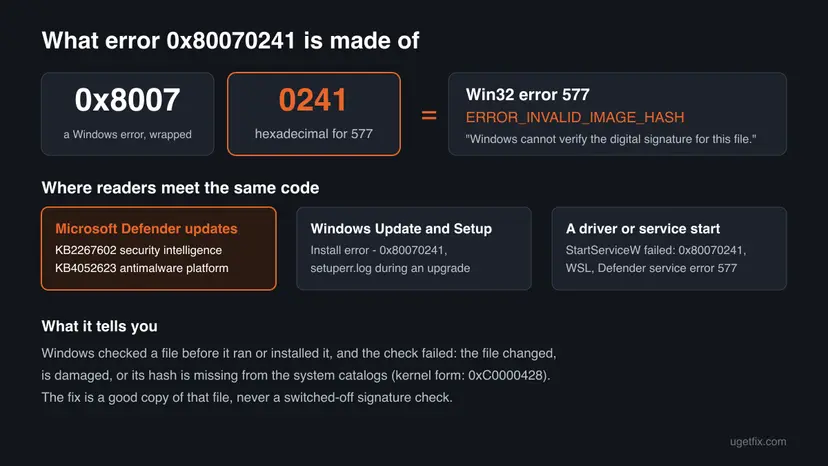
So the code is not about the network, disk space or a stuck service. Windows had a file in hand, computed its hash and compared it with the signature that should vouch for it. The comparison failed, so Windows would not install, load or start the file. The kernel version of the same failure, STATUS_INVALID_IMAGE_HASH (0xC0000428), says it more plainly: the hash for the image "cannot be found in the system catalogs. The image is likely corrupt or the victim of tampering."
| What you see | Where | What it tells you |
|---|---|---|
| 0x80070241 under Security Intelligence Update for Microsoft Defender Antivirus - KB2267602 or Update for Microsoft Defender Antivirus antimalware platform - KB4052623 | Settings > Windows Update and Update history | The Defender package downloaded, then failed its check during the install. Start with Fix 1. |
Update failed with hr: 0x80070241 and ERROR: Signature Update failed with hr=80070241 | MpCmdRun output or its log, when you update Defender by command | The same Defender failure, seen from Defender's own updater. |
| Install error - 0x80070241 next to a cumulative, .NET or driver update | Settings > Windows Update | Another update package failed its check. Fix 3 and Fix 5. |
Error 0x80070241 in setuperr.log | C:\$WINDOWS.~BT\Sources\Panther after a failed upgrade | Setup could not use one of its own files. Fix 3 tells you which. |
WslRegisterDistribution failed with error: 0x80070241 | Windows Terminal, when a WSL distribution starts | A Windows file that WSL needs failed its signature check. Fix 5, then Fix 8. |
Failed to start service: StartServiceW failed: 0x80070241, or error 577 when a service starts | A message from a game, an app or the Services window | Windows refused a driver or service file. See the FAQ before you do anything. |
Error 577 is Windows protecting itself. The fix is to put a good, correctly signed copy of the file in place, or to remove whatever changed it. Turning signature checks, Memory integrity or Secure Boot off would only hide the message and leave the PC open to the very thing the check exists to stop.
Why 0x80070241 happens: the causes, most common first
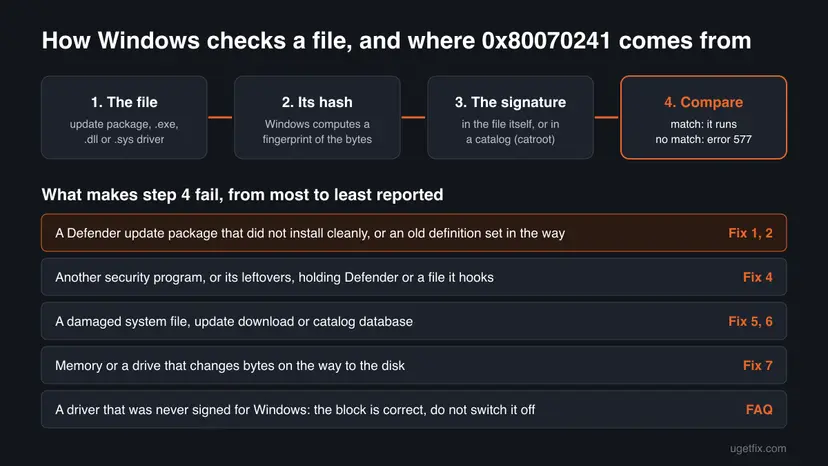
Microsoft has not published a list of causes for this code in Windows Update. The order below comes from the meaning of error 577 and from the cases we read on Microsoft Q&A, GitHub and support forums, where the failing file or log line was posted.
| How often | Cause | Typical sign | Fix |
|---|---|---|---|
| Most often | A Microsoft Defender security intelligence or platform update did not install cleanly, or an old definition set stands in the way | The failed entry is KB2267602 or KB4052623. Event 2001 in the Defender log. | Fix 1, Fix 2 |
| Often | Another antivirus, or leftovers of one, keeps Defender switched off or hooks files that Windows then refuses | A third-party security app is installed or was removed recently. Code Integrity events name its files. | Fix 4 |
| Sometimes | A damaged system file, a damaged update download, or a damaged signature catalog in catroot2 | Other updates fail too. SFC or DISM finds damage. | Fix 3, Fix 5, Fix 6 |
| Rarely | Memory or a drive that changes bytes on the way to the disk | New damage after every repair, crashes, a clean install failing with the same code | Fix 7 |
| Rarely | A Windows part left in a broken state after an upgrade | WSL or Setup fails, and system repairs do not help | Fix 8 |
| Not a fault | A driver or program that was never signed in a way Windows accepts | A game or tool says it cannot start its driver or service | FAQ |
Two older cases show how specific the cause can be. In 2017 a Windows 10 Update Assistant failed with 0x80070241 because it could not mount winre.wim, and the author linked it to an installed Windows ADK with Secure Boot on. In a WSL case from 2021, Microsoft's engineers on GitHub found vmvpci.dll in System32 showing as not signed, and an in-place upgrade fixed it.
How to fix error 0x80070241, step by step
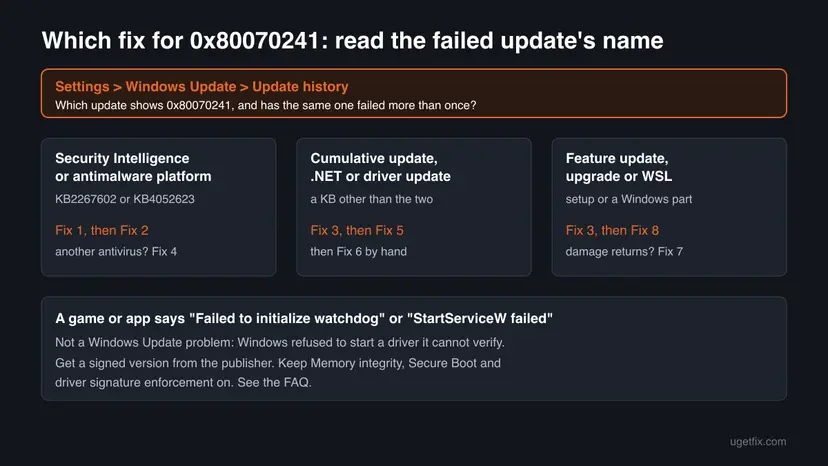
Fixes 1 and 2 cover the Defender updates that carry most reports and take five minutes. Fix 3 finds the file Windows refused, which tells you whether Fix 4, 5, 6, 7 or 8 is yours. Every fix keeps signature checks on.
| What you see or have | Start with |
|---|---|
| The failed update is a Security Intelligence Update (KB2267602) or the antimalware platform update (KB4052623). | Fix 1, then Fix 2 |
| Another antivirus is installed, or you removed one recently. | Fix 4 |
| A cumulative, .NET or driver update fails, or you do not know which file is refused. | Fix 3 |
| Other updates fail too, or SFC finds damaged files. | Fix 5, then Fix 6 |
| Damage comes back after every repair, or a clean install fails with the same code. | Fix 7 |
| A feature update or WSL fails and the repairs did not help. | Fix 8 |
| A game or tool says StartServiceW failed or Failed to initialize watchdog. | The FAQ, not a fix on this page |
Fix 1. Update Microsoft Defender from Windows Security, then check Windows Update again
5 minutesNo riskThe failed entry in Update history is a Defender security intelligence or platform update.
Windows Security asks Defender's own updater for the newest package, which replaces the one that failed in Windows Update. Microsoft publishes new security intelligence often, so a fresh package may install where the earlier one failed.
- Press Win + I, open Windows Update and select Update history. On Windows 10 it is Update & Security > Windows Update > View update history.
- Find the update that shows 0x80070241 and note its name, KB number and version.
- Select Start, type Windows Security and open the app.
- Select Virus & threat protection. Under Virus & threat protection updates, select Protection updates.
- Select Check for updates and wait until the page shows a new date and time next to the security intelligence version.
- Restart the PC. Then open Settings > Windows Update and select Check for updates.
To compare versions, open Terminal or PowerShell and run the command below. Microsoft's security intelligence page listed version 1.461.20.0 and platform 4.18.26090.9 on 14 October 2026. AMRunningMode should read Normal when Defender is your active antivirus.
Show the installed Defender versions
Get-MpComputerStatus | Select-Object AMRunningMode, AMProductVersion, AMEngineVersion, AntivirusSignatureVersion, AntivirusSignatureLastUpdatedSignature checks rely on certificates that are valid for a period of time, and helpers on Microsoft Q&A ask first whether the date and time are right. If your clock is wrong, set it to update automatically: How to fix the date and time in Windows
It worked if: Protection updates shows today's date, and the Defender entry in Update history reads Successfully installed or no longer appears as failed.
If not: If Check for updates fails or the same entry fails again, clear the old definitions and load fresh ones with Fix 2.
Fix 2. Clear the Defender definitions and download fresh ones with MpCmdRun
10 minutesLow riskFix 1 failed, or MpCmdRun reports Update failed with hr: 0x80070241.
MpCmdRun can remove the dynamically downloaded security intelligence or restore the original set, so the next update starts from a clean base instead of building on a package that failed its check. Microsoft's documentation describes both switches.
- Select Start, type cmd, right-click Command Prompt and select Run as administrator.
- Remove the dynamically downloaded security intelligence.
"%ProgramFiles%\Windows Defender\MpCmdRun.exe" -RemoveDefinitions -DynamicSignatures - Ask Defender to download the newest security intelligence.
"%ProgramFiles%\Windows Defender\MpCmdRun.exe" -SignatureUpdate - If the update still fails, restore the installed security intelligence to a backup copy or the original default set, then run the update command from step 3 again.
"%ProgramFiles%\Windows Defender\MpCmdRun.exe" -RemoveDefinitions -All - Restart the PC and run Fix 1 once more to confirm the new version.
Microsoft notes that the newest MpCmdRun also sits in C:\ProgramData\Microsoft\Windows Defender\Platform\ under a folder named after the platform version. The copy in Program Files works for these commands.
If the command still fails, install the package by hand. Microsoft's page Latest security intelligence updates for Microsoft Defender Antivirus links an executable named mpam-fe.exe or mpam-feX64.exe. Pick the download that matches your Windows and processor, run it, and it installs the newest security intelligence. Use only that Microsoft page.
While you reload the definitions, Defender keeps running with the engine and platform it has. Run the update right after the remove command, and do a quick scan once it finishes: How to scan for malware with Microsoft Defender
It worked if: The update command ends without an error, and Windows Security shows a security intelligence version from today.
If not: If MpCmdRun or mpam-fe.exe also ends with 0x80070241, the package itself is not the problem. Find what Windows refuses with Fix 3.
Fix 3. Find the file that Windows refused in Event Viewer
10 minutesNo riskFixes 1 and 2 did not help, or a cumulative, .NET, driver or feature update fails.
Error 577 names no file, but Code Integrity, the part of Windows that checks signatures, logs each file it blocks. The file's folder tells you whether it belongs to Windows, to Defender or to another program, and so which fix is yours.
- Press Win + R, type
eventvwr.mscand press Enter. - Open Applications and Services Logs > Microsoft > Windows > CodeIntegrity > Operational.
- Select Filter Current Log and enter
3004,3033in the event ID box. Look for entries from the time of the failed update. - Open an entry and note the file path.
\Device\HarddiskVolume3\stands for the drive where Windows is installed, usuallyC:. - For a Defender update, also open Microsoft > Windows > Windows Defender > Operational and look for event 2001, "The security intelligence update failed."
- Check the signature of the file you found. Replace the path with your own.
Get-AuthenticodeSignature -FilePath "C:\Windows\System32\example.dll" | Format-List Status, StatusMessage, SignerCertificate
| You find | What it means | Go to |
|---|---|---|
| Event 3004: a kernel driver tried to load with an invalid signature | A driver file is damaged, changed or was never signed for Windows | Fix 4 if it belongs to a security program, otherwise the FAQ |
| Event 3033: the file did not meet the signing requirements | The file's signature is revoked or does not meet the level the loading process requires | Fix 4 when the path is in a third-party program folder |
Status : HashMismatch for a file in C:\Windows | The file changed after it was signed | Fix 5, then Fix 7 if it comes back |
Status : NotSigned for a Windows file that should be signed | Its catalog entry is missing or damaged | Fix 5, then Fix 8 |
Status : Valid, and no Code Integrity events | The refused file was a download that is already gone | Fix 5 and Fix 6 |
Microsoft's documentation of the SignatureStatus values explains why Valid is not proof of trust: it means only that the signature is intact. HashMismatch means the hash of the file does not match the hash stored with its signature, which is error 577 in plain words. For a failed upgrade, open setuperr.log in C:\$WINDOWS.~BT\Sources\Panther and search for 0x80070241: the line before it names the file.
It worked if: You have a file path and a status, and the table above points you to one fix.
If not: If no event matches and every status is Valid, go straight to Fix 5, which repairs both system files and the update cache.
Fix 4. Update or fully remove another antivirus, then let Defender update
15 minutesLow riskAnother security program is installed, was removed recently, or appears in the Code Integrity events.
When another antivirus is active, Defender switches itself off and its updates can fail. A security program that was not removed completely can leave drivers and services behind. In one 2023 case, Code Integrity blocked an ESET module next to a failing Defender update with 0x80070241.
- Open the other security program and install its own updates first. An old version can hold drivers that newer Windows builds refuse.
- If you want to keep using it, Defender updates do not need to succeed, because the active antivirus protects the PC. Stop here if that program is current.
- If you want Microsoft Defender instead, uninstall the other program from Settings > Apps > Installed apps. The library steps are below.
- Download the removal tool from the vendor's own support site and run it. Most security vendors publish one for leftovers that the normal uninstaller keeps.
- Restart the PC, open Windows Security and run Fix 1 again.
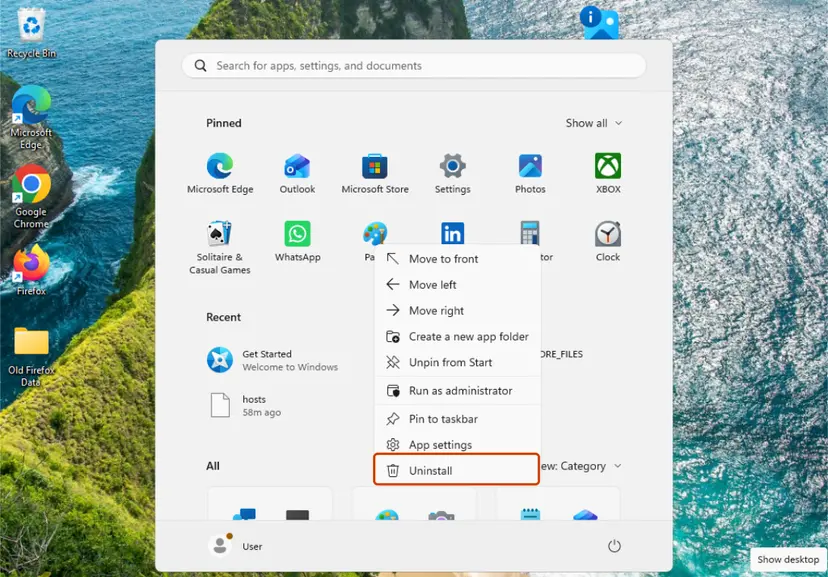
- Uninstall from the Start menu. Select Start > All apps and find the app. Right-click it (or press and hold) and select Uninstall.
- Or uninstall in Settings. Select Start > Settings > Apps > Installed apps. Find the app, select More (the three dots) > Uninstall, and confirm.
These steps were written for Windows 11 24H2 and 25H2. The full page with the other versions and what each result means: Uninstall a program or app in Windows
To test whether the other program blocks the update without removing it, pause its protection for one attempt, run the update, and turn protection back on right after. The same idea with Defender's own switch: Turn off Microsoft Defender protection for a moment
It worked if: After the restart, Windows Security shows Microsoft Defender Antivirus as active and Protection updates installs without an error.
If not: If no other security program was ever installed, or the update still fails, repair system files and the catalog database with Fix 5.
Fix 5. Repair system files and reset the signature catalog and update cache
20 to 40 minutesLow riskOther updates fail too, SFC finds damage, or Fix 3 found a Windows file with HashMismatch or NotSigned.
Windows checks many of its own files against catalogs held in the catroot folders. DISM and SFC put back damaged system files, and the reset renames catroot2 and the update cache, so the catalog database and downloads are rebuilt.
Run DISM first and SFC second, then reset the Windows Update components. In the 2018 Microsoft Q&A case of a failing Defender update with 0x80070241, sfc /scannow together with a DISM repair was what the user reported as the fix.
- Open an elevated command window. Right-click Start and select Terminal (Admin), or type cmd in the search box, right-click Command Prompt and select Run as administrator. Select Yes when Windows asks for permission.
- Run DISM first. Type the command below and press Enter. DISM downloads clean copies of damaged components from Windows Update, so it can take several minutes. Wait until it says The operation completed successfully.
DISM.exe /Online /Cleanup-Image /RestoreHealth - Run System File Checker. In the same window, type the command below and press Enter. Do not close the window until the verification reaches 100%.
sfc /scannow - Read the result and restart. Compare the last message with the table below this guide, then restart the PC so that repaired files are loaded.
These steps were written for Windows 11 24H2 and 25H2. The full page with the other versions and what each result means: Run DISM and SFC to repair Windows system files

- Open Command Prompt as administrator. Type cmd in the search box, right-click Command Prompt and select Run as administrator. Select Yes when Windows asks for permission.
- Stop the update services. Type the commands below and press Enter after each one. If Windows says that other services depend on Cryptographic Services, it stops them too. A message that a service is not started is fine.
net stop wuauserv net stop bits net stop cryptsvc - Delete the download queue files. This clears the list of downloads that the Background Intelligent Transfer Service keeps. If Windows says it cannot find the files, continue.
del "%ALLUSERSPROFILE%\Application Data\Microsoft\Network\Downloader\qmgr*.dat" - Rename the update cache folders. Renaming keeps a copy in case you need it; Windows creates new, empty folders when the services start again. If you get Access is denied, a service is still running: repeat the previous step.
ren %systemroot%\SoftwareDistribution SoftwareDistribution.old ren %systemroot%\System32\catroot2 catroot2.old - Start the services again. Type the commands below and press Enter after each one. The requested service has already been started is fine: Windows started it on its own.
net start cryptsvc net start bits net start wuauserv - Restart and check for updates. Restart the PC. Then select Start > Settings > Windows Update > Check for updates. The first check can take longer than usual because everything is downloaded again.
These steps were written for Windows 11 and Windows 10 (the steps are the same). The full page with the other versions and what each result means: Reset Windows Update components

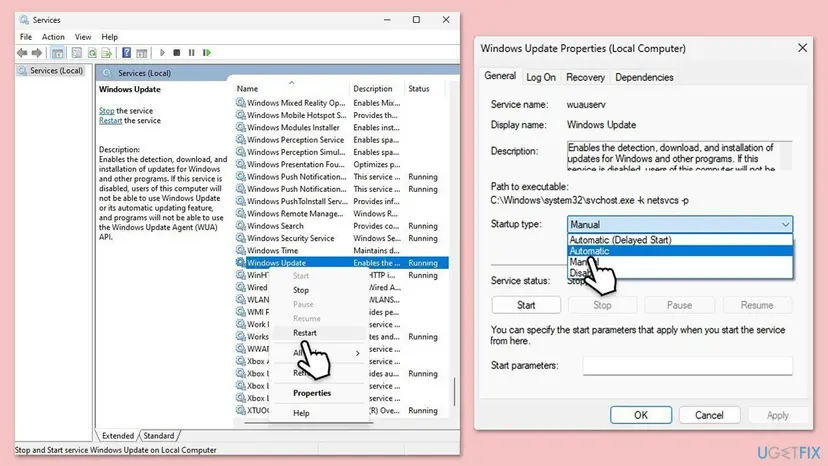
The reset has to stop Cryptographic Services (cryptsvc) before it can rename catroot2, then starts it again. If it will not start, open Services, set its Startup type to Automatic and start it.
If DISM itself reports that it cannot find source files, the component store needs a Windows image as the source. Our guide to install error 0x80070302 shows that repair step by step.
It worked if: SFC reports no integrity violations on a second run, and the failed update installs after the restart.
If not: If the same update fails, install it by hand with Fix 6. If SFC finds new damage after each repair, go to Fix 7.
Fix 6. Install the failed update by hand from the Microsoft Update Catalog
15 minutesLow riskOne update keeps failing in Windows Update after Fix 5, including the KB4052623 platform update.
A package from the Microsoft Update Catalog is a fresh, complete download that does not depend on the files Windows Update cached. If the catalog copy installs, the problem was the download, not the PC.
- Check your Windows version. Press Windows key + R, type winver and press Enter. Note the version (for example 25H2) and the OS build.
- Find the KB number. Open Settings > Windows Update. A failed or pending update is listed with its KB number; earlier ones are under Update history.
- Check the processor type. Open Settings > System > About and look at System type: an x64-based PC needs the x64 file, an ARM-based PC (for example Snapdragon) needs the arm64 file.
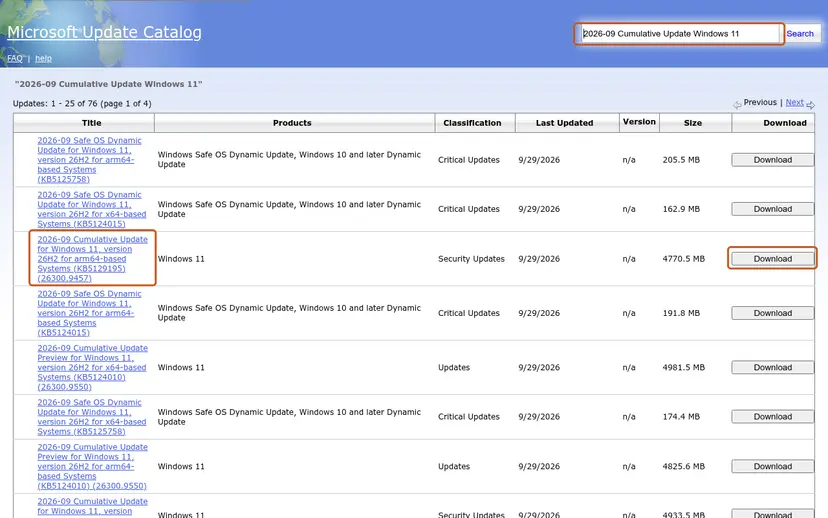
- Search the catalog. Open the Microsoft Update Catalog at catalog.update.microsoft.com in your browser, type the KB number (for example KB5124010) in the search box and press Enter.
- Pick the right row. Find the row whose title names your Windows version and your processor type (x64-based or arm64-based) and select Download on that row.
- Download every file listed. A window lists one or more .msu links. Download all of them into one empty folder, for example C:\packages. On Windows 11 24H2 and later the list can include earlier checkpoint updates that the new one needs.
- Install a single file. If there is only one file, double-click it and confirm the installation in the Windows Update Standalone Installer.
- Install several files with DISM. If there are several files, open an elevated Terminal or Command Prompt and run DISM with the newest file. DISM finds the other files in the same folder and installs them in the right order.
DISM /Online /Add-Package /PackagePath:C:\packages\<newest-file>.msu - Restart. Restart the PC when the installation finishes, then run winver again: the OS build should have changed.
These steps were written for Windows 11 24H2 and later; Windows 10 22H2. The full page with the other versions and what each result means: Install an update from the Microsoft Update Catalog
- Defender platform update. Search the catalog for
KB4052623. Microsoft's update documentation names the Catalog as one way to get the platform update and asks admins who deploy it by hand to have version 4.18.2001.10 in place first. - Security intelligence. KB2267602 is not a file you install from the catalog. Use
mpam-fe.exefrom Fix 2 instead. - If the catalog package fails with 0x80070241 too, the file it checks against on your PC is the problem, not the download. Go to Fix 7 and Fix 8.
It worked if: The standalone installer ends with a message that the update was installed, and Update history lists it after the restart.
If not: If the manual package fails with the same code, check memory and the drive with Fix 7 before you reinstall Windows.
Fix 7. Test the memory and the drive when damage keeps coming back
30 minutes to 2 hoursLow riskSFC finds new damage after every repair, the PC crashes, or a clean install fails with 0x80070241.
A signature check fails when even one byte differs. Faulty memory or a failing drive can change bytes while an update is written, so every new download fails the same check. In a user thread about a fresh install with this code, helpers pointed at the install media, a USB port and memory settings.
- Save your work and close your apps. The memory test needs a restart.
- Run Windows Memory Diagnostic and let it finish. The library steps are below.
- If you set a memory overclock (an XMP or EXPO profile) in the BIOS or UEFI, set the memory back to its default speed for one test.
- Check the system drive with chkdsk and read the result after the restart.
- If you install Windows from a USB stick, create the stick again with Microsoft's tool and use a different USB port.
- Open Windows Memory Diagnostic. Press Windows + R, type mdsched.exe and select OK. You can also search for Windows Memory Diagnostic and open it from the results.
- Choose when to test. Select Restart now and check for problems (recommended) to test right away. Select Check for problems the next time I start my computer if you want to finish your work first: the test then runs at the next start.
- Let the test run. The PC restarts into a blue screen that shows the progress of the test. You do not have to do anything. When the test ends, the PC restarts by itself and Windows loads.
- Look for the notification. Sign in. After a short while Windows shows a notification with the result, also when no errors were found. If you missed it, read the result in Event Viewer.
- Open the System log. Press Windows + R, type eventvwr and select OK. In Event Viewer, expand Windows Logs and select System.
- Find the result. Right-click System and select Find. Type MemoryDiagnostics-Results and press Enter. Select the event that is found: its text says whether the test detected errors.
These steps were written for Windows 11 25H2 and 26H2, Windows 10 22H2. The full page with the other versions and what each result means: How to test your RAM with Windows Memory Diagnostic
Then check the drive: Check a disk for errors (chkdsk). If the memory test reports errors or chkdsk finds bad sectors, back up your files first and replace the faulty part before you repair Windows again.
It worked if: The memory test reports no errors, chkdsk finds no problems, and SFC stays clean after you repair once more.
If not: If both tests are clean and the update still fails, repair Windows itself with Fix 8.
Fix 8. Reinstall Windows over itself and keep your files and apps
1 to 2 hoursLow riskA feature update, WSL or Windows Setup fails with 0x80070241, or every other fix failed.
A repair install writes a fresh, correctly signed copy of every Windows file and catalog, and keeps apps, files and settings. In the WSL case on GitHub, an in-place upgrade ended the 0x80070241 error that system repairs left in place.
Both routes keep your files, apps and settings by design. Copy your important files to another drive all the same, keep a laptop on mains power and unplug drives you do not need: Back up your files (Windows Backup, File History, Time Machine)
- Open Recovery in Settings. Open Settings > System > Recovery. Next to Fix problems using Windows Update, select Reinstall now. This keeps your apps, files and settings.

Fix problems using Windows Update reinstalls the current version and keeps apps, files and settings. Screenshot: Windows 11 26H2. - Start the reinstall. Choose whether the PC may restart on its own 15 minutes after the installation, then select OK.
- Wait and restart. Windows Update downloads and installs a repair copy of your current Windows version. Keep the PC plugged in and online, and restart it when asked.
These steps were written for Windows 11 22H2 and later. The full page with the other versions and what each result means: Reinstall Windows without losing files
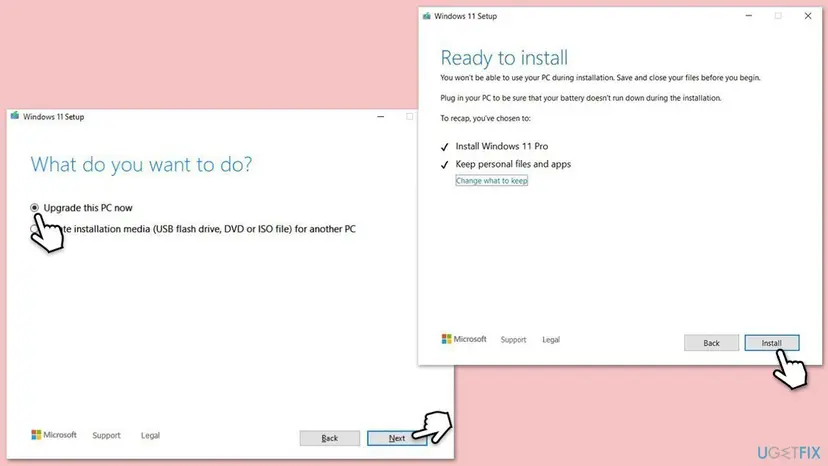
On Windows 10, or if Reinstall now is not offered, run Setup from Microsoft's download page. Choose Upgrade this PC now, and on Ready to install make sure it says Keep personal files and apps before you select Install.
- If Setup fails with 0x80070241 too, read
setuperr.loginC:\$WINDOWS.~BT\Sources\Pantheras in Fix 3. The file it names is usually on the installation media, so create the media again. - Windows 10. Microsoft ended support for Windows 10 on 14 October 2025. A repair install still works, but Windows Update no longer brings free security updates.
It worked if: Windows starts with your apps and files, winver shows a current build, and the failed update or WSL now works.
If not: Collect the logs in the next section and ask Microsoft support, or back up and do a clean install.
If 0x80070241 is still there: the logs to read and what to send
Every failed check leaves a trace. Collect the logs right after a failed attempt, so the time in the log matches the time of the failure.
| Log | Where | What to look for |
|---|---|---|
| Code Integrity | Event Viewer > Microsoft > Windows > CodeIntegrity > Operational | Events 3004 and 3033 with the path of the refused file. Event 3089 lists its signatures. |
| Microsoft Defender | Event Viewer > Microsoft > Windows > Windows Defender > Operational | Event 2001, "The security intelligence update failed", with the old and new version |
| Defender support files | C:\ProgramData\Microsoft\Windows Defender\Support\MpSupportFiles.cab, made by MpCmdRun.exe -GetFiles | Everything Microsoft support asks for in a Defender case |
| CBS.log | C:\Windows\Logs\CBS | 0x80070241 or 577 near the time of a failed cumulative update |
| setuperr.log | C:\$WINDOWS.~BT\Sources\Panther | The line before 0x80070241 names the file Setup could not use |
- What to send to support or Microsoft Q&A: the name and KB of the failed update, the output of
winver, the Code Integrity event text, theGet-AuthenticodeSignatureresult from Fix 3 and what you already tried. - A work or school PC. Defender and updates may be managed by your organization. Its policies can block updates on purpose, so send the logs to the administrator first.
- When it is hardware. New file damage after each repair, crashes and memory test errors point at RAM or the drive. Fix the hardware before anything else.
- Is it malware? Error 577 can also mean a file was changed on purpose. If a Windows file in
C:\Windows\System32showsHashMismatchand Defender will not start, run a full scan with an up-to-date scanner before you repair.
How to keep error 0x80070241 from coming back
- Keep one antivirus active and keep it current. Remove an old one with its vendor's removal tool.
- Let Windows install Defender updates automatically and restart when it asks.
- Keep the clock on automatic time and time zone.
- Install drivers from Windows Update or the device maker's site, signed for your Windows version.
- Run a memory test after any crash pattern, and keep a copy of your files on another drive.
- Do not switch driver signature enforcement, Memory integrity or Secure Boot off to make a program start.
- Do not use test-signing mode on a PC you use every day.
- Do not delete files in
C:\Windows\System32\catrootby hand. Use the reset in Fix 5, which renamescatroot2only. - Do not install update packages or Defender files from sites other than Microsoft's.
- Do not run tools that patch system files or bypass anti-cheat or copy protection.
Microsoft's support page on Device security says that when Memory integrity reports an incompatible driver, you should check with the device's maker for an updated driver, or remove the device or app that uses it. That is the right answer for 0x80070241 from a driver, too.
Frequently asked questions
Is error 0x80070241 a virus?
Usually not. The code means Windows could not verify a file's digital signature, and on home PCs the file is most often a Microsoft Defender update package that failed its check. Microsoft's own text for error 577 does mention that a file "might be malicious software from an unknown source", though. If Fix 3 shows HashMismatch for a Windows file in C:\Windows\System32, or Defender will not start at all, scan the PC with an up-to-date scanner before you repair anything. A Defender update that fails once and then installs is no sign of infection.
Which updates fail with 0x80070241 most often?
In the reports we read, Microsoft Defender updates lead: the Security Intelligence Update for Microsoft Defender Antivirus, KB2267602, and the antimalware platform update, KB4052623. Readers also report it with Windows Insider builds, feature upgrades through the Update Assistant or Setup, and occasionally cumulative updates. The KB number in Update history decides where you start: Fix 1 for the two Defender updates, Fix 3 for everything else.
What does "Failed to initialize watchdog: Failed to start service: StartServiceW failed 0x80070241" mean?
It means a program asked Windows to start a driver service, and Windows refused because it could not verify the driver's signature. Users report the message, often with the word Reflex, when they launch repacked or cracked copies of games such as 007 First Light (searches mention FitGirl) and Assassin's Creed Black Flag Resynced. These copies try to load their own unsigned driver. Windows is right to block it, and we do not help to get it running. The safe fix is the official game from its store, which does not need that driver. Then run a full malware scan.
Should I turn off driver signature enforcement or Memory integrity to fix 0x80070241?
No. Videos for game errors suggest test-signing mode, switching off driver signature enforcement or Memory integrity. Each one lets unsigned code run in the Windows kernel, which is exactly where malware wants to be. Microsoft states that since Windows 10 version 1607, Windows does not load new kernel drivers unless the Dev Portal signed them. Microsoft's advice for an incompatible driver is an updated driver from the maker, or removing the device or app. A Windows Update error never needs these protections off.
Why does WSL say WslRegisterDistribution failed with error 0x80070241?
WSL starts a small virtual machine, and if a Windows file it needs fails its signature check, the start fails with this code. In a GitHub case on Windows 10 21H2, Microsoft's engineers traced it to C:\Windows\System32\vmvpci.dll showing as not signed, used when WSL attaches a virtual GPU. Check that file with Get-AuthenticodeSignature as in Fix 3. If it is not Valid, repair system files with Fix 5. In that case an in-place upgrade (Fix 8) was what fixed it.
Does 0x80070241 mean my RAM or hard drive is failing?
Not by itself. Most cases end with a fresh Defender package or a system file repair. Suspect hardware when the same check fails on every new download, when SFC finds new damage after each repair, when the PC also crashes, or when a clean install of Windows stops with this code. Users who reported it during fresh installs blamed a bad USB stick or port, faulty memory or an unstable memory profile. Fix 7 tests memory and the drive.
I see "ارور 0x80070241", "erro 0x80070241" or "ошибка 0x80070241". Is it the same error?
Yes. ارور is Persian for error, erro is Portuguese, and ошибка is Russian. Windows shows the same hexadecimal code in every language and translates only the words around it. The meaning is the same in each: Win32 error 577, Windows cannot verify the digital signature for a file. Every fix on this page applies. The labels in Settings and Windows Security are translated, but they sit in the same places as in the English steps.
Is it safe to ignore a failed Defender update with 0x80070241?
Not for long. Security intelligence is how Microsoft Defender recognizes new threats, and Microsoft publishes new versions often: the newest was released on 14 October 2026. One failed attempt does no harm if the next one installs, which Fix 1 checks in five minutes. A PC whose definitions stay days old is less protected. Microsoft supports only the newest platform and engine versions, and versions older than the last two releases are no longer supported.
Why does the Windows Defender service fail to start with error 577?
Error 577 is the same code without the 0x8007 prefix. When the service will not start, Windows refused one of Defender's own files. In the Microsoft Q&A cases we read, this followed a malware infection or another antivirus that switched Defender off and left changes behind. Remove the other antivirus fully (Fix 4), repair system files (Fix 5) and scan the PC. If Windows says Defender is turned off by Group Policy on a home PC where nobody set such a policy, scan first.
Sources
- Microsoft Learn: System Error Codes (500-999), error 577 ERROR_INVALID_IMAGE_HASH (learn.microsoft.com)
- Microsoft Learn: [MS-ERREF] NTSTATUS values, STATUS_INVALID_IMAGE_HASH 0xC0000428 (learn.microsoft.com)
- Microsoft Learn: Microsoft Defender Antivirus security intelligence and product updates (KB2267602, KB4052623) (learn.microsoft.com)
- Microsoft Security Intelligence: Latest security intelligence updates for Microsoft Defender Antivirus (microsoft.com)
- Microsoft Learn: Use the command line to manage Microsoft Defender Antivirus (MpCmdRun) (learn.microsoft.com)
- Microsoft Learn: Microsoft Defender Antivirus event IDs and error codes (learn.microsoft.com)
- Microsoft Learn: Get-MpComputerStatus (learn.microsoft.com)
- Microsoft Learn: Understanding App Control event IDs (Code Integrity 3004, 3033, 3089) (learn.microsoft.com)
- Microsoft Learn: Get-AuthenticodeSignature (learn.microsoft.com)
- Microsoft Learn: SignatureStatus enum (learn.microsoft.com)
- Microsoft Learn: Driver Signing Policy (learn.microsoft.com)
- Microsoft Support: Device Security in the Windows Security app (support.microsoft.com)
- Microsoft Learn: Windows Update error code list by component (learn.microsoft.com)
- Microsoft Learn: Common Windows Update errors (learn.microsoft.com)
- Microsoft Q&A: Windows Defender ERROR: Signature Update failed with hr=80070241 (learn.microsoft.com)
- Microsoft Q&A: Windows Update Install error - 0x80070241 on Windows 11 Insider Preview (learn.microsoft.com)
- Microsoft Q&A: Unable to start Windows Defender, error 577 (learn.microsoft.com)
- GitHub microsoft/WSL issue 7843: WslRegisterDistribution failed with error 0x80070241 (github.com)
- BleepingComputer forums: Windows update fails to update every time (Defender update 0x80070241) (bleepingcomputer.com)
- chentiangemalc: Windows 10 Update Assistant, Something Went Wrong 0x80070241 (chentiangemalc.wordpress.com)
Did this fix work?
One click, no account. It tells the next reader which guides are worth their time.
Questions and experiences: fix Windows update error 0x80070241 in Windows
Still broken, or found a fix we did not cover? Ask here: members and our editors answer. Reading is open; writing needs a free account.
…