
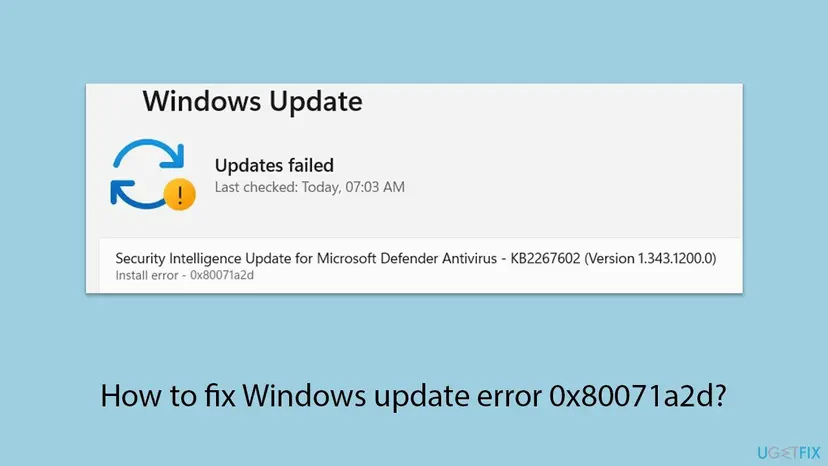
How to fix Windows update error 0x80071a2d?

Prefer to fix it yourself? The manual steps follow.
- 7methods
- 10 to 60 minutes
- Medium
Applies to Windows 11 and Windows 10 22H2; cumulative updates, driver updates and Microsoft Defender updates installed through Windows Update
7 methods in this guide
Hello. Could you help me fix the Windows update error 0x80071a2d? The download completes successfully, but when I restart my PC, the installation stops at 14% and this repeats several times. When I try to install updates again, I get the error 0x80071a2d.
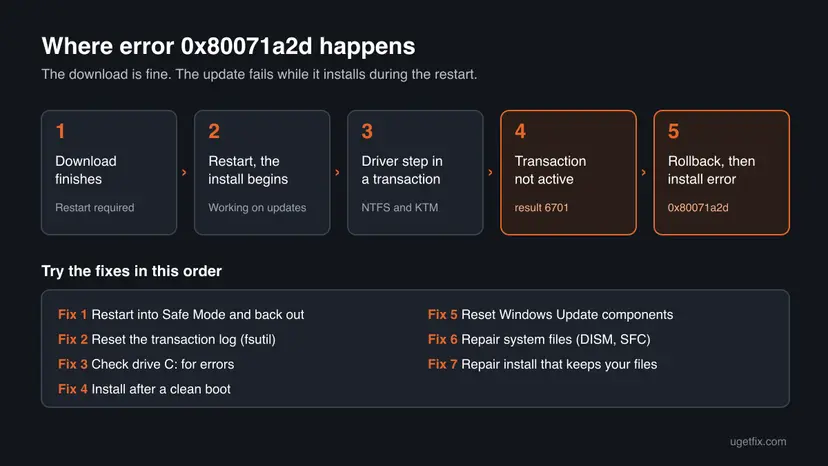
Error 0x80071a2d means that a file system transaction was no longer active while Windows installed an update, so the install stopped and Windows rolled it back. The download is fine; the failure happens during the restart. Start with a restart through Safe Mode, which users report as the step that let the update install.
0x80071a2d is ERROR_TRANSACTION_NOT_ACTIVE: a step of the install ran inside a file system transaction that had already ended. Let the update download until it asks for a restart, then restart into Safe Mode and simply restart again (Fix 1). If it still fails, reset the NTFS transaction log with fsutil resource setautoreset true C:\ (Fix 2) and check drive C: for errors (Fix 3).
| Error | Install error - 0x80071a2d in Windows Update. On Windows 10 also: There were some problems installing updates (0x80071a2d). |
|---|---|
| Where it appears | Settings > Windows Update after a restart, when the install has run for a while and Windows has undone it. The download itself finishes. |
| Main cause | A driver step of the update runs inside an NTFS transaction that is no longer active, so Windows rolls the whole install back. |
| Fastest fix | Restart into Safe Mode with the update pending, then restart normally without doing anything else (Fix 1). |
| Also written as | 0x80071A2D, (0x80071a2d), ERROR_TRANSACTION_NOT_ACTIVE, error 6701, result 6701 in CBS.log. |
| Affects | Windows 10 22H2 and Windows 11. Reports peaked with the October 2025 Windows 10 update KB5066791. |
| Microsoft's status | Microsoft documents the code as a transaction error. We found no Microsoft article that names it as a known issue of one update. |
| Where the cause is written | C:\Windows\Logs\CBS\CBS.log, lines with 0x80071a2d and result 6701, inf: name the driver that failed. |
| Time to fix | 10 minutes for Fix 1 and Fix 2. Up to an hour for a repair install. |
Facts checked on 15 October 2026. Steps written for Windows 11 (25H2 and 26H2) and Windows 10 22H2.
What error code 0x80071a2d means
0x80071a2d is a standard Windows code. The last four digits, 1A2D, are the system error 6701. Microsoft's list of system error codes names it ERROR_TRANSACTION_NOT_ACTIVE and gives the text: "The requested operation was made in the context of a transaction that is no longer active."
Windows installs parts of an update inside a transaction: either every change lands or none does. When a step tries to write after that transaction has already ended, the step fails, and Windows undoes the install. That is why the progress counter climbs, stops, and the PC restarts back to the old version.
| What you see | Where | What it tells you |
|---|---|---|
| Install error - 0x80071a2d | Settings > Windows Update | The update downloaded and failed during the install phase. |
| There were some problems installing updates (0x80071a2d) | Windows Update on Windows 10 | The same failure, in the older wording. |
| Updates failed | Windows Update, top of the page | One or more updates in the round failed; read the line under each one. |
| Undoing changes made to your computer | The screen during restart | Windows is rolling the update back after the failed step. |
| ERROR_TRANSACTION_NOT_ACTIVE or result 6701 | C:\Windows\Logs\CBS\CBS.log | The exact step that failed, often a driver INF file. |
Why Windows update error 0x80071a2d appears
In the CBS logs that users posted on Microsoft's forum, the failure always sits in the same place. Windows installs the driver part of a cumulative update, one driver INF returns result 6701, and the log ends with "Rolling back KTM, because drivers failed." KTM is the Kernel Transaction Manager, which runs these transactions.
| Cause | How often | How to tell | Fix |
|---|---|---|---|
| Something that loads at a normal startup gets in the way of the driver step during the install restart. | Most often | The update fails every time at the same point and rolls back. | Fix 1, Fix 4 |
| The NTFS transaction metadata on drive C: is stale or damaged. | Sometimes | Other installs also fail, or CBS.log shows transaction errors outside the driver step. | Fix 2, Fix 3 |
| The transaction log is full. | Sometimes | CBS.log also shows ERROR_LOG_FULL or 0x800719e4. | Fix 2, Fix 3 |
| Damaged update cache or system files. | Less often | Several different updates fail, not just one. | Fix 5, Fix 6 |
| The Windows installation itself is damaged. | Rarely | Every fix above failed. | Fix 7 |
Windows 10 left support on 14 October 2025. Windows 10 22H2 PCs enrolled in Extended Security Updates still get monthly updates, and several reports of this code come from such PCs.
How to fix Windows update error 0x80071a2d
Fix 1 is the one users report as working most often and changes nothing on the PC. Fixes 2 and 3 repair the file system layer the code comes from. Fixes 4 to 6 deal with what loads at startup and with damaged files. Fix 7 is the last resort.
| What you see or have | Start with |
|---|---|
| The update downloads, the install stops at a percentage and rolls back. | Fix 1 |
Fix 1 did not help, or CBS.log shows ERROR_LOG_FULL. | Fix 2, then Fix 3 |
| You have third-party antivirus, VPN or hardware tools that start with Windows. | Fix 4 |
| Several different updates fail, not just one. | Fix 5, then Fix 6 |
| Everything above failed. | Fix 7 |
Fix 1. Restart into Safe Mode with the update pending, then restart normally
10 minutesLow riskAlways first, when the update downloads but fails during the restart.
In Safe Mode only a minimal set of drivers and programs loads. On the restart out of it, users report that the pending update installs without the program or driver that broke the transaction before.
- Open Settings > Windows Update, select Check for updates and wait until the update says it needs a restart. Do not restart from there.
- Select Start > Power, hold Shift and select Restart. This is a normal restart, not Update and restart.
- On the blue screen select Troubleshoot > Advanced options > Startup Settings > Restart.
- After the restart press 4 or F4 for Enable Safe Mode.
- Sign in. Do not open or change anything.
- Select Start > Power > Restart. Windows now installs the pending update during this restart.
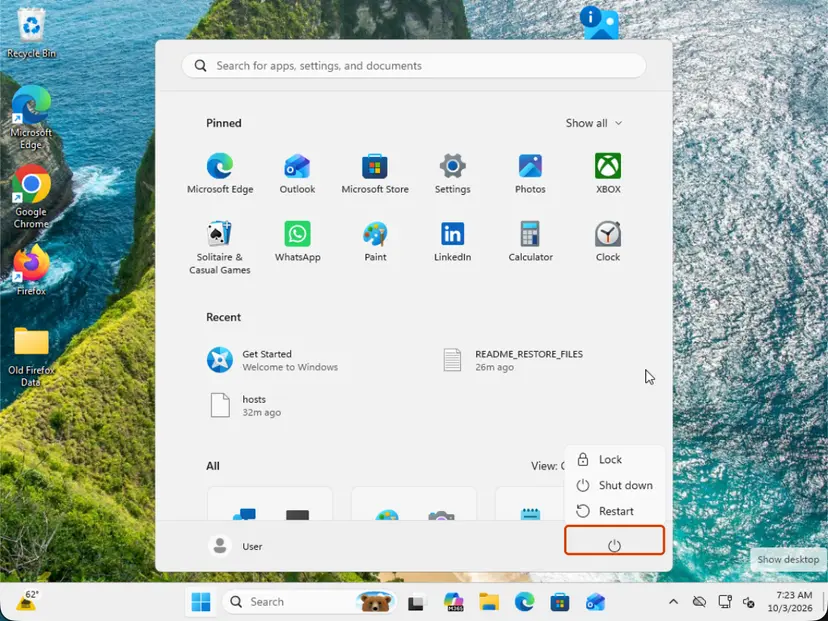
Step by step with all screens: Start Windows or a Mac in Safe Mode. If your drive is encrypted, have the BitLocker recovery key ready, because Windows may ask for it.
It worked if: The restart shows the update progress, goes past the point where it stopped before, and Settings > Windows Update > Update history lists the update as installed.
If not: Reset the transaction log in Fix 2.
Fix 2. Reset the NTFS transaction log of drive C:
5 minutesLow riskFix 1 did not help, or CBS.log also shows ERROR_LOG_FULL.
The code says the transaction is no longer active. Microsoft documents fsutil resource setautoreset true as telling the Transactional Resource Manager to clean the transactional metadata on the next mount, which clears stale transaction state on drive C:.
- Select Start, type
cmd, right-click Command Prompt and select Run as administrator. Select Yes. - Type
fsutil resource setautoreset true C:\and press Enter. Keep the backslash afterC:. - Restart the PC. The cleanup happens while drive C: is mounted at startup.
- Open Settings > Windows Update and select Check for updates, then install the update again.
fsutil resource setautoreset true C:\The command changes no files and does not delete your data. It only affects transaction records that programs had not finished. One user on Microsoft's forum ran it and still had the error, so treat it as one step and not as a sure fix.
It worked if: The command returns to the prompt without an error, and the update installs after the restart.
If not: Check the drive in Fix 3.
Fix 3. Check drive C: for file system errors
10 to 30 minutesLow riskFix 2 did not help, or the PC also shuts down badly or freezes.
The transaction runs on the NTFS file system of drive C:. File system errors on that drive can leave transaction records that never complete, and chkdsk repairs the file system itself.
- Open Command Prompt as administrator. Type cmd in the search box on the taskbar, right-click Command Prompt and select Run as administrator. Select Yes when Windows asks for permission.
- Scan the drive without changing anything. Type the command below and press Enter. Replace C: with another drive letter to check that drive. This scan only reports; it does not fix anything.
chkdsk C: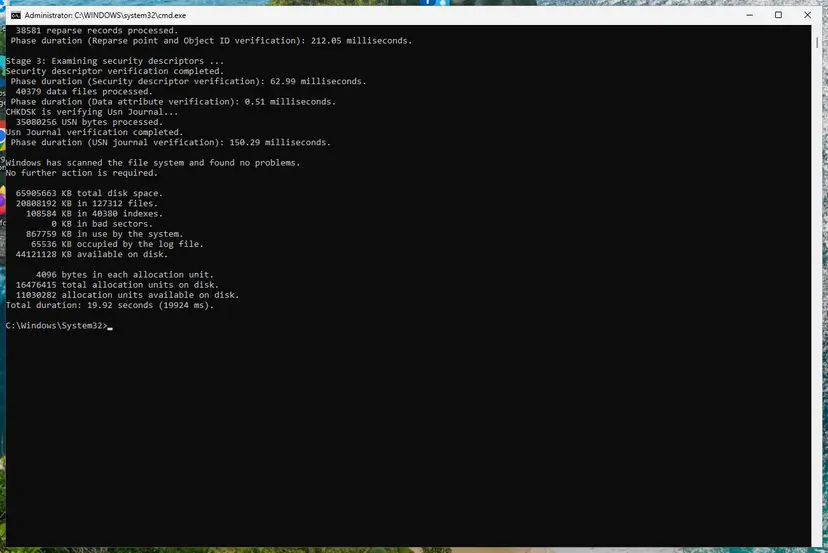
A clean result: no problems found and 0 KB in bad sectors. Screenshot: Windows 11 26H2. - If errors were found, run the repair. Run chkdsk with /f to fix file system errors. On the Windows drive (C:) chkdsk cannot lock the drive while Windows is running, so it offers to check it at the next restart.
chkdsk C: /f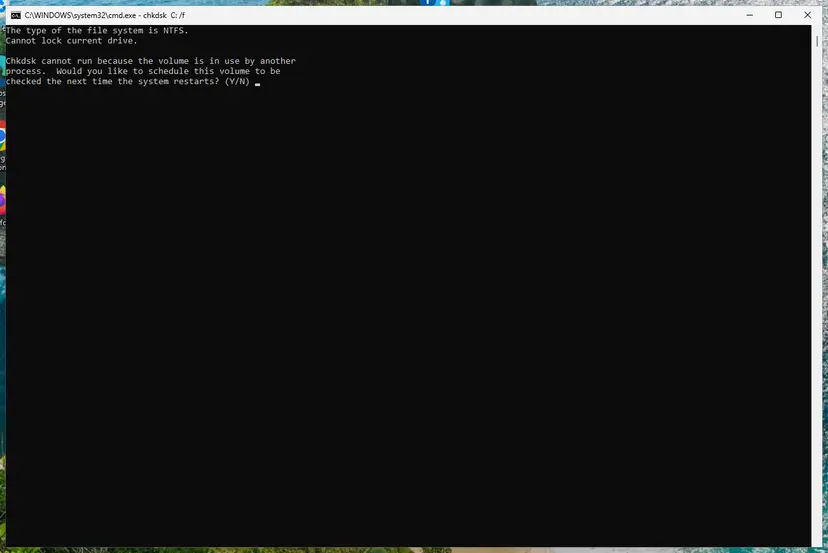
On the system drive chkdsk /f asks to run at the next restart. Screenshot: Windows 11 26H2.
These steps were written for Windows 11 and Windows 10 (the steps are the same). The full page with the other versions and what each result means: Check a disk for errors (chkdsk)
It worked if: Chkdsk reports that it found no problems or that it fixed them, and the update installs on the next try.
If not: Install after a clean boot in Fix 4.
Fix 4. Install the update after a clean boot
15 minutesLow riskYou have third-party antivirus, VPN, RGB or hardware tools that start with Windows, and Fix 1 did not help.
The failing step is a driver step, and the log says the rollback happened "because drivers failed". A clean boot keeps third-party services out of the install restart, which is what Safe Mode did in Fix 1, but with networking.
- Open System Configuration. Select Search on the taskbar, type msconfig and select System Configuration from the results.
- Hide Microsoft services. On the Services tab, select the Hide all Microsoft services check box. Only services from other companies stay in the list.
- Disable the remaining services. Select Disable all, then select Apply.
- Open Task Manager. On the Startup tab of System Configuration, select Open Task Manager.
- Disable the startup apps. On the Startup apps tab in Task Manager, select each item whose status is Enabled and select Disable. Write down or take a screenshot of the items you disable: you need the list to turn them back on.
- Confirm the changes. Close Task Manager. On the Startup tab of System Configuration, select OK.
- Restart and test. Restart the PC. Windows now starts in a clean boot environment: try again the thing that failed (run the app, install the update, uninstall the program).
These steps were written for Windows 11 25H2 and 26H2. The full page with the other versions and what each result means: How to perform a clean boot in Windows

With the clean boot in place, open Settings > Windows Update and install the update. Afterwards, turn the services and startup apps back on as the procedure says.
It worked if: The update installs. If you want to know which program was in the way, turn the services on in small groups and retry the next update the same way.
If not: Reset the Windows Update components in Fix 5.
Fix 5. Reset the Windows Update components
10 minutesLow riskSeveral updates fail, or the same update keeps coming back with this code after Fixes 1 to 4.
Renaming the SoftwareDistribution and catroot2 folders makes Windows fetch the update again from scratch. It does not touch the transaction problem, so it comes after the fixes above.
- Open Command Prompt as administrator. Type cmd in the search box, right-click Command Prompt and select Run as administrator. Select Yes when Windows asks for permission.
- Stop the update services. Type the commands below and press Enter after each one. If Windows says that other services depend on Cryptographic Services, it stops them too. A message that a service is not started is fine.
net stop wuauserv net stop bits net stop cryptsvc - Delete the download queue files. This clears the list of downloads that the Background Intelligent Transfer Service keeps. If Windows says it cannot find the files, continue.
del "%ALLUSERSPROFILE%\Application Data\Microsoft\Network\Downloader\qmgr*.dat" - Rename the update cache folders. Renaming keeps a copy in case you need it; Windows creates new, empty folders when the services start again. If you get Access is denied, a service is still running: repeat the previous step.
ren %systemroot%\SoftwareDistribution SoftwareDistribution.old ren %systemroot%\System32\catroot2 catroot2.old - Start the services again. Type the commands below and press Enter after each one. The requested service has already been started is fine: Windows started it on its own.
net start cryptsvc net start bits net start wuauserv - Restart and check for updates. Restart the PC. Then select Start > Settings > Windows Update > Check for updates. The first check can take longer than usual because everything is downloaded again.
These steps were written for Windows 11 and Windows 10 (the steps are the same). The full page with the other versions and what each result means: Reset Windows Update components

It worked if: Windows downloads the update again, and the install passes the point where it stopped.
If not: Repair the system files in Fix 6.
Fix 6. Repair Windows system files with DISM and SFC
20 minutesLow riskFix 5 did not help, or CBS.log shows corrupt files besides the transaction error.
DISM repairs the component store that every cumulative update is installed from, and SFC repairs the system files on top of it. A damaged store makes the install fail in other places too.
- Open an elevated command window. Right-click Start and select Terminal (Admin), or type cmd in the search box, right-click Command Prompt and select Run as administrator. Select Yes when Windows asks for permission.

Search for cmd and choose Run as administrator. Screenshot: Windows 11 26H2. - Run DISM first. Type the command below and press Enter. DISM downloads clean copies of damaged components from Windows Update, so it can take several minutes. Wait until it says The operation completed successfully.
DISM.exe /Online /Cleanup-Image /RestoreHealth
DISM /RestoreHealth running. Screenshot: Windows 11 26H2. - Run System File Checker. In the same window, type the command below and press Enter. Do not close the window until the verification reaches 100%.
sfc /scannow
sfc /scannow at 100%. Screenshot: Windows 11 26H2. - Read the result and restart. Compare the last message with the table below this guide, then restart the PC so that repaired files are loaded.

The result line tells you what SFC did. Screenshot: Windows 11 26H2.
These steps were written for Windows 11 24H2 and 25H2. The full page with the other versions and what each result means: Run DISM and SFC to repair Windows system files
It worked if: DISM ends with "The restore operation completed successfully" and SFC finds no integrity violations or repairs them.
If not: Run a repair install in Fix 7.
Fix 7. Repair Windows with an in-place upgrade that keeps your files and apps
60 minutesRead the warningEvery fix above failed and the update still rolls back.
An in-place upgrade reinstalls Windows over itself at the current version, with all update content already included. The failed update does not have to install through the broken path anymore.
Choose the option that keeps personal files and apps. It is designed to keep them, but a reinstall can still go wrong, so copy your important files to an external drive or OneDrive first: Back up your files (Windows Backup, File History, Time Machine)
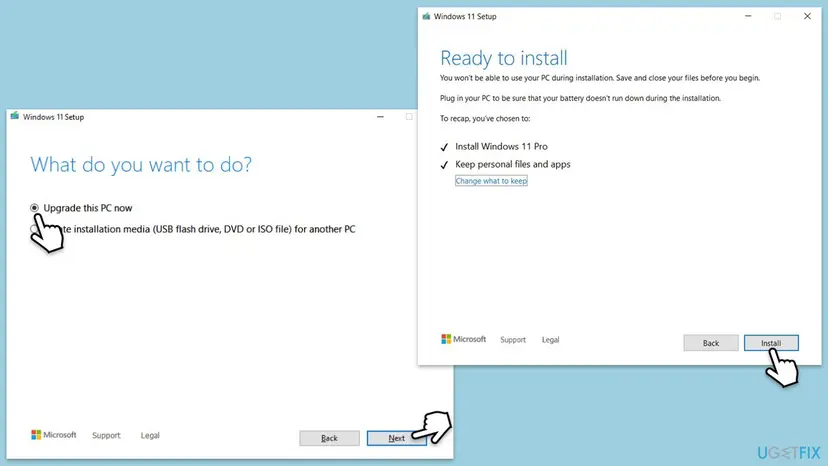
- Open Recovery in Settings. Open Settings > System > Recovery. Next to Fix problems using Windows Update, select Reinstall now. This keeps your apps, files and settings.
- Start the reinstall. Choose whether the PC may restart on its own 15 minutes after the installation, then select OK.
- Wait and restart. Windows Update downloads and installs a repair copy of your current Windows version. Keep the PC plugged in and online, and restart it when asked.
- If that did not help: Reset PC. Back in Settings > System > Recovery, next to Reset this PC, select Reset PC. This keeps your personal files but removes installed apps and settings.
- Choose Keep my files. Select Keep my files. Do not select Remove everything.
- Choose where Windows comes from. Select Cloud download to download a fresh copy of Windows, or Local reinstall to use the files already on the PC (faster, but may not include the latest updates).
- Reset. Review the summary and select Reset. The PC restarts several times.
These steps were written for Windows 11 22H2 and later. The full page with the other versions and what each result means: Reinstall Windows without losing files
It worked if: Windows starts at the current build, and Settings > Windows Update shows no failed update.
If not: Read "If the error is still there" below.
If the error is still there
The log tells you which part of the update fails. Copy C:\Windows\Logs\CBS\CBS.log to the desktop, because Windows keeps the original in use, and open the copy in Notepad.
- Search for
0x80071a2d. The first hit is where the failure starts. - Read the lines just above it. A line like
INSTALL index: 972, phase: 3, result 6701, inf: pci.infnames the driver INF that failed. - Search for
Rolling back KTM. If it says "because drivers failed", the cause is the driver step, and Fix 1 and Fix 4 fit best. - Search for
ERROR_LOG_FULL. If it is there, run Fix 2 and Fix 3 again.
| Situation | What to do |
|---|---|
| The failed INF belongs to a third-party device | Update or reinstall that driver from the maker, then retry: Update, roll back or reinstall a driver |
| Chkdsk keeps finding errors on every run | The drive may be failing. Back up your files before anything else and check the drive's health with its maker's tool. |
| Only one optional or driver update fails | Leave it failed and wait for the next monthly update, which replaces it. |
| Work or school PC | Send the administrator the code, the KB number and the CBS.log lines you found. |
How to keep error 0x80071a2d from coming back
- Let an update restart finish without turning the PC off, even when the counter seems stuck.
- Shut Windows down properly, so drive C: is never left with open transactions.
- Keep at least several gigabytes free on drive C: for the next cumulative update: Free up disk space and delete temporary files
- Keep hardware tools and drivers current from the device maker.
- Do not hold the power button during "Working on updates" or "Undoing changes".
- Do not run registry cleaners or scripts that promise to fix all update errors.
- Do not turn off your antivirus for good to get an update in. A clean boot tests the same thing safely.
If the code returns with the next monthly update, run Fix 1 again before anything else. It costs ten minutes and changes nothing on the PC.
Frequently asked questions
What does error code 0x80071a2d mean?
It is the Windows system error 6701, ERROR_TRANSACTION_NOT_ACTIVE. Microsoft's description reads: the requested operation was made in the context of a transaction that is no longer active. Windows installs parts of an update inside a file system transaction, so that either all changes land or none do. When a step writes after that transaction has ended, the step fails and Windows rolls the whole update back. The update file is usually not damaged.
Why does the update stop at a percentage and then roll back?
The download and the first install phase work. The failing step comes during the restart, when Windows installs the driver part of the update. Logs posted by users show one driver INF returning result 6701 and then the line Rolling back KTM, because drivers failed. Windows then undoes everything and starts the old version. The percentage where it stops differs from PC to PC, so 14 percent or 30 percent means the same thing.
How do I fix 0x80071a2d on Windows 11?
The fixes are the same on Windows 11 and Windows 10. Let the update download until it asks for a restart, then hold Shift, select Restart, open Startup Settings and start in Safe Mode. Sign in and restart normally. Users report that the pending update installs on that restart. If it still fails, run fsutil resource setautoreset true C:\ as administrator, restart, and check drive C: with chkdsk.
Why does KB5066791 fail with 0x80071a2d on Windows 10?
KB5066791 is the October 2025 cumulative update for Windows 10 22H2, and a long thread on Microsoft's forum collects reports of it failing with this code. The logs posted there show the failure in the driver step of the install. The answer marked as accepted, and confirmed by several users, is the Safe Mode restart in Fix 1. Microsoft has not published a known issue for it that we could find.
What does fsutil resource setautoreset true C:\ do?
It tells the Transactional Resource Manager of drive C: to clean the transactional metadata the next time the drive is mounted, which happens at the next restart. Microsoft documents the command in its fsutil reference. It removes leftover transaction records, not your files or programs. Run it from Command Prompt as administrator, keep the backslash after C:, and restart before you try the update again.
Microsoft Defender's security intelligence update fails with 0x80071a2d. What should I do?
Restart the PC first and run Check for updates again, because Defender updates are small and usually retry on their own. You can also open Windows Security, then Virus and threat protection, and select Protection updates to fetch them directly. If the same code keeps coming back, the cause is the same transaction problem on drive C:, so run Fix 2 and Fix 3.
Will these fixes delete my files?
No. The Safe Mode restart, the fsutil command, chkdsk, a clean boot, the Windows Update reset and DISM with SFC do not delete personal files. The repair install in Fix 7 is designed to keep files and apps, but back up first, because any reinstall can fail. If chkdsk reports bad sectors, copy your files off the drive before you go on.
Can I just skip the update?
For a while. The next monthly cumulative update includes everything from the one that failed, so it may install where the old one did not. Do not skip for months, because the update carries security fixes. On Windows 10, remember that the PC gets those fixes only with Extended Security Updates, since support ended on 14 October 2025.
Can disabling the antivirus fix error 0x80071a2d?
Do not turn your antivirus off as a fix. If you suspect a third-party security program, test it with a clean boot in Fix 4, which keeps third-party services out of the restart and turns them back on afterwards. Microsoft Defender is part of Windows and is not the program to blame for this code in the reports we read.
Sources
- Microsoft Learn: System Error Codes (6000-8199) (learn.microsoft.com)
- Microsoft Learn: fsutil resource (learn.microsoft.com)
- Microsoft Q&A: KB5066791 fails with 0x80071A2D on Windows 10 22H2 (user reports) (learn.microsoft.com)
Did this fix work?
One click, no account. It tells the next reader which guides are worth their time.
Questions and experiences: fix Windows update error 0x80071a2d
Still broken, or found a fix we did not cover? Ask here: members and our editors answer. Reading is open; writing needs a free account.
…