
How to fix Windows Update error 0x80096004?

Prefer to fix it yourself? The manual steps follow.
- 7methods
- 10 to 45 minutes
- Medium
Applies to Windows 11 and Windows 10: Windows Update, Windows 11 Setup and Microsoft Store app updates
7 methods in this guide
When I try to install Windows updates, the following message shows up: "There were some problems installing updates, but we'll try again later. If you keep seeing this and want to search the web or contact support for information, this may help: (0x80096004)". What is the problem? I'm running Windows 10. Thanks for any help!
Error 0x80096004 means that Windows downloaded an update, checked its digital signature and could not verify it, so it threw the package away. Most often the stored download is damaged. Clear the Windows Update cache first, then install the same update by hand from the Microsoft Update Catalog.
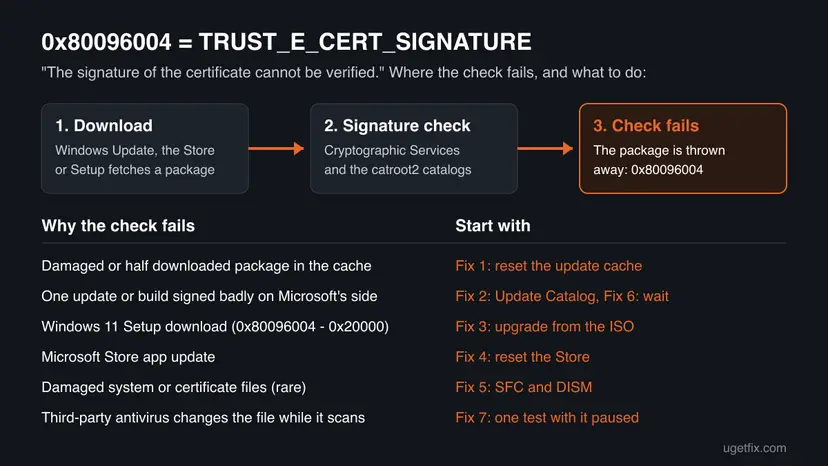
0x80096004 is TRUST_E_CERT_SIGNATURE: "The signature of the certificate cannot be verified." Windows rejected a downloaded update because its signature check failed. Reset the Windows Update components so the update is downloaded again from scratch (Fix 1). If the same update fails again, download it from the Microsoft Update Catalog and install it by hand (Fix 2). For 0x80096004 - 0x20000 during a Windows 11 upgrade, run Setup from the ISO (Fix 3).
| Error | 0x80096004, named TRUST_E_CERT_SIGNATURE by Microsoft: "The signature of the certificate cannot be verified." |
|---|---|
| Where it appears | Settings > Windows Update next to an update, often as Download error - 0x80096004. Also in Windows 11 Setup as 0x80096004 - 0x20000, and with Microsoft Store and Office updates. |
| Main cause | The downloaded update package fails its signature check: a damaged or incomplete download, or less often a package signed wrongly on Microsoft's side. |
| Fastest fix | Reset the Windows Update components and clear the download cache, then check for updates again (Fix 1). |
| Also written as | 80096004, (0x80096004), error 0x80096004, Download error - 0x80096004, 0x80096004-0x20000, 0x80096004 - 0x20000, and the decimal -2146869244 in some programs' logs. |
| Affects | Windows 11 and Windows 10. Reports go back to Windows 7, 8 and 8.1, and to Windows 10 Insider Preview builds in December 2017. |
| Microsoft's status | No current known issue under this code. In December 2017 Microsoft staff confirmed reports of 80096004 when Insider builds were installed through Windows Update. Known update problems are listed on the Windows release health pages. |
| Close relatives | 0x80096010 (TRUST_E_BAD_DIGEST, the file's digital signature did not verify), 0x800B0100 (no signature present), 0x800B0109 (untrusted root), 0x800B010A (certificate chain cannot be built). |
| Time to fix | 10 minutes for Fix 1, 10 to 20 minutes for a manual install, about an hour for an upgrade from the ISO. |
Facts checked on 15 October 2026. Steps written for Windows 11 (25H2 and 26H2) and Windows 10 22H2.
What Windows Update error 0x80096004 means
Microsoft's list of security and setup error codes (Winerror.h) names 0x80096004 TRUST_E_CERT_SIGNATURE and describes it in one line: "The signature of the certificate cannot be verified." It belongs to the trust checks of Windows, the same family as the 0x800B01 codes.
Every update, Store app and Windows Setup file carries a digital signature. After the download, Windows checks that signature with Cryptographic Services and the signature catalogs in the catroot2 folder. If the certificate inside the package cannot be verified, Windows does not install the file and reports 0x80096004. In other words, a broken or invalid certificate sits in the package Windows has, and the safe answer is to throw that copy away.
| What you see | Where | What it tells you |
|---|---|---|
| There were some problems installing updates, but we'll try again later. If you keep seeing this and want to search the web or contact support for information, this may help: (0x80096004) | Settings > Update & Security > Windows Update on Windows 10 | A downloaded update failed the signature check. |
| Download error - 0x80096004 next to an update | Settings > Windows Update on Windows 11 | The same failure in the Windows 11 layout. The update stays in the list and retries. |
| 0x80096004 - 0x20000 after a failed upgrade | Windows 11 Installation Assistant, Media Creation Tool or setup.exe | Setup stopped on the same signature check. The second code says in which phase. |
| 0x80096004 on an app update | Microsoft Store, Office updates | The same check failed for an app package, not for Windows. |
Windows Setup joins two codes with a dash: the result code says what went wrong, the extend code says in which phase. In 0x20000 the first digit, 2, is the SAFE_OS phase, the part of the upgrade that runs before the new Windows starts. The extend codes are explained in our guide How to fix Windows 11 upgrade error 0x80070002 - 0x20007. We could not confirm which operation the digits 0000 stand for.
Why Windows Update error 0x80096004 appears
A failed signature check means the copy of the file Windows has does not match what was signed, or the signature itself is wrong. From the most likely to the least likely:
| Cause | How often | How to tell | Fix |
|---|---|---|---|
| The update in the download cache is damaged or incomplete. | Most often | One update fails again and again, the others install. | Fix 1 |
| Microsoft signed one update or build wrongly, so every PC that downloads it fails. | Sometimes, in waves | Many people report the same KB or build at the same time. | Fix 2, Fix 6 |
| Windows 11 Setup downloaded its files and one of them fails the check. | During upgrades | The code reads 0x80096004 - 0x20000 and the PC rolls back. | Fix 3 |
| A Microsoft Store app package fails the check. | Sometimes | The code shows in the Store's Downloads list, not in Windows Update. | Fix 4 |
| Damaged system files or certificate store. | Rarely | Other updates and signed programs fail too. | Fix 5 |
| A third-party antivirus changes or locks the package while it scans it. | Rarely | A non-Microsoft security suite is installed and the error started with it. | Fix 7 |
A wrong date or time gives a different code, 0x800B0101 (certificate not in its validity period), and a VPN or proxy that redirects the update server gives 0x800B010F. Neither is a method on this page.
How to fix Windows Update error 0x80096004
Fix 1 and Fix 2 solve most cases: a fresh download, or the same update from the Catalog. Fix 3 is for the Windows 11 upgrade with 0x20000 and Fix 4 for the Store. Fixes 5 to 7 cover the rare cases.
| What you see or have | Start with |
|---|---|
| One monthly or cumulative update fails in Settings > Windows Update. | Fix 1, then Fix 2 |
| The Windows 11 upgrade rolls back with 0x80096004 - 0x20000. | Fix 3 |
| A Microsoft Store app will not update. | Fix 4 |
| Several updates and signed programs fail, not only one. | Fix 5 |
| Many people report the same update failing this week, or you are on an Insider build. | Fix 6 |
| A non-Microsoft antivirus is installed and nothing else helped. | Fix 7 |
Fix 1. Reset the Windows Update components and clear the download cache
10 minutesLow riskEveryone, first. It is the fix for a damaged or half finished download.
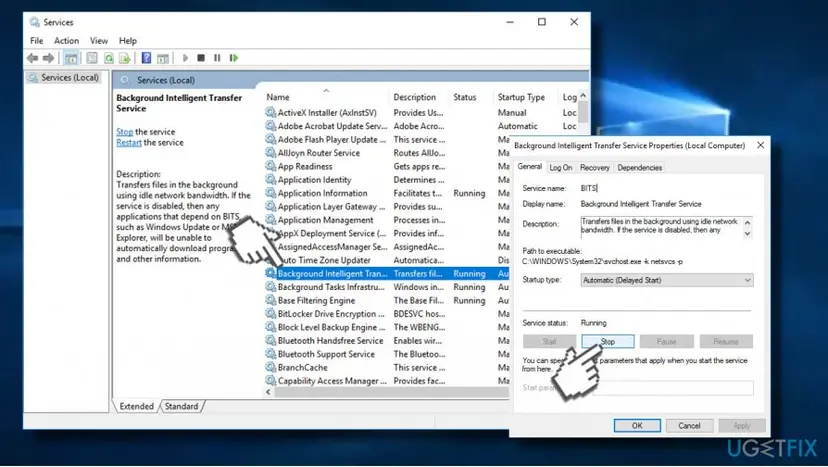
Windows keeps the downloaded package in SoftwareDistribution and the signature catalogs in catroot2. Renaming both and restarting Cryptographic Services makes Windows download the update and check its signature again, instead of retrying the same broken copy.
- Open Command Prompt as administrator. Type cmd in the search box, right-click Command Prompt and select Run as administrator. Select Yes when Windows asks for permission.
- Stop the update services. Type the commands below and press Enter after each one. If Windows says that other services depend on Cryptographic Services, it stops them too. A message that a service is not started is fine.
net stop wuauserv net stop bits net stop cryptsvc - Delete the download queue files. This clears the list of downloads that the Background Intelligent Transfer Service keeps. If Windows says it cannot find the files, continue.
del "%ALLUSERSPROFILE%\Application Data\Microsoft\Network\Downloader\qmgr*.dat" - Rename the update cache folders. Renaming keeps a copy in case you need it; Windows creates new, empty folders when the services start again. If you get Access is denied, a service is still running: repeat the previous step.
ren %systemroot%\SoftwareDistribution SoftwareDistribution.old ren %systemroot%\System32\catroot2 catroot2.old - Start the services again. Type the commands below and press Enter after each one. The requested service has already been started is fine: Windows started it on its own.
net start cryptsvc net start bits net start wuauserv - Restart and check for updates. Restart the PC. Then select Start > Settings > Windows Update > Check for updates. The first check can take longer than usual because everything is downloaded again.
These steps were written for Windows 11 and Windows 10 (the steps are the same). The full page with the other versions and what each result means: Reset Windows Update components

It worked if: After the restart, Check for updates downloads the update again and it installs without 0x80096004.
If not: The same update fails again with a fresh download. Get it from the Catalog, Fix 2.
Fix 2. Install the failing update by hand from the Microsoft Update Catalog
10 to 20 minutesLow riskOne KB keeps failing after Fix 1.
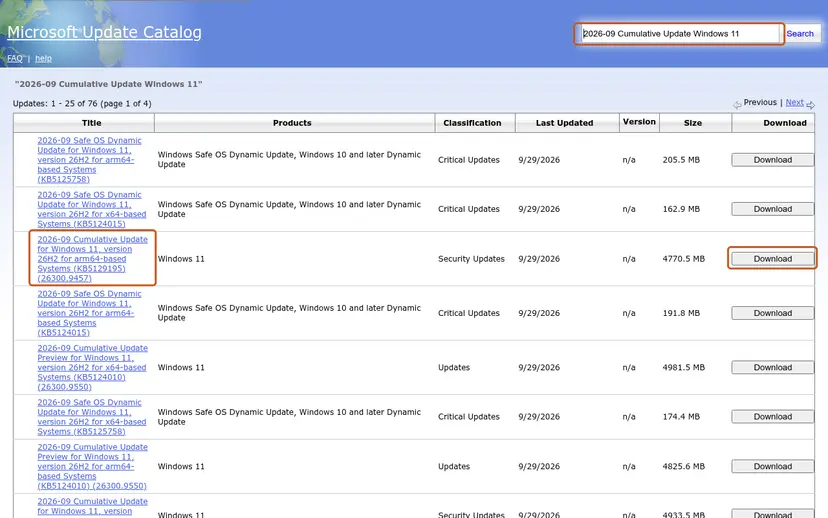
The Catalog file comes through your browser, from a different path than the Windows Update download. If the copy Windows Update gets is broken or signed wrongly, the Catalog file is often fine, and the installer checks its signature again on your disk.
- Check your Windows version. Press Windows key + R, type winver and press Enter. Note the version (for example 25H2) and the OS build.
- Find the KB number. Open Settings > Windows Update. A failed or pending update is listed with its KB number; earlier ones are under Update history.
- Check the processor type. Open Settings > System > About and look at System type: an x64-based PC needs the x64 file, an ARM-based PC (for example Snapdragon) needs the arm64 file.
- Search the catalog. Open the Microsoft Update Catalog at catalog.update.microsoft.com in your browser, type the KB number (for example KB5124010) in the search box and press Enter.
- Pick the right row. Find the row whose title names your Windows version and your processor type (x64-based or arm64-based) and select Download on that row.
- Download every file listed. A window lists one or more .msu links. Download all of them into one empty folder, for example C:\packages. On Windows 11 24H2 and later the list can include earlier checkpoint updates that the new one needs.
- Install a single file. If there is only one file, double-click it and confirm the installation in the Windows Update Standalone Installer.
These steps were written for Windows 11 24H2 and later; Windows 10 22H2. The full page with the other versions and what each result means: Install an update from the Microsoft Update Catalog
If the installer from the Catalog also stops with a signature error, the package itself is the problem. Pause updates and wait for Microsoft to replace it, Fix 6.
It worked if: The installer finishes and the KB shows under Settings > Windows Update > Update history.
If not: If the Catalog file fails too, go to Fix 6. If it installed but every new update fails again, repair system files, Fix 5.
Fix 3. Upgrade to Windows 11 from the ISO when you see 0x80096004 - 0x20000
About 1 hourRead the warningThe Windows 11 Installation Assistant, the Media Creation Tool or a feature update rolls back with 0x80096004 - 0x20000.
The Assistant and Windows Update download the setup files while they run, and one of those files fails the signature check. The ISO from Microsoft's download page is one complete file, so Setup works from what you mount instead of a fresh download.
An in-place upgrade keeps your files and apps when Keep personal files and apps is selected, but a failed upgrade can still leave the PC in a bad state. Copy your important files to another drive or the cloud before you start.
- Run Fix 1 first, so the old setup download in the update cache is gone.
- On Microsoft's Download Windows 11 page, download the disk image (ISO) for your language.
- Right-click the ISO file and select Mount.
- Open the new drive and run
setup.exe. - If Setup offers to download updates during the install, decline for now; you get them from Windows Update afterwards.
- On Ready to install, check that Keep personal files and apps is selected and select Install.
The full procedure, with the pictures of each screen: Reinstall Windows without losing files
It worked if: Setup goes past the SAFE_OS phase and the PC starts in Windows 11 with your files and apps.
If not: Read the Setup logs as shown in "If the error is still there", then try Fix 5 and Fix 7.
Fix 4. Clear and repair the Microsoft Store when an app update fails
5 minutesLow risk0x80096004 shows in the Store's Downloads list, not in Windows Update.
Store app packages are signed too. wsreset clears the Store cache, so the next download of the app package starts fresh and is checked again.
- Clear the Store cache. Press Windows + R, type wsreset.exe and select OK. A blank Command Prompt window opens; after a short while it closes and Microsoft Store opens by itself.
- Open System components. If the problem stays, select Start > Settings > System > System components. Next to Microsoft Store, select the three dots and Advanced options. If Microsoft Store is not listed there, look for it in Settings > Apps > Installed apps.
- Repair first. Scroll to Reset and select Repair. Repair keeps the app's data. Open the Store and check whether it works.
- Reset if Repair did not help. Select Reset and confirm. This deletes the Store app's data on this PC; your purchases stay in your Microsoft account. Open the Store and sign in again.
These steps were written for Windows 11 26H2 (build 26300). The full page with the other versions and what each result means: Reset the Microsoft Store

It worked if: The app update downloads and installs from the Store's Downloads list.
If not: Repair system files, Fix 5. Then try the update again.
Fix 5. Repair system files and the component store with DISM and SFC
20 to 30 minutesLow riskMore than one update or signed program fails, or Fix 1 to Fix 4 did not help.
In rare cases a damaged certificate store or damaged system files make the certificate check fail on every package. DISM repairs the component store and SFC then replaces damaged system files.
- Open an elevated command window. Right-click Start and select Terminal (Admin), or type cmd in the search box, right-click Command Prompt and select Run as administrator. Select Yes when Windows asks for permission.
- Run DISM first. Type the command below and press Enter. DISM downloads clean copies of damaged components from Windows Update, so it can take several minutes. Wait until it says The operation completed successfully.
DISM.exe /Online /Cleanup-Image /RestoreHealth - Run System File Checker. In the same window, type the command below and press Enter. Do not close the window until the verification reaches 100%.
sfc /scannow - Read the result and restart. Compare the last message with the table below this guide, then restart the PC so that repaired files are loaded.
These steps were written for Windows 11 24H2 and 25H2. The full page with the other versions and what each result means: Run DISM and SFC to repair Windows system files

It worked if: SFC reports that it found no problems or repaired them, and the update installs after a restart.
If not: If several updates still fail, an in-place repair replaces all system files: see "If the error is still there".
Fix 6. Pause updates and wait when one update is broken for everyone
5 minutes, then daysNo riskThe Catalog file fails too, many people report the same KB or build, or you are on a Windows Insider build.
When Microsoft signs a package wrongly, no setting on your PC can make the signature valid. Windows Update keeps retrying the same package, so a pause stops the loop until Microsoft publishes a fixed one.
- Open Settings > Windows Update. On Windows 10 open Settings > Update & Security > Windows Update.
- Select Pause for 1 week (on Windows 10, Pause updates for 7 days).
- Check Microsoft's Windows release health page for your Windows version and look for the KB number.
- After the pause, select Resume updates and Check for updates.
- On an Insider build, wait for the next build Microsoft offers through Windows Update.
Users of Insider builds report that the next build or a change of channel installed without the error. That is a user report, not Microsoft advice.
It worked if: After the pause, Windows Update offers a newer package and installs it.
If not: If the same update still fails weeks later and nobody else reports it, the cause is on your PC. Try Fix 7, then read the logs below.
Fix 7. Test once with your third-party antivirus paused
10 minutesLow riskA non-Microsoft security suite is installed and Fixes 1 to 5 did not help.
A security suite that scans files right after the download can, in some cases, damage or lock the package during the scan, and the signature check then fails. One update with the scan paused shows whether that is the cause.
- Run Fix 1 again, so the package scanned before is removed.
- Pause your security suite for a short time, following its own menu. For Microsoft Defender this step is not needed. The general steps: Turn off Microsoft Defender protection for a moment
- Select Check for updates in Settings > Windows Update and let the update install.
- Turn the protection back on right after the update.
Pausing is a test, not the fix. If the update installs only while the suite is paused, keep it on and ask its maker how to exclude Windows Update downloads, or update the suite to its latest version.
It worked if: With the suite paused, the update downloads and installs.
If not: The suite is not the cause. Read the logs in the next section.
If the error 0x80096004 is still there
The logs show which file failed the signature check. That name tells you whether one update, a Store app or a driver in Setup is the problem.
| Where the error showed | Log to read | What to look for |
|---|---|---|
| Settings > Windows Update | Run Get-WindowsUpdateLog in PowerShell as administrator. It writes WindowsUpdate.log to your desktop. | Search for 80096004 and read the KB number or file name on the lines around it. |
| Windows 11 Setup with 0x20000 | C:\$WINDOWS.~BT\Sources\Panther\setupact.log and setuperr.log (hidden folder). | Search for 0x80096004 and note the file name near the end of the log. |
- Home PC, the same KB, nothing helped: reinstall Windows over itself and keep your files and apps: Reinstall Windows without losing files
- Work or school PC: send the code, the KB number and the log lines to IT. A company update server or certificate policy may be involved.
- Windows 10: support ended on 14 October 2025. Only PCs in Extended Security Updates still get security updates, so check that the PC is enrolled before you spend time on a failing update.
How to keep error 0x80096004 from coming back
- Let updates finish downloading before you shut down or put the PC to sleep.
- Keep your security suite up to date, or use Microsoft Defender, which comes with Windows.
- When one update fails for many people, pause updates for a week instead of retrying every day.
- Do not replace system files such as
crypt32.dllwith copies from the internet. - Do not turn off your antivirus for good to get an update through.
- Do not install update files from any site other than the Microsoft Update Catalog.
Frequently asked questions
What does error code 0x80096004 mean?
It means Windows could not verify the signature of a certificate inside a file it was about to install. Microsoft names the code TRUST_E_CERT_SIGNATURE and describes it as: the signature of the certificate cannot be verified. Windows treats the file as untrusted and discards it. On a home PC the file is most often a damaged download in the update cache, so a reset of the update components (Fix 1) clears it. Less often the update itself was signed wrongly, and then only a new package from Microsoft helps.
What is error code 0x80096004 - 0x20000?
It is the same signature error, reported by Windows Setup during an upgrade, such as the Windows 11 Installation Assistant or the Media Creation Tool. The first part, 0x80096004, says what failed: a signature check. The second part, 0x20000, is the extend code. Its first digit, 2, places the failure in the SAFE_OS phase, before the new Windows starts. Setup then rolls the PC back. Clear the update cache (Fix 1) and run the upgrade again from the Windows 11 ISO (Fix 3).
What does Download error - 0x80096004 mean in Windows 11?
Windows 11 shows Download error - 0x80096004 next to an update in Settings > Windows Update when the downloaded package failed its signature check. The word download is there because the check runs at the end of the download, before the install. The update stays in the list and Windows retries it. If it keeps failing, the retry uses the same broken copy, so reset the update components (Fix 1) to force a fresh download.
Is 0x80096004 caused by Microsoft or by my PC?
It can be either. When one update or build fails on many PCs at the same time, the package was most likely signed wrongly on Microsoft's side. That happened in December 2017, when Microsoft staff confirmed reports of 80096004 on Insider builds. When only your PC fails, the cause is your stored download, a security suite or damaged system files. A fresh download (Fix 1) and the Catalog file (Fix 2) tell the two cases apart.
Does the Windows Update troubleshooter fix 0x80096004?
Rarely. The troubleshooter restarts update services and can clear some pending downloads, but it does not repair a package with a broken signature. A manual reset of the update components (Fix 1) does more: it renames the whole download cache and the catroot2 folder with the signature catalogs, so Windows starts the download and the signature check from zero. If you want to try the troubleshooter anyway, it is harmless: Run the Windows Update troubleshooter
Can 0x80096004 appear with Microsoft Office or the Store?
Yes. The code belongs to the trust checks of Windows, so any installer that verifies signatures can report it. People report it with Microsoft Store app updates and with Office updates. For the Store, clear and repair the Store as in Fix 4. For Office, run Fix 1 if Office updates through Windows Update, or repair Office from Settings > Apps > Installed apps if it updates on its own.
Should I replace crypt32.dll to fix 0x80096004?
No. Some guides suggest copying crypt32.dll from another PC or a download site. A file of the wrong version or from an unknown source can break Windows or bring in malware. If you suspect damaged system files, let Windows repair them itself with DISM and SFC (Fix 5), which replace system files with Microsoft's own signed copies.
Is error 0x80096004 a sign of malware?
Usually not. A failed signature check is Windows refusing a damaged file, which is a protection working as it should. Still, if signed programs and several updates fail at the same time, run a full scan with Microsoft Defender: How to scan for malware with Microsoft Defender. Then repair system files as in Fix 5. Never get around the error by installing update files from unofficial sites.
Does 0x80096004 still matter on Windows 10?
Windows 10 left support on 14 October 2025. Windows 10 22H2 gets security updates only through Extended Security Updates, and Microsoft Defender still gets its definition updates. The fixes on this page work the same on Windows 10 and Windows 11. If your PC can run Windows 11 and the upgrade fails with 0x80096004 - 0x20000, Fix 3 is the way through.
Sources
- Microsoft Learn: COM Error Codes (Security and Setup), Winerror.h (learn.microsoft.com)
- Born's Tech and Windows World: Windows 10 update error 0x80096004 (borncity.com)
Did this fix work?
One click, no account. It tells the next reader which guides are worth their time.
Questions and experiences: fix Windows Update error 0x80096004
Still broken, or found a fix we did not cover? Ask here: members and our editors answer. Reading is open; writing needs a free account.
…