
How to fix Windows update error 0x800F0223?

Prefer to fix it yourself? The manual steps follow.
- 6methods
- 10 minutes to 2 hours
- Intermediate
Applies to Windows 11 and Windows 10: driver updates and other updates that end with Install error - 0x800f0223 in Settings > Windows Update
6 methods in this guide
I can't install the latest Windows updates. I keep getting the 0x800F0223 error every time I try. Please provide any solutions to this, as I don't know where to even start. Thanks.
Install error 0x800F0223 is a Setup API code, the part of Windows that installs devices and drivers. It means Plug and Play did not answer while Windows Update installed something. Check which update failed first: a driver update can often be skipped or installed by hand.
0x800F0223 means the Plug and Play service did not answer while an update installed a device or driver package. Open Update history and see which update failed (Fix 1). If it is a driver, install that driver from Device Manager or the maker instead. Then check that the Plug and Play and Device Install services are not disabled (Fix 2). Resetting the update cache, SFC and DISM, and a repair install come after that.
| Error | Install error - 0x800f0223: SPAPI_E_NO_CONFIGMGR_SERVICES, "The Plug and Play service is not available on the remote machine." |
|---|---|
| Where it appears | Settings > Windows Update, under the name of the update that failed, and in Update history. The details of the failed step are in C:\Windows\INF\setupapi.dev.log. |
| Main cause | The Plug and Play service or the Device Install Service did not respond when the update had to install a driver or device package. |
| Fastest fix | Find the failed item in Update history (Fix 1). If it is a driver, install it through Device Manager. Then check the services (Fix 2). |
| Also written as | 0x800F0223, 800f0223, install error 0x800f0223, error 0xE0000223 in Setup API terms, -2146500061 as a signed number. |
| Affects | The reports we read are from Windows 10. The code itself is the same on Windows 11 25H2 and 26H2. |
| Microsoft's status | No known issue, no Microsoft article and no fixing update for this code that we could find. The answers on Microsoft Q&A come from independent advisors, not from Microsoft staff. |
| Time to fix | 10 minutes for Fixes 1 and 2. About 30 minutes for the cache reset and the system file repair. 1 to 2 hours for a repair install. |
| Where the cause is logged | C:\Windows\INF\setupapi.dev.log for driver and device installs. C:\Windows\Logs\CBS\CBS.log for the other update packages. |
Facts checked on 16 October 2026. Steps written for Windows 11 (25H2 and 26H2) and Windows 10 22H2.
What install error 0x800F0223 means
0x800F0223 looks like the many other 0x800F codes from Windows Update, such as 0x800F0823 or 0x800F0922. It is not one of them. Those are component servicing (CBS) codes. 0x800F0223 comes from the Setup API, the part of Windows that installs devices and drivers. Its name in Windows' error table is SPAPI_E_NO_CONFIGMGR_SERVICES, and its text is "The Plug and Play service is not available on the remote machine."
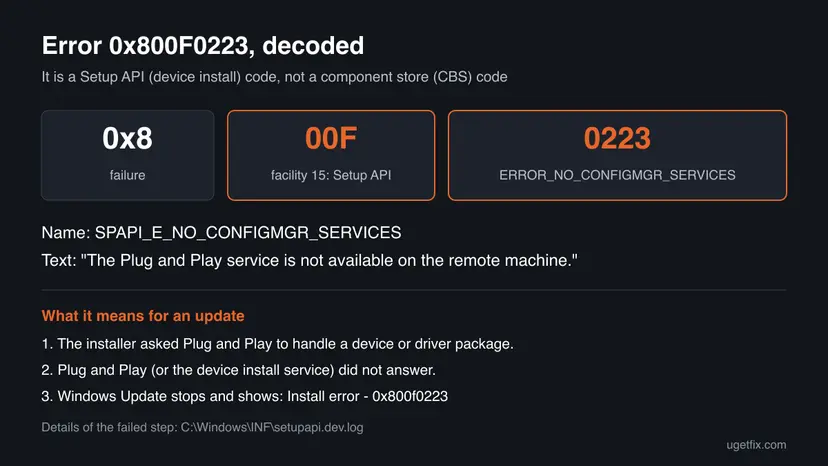
"Remote machine" sounds odd on a home PC. The Setup API uses the same text for the local PC, so read it as "Plug and Play did not answer". Plug and Play is the Windows service that detects devices and hands them their drivers. When an update needs it and it does not respond, the install stops with this code.
| What you see | Where | What it tells you |
|---|---|---|
| Install error - 0x800f0223 under an update name, with a Retry button | Settings > Windows Update | The update downloaded and the install failed. |
| The same update listed as failed, with the code and a date | Settings > Windows Update > Update history | Whether it is a driver update or another update, and how often it failed. |
Lines with !!! or Exit status: FAILURE at the time of the failure | C:\Windows\INF\setupapi.dev.log | Which device or driver package Windows was installing. |
| 0x800F0223 (-2146500061) | Some tools and logs | The same error. -2146500061 is the code read as a signed number. |
Error 0x800F0823 means the servicing stack is too old for the update and has its own fix: guide to error 0x800F0823. Check the digits before you follow advice for the wrong code.
Why Windows update error 0x800F0223 happens, from most to least likely
Microsoft has not published a cause for this code in Windows Update. The ranking below follows what the code itself says, a device installation that Plug and Play did not serve, and the repairs that Microsoft Q&A advisors suggested. Each cause points to the fix that matches it.
| Cause | How often | How to tell | Fix |
|---|---|---|---|
| A driver update offered by Windows Update cannot be installed on this device. | Most likely, from the meaning of the code | The failed item in Update history is a driver, often with the maker's name in it. | Fix 1, Fix 3 |
| The Plug and Play service or the Device Install Service is disabled or stuck. | Often | The service shows Disabled or is not running in Services. | Fix 2 |
| A damaged download in the update cache or a stuck update service. | Sometimes | The same update fails again right after a restart, and the services are fine. | Fix 4 |
| Damaged system files. | Less often | SFC finds and repairs files. | Fix 5 |
| Damage that no single repair reaches. | Last | Every fix above failed. | Fix 6 |
Most pages on this code repeat the advice for every update error: a better internet connection, Disk Cleanup and turning off the antivirus. None of them say that the code belongs to device installation, which is why the driver and the Plug and Play service come first here.
How to fix install error 0x800F0223 in Windows Update
Fixes 1 and 2 take ten minutes each and change little, so everybody starts there. Fix 3 is for a driver that keeps failing. Fixes 4 and 5 are the general update repairs. Fix 6 is the repair install, which rebuilds Windows and keeps your files and apps.
| What you see or have | Start with |
|---|---|
| You do not know yet which update fails. | Fix 1 |
| The failed item is a driver, for example a display, audio, Bluetooth or chipset driver. | Fix 1, then Fix 3 |
| Several updates fail, or you used a tool that turns off Windows services. | Fix 2 |
| The services run and the same update still fails after a restart. | Fix 4 |
| Other Windows errors too, or SFC finds damaged files. | Fix 5 |
| Every other fix failed. | Fix 6 |
Fix 1. Find out which update fails with 0x800F0223 and whether it is a driver
10 minutesNo riskAlways first. The answer decides whether you repair a driver or Windows Update.
The code belongs to device installation, so a driver update is the first suspect. A driver from Windows Update is optional: the same driver, or a newer one, can come from Device Manager or the device maker.
- Restart the PC once with Start > Power > Restart, so that a device or update that waited for a restart can finish.
- Open Settings > Windows Update and select Retry next to the update. If it installs now, you are done.
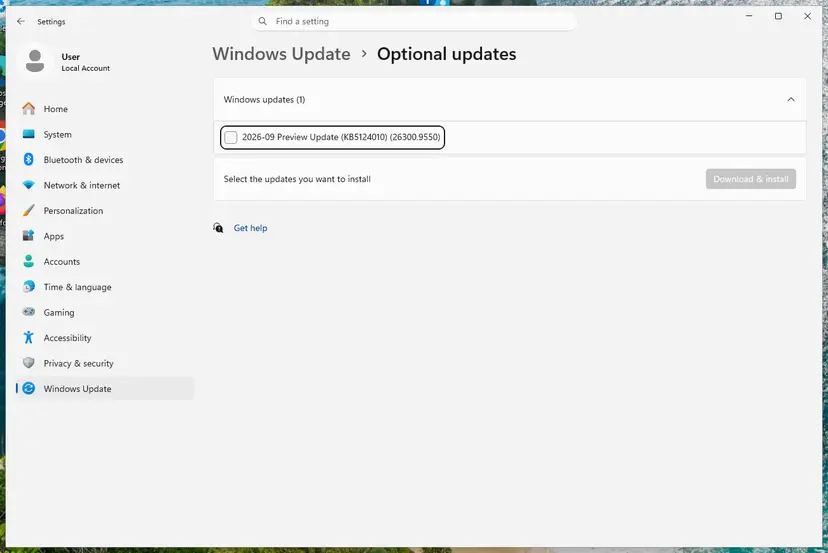
- If it fails again, open Settings > Windows Update > Update history. On Windows 10 the path is Settings > Update & Security > Windows Update > View update history.
- Look at the failed entry. Note whether it sits under Driver updates or under Quality updates, and note its full name.
- A driver entry names the maker and the device class, for example a display, audio or Bluetooth driver. Go to Fix 3 for it after Fix 2.
- If the failed entry is a quality or feature update, go to Fix 2 and then Fix 4.
| You found | Meaning | Next |
|---|---|---|
| A driver update failed | Windows could not install that device package. | Fix 2, then Fix 3 |
| A quality or feature update failed | A device part of the update could not be installed. | Fix 2, then Fix 4 |
| The update installed after the restart | Plug and Play was busy or waiting for a restart. | Nothing to fix. |
It worked if: Either the update installs after the restart, or you know the exact name of the item that fails and whether it is a driver.
If not: Check the Plug and Play and device install services in Fix 2.
Fix 2. Check the Plug and Play, Device Install and Windows Update services
10 minutesLow riskSeveral updates fail, a driver will not install, or you once used a tool that switches off Windows services.
The code says the Plug and Play service did not answer. Plug and Play works with the Device Install Service to install drivers. If either is disabled, every driver install from Windows Update stops with this code.
Open Services and check these services by name. The steps to open a service and change its startup type: Check and restart Windows services
| Service in the list | Service name | What to do |
|---|---|---|
| Plug and Play | PlugPlay | It must say Running. It cannot be stopped or restarted by hand. If its startup type is Disabled, set it to Manual and restart the PC. |
| Device Install Service | DeviceInstall | It starts only when a device is installed, so Stopped is normal. It must not be Disabled. |
| Device Setup Manager | DsmSvc | Same as above: stopped is fine, Disabled is not. |
| Windows Update and Background Intelligent Transfer Service | wuauserv, BITS | Right-click each one and select Restart, or Start if it is stopped. |
Command Prompt (administrator): show the state and startup type of the device services
sc query PlugPlay
sc qc PlugPlay
sc qc DeviceInstall
sc qc DsmSvc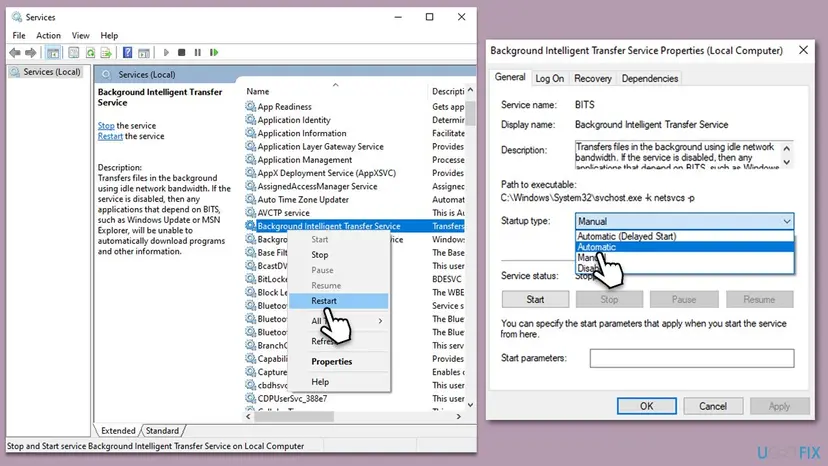
If a debloat script or a service optimizer set these services to Disabled, set them back as above. Do not change other services to fix this error. Write down the old startup type of anything you change, so you can set it back.
It worked if: sc query PlugPlay shows STATE : 4 RUNNING, none of the services shows DISABLED, and the update installs on Retry.
If not: If a driver still fails, install it another way in Fix 3. If a quality update fails, reset the update cache in Fix 4.
Fix 3. Install the failing driver yourself and read setupapi.dev.log
20 minutesLow riskFix 1 showed that a driver update fails, and the services in Fix 2 are fine.
A driver can reach the PC in three ways: Windows Update, Device Manager and the maker's installer. When one route fails with 0x800F0223, another route often works, and the setup log names the package that broke.
- Right-click Start and select Device Manager.
- Expand the category of the failing driver, for example Display adapters or Sound, video and game controllers.
- Right-click the device and select Update driver, then Search automatically for drivers.
- If that fails too, download the driver for your exact model from the PC maker's or the device maker's support page and run its installer.
- Restart the PC and open Settings > Windows Update. A driver that is now as new or newer is no longer offered.
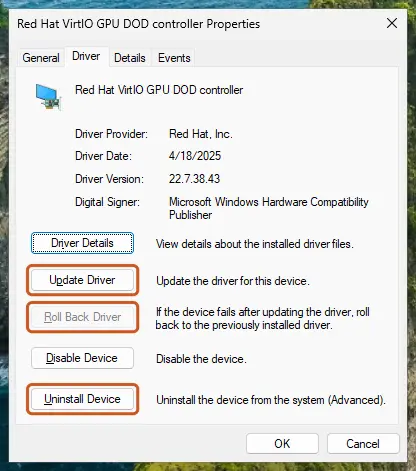
Step by step, including roll back and a clean reinstall of the device: Update, roll back or reinstall a driver
To see what failed, read the device setup log. Windows writes every driver install to it with a time stamp.
Command Prompt (administrator): list the failed device installs in the setup log
findstr /n /c:"!!!" /c:"FAILURE" %windir%\INF\setupapi.dev.log- Read the lines at the time of the last failure. The section header above them names the device ID and the
.inffile of the driver. - The same device fails over and over. Keep the driver you installed by hand. Windows Update stops offering a driver once the installed one is as new.
- A driver for a device you no longer use. Remove the device in Device Manager with Uninstall device, then restart.
It worked if: Device Manager shows the new driver version on the Driver tab, and Windows Update no longer lists the failed driver or installs it on Retry.
If not: If the log shows no device failure at the time of the error, the problem is in Windows Update itself. Go to Fix 4.
Fix 4. Reset the Windows Update cache and run the troubleshooter
15 minutesLow riskThe services run, and the same update fails again after a restart.
A damaged download in the update cache fails the same way on every try. A reset stops the update services, renames the cache folders SoftwareDistribution and catroot2, and starts the services again, so Windows downloads the update fresh. Both Microsoft Q&A advisors suggested this reset for 0x800F0223.
Run the built-in troubleshooter first. On Windows 11 it opens in Get Help. Step by step: Run the Windows Update troubleshooter
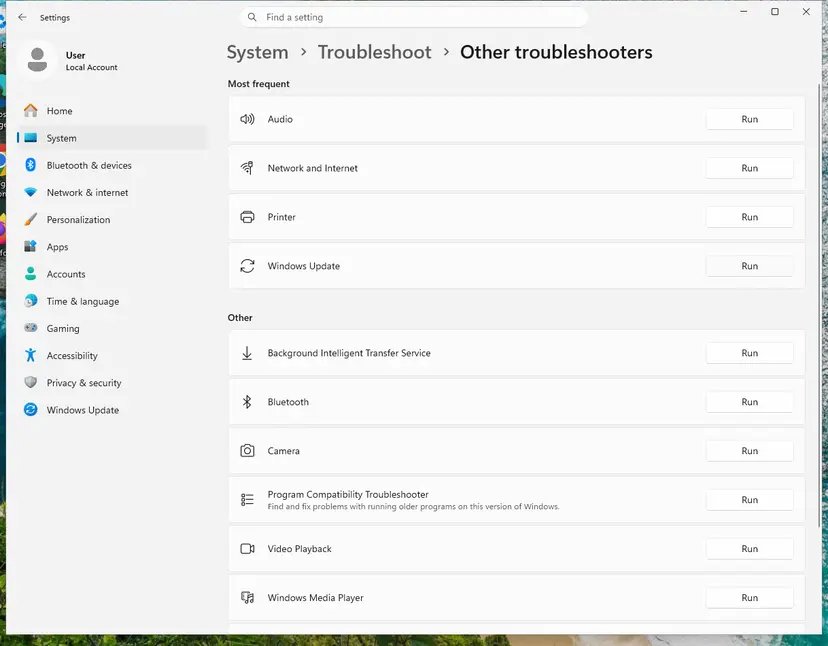
If the update still fails, reset the components. The procedure keeps the old folders under a new name, so nothing is lost: Reset Windows Update components
- Open Command Prompt as administrator.
- Stop the services with
net stop wuauserv,net stop bitsandnet stop cryptsvc. - Rename the cache with
ren %windir%\SoftwareDistribution SoftwareDistribution.oldandren %windir%\System32\catroot2 catroot2.old. - Start the services again with
net start wuauserv,net start bitsandnet start cryptsvc. - Restart the PC and select Check for updates.

It worked if: Check for updates downloads the update again from zero and it installs without the error.
If not: Repair the system files in Fix 5.
Fix 5. Repair system files with SFC and DISM
30 minutesLow riskThe cache reset did not help, or Windows shows other errors too.
The update uses system files and the copies in the component store. If one of them is damaged, the device part of the install can fail. DISM repairs the store, then SFC repairs the files from it.
Run DISM RestoreHealth first and System File Checker second, then restart and try the update. Step by step: Run DISM and SFC to repair Windows system files
Command Prompt (administrator): repair the component store, then the system files
DISM /Online /Cleanup-Image /RestoreHealth
sfc /scannow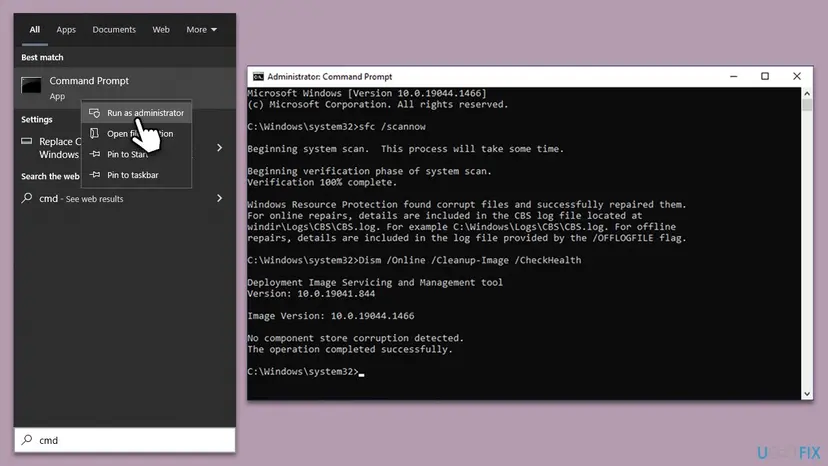
It worked if: SFC reports that it found no integrity violations or that it repaired them, DISM says the restore operation completed, and the update installs.
If not: Go to the repair install in Fix 6.
Fix 6. Reinstall Windows over itself and keep your files and apps
1 to 2 hoursLow riskEvery other fix failed, or the setup log names a system device you cannot reinstall.
A repair install writes a fresh copy of Windows, with new services, a new driver store and a new component store, and keeps apps, files and settings. It also installs the newest build, so the failed update is no longer needed.
The routes below are designed to keep your files, apps and settings. Copy your important files to another drive before you start all the same, and keep a laptop on mains power: Back up your files (Windows Backup, File History, Time Machine)
- On Windows 11, open Settings > System > Recovery.
- Next to Fix problems using Windows Update, select Reinstall now.
- Keep the PC on and let it restart as often as it needs.
- If Reinstall now is missing or fails, download the installation media from Microsoft's software download page and run it.
- Select Upgrade this PC now. On Ready to install, check that it says Keep personal files and apps, then select Install.
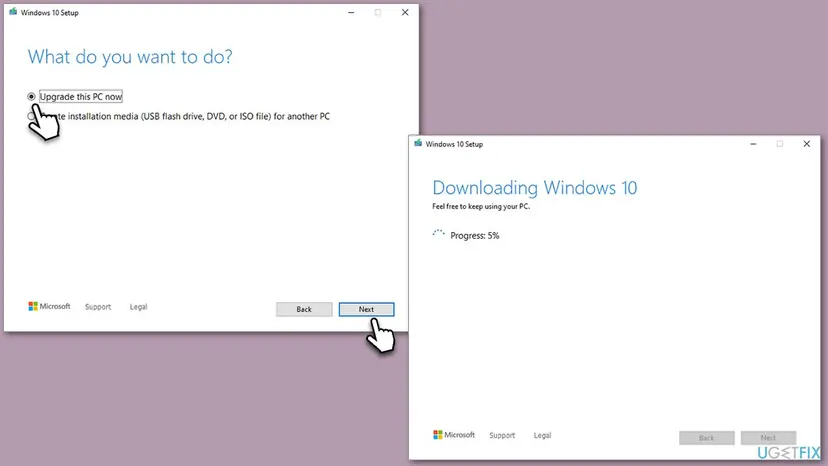
More reset options, including the ones that remove apps: Reinstall Windows without losing files
It worked if: winver shows a current build and Windows Update says you are up to date.
If not: Collect the logs as described below and ask for help.
If 0x800F0223 is still there: the logs to read and what to send
When nothing above helps, a person who reads setup logs can find the device or package at fault. Microsoft Q&A takes such cases. Collect the logs right after a failed attempt, so the last lines belong to it.
PowerShell (administrator): copy the device setup log and pack the CBS logs on the desktop
$d = [Environment]::GetFolderPath('Desktop')
Copy-Item C:\Windows\INF\setupapi.dev.log $d
Compress-Archive C:\Windows\Logs\CBS -DestinationPath (Join-Path $d 'CBS.zip') -Force- What to send: setupapi.dev.log, CBS.zip, the output of
winver, the name of the failed update and what you already tried. - One test with the antivirus paused. If you use an antivirus other than Microsoft Defender, pause it for one attempt and turn it back on right after: Turn off Microsoft Defender protection for a moment
- A work or school PC. Updates and drivers may come from your organization. Send the logs to the administrator first.
- Is it hardware? If the same device fails with every driver and also misbehaves outside Windows Update, or vanishes from Device Manager, the device or its connection may be faulty.
How to keep install error 0x800F0223 from coming back
- Leave Plug and Play, Device Install Service and Device Setup Manager at their default startup types.
- Install drivers for important devices from the PC maker when Windows Update keeps failing on one of them.
- Restart the PC when Windows asks, so that device installs can finish.
- Keep Windows on a supported version. Windows 10 left support on 14 October 2025.
- Do not run debloat scripts or service optimizers that disable Windows services.
- Do not leave the antivirus off after a test.
- Do not install drivers from download sites other than the PC or device maker.
Frequently asked questions
What does error 0x800F0223 mean?
It means the Plug and Play service did not answer while Windows installed a device or driver package. The code comes from the Setup API, and Windows' error table names it SPAPI_E_NO_CONFIGMGR_SERVICES, "The Plug and Play service is not available on the remote machine". On a home PC "remote machine" simply means this PC. Windows Update shows it as Install error - 0x800f0223 under the update that failed.
Is install error - 0x800f0223 a driver problem?
Most likely, yes. The code belongs to device installation, so a driver update is the first suspect. Open Update history and look at the failed entry. If it sits under Driver updates, install that driver from Device Manager or from the PC maker instead (Fix 3). If it is a quality update, the device part of that update failed, and Fixes 2 and 4 are the next steps.
Can I just skip the update that fails with 0x800F0223?
A driver update, yes, for a while. Drivers from Windows Update are optional and you can install the same device driver from the maker. A monthly quality update carries security fixes, so do not skip it for long. If the next monthly update fails with the same code, the cause is on the PC, and the services in Fix 2 and the cache reset in Fix 4 are the place to start.
Is 0x800F0223 the same as 0x800F0823?
No. Both start with 0x800F, but they come from different parts of Windows. 0x800F0823 is a component servicing error that means the servicing stack is too old for the update. 0x800F0223 is a Setup API error about Plug and Play and device installs. The fixes differ, so check the digits before you follow advice for one of them.
Does error 0x800F0223 happen on Windows 11?
It can. The code and its meaning are the same on Windows 11 25H2 and 26H2 as on Windows 10, and every fix on this page gives the path for both. The reports we read on Microsoft Q&A came from Windows 10 PCs in 2022. Windows 10 left support on 14 October 2025, so on Windows 10 22H2 the lasting fix may be the move to Windows 11.
Why does the error mention a remote machine?
The Setup API can install devices on other PCs in a network, so its messages are written for that case. When it runs on your own PC, the same message is used. Read "The Plug and Play service is not available on the remote machine" as "Plug and Play did not answer on this PC". Nothing on your network is involved, and you do not need to change network settings.
Should I turn off my antivirus to fix 0x800F0223?
Not as a fix. Turning protection off for good leaves the PC open and does not touch the Plug and Play service. If you use an antivirus other than Microsoft Defender and nothing else has worked, pause it for one try of the update and turn it on again right after. If the update installs only with it paused, ask the antivirus maker for an update.
Will resetting Windows Update or a repair install delete my files?
No. The cache reset renames two folders of downloaded update files and changes nothing else; the update history may look empty afterwards. A repair install with Keep personal files and apps keeps your files, apps and settings. Back up your important files before a repair install anyway, because a power cut in the middle of it can still cause trouble.
Where can I see what failed in detail?
Driver and device installs are written to C:\Windows\INF\setupapi.dev.log. Search it for !!! or FAILURE and read the lines at the time of the error: the header above them names the device and the driver's .inf file. Other update packages are logged in C:\Windows\Logs\CBS\CBS.log. Update history in Settings gives you the date to look for.
Sources
- Microsoft Q&A: error code "0x800f0223" win update (Windows 10, independent advisor answer) (learn.microsoft.com)
- Microsoft Q&A: windows update error 0x800f0223 (Windows 10, accepted advisor answer) (learn.microsoft.com)
Did this fix work?
One click, no account. It tells the next reader which guides are worth their time.
Questions and experiences: fix Windows update error 0x800F0223
Still broken, or found a fix we did not cover? Ask here: members and our editors answer. Reading is open; writing needs a free account.
…