
How to fix Windows update error 0x800f0835?

Prefer to fix it yourself? The manual steps follow.
- 7methods
- 10 minutes to 2 hours
- Intermediate
Applies to Windows 10 22H2 cumulative updates installed through Windows Update; the repairs also apply to Windows 11
7 methods in this guide
I've been having problems installing some Windows updates lately. The process seems to start and then at some point simply ends abruptly with error code 0x800f0835. Could you help me?
Error 0x800f0835 means a Windows cumulative update failed during installation and Windows rolled it back. All reports we found come from Windows 10 22H2 monthly updates. Restart the PC and run Windows Update again first: in user reports a second try often installs the same update without the error.
0x800f0835 is a failed install of a Windows cumulative update, reported on Windows 10 22H2. Restart the PC (Restart, not Shut down) and select Check for updates again (Fix 1). If it fails a second time, run the Windows Update troubleshooter, clear the update cache and repair the component store with DISM and SFC (Fix 2 to Fix 4). As a last step, install the update from the Microsoft Update Catalog or reinstall Windows over itself.
| Error | There were some problems installing updates, but we'll try again later. followed by (0x800f0835) in Windows Update, or Failed to install with 0x800f0835 in Update history. |
|---|---|
| Where it appears | Settings > Update & Security > Windows Update on Windows 10, after the update rolls back at restart. Sometimes after a long Getting Windows ready screen. |
| Main cause | The cumulative update failed while it was being applied, most often after an interrupted or stuck install. Microsoft has not published a cause for this code. |
| Fastest fix | Restart and run Windows Update again (Fix 1). Then the troubleshooter and an update cache reset (Fix 2 and Fix 3). |
| Also written as | (0x800f0835), 0x800F0835, error 0x800f0835, Fehlercode 0x800f0835, errore 0x800f0835, erreur 0x800f0835. |
| Affects | Windows 10 22H2 cumulative updates in user reports, for example KB5044273 (October 2024), KB5048652 (December 2024), KB5050081 (January 2025 preview) and KB5060533 (June 2025). |
| Microsoft's status | Not a listed known issue. The code is not in Microsoft's table of common update corruption errors. Windows 10 reached end of support on 14 October 2025. |
| Where the cause is written | C:\Windows\Logs\CBS\CBS.log (and CBS.persist.log). Search it for 0x800f0835 to find the failing package. |
| Time to fix | 10 to 30 minutes for Fix 1 to Fix 4. One to two hours for the repair reinstall in Fix 7. |
Facts checked on 15 October 2026. Steps written for Windows 10 22H2 and Windows 11 (25H2 and 26H2).
What Windows update error 0x800f0835 means
0x800f0835 belongs to the 0x800f08xx family of codes that the Windows servicing stack returns, the part of Windows that installs updates. It tells you the update was downloaded but could not be applied, so Windows undid it. Microsoft does not document this exact code, and we could not confirm its internal name.
The message itself is the same one Windows shows for many update failures. Only the number at the end is specific. On Windows 10 it reads like this in Settings > Update & Security > Windows Update:
There were some problems installing updates, but we'll try again later. If you keep seeing this and want to search the web or contact support for information, this may help: (0x800f0835)
| What you see | Where | What it tells you |
|---|---|---|
| There were some problems installing updates, with (0x800f0835) at the end | Windows Update page in Settings | The last install attempt failed and Windows will offer the update again. |
| 2024-10 Cumulative Update for Windows 10 Version 22H2 (KB5044273), Failed to install with 0x800f0835 | View update history | Which KB failed and when. Note the KB number for Fix 5. |
| Getting Windows ready. Don't turn off your computer. for a long time | The screen during restart | The install is still working or is stuck. Wait before you force a restart. |
| Undoing changes made to your computer | The screen during restart | Windows is rolling the update back. Your files are not touched. |
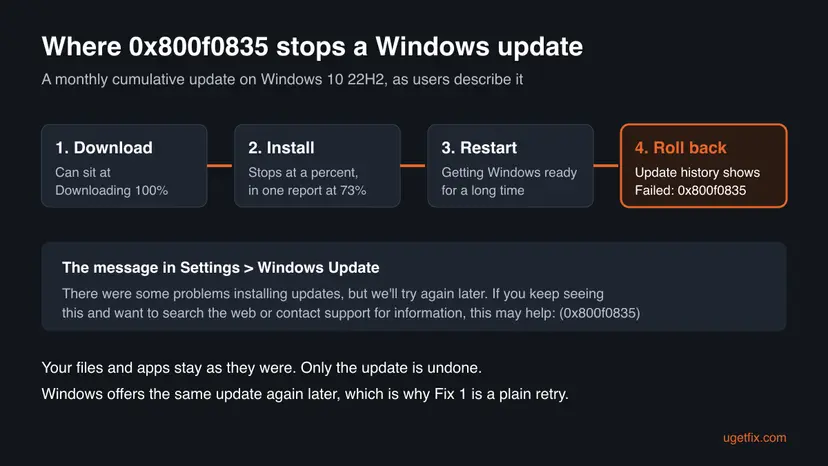
All reports of 0x800f0835 we found are from Windows 10 22H2. The repairs below work the same way on Windows 11, and we give both menu paths where they differ.
Why error 0x800f0835 appears
Microsoft has not named a cause for this code, so the order below comes from user reports and from what the 0x800f08xx codes have in common. The most common pattern is a one-off failure that a second attempt clears.
| Cause | How often | How to tell | Fix |
|---|---|---|---|
| The install was interrupted: it was stuck at Downloading 100% or on Getting Windows ready, and the PC was restarted by hand. | Most often | You remember a forced restart or a long wait during this update. | Fix 1 |
| A damaged or half-finished download sits in the update cache, and every retry uses it again. | Often | The same KB fails two or more times, at the same point. | Fix 2, Fix 3 |
| The component store (the WinSxS folder) has damaged or missing files that the update builds on. | Sometimes | Other updates fail too, or DISM reports damage. | Fix 4 |
| Windows Update itself cannot finish the job, though the update file is fine. | Sometimes | The update fails every month in Settings. | Fix 5 |
| A third-party service or startup program blocks the install. | Rarely | The update installs in a clean boot. | Fix 6 |
| Deeper damage to Windows that repairs cannot reach. | Rarely | Everything above failed. | Fix 7 |
One user on Ten Forums described the first case exactly: KB5048652 stuck at Downloading: 100%, then half an hour on Getting Windows ready, a forced restart, and 0x800f0835. The next run of Windows Update installed it without errors. Another user saw the same with the preview update KB5050081, which stopped at 73% and then installed after a restart.
How to fix Windows update error 0x800f0835
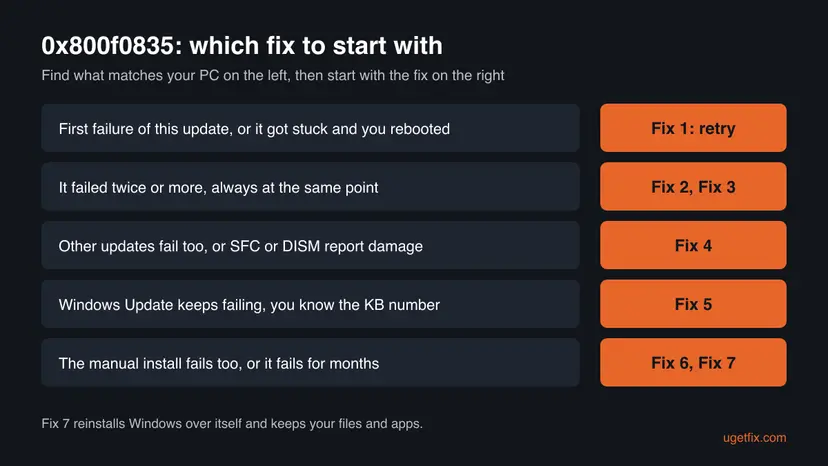
Fix 1 costs nothing and is the one that worked in the reports we read. Fix 2 to Fix 4 repair the update cache and the system files. Fix 5 skips Windows Update, Fix 6 rules out other software, and Fix 7 reinstalls Windows over itself and keeps your files and apps.
| What you see or have | Start with |
|---|---|
| The update failed once, or it got stuck and you restarted the PC | Fix 1 |
| The same KB failed twice or more | Fix 2, then Fix 3 |
| Other updates fail too, or SFC finds damage | Fix 4 |
| You know the KB number and Windows Update keeps failing | Fix 5 |
| You run many background tools (game launchers, VPN, tuning apps) | Fix 6 |
| Updates have failed for months | Fix 4, then Fix 7 |
Fix 1. Restart the PC and run Windows Update again
10 to 30 minutesNo riskThe update failed for the first time, or it hung on Downloading 100% or Getting Windows ready and you restarted by hand.
The message itself says Windows will try again, and the reports we read show the same KB installing on the next attempt. A full restart ends the stuck installer and lets Windows start the job from a clean state.
- Save your work and select Start > Power > Restart. Do not use Shut down, which on many PCs does not fully restart Windows.
- After the restart, wait two or three minutes until the desktop is calm.
- On Windows 10, open Settings > Update & Security > Windows Update. On Windows 11, open Settings > Windows Update.
- Select Retry or Check for updates.
- Let the download and install finish. If a restart is needed, use Restart now and do not turn the PC off during Getting Windows ready.
If the screen sits on Getting Windows ready, give it at least an hour before you force a restart. A forced restart in the middle of an install is the most common way this error starts.
It worked if: View update history lists the cumulative update as Successfully installed.
If not: If the same KB fails again with 0x800f0835, go to Fix 2.
Fix 2. Run the Windows Update troubleshooter
5 minutesNo riskThe update failed twice, and you want a quick automatic check before using commands.
The troubleshooter checks the update services, the BITS download service and pending restarts, and fixes their settings. Those are the parts that stop an update between download and install.
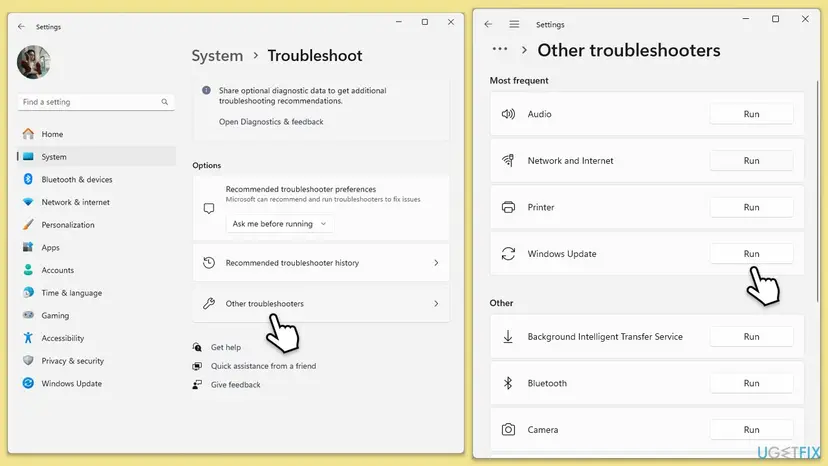
- Open Troubleshoot settings. Select Start > Settings > System > Troubleshoot.
- Open the list of troubleshooters. Select Other troubleshooters.
- Run the Windows Update troubleshooter. Under Most frequent, select Run next to Windows Update. The Get Help app opens and starts the checks.
- Read the result. Wait until Get Help finishes. If it found and fixed a problem, it says so and asks whether this solved the problem. Answer the question so it can offer the next step.
- Restart the PC. Restart when the troubleshooter finishes, even if it does not ask you to.
- Check for updates again. Select Start > Settings > Windows Update > Check for updates, and install the updates it finds.
These steps were written for Windows 11 (screenshots: 26H2). The full page with the other versions and what each result means: Run the Windows Update troubleshooter
Lines marked with a small i in the report are information only, not errors. One user on Ten Forums worried about lines naming WaaSMedicService and IsPostback_RC_PendingUpdates after the update had already installed. Those did not stop the update.
It worked if: The troubleshooter reports that it fixed a problem, and the update installs after a restart and a new check.
If not: Clear the update cache in Fix 3.
Fix 3. Reset the Windows Update components and the update cache
10 minutesLow riskThe same KB fails at the same point every time, or the download hung at 100%.
Windows keeps the downloaded update in the SoftwareDistribution folder and reuses it on every retry. If that copy is damaged, the install fails again in the same way. Renaming the folder and catroot2 forces a fresh download.
- Open Command Prompt as administrator. Type cmd in the search box, right-click Command Prompt and select Run as administrator. Select Yes when Windows asks for permission.
- Stop the update services. Type the commands below and press Enter after each one. If Windows says that other services depend on Cryptographic Services, it stops them too. A message that a service is not started is fine.
net stop wuauserv net stop bits net stop cryptsvc - Delete the download queue files. This clears the list of downloads that the Background Intelligent Transfer Service keeps. If Windows says it cannot find the files, continue.
del "%ALLUSERSPROFILE%\Application Data\Microsoft\Network\Downloader\qmgr*.dat" - Rename the update cache folders. Renaming keeps a copy in case you need it; Windows creates new, empty folders when the services start again. If you get Access is denied, a service is still running: repeat the previous step.
ren %systemroot%\SoftwareDistribution SoftwareDistribution.old ren %systemroot%\System32\catroot2 catroot2.old - Start the services again. Type the commands below and press Enter after each one. The requested service has already been started is fine: Windows started it on its own.
net start cryptsvc net start bits net start wuauserv - Restart and check for updates. Restart the PC. Then select Start > Settings > Windows Update > Check for updates. The first check can take longer than usual because everything is downloaded again.
These steps were written for Windows 11 and Windows 10 (the steps are the same). The full page with the other versions and what each result means: Reset Windows Update components
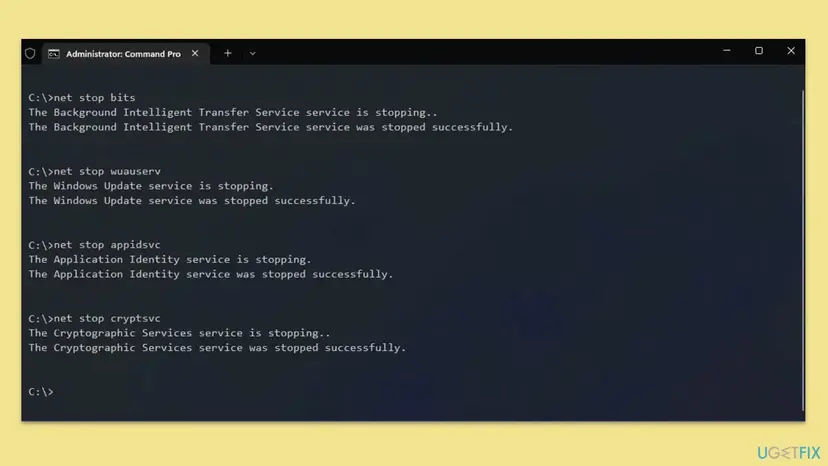
The first update check after a reset is slower than usual, because Windows rebuilds its list of installed updates and downloads the update again.
It worked if: Windows Update downloads the cumulative update from zero and installs it.
If not: If it fails again with 0x800f0835, the damage is in the system files: go to Fix 4.
Fix 4. Repair the component store with DISM and SFC
15 to 40 minutesNo riskThe update still fails after a fresh download, or other updates fail too.
A cumulative update replaces files in the component store. If files it builds on are damaged or missing, the install stops and rolls back. Microsoft's own route for such failures is DISM with RestoreHealth, then SFC, then Windows Update again.
- Open an elevated command window. Right-click Start and select Terminal (Admin), or type cmd in the search box, right-click Command Prompt and select Run as administrator. Select Yes when Windows asks for permission.

Search for cmd and choose Run as administrator. Screenshot: Windows 11 26H2. - Run DISM first. Type the command below and press Enter. DISM downloads clean copies of damaged components from Windows Update, so it can take several minutes. Wait until it says The operation completed successfully.
DISM.exe /Online /Cleanup-Image /RestoreHealth
DISM /RestoreHealth running. Screenshot: Windows 11 26H2. - Run System File Checker. In the same window, type the command below and press Enter. Do not close the window until the verification reaches 100%.
sfc /scannow
sfc /scannow at 100%. Screenshot: Windows 11 26H2. - Read the result and restart. Compare the last message with the table below this guide, then restart the PC so that repaired files are loaded.

The result line tells you what SFC did. Screenshot: Windows 11 26H2.
These steps were written for Windows 11 24H2 and 25H2. The full page with the other versions and what each result means: Run DISM and SFC to repair Windows system files
Run DISM first and SFC second. DISM downloads clean copies from Windows Update to repair the store, and SFC then uses that store to repair the system files. A clean SFC result alone, as in the Ten Forums report, does not prove the store is healthy.
DISM.exe /Online /Cleanup-image /Restorehealth
sfc /scannow
It worked if: DISM reports The restore operation completed successfully. and SFC finds no violations or repairs them. The update installs after a restart.
If not: If DISM fails, read C:\Windows\Logs\CBS\CBS.log as described below, then go to Fix 5 or Fix 7.
Fix 5. Install the update from the Microsoft Update Catalog
15 to 30 minutesLow riskWindows Update keeps failing with the same KB, and you know its number from Update history.
The catalog file is the full update. Installing it by hand skips the Windows Update download and scan steps, so a problem in those steps no longer matters.
- Check your Windows version. Press Windows key + R, type winver and press Enter. Note the version (for example 25H2) and the OS build.
- Find the KB number. Open Settings > Windows Update. A failed or pending update is listed with its KB number; earlier ones are under Update history.
- Check the processor type. Open Settings > System > About and look at System type: an x64-based PC needs the x64 file, an ARM-based PC (for example Snapdragon) needs the arm64 file.
- Search the catalog. Open the Microsoft Update Catalog at catalog.update.microsoft.com in your browser, type the KB number (for example KB5124010) in the search box and press Enter.
- Pick the right row. Find the row whose title names your Windows version and your processor type (x64-based or arm64-based) and select Download on that row.
- Download every file listed. A window lists one or more .msu links. Download all of them into one empty folder, for example C:\packages. On Windows 11 24H2 and later the list can include earlier checkpoint updates that the new one needs.
- Install a single file. If there is only one file, double-click it and confirm the installation in the Windows Update Standalone Installer.
- Install several files with DISM. If there are several files, open an elevated Terminal or Command Prompt and run DISM with the newest file. DISM finds the other files in the same folder and installs them in the right order.
DISM /Online /Add-Package /PackagePath:C:\packages\<newest-file>.msu - Restart. Restart the PC when the installation finishes, then run winver again: the OS build should have changed.
These steps were written for Windows 11 24H2 and later; Windows 10 22H2. The full page with the other versions and what each result means: Install an update from the Microsoft Update Catalog
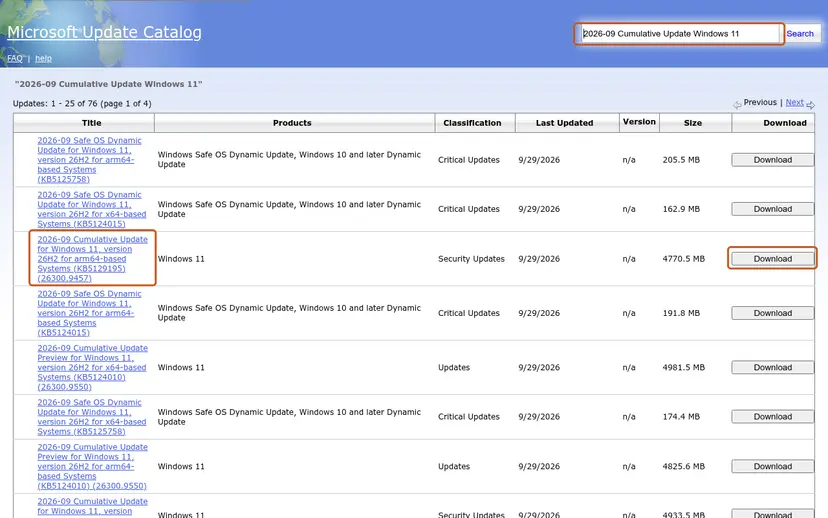
If the catalog's download window lists more than one file for the update, download all of them. If a separate Servicing Stack Update is listed for your version, install it before the cumulative update.
It worked if: The Windows Update Standalone Installer finishes, and after a restart Update history shows the KB as installed.
If not: If the manual install also fails, test without other software in Fix 6, then use Fix 7.
Fix 6. Install the update in a clean boot
20 minutesLow riskThe PC runs many third-party services: game launchers, VPN clients, tuning or backup tools.
A clean boot starts Windows with only Microsoft services. If the update installs then, a third-party service was holding files the update needed. It does not turn off Microsoft Defender or other Microsoft security.
- Open System Configuration. Select Search on the taskbar, type msconfig and select System Configuration from the results.
- Hide Microsoft services. On the Services tab, select the Hide all Microsoft services check box. Only services from other companies stay in the list.

With Hide all Microsoft services ticked, only third-party services stay in the list. Screenshot: Windows 11 26H2. - Disable the remaining services. Select Disable all, then select Apply.
- Open Task Manager. On the Startup tab of System Configuration, select Open Task Manager.
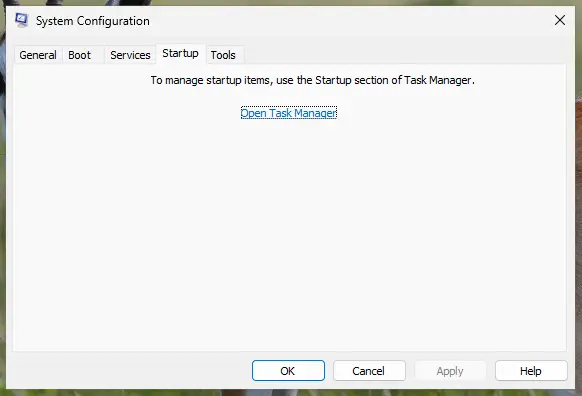
The Startup tab only links to Task Manager. Screenshot: Windows 11 26H2. - Disable the startup apps. On the Startup apps tab in Task Manager, select each item whose status is Enabled and select Disable. Write down or take a screenshot of the items you disable: you need the list to turn them back on.
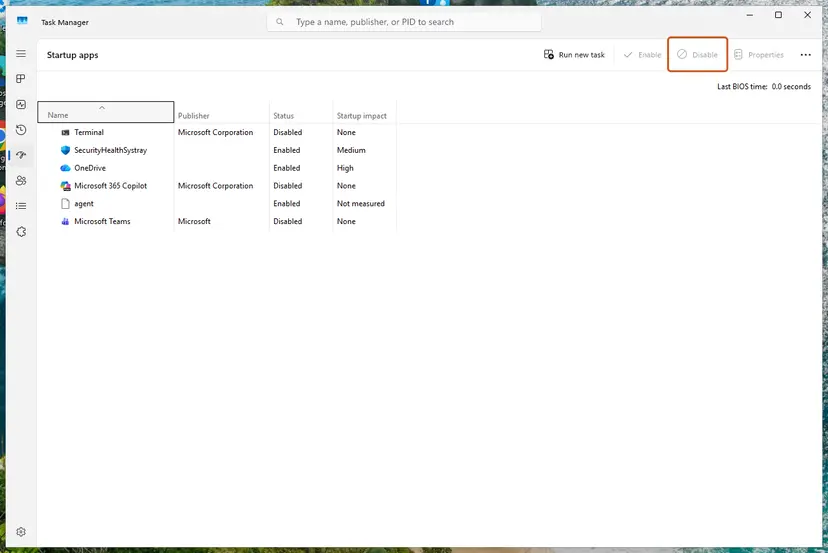
Select an app, then Disable. Screenshot: Windows 11 26H2. - Confirm the changes. Close Task Manager. On the Startup tab of System Configuration, select OK.
- Restart and test. Restart the PC. Windows now starts in a clean boot environment: try again the thing that failed (run the app, install the update, uninstall the program).
These steps were written for Windows 11 25H2 and 26H2. The full page with the other versions and what each result means: How to perform a clean boot in Windows
A clean boot uses the Services and Startup tabs of System Configuration. Leave Safe boot on the Boot tab unchecked: Windows Update does not install updates in Safe Mode. After the update, turn the services and startup apps back on and restart.
It worked if: The cumulative update installs in the clean boot. After you restore normal startup, the PC works as before.
If not: If it fails in a clean boot too, go to Fix 7.
Fix 7. Reinstall Windows over itself and keep your files and apps
1 to 2 hoursLow riskUpdates have failed for weeks or months, and Fix 1 to Fix 6 did not help.
A repair reinstall replaces all system files and the component store with a clean copy of the current Windows version. That clears damage DISM cannot reach, and apps, files and settings stay. Independent advisors on Microsoft Q&A give it as the last step for 0x800f0835.
On Windows 11, use the built-in reinstall:
- Open Recovery in Settings. Open Settings > System > Recovery. Next to Fix problems using Windows Update, select Reinstall now. This keeps your apps, files and settings.

Fix problems using Windows Update reinstalls the current version and keeps apps, files and settings. Screenshot: Windows 11 26H2. - Start the reinstall. Choose whether the PC may restart on its own 15 minutes after the installation, then select OK.
- Wait and restart. Windows Update downloads and installs a repair copy of your current Windows version. Keep the PC plugged in and online, and restart it when asked.
These steps were written for Windows 11 22H2 and later. The full page with the other versions and what each result means: Reinstall Windows without losing files
On Windows 10, use the Media Creation Tool:
- Open the Windows 10 download page at microsoft.com/software-download/windows10 and select Download tool now.
- Run the tool, accept the license and select Upgrade this PC now.
- When the Ready to install page appears, check that it says Keep personal files and apps. If not, select Change what to keep and choose it.
- Select Install and leave the PC alone. It restarts several times.
Your files are meant to stay, but a failed reinstall can leave Windows unable to start. Back up what you cannot lose first: Back up your files (Windows Backup, File History, Time Machine). Keep a laptop plugged in for the whole process.
It worked if: The PC starts into the same desktop with your apps and files, on the newest build, and the next cumulative update installs.
If not: Read CBS.log as the next section shows, or use Reset this PC with Keep my files.
If error 0x800f0835 is still there
The servicing log names the package or file that failed. Read it before you try anything else, or send it to whoever helps you.
- Press Win + R, type
%windir%\Logs\CBSand press Enter. - Copy
CBS.logto the Desktop and open the copy in Notepad. - Press Ctrl + F and search for
0x800f0835. Note the time of the last hit. - Read the lines just above it. A package name and a version such as
10.0.19045.xxxxtell you which update or component was involved. - If the log is long, also check
CBS.persist.login the same folder. It holds older entries.
| Situation | What to do |
|---|---|
| Work or school PC that gets updates from the organization | Send the administrator the code, the KB number, the build from winver and a copy of the CBS folder. |
| Windows 10 PC after 14 October 2025 | Windows 10 reached end of support that day. Without Extended Security Updates the PC gets no more cumulative updates. Plan a move to Windows 11 if the hardware allows it. |
| The repair reinstall fails or is not possible | Use Reset this PC with Keep my files: Reinstall Windows without losing files. Apps are removed, your files stay. |
| The PC lost power or froze during an update | Check the drive for errors first: Check a disk for errors (chkdsk) |
| A different code, 0x800f0831 | That one means the component store is damaged. Fix 4 and Fix 7 apply, and Microsoft documents it in its corruption error list. |
Nothing about 0x800f0835 points to memory or the processor. The exception is a drive that reports errors in chkdsk, because a failing drive can damage the component store again after every repair.
For a related code in the same family on Windows 11, see our guide to error 0x800f0838, which is caused by a missing checkpoint update.
How to keep error 0x800f0835 from coming back
- Let an update finish, even when Getting Windows ready takes a long time.
- Restart with Restart, not Shut down, when Windows asks for an update restart.
- Keep a laptop plugged in while updates install.
- Run DISM and SFC once if updates start failing, before the damage grows.
- Do not hold the power button during an update unless the screen has not changed for over an hour.
- Do not delete files in
C:\Windows\WinSxSby hand to save space. - Do not download update files from sites other than catalog.update.microsoft.com.
- Do not turn off your antivirus for good to make an update install.
Frequently asked questions
What does error 0x800f0835 mean?
It means a Windows cumulative update was downloaded but failed while it was being installed, so Windows rolled it back. The code belongs to the 0x800f08xx group of servicing errors. Microsoft does not document this exact code, and the reports we found all come from Windows 10 22H2. Your files are not affected. Restart the PC and run Windows Update again, which in user reports often installs the same update.
What does the message with (0x800f0835) in brackets mean?
The full text is: There were some problems installing updates, but we'll try again later. If you keep seeing this and want to search the web or contact support for information, this may help: (0x800f0835). The first part is the same for many update failures. Only the code in brackets is specific. It tells you the install step failed, not the download. Windows will offer the update again, so one retry after a restart is the right first step.
Which updates fail with 0x800f0835?
User reports on Microsoft Q&A and Ten Forums name Windows 10 22H2 cumulative updates, for example KB5044273 from October 2024, KB5048652 from December 2024, the preview KB5050081 from January 2025 and KB5060533 from June 2025. The code is not tied to one update. It is a failure of the install step, so any monthly update can show it. The fixes on this page are the same for each KB.
Does 0x800f0835 happen with KB5066791?
We found no report that ties KB5066791 to this code, although people search the two together. If KB5066791 fails with 0x800f0835 on your PC, the same order applies. Restart and retry, run the troubleshooter, reset the update cache, then repair with DISM and SFC. As the last step, install it from the Microsoft Update Catalog by its KB number.
Is 0x800f0835 a Windows 10 or a Windows 11 error?
Every report we found is from Windows 10 22H2, and the Google searches that lead to this page are for Windows 10 too. The servicing stack and the repairs are the same on Windows 11, so the fixes here work there as well. Windows 10 reached end of support on 14 October 2025. A Windows 10 PC without Extended Security Updates no longer receives cumulative updates at all.
Will I lose files if an update fails with 0x800f0835?
No. When the install fails, Windows undoes the update and starts the PC with the version you had before. Your documents, photos and apps stay. None of Fix 1 to Fix 6 touches personal files either. The repair reinstall in Fix 7 is designed to keep files and apps, but back up what you cannot lose before you run it, as with any reinstall.
Should I turn off my antivirus to fix 0x800f0835?
No. No source ties this code to security software, and turning protection off leaves the PC exposed while you look for the real cause. If you suspect another program blocks the update, use the clean boot in Fix 6. It starts Windows with only Microsoft services, Microsoft Defender included, and you restore normal startup afterwards.
How long should I wait on Getting Windows ready before I restart?
Give it at least an hour, longer on an older PC with a hard disk. A cumulative update can sit on that screen with no visible change while it works. In the Ten Forums report that led to 0x800f0835, the user restarted after about half an hour. A forced restart in the middle of an install is the most common start of this error.
I have a German, Italian or French Windows. Is this the same error?
Yes. Fehlercode 0x800f0835, errore 0x800f0835 and erreur 0x800f0835 are the same code. Only the words around it are translated, and the number is identical in every language of Windows. The fixes on this page work on any language edition. The menu names in the steps are the English ones, so follow the position of the items in Settings. The commands are typed the same everywhere.
Sources
- Microsoft Learn: Fix Windows Update corruptions and installation failures (learn.microsoft.com)
- Microsoft Q&A: Windows Update Error 0x800f0835 (KB5060533, Windows 10 22H2) (learn.microsoft.com)
- Ten Forums: KB5048652 Update for December fails to install: 0x800f0835 Error (tenforums.com)
Did this fix work?
One click, no account. It tells the next reader which guides are worth their time.
Questions and experiences: fix Windows update error 0x800f0835
Still broken, or found a fix we did not cover? Ask here: members and our editors answer. Reading is open; writing needs a free account.
…