
How to fix Windows update error 0x80188309?

Prefer to fix it yourself? The manual steps follow.
- 6methods
- 5 to 90 minutes
- Medium
Applies to Windows 11 and Windows 10, Settings > Windows Update, monthly cumulative and preview updates
6 methods in this guide
Hello. When I try to install Windows updates, I get the 0x80188309 error code. Is there a way to fix it?
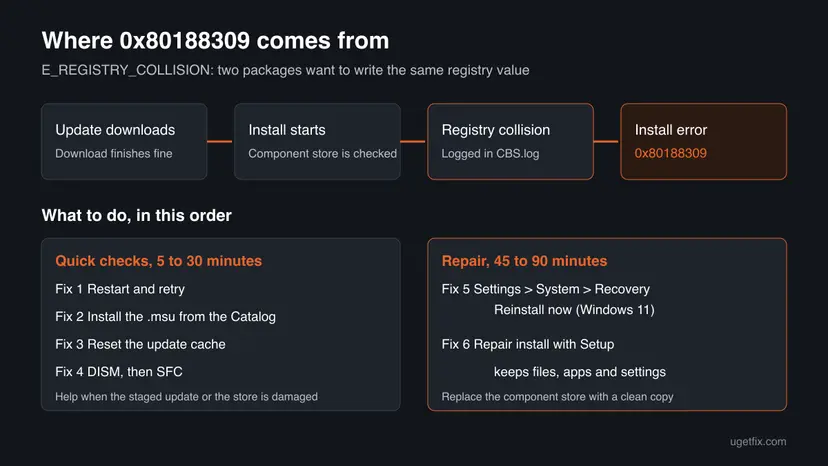
Windows update error 0x80188309 is the servicing code E_REGISTRY_COLLISION: two update packages want to write the same registry value, so Windows stops the install, usually close to 100 %. Restart and retry once, then install the update by hand. If it still fails, repair Windows in place: your files and apps stay.
0x80188309 means E_REGISTRY_COLLISION: two packages in the Windows component store have registry settings that conflict, so the update cannot be installed. Restart and retry once (Fix 1), then install the same KB as an .msu file from the Microsoft Update Catalog (Fix 2). If it fails again, the store itself needs repair: on Windows 11 use Settings > System > Recovery > Reinstall now (Fix 5), which keeps your files and apps.
| Error | Install error - 0x80188309 next to an update in Settings > Windows Update. The code is named E_REGISTRY_COLLISION, "Two or more packages have registry settings that conflict". |
|---|---|
| Where it appears | During the install stage of a cumulative or preview update, after the download is complete. Users report it stops near 100 % and comes back on every retry. |
| Main cause | Registry data of an earlier package in the component store clashes with the new update. CBS.log then reports critical registry value collisions. |
| Fastest fix | Restart and retry (Fix 1), then the offline .msu (Fix 2). The fix that clears a real collision is a repair of Windows that keeps files (Fix 5 or Fix 6). |
| Also written as | 0x80188309, error 80188309, Install error - 0x80188309, E_REGISTRY_COLLISION, critical registry value collisions detected. |
| Affects | Windows 11 and Windows 10. Reports name Windows 11 22H2 and 23H2 updates such as KB5028254, KB5039212 and KB5041585. |
| Microsoft's status | Not a known issue of one update. We found no Microsoft documentation page for this code and no patch. Microsoft's answer for updates that fail because of damaged components is the Windows 11 Reinstall now repair. |
| Where the cause is written | C:\Windows\Logs\CBS\CBS.log. Search it for collision. |
| Time to fix | 5 to 30 minutes for Fixes 1 to 4. 45 to 90 minutes for a repair install. |
Facts checked on 16 October 2026. Steps written for Windows 11 (25H2 and 26H2) and Windows 10 22H2.
What Windows update error 0x80188309 means
0x80188309 comes from the part of Windows that installs updates into the component store (Component Based Servicing, or CBS). On Microsoft Q&A, a volunteer moderator gives its name as E_REGISTRY_COLLISION and its meaning as "Two or more packages have registry settings that conflict". We could not find the code on a Microsoft documentation page, so this name comes from that answer.
In plain words: every update package carries registry values it will write. Before it writes them, Windows checks that no other installed package already owns the same value in a different way. When it finds such a clash, it refuses to go on rather than leave Windows half updated. The download is fine. The problem is in what is already on your PC.
| What you see | Where | What it tells you |
|---|---|---|
| Install error - 0x80188309 | Settings > Windows Update, next to the update | The update downloaded but could not be installed. |
| Failed to install, with 0x80188309 and a KB number | Settings > Windows Update > Update history | A record of the failed attempt. Note the KB number for Fix 2. |
| Error: 1 critical registry value collisions detected, failing. | C:\Windows\Logs\CBS\CBS.log, reported by a user | The same failure as written by the installer. The lines above it name the packages involved. |
Unlike download errors, 0x80188309 appears after the update is on your PC. Checking the internet connection, the firewall or the antivirus does not touch the cause, so this guide does not send you there.
What causes Windows update error 0x80188309
The code names one thing, a registry clash between packages, but there are a few ways your PC gets there. Microsoft publishes no ranking, so the order below follows what the code means and what users report.
| Cause | How likely | How to tell | Fix |
|---|---|---|---|
| The component store holds registry data from an earlier package, for example a failed, partly removed or superseded update, that clashes with the new one. | Most likely | The same update fails on every try, and the next month's update fails with the same code. | Fix 4, Fix 5, Fix 6 |
| The staged files of the failed update are damaged or incomplete. | Possible | Only one update fails, and other updates install. | Fix 2, Fix 3 |
| A restart is pending from an earlier update, so the store is in the middle of a change. | Possible | Another update says Restart required, or the PC has not restarted for days. | Fix 1 |
| Disk errors damaged the store's registry hive. | Rare | Other errors appear too, the PC freezes or a disk check reports problems. | Check the disk, then Fix 6 |
In a Sysnative forum thread from 2024, a user on Windows 11 23H2 saw the update download, then fail near 100 % with 0x80188309 on KB5039212 and later on KB5041585. SFC and the troubleshooter did not help. The CBS log held the line about critical registry value collisions, and the helpers asked for the COMPONENTS registry hive to find the clashing value.
How to fix Windows update error 0x80188309
Fixes 1 to 4 take minutes and clear a pending restart or a damaged staged update. If the collision sits in the component store itself, they will not be enough, and Fix 5 or Fix 6 repairs Windows while keeping your files, apps and settings.
| What you see or have | Start with |
|---|---|
| First time you see the error, or another update says Restart required. | Fix 1 |
| One KB fails, other updates install. | Fix 2, then Fix 3 |
| The same code comes back month after month. | Fix 4, then Fix 5 |
| Windows Update says "Reinstall your current version of Windows to repair system files and components." | Fix 5 |
| Windows 10, a work PC, or Reinstall now is missing or fails. | Fix 6 |
Fix 1. Restart the PC and retry the update once
5 to 15 minutesNo riskAlways first, most of all when another update says Restart required.
A pending restart means the component store is still in the middle of an earlier change. A real restart lets Windows finish that work, so the registry check starts from a settled state.
- Save your work and plug a laptop into power.
- Open Start, select the power button and choose Restart. Do not use Shut down for this step.
- Wait two or three minutes after Windows starts.
- Open Settings > Windows Update and select Retry next to the failed update, or Check for updates.
- Leave the PC on until the update finishes or asks for a restart.
It worked if: The install passes 100 % and asks for a restart, and the KB shows as installed in Update history.
If not: If it stops again with 0x80188309, install the same update by hand with Fix 2.
Fix 2. Install the failed update as an .msu file from the Microsoft Update Catalog
10 to 20 minutesLow riskOne update keeps failing and you can see its KB number in Update history.
On Microsoft Q&A this is the first advice given for 0x80188309. The offline installer brings its own complete package, so a damaged staged copy of the update is no longer in the way.
- Open Settings > Windows Update > Update history and note the KB number next to the failure, for example
KB5039212. - Open Settings > System > About and note your version (for example 24H2 or 25H2) and System type (x64 or ARM64).
- Go to the Microsoft Update Catalog and search for the KB number.
- Download the line that matches your version and system type.
- Double-click the
.msufile and confirm the install. - Restart when asked.
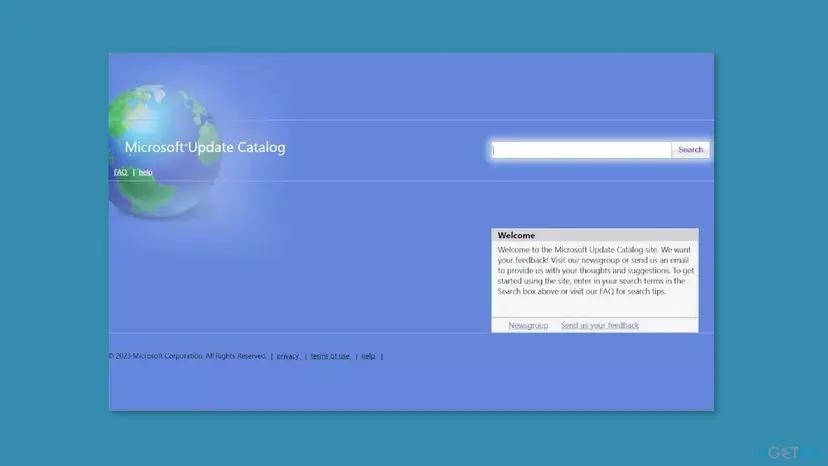
Full steps with screenshots: Install an update from the Microsoft Update Catalog
It worked if: The installer finishes, and the KB is listed as installed after the restart.
If not: If the .msu also stops with 0x80188309, the clash is in the component store. Clear the update cache with Fix 3, then go to Fix 4.
Fix 3. Reset the Windows Update components and cache
15 minutesLow riskOne update failed both through Windows Update and as an .msu, or you want to rule out a damaged staged copy.
The reset removes the download and the staging data of the failed update by renaming SoftwareDistribution and catroot2. Windows then stages the update again from zero, so leftovers of the failed attempt are gone.
- Open Command Prompt as administrator. Type cmd in the search box, right-click Command Prompt and select Run as administrator. Select Yes when Windows asks for permission.
- Stop the update services. Type the commands below and press Enter after each one. If Windows says that other services depend on Cryptographic Services, it stops them too. A message that a service is not started is fine.
net stop wuauserv net stop bits net stop cryptsvc - Delete the download queue files. This clears the list of downloads that the Background Intelligent Transfer Service keeps. If Windows says it cannot find the files, continue.
del "%ALLUSERSPROFILE%\Application Data\Microsoft\Network\Downloader\qmgr*.dat" - Rename the update cache folders. Renaming keeps a copy in case you need it; Windows creates new, empty folders when the services start again. If you get Access is denied, a service is still running: repeat the previous step.
ren %systemroot%\SoftwareDistribution SoftwareDistribution.old ren %systemroot%\System32\catroot2 catroot2.old - Start the services again. Type the commands below and press Enter after each one. The requested service has already been started is fine: Windows started it on its own.
net start cryptsvc net start bits net start wuauserv - Restart and check for updates. Restart the PC. Then select Start > Settings > Windows Update > Check for updates. The first check can take longer than usual because everything is downloaded again.
These steps were written for Windows 11 and Windows 10 (the steps are the same). The full page with the other versions and what each result means: Reset Windows Update components

It worked if: Windows checks for updates, downloads the update again and installs it.
If not: If the same code comes back, repair the component store with Fix 4.
Fix 4. Repair the component store with DISM, then run SFC
20 to 30 minutesLow riskThe same code comes back after Fixes 1 to 3, or other updates fail too.
The colliding registry data lives in the component store. DISM /RestoreHealth checks that store and replaces damaged parts. SFC alone checks only the system files and did not help the user in the forum report.
- Open an elevated command window. Right-click Start and select Terminal (Admin), or type cmd in the search box, right-click Command Prompt and select Run as administrator. Select Yes when Windows asks for permission.

Search for cmd and choose Run as administrator. Screenshot: Windows 11 26H2. - Run DISM first. Type the command below and press Enter. DISM downloads clean copies of damaged components from Windows Update, so it can take several minutes. Wait until it says The operation completed successfully.
DISM.exe /Online /Cleanup-Image /RestoreHealth
DISM /RestoreHealth running. Screenshot: Windows 11 26H2. - Run System File Checker. In the same window, type the command below and press Enter. Do not close the window until the verification reaches 100%.
sfc /scannow
sfc /scannow at 100%. Screenshot: Windows 11 26H2. - Read the result and restart. Compare the last message with the table below this guide, then restart the PC so that repaired files are loaded.

The result line tells you what SFC did. Screenshot: Windows 11 26H2.
These steps were written for Windows 11 24H2 and 25H2. The full page with the other versions and what each result means: Run DISM and SFC to repair Windows system files
Run the DISM command before SFC here, because DISM is the part that looks at the store. If DISM says it repaired something, restart and try the update again before you go on.
It worked if: DISM reports that the restore operation completed, and the next update install passes.
If not: If DISM finds nothing or the update fails again, repair Windows in place with Fix 5.
Fix 5. Reinstall the current version of Windows 11 through Windows Update
45 to 90 minutesRead the warningWindows 11, and Fixes 1 to 4 did not help, or Windows Update itself offers Reinstall now.
Microsoft offers this repair for updates that fail because of problems with system files or components. It reinstalls the same Windows version with a clean component store, so the clashing registry data is replaced.
Microsoft says this keeps your apps, files and settings. A power cut during the reinstall can still leave Windows unable to start, so copy important files to a USB drive or cloud storage first and keep the PC plugged in: Back up your files (Windows Backup, File History, Time Machine)
- Open Start > Settings > System > Recovery.
- Under Fix problems using Windows Update, select Reinstall now.
- Choose whether the PC may restart by itself 15 minutes after the install.
- Select OK. Windows Update downloads a repair version of the last update that installed well and installs it.
- Restart when it is done, then open Settings > Windows Update and select Check for updates.

Microsoft says it needs Windows 11 22H2 or later with the February 2024 optional update or a later one. It is not shown on PCs whose updates are managed by work or school. Use Fix 6 then.
It worked if: Windows restarts on a repaired build, and the update that failed with 0x80188309 installs on the next check.
If not: If the option is missing or the reinstall fails, use Setup in Fix 6.
Fix 6. Repair install with Windows Setup and keep files and apps
60 to 90 minutesRead the warningWindows 10, a managed PC, or Reinstall now was missing or failed.
Setup run from inside Windows replaces the whole component store with a clean one, without going through Windows Update. That removes any registry collision left by old packages.
Choose Keep personal files and apps in Setup, or you lose your apps. Copy important files to another drive before you start: Back up your files (Windows Backup, File History, Time Machine)
- Open Recovery in Settings. Open Settings > System > Recovery. Next to Fix problems using Windows Update, select Reinstall now. This keeps your apps, files and settings.
- Start the reinstall. Choose whether the PC may restart on its own 15 minutes after the installation, then select OK.
- Wait and restart. Windows Update downloads and installs a repair copy of your current Windows version. Keep the PC plugged in and online, and restart it when asked.
- If that did not help: Reset PC. Back in Settings > System > Recovery, next to Reset this PC, select Reset PC. This keeps your personal files but removes installed apps and settings.
- Choose Keep my files. Select Keep my files. Do not select Remove everything.
- Choose where Windows comes from. Select Cloud download to download a fresh copy of Windows, or Local reinstall to use the files already on the PC (faster, but may not include the latest updates).
- Reset. Review the summary and select Reset. The PC restarts several times.
These steps were written for Windows 11 22H2 and later. The full page with the other versions and what each result means: Reinstall Windows without losing files
It worked if: Windows starts with your files and apps in place, and Check for updates installs the waiting updates.
If not: Read the next section: the CBS log shows which packages collide.
If error 0x80188309 is still there
The real cause is written in the CBS log, C:\Windows\Logs\CBS\CBS.log. Open it in Notepad as administrator, press Ctrl + F and search for collision. The failure line looks like the one a user posted: Error: 1 critical registry value collisions detected, failing. The lines just above it name the registry key and the packages that clash.
| What to collect | Where it is |
|---|---|
| All CBS logs, zipped | C:\Windows\Logs\CBS\, the whole folder |
| The KB number and your Windows version | Update history and Settings > System > About |
| The component store hive, if a helper asks for it | C:\Windows\System32\config\COMPONENTS, copied after a restart |
The COMPONENTS hive is not the normal registry. Changing or deleting values in it without an expert's exact instructions can stop every future update. If you are asked to change the normal registry, back it up first: Back up the registry before editing it
Send these to Microsoft Support or a Windows Update forum. If the PC also freezes or shows disk errors, check the drive first, because damage to the hive can come from the disk: Check a disk for errors (chkdsk). Windows 10 reached the end of support on 14 October 2025, so without Extended Security Updates a Windows 10 PC no longer gets monthly updates at all.
How to keep error 0x80188309 from coming back
- Restart when Windows Update asks, before the next update arrives.
- Keep the PC on power and online until an update finishes.
- Create a restore point before you install tweak tools or registry cleaners: Undo recent changes with System Restore
- Keep several gigabytes free on drive C.
- Do not force the PC off while an update shows "Working on updates".
- Do not use registry cleaners to remove leftovers of old updates.
- Do not delete folders under
C:\Windows\WinSxSby hand.
For a different update code with a similar set of fixes, see Windows update error 0x80004002.
Frequently asked questions
What is error 0x80188309?
It is a Windows servicing code named E_REGISTRY_COLLISION, which means two or more update packages have registry settings that conflict. Windows finds the clash while it installs an update into the component store and stops rather than write conflicting values. The download itself is fine. Restart and retry once, install the update as an .msu file, and if it still fails, repair Windows with Reinstall now or Setup while keeping your files.
Why does the update fail with 0x80188309 near 100 %?
Because the registry check happens while the update is installed, not while it downloads. Users report the progress bar reaching the end, then the error. At that point Windows compares the registry values of the new package with what other installed packages already own. When it finds a clash, it rolls the install back and shows 0x80188309. Retrying repeats the same check, which is why the error comes back each time until the store is repaired.
Which updates fail with 0x80188309?
It is not tied to one update. Reports on Microsoft Q&A, Sysnative and Reddit name Windows 11 22H2 and 23H2 cumulative and preview updates, such as KB5028254, KB5039212 and KB5041585, and a February 2024 cumulative update. Once a PC has the collision, the next monthly update often fails with the same code, because the clashing data is still in the store. That is why the repair in Fix 5 or Fix 6 is often needed.
Will the Windows Update troubleshooter fix 0x80188309?
Usually not. The troubleshooter resets update services and settings, but the clash sits in the component store, which it does not repair. In the forum report, the troubleshooter found something to fix and the update still failed with the same code. You can run it, since it is quick and safe, but expect to need Fix 4 and then Fix 5 or Fix 6. Step by step: Run the Windows Update troubleshooter
Does Reinstall now delete my files or apps?
No. Microsoft says Fix problems using Windows Update reinstalls the same Windows version and keeps your apps, files and settings. It downloads a repair version of the last update that installed well and installs it. Keep the PC on power and connected to the internet the whole time. A power cut can still leave Windows unable to start, so a backup before you begin is a good idea.
Why is Fix problems using Windows Update not shown on my PC?
Microsoft names three reasons. Your PC runs a version older than Windows 11 22H2. It lacks the February 2024 optional update or a later one. Or its updates are managed by work or school, for example with a WSUS server or update deferral policies. Windows 10 does not have this option at all. In each case use Windows Setup with Keep personal files and apps, as in Fix 6.
Can I find and delete the colliding registry value myself?
Only with expert help. The clashing values sit in the COMPONENTS hive, a separate registry file in C:\Windows\System32\config that Windows loads only for servicing. Forum helpers find the exact value from the CBS log and a copy of that hive, then give a fix for that one PC. Guessing and deleting values there can break every later update. For most readers a repair install is faster and safer.
Should I turn off my antivirus to fix 0x80188309?
No. The error is a clash between packages already on your PC, so antivirus is not part of the cause, and Microsoft Defender never needs to be off for updates. If you use a third-party security suite and nothing else worked, you may pause it for one install attempt and turn it back on right after. Step by step: Turn off Microsoft Defender protection for a moment
I see 0x80188309 on Windows 10. What should I do?
The same fixes apply, except Fix 5, which Windows 10 does not have. Use the Media Creation Tool or Windows 10 Setup with Keep personal files and apps, as in Fix 6. Keep in mind that Windows 10 left support on 14 October 2025. Without Extended Security Updates, the PC gets no more monthly updates, so a long-term fix is moving to Windows 11 if your hardware allows it.
Sources
- Microsoft Support: Fix issues by reinstalling the current version of Windows (support.microsoft.com)
- Microsoft Q&A: What does the error code 0x80188309 mean (volunteer moderator answers) (learn.microsoft.com)
- Sysnative Forums: Windows 11 fails to install update KB5039212 (0x80188309), user report (sysnative.com)
Did this fix work?
One click, no account. It tells the next reader which guides are worth their time.
Questions and experiences: fix Windows update error 0x80188309
Still broken, or found a fix we did not cover? Ask here: members and our editors answer. Reading is open; writing needs a free account.
…