
How to Fix Windows Update Error 0x8024001f?

Prefer to fix it yourself? The manual steps follow.
- 7methods
- 5 to 40 minutes
- Easy
Applies to Windows 11 and Windows 10: Settings > Windows Update and Update history
7 methods in this guide
Can someone help me to fix Error Code 0x8024001f? It shows up each time when I try to install Windows Updates. As far as I know, there are some important security updates pending, so I'm afraid to leave some security vulnerabilities. Please help.
Error 0x8024001F means Windows Update could not finish because its network connection was unavailable. The internet may look fine in the browser, yet the update service could not reach Microsoft at that moment. Check that the PC is on a stable network and select Retry (Fix 1), then clear any leftover proxy or VPN (Fix 2).
0x8024001F is WU_E_NO_CONNECTION: Microsoft's list says the operation did not complete because the network connection was unavailable. Make sure the PC is online on a stable network, disconnect any VPN and select Retry (Fix 1). If it fails again, check that netsh winhttp show proxy shows no old proxy (Fix 2), then reset DNS and the network stack (Fix 3).
| Error | 0x8024001F, Windows name WU_E_NO_CONNECTION. |
|---|---|
| Where it appears | Settings > Windows Update, next to an update or in Update history, while Windows checks for, downloads or installs updates. |
| Main cause | The update service lost its network connection, or a proxy, a VPN or a damaged network setting kept it from reaching Microsoft. |
| Fastest fix | Confirm the connection, disconnect the VPN and select Retry (Fix 1). |
| Also written as | 8024001F, 0x8024001f, code 8024001f, Windows Update_8024001F. |
| Microsoft's meaning | "Operation didn't complete because the network connection was unavailable." |
| Affects | Windows 11 and Windows 10. Windows 10 left support on 14 October 2025; Windows 7 gets no updates at all. |
| Microsoft's status | A general Windows Update agent code, not a known bug of one update. |
| Time to fix | 5 minutes for a connection check, 15 to 30 minutes for a network and update reset. |
Facts checked on 15 October 2026. Steps written for Windows 11 (25H2 and 26H2) and Windows 10 22H2.
What error 0x8024001F means
Microsoft's Windows Update error code list names 0x8024001F WU_E_NO_CONNECTION and describes it in one line. The line reads: "Operation didn't complete because the network connection was unavailable." The 0x8024 part marks the Windows Update agent, the service that scans, downloads and installs updates. 001F is its code for a missing network connection.
In plain words: when Windows Update needed the network, it had none. That can be a real outage, a Wi-Fi drop of a few seconds, or a setting that sends the update service somewhere it cannot reach. Your browser may work at the same time, because it can use different proxy settings from the update service.
| What you see | Where | What it tells you |
|---|---|---|
| There were some problems installing updates, but we'll try again later. If you keep seeing this and want to search the web or contact support for information, this may help: (0x8024001f) | Windows 10, Settings > Update & Security > Windows Update | The scan, download or install stopped because the service had no connection. |
| Download error - 0x8024001f or Install error - 0x8024001f under an update | Windows 11, Settings > Windows Update | One update could not be fetched. The others in the list may install. |
| 0x8024001f in Update history | Both versions | A past attempt failed. If newer attempts succeeded, there is nothing to fix. |
If you searched in another language, for example "شوف" or "ما هذا" ("what is this"), or only typed "how to fix this problem", this page is about the Windows Update error code 0x8024001F, also written 8024001f.
Why Windows Update shows 0x8024001F
The code names one thing: no connection. So the causes all sit between the update service on your PC and Microsoft's servers. Damaged system files are a rare cause and come last.
| Cause | How often | How to tell | Fix |
|---|---|---|---|
| The connection dropped or was not ready: weak Wi-Fi, a sleeping adapter, a VPN that reconnected. | Most often | The error is random; a retry later works. | Fix 1 |
| An old proxy is set for system services, or a VPN or filter blocks the update service. | Often | netsh winhttp show proxy lists a proxy server. | Fix 2 |
| Cached DNS answers or a damaged network stack. | Sometimes | Some websites or services fail too. | Fix 3 |
| The update services are stuck, or the update cache holds a broken download. | Sometimes | The same update fails every time on any network. | Fix 4 and Fix 5 |
| One update cannot be fetched through Windows Update. | Sometimes | Only one KB number fails. | Fix 6 |
| Damaged system files. | Rarely | Other Windows features fail too. | Fix 7 |
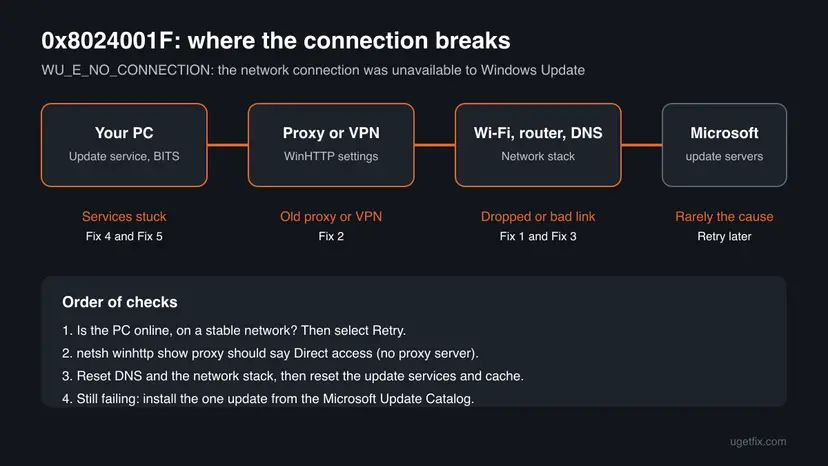
Many pages start with a system file scan. For a code that means no connection, that is the last step, not the first. Check the network path first: it costs five minutes and is where this code points.
How to fix Windows Update error 0x8024001F
Fixes 1 to 3 repair the connection the update service uses, which is what this code is about. Fixes 4 and 5 restart and clean the update service itself. Fix 6 installs one stubborn update by hand, and Fix 7 is the general repair for the rare case of damaged system files.
| What you see or have | Start with |
|---|---|
| The error appeared once, or the PC is on Wi-Fi, a hotspot or a VPN. | Fix 1 |
| The browser works, but Windows Update fails every time. | Fix 2 |
| Some apps or websites also fail to connect. | Fix 3 |
| The network is fine and the same update fails on any network. | Fix 4, then Fix 5 |
| Only one KB update keeps failing. | Fix 6 |
| A work or school PC. | Fix 2, but ask IT before you change a proxy |
Fix 1. Check the connection, disconnect the VPN and select Retry
5 minutesNo riskEveryone first, and especially when the error appeared once or the PC is on Wi-Fi, a mobile hotspot or a VPN.
The code says the network was unavailable at the moment Windows Update needed it. A short drop, a VPN that reconnects or a slow hotspot is enough, and a retry on a steady connection often finishes the job.
- Check the connection status. Select Start > Settings > Network & internet. The status of your connection is at the top of the page. Select Properties next to the network name to see its details.
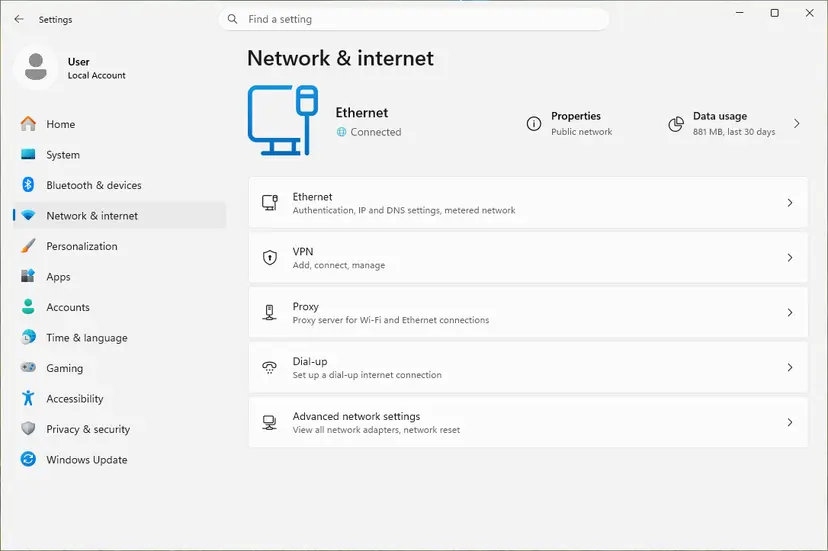
The top of Network & internet shows whether you are connected. Screenshot: Windows 11 26H2. - Check that Wi-Fi is on and connected. Select the Network, Sound or Battery icon on the right side of the taskbar. Make sure Wi-Fi is turned on and that your network shows Connected below its name.
- Run the Network troubleshooter. Open the Get Help app and type connect to network and internet in the search bar. Select Run network diagnostics and complete the steps it offers.
- Restart the modem and the router. Unplug the power cable of the router, then of the modem, and wait at least 30 seconds. Plug the modem back in and wait until its lights stop blinking, then plug in the router. Wait a few minutes and try to connect again.
These steps were written for Windows 11 25H2 and 26H2. The full page with the other versions and what each result means: How to check your internet connection in Windows
- Disconnect any VPN app for this one attempt.
- If you can, plug the PC into the router with a cable, or move closer to the Wi-Fi router.
- Open Settings > Windows Update (on Windows 10 Settings > Update & Security > Windows Update).
- Select Retry, or Check for updates if there is no Retry button, and leave the PC awake until the updates finish.
It worked if: The update downloads with a progress percentage and installs, or asks for a restart.
If not: If the browser works but the error comes back, go to Fix 2.
Fix 2. Remove the old proxy and make sure the VPN is really off
5 to 10 minutesLow riskFix 1 did not help, the browser works, or you once used a VPN, a proxy, an ad blocker or a parental filter.
Windows Update runs as a system service and uses the system proxy setting called WinHTTP, not only your browser's. If that setting still points at a proxy that no longer exists, the service finds no way out and reports a missing connection.
- Close VPN apps completely, not just disconnect them, and close ad blockers or filters that run as programs.
- Open Settings > Network & internet > Proxy. Under Manual proxy setup, select Edit next to Use a proxy server, turn it Off and select Save. On Windows 10 the page is Settings > Network & Internet > Proxy.
- Right-click Start and open Terminal (Admin) on Windows 11 or Windows PowerShell (Admin) on Windows 10.
- Run the first command below. Direct access (no proxy server). is the normal answer.
- If a proxy server is listed and you do not need it, run the second command to remove it.
- Go back to Settings > Windows Update and select Retry.
netsh winhttp show proxy
netsh winhttp reset proxyA company proxy is often required for updates. Do not remove it yourself: send IT the code 0x8024001F and the output of netsh winhttp show proxy.
The same proxy check fixes a related download error, 0x80072F76, which we cover in our 0x80072F76 guide.
It worked if: netsh winhttp show proxy shows Direct access (no proxy server). and Windows Update downloads without the error.
If not: Reset the network settings with Fix 3.
Fix 3. Flush DNS and reset the network stack
10 minutes plus a restartLow riskFix 2 found no proxy, or some other apps and websites also fail to connect.
Windows Update first looks up Microsoft's server names. A stale DNS cache, a damaged Winsock catalog or broken TCP/IP settings can stop that lookup while cached pages in the browser still seem to load.
- Open an elevated command window. Right-click Start and select Terminal (Admin), or type cmd in the search box, right-click Command Prompt and select Run as administrator. Select Yes when Windows asks for permission.
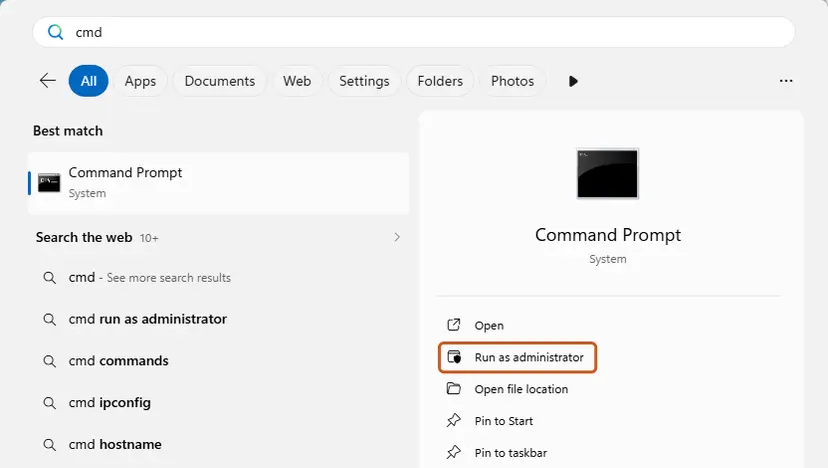
Search for cmd and choose Run as administrator. Screenshot: Windows 11 26H2. - Flush the DNS cache. Type the command below and press Enter. Windows forgets the website addresses it looked up earlier and asks for them again.
ipconfig /flushdns - Reset Winsock. Type the command below and press Enter. It returns the Windows sockets catalog to its default state.
netsh winsock reset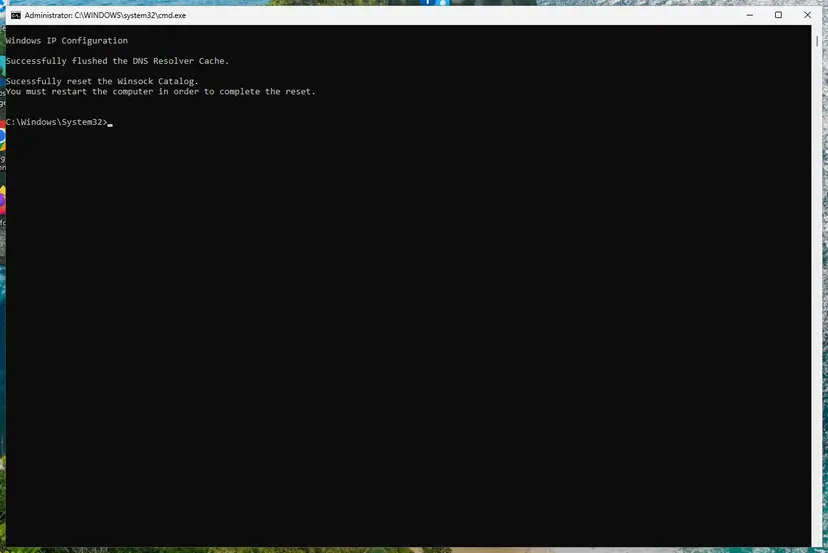
Both commands report success; the Winsock reset asks for a restart. Screenshot: Windows 11 26H2. - Reset TCP/IP. Type the command below and press Enter. If you entered an IP address or DNS server by hand, note it first: you may need to enter it again.
netsh int ip reset - Get a new IP address. Run these two commands one after the other. The connection drops for a moment between them.
ipconfig /release ipconfig /renew - Restart the PC. Restart Windows so the Winsock and TCP/IP resets take effect, then test the connection. If it still does not work, continue with the network reset below.
These steps were written for Windows 11 24H2 and later. The full page with the other versions and what each result means: Reset the network and flush DNS
The full Network reset in the same procedure reinstalls the network adapters and forgets saved Wi-Fi networks. Use it only when the commands did not help, and write down your Wi-Fi password first.
It worked if: After the restart the PC connects normally and Check for updates finishes without 0x8024001F.
If not: If the network works everywhere and the update still fails, run the troubleshooter in Fix 4.
Fix 4. Run the Windows Update troubleshooter
5 minutesNo riskThe network works on other devices and in other apps, but the update still fails.
The troubleshooter restarts the update services and checks their settings. If the update service stopped after a network drop and never picked up the connection again, this is a quick way to restart it.
- Open Troubleshoot settings. Select Start > Settings > System > Troubleshoot.
- Open the list of troubleshooters. Select Other troubleshooters.
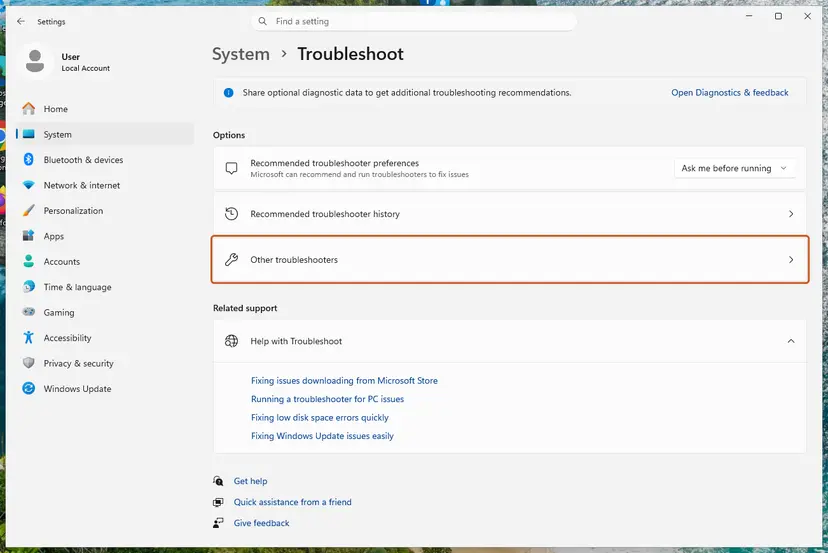
Settings, System, Troubleshoot: select Other troubleshooters. Screenshot: Windows 11 26H2. - Run the Windows Update troubleshooter. Under Most frequent, select Run next to Windows Update. The Get Help app opens and starts the checks.
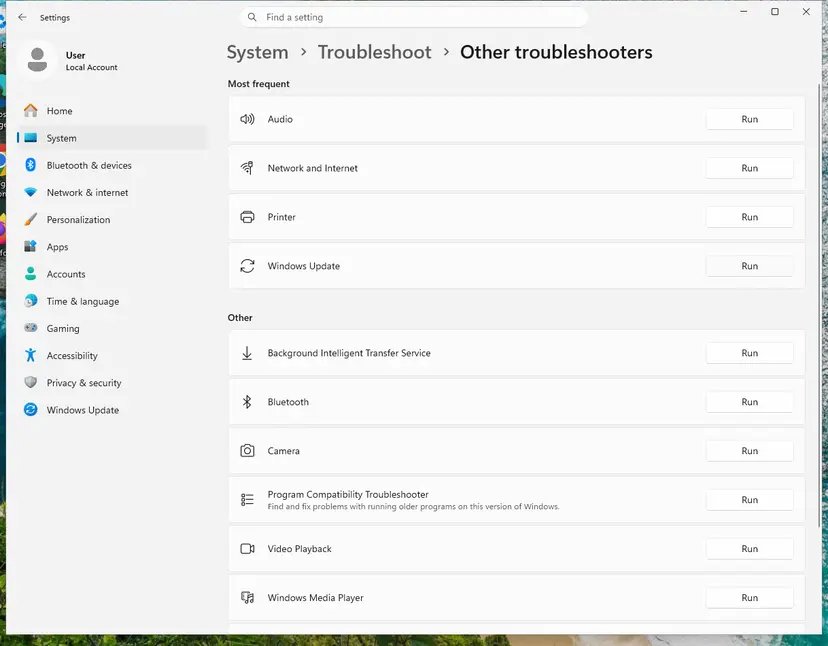
Windows Update is in the Most frequent group; select Run on its row. Screenshot: Windows 11 26H2. - Read the result. Wait until Get Help finishes. If it found and fixed a problem, it says so and asks whether this solved the problem. Answer the question so it can offer the next step.
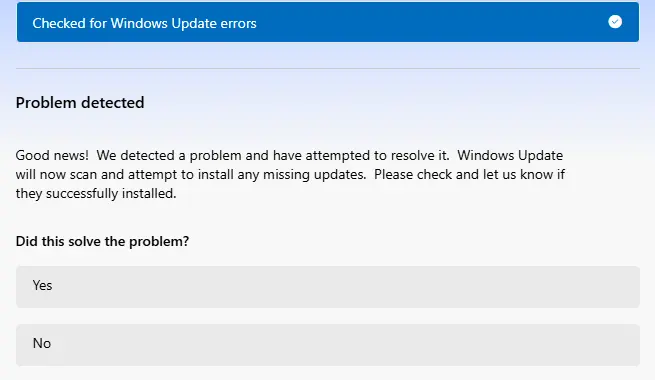
Get Help reports what it found and asks if the problem is solved. Screenshot: Windows 11 26H2. - Restart the PC. Restart when the troubleshooter finishes, even if it does not ask you to.
- Check for updates again. Select Start > Settings > Windows Update > Check for updates, and install the updates it finds.
These steps were written for Windows 11 (screenshots: 26H2). The full page with the other versions and what each result means: Run the Windows Update troubleshooter
The reader on Microsoft's Q&A who reported 0x8024001F had already run the troubleshooter without success. If that is you too, go straight to Fix 5.
It worked if: The troubleshooter reports that it fixed a problem, and Check for updates completes.
If not: Reset the update components with Fix 5.
Fix 5. Reset the Windows Update components
15 minutesLow riskThe troubleshooter did not help and the same update fails on any network.
A download that broke when the connection dropped can stay in the update cache and fail again on every try. The answer marked helpful on Microsoft's Q&A for 0x8024001F was a Windows Update reset, which stops the services, renames SoftwareDistribution and catroot2 and starts the services again.
- Open Command Prompt as administrator. Type cmd in the search box, right-click Command Prompt and select Run as administrator. Select Yes when Windows asks for permission.
- Stop the update services. Type the commands below and press Enter after each one. If Windows says that other services depend on Cryptographic Services, it stops them too. A message that a service is not started is fine.
net stop wuauserv net stop bits net stop cryptsvc - Delete the download queue files. This clears the list of downloads that the Background Intelligent Transfer Service keeps. If Windows says it cannot find the files, continue.
del "%ALLUSERSPROFILE%\Application Data\Microsoft\Network\Downloader\qmgr*.dat" - Rename the update cache folders. Renaming keeps a copy in case you need it; Windows creates new, empty folders when the services start again. If you get Access is denied, a service is still running: repeat the previous step.
ren %systemroot%\SoftwareDistribution SoftwareDistribution.old ren %systemroot%\System32\catroot2 catroot2.old - Start the services again. Type the commands below and press Enter after each one. The requested service has already been started is fine: Windows started it on its own.
net start cryptsvc net start bits net start wuauserv - Restart and check for updates. Restart the PC. Then select Start > Settings > Windows Update > Check for updates. The first check can take longer than usual because everything is downloaded again.
These steps were written for Windows 11 and Windows 10 (the steps are the same). The full page with the other versions and what each result means: Reset Windows Update components

It worked if: Windows downloads the pending updates again and installs them.
If not: If one update still fails, install it by hand with Fix 6.
Fix 6. Install the failed update from the Microsoft Update Catalog
10 minutesLow riskOne KB update keeps failing with 0x8024001F while others install.
The Catalog gives you the standalone package of the update, downloaded by your browser. The update service's own download, where the connection fails, is not used.
- Open Settings > Windows Update > Update history and copy the KB number of the update that failed. On Windows 10 it is Settings > Update & Security > Windows Update > View update history.
- Check your system type in Settings > System > About, for example 64-bit operating system, x64-based processor.
- Check the processor type. Open Settings > System > About and look at System type: an x64-based PC needs the x64 file, an ARM-based PC (for example Snapdragon) needs the arm64 file.
- Search the catalog. Open the Microsoft Update Catalog at catalog.update.microsoft.com in your browser, type the KB number (for example KB5124010) in the search box and press Enter.
- Pick the right row. Find the row whose title names your Windows version and your processor type (x64-based or arm64-based) and select Download on that row.
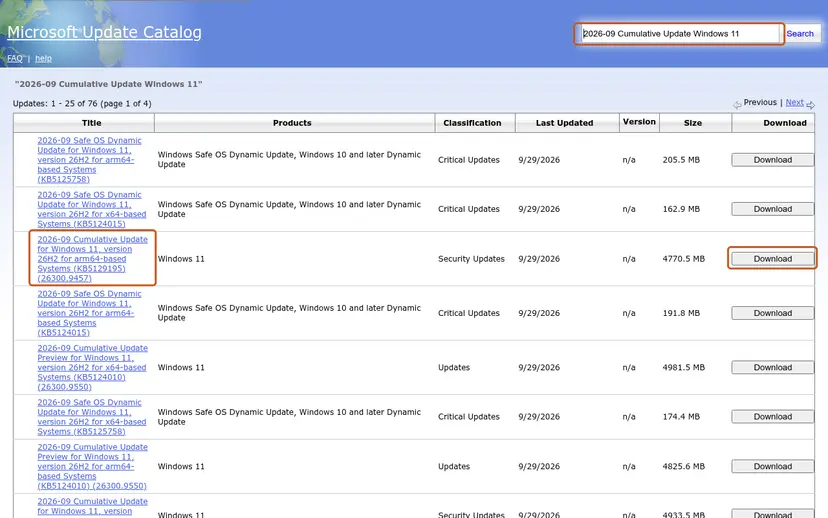
Each update is listed once per architecture: choose the row for your version (here 26H2) and processor type, then Download. Screenshot: Microsoft Update Catalog, 2026-10-03. - Download every file listed. A window lists one or more .msu links. Download all of them into one empty folder, for example C:\packages. On Windows 11 24H2 and later the list can include earlier checkpoint updates that the new one needs.
- Install a single file. If there is only one file, double-click it and confirm the installation in the Windows Update Standalone Installer.
- Install several files with DISM. If there are several files, open an elevated Terminal or Command Prompt and run DISM with the newest file. DISM finds the other files in the same folder and installs them in the right order.
DISM /Online /Add-Package /PackagePath:C:\packages\<newest-file>.msu - Restart. Restart the PC when the installation finishes, then run winver again: the OS build should have changed.
These steps were written for Windows 11 24H2 and later; Windows 10 22H2. The full page with the other versions and what each result means: Install an update from the Microsoft Update Catalog
It worked if: The package installs, asks for a restart, and the update shows as installed in Update history.
If not: If the browser download fails too, the network is still the problem: repeat Fix 2 and Fix 3 or try another network.
Fix 7. Repair system files with SFC and DISM
20 to 30 minutesLow riskEverything above failed, or other Windows features misbehave too.
The second answer on Microsoft's Q&A for this code was a system file check and a DISM repair. It is rarely the cause of a connection error, but damaged update or network files can stop the service from using the network at all.
- Open an elevated command window. Right-click Start and select Terminal (Admin), or type cmd in the search box, right-click Command Prompt and select Run as administrator. Select Yes when Windows asks for permission.
- Run DISM first. Type the command below and press Enter. DISM downloads clean copies of damaged components from Windows Update, so it can take several minutes. Wait until it says The operation completed successfully.
DISM.exe /Online /Cleanup-Image /RestoreHealth - Run System File Checker. In the same window, type the command below and press Enter. Do not close the window until the verification reaches 100%.
sfc /scannow - Read the result and restart. Compare the last message with the table below this guide, then restart the PC so that repaired files are loaded.
These steps were written for Windows 11 24H2 and 25H2. The full page with the other versions and what each result means: Run DISM and SFC to repair Windows system files
DISM downloads repair files through Windows Update. If it stops with a network error too, finish Fix 2 and Fix 3 first and run it again.
It worked if: SFC reports that it found no problems or repaired them, and DISM finishes at 100 percent. Then select Check for updates.
If not: Read the next section: the update log shows what the service tried to reach.
If error 0x8024001F is still there
Build the readable Windows Update log with the PowerShell command below. It writes WindowsUpdate.log to your desktop. Search it for 8024001F and read the lines just above each hit: they show what the service was doing and which address it tried to reach.
Get-WindowsUpdateLog| What you find | What it means |
|---|---|
| A proxy address in the lines before the error | A proxy is still set for the service. Repeat Fix 2. |
| The error on one network only | That network blocks the update servers. Try another network, for example a phone hotspot. |
| The error on every network, after Fix 1 to 5 | Install the update by hand with Fix 6, then contact Microsoft Support. |
| No 8024001F at all in a recent log | The error in Update history is old. If current updates install, nothing needs fixing. |
For support, send the full code, the KB number, your Windows version from Settings > System > About and the output of netsh winhttp show proxy. This error is not a hardware fault and not a licence problem.
Windows 10 reached the end of support on 14 October 2025. Without Extended Security Updates, a Windows 10 22H2 PC gets no new monthly security updates, so a pending update may not be the security fix you expect.
How to keep error 0x8024001F from coming back
- Let large updates download on a steady connection, with the PC plugged in and awake.
- Check
netsh winhttp show proxyafter you remove a VPN, a proxy app or a filter. - Select Retry once before you change any settings: a single failure is often a short drop.
- Keep Windows Update services on their default startup types.
- Do not turn off your antivirus or firewall for good to get an update through.
- Do not download update packages from sites other than the Microsoft Update Catalog.
- Do not remove a proxy on a work PC without asking IT.
Frequently asked questions
What does error code 8024001F mean?
It means Windows Update could not finish because the network connection was unavailable. Microsoft's list of Windows Update error codes names it WU_E_NO_CONNECTION and gives the message "Operation didn't complete because the network connection was unavailable." 8024001F and 0x8024001F are the same code; some windows just leave out the 0x prefix. The fix is to give the update service a working path to Microsoft: a steady connection, no leftover proxy and a clean network stack, as Fixes 1 to 3 show.
How do I fix this problem if my internet works?
A working browser does not prove that Windows Update can connect. The update service runs as a system service and uses the WinHTTP proxy setting, which can still point at an old proxy after you removed a VPN or filter. Run netsh winhttp show proxy in an administrator terminal. If it lists a proxy you do not use, netsh winhttp reset proxy removes it. That is Fix 2. If no proxy is set, flush DNS and reset the network stack with Fix 3.
Is 0x8024001F dangerous or a sign of malware?
The code itself only says the update service had no connection. It is not a virus message. Still, malware sometimes changes proxy or network settings, and the old version of this guide named malware as one possible cause. If Fix 2 finds a proxy you never set, run a full scan with Microsoft Defender in Windows Security after you remove it. Do not turn off your security software to get the update through.
Will my PC stay unprotected while the update fails?
Until the update installs, the security fixes in it are missing, so it is worth fixing soon. Most readers clear the error in minutes with Fixes 1 to 3. If one update keeps failing, Fix 6 installs the same package from the Microsoft Update Catalog with your browser. On Windows 10 22H2 without Extended Security Updates, note that monthly security updates ended on 14 October 2025.
Does 0x8024001F appear on Windows 7?
The code belongs to the Windows Update agent, which Windows 7 also used, so older PCs showed it too. Today a Windows 7 PC gets no updates from Microsoft at all, because its support ended in January 2020. Errors there are not worth chasing: the PC needs a supported Windows version. This guide covers Windows 11 and Windows 10 22H2, where the fixes above apply.
Does the Windows Update troubleshooter fix 0x8024001F?
Sometimes. It restarts the update services, which helps when the service stopped after a network drop. The reader on Microsoft's Q&A who asked about 0x8024001F had already run it without success, and the helpful answer there was a full Windows Update reset. So run the troubleshooter once (Fix 4), and if the error stays, reset the update components with Fix 5 rather than running it again.
Can a VPN cause error 0x8024001F?
Yes. A VPN changes how the PC reaches the internet, and if it drops or reconnects during an update, the update service loses its connection. Some VPN and filter apps also leave a system proxy behind after they close. Close the VPN app fully, check the WinHTTP proxy with Fix 2 and select Retry. If the update installs, turn the VPN back on afterwards; it does not need to stay off for good.
Is 0x8024001F the same as 0x8024001E or 0x80246005?
No, they are neighbours in Microsoft's list. The code 0x8024001E, WU_E_SERVICE_STOP, means the operation stopped because the service or system was shutting down. The code 0x80246005, WU_E_DM_NONETWORK, is the download manager's version of a missing network, so the same connection fixes on this page apply to it. The code 0x8024001D is a different problem: an update with invalid metadata.
Should I run SFC and DISM first?
Not for this code. SFC and DISM repair damaged system files, while 0x8024001F reports a missing network connection. They can help in the rare case where the update or network files are damaged, which is why they are Fix 7. DISM also downloads repair files through Windows Update, so it may fail the same way until the connection problem from Fixes 1 to 3 is solved.
Sources
Did this fix work?
One click, no account. It tells the next reader which guides are worth their time.
Questions and experiences: Fix Windows Update Error 0x8024001f
Still broken, or found a fix we did not cover? Ask here: members and our editors answer. Reading is open; writing needs a free account.
…