
How to fix Windows update error 0x8024500c?

Prefer to fix it yourself? The manual steps follow.
- 8methods
- 5 to 30 minutes
- Medium
Applies to Windows 11 and Windows 10, Settings > Windows Update, Optional features, Microsoft Store and WSL installs
8 methods in this guide
Hi, for a few days now I can't install the newest Windows update because of the error 0x8024500C. I rebooted the PC, but that did not help. I also waited a few days, but to no avail. Any idea what is happening and how to fix this?
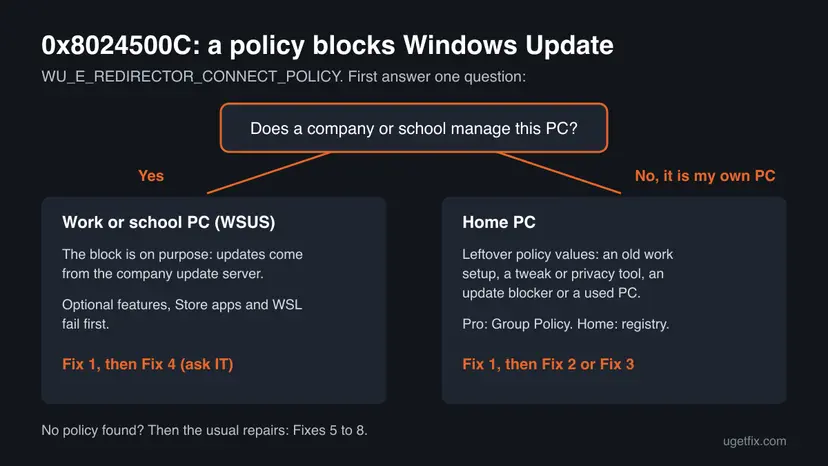
Windows update error 0x8024500c means a policy on the PC stops Windows Update from connecting to Microsoft's update servers. The code is named WU_E_REDIRECTOR_CONNECT_POLICY. Before any repair, check whether a company update server or a leftover policy is set (Fix 1), because cache resets do not remove a policy.
0x8024500c means a managed policy blocks Windows Update from reaching Microsoft. Check the policy key HKLM\SOFTWARE\Policies\Microsoft\Windows\WindowsUpdate first (Fix 1). On your own PC, set the Windows Update policies back to Not Configured (Fix 2) or remove the leftover key (Fix 3). On a work or school PC, the block is on purpose: ask IT (Fix 4).
| Error | 0x8024500c (also shown as 0x8024500C) in Settings > Windows Update, in Optional features or in the Microsoft Store. |
|---|---|
| Where it appears | When Windows checks for or downloads updates, adds an optional feature such as OpenSSH Server, or installs a Store app or a WSL distribution. |
| Main cause | A policy points Windows Update to a company update server (WSUS) or forbids connections to Microsoft's public update service. |
| Fastest fix | Find the policy with one reg query command (Fix 1), then remove it on a home PC or ask IT on a managed one. |
| Also written as | 8024500c, (0x8024500c), Error code: 0x8024500c, WU_E_REDIRECTOR_CONNECT_POLICY. |
| Meaning | Connections to the redirector server are disallowed by managed policy. The redirector is the service that tells Windows Update where to connect. |
| Affects | Windows 11 and Windows 10, Windows Server 2016 and later. Most often PCs that are, or once were, managed by WSUS. |
| Microsoft's status | Not a bug and not tied to one KB. Microsoft's public error list shows the other redirector codes (0x80245001 to 0x80245FFF) but not this one. |
| Time to fix | 5 minutes to find the policy, 10 minutes to remove it. Up to an hour for an in-place repair. |
Facts checked on 15 October 2026. Steps written for Windows 11 (25H2 and 26H2) and Windows 10 22H2.
What Windows update error 0x8024500c means
The code's name in the Windows SDK is WU_E_REDIRECTOR_CONNECT_POLICY. Its description reads: "Connections to the redirector server are disallowed by managed policy." A Microsoft support expert on Microsoft Q&A gives the same name and explains it as a connection policy that prevents the Windows Update redirection.
In plain words: before Windows Update downloads anything, it asks a redirector service where to go. A policy on your PC says it may not ask Microsoft. So the update is not damaged and your internet is usually fine. Something told Windows not to connect, and that something has to be found.
| What you see | Where | What it tells you |
|---|---|---|
| There were some problems installing updates, but we'll try again later. If you keep seeing this and want to search the web or contact support for information, this may help: (0x8024500c) | Settings > Update & Security > Windows Update on Windows 10 | Windows Update could not reach Microsoft because of a policy. |
| 0x8024500c next to an update, or Error code: 0x8024500c | Settings > Windows Update on Windows 11, and Update history | The same block. The KB number shows which update tried. |
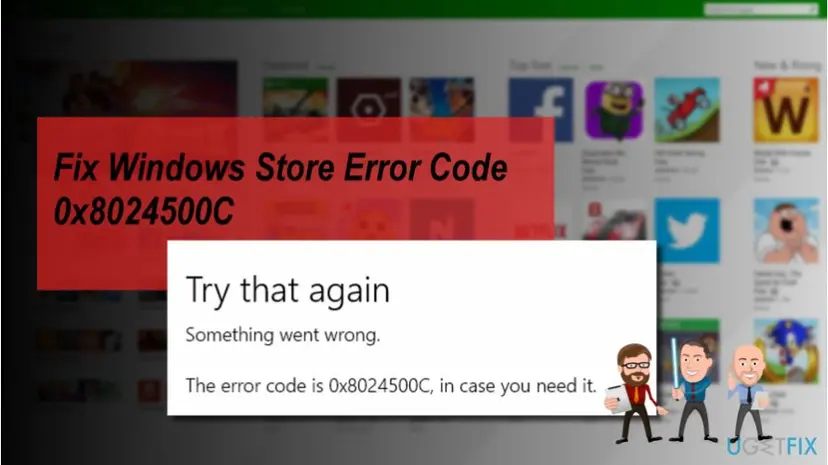
| Try that again. Something went wrong. The error code is 0x8024500C, in case you need it. | Microsoft Store | The Store uses the same update service, so a policy block stops app downloads too. |
| Failed with 0x8024500c while adding a feature | Settings > System > Optional features, or Add-WindowsCapability in PowerShell | Optional features such as OpenSSH Server come from Windows Update, and a WSUS server often does not hold them. |
Why Windows Update is blocked with 0x8024500c
Microsoft documents two policies that produce exactly this situation. Specify intranet Microsoft update service location makes Windows search a company update server instead of Windows Update. Do not connect to any Windows Update Internet locations then stops the periodic contact with the public service. Microsoft warns that it "may cause connection to public services such as the Microsoft Store, Windows Update client policies, and Delivery Optimization to stop working."
| Cause | How often | How to tell | Fix |
|---|---|---|---|
| A work or school PC gets its updates from WSUS, and the WSUS server does not have what you asked for (an optional feature, a Store app, a WSL distribution). | Most often | The PC signs in to a company domain or shows a note that your organization manages updates. | Fix 1, Fix 4 |
| A home PC still has WSUS or blocking policy values from an old job, a previous owner, a tweak or privacy tool, or an update blocker. | Often | reg query in Fix 1 shows a WUServer value or UseWUServer set to 1, but there is no company. | Fix 2, Fix 3 |
| A third-party tool that pauses or blocks updates is still installed and writes the policy back. | Sometimes | The error returns after a restart even though you removed the policy. | Fix 3 |
| No policy at all, but the update components are damaged. | Rarely | Fix 1 finds no policy key, and other update codes appear too. | Fix 5 to Fix 8 |
Resetting the update cache, running SFC or the troubleshooter does not touch the policy key. That is why the asker in the main Microsoft Q&A thread says DISM and clearing the cache did nothing. The most helpful answer there changed the UseWUServer policy value instead.
How to fix Windows update error 0x8024500c
Fix 1 tells you in one command whether a policy causes the error. Fixes 2 and 3 remove the policy on your own PC, Fix 4 is for work and school PCs. Fixes 5 to 8 are the usual update repairs for the rare case with no policy.
| What you see or have | Start with |
|---|---|
| You do not know whether a policy is set. | Fix 1 |
| Your own PC with Windows 11 or 10 Pro, and a policy is set. | Fix 2 |
| Your own PC with Windows Home, or Group Policy shows nothing but the key exists. | Fix 3 |
| A work or school PC, or a PC joined to a domain. | Fix 4 |
| Adding OpenSSH, RSAT or another optional feature fails with 0x8024500c. | Fix 1, then Fix 4 |
| No policy key exists at all. | Fix 5, then Fix 6 |
| Only one KB fails and you need it today. | Fix 7 |
Fix 1. Check whether a policy controls Windows Update on this PC
2 minutesNo riskAlways first. It changes nothing and takes a minute.
0x8024500c is a policy block. The Windows Update policies live under one registry key, so reading that key tells you at once whether a company server or a blocking setting is configured.
- Right-click Start and select Terminal (Admin) on Windows 11 or Windows PowerShell (Admin) on Windows 10. Select Yes.
- Run the command below.
- If you see ERROR: The system was unable to find the specified registry key or value, no Windows Update policy is set. Skip to Fix 5.
- If you see a value named WUServer with a server address, the PC is pointed at a company update server (WSUS).
- Under the AU subkey, UseWUServer with the value 0x1 means that server is in use.
- Open Settings > Accounts > Access work or school. An account listed there with Connected to a company means the PC is managed.
reg query "HKLM\SOFTWARE\Policies\Microsoft\Windows\WindowsUpdate" /sWrite down or photograph what the command shows. You will need the values in Fix 2 or 3, and IT will want them in Fix 4.
It worked if: You know whether a policy exists and whether the PC belongs to a company.
If not: If the key exists on your own PC, go to Fix 2 (Pro) or Fix 3 (Home). On a company PC, go to Fix 4.
Fix 2. Set the Windows Update policies back to Not Configured in Group Policy
10 minutesLow riskYour own PC with Windows 11 or 10 Pro, Enterprise or Education, and Fix 1 found a policy.
When the policy was set in the Local Group Policy Editor, setting it back to Not Configured removes the registry values cleanly. Microsoft says that with the intranet server policy disabled or not configured, Windows connects directly to the Windows Update site again.
In the editor, go to Computer Configuration > Administrative Templates > Windows Components > Windows Update. On Windows 11 some of these policies sit in the subfolder Manage updates offered from Windows Server Update Service or Manage end user experience. Click the State column to bring Enabled policies to the top.
- Specify intranet Microsoft update service location: set to Not Configured.
- Do not connect to any Windows Update Internet locations: set to Not Configured.
- Remove access to use all Windows update features: set to Not Configured. Microsoft notes it hides Check for updates from users.
- Open the Run box. Press Windows key + R.
- Start the editor. Type the command below and select OK. Select Yes if Windows asks for permission.
gpedit.msc - Go to the folder the guide names. In the left pane, expand Computer Configuration (settings for the whole PC) or User Configuration (settings for users), then open Administrative Templates and the folders your guide lists.
- Open the policy. In the right pane, double-click the policy name.
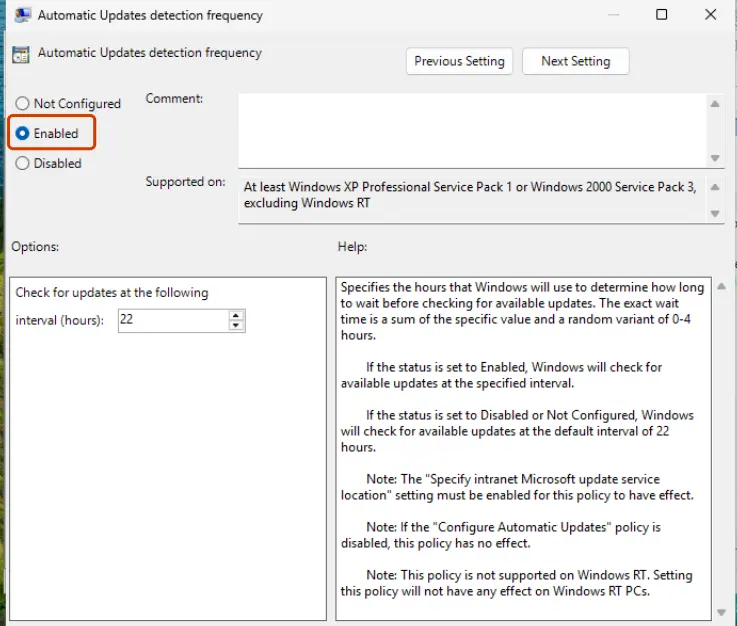
- Change the setting. Select Enabled, Disabled or Not Configured as the guide says, fill in any values under Options, and select OK.
- Apply the change. Restart the PC, or open Terminal as administrator and run the command below to apply the change now.
gpupdate /force
These steps were written for Windows 11 and Windows 10, Pro, Enterprise and Education (the steps are the same). The full page with the other versions and what each result means: Open the Local Group Policy Editor
Then restart the update service from the admin terminal and check for updates again:
gpupdate /force
net stop wuauserv
net start wuauserv
It worked if: The reg query from Fix 1 no longer shows WUServer, and Check for updates finds updates without 0x8024500c.
If not: If the values are still there, a tool wrote them straight into the registry. Remove them with Fix 3.
Fix 3. Remove the leftover Windows Update policy key from the registry
10 minutesRead the warningYour own PC with Windows Home (no Group Policy Editor), or Fix 2 showed nothing configured but the key is still there.
Tweak tools, update blockers and old work setups often write the policy values directly. On a PC that no company manages, the whole WindowsUpdate policy key is leftover, and removing it returns Windows Update to its defaults.
Do not do this on a work or school PC: the company sets these values on purpose and will set them back. Deleting the key also removes any update deferral or pause you set through a tool. Export the key first, as below or with Back up the registry before editing it, so you can restore it by double-clicking the .reg file.
- If an update blocker or tweak tool is installed, undo its Windows Update setting or uninstall it first, so it cannot write the values back: Uninstall a program or app in Windows
- Open Terminal (Admin) as in Fix 1.
- Run the first command below to save a backup of the key on your desktop.
- Run the second command to delete the key.
- Run the last two commands to restart the Windows Update service.
- Open Settings > Windows Update and select Check for updates.
reg export "HKLM\SOFTWARE\Policies\Microsoft\Windows\WindowsUpdate" "%USERPROFILE%\Desktop\wu-policy-backup.reg"
reg delete "HKLM\SOFTWARE\Policies\Microsoft\Windows\WindowsUpdate" /f
net stop wuauserv
net start wuauserv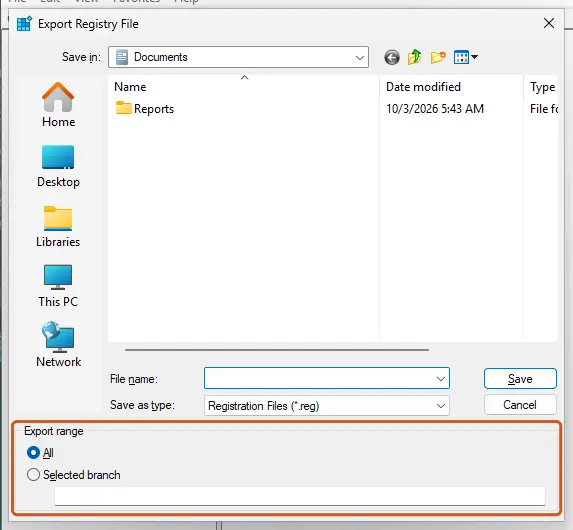
It worked if: The reg query from Fix 1 reports that the key cannot be found, and Windows Update, the Store and Optional features download again.
If not: If the key comes back after a restart, something still writes it: look for the tool, or the PC is managed after all (Fix 4). If no key existed, go to Fix 5.
Fix 4. On a work or school PC: ask IT, or switch to Windows Update for one install with their approval
5 to 15 minutesLow riskThe PC is joined to a domain or managed, and you need an optional feature, a Store app or an update the company server does not offer.
On a managed PC the policy is intended. Microsoft Q&A users report 0x8024500c when adding OpenSSH Server because WSUS did not carry the component and policy forbade other update servers. The most helpful answer there turns UseWUServer off for one install and back on afterwards.
The clean way is to send IT the code, the KB number or feature name, and the output of Fix 1. They can approve the update on WSUS or allow the PC to fetch features from Windows Update.
If you are the administrator, or IT agrees, this PowerShell sequence (as administrator) points the PC at Windows Update for one install of OpenSSH Server, then back at WSUS:
net stop wuauserv
Set-ItemProperty -Path "HKLM:\SOFTWARE\Policies\Microsoft\Windows\WindowsUpdate\AU" UseWUServer -Value 0
net start wuauserv
Get-WindowsCapability -Online | ? {$_.Name -like "OpenSSH.Server*"} | Add-WindowsCapability -Online
net stop wuauserv
Set-ItemProperty -Path "HKLM:\SOFTWARE\Policies\Microsoft\Windows\WindowsUpdate\AU" UseWUServer -Value 1
net start wuauservChange the feature name for the one you need. Always set UseWUServer back to 1: the next Group Policy refresh will do it anyway, and a company PC outside its update rules can break compliance checks. If Do not connect to any Windows Update Internet locations is also enabled, this switch may not be enough, and only IT can change that policy.
It worked if: The feature, app or update installs, and UseWUServer is back to 1 afterwards.
If not: Leave it to IT. If your own PC turned out not to be managed, use Fix 3.
Fix 5. Run the Windows Update troubleshooter
5 minutesNo riskFix 1 found no policy key, and you want an automatic check first.
Without a policy, 0x8024500c can only come from the update service state or settings. The troubleshooter resets those, and it was the first suggestion of the Microsoft support expert in the Q&A thread.
- Open Troubleshoot settings. Select Start > Settings > System > Troubleshoot.
- Open the list of troubleshooters. Select Other troubleshooters.
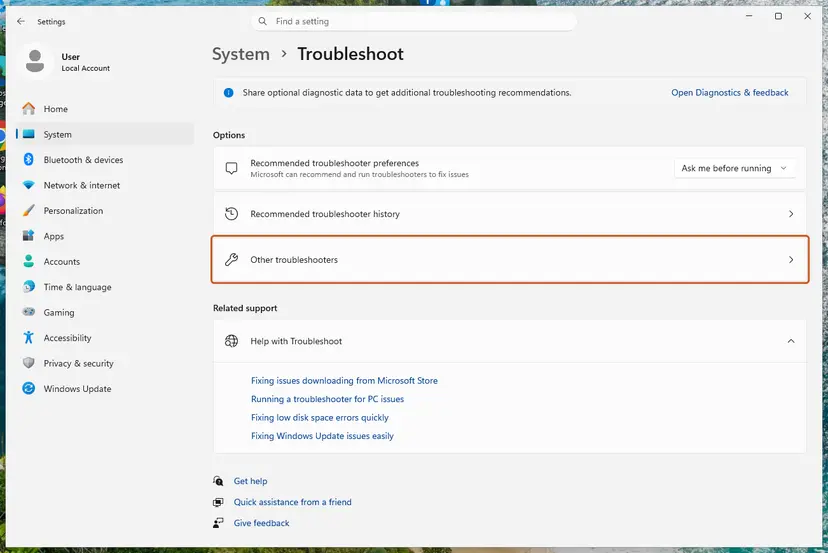
Settings, System, Troubleshoot: select Other troubleshooters. Screenshot: Windows 11 26H2. - Run the Windows Update troubleshooter. Under Most frequent, select Run next to Windows Update. The Get Help app opens and starts the checks.
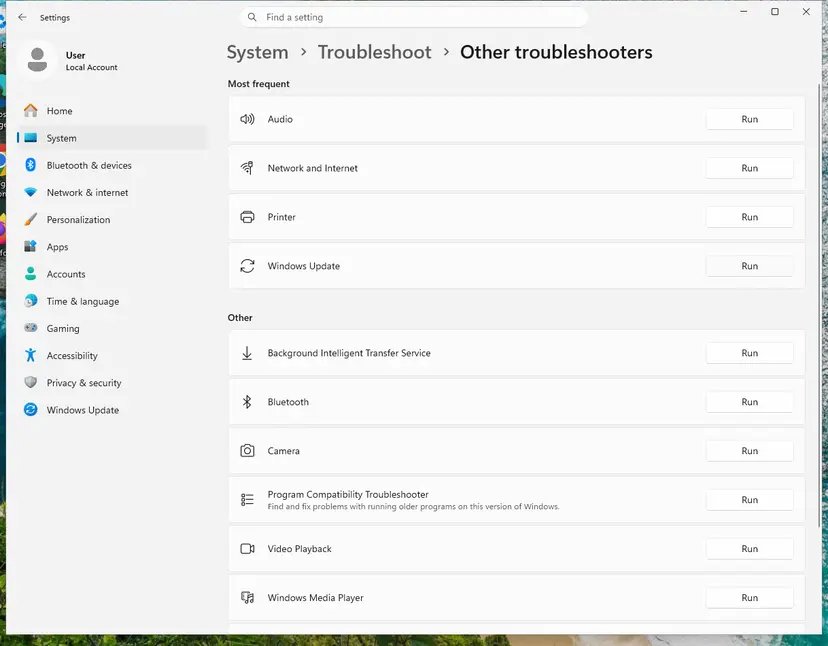
Windows Update is in the Most frequent group; select Run on its row. Screenshot: Windows 11 26H2. - Read the result. Wait until Get Help finishes. If it found and fixed a problem, it says so and asks whether this solved the problem. Answer the question so it can offer the next step.
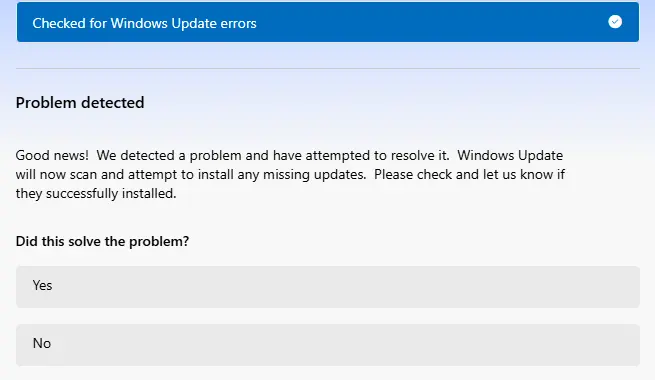
Get Help reports what it found and asks if the problem is solved. Screenshot: Windows 11 26H2. - Restart the PC. Restart when the troubleshooter finishes, even if it does not ask you to.
- Check for updates again. Select Start > Settings > Windows Update > Check for updates, and install the updates it finds.
These steps were written for Windows 11 (screenshots: 26H2). The full page with the other versions and what each result means: Run the Windows Update troubleshooter
In the same thread the expert asks to check the date and time and the proxy settings. A wrong clock breaks secure connections to the update servers: How to fix the date and time in Windows
It worked if: The troubleshooter reports a fix, and Check for updates works.
If not: Reset the update components with Fix 6.
Fix 6. Reset the Windows Update components and cache
15 minutesLow riskNo policy exists, and the troubleshooter did not help.
Renaming SoftwareDistribution and catroot2 makes Windows rebuild its update database and download the redirector information again. It does not remove a policy, so it only helps when Fix 1 found none.
- Open Command Prompt as administrator. Type cmd in the search box, right-click Command Prompt and select Run as administrator. Select Yes when Windows asks for permission.
- Stop the update services. Type the commands below and press Enter after each one. If Windows says that other services depend on Cryptographic Services, it stops them too. A message that a service is not started is fine.
net stop wuauserv net stop bits net stop cryptsvc - Delete the download queue files. This clears the list of downloads that the Background Intelligent Transfer Service keeps. If Windows says it cannot find the files, continue.
del "%ALLUSERSPROFILE%\Application Data\Microsoft\Network\Downloader\qmgr*.dat" - Rename the update cache folders. Renaming keeps a copy in case you need it; Windows creates new, empty folders when the services start again. If you get Access is denied, a service is still running: repeat the previous step.
ren %systemroot%\SoftwareDistribution SoftwareDistribution.old ren %systemroot%\System32\catroot2 catroot2.old - Start the services again. Type the commands below and press Enter after each one. The requested service has already been started is fine: Windows started it on its own.
net start cryptsvc net start bits net start wuauserv - Restart and check for updates. Restart the PC. Then select Start > Settings > Windows Update > Check for updates. The first check can take longer than usual because everything is downloaded again.
These steps were written for Windows 11 and Windows 10 (the steps are the same). The full page with the other versions and what each result means: Reset Windows Update components

It worked if: Windows downloads the pending updates again from the start.
If not: Install the one failing update by hand with Fix 7.
Fix 7. Install the update by hand from the Microsoft Update Catalog
10 to 20 minutesLow riskOne KB keeps failing and you need it now, on any PC you are allowed to update.
A package from the Microsoft Update Catalog installs with the standalone installer and does not need Windows Update's connection to Microsoft. The Q&A support expert suggests this for 0x8024500c too.
- Check your Windows version. Press Windows key + R, type winver and press Enter. Note the version (for example 25H2) and the OS build.
- Find the KB number. Open Settings > Windows Update. A failed or pending update is listed with its KB number; earlier ones are under Update history.
- Check the processor type. Open Settings > System > About and look at System type: an x64-based PC needs the x64 file, an ARM-based PC (for example Snapdragon) needs the arm64 file.
- Search the catalog. Open the Microsoft Update Catalog at catalog.update.microsoft.com in your browser, type the KB number (for example KB5124010) in the search box and press Enter.
- Pick the right row. Find the row whose title names your Windows version and your processor type (x64-based or arm64-based) and select Download on that row.
- Download every file listed. A window lists one or more .msu links. Download all of them into one empty folder, for example C:\packages. On Windows 11 24H2 and later the list can include earlier checkpoint updates that the new one needs.
- Install a single file. If there is only one file, double-click it and confirm the installation in the Windows Update Standalone Installer.
- Install several files with DISM. If there are several files, open an elevated Terminal or Command Prompt and run DISM with the newest file. DISM finds the other files in the same folder and installs them in the right order.
DISM /Online /Add-Package /PackagePath:C:\packages\<newest-file>.msu - Restart. Restart the PC when the installation finishes, then run winver again: the OS build should have changed.
These steps were written for Windows 11 24H2 and later; Windows 10 22H2. The full page with the other versions and what each result means: Install an update from the Microsoft Update Catalog
It worked if: The installer finishes, and the KB appears in Update history.
If not: If the policy is gone and updates still fail, repair Windows with Fix 8.
Fix 8. Repair Windows with an in-place upgrade that keeps your files
45 to 90 minutesRead the warningNothing above worked and no policy is set.
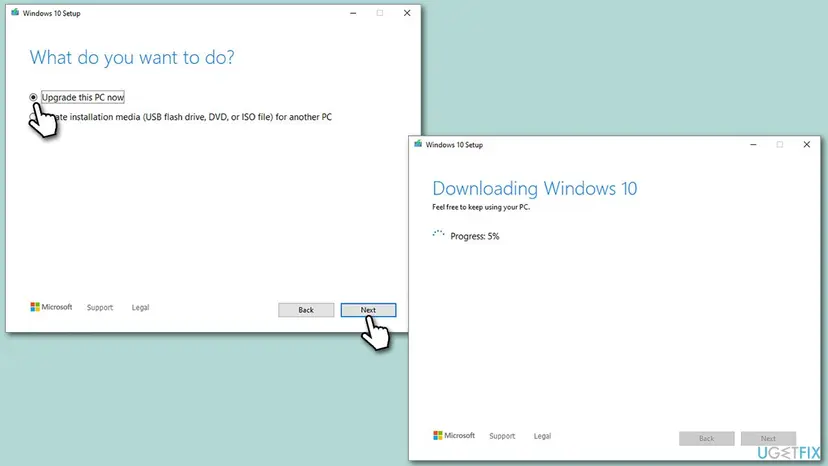
An in-place upgrade reinstalls Windows over itself and replaces every update component at once. Note that it does not remove a Group Policy or a policy key: on a PC with a policy, use Fixes 2 to 4 first.
With Keep personal files and apps, files and programs stay, but some settings can be reset, and a power cut during setup can leave Windows unable to start. Copy your important files first: Back up your files (Windows Backup, File History, Time Machine)
- Open Recovery in Settings. Open Settings > System > Recovery. Next to Fix problems using Windows Update, select Reinstall now. This keeps your apps, files and settings.
- Start the reinstall. Choose whether the PC may restart on its own 15 minutes after the installation, then select OK.
- Wait and restart. Windows Update downloads and installs a repair copy of your current Windows version. Keep the PC plugged in and online, and restart it when asked.
- If that did not help: Reset PC. Back in Settings > System > Recovery, next to Reset this PC, select Reset PC. This keeps your personal files but removes installed apps and settings.
- Choose Keep my files. Select Keep my files. Do not select Remove everything.
- Choose where Windows comes from. Select Cloud download to download a fresh copy of Windows, or Local reinstall to use the files already on the PC (faster, but may not include the latest updates).
- Reset. Review the summary and select Reset. The PC restarts several times.
These steps were written for Windows 11 22H2 and later. The full page with the other versions and what each result means: Reinstall Windows without losing files
It worked if: Windows restarts on the newest build, and Check for updates reports that you are up to date.
If not: Read the next section: the update log names what blocks the connection.
If error 0x8024500c is still there
Build the readable update log with the PowerShell command below. It writes WindowsUpdate.log to your desktop. Search it for 8024500c and read the lines just above the hit.
Get-WindowsUpdateLog| What you find | What it means |
|---|---|
A WUServer address or WSUS in the lines before the error | A policy still points the PC at a company server. Repeat Fix 1, then Fix 2, 3 or 4. |
The WindowsUpdate policy key comes back after every restart | A tool or a domain policy writes it. Find the tool, or the PC is managed. |
| Errors only in the Store or WSL, Windows Update works | Microsoft notes that the internet-locations policy stops the Store. Ask IT, or check Fix 2. |
| No policy, still 0x8024500c | Rare. Send the log to Microsoft Support. |
For Microsoft Support or IT, send the code 0x8024500c, the KB number or feature name, your Windows version from Settings > System > About, and the output of the reg query command in Fix 1. This error is not a hardware fault and not a licence problem.
Windows 10 reached the end of support on 14 October 2025. Without Extended Security Updates, a Windows 10 22H2 PC no longer gets monthly updates, so it may simply be offered nothing.
How to keep error 0x8024500c from coming back
- Use Pause updates in Settings > Windows Update when you need a delay. It does not write policy values.
- When you leave a job or buy a used PC, remove the work account under Settings > Accounts > Access work or school, and check Fix 1.
- Keep the
.regbackup from Fix 3 until updates have worked for a month.
- Do not use tools that promise to block, tame or debloat Windows Update: they write the same policy values that cause this code.
- Do not change Windows Update policies on a company PC without IT.
- Do not keep resetting the update cache when Fix 1 shows a policy: the reset cannot remove it.
Frequently asked questions
What does error code 0x8024500c mean?
It means a managed policy stops Windows Update from connecting to Microsoft's redirector, the service that tells Windows where to get updates. The SDK name is WU_E_REDIRECTOR_CONNECT_POLICY, described as "Connections to the redirector server are disallowed by managed policy." In practice the PC is pointed at a company update server or told not to connect to Windows Update on the internet. The update and your connection are usually fine. Find the policy with Fix 1 and remove it or ask IT.
What is "There were some problems installing updates, but we'll try again later" with 0x8024500c?
That is the Windows 10 Settings message for a failed update, with the code added at the end. The text itself is the same for many codes. Only the code in brackets tells you the cause, and 0x8024500c means a policy block. Waiting and restarting will not help, as the asker on this page found, because the policy stays in place. Run the registry check in Fix 1 to see whether a policy is set.
Is 8024500c the same as 0x8024500c?
Yes. 8024500c is the same code without the 0x prefix, and some tools show it in capitals as 0x8024500C. Error 0x8024500c, error code: 0x8024500c and (0x8024500c) are all the same error, so everything on this page applies. Other codes in the 0x80245 range are different errors from the same redirector component.
What is error 0x80245006?
It belongs to the same redirector group as 0x8024500c, the codes that start with 0x80245. Microsoft's public error list does not include it, and we could not confirm its exact meaning from an official source. Because it comes from the same component, start with the same checks: look for a Windows Update policy with Fix 1, then reset the update components with Fix 6. If the error stays, send the update log to Microsoft Support.
Why do I get 0x8024500c in the Microsoft Store?
The Store downloads apps through the same update service. Microsoft says the policy Do not connect to any Windows Update Internet locations may stop public services such as the Microsoft Store. On Windows 10 the Store shows "Try that again. Something went wrong. The error code is 0x8024500C, in case you need it." Check for that policy with Fix 1 and Fix 2 on your own PC. On a company PC, only IT can allow the Store.
Why does installing WSL or Ubuntu fail with 0x8024500c?
Linux distributions for WSL come from the Microsoft Store and Windows Update, so a policy that blocks them stops the install with the same code. It happens mostly on company PCs that use WSUS. Ask IT to allow it, or, with their approval, use the switch in Fix 4 for one install. On your own PC, remove the leftover policy with Fix 2 or Fix 3, then run the WSL install again.
How do I fix 0x8024500c on WSUS or Windows Server 2016?
On a server or client that is supposed to use WSUS, the error means the WSUS server could not supply what was asked for and policy forbids going to Microsoft instead. Users report it most often with optional features and Defender definitions. Approve or sync the needed product on WSUS, or let the machine get features from Windows Update for one install as in Fix 4. Do not remove the WSUS policy from a managed server without a plan.
Will removing the Windows Update policy key harm my PC?
Not on a PC that no company manages. The key only holds policy settings, and without it Windows Update goes back to its defaults: automatic updates from Microsoft. You lose any delay or block a tool had set there. Export the key first, as in Fix 3, so you can restore it with a double-click. On a work or school PC, do not delete it: the company sets it on purpose.
Does resetting Windows Update fix 0x8024500c?
Usually not. Renaming SoftwareDistribution and catroot2 clears the update cache, but the policy that causes 0x8024500c lives in the registry and stays. That is why many people report that DISM, SFC and cache resets did nothing. Reset the components only when Fix 1 shows no policy at all. In every other case remove or change the policy first.
Does 0x8024500c happen on Windows 11?
Yes. The code and the policies behind it are the same on Windows 11 and Windows 10. On Windows 11 the error shows next to the update in Settings > Windows Update, or in Optional features when you add a feature. The fixes on this page are the same on both. Group Policy paths differ a little, because Windows 11 groups the WSUS policies in a subfolder, as Fix 2 explains.
Sources
- Microsoft Learn: Manage additional Windows Update settings (intranet update service and internet locations policies) (learn.microsoft.com)
- Microsoft Q&A: how to fix windows update error (0x8024500c) (support expert answer and UseWUServer workaround) (learn.microsoft.com)
- Microsoft Learn: Windows Update error code list by component (Redirector errors) (learn.microsoft.com)
Did this fix work?
One click, no account. It tells the next reader which guides are worth their time.
Questions and experiences: fix Windows update error 0x8024500c
Still broken, or found a fix we did not cover? Ask here: members and our editors answer. Reading is open; writing needs a free account.
…