
How to fix Windows update error 0x8024a22d?

Prefer to fix it yourself? The manual steps follow.
- 9methods
- 5 minutes to 2 hours
- Intermediate
Applies to Windows 11 and Windows 10: cumulative, .NET Framework and feature updates that fail in Windows Update with 0x8024a22d
9 methods in this guide
Hello. When I tried to install the latest Windows updates, I received this message: "There were some problems installing updates, but we'll try again later. If you keep seeing this and want to search the web or contact support for information, this may help: (0x8024a22d)." How can I fix this error?
Error 0x8024a22d means Windows Update could not install an update, most often a cumulative update or a new Windows 11 version such as 22H2 or 25H2. Microsoft does not document this exact code, and it often appears next to a second code that names the real problem. Restart the PC and select Retry first.
0x8024a22d is a Windows Update install failure that Microsoft does not describe. Restart the PC with Restart, open Settings > Windows Update and select Retry (Fix 1). If a Windows 11 version such as 25H2 fails, install it with the Installation Assistant or the ISO (Fix 2). If one KB update fails every time, install it from the Microsoft Update Catalog (Fix 3). Note any second code; it names the real cause.
| Error | Install error - 0x8024a22d next to the update in Windows 11, or There were some problems installing updates, but we'll try again later with (0x8024a22d) in Windows 10. |
|---|---|
| Where it appears | Settings > Windows Update, next to the failed update, and in Update history. |
| Main cause | Not documented by Microsoft. The code sits in the 0x8024A range that Microsoft lists as Automatic Update Errors. In the reports we read it came with a second code, such as 0x800703F1 (a damaged registry hive) or 0x8007054F. |
| Fastest fix | Restart and Retry (Fix 1). For a Windows 11 version, the Installation Assistant or the ISO (Fix 2). For one KB update, the Update Catalog (Fix 3). |
| Also written as | 0x8024A22D, 8024a22d, 0x8024a22 (cut short), error 0x8024a22d, windows update error 0x8024a22d. |
| Affects | Windows 11 22H2, 23H2, 24H2 and 25H2 updates, and Windows 10 22H2. Reports name cumulative updates, a .NET Framework update and feature updates. |
| Microsoft's status | Not in Microsoft's Windows Update error code list and not a known issue we could find. No update is known to have fixed it. |
| Where the cause is written | The second code in Update history, the DISM message, and for a feature update the Setup logs in C:\$WINDOWS.~BT\Sources\Panther. |
| Time to fix | 5 to 30 minutes for Fix 1, Fix 3 to Fix 8. One to two hours for a feature update or a repair reinstall (Fix 2, Fix 9). |
Facts checked on 15 October 2026. Steps written for Windows 11 (25H2 and 26H2) and Windows 10 22H2.
What Windows update error 0x8024a22d means
Codes that start with 0x8024 come from the Windows Update Agent, the part of Windows that finds, downloads and installs updates. Microsoft's error list groups them by component. The 0x8024A range is headed Automatic Update Errors, with documented codes such as 0x8024A000 (WU_E_AU_NOSERVICE, "Automatic Updates was unable to service incoming requests") and 0x8024AFFF (WU_E_AU_UNEXPECTED).
0x8024A22D is not on that list, and we could not find a Microsoft page that names it. In the reports we read, it is the code Windows Update shows when the install step fails, and a second code often appears beside it. That second code is the useful one: in one case DISM showed The configuration registry database is corrupt., in another the update failed with 0x8007054F as well.
| What you see | Where | What it tells you |
|---|---|---|
| Install error - 0x8024a22d | Windows 11, Settings > Windows Update, under the update name | The update downloaded but did not install. Retry appears next to it. |
| There were some problems installing updates, but we'll try again later. If you keep seeing this and want to search the web or contact support for information, this may help: (0x8024a22d) | Windows 10 Windows Update page | The same failure in the older wording. Windows tries again by itself. |
| Windows 11, version 25H2 (or 22H2) with the code | Settings > Windows Update, at the top of the list | A feature update failed. After the restart it may say it is undoing changes. Fix 2. |
| A cumulative or .NET Framework update with a KB number and the code | Update history under Quality updates or Other updates | One monthly update failed. Fix 1, then Fix 3. |
| 0x8024a22d and a second code, such as 0x800703f1 or 0x8007054f | Two failed updates in the same list | Look up the second code first. It names the real problem. |
Why Windows update error 0x8024a22d appears
Because Microsoft does not document the code, the order below comes from the cases where it shows up, not from a Microsoft statement. Each cause has its own fix, so you do not need to run all of them.
| Cause | How often | How to tell | Fix |
|---|---|---|---|
| A one-time stop: a restart still pending from an earlier update, a lost connection, a PC that slept during the install. | Most often | The update failed once, and other updates in the same list installed. | Fix 1 |
| A Windows 11 feature update (22H2, 25H2) that fails inside Windows Update and rolls back. | Often | The failed item is Windows 11, version with a version number. In an October 2025 report, the 25H2 upgrade went through with the Installation Assistant. | Fix 2 |
| A broken download of one cumulative or .NET Framework update. | Often | The same KB number fails at every retry, while other updates install. | Fix 3, Fix 4 |
| Damaged component store or registry hive. | Sometimes | SFC says Windows Resource Protection could not perform the requested operation. or DISM says The configuration registry database is corrupt. | Fix 5, Fix 9 |
| A faulty device driver that keeps Windows busy. | Rarely | Device Manager refreshes itself every few seconds, or a device such as Bluetooth stopped working. | Fix 6 |
| Another program that interferes with the install. | Rarely | The update installs in a clean boot. | Fix 7 |
How to fix Windows update error 0x8024a22d
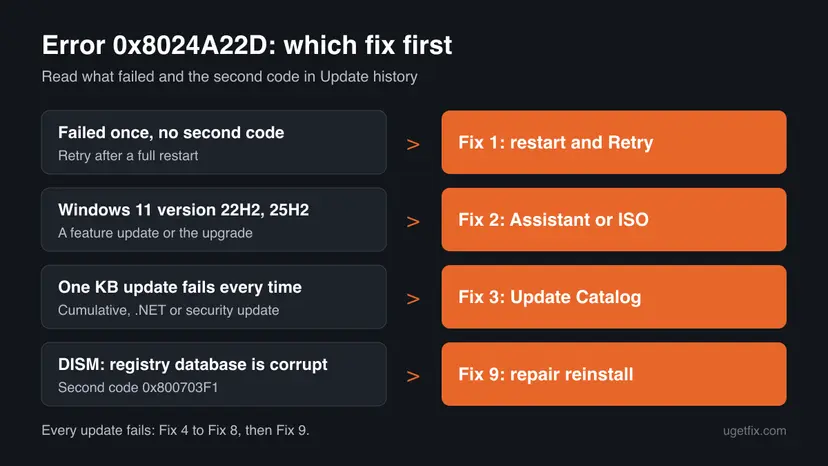
Fix 1 to Fix 3 are tied to what failed and solve the error for most readers. Fix 4 to Fix 8 repair Windows Update and Windows itself for the case where every update fails. Fix 9 reinstalls Windows over itself and keeps your apps and files.
| What you see or have | Start with |
|---|---|
| The update failed once, other updates installed | Fix 1 |
| The failed item is Windows 11, version 25H2, 24H2 or 22H2 | Fix 2 |
| The same KB update fails at every retry | Fix 3 |
| DISM says The configuration registry database is corrupt. | Fix 9 |
| Device Manager keeps refreshing, or Bluetooth vanished | Fix 6 |
| Every update fails, month after month | Fix 4, Fix 5, then Fix 9 |
| A work or school PC managed by an administrator | Send the code and the failed update's name to the administrator |
Fix 1. Restart the PC, retry and note the second code
5 to 20 minutesNo riskThe update failed once or twice, or you do not know yet which update it is.
The code only says that the install step did not finish. A pending restart or an interrupted download stops it once and not again. Before you retry, note every code in the list, because a second code often names the real cause.
- Open Settings > Windows Update > Update history (Windows 10: Settings > Update & Security > Windows Update > View update history).
- Note the name of each failed item and its code: a KB number, Windows 11, version 25H2, or a .NET Framework update.
- Save your work and select Start > Power > Restart. Use Restart, not Shut down.
- Plug a laptop in and set it not to sleep while the update runs.
- Open Settings > Windows Update and select Retry or Check for updates.
- Leave the PC alone until it asks to restart, then restart it.
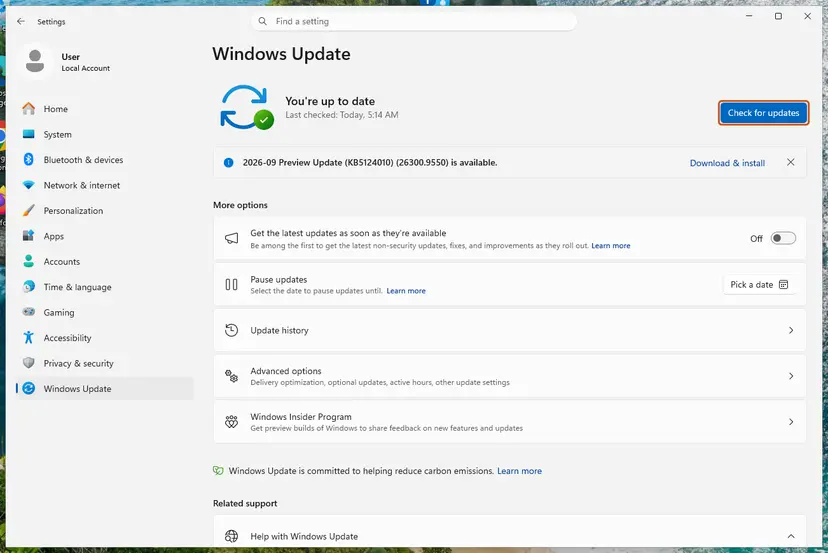
It worked if: Update history lists the update as Successfully installed.
If not: If the failed item is a Windows 11 version, go to Fix 2. If it is a KB update, go to Fix 3.
Fix 2. Install the Windows 11 version with the Installation Assistant or the ISO
1 to 2 hoursLow riskThe failed item is a feature update such as Windows 11, version 25H2 or 22H2, or the upgrade from Windows 10.
The Installation Assistant and setup.exe from the ISO install the new version without the Windows Update step that fails. In an October 2025 Sysnative case, the 25H2 update kept failing with 0x8024a22d and rolled back after the restart; the Installation Assistant then completed it.
- Open Microsoft's Download Windows 11 page.
- Under Windows 11 Installation Assistant, select Download Now and run the file. Or download the ISO further down the page.
- For the ISO: right-click it, select Mount and double-click
setup.exeon the new drive. - Choose to keep personal files and apps, and let Setup run. Keep a laptop plugged in.
- If Setup stops, note the code it shows. A different code names the real problem.
A feature update keeps your files and apps, but one that stops halfway can leave Windows unable to start. Copy the files you cannot lose to another drive or to OneDrive first: Back up your files (Windows Backup, File History, Time Machine).
It worked if: The PC restarts a few times, and winver shows the new version, with your files and apps in place.
If not: If Setup also rolls back, run DISM in Fix 5 and read its message. If DISM reports a corrupt registry database, go to Fix 9.
Fix 3. Install the failed update by hand from the Microsoft Update Catalog
15 to 30 minutesLow riskA cumulative, security or .NET Framework update with a KB number fails at every retry.
The Catalog file is a complete, fresh copy of the update, so a broken Windows Update download is out of the way. A Microsoft Q&A volunteer gave this route for a Windows 11 22H2 cumulative update that failed with 0x8024a22d. If it fails too, the installer shows its own code, which is easier to look up.
- Check the processor type. Open Settings > System > About and look at System type: an x64-based PC needs the x64 file, an ARM-based PC (for example Snapdragon) needs the arm64 file.
- Search the catalog. Open the Microsoft Update Catalog at catalog.update.microsoft.com in your browser, type the KB number (for example KB5124010) in the search box and press Enter.
- Pick the right row. Find the row whose title names your Windows version and your processor type (x64-based or arm64-based) and select Download on that row.
- Download every file listed. A window lists one or more .msu links. Download all of them into one empty folder, for example C:\packages. On Windows 11 24H2 and later the list can include earlier checkpoint updates that the new one needs.
- Install a single file. If there is only one file, double-click it and confirm the installation in the Windows Update Standalone Installer.
- Install several files with DISM. If there are several files, open an elevated Terminal or Command Prompt and run DISM with the newest file. DISM finds the other files in the same folder and installs them in the right order.
DISM /Online /Add-Package /PackagePath:C:\packages\<newest-file>.msu - Restart. Restart the PC when the installation finishes, then run winver again: the OS build should have changed.
These steps were written for Windows 11 24H2 and later; Windows 10 22H2. The full page with the other versions and what each result means: Install an update from the Microsoft Update Catalog
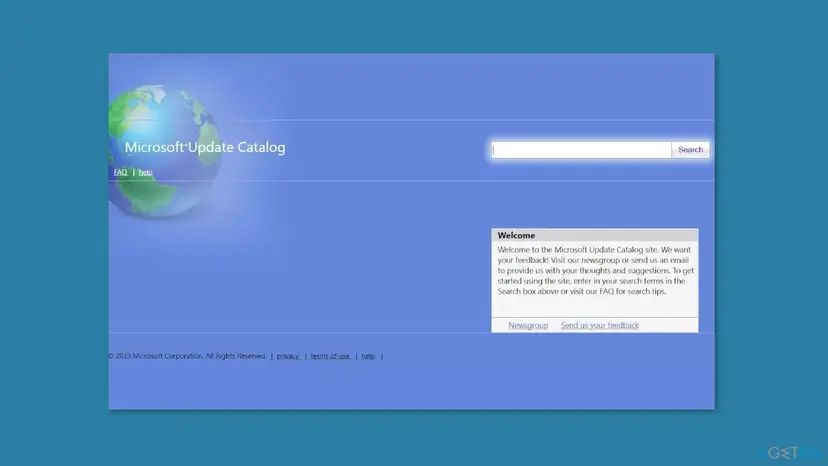
It worked if: The installer finishes, the PC restarts, and Update history lists the KB as installed.
If not: If the installer fails as well, reset Windows Update with Fix 4, then repair Windows files with Fix 5.
Fix 4. Reset the Windows Update components
10 minutesLow riskThe same update keeps failing after Fix 1 to Fix 3, or every update fails.
Windows Update reuses what is in its SoftwareDistribution and catroot2 folders at every retry. If that cache is broken, the update fails the same way each time. Renaming the folders and restarting the update services makes Windows start again from zero; this is the first step the Microsoft Q&A volunteer suggested for 0x8024a22d.
- Open Command Prompt as administrator. Type cmd in the search box, right-click Command Prompt and select Run as administrator. Select Yes when Windows asks for permission.
- Stop the update services. Type the commands below and press Enter after each one. If Windows says that other services depend on Cryptographic Services, it stops them too. A message that a service is not started is fine.
net stop wuauserv net stop bits net stop cryptsvc - Delete the download queue files. This clears the list of downloads that the Background Intelligent Transfer Service keeps. If Windows says it cannot find the files, continue.
del "%ALLUSERSPROFILE%\Application Data\Microsoft\Network\Downloader\qmgr*.dat" - Rename the update cache folders. Renaming keeps a copy in case you need it; Windows creates new, empty folders when the services start again. If you get Access is denied, a service is still running: repeat the previous step.
ren %systemroot%\SoftwareDistribution SoftwareDistribution.old ren %systemroot%\System32\catroot2 catroot2.old - Start the services again. Type the commands below and press Enter after each one. The requested service has already been started is fine: Windows started it on its own.
net start cryptsvc net start bits net start wuauserv - Restart and check for updates. Restart the PC. Then select Start > Settings > Windows Update > Check for updates. The first check can take longer than usual because everything is downloaded again.
These steps were written for Windows 11 and Windows 10 (the steps are the same). The full page with the other versions and what each result means: Reset Windows Update components

It worked if: Windows Update downloads the update again and installs it without the error.
If not: Repair the Windows files with Fix 5.
Fix 5. Repair Windows files with DISM and SFC, and read their message
15 to 40 minutesNo riskEvery update fails, or the Catalog installer in Fix 3 also failed.
Updates are built on the component store, where Windows keeps its own files. If it is damaged, the update cannot finish. DISM downloads clean copies of damaged files and SFC then repairs the system files. Their messages also tell you whether the damage is deeper.
- Open an elevated command window. Right-click Start and select Terminal (Admin), or type cmd in the search box, right-click Command Prompt and select Run as administrator. Select Yes when Windows asks for permission.

Search for cmd and choose Run as administrator. Screenshot: Windows 11 26H2. - Run DISM first. Type the command below and press Enter. DISM downloads clean copies of damaged components from Windows Update, so it can take several minutes. Wait until it says The operation completed successfully.
DISM.exe /Online /Cleanup-Image /RestoreHealth
DISM /RestoreHealth running. Screenshot: Windows 11 26H2. - Run System File Checker. In the same window, type the command below and press Enter. Do not close the window until the verification reaches 100%.
sfc /scannow
sfc /scannow at 100%. Screenshot: Windows 11 26H2. - Read the result and restart. Compare the last message with the table below this guide, then restart the PC so that repaired files are loaded.

The result line tells you what SFC did. Screenshot: Windows 11 26H2.
These steps were written for Windows 11 24H2 and 25H2. The full page with the other versions and what each result means: Run DISM and SFC to repair Windows system files
| Message | What it means here |
|---|---|
| The restore operation completed successfully. | The store is repaired. Restart and retry the update. |
| Windows Resource Protection could not perform the requested operation. | SFC could not run. Run DISM, restart and run SFC again. |
| The configuration registry database is corrupt. | A registry hive is damaged (code 0x800703F1). DISM and SFC cannot repair it. Go to Fix 9. |
It worked if: DISM reports The restore operation completed successfully., SFC finds no violations or repairs them, and the update installs after a restart.
If not: If DISM reports a corrupt registry database, go straight to Fix 9. Otherwise check drivers with Fix 6.
Fix 6. Check Device Manager for a faulty driver
15 minutesLow riskDevice Manager keeps refreshing itself, or a device such as Bluetooth stopped working around the time updates began to fail.
One user on Microsoft Q&A reports that updates failed for months until he removed a broken Bluetooth driver that made Device Manager refresh every two seconds. After he installed the maker's current driver, Windows Update worked again. It is a rare cause, but quick to rule out.
- Right-click Start and select Device Manager.
- Watch it for half a minute. If the list keeps collapsing and redrawing, a device is failing.
- Unplug USB devices one at a time and see if the refreshing stops.
- Look for a device with a yellow warning mark, or a device that no longer works, such as Bluetooth.
Reinstall that device's driver from the PC or device maker: Update, roll back or reinstall a driver
It worked if: Device Manager stays still, the device works, and the update installs on the next Retry.
If not: If Device Manager looks normal, test other programs with Fix 7.
Fix 7. Install the update in a clean boot
15 minutesLow riskUpdates fail and you have security, VPN or system tools from other makers installed.
A clean boot starts Windows with only Microsoft services. If the update installs then, a program you installed blocks it, and you can find it without turning off protection for good.
- Open System Configuration. Select Search on the taskbar, type msconfig and select System Configuration from the results.
- Hide Microsoft services. On the Services tab, select the Hide all Microsoft services check box. Only services from other companies stay in the list.
- Disable the remaining services. Select Disable all, then select Apply.
- Open Task Manager. On the Startup tab of System Configuration, select Open Task Manager.
- Disable the startup apps. On the Startup apps tab in Task Manager, select each item whose status is Enabled and select Disable. Write down or take a screenshot of the items you disable: you need the list to turn them back on.
- Confirm the changes. Close Task Manager. On the Startup tab of System Configuration, select OK.
- Restart and test. Restart the PC. Windows now starts in a clean boot environment: try again the thing that failed (run the app, install the update, uninstall the program).
These steps were written for Windows 11 25H2 and 26H2. The full page with the other versions and what each result means: How to perform a clean boot in Windows
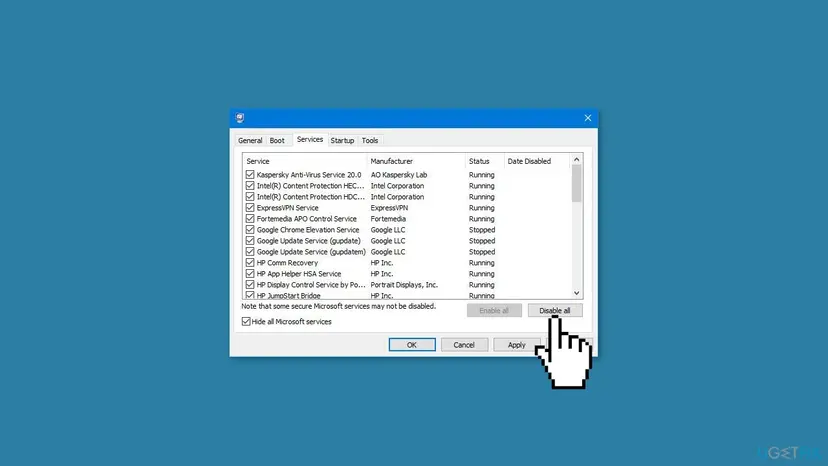
It worked if: The update installs in the clean boot. Turn the services back on in groups to find the one that blocked it.
If not: Undo the clean boot and run the troubleshooter in Fix 8.
Fix 8. Run the Windows Update troubleshooter
5 minutesNo riskYou prefer an automatic check before a reinstall.
The troubleshooter checks the update services, their settings and the pending update state, and repairs what it finds. It does not repair a damaged registry hive or a broken feature update, so it comes after the specific fixes.
- Open Troubleshoot settings. Select Start > Settings > System > Troubleshoot.
- Open the list of troubleshooters. Select Other troubleshooters.
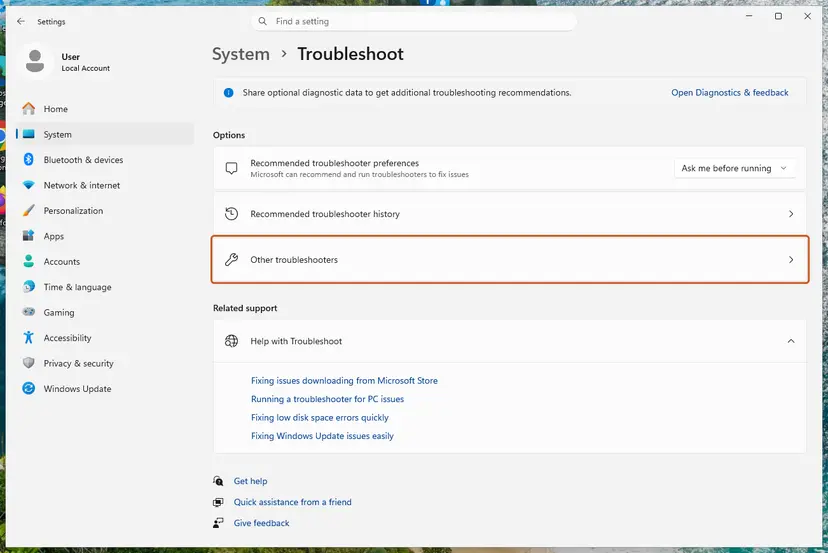
Settings, System, Troubleshoot: select Other troubleshooters. Screenshot: Windows 11 26H2. - Run the Windows Update troubleshooter. Under Most frequent, select Run next to Windows Update. The Get Help app opens and starts the checks.
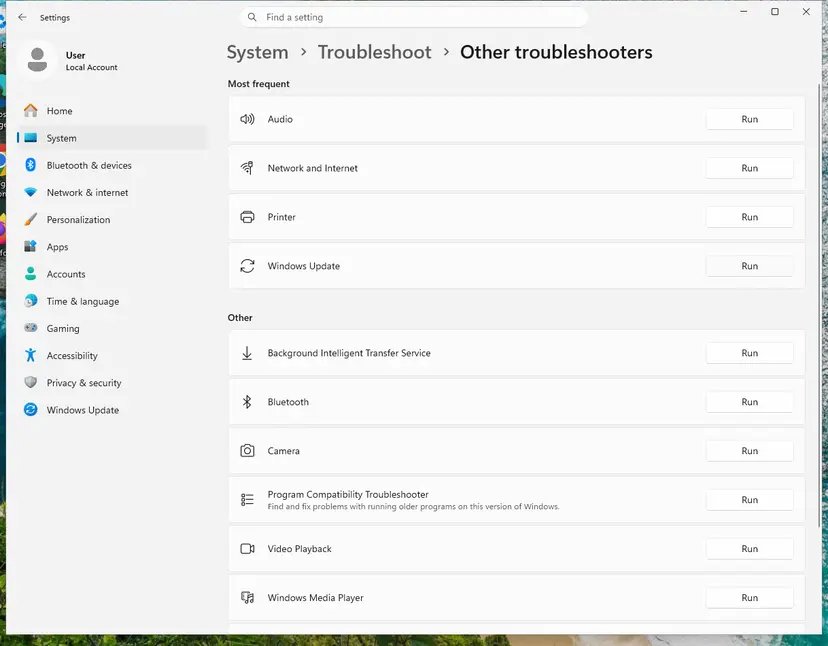
Windows Update is in the Most frequent group; select Run on its row. Screenshot: Windows 11 26H2. - Read the result. Wait until Get Help finishes. If it found and fixed a problem, it says so and asks whether this solved the problem. Answer the question so it can offer the next step.
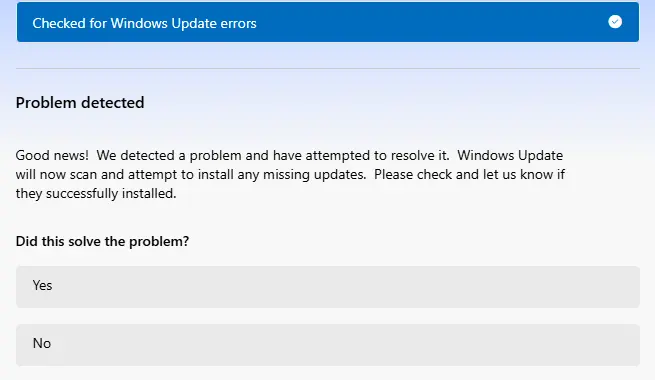
Get Help reports what it found and asks if the problem is solved. Screenshot: Windows 11 26H2. - Restart the PC. Restart when the troubleshooter finishes, even if it does not ask you to.
- Check for updates again. Select Start > Settings > Windows Update > Check for updates, and install the updates it finds.
These steps were written for Windows 11 (screenshots: 26H2). The full page with the other versions and what each result means: Run the Windows Update troubleshooter
It worked if: The troubleshooter reports that it fixed a problem, and the update installs on the next try.
If not: If it finds nothing and updates still fail, use the repair reinstall in Fix 9.
Fix 9. Reinstall Windows over itself and keep your apps and files
1 to 2 hoursLow riskDISM reports a corrupt registry database, or every update fails with 0x8024a22d after Fix 1 to Fix 8.
A repair reinstall replaces Windows Update, the component store and the system files with clean copies, while apps, files and settings stay. In the Sysnative case, a forum analyst repaired the damaged registry hive with his own tool before the upgrade worked; a repair reinstall is the route that needs no such tool.
- Open Recovery in Settings. Open Settings > System > Recovery. Next to Fix problems using Windows Update, select Reinstall now. This keeps your apps, files and settings.

Fix problems using Windows Update reinstalls the current version and keeps apps, files and settings. Screenshot: Windows 11 26H2. - Start the reinstall. Choose whether the PC may restart on its own 15 minutes after the installation, then select OK.
- Wait and restart. Windows Update downloads and installs a repair copy of your current Windows version. Keep the PC plugged in and online, and restart it when asked.
These steps were written for Windows 11 22H2 and later. The full page with the other versions and what each result means: Reinstall Windows without losing files
Your files are meant to stay, but a reinstall that stops halfway can leave Windows unable to start. Back up what you cannot lose first: Back up your files (Windows Backup, File History, Time Machine). Keep a laptop plugged in until it finishes.
It worked if: The PC starts into the same desktop with your apps and files, and the next update installs without the error.
If not: If Setup rolls back, collect the logs listed in the next section and ask Microsoft support or a Windows Update forum for help.
If error 0x8024a22d is still there
Since Microsoft does not explain 0x8024a22d, the useful information is everything around it: the second code, the DISM message and, for a feature update, the Setup logs. Collect them before you ask for help.
- Note the exact name of every failed update and its code from Update history.
- Note the message DISM and SFC showed in Fix 5.
- For a feature update, copy the folders
PantherandRollback(if it exists) fromC:\$WINDOWS.~BT\Sourcesto the desktop. Copy the folders themselves, not shortcuts. - Press Win + R, type
winverand press Enter. Note the version and build. - Send all of this to Microsoft support, a Windows Update forum, or your administrator on a work PC.
| Situation | What to do |
|---|---|
| Work or school PC, updates from WSUS, Configuration Manager or Intune | The 0x8024A range covers Automatic Updates, which an administrator can control. Do not change policies yourself; send the code and the update name to the administrator. |
| Windows 10 22H2 | Windows 10 left support on 14 October 2025. Only PCs in Extended Security Updates still get security updates. Plan the move to Windows 11 with Fix 2. |
| The drive reports errors, or the PC lost power during an update | Check the drive first: Check a disk for errors (chkdsk) |
Nothing about 0x8024a22d points to memory or the processor. A failing device driver and a drive with errors are the exceptions: both can break updates again after every repair.
How to keep error 0x8024a22d from coming back
- Restart when Windows asks, so a half-finished update does not block the next one.
- Keep a laptop plugged in and awake while a feature update runs.
- Read the name of the failed update and any second code before you start a repair.
- Install drivers from the PC or device maker, and fix a device that stops working early.
- Do not run registry cleaners or edit the registry without a backup: Back up the registry before editing it.
- Do not download update files from sites other than catalog.update.microsoft.com or Microsoft's download pages.
- Do not turn off your antivirus for good to make an update install.
- Do not leave the PC without updates for months while you look for a fix.
If you met the error with a feature update and want to wait, you can stay on your current Windows 11 version while it is still supported. Check its end of support date before you postpone for long. For a neighbouring code in the same range, see our guide to error 0x8024a203.
Frequently asked questions
What is error 0x8024a22d?
It is a Windows Update error that appears when an update downloads but does not install. Microsoft's Windows Update error list does not include this exact code. It sits in the 0x8024A range, which Microsoft calls Automatic Update Errors, next to documented codes such as 0x8024A000 and 0x8024AFFF. In practice it behaves like a general install failure, so the name of the failed update and any second code matter more than the code itself.
How do I fix 0x8024a22d with the Windows 11 25H2 update?
First restart and select Retry. If 25H2 fails again, or installs and then undoes the changes at restart, run the update with the Windows 11 Installation Assistant or setup.exe from the Windows 11 ISO, as in Fix 2. In an October 2025 report the Assistant completed the 25H2 update after Windows Update failed with this code. If Setup rolls back too, run DISM and read its message (Fix 5).
0x8024a22d came with 0x800703f1 or 0x8007054f. What does that mean?
The second code is the better lead. 0x800703F1 is the code for The configuration registry database is corrupt, the message DISM shows when a registry hive is damaged; DISM and SFC cannot repair that, so use the repair reinstall in Fix 9. For 0x8007054F we could not confirm a cause specific to updates. Try Fix 3 and Fix 4 first, and look that code up on its own if the error stays.
Is 0x8024a22a or 0x8024a22 the same error?
0x8024a22 is the same code cut short; Windows always shows eight digits after 0x. 0x8024a22a is a neighbour in the same 0x8024A range of Automatic Updates errors. Like 0x8024a22d, it is not on Microsoft's public error list, so we could not confirm what it means. The same approach applies: read the name of the failed update, restart and retry, then use the Installation Assistant or the Update Catalog to install it outside Windows Update.
Is 0x8024a22d a Windows 10 or a Windows 11 error?
Both. The reader's question on this page came from Windows 10, while recent reports name Windows 11 22H2, 23H2 and 25H2 updates. The Windows Update Agent works the same way on both systems, so the fixes are the same; only some Settings paths differ, and the steps give both. Windows 10 left support on 14 October 2025, so on Windows 10 the best long-term fix is the move to Windows 11.
What will these fixes change on my PC?
Fix 1, Fix 5 and Fix 8 change nothing you would notice. Fix 4 renames the Windows Update cache folders, so the update history page may look empty, but installed updates stay. Fix 6 reinstalls one driver, and Fix 7 turns off other makers' services until you turn them back on. Fix 2 and Fix 9 reinstall Windows and keep your files, apps and settings, which is why you back up first. None of the fixes turns off security features.
Can I fix 0x8024a22d by turning off my antivirus?
Not as a fix. No source we read ties this code to security software, and turning protection off leaves the PC exposed. If you suspect another program interferes with updates, the clean boot in Fix 7 is the safer test. If you still want to rule out the antivirus, pause it for one try only and turn it on right after: Turn off Microsoft Defender protection for a moment. Start with Fix 1 to Fix 3, which cover the usual cases.
Will I lose my files if I reinstall Windows to fix this?
Not with the repair reinstall in Fix 9 or the Installation Assistant in Fix 2. Both keep your apps, files and settings. Reset this PC with Keep my files is different: it keeps your files but removes installed apps. Back up the files you cannot lose before any reinstall, and keep a laptop plugged in until it finishes, because a reinstall that stops halfway can leave Windows unable to start.
I searched in another language: non si installa, xử lý thế nào, как исправить. Is this page for me?
Yes, if you see 0x8024a22d. Non si installa is Italian for it does not install, lỗi này xử lý thế nào is Vietnamese for how do I deal with this error, and как исправить is Russian for how to fix it. The code is the same in every language of Windows. Menu names here are the English ones, so follow their position in Settings; the steps give the Windows 10 path in brackets where it differs.
Sources
- Microsoft Learn: Windows Update error code list by component (Automatic Update Errors, 0x8024A range) (learn.microsoft.com)
- Microsoft Q&A: Windows Update Install Error 0x8007054f and 0x8024a22d for Windows 11 Version 22H2 (KB5028254) (learn.microsoft.com)
- Sysnative Forums: Windows update errors, install error 0x800703f1 and 0x8024a22d (Windows 11 25H2, solved) (sysnative.com)
Did this fix work?
One click, no account. It tells the next reader which guides are worth their time.
Questions and experiences: fix Windows update error 0x8024a22d
Still broken, or found a fix we did not cover? Ask here: members and our editors answer. Reading is open; writing needs a free account.
…