
How to fix Windows Update error 0x80d05001

Prefer to fix it yourself? The manual steps follow.
- 7methods
- 5 to 30 minutes
- Intermediate
Applies to Windows 11 and Windows 10; Windows Update, Microsoft Store and other downloads handled by Delivery Optimization
7 methods in this guide
Yesterday I tried to update Windows as I usually do once in a while, and to my surprise I received error 0x80d05001. The process usually goes with no hiccups, so I am not quite sure what to do next.
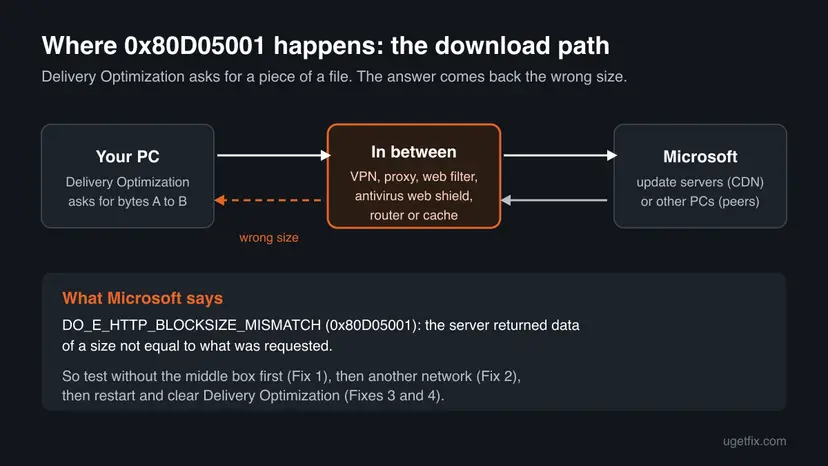
Error 0x80d05001 means Delivery Optimization, the service that downloads Windows updates and Store apps, got back a piece of a file that was not the size it asked for. Something between your PC and Microsoft usually changed the answer. Turn off any VPN, proxy or web filter first, then retry the update.
0x80d05001 is a download error. Microsoft names it DO_E_HTTP_BLOCKSIZE_MISMATCH: "HTTP server returned a response with data size not equal to what was requested". Something on the way, most often a VPN, proxy, web filter or antivirus web shield, changed the download. Turn those off for the update and retry (Fix 1). If it still fails, try another network (Fix 2), then restart and clear Delivery Optimization (Fixes 3 and 4).
| Error | 0x80d05001. Microsoft's name: DO_E_HTTP_BLOCKSIZE_MISMATCH, "HTTP server returned a response with data size not equal to what was requested." |
|---|---|
| Where it appears | Settings > Windows Update, next to an update that fails to download. Less often Microsoft Store downloads, which use the same download service. |
| Main cause | A VPN, proxy, web filter, antivirus web shield or caching device changes or cuts the download. Less often a damaged Delivery Optimization cache or a stuck service. |
| Fastest fix | Turn off the VPN, proxy and web filter for the update and retry (Fix 1). Then test another network, such as a phone hotspot (Fix 2). |
| Also written as | 0x80D05001, 80D05001, and as the signed number -2133831679 in some logs and scripts. |
| Affects | Windows 11 and Windows 10. Windows 10 left Microsoft support on 14 October 2025; the fixes below still work on it. |
| Microsoft's status | A documented Delivery Optimization return value, not a known bug of one update. No update removes it, because it reports what the network returned. |
| Related codes | 0x80d05010 (invalid byte range), 0x80d05011 (server does not support the Range header), 0x80d05012 (overlapping ranges). |
| Time to fix | 5 to 10 minutes for Fixes 1 to 4. Up to 30 minutes when the network or Windows Update needs a reset. |
Facts checked on 15 October 2026. Steps written for Windows 11 (25H2 and 26H2) and Windows 10 22H2.
What Windows Update error 0x80d05001 means
Windows Update does not download files on its own. It hands the job to Delivery Optimization (service name DoSvc), which fetches each update in pieces: it asks the server for a range of bytes and checks that the answer is exactly that size. Codes from this service start with 0x80D0.
Microsoft's list of Delivery Optimization return values names 0x80d05001 DO_E_HTTP_BLOCKSIZE_MISMATCH: "HTTP server returned a response with data size not equal to what was requested". Microsoft's own servers send the right size. So the answer was changed or cut somewhere on the way, and that is where to look first.
- What you see in Windows Update
- An update stays in the list with Download error - 0x80d05001, or Windows 10 shows "There were some problems installing updates, but we'll try again later." with the code in brackets.
- When it appears
- During the download stage, before anything is installed. The progress may stop at a low number and then show the error.
- In logs and scripts
- The same code as a signed number,
-2133831679. - What it is not
- Not a damaged update package and not a disk space problem. Nothing was installed half way: the download simply did not pass the size check.
The reader above says updates usually work. That fits the code: something new on the network path, such as a VPN app, a new router, a security suite or a work proxy, is the usual change behind it.
Why Windows shows 0x80d05001: the causes, ranked
Most often a program or device between the PC and Microsoft rewrites or cuts the download. Less often the network itself drops parts of it. Rarely the problem is on the PC: a damaged download cache, a stuck service or damaged Windows files.
| Cause | How often | How to tell | Fix |
|---|---|---|---|
| A VPN, proxy, web filter or antivirus web shield changes or scans the download. | Most often | It fails with the VPN or filter on, or only on a work or school network. | Fix 1 |
| The router, a provider cache or an unstable connection returns broken pieces. | Often | It works on a phone hotspot but not on home Wi-Fi. | Fix 2 |
| Delivery Optimization or BITS is stuck on an old download job. | Sometimes | Every update fails at once on a network that works. | Fix 3 |
| Delivery Optimization's cache holds a damaged piece, or a peer PC sends bad data. | Sometimes | The same update fails at the same point every time. | Fix 4 |
| Damaged network settings such as DNS, Winsock or the adapter. | Rarely | Windows shows No internet while web pages open. | Fix 5 |
| A stuck Windows Update download queue. | Rarely | Fixes 1 to 5 did not help and only one update fails. | Fix 6 |
| Damaged Windows system files. | Rarely | Nothing above helped, and other built-in features misbehave. | Fix 7 |
0x80d05001 and its neighbours, including 0x80d05011
The 0x80D050xx group covers HTTP range requests, the way Delivery Optimization asks for one piece of a file at a time. All four codes point at the same place: whatever answers those requests on the way. This table quotes Microsoft's descriptions.
| Code | Microsoft's name | What Microsoft says |
|---|---|---|
| 0x80d05001 | DO_E_HTTP_BLOCKSIZE_MISMATCH | HTTP server returned a response with data size not equal to what was requested. |
| 0x80d05010 | DO_E_INVALID_RANGE | The specified byte range is invalid. |
| 0x80d05011 | DO_E_INSUFFICIENT_RANGE_SUPPORT | The server does not support the necessary HTTP protocol. Delivery Optimization requires that the server support the Range protocol header. |
| 0x80d05012 | DO_E_OVERLAPPING_RANGES | The list of byte ranges contains some overlapping ranges, which are not supported. |
- 0x80d05011 almost always means a proxy or filter strips the Range header. The fixes are the same as for 0x80d05001: start with Fix 1.
- A code that ends in 38xx, such as 0x80D03805, means the download was paused, not broken. See Microsoft Store error 0x80D03805.
How to fix Windows Update error 0x80d05001
Fixes 1 and 2 look at the network path, which is what the code reports. Fixes 3 and 4 restart and clear Delivery Optimization. Fixes 5 to 7 reset the network, Windows Update and Windows files, in that order.
| What you see or have | Start with |
|---|---|
| A VPN, proxy, web filter or third-party antivirus with web protection is in use. | Fix 1 |
| A work, school, hotel or public network, or a new router. | Fix 1, then Fix 2 |
| Every update fails at once, and the internet works. | Fix 3, then Fix 4 |
| The same update stops at the same point every time. | Fix 4 |
| Windows shows No internet while web pages open. | Fix 5 |
| Only one update keeps failing. | Fix 6 |
| Nothing above helped. | Fix 7, then the log in the next section |
Fix 1. Turn off the VPN, proxy and web filter for the update
5 minutesLow riskA VPN app, a proxy, a parental or ad blocking filter, or an antivirus with web or HTTPS scanning is in use, or the PC is on a work or school network.
Microsoft's Delivery Optimization FAQ lists the Windows Update and Store payload hosts with plain http:// addresses, such as http://*.dl.delivery.mp.microsoft.com. Anything that sits in that path can rewrite, compress or cut the answer, and then the size no longer matches the request.
- Disconnect the VPN app and quit it from the taskbar's hidden icons.
- Open Settings > Network & internet > Proxy (Windows 10: Settings > Network & Internet > Proxy).
- Under Manual proxy setup, check that Use a proxy server is off, unless your workplace set it.
- If a third-party antivirus has web protection, HTTPS scanning or a similar shield, pause that part for this one test only.
- If you use a DNS filter or a router ad blocker, pause it or allow
*.delivery.mp.microsoft.com,*.windowsupdate.comand*.prod.do.dsp.mp.microsoft.com. - Open Settings > Windows Update and select Retry or Check for updates.
- When the update has finished, turn the VPN, filter and antivirus shield back on.
Pausing protection safely, and turning it back on: Turn off Microsoft Defender protection for a moment
The proxy, firewall and Delivery Optimization settings may come from your organisation. Do not change them yourself. Give the code, the time and the update's KB number to your IT team; a proxy that does not pass byte range requests is the usual finding.
It worked if: With nothing in between, the update downloads past the point where it stopped and moves on to installing.
If not: If it fails with everything off, test another network with Fix 2.
Fix 2. Test another network and restart the router
10 minutesNo riskNo VPN or filter is in use, or Fix 1 did not help, and the PC is on Wi-Fi or a new router.
A router with its own filter or cache, a provider's caching proxy, or a weak connection that drops packets can all return pieces of the wrong size. A second network tells you at once whether the cause is the PC or the path.
- Unplug the modem and the router for 30 seconds, plug them back in and wait until the internet light is steady.
- If you can, connect the PC with a network cable instead of Wi-Fi, and retry the update.
- If it fails again, turn on a mobile hotspot on your phone and connect the PC to it.
- In Settings > Network & internet > Wi-Fi, open the hotspot's properties and turn on Metered connection only if your data plan is small; a metered network may hold large updates back.
- Retry the update in Settings > Windows Update.
- When it is done, switch back to your normal network.

It worked if: If the update works on the hotspot, the PC is fine and the cause is your router, provider or a device on your network.
If not: If it fails on every network, the cause is on the PC. Restart the download services with Fix 3.
Fix 3. Restart Delivery Optimization, BITS and Windows Update
5 minutesLow riskThe update fails on every network, or every update fails at once on a network that works.
Windows Update hands downloads to Delivery Optimization and, as a fallback, to Background Intelligent Transfer Service. If either holds a broken job, it keeps asking for the same failed piece. A restart drops the old job.
- Press Win + R, type
services.mscand press Enter. - Find Delivery Optimization, right-click it and select Restart.
- Do the same with Background Intelligent Transfer Service and Windows Update. If one is stopped, select Start.
- If Windows does not let you restart a service, restart the PC instead.
- Retry the update in Settings > Windows Update.
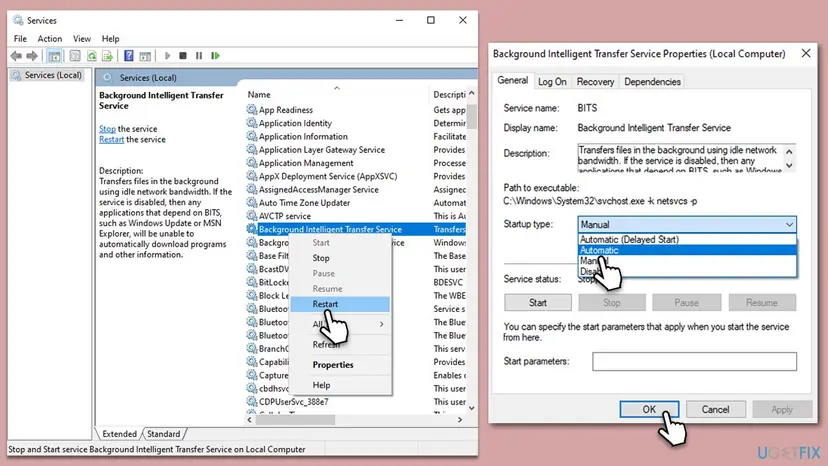
Step by step with Windows 11 screenshots: Check and restart Windows services
It worked if: The three services show Running, and the update downloads without the error.
If not: If the same update fails again at the same point, clear the Delivery Optimization cache with Fix 4.
Fix 4. Clear the Delivery Optimization cache and turn off downloads from other PCs
10 minutesLow riskThe same update fails at the same point every time, or Fix 3 helped only once.
Delivery Optimization keeps pieces of downloads in its cache and can fetch pieces from other PCs on your network. A bad piece from the cache or a peer fails the size check every time. Clearing the cache and turning off peers makes Windows fetch everything from Microsoft again.
- Windows 11: open Settings > Windows Update > Advanced options > Delivery Optimization. Windows 10: Settings > Update & Security > Delivery Optimization.
- Turn off Allow downloads from other devices (Windows 10: Allow downloads from other PCs).
- Press Win + R, type
cleanmgrand press Enter. Choose drive C: and select OK. - Select Clean up system files, choose C: again, and tick Delivery Optimization Files and Windows Update Cleanup.
- Select OK, then Delete Files.
- Restart the PC and retry the update.
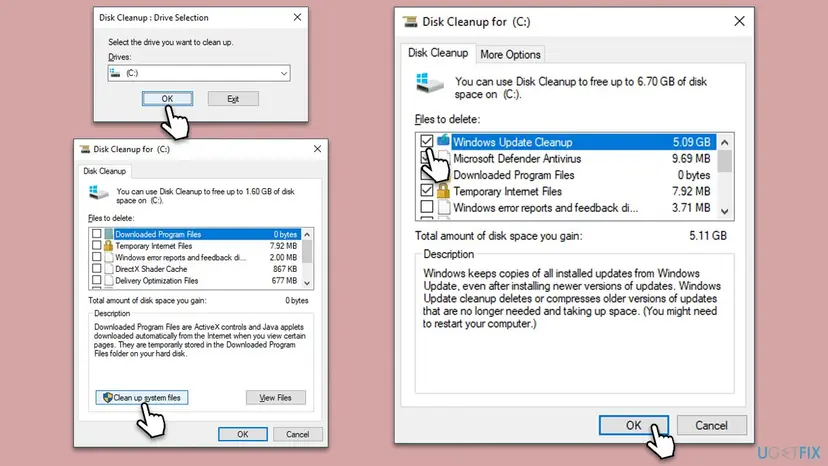
Terminal (Admin) or Windows PowerShell (Admin): see the download mode, then clear the cache
Get-DeliveryOptimizationStatus | Select-Object FileId, DownloadMode, Status
Delete-DeliveryOptimizationCache -Force
Microsoft's Delivery Optimization troubleshooting says a download mode of 99 can mean the PC cannot reach the Delivery Optimization cloud services. If you see 99, go back to Fix 1 and check the proxy and filters again.
It worked if: Disk Cleanup removes the files, and after the restart the update downloads to 100 percent.
If not: If Windows shows No internet or pages load slowly, reset the network with Fix 5.
Fix 5. Reset the network settings
10 minutesRead the warningWindows shows No internet or a yellow sign while web pages open, or an old proxy or VPN adapter is left over.
A leftover proxy setting, a VPN adapter or damaged Winsock can keep routing Windows Update through a path that changes the answer, even after the app is gone. A network reset removes them.
Saved Wi-Fi networks and their passwords, VPN connections and manual IP settings are removed. Write down your Wi-Fi password and any manual settings first. The DNS flush and Winsock reset in the first part do not remove them.
- Open an elevated command window. Right-click Start and select Terminal (Admin), or type cmd in the search box, right-click Command Prompt and select Run as administrator. Select Yes when Windows asks for permission.
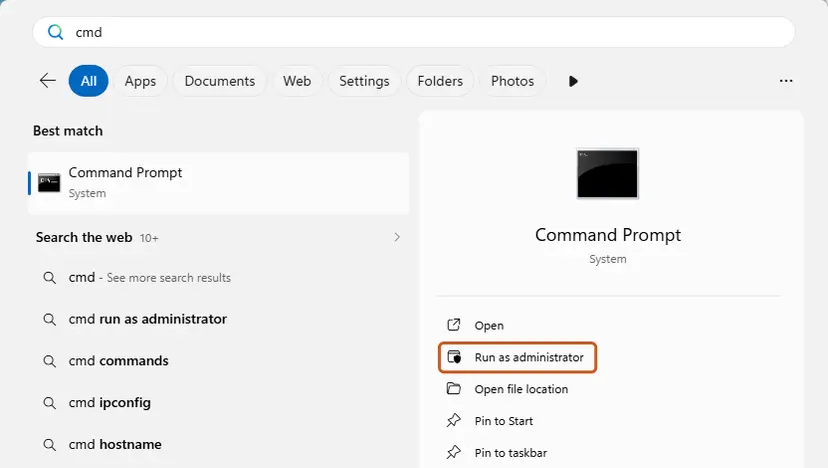
Search for cmd and choose Run as administrator. Screenshot: Windows 11 26H2. - Flush the DNS cache. Type the command below and press Enter. Windows forgets the website addresses it looked up earlier and asks for them again.
ipconfig /flushdns - Reset Winsock. Type the command below and press Enter. It returns the Windows sockets catalog to its default state.
netsh winsock reset
Both commands report success; the Winsock reset asks for a restart. Screenshot: Windows 11 26H2. - Reset TCP/IP. Type the command below and press Enter. If you entered an IP address or DNS server by hand, note it first: you may need to enter it again.
netsh int ip reset - Get a new IP address. Run these two commands one after the other. The connection drops for a moment between them.
ipconfig /release ipconfig /renew - Restart the PC. Restart Windows so the Winsock and TCP/IP resets take effect, then test the connection. If it still does not work, continue with the network reset below.
- Open Network reset. Open Settings > Network & internet > Advanced network settings and select Network reset.
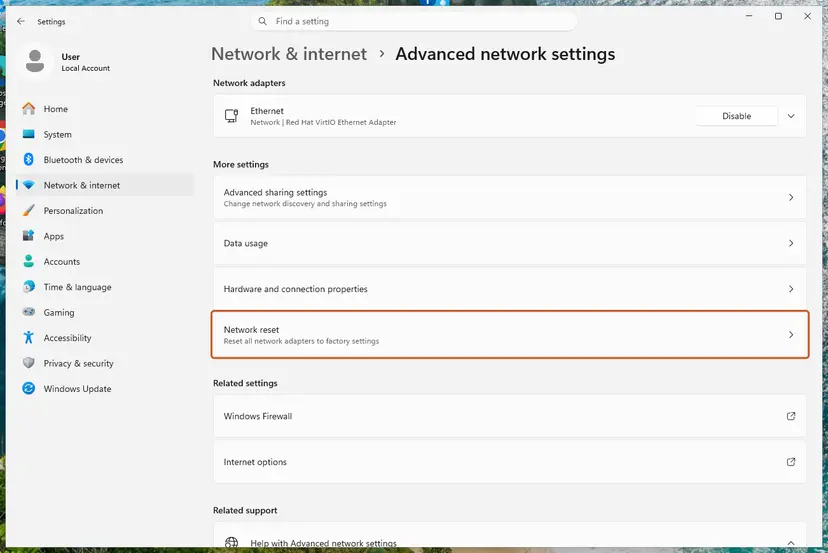
Network reset is under More settings in Advanced network settings. Screenshot: Windows 11 26H2. - Reset now. Select Reset now, then Yes to confirm. Windows removes and reinstalls all network adapters and restarts the PC.
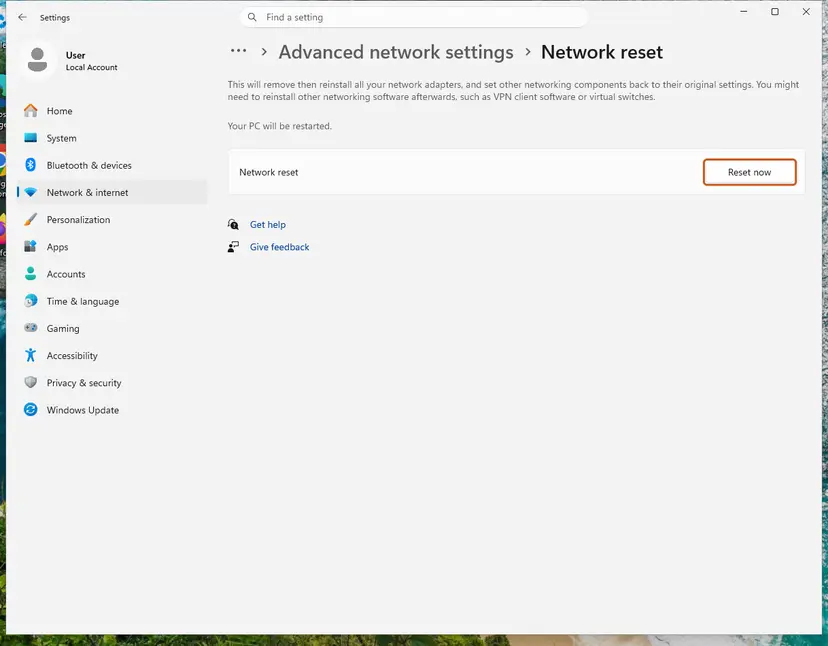
Network reset warns that VPN software or virtual switches may need to be reinstalled. Screenshot: Windows 11 26H2. - Reconnect. After the restart, connect to your Wi-Fi network again (you will need its password) and reinstall or reconfigure VPN software if it stopped working.
These steps were written for Windows 11 24H2 and later. The full page with the other versions and what each result means: Reset the network and flush DNS
It worked if: After the restart, Settings > Network & internet shows Connected without a warning, and the update downloads.
If not: If one update still fails, reset Windows Update with Fix 6.
Fix 6. Reset Windows Update components, or install the update by hand
15 to 20 minutesLow riskFixes 1 to 5 did not help, or only one update keeps failing with 0x80d05001.
Windows Update keeps its download queue in the SoftwareDistribution folder. Renaming it makes Windows start the job from scratch. Installing the update from the Microsoft Update Catalog skips Delivery Optimization entirely, because your browser downloads the file.
- Open Command Prompt as administrator. Type cmd in the search box, right-click Command Prompt and select Run as administrator. Select Yes when Windows asks for permission.
- Stop the update services. Type the commands below and press Enter after each one. If Windows says that other services depend on Cryptographic Services, it stops them too. A message that a service is not started is fine.
net stop wuauserv net stop bits net stop cryptsvc - Delete the download queue files. This clears the list of downloads that the Background Intelligent Transfer Service keeps. If Windows says it cannot find the files, continue.
del "%ALLUSERSPROFILE%\Application Data\Microsoft\Network\Downloader\qmgr*.dat" - Rename the update cache folders. Renaming keeps a copy in case you need it; Windows creates new, empty folders when the services start again. If you get Access is denied, a service is still running: repeat the previous step.
ren %systemroot%\SoftwareDistribution SoftwareDistribution.old ren %systemroot%\System32\catroot2 catroot2.old - Start the services again. Type the commands below and press Enter after each one. The requested service has already been started is fine: Windows started it on its own.
net start cryptsvc net start bits net start wuauserv - Restart and check for updates. Restart the PC. Then select Start > Settings > Windows Update > Check for updates. The first check can take longer than usual because everything is downloaded again.
These steps were written for Windows 11 and Windows 10 (the steps are the same). The full page with the other versions and what each result means: Reset Windows Update components
If one update still fails, note its KB number in Settings > Windows Update > Update history and download it from the Microsoft Update Catalog: Install an update from the Microsoft Update Catalog
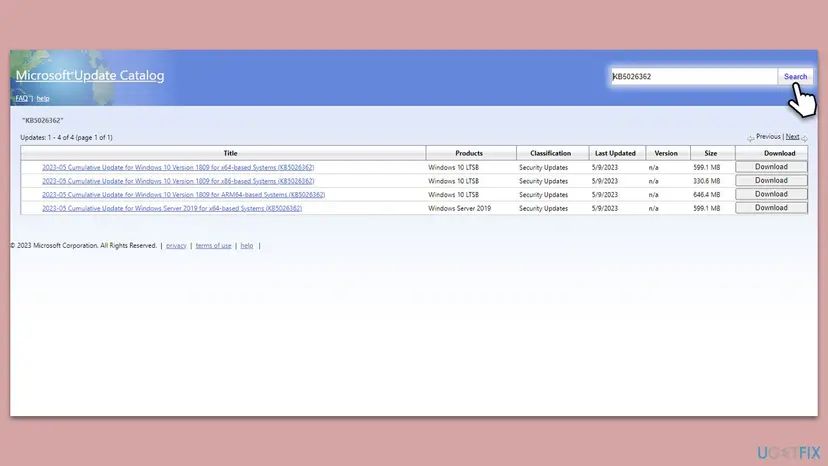
Microsoft's Windows Update troubleshooter can run first if you prefer an automatic check: Run the Windows Update troubleshooter
It worked if: The update installs, and Settings > Windows Update says you are up to date.
If not: If every download still fails, repair Windows files with Fix 7.
Fix 7. Repair Windows system files, then repair Windows in place
30 to 90 minutesLow riskNothing above helped, and updates fail on every network.
Delivery Optimization and Windows Update are parts of Windows. If their files are damaged, they can mishandle downloads. DISM and SFC repair those files; a repair install replaces them and keeps your apps and files.
- Open an elevated command window. Right-click Start and select Terminal (Admin), or type cmd in the search box, right-click Command Prompt and select Run as administrator. Select Yes when Windows asks for permission.
- Run DISM first. Type the command below and press Enter. DISM downloads clean copies of damaged components from Windows Update, so it can take several minutes. Wait until it says The operation completed successfully.
DISM.exe /Online /Cleanup-Image /RestoreHealth - Run System File Checker. In the same window, type the command below and press Enter. Do not close the window until the verification reaches 100%.
sfc /scannow - Read the result and restart. Compare the last message with the table below this guide, then restart the PC so that repaired files are loaded.
These steps were written for Windows 11 24H2 and 25H2. The full page with the other versions and what each result means: Run DISM and SFC to repair Windows system files
If that does not help, reinstall Windows over itself with the installation media, keeping files and apps. This also brings the PC to the newest version without Windows Update: Reinstall Windows without losing files
It worked if: SFC reports no integrity violations or that it repaired them, and the update downloads again.
If not: Read the Delivery Optimization log as the next section shows.
If 0x80d05001 is still there: read the Delivery Optimization log
Windows Update shows only the code. Delivery Optimization keeps its own log, and Microsoft offers a troubleshooter for it. Both show which server answered and whether the PC can reach Microsoft directly.
- Right-click Start and select Terminal (Admin) (Windows 10: Windows PowerShell (Admin)).
- Start the update again, then run
Get-DeliveryOptimizationStatus. Look at DownloadMode and Status. - Run
Get-DeliveryOptimizationLog | Where-Object Level -eq 2 | Select-Object -Last 20to see the last errors with their time. - Run Microsoft's Delivery Optimization Troubleshooter from
https://aka.ms/do-fixwith the-HealthCheckswitch. It checks whether the PC can talk to the service.
- The download comes from an IP address on your network: a Microsoft Connected Cache or another PC serves it. Turn off downloads from other devices (Fix 4), or ask whoever runs that cache.
- What to give Microsoft support or your IT team: the code, the time, the KB number, the log lines, your Windows version and build from Settings > System > About, and the fixes you tried.
- When it is not Windows: if the update works on a phone hotspot and fails on your network on every PC, the router or the provider is the cause. A router firmware update or the provider's support is the next step.
How to keep 0x80d05001 from coming back
The code means the download was changed on the way. Prevention is about letting Microsoft's update hosts through untouched.
- Add Microsoft's update hosts to the exceptions of any web filter, proxy or antivirus web shield.
- Use split tunnelling in your VPN app so Windows Update goes direct, if the app offers it.
- Keep the router's firmware up to date.
- Clear Delivery Optimization Files in Disk Cleanup when downloads start to fail.
- Disable the Delivery Optimization, BITS or Windows Update services to stop errors.
- Leave antivirus protection paused after a test.
- Use old registry tweaks that block updates; they make later downloads fail.
- Download update files from sites other than the Microsoft Update Catalog.
Frequently asked questions
What does error 0x80d05001 mean?
It means Delivery Optimization, the Windows service that downloads updates and Store apps, received a piece of a file that was not the size it asked for. Microsoft names it DO_E_HTTP_BLOCKSIZE_MISMATCH. Its description: "HTTP server returned a response with data size not equal to what was requested". In practice something between your PC and Microsoft changed or cut the answer, so the first checks are a VPN, a proxy, a web filter and an antivirus web shield.
Is the 0x80d05001 Windows Update error dangerous?
No. It stops the download before anything is installed, so it does not damage Windows or your files. The risk is indirect: while it lasts, your PC misses security updates. That is why it is worth fixing within days rather than waiting. The error itself is a documented Windows code and is not linked to malware by Microsoft. If you want to check the PC anyway, run a full scan with Microsoft Defender: How to scan for malware with Microsoft Defender
What is the difference between 0x80d05001 and 0x80d05011?
Both come from the part of Delivery Optimization that asks servers for exact byte ranges. With 0x80d05001 the answer had the wrong size. With 0x80d05011, named DO_E_INSUFFICIENT_RANGE_SUPPORT, the server did not accept the Range header at all. Microsoft says Delivery Optimization requires that header. Microsoft's servers support it, so with either code a proxy or filter in between is the first suspect. The fixes on this page work for both.
Does a VPN cause error 0x80d05001?
It can. Some VPNs and proxies rewrite, compress or cut HTTP answers, and Windows Update payloads are fetched from plain http:// hosts, which makes them easy to change. Disconnect the VPN for the update, let it finish, then connect again. If your VPN app has split tunnelling, let Windows Update go direct. On a work PC, ask IT, because the VPN and proxy may be required by policy.
Is 0x80d05001 the same on Windows 11 and Windows 10?
Yes. The code and its meaning are the same on both, and every fix here works on both. Some paths differ: on Windows 11, Delivery Optimization is under Windows Update > Advanced options, while Windows 10 has it under Update & Security. Windows 10 left Microsoft support on 14 October 2025, so a Windows 10 PC may not be offered new updates at all unless it is enrolled in Extended Security Updates.
Can I get the update without fixing the error?
Yes. The Microsoft Update Catalog offers most cumulative and security updates as files you download in your browser, which skips Delivery Optimization. Find the KB number in Update history, search for it in the catalog, pick the version for your Windows and system type, and run the file. It is a workaround: other updates will still fail until the network path is fixed. Step by step: Install an update from the Microsoft Update Catalog
Will clearing the Delivery Optimization cache delete anything I need?
No. Delivery Optimization Files are copies of update and app downloads kept for reuse and for sharing with other PCs. Windows fetches them again when needed. Clearing them frees space and forces a fresh download, which is what you want with this error. Windows Update Cleanup in the same tool removes old update copies, so after it you may not be able to uninstall some older updates.
Does disk space cause 0x80d05001?
Not directly. Low disk space gives other codes, and Microsoft's description of 0x80d05001 is about the size of a network answer, not the disk. Freeing space is still harmless, and Disk Cleanup in Fix 4 does it while it clears the download cache. If the drive is nearly full, it is worth cleaning up anyway, because large feature updates need several gigabytes: Free up disk space and delete temporary files
This page did not help. What else can I do?
Test the update on another network, such as a phone hotspot. If it works there, the cause is your router, provider or a device on your network, not Windows. If it fails everywhere, read the Delivery Optimization log as the section after the fixes shows, and send it with your Windows build to Microsoft support. Installing the update from the Microsoft Update Catalog, or a repair install of Windows (Fix 7), gets the PC up to date in the meantime.
Sources
- Microsoft Learn: Delivery Optimization Return Values (DO_E_HTTP_BLOCKSIZE_MISMATCH, 0x80d05001) (learn.microsoft.com)
- Microsoft Learn: Troubleshoot Delivery Optimization (learn.microsoft.com)
- Microsoft Learn: Delivery Optimization Frequently Asked Questions (proxies and hostnames) (learn.microsoft.com)
Did this fix work?
One click, no account. It tells the next reader which guides are worth their time.
Questions and experiences: fix Windows Update error 0x80d05001
Still broken, or found a fix we did not cover? Ask here: members and our editors answer. Reading is open; writing needs a free account.
…