
How to fix WindowsPackageManagerServer.exe application error in Windows?

Prefer to fix it yourself? The manual steps follow.
- 7methods
- 5 to 30 minutes
- Easy
Applies to Windows 11, Windows 10; Microsoft App Installer (WinGet, the Windows Package Manager)
7 methods in this guide
Sometimes, I get a pop-up that says "WindowsPackageManagerServer.exe - Application Error. The instruction at 0x00007FF855909BF3 referenced memory at 0x0000000000000000. The memory could not be read." What does this mean and how can I fix it?
WindowsPackageManagerServer.exe is the WinGet COM server, a Microsoft part of the App Installer package, and its Application Error means this one helper crashed while a program was asking WinGet for something. Microsoft fixed the best known wave of these crashes with an App Installer update. Update App Installer from the Microsoft Store first; if the window stays, repair WinGet with Repair-WinGetPackageManager.
The window comes from WinGet, the Windows Package Manager that ships inside App Installer, not from a virus or from Windows itself. Open Microsoft Store > Library, select Get updates and make sure App Installer is updated, then restart (Fix 1). If it still crashes, open PowerShell as administrator and run Repair-WinGetPackageManager -Force -Latest, as Microsoft documents (Fix 2). Do not delete the file or remove App Installer.
| Error | WindowsPackageManagerServer.exe - Application Error, usually with "The memory could not be read". |
|---|---|
| Where it appears | A pop-up on the desktop, often while PowerShell, a script, a backup or another app checks or installs packages through WinGet. |
| Main cause | An old or half-updated App Installer. In 2023 an outdated App Installer made this server crash or run at high CPU, and Microsoft shipped a fix in WinGet 1.6.3133. |
| Fastest fix | Update App Installer in Microsoft Store > Library and restart (Fix 1). |
| The file | C:\Program Files\WindowsApps\Microsoft.DesktopAppInstaller_<version>_x64__8wekyb3d8bbwe\WindowsPackageManagerServer.exe, shown in Task Manager as WinGet COM Server. |
| Also written as | windowspackagemanagerserver, windows package manager server.exe, windows package manager server exe, winget com server. |
| Affects | Windows 11 and Windows 10 1809 or later, where WinGet runs through App Installer. |
| Vendor status | Known to Microsoft on GitHub. The high CPU and crash loop issue #3667 was closed as completed in June 2024; the current line is WinGet 1.29. |
| Time to fix | 5 minutes for Fix 1, about 10 minutes for Fix 2. |
Facts checked on 15 October 2026. Steps written for Windows 11 (25H2 and 26H2) and Windows 10 22H2, App Installer with WinGet 1.29.
What the WindowsPackageManagerServer.exe Application Error means
The full window usually reads like this:
WindowsPackageManagerServer.exe - Application Error
The instruction at 0x00007FF855909BF3 referenced memory at 0x0000000000000000. The memory could not be read.
WindowsPackageManagerServer.exe - Application Error is the title Windows puts on a crash window when one program stops on a fault it did not handle. "The memory could not be read" with the address 0x0000000000000000 means the program tried to read from an empty pointer, a bug inside the program. Windows itself keeps running, and the addresses change from crash to crash.
People search for this window in several spellings. All of them lead to the same Microsoft file:
- windowspackagemanagerserver, windowspackagemanagerserver exe and windows package manager server.exe are the same file name written with or without spaces.
- windows package manager server and winget com server are the names Task Manager shows. In one GitHub report the process WinGET COM Server had the child process WindowsPackageManagerServer.exe.
- WindowsPackageManagerServer.exe high CPU is the same helper running hot instead of crashing. It has the same first fix (Fix 1).
- Repair-WinGetPackageManager is the PowerShell command Microsoft gives to repair WinGet (Fix 2).
What is WindowsPackageManagerServer.exe, and is it safe?
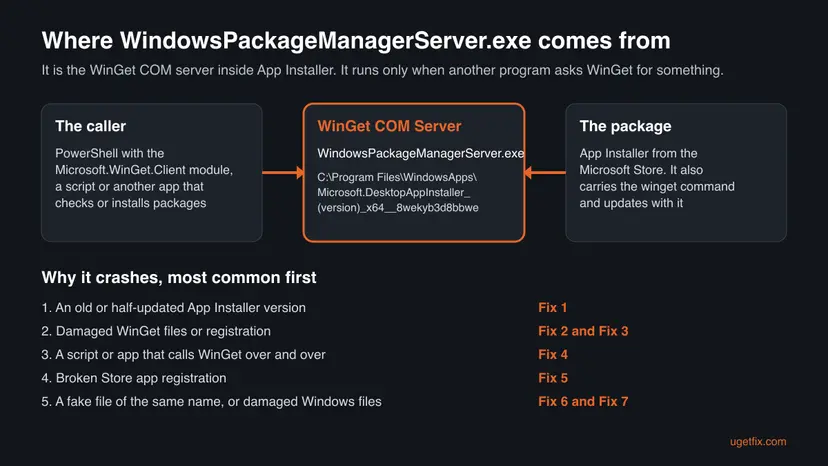
WindowsPackageManagerServer.exe is the COM server of WinGet, the Windows Package Manager. Microsoft delivers WinGet as part of App Installer, a packaged app from the Microsoft Store. The winget command you type runs in your console, but programs that use WinGet from code, such as the Microsoft.WinGet.Client PowerShell module, talk to this separate server process instead.
- Usual location
C:\Program Files\WindowsApps\Microsoft.DesktopAppInstaller_<version>_x64__8wekyb3d8bbwe\(the folder name carries the version, for example 1.29.380.0)- Package
- Microsoft.DesktopAppInstaller, shown as App Installer in Settings and in the Microsoft Store
- Name in Task Manager
- WinGet COM Server, or Windows Package Manager Server
- Started by
- Programs that use WinGet behind the scenes: the WinGet PowerShell module, scripts and some apps. One GitHub user saw it start with the Windows Backup app.
- Log folder
%LOCALAPPDATA%\Packages\Microsoft.DesktopAppInstaller_8wekyb3d8bbwe\LocalState\DiagOutputDir
In the WindowsApps folder the file is a genuine Microsoft component and is safe. It does not run all the time: it starts when a program asks WinGet for something and should end soon after. When you end it in Task Manager while its caller is still active, it starts again at once, as several GitHub users noticed. A file of the same name anywhere else is not the Microsoft one (Fix 6).
What causes the WindowsPackageManagerServer.exe error, most common first
Microsoft does not publish a list of causes for this window. The order below comes from the WinGet GitHub issue about the server, where Microsoft staff answered, and from what the error itself says.
| Cause | How often | Start with |
|---|---|---|
| An old or half-updated App Installer. In September 2023 users with App Installer 1.20 and 1.21 saw constant crashes and high CPU; updating App Installer stopped them. | Most often | Fix 1 |
| Damaged WinGet files or a broken WinGet registration for your user account. | Often | Fix 2 and Fix 3 |
| A script, scheduled task or app that calls WinGet again and again, so every crash comes back at once. | Sometimes | Fix 4 |
| Broken registration of Store apps in general, so App Installer cannot start cleanly. | Sometimes | Fix 5 |
| A fake file with the same name, or damaged Windows files. | Rarely | Fix 6 and Fix 7 |
The crash is a software fault in one helper. A single WindowsPackageManagerServer.exe window is not a sign of failing memory or a failing disk.
How to fix the WindowsPackageManagerServer.exe Application Error
Fixes 1 to 3 update or repair WinGet itself and solve most cases. Fix 4 finds the program that keeps calling it. Fixes 5 to 7 are checks and general repairs for the few cases that remain.
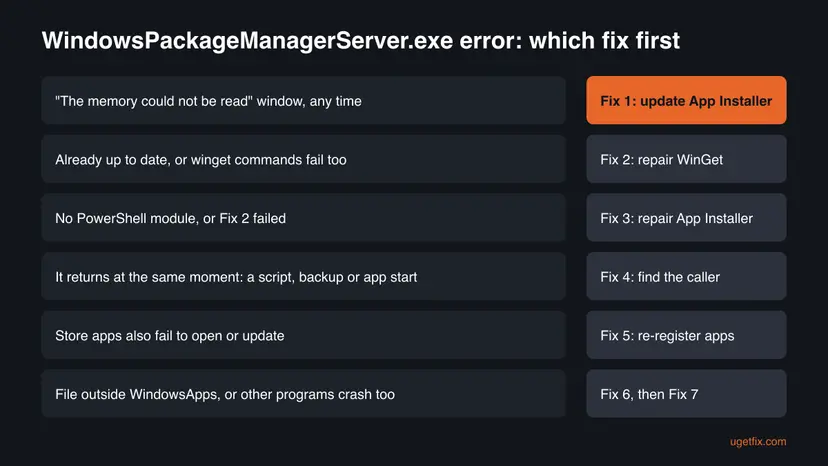
| What you see or have | Start with |
|---|---|
| "WindowsPackageManagerServer.exe - Application Error" with "The memory could not be read". | Fix 1, then Fix 2 |
App Installer is already up to date, or winget commands also fail. | Fix 2 |
| PowerShell cannot install the module, or Fix 2 did not help. | Fix 3 |
| The window returns at the same moment every time: a script, a backup, signing in. | Fix 4 |
| Other Microsoft Store apps also fail to open or update. | Fix 5 |
The file runs from a folder other than WindowsApps, or other programs crash too. | Fix 6, then Fix 7 |
Fix 1. Update App Installer from the Microsoft Store
5 minutesLow riskEveryone who sees the window. This is how Microsoft ships fixes for WinGet and its COM server.
WindowsPackageManagerServer.exe is replaced only when App Installer updates. In GitHub issue #3667 the constant crashes came from outdated App Installer versions, and a contributor answered that updating App Installer through the Microsoft Store makes the problem go away.
- Close the error window with OK.
- Open Microsoft Store from the Start menu.
- Select Library at the bottom left.
- Select Get updates and wait for the list to finish.
- If App Installer is in the list, let it update. You can also search for App Installer in the Store and select Update on its page.
- Restart the PC.
- Open Terminal and run
winget --infoto see the WinGet version and the log folder.
If the Store itself will not open or download, reset it first and try again. Step by step: Reset the Microsoft Store

It worked if: winget --info shows a current version (1.29 or later in October 2026), and no WindowsPackageManagerServer.exe window appears after the restart.
If not: If App Installer is already current or the window comes back, go to Fix 2.
Fix 2. Repair WinGet with Repair-WinGetPackageManager
10 minutesLow riskFix 1 did not help, App Installer will not update, or winget commands fail too.
This is the repair Microsoft documents for a WinGet that is not installed correctly. It reinstalls the latest WinGet and its dependencies for your account, which replaces a damaged COM server.
- Right-click Start and select Terminal (Admin) on Windows 11 or Windows PowerShell (Admin) on Windows 10. Select Yes in the User Account Control prompt.
- Paste the three commands below, one line at a time, and press Enter after each.
- If PowerShell asks to trust the PSGallery repository, answer Y.
- Wait until the last command finishes without red error text.
- Restart the PC.
Install-PackageProvider -Name NuGet -Force | Out-Null
Install-Module -Name Microsoft.WinGet.Client -Force -Repository PSGallery | Out-Null
Repair-WinGetPackageManager -Force -Latest
The first line installs the NuGet provider, the second the Microsoft.WinGet.Client module from the PowerShell Gallery, and the third repairs WinGet. These are the exact lines on Microsoft's WinGet troubleshooting page.
It worked if: The command ends without errors, winget --info runs, and the crash window does not return after the restart.
If not: If PowerShell cannot reach the PowerShell Gallery or the repair fails, go to Fix 3.
Fix 3. Repair or reset App Installer in Settings
5 minutesLow riskFix 2 failed or you prefer not to install a PowerShell module.
App Installer is a packaged Store app, so Windows can repair its files or reset its data in place. A reset also clears the WinGet settings and cached data that the COM server reads at start.
- Press Win + I and open Apps > Installed apps (on Windows 10, Apps > Apps & features).
- Find App Installer, select the three dots and choose Advanced options.
- Select Terminate, then Repair, and restart the PC.
- If the window returns, open the same page again and select Reset.

Full steps with pictures: How to repair or reset an app in Windows
It worked if: App Installer opens its Advanced options without errors, and no WindowsPackageManagerServer.exe crash appears after the restart.
If not: If the crash comes back at a fixed moment, go to Fix 4. If other Store apps also fail, go to Fix 5.
Fix 4. Find the program that keeps starting WindowsPackageManagerServer.exe
15 minutesLow riskThe window returns at the same moment: at sign-in, during a backup, when a script or management tool runs.
The server runs only when something calls WinGet. In GitHub reports the caller was a PowerShell window, and one user saw it start with the Windows Backup app. Updating or stopping that caller stops the crash loop.
- When the window appears, press Ctrl + Shift + Esc to open Task Manager.
- On the Processes tab, expand WinGet COM Server and look at what else is busy at that moment: PowerShell, Terminal, a backup, an update tool.
- Press Win + R, type
taskschd.mscand press Enter. Look in Task Scheduler Library for tasks of your own or of an update tool that run PowerShell orwingetat that time. - Update the program that calls WinGet, or switch off the task you no longer need.
- If you cannot tell which program it is, do a clean boot and turn programs back on in groups until the window returns.
How to do a clean boot: How to perform a clean boot in Windows
It worked if: You find the caller, update or stop it, and the window no longer appears at that moment.
If not: If the window appears even in a clean boot, go to Fix 5.
Fix 5. Re-register App Installer and the other Store apps
10 minutesLow riskOther Microsoft Store apps also fail to open or update, or Settings will not show App Installer.
WinGet works only when the App Installer package is registered for your user account, as Microsoft notes on its troubleshooting page. Re-registering the packages repairs that registration without removing anything.
- Open PowerShell as administrator.
- Run the re-register command from the procedure below.
- Ignore red lines about apps that are in use, wait for the prompt, then restart the PC.
- Run Fix 1 once more so App Installer is current.
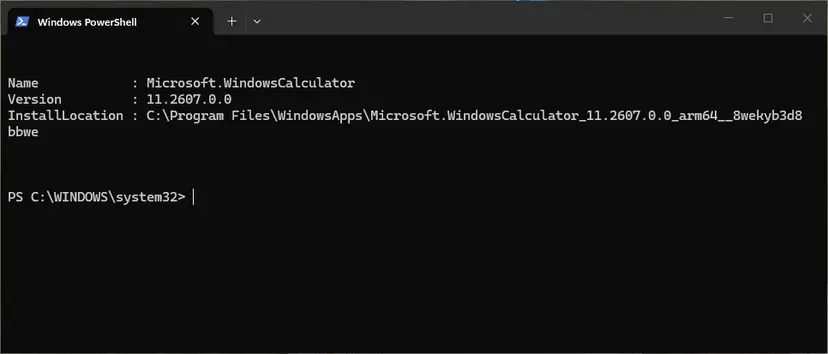
Step by step: How to re-register Microsoft Store apps with PowerShell
It worked if: Store apps open again, winget --info works, and the crash window is gone.
If not: If the error stays, check the file in Fix 6.
Fix 6. Check that WindowsPackageManagerServer.exe is the real Microsoft file
10 minutesNo riskYou are not sure the file belongs to Microsoft, or it runs from an unusual folder.
Malware can borrow the name of a known Windows helper. The genuine file lives only in the protected WindowsApps folder, inside the Microsoft.DesktopAppInstaller package.
- Press Ctrl + Shift + Esc and open the Details tab.
- Right-click WindowsPackageManagerServer.exe and select Open file location.
- The path should start with
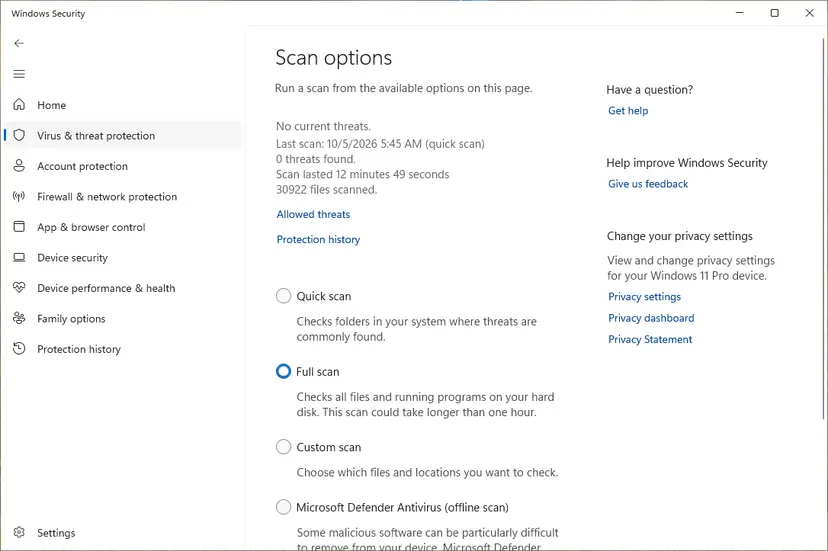
C:\Program Files\WindowsApps\Microsoft.DesktopAppInstaller_and end with_8wekyb3d8bbwe. Windows may refuse to show the folder; that is normal for WindowsApps. - If the file runs from your user folder, Temp or anywhere else, run a full scan with Microsoft Defender.
Microsoft Defender's full scan: How to scan for malware with Microsoft Defender
It worked if: The file sits in the App Installer folder, or Defender found and removed a fake copy.
If not: If the genuine file still crashes, go to Fix 7.
Fix 7. Repair Windows system files with DISM and SFC
20 minutesNo riskOther programs crash with "The memory could not be read" too, or Fixes 1 to 6 did not help.
This error is a WinGet fault, so a Windows repair rarely changes it. It is here for PCs where several programs fail, which points to damaged Windows files rather than App Installer.
- Open Terminal or Command Prompt as administrator.
- Run DISM, then SFC, as shown in the procedure below, and restart.
- Update App Installer once more (Fix 1).
Step by step: Run DISM and SFC to repair Windows system files
It worked if: SFC reports no problems or repaired files, and the WinGet COM server runs without the crash window.
If not: Collect the evidence in "Still broken" below and report it to Microsoft.
If the WindowsPackageManagerServer.exe error is still there: where to look and what to send
The crash window shows only the file name and two memory addresses. These places hold the details:
| What to check | Where | What it tells you |
|---|---|---|
| Crash history | Press Win + R, type perfmon /rel and press Enter (Reliability Monitor) | Each red cross for WindowsPackageManagerServer.exe is one crash, with the date. You see whether it began with an update. |
| Crash details | Event Viewer: Windows Logs > Application, source Application Error, event ID 1000 | The faulting application, its version, the exception code and the module that failed. |
| WinGet logs | %LOCALAPPDATA%\Packages\Microsoft.DesktopAppInstaller_8wekyb3d8bbwe\LocalState\DiagOutputDir | What WinGet was doing just before the crash. Microsoft keeps them for 7 days by default. |
| WinGet version | winget --info in Terminal | The WinGet and App Installer versions and the log folder path. |
WinGet is open source, and Microsoft takes bug reports in the winget-cli repository on GitHub. Search there for WindowsPackageManagerServer.exe first. If you file a report, add the winget --info output, the Event Viewer text and the newest log file. Leave out any personal paths you do not want to share.
One helper crashing is a software fault. If many unrelated programs show "The memory could not be read" or the PC also freezes and shows blue screens, test the memory with How to test your RAM with Windows Memory Diagnostic before you blame WinGet.
How to keep the WindowsPackageManagerServer.exe error from coming back
- Let the Microsoft Store keep App Installer updated, and check Library > Get updates now and then.
- Update scripts and tools that use the WinGet PowerShell module together with WinGet itself.
- Use
Repair-WinGetPackageManagerwhen WinGet breaks, as Microsoft documents. - Keep Windows 11 current. Windows 10 left support on 14 October 2025 and gets no new Windows security fixes.
- Do not download WindowsPackageManagerServer.exe from file or DLL sites. It comes only with App Installer.
- Do not take ownership of the file or remove its permissions to stop the window. A GitHub user did so; it stops WinGet from working at all.
- Do not remove App Installer with Remove-AppxPackage. One GitHub user lost the internet connection after doing it until the package was installed again.
- Do not delete folders inside
C:\Program Files\WindowsApps.
Frequently asked questions
What is WindowsPackageManagerServer.exe?
WindowsPackageManagerServer.exe is the COM server of WinGet, the Windows Package Manager. It belongs to Microsoft App Installer and lives in C:\Program Files\WindowsApps\Microsoft.DesktopAppInstaller_<version>_x64__8wekyb3d8bbwe. Programs that use WinGet from code, such as the Microsoft.WinGet.Client PowerShell module, start it to search, install or update packages. It is not malware when it sits in that folder, and it ends on its own when the caller is done.
What is WinGet COM Server in Task Manager?
WinGet COM Server is the name Task Manager shows for the same helper, with WindowsPackageManagerServer.exe as its process. It appears when PowerShell, a script or an app asks WinGet for something. In 2023 many users saw it run at 10 to 25 % CPU and restart when ended. Microsoft fixed that in WinGet 1.6.3133. If you still see it busy for a long time, update App Installer (Fix 1).
Is WindowsPackageManagerServer.exe a virus?
No, not when it runs from the WindowsApps folder inside the Microsoft.DesktopAppInstaller package. The crash window is a WinGet bug, not a sign of infection. A file of the same name in your user folder, in Temp or in another program's folder is not the Microsoft helper. Check the path in Task Manager and run a full Microsoft Defender scan if it is wrong, as Fix 6 shows.
What does Repair-WinGetPackageManager do?
Repair-WinGetPackageManager is a command of the Microsoft.WinGet.Client PowerShell module. With -Force -Latest it installs the newest WinGet and its dependencies again for your account, which repairs a broken or missing WinGet. Microsoft lists it on its WinGet troubleshooting page after two lines that install the NuGet provider and the module. Run all three in an administrator PowerShell, as Fix 2 shows, then restart.
Can I uninstall App Installer or delete the file to stop the error?
Do not. App Installer carries WinGet and the handler for app package files, and some Windows parts and apps use WinGet. One GitHub user lost the internet connection after removing the package until it was installed again. Deleting files in WindowsApps can break other packages. Update or repair App Installer instead (Fix 1 to Fix 3); that replaces the faulty server with a working one.
Why does WindowsPackageManagerServer.exe come back after I end it?
Because the program that asked WinGet for something is still waiting for an answer, so Windows starts the COM server again. Several users in GitHub issue #3667 saw this, often with a PowerShell window as the parent. Close or update that caller, or find it with Task Manager and Task Scheduler as Fix 4 shows. Ending the process by hand does not fix the cause.
What is windowspackagemanager.dll?
From its name, it is a library of WinGet in the same App Installer package. We could not confirm its exact role from a Microsoft page. If an error names this DLL instead of the exe, treat it the same way: update App Installer (Fix 1) and run Repair-WinGetPackageManager (Fix 2). Do not download the DLL from a DLL site; a single file copied in by hand will not match the rest of the package.
Does winget source reset fix this error?
Usually not. winget source reset resets the list of package sources, which helps when searches fail, not when the COM server crashes. Before WinGet 1.29.280 it could remove the default sources instead of resetting them, as Microsoft's release notes for that version say. Repair WinGet with Fix 2 instead. Use source reset only for source errors, and on WinGet 1.29 or later.
Is the fix different on Windows 10?
No. WinGet runs on Windows 10 version 1809 or later and on Windows 11, and the file, the folder and the fixes are the same. On Windows 10 the Settings page is Apps > Apps & features and the admin console is Windows PowerShell (Admin). Windows 10 left Microsoft support on 14 October 2025, so a Windows 10 PC gets no new Windows security fixes, but the Store still updates App Installer.
This page is in English. What is this error in other languages?
People also search "что за ошибка", "как убрать ошибку", "jak to naprawić", "apa ini" and "was macht das Programm" next to this file name. The answer is the same in every language: WindowsPackageManagerServer.exe is the WinGet COM server of Microsoft App Installer, not a virus in its WindowsApps folder. Its Application Error is fixed by updating App Installer or running Repair-WinGetPackageManager.
Sources
- Microsoft Learn: Debugging and troubleshooting issues with the WinGet tool (learn.microsoft.com)
- Microsoft winget-cli on GitHub: Windows Package Manager Server runs on high CPU (issue #3667, staff answers and fix release) (github.com)
- Microsoft winget-cli on GitHub: Windows Package Manager 1.29.280 release notes (github.com)
Did this fix work?
One click, no account. It tells the next reader which guides are worth their time.
Questions and experiences: fix WindowsPackageManagerServer.exe application error in Windows
Still broken, or found a fix we did not cover? Ask here: members and our editors answer. Reading is open; writing needs a free account.
…