
How to fix NVIDIA Installer cannot continue error code 0xE6000000 in Windows?

Prefer to fix it yourself? The manual steps follow.
- 9methods
- 10 to 30 minutes
- Easy
Applies to Windows 11, Windows 10; NVIDIA app, GeForce Experience and the GeForce driver installer
9 methods in this guide
- What the error means
- Why it appears
- Supported graphics cards
- The fixes
- 1. App version for GTX 900 and 10
- 2. App from the driver package
- 3. Driver only for older cards
- 4. Restart and stop NVIDIA services
- 5. Full NVIDIA reinstall
- 6. Delete the Logging keys
- 7. Windows version and updates
- 8. Repair system files
- 9. Pause security software
- Still broken: read the log
- Keep it from coming back
- FAQ
Hi there. I was trying to install the NVIDIA app on one of my older computers that I want to set up for somebody else, and the installer simply fails, saying "NVIDIA Installer cannot continue. Error code 0xE6000000. Your system configuration is not supported by this installer." I checked, and both my GPU and my Windows version are allegedly supported. So what is going on?
Error code 0xE6000000, often typed as 0xe60000, appears when the NVIDIA installer decides that your graphics card, driver or Windows version is not supported. The current NVIDIA app lists only GeForce RTX 20, 30, 40 and 50 series cards, and NVIDIA keeps a separate version, 11.0.5.420, for GTX 900 and GTX 10 series cards. Find your card in Device Manager first, then use the installer made for it.
The installer stops because your PC is not on its supported list. Open Device Manager > Display adapters and read the card name. With a GTX 745, 750, 900 series, GTX 10 series, GT 1030 or TITAN X, Xp or V, install NVIDIA app 11.0.5.420 from NVIDIA's knowledge base article 5799 (Fix 1). With an RTX card, restart, stop the NVIDIA services and run the installer again (Fix 4). Cards older than that get a driver only (Fix 3).
| Error | NVIDIA Installer cannot continue, Error Code: 0xE6000000. Details: "Your system configuration is not supported by this installer." |
|---|---|
| Where it appears | In the installer window of the NVIDIA app (and of driver packages that include it), right after you start the setup file, before anything is installed. |
| Main cause | The graphics card is not supported by that version of the NVIDIA app. The current app (11.0.9.251) lists GeForce RTX 20, 30, 40 and 50 series only. |
| Fastest fix | GTX 900 and GTX 10 series: install NVIDIA app 11.0.5.420, the version NVIDIA publishes for these cards (Fix 1). |
| Also written as | 0xe60000, 0xe6000000, 0XE6000000, OxE6000000 (with the letter O), "Your system configuration is not supported by this installer". |
| Affects | Windows 11 and Windows 10. The reports we read on NVIDIA's forums name GTX 10 series cards, a GT 710 and a GTX 690. |
| NVIDIA's status | Not a bug that waits for a patch. NVIDIA has not published a description of the code itself. Its article 5799 (updated 4 February 2026) gives the separate app version for Maxwell, Pascal and Volta cards. |
| App requirements | Windows 10 or Windows 11, 2 GB of memory, 600 MB of disk space, GeForce driver 551.52 or later, GeForce RTX 20, 30, 40 or 50 series. |
| Time to fix | About 10 minutes when the card is supported by one of the two app versions. No fix exists for cards that only get a driver. |
| Where the cause is logged | C:\nvidialogging and C:\Windows\INF\setupapi.dev.log, after you turn on NVIDIA installer logging. |
Facts checked on 11 October 2026. Steps written for Windows 11 (25H2 and 26H2) and Windows 10 22H2.
What error code 0xE6000000 means
The window is titled NVIDIA app and shows three things: NVIDIA Installer cannot continue, Error Code: 0xE6000000, and under Details the sentence "Your system configuration is not supported by this installer. A list of supported hardware and OS can be found here." The installer has compared your PC with its own list and stopped at that first check.
NVIDIA has not published what the number 0xE6000000 stands for, so the Details line is the only official explanation. The short spelling 0xe60000 is the same error with the last zeros left out. People also type it with the letter O (OxE6000000) or in capitals (0XE6000000).
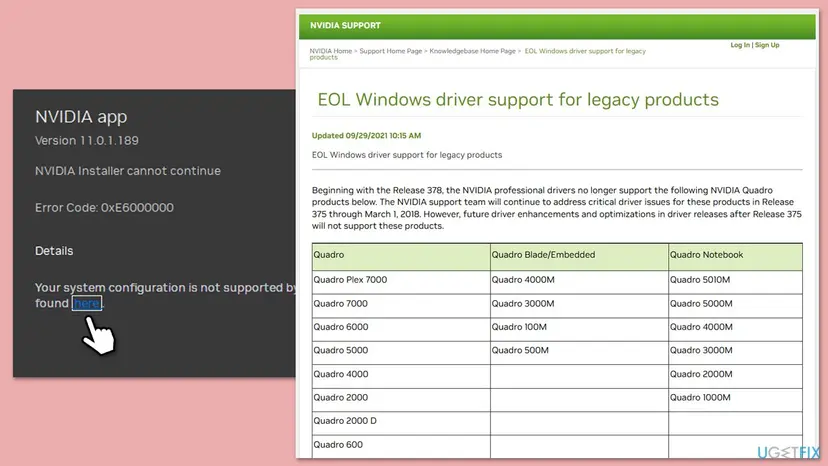
On our test PC the word here in the message opened NVIDIA's article "EOL Windows driver support for legacy products". That page lists cards that lost driver support. It is not a list of supported cards. A card that is missing from it can still be refused by the NVIDIA app, because the app has a shorter list of its own.
Why the NVIDIA installer says your system is not supported
Most often the card is too old for the installer you downloaded. Less often the card is fine but the installed driver or leftover NVIDIA software confuses the check. Rarely the reason is Windows itself or a restriction set by an administrator.
| Cause | How often | How to tell | Fix |
|---|---|---|---|
| GTX 900 or GTX 10 series card with the current NVIDIA app. | Most often | Device Manager shows a GTX 950 to 980 Ti, GTX 1050 to 1080 Ti, GT 1030 or a TITAN X, Xp or V. | Fix 1 |
| Card older than the GTX 900 series (for example GT 710, GTX 690, GT 555M). | Often | The card is on NVIDIA's Kepler list or on its legacy products list. | Fix 3 |
| Installed GeForce driver is older than 551.52, or no NVIDIA driver is installed. | Sometimes | You see the error with a supported card on a fresh Windows install. | Fix 2 |
| Leftover or running NVIDIA software leaves the installer in what NVIDIA calls an incorrect system state. | Sometimes | RTX card, and the app was installed or removed shortly before. | Fix 4, Fix 5, Fix 6 |
| Windows is not Windows 10 or Windows 11, or a work PC blocks the installer by policy. | Rarely | Old Windows version, or a PC managed by an employer or school. | Fix 7 |
NVIDIA describes failures of this installer as generic: they "do not pinpoint an exact error condition" and "can be caused by an incorrect system state". That is why the order below starts with the one cause you can read from the screen, the card model, and only then resets the installer's state.
We found no NVIDIA page that names a leftover GeForce Experience as a cause. The NVIDIA app is built to upgrade GeForce Experience in place, and the release notes of version 11.0.7 mention that upgrade. Remove GeForce Experience only as part of the full reinstall in Fix 5.
Which graphics cards the NVIDIA app supports in October 2026
This is the fact that forum answers most often get wrong. NVIDIA's system requirements page and its older FAQ page disagree: the FAQ still lists GTX 800 to GTX 1600 series cards, while the requirements page, changed in January 2026, lists RTX cards only. The installer follows the newer list.
| Card family | NVIDIA app | Drivers |
|---|---|---|
| GeForce RTX 20, 30, 40, 50 series | Current version, 11.0.9.251 | Game Ready and Studio drivers continue. |
| Maxwell, Pascal, Volta: GTX 745, 750, 750 Ti, GTX 900 series, GTX 10 series, GT 1010, GT 1030, MX110, MX130, TITAN X, Xp, V | Version 11.0.5.420 only, from NVIDIA's article 5799. | Security updates only, from October 2025 through October 2028. |
| GTX 16 series | Not named on the requirements page. We could not confirm its status. | Listed on NVIDIA's driver page. We did not confirm the update plan. |
| Kepler desktop cards: GTX 600 series, GTX 760 to 780 Ti, GT 710 to 740, GTX TITAN, TITAN Black and TITAN Z | None | Security updates ended in September 2024. |
| GeForce 400 and 500 series and older | None | Ended. See NVIDIA's legacy products list. |
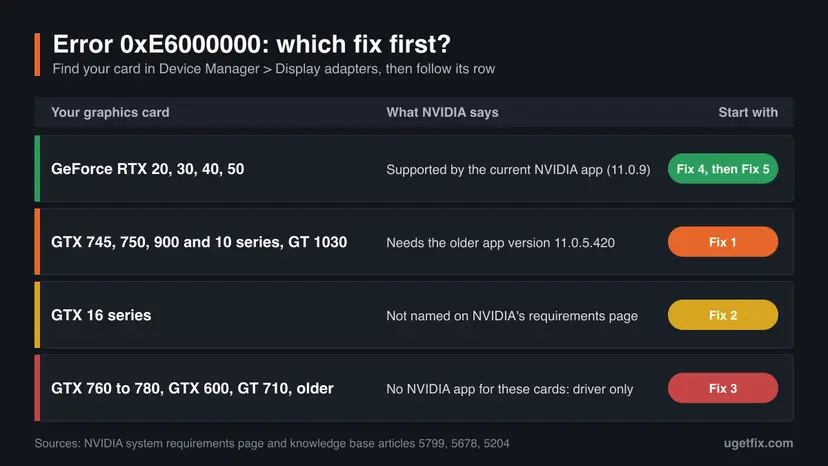
NVIDIA has not said in which release the older cards were dropped. Users on the GeForce forum report that 11.0.5.420 installs on a GTX 1060 and that the versions from 11.0.6 on stop with 0xE6000000. Treat the version number as a report, the card list as a fact.
How to fix NVIDIA error code 0xE6000000
Fixes 1 to 3 choose the right installer for your card and solve most cases. Fixes 4 to 6 are NVIDIA's own reset for a supported card. Fixes 7 to 9 are general checks for the few cases that remain.
| What you see or have | Start with |
|---|---|
| GTX 745, 750, GTX 900 series, GTX 10 series, GT 1030, MX110, MX130 or a TITAN X, Xp or V. | Fix 1 |
| GTX 16 series, or a supported card on a fresh Windows install with no NVIDIA driver. | Fix 2 |
| GTX 600 or 700 series (Kepler), GT 710, GeForce 500 series or older. | Fix 3 |
| RTX 20, 30, 40 or 50 series, and the app worked before. | Fix 4, then Fix 5 |
| RTX card, and Fix 4 and Fix 5 did not help. | Fix 6, then Fix 7 |
| Work or school PC, or a Windows version older than Windows 10. | Fix 7 |
Fix 1. Install the NVIDIA app version made for GTX 900 and GTX 10 series cards
10 minutesNo riskYour card is a GTX 745, 750, 750 Ti, GTX 900 series, GTX 10 series, GT 1010, GT 1030, MX110, MX130 or a TITAN X, Xp or V.
NVIDIA calls these card families Maxwell, Pascal and Volta. Its knowledge base tells their owners to use NVIDIA app 11.0.5.420 instead of the current download, so this installer has your card on its list.
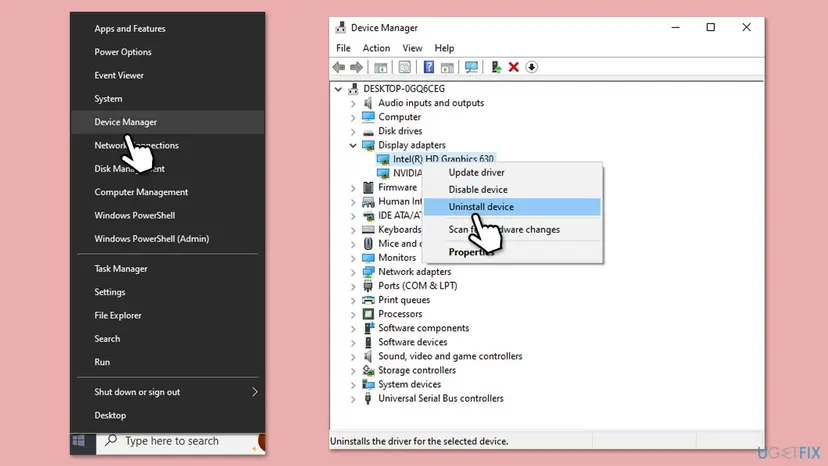
- Right-click Start and select Device Manager.
- Select the arrow next to Display adapters and read the name of the NVIDIA card.
- Compare the name with NVIDIA's list of Maxwell, Pascal and Volta GeForce cards. Laptop cards such as the GTX 830M to 980M and the 910M to 945M are on it too.
- Open NVIDIA's article NVIDIA App support for Maxwell, Pascal, Volta architectures.
- Select the link in the article. The file
NvidiaAppSetupInt_11.0.5.420_OFFICIAL_3A53F4.exedownloads fromota.nvidia.com. - Run the file and select Yes if Windows asks for permission.
- Follow the installer to the end.
We could not confirm whether version 11.0.5.420 later offers to update itself to a newer version. If the error comes back after an update inside the app, install 11.0.5.420 from the article again.
It worked if: The installer shows version 11.0.5.420, passes the check and the NVIDIA app opens.
If not: Your card may not be on the list after all. Check it again, then go to Fix 2, or to Fix 3 for an older card.
Fix 2. Install the app from the driver package of your card
15 minutesLow riskYou have a GTX 16 series card, a fresh Windows install without an NVIDIA driver, or Fix 1 did not work.
The NVIDIA app requires GeForce driver 551.52 or later. The driver package from NVIDIA's download page is picked for your exact card, installs the driver first and brings the app version that belongs to it.
- Open NVIDIA's driver page and go to Manual Driver Search.
- Choose the product category, the series, your card and Windows 11 or Windows 10 64-bit, then select Find and download the driver.
- Close every open program, including browsers, video players and tools such as MSI Afterburner or Corsair iCUE.
- Right-click the downloaded file, select Run as administrator and then Yes.
- Keep the suggested folder for the temporary files and select OK.
- Select NVIDIA Graphics Driver and NVIDIA App, then AGREE AND CONTINUE.
- Choose Custom (Advanced) and select NEXT.
- Tick Perform a clean installation and select Next.
- Restart the PC when the installer finishes.
Users on the GeForce forum report that this route worked on a GTX 1060 with Windows 11 after the standalone app installer had failed, and that it installed app version 11.0.5.420. More about driver installs: Update, roll back or reinstall a driver
It worked if: The installer runs through, the PC restarts and the NVIDIA app is in the Start menu.
If not: If the package offers no option with the NVIDIA app, your card gets a driver only: see Fix 3. Otherwise continue with Fix 4.
Fix 3. Use the driver alone when the card is too old for the app
15 minutesLow riskYour card is a GTX 600 or 700 series (Kepler) model, a GT 710 to GT 740, or a GeForce 500 series or older card.
No version of the NVIDIA app lists these cards, so no setting will get you past 0xE6000000. NVIDIA confirms that drivers can still be downloaded without the app, and the last driver for your card is enough for the card to work.
- Open NVIDIA's driver page and go to Manual Driver Search.
- Choose GeForce, then your series. The list goes back to the GeForce 5 FX series.
- Choose your card and your Windows version, select Find and download the newest driver offered.
- Right-click the file, select Run as administrator and then Yes.
- When the installer asks what to install, choose the option that installs only the graphics driver.
- Restart the PC when the installer finishes.
These drivers no longer get security fixes. For desktop Kepler cards NVIDIA ended them in September 2024. The card keeps working, but game optimisation, recording and automatic driver updates from the app are not available.
It worked if: Device Manager shows your card by name under Display adapters and the screen runs at its normal resolution.
If not: If the driver installer also stops, turn on installer logging as described under "If the error is still there" and read the log.
Fix 4. Restart, stop the NVIDIA services and run the installer again
5 minutesNo riskYour card is an RTX 20, 30, 40 or 50 series model, so the installer should accept it.
NVIDIA's own first step for a failed install is a restart, then stopping everything of NVIDIA that is still running. A running service or process can leave the installer in the incorrect system state that NVIDIA names as the cause of generic failures.
- Restart Windows and run the installer once more. If it works, stop here.
- Press Win + R, type
services.mscand press Enter. - Right-click each service whose name starts with NVIDIA and select Stop.
- Open Task Manager.
- End every process whose name starts with
nvorNVIDIA. - Run the NVIDIA installer again.
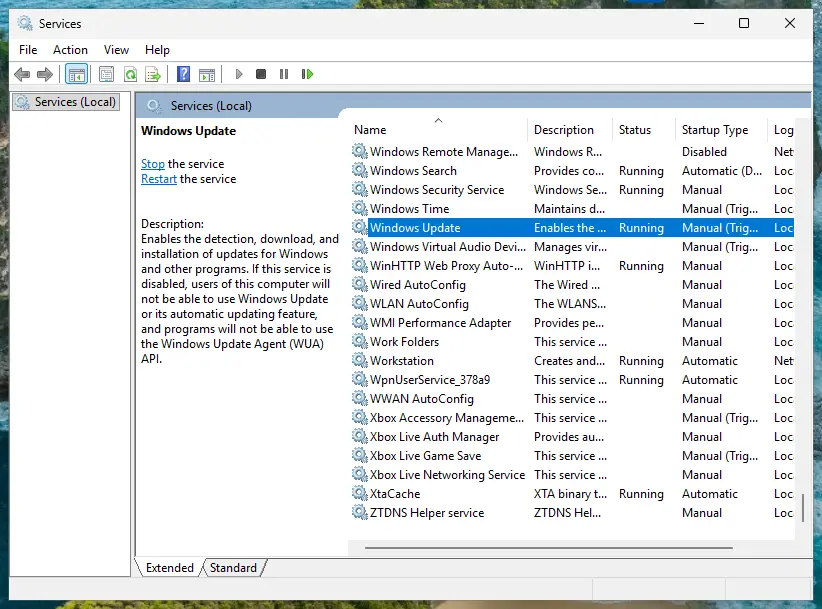
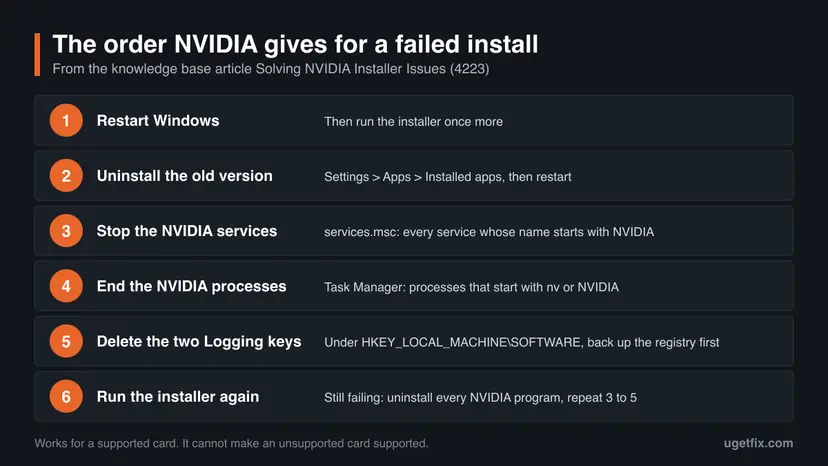
The services start again by themselves after the next restart. Help with these two tools: Check and restart Windows services and Close a frozen app (Task Manager, Force Quit)
It worked if: The installer goes past the first screen and starts copying files.
If not: Go on to Fix 5 and take the old NVIDIA software off the PC first.
Fix 5. Uninstall every NVIDIA program, restart and install again
20 minutesLow riskThe card is supported and Fix 4 did not help, or an older NVIDIA app or GeForce Experience is still installed.
This is the next step in NVIDIA's article: when a retry fails, uninstall the previous version, restart and install again. It clears a half-finished or damaged install that the new installer cannot read.
Download the driver package for your card first (Fix 2, steps 1 and 2). The uninstall can include the graphics driver, and you want the installer ready on the disk.
- Right-click Start, open Settings and go to Apps > Installed apps.
- Find NVIDIA App, select the three dots next to it and select Uninstall.
- Do the same for GeForce Experience and for each other entry whose name starts with NVIDIA.
- Restart the PC.
- Stop the NVIDIA services and processes that are left (Fix 4, steps 2 to 5).
- Open NVIDIA's app page, select Download Now and run the new file.

On Windows 10 the list of installed programs sits in a different place in Settings. Both ways are shown here: Uninstall a program or app in Windows
It worked if: The fresh installer runs to the end and the NVIDIA app opens after it.
If not: Go on to Fix 6, the last step of NVIDIA's reset.
Fix 6. Delete the two NVIDIA Logging registry keys
5 minutesLow riskYou have an RTX card and the installer still stops after Fix 4 and Fix 5.
NVIDIA's article on installer issues lists these two keys by name and tells you to delete them if they exist before the next attempt. By their name they belong to installer logging, not to your graphics settings.
A mistake in the registry can stop programs or Windows from starting. Export a backup first and delete nothing except the two keys named here. How to make the backup: Back up the registry before editing it
- Press Win + R, type
regedit, press Enter and select Yes. - Go to the first key shown below.
- If the key Logging exists, right-click it, select Delete and confirm.
- Go to the second key and delete Logging there in the same way.
- Close Registry Editor and run the NVIDIA installer again.
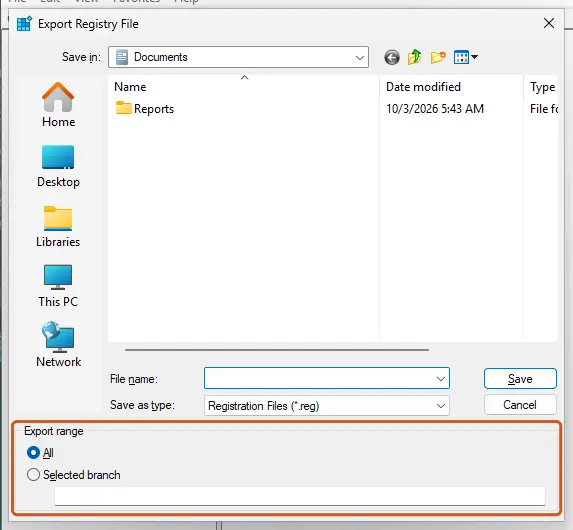
The two keys from NVIDIA's article
HKEY_LOCAL_MACHINE\SOFTWARE\NVIDIA Corporation\Logging
HKEY_LOCAL_MACHINE\SOFTWARE\Wow6432Node\NVIDIA Corporation\Logging
It worked if: The keys are gone, or were never there, and the installer now passes its first check.
If not: If neither key existed, this was not the cause. Go on to Fix 7.
Fix 7. Check the Windows version and let Windows Update finish
10 minutesNo riskThe PC runs an old or unusual Windows version, belongs to an employer or school, or is in the middle of updates.
The message speaks of supported hardware and OS. NVIDIA lists Windows 10 and Windows 11 only, and its download page offers drivers for Windows 11 and Windows 10 64-bit. NVIDIA also warns that installs can fail while Windows Update is running in the background.
- Right-click Start, open Settings and go to System > About.
- Under Windows specifications, read the edition and the version.
- Under Device specifications, check that the system type is 64-bit.
- Open Windows Update in Settings, install what is waiting and restart the PC.
- Run the NVIDIA installer again.
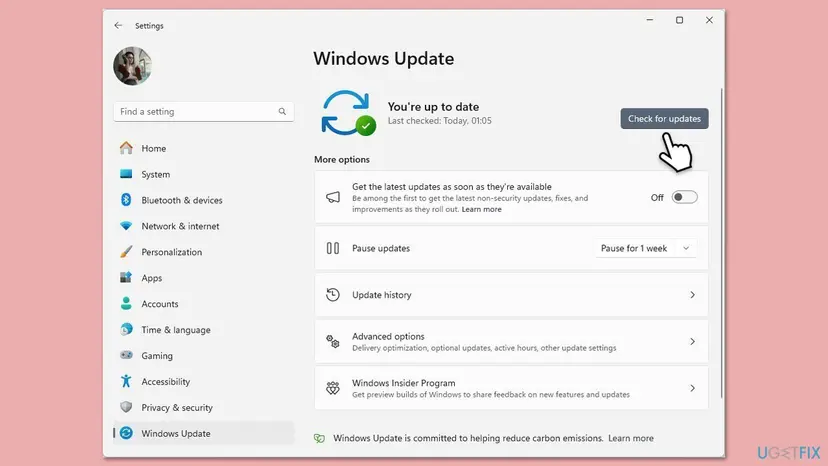
- Windows 10 is still on NVIDIA's list for the app, although Microsoft ended its support on 14 October 2025.
- On a work or school PC, NVIDIA advises a review of Group Policy settings and security restrictions. Ask the administrator, because you cannot change these yourself.
- A user on NVIDIA's developer forum reports that the app refuses a Windows 11 Canary preview build. We could not confirm this.
If Windows Update itself is stuck: Run the Windows Update troubleshooter
It worked if: Settings shows Windows 10 or Windows 11, 64-bit, with no update waiting, and the installer starts.
If not: If Windows is supported and up to date, go on to Fix 8.
Fix 8. Repair Windows system files
20 minutesNo riskThe card and Windows are supported, NVIDIA's reset is done and the installer log shows file errors.
NVIDIA does not list this step for 0xE6000000. It is a general repair that makes sense when the setup log shows files that Windows could not read or copy, because the installer depends on those Windows parts.
- Open a command window as administrator. The procedure linked below shows how on Windows 11 and Windows 10.
- Run the command below, wait until it reaches the end, then restart the PC.
sfc /scannow

The full procedure with the DISM commands that belong to it: Run DISM and SFC to repair Windows system files For a damaged driver store NVIDIA names a Windows restore point as the last resort before a reinstall: Undo recent changes with System Restore
It worked if: The scan ends with a message that it found no problems or that it repaired files.
If not: Try Fix 9 once, then collect the logs for NVIDIA as described below.
Fix 9. Pause third-party security software for one attempt
5 minutesLow riskYou use an antivirus other than Microsoft Defender and every fix above has failed.
NVIDIA says that antivirus software with aggressive real-time monitoring can stop driver components from registering, and that it may be turned off for the time of the installation. It adds that Microsoft Defender is safe to leave running.
- Open your antivirus and pause its real-time protection for the shortest time it offers.
- Run the NVIDIA installer straight away.
- Turn the protection back on as soon as the installer has finished or failed.
Do this for one attempt only and stay off the web while protection is paused. Never leave protection off as the fix. Defender can stay on. If you still want to test with it paused: Turn off Microsoft Defender protection for a moment
It worked if: The installer completes while protection is paused, which shows the security program was blocking it.
If not: Turn protection back on. The cause is elsewhere, so collect the logs and contact NVIDIA support.
If the error is still there: read the installer log
By default the installer tells you nothing more than the code. NVIDIA's article 3171 provides two small registry files that switch detailed logging on and off. With logging on, the failed attempt leaves files that show the exact point where it stopped.
- Open NVIDIA's article How to enable NVIDIA Graphics Driver and NVIDIA App installer logging and download
EnableFullLogging.regandDisableLogging.regfrom its attachments. - Delete the old logs that match
C:\Windows\INF\Setupapi.*.log, if there are any. - Double-click
EnableFullLogging.regand select Yes. - Run the NVIDIA installer again and let it fail.
- Open
C:\Windows\INF\setupapi.dev.logand look for lines that begin with three exclamation marks. NVIDIA says these mark the points of failure. - For the NVIDIA app, download
NvApp_LogCollector.batfrom NVIDIA's article Collecting NVIDIA app logs, run it right after the error and compress the folder it opens to a ZIP file. - Double-click
DisableLogging.regwhen you are done. NVIDIA warns that logging left on can slow the PC.
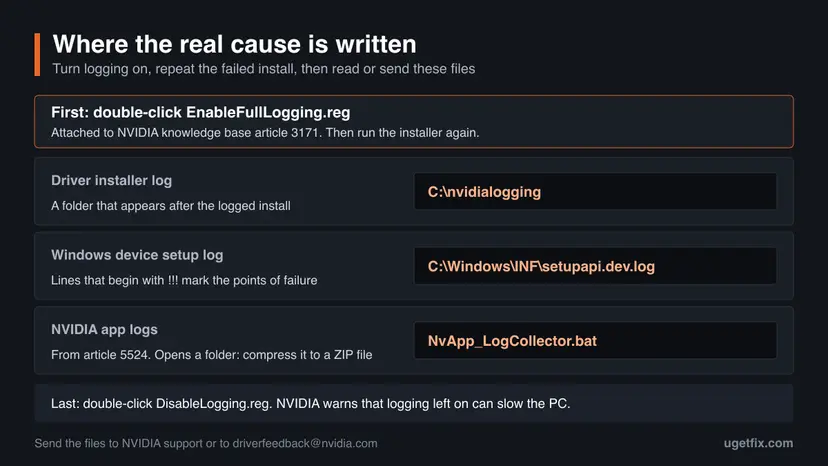
- What to send to NVIDIA: the folder
C:\nvidialogging, every file whose name starts with SetupAPI inC:\Windows\INF, the ZIP file of app logs, a short description and a Microsoft System Information report. Attach them to a support request or mail them to[email protected]. - Access is denied or an in-use file in the log: a program still holds an NVIDIA file. Repeat Fix 4.
- SPFQNOTIFY_COPYERROR in the log: NVIDIA reads this as damage in the Windows driver store. Use Fix 8.
- When it is hardware: Device Manager shows no NVIDIA card under Display adapters at all. The installer then has no card to match, and no installer version will change that. On a desktop, check that the card is seated and powered. On a laptop, contact the maker.
If your card is on NVIDIA's Kepler or legacy list, the log will only confirm what the message says. Support cannot add an unsupported card to the app. Fix 3 is the end of the road for that card.
How to keep error 0xE6000000 from coming back
- Keep a copy of the installer that worked. Owners of GTX 900 and GTX 10 series cards need 11.0.5.420 again after a Windows reinstall.
- Download NVIDIA software from nvidia.com and from NVIDIA's knowledge base only.
- Restart the PC before you install or update NVIDIA software, and close monitoring tools first.
- Read NVIDIA's requirements page before a big app update if your card is not an RTX model.
- Do not download the newest NVIDIA app for a GTX 900 or GTX 10 series card. It will stop with the same code.
- Do not edit installer files or use modified installers from other sites to force an unsupported card through.
- Do not uninstall a working NVIDIA app to cure a small glitch on an older card. You may not be able to put the current version back.
The last point is how the longest thread on NVIDIA's forum began: the app worked, its owner removed it to cure a display glitch, and the newer download refused to install. NVIDIA plans driver security updates for Maxwell, Pascal and Volta cards through October 2028, so the card stays usable until then with app version 11.0.5.420.
Frequently asked questions
What does NVIDIA error code 0xE6000000 mean?
It means the NVIDIA installer compared your PC with its list of supported hardware and Windows versions and found no match. The window says "NVIDIA Installer cannot continue" and "Your system configuration is not supported by this installer". NVIDIA has not published a separate description of the number itself. In practice the usual reason is the graphics card: the current NVIDIA app lists GeForce RTX 20, 30, 40 and 50 series cards only, and older cards need a different version of the app or a driver without the app.
Is 0xe60000 the same error as 0xE6000000?
Yes, it is the same error. The full code on the screen is 0xE6000000, with six zeros after E6. Many people leave out some of the zeros when they type it, which gives 0xe60000. Others type the letter O in place of the first zero, or write the whole code in capitals. Windows and NVIDIA do not have a second error with the shorter number. Whichever way you typed it, the window you see says "NVIDIA Installer cannot continue" and the fixes on this page apply.
Why do I get 0xE6000000 with a GTX 1060, GTX 1070 or GTX 1080?
Because these cards belong to the Pascal family, which the current NVIDIA app no longer lists. NVIDIA moved Maxwell, Pascal and Volta cards to security updates only in October 2025. Its knowledge base article 5799 tells owners of these cards to use NVIDIA app 11.0.5.420 and gives the download. The link in the error message does not help here, because the page it opened on our test PC lists cards without driver support, and your card still has drivers. Follow Fix 1 on this page.
Does the NVIDIA app still work on Windows 10?
Yes. NVIDIA's requirements page lists both Windows 10 and Windows 11 for the app, and its driver download page still offers drivers for Windows 10 64-bit. Microsoft ended support for Windows 10 on 14 October 2025, so Windows itself no longer gets free security fixes, but that alone does not cause error 0xE6000000. On Windows 10 and on Windows 11 the reasons and the fixes are the same: check the graphics card first, then the driver, then the state of the old NVIDIA software.
Which graphics cards does the current NVIDIA app support?
NVIDIA's system requirements page lists GeForce RTX 20, 30, 40 and 50 series cards for the current app, version 11.0.9.251 in October 2026. It also requires GeForce driver 551.52 or later, 2 GB of memory and 600 MB of disk space. An older FAQ page on the same site still names GTX 800 to GTX 1600 series cards, which is out of date. The GTX 16 series is not named on the requirements page, and we could not confirm its status. For professional cards NVIDIA points to a separate NVIDIA App for workstations and enterprise.
Can I get NVIDIA drivers without the NVIDIA app?
Yes. NVIDIA states that standalone GeForce drivers are still available from its driver download page. Go to Manual Driver Search, choose your card and your Windows version, and download the package. The installer lets you choose between the driver with the NVIDIA app and the driver alone. For a card that the app does not support, this is the normal way to install and update the driver. You lose the automatic update check, so look at the download page yourself from time to time.
Will Display Driver Uninstaller (DDU) fix error 0xE6000000?
Not if the card is unsupported, and NVIDIA's own steps do not call for it. A cleaning tool removes old files, but it cannot add your card to the installer's list. On NVIDIA's forum an owner of a GTX 690 reports the same error after a full clean in Safe Mode. For a supported card NVIDIA describes a simpler route: uninstall the NVIDIA programs in Windows Settings, restart, stop the NVIDIA services and delete two Logging keys. Those are Fixes 4 to 6 on this page.
Is it safe to use the older NVIDIA app 11.0.5.420?
Yes, when you download it from NVIDIA. The file is linked from NVIDIA's knowledge base article 5799 and comes from an nvidia.com address. It is the version NVIDIA itself names for Maxwell, Pascal and Volta cards. It will not get the features added to later versions, such as the newer DLSS options, which need RTX cards anyway. The drivers for these cards receive security updates through October 2028. Do not take the same file from download sites that are not NVIDIA's.
The message is in Portuguese, Spanish or Polish (erro, codigo de error, kod bledu 0xe60000). Is it the same error?
Yes. The code is identical in every language of Windows and of the NVIDIA installer, only the words around it are translated. The cause is the same too: the installer does not find your graphics card, driver or Windows version on its supported list. This page is written in English and uses the English names of menus and buttons. In another language the buttons sit in the same places, so you can follow the steps by position. NVIDIA's knowledge base articles named here are in English as well.
How do I install an NVIDIA driver update manually?
Download the driver for your card from NVIDIA's driver page, close every open program, right-click the file and select Run as administrator. Keep the suggested folder, choose the driver with or without the NVIDIA app, then choose Custom (Advanced) and tick Perform a clean installation. Restart the PC at the end. These are the steps of NVIDIA's own article on a manual clean install. NVIDIA adds that Windows Update running in the background can make the install fail, so let pending updates finish first.
Sources
- NVIDIA: NVIDIA App System Requirements (nvidia.com)
- NVIDIA: NVIDIA App release highlights (nvidia.com)
- NVIDIA: driver downloads, Manual Driver Search (nvidia.com)
Did this fix work?
One click, no account. It tells the next reader which guides are worth their time.
Questions and experiences: fix NVIDIA Installer cannot continue error code 0xE6000000 in Windows
Still broken, or found a fix we did not cover? Ask here: members and our editors answer. Reading is open; writing needs a free account.
…