
How to fix 0x80048823 error in Windows?

Prefer to fix it yourself? The manual steps follow.
- 8methods
- 5 to 40 minutes
- Intermediate
Applies to Personal Microsoft accounts in the Microsoft Store, the Xbox app, the Minecraft Launcher, OneDrive, Outlook and the Microsoft 365 apps on Windows 11 and Windows 10
8 methods in this guide
Hello. When I try to log into Office 365 in Windows, I receive the 0x80048823 error. Is there a way to fix this?
0x80048823 is a Microsoft account sign-in error: the Microsoft Store, the Xbox app, the Minecraft Launcher, OneDrive or Office could not finish signing you in. It is usually the network path to Microsoft or the account itself, rarely the app. Test the account in a browser and the PC on a phone hotspot first.
0x80048823 means a Microsoft app could not complete the sign-in to your Microsoft account. First sign in at account.microsoft.com in a browser (Fix 1). If that fails, the account needs recovery, not the PC. If it works, connect the PC to a phone hotspot and try again (Fix 2): success there points to your network, failure points to a proxy, VPN, clock or hosts file on the PC (Fix 3 to Fix 6).
| Error | Something went wrong with Please try again later. and the code 0x80048823. Office and Minecraft can show it as Code: 2147780643 with Tag: 7q6ca. |
|---|---|
| Where it appears | In the sign-in window of the Microsoft Store, the Xbox app, the Minecraft Launcher, OneDrive, Outlook and Office, and in Windows Settings when you verify your Microsoft account. |
| Main cause | The PC cannot reach Microsoft's sign-in service cleanly: a proxy, VPN, DNS or hosts entry is in the way. Next comes a problem with the account itself, then a wrong clock. |
| Fastest fix | Sign in at account.microsoft.com in a browser, then try the app on a phone hotspot (Fix 1 and Fix 2). Together they take 5 minutes and tell you which fix to use. |
| Also written as | 0x80048823, 80048823, 0х80048823 (with a Cyrillic х), decimal 2147780643. Searches in other languages: erro, erreur, ошибка 0x80048823. |
| Affects | Personal Microsoft accounts on Windows 11 and Windows 10 22H2. The same account often works on the web at the same time. |
| Microsoft's status | No public Microsoft document defines the code. Microsoft support staff on Microsoft Q&A treat it as a network or account problem and suggest the network checks in this guide. |
| Time to fix | 5 minutes for the two tests. Up to 40 minutes for Fix 3 to Fix 8. Nothing to download. |
Facts checked on 15 October 2026. Steps written for Microsoft Store, Xbox app, OneDrive and Office sign-in on Windows 11 (25H2 and 26H2) and Windows 10 22H2, read against Microsoft Q&A answers by Microsoft support staff.
What error 0x80048823 means
You open the Microsoft Store, the Xbox app or the Minecraft Launcher and select Sign in. You pick your Microsoft account or type your password, and instead of your profile a window says Something went wrong, Please try again later. and 0x80048823. The same code shows up in OneDrive, Outlook and Office, and in Settings > Accounts when Windows asks you to verify your account.
Every one of those apps signs you in through the same Microsoft account sign-in service. That is why one PC can show 0x80048823 in several apps at once while the same account works fine in a browser. The code says the sign-in did not finish. It does not say why, and Microsoft has published no definition of it.
| Where you see it | How it looks | Start with |
|---|---|---|
| Microsoft Store, Xbox app | Something went wrong, Please try again later., 0x80048823 | Fix 1, Fix 2 |
| Minecraft Launcher, Office, Outlook | Code: 2147780643 with Tag: 7q6ca, a correlation ID and a timestamp | Fix 1, Fix 2 |
| OneDrive, Windows Settings | The sign-in or verify window closes with 0x80048823 | Fix 2, Fix 3 |
| Password reset at the same time | There's a temporary problem with the service | Fix 1, then account recovery |
Office and the Minecraft Launcher print codes in decimal. 2147780643 written in hexadecimal is 0x80048823, so the fixes here apply. The tag 7q6ca appears with other Office codes too: for Office error 2147483661 with that tag, see our guide to Office error tag 7q6ca.
What causes the 0x80048823 error, ranked
Microsoft has not published a cause. The order below is our reading of the answers Microsoft support staff give on Microsoft Q&A and of what users report there. It is not a statistic.
| How often | Cause | Typical sign | Fix |
|---|---|---|---|
| Most often | The network path to Microsoft's sign-in service is changed or blocked: a router, a DNS server or a filtering Wi-Fi | The account works on the phone over mobile data, the PC fails on home Wi-Fi. | Fix 2, Fix 4 |
| Often | A proxy, a VPN or a leftover WinHTTP proxy on the PC | A VPN app or an ad blocker is installed, or the PC came from work. | Fix 3 |
| Often | A problem with the account itself: locked, suspended, recreated with the same email, or a password reset stuck | The sign-in fails in a browser too, or a password reset says there is a temporary problem. | Fix 1 |
| Less often | A wrong clock or old TLS settings | The time in the taskbar is off, or the PC was off for weeks. | Fix 5 |
| Less often | A hosts file entry that blocks Microsoft addresses | A tweak tool, a game patch or an ad-block list was used on the PC. | Fix 6 |
| Store only | The Microsoft Store's own cache or a damaged Store app | Only the Store fails, other apps sign in. | Fix 7 |
| Rarely | Security software or a background program that filters connections | Everything above is clean and the error stays. | Fix 8 |
Many pages tell you to turn on the hidden Administrator account with net user administrator /active:yes. It has nothing to do with a Microsoft account sign-in and leaves an extra administrator account on the PC. Skip it.
How to fix the 0x80048823 error in Windows
Do Fix 1 and Fix 2 first: they are tests, take five minutes together and tell you which of the other fixes you need. Try the sign-in after each fix. Success looks the same in every app: the window closes and your account name appears.
| Your case | Start with | Then |
|---|---|---|
| The sign-in fails in a browser too | Fix 1 | Account recovery |
| The browser works, the app fails on home Wi-Fi | Fix 2 | Fix 4 |
| It fails on the hotspot as well, and a VPN or proxy is set | Fix 3 | Fix 5 |
| The time is wrong or the PC was off for weeks | Fix 5 | Fix 2 |
| Only the Microsoft Store fails | Fix 7 | Fix 3 |
| Minecraft or Office shows 2147780643 | Fix 1 | Fix 2 |
Fix 1. Sign in to your Microsoft account in a browser
3 minutesLow riskEveryone first. It decides whether the problem is the account or the PC.
Microsoft support staff ask this first on Microsoft Q&A: if the account cannot sign in at Microsoft's own website, nothing you change on the PC will fix the app.
- Open Edge or another browser and go to
https://account.microsoft.com. - Select Sign in and use the same account that shows 0x80048823 in the app.
- If it works, your account and password are fine. Go to Fix 2.
- If it fails or asks you to verify your identity, follow the steps on screen. A browser on your phone over mobile data is fine for this.
- If a password reset ends with There's a temporary problem with the service, open
https://account.live.comon the phone over mobile data, not Wi-Fi, and try the reset there.
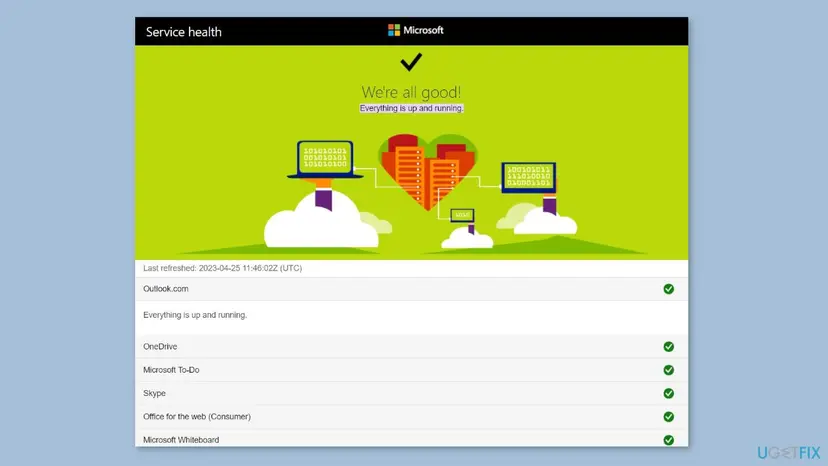
While you are in the browser, check Microsoft's service health page for Outlook.com and the other consumer services. If one is down, wait an hour and try again. Microsoft support also suggests waiting 24 to 48 hours when the account looks normal and the code still appears.
It worked if: The browser shows your account page. You now know the account works and the cause is on the PC or the network.
If not: If the account fails online too, recover it first. When recovery fails, contact Microsoft support as described in the last section.
Fix 2. Try the sign-in on a phone hotspot
3 minutesLow riskThe account works in a browser, but the app still shows 0x80048823.
Microsoft support's first network step for this code is to sign in over a mobile hotspot. A different network skips your router, its DNS and any filter on the Wi-Fi, so the result tells you where the block sits.
- Turn on Mobile hotspot on your phone.
- On the PC, select the network icon in the taskbar and connect to the phone's hotspot. Disconnect any VPN.
- Open the app that showed the error and sign in again.
- Note the result, then switch back to your usual Wi-Fi.
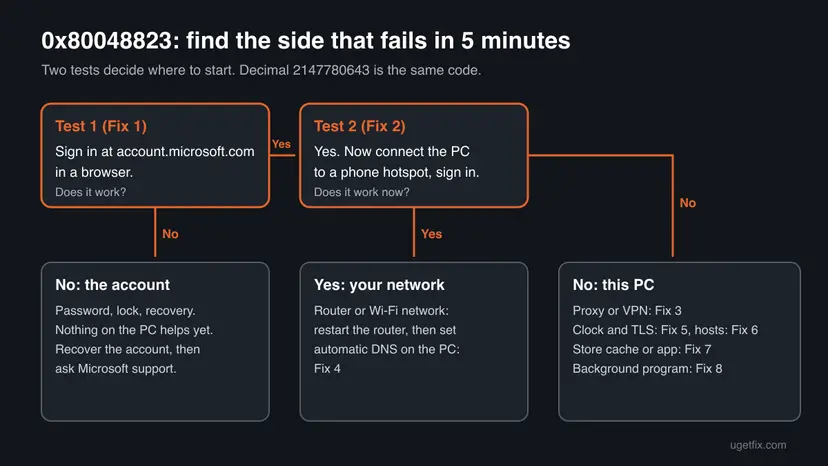
It worked if: On the hotspot the app signs in. Your home network is the problem: Fix 4 resets the PC side, and a router restart clears the rest.
If not: If the error appears on the hotspot too, the cause is on the PC. Go to Fix 3.
Fix 3. Turn off the proxy and VPN and reset the WinHTTP proxy
5 minutesLow riskThe error appears on every network, or a VPN app, a proxy or a work profile is on the PC.
Microsoft apps sign in through the Windows proxy settings, and some use the separate WinHTTP proxy. A proxy that cannot reach Microsoft's sign-in service breaks the sign-in on every network, which is why Microsoft support suggests netsh winhttp reset proxy for this code.
- Disconnect your VPN app and close it from the taskbar corner.
- Press Win + I and open Network & internet > Proxy.
- Under Manual proxy setup, make sure Use a proxy server is Off. Turn Use setup script off unless your workplace set it.
- Select Start, type
cmd, right-click Command Prompt and select Run as administrator. - Run this command and press Enter:
netsh winhttp reset proxy - Restart the PC and sign in again.
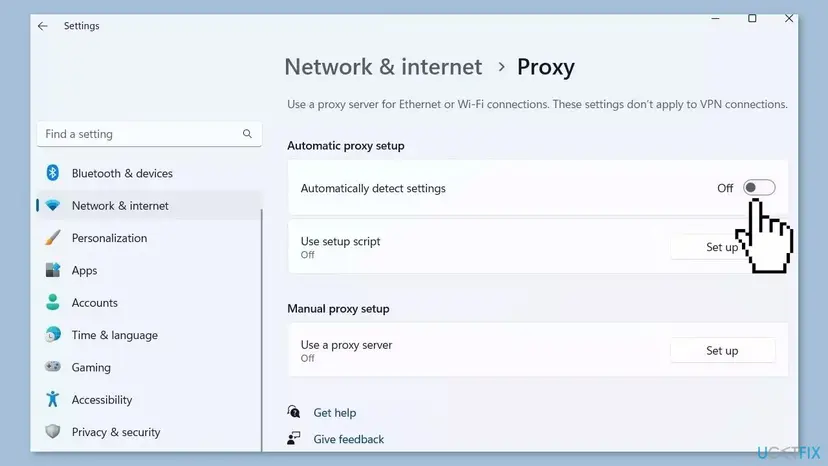
The command prints Direct access (no proxy server) when it worked. On a PC your employer manages, the proxy may be required: ask IT before you change it.
It worked if: The app signs in, and Proxy shows no manual proxy.
If not: If no proxy or VPN was set, reset the network stack and DNS with Fix 4.
Fix 4. Reset the network stack and use automatic DNS
10 minutesLow riskThe hotspot test worked, or a DNS server was typed in by hand on this PC.
The Microsoft support answer for 0x80048823 lists Winsock and IP reset, a DNS flush and automatic DNS. They clear wrong cached addresses for Microsoft's sign-in servers and settings left by VPN or filtering apps.
- Restart your router: unplug it, wait 30 seconds, plug it in again.
- Right-click Start and open Terminal (Admin). On Windows 10 open Windows PowerShell (Admin). Run these commands one by one:
netsh winsock reset netsh int ip reset ipconfig /flushdns - Press Win + R, type
ncpa.cpland press Enter. - Right-click your network adapter and select Properties. Double-click Internet Protocol Version 4 (TCP/IPv4).
- Select Obtain an IP address automatically and Obtain DNS server address automatically. Select OK.
- Restart the PC and sign in again.
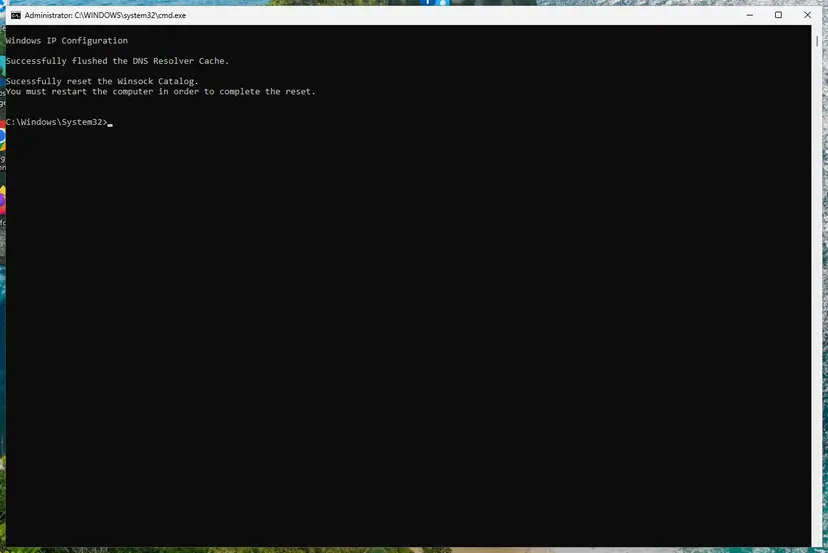
Every command and the full network reset as a last step: Reset the network and flush DNS. If the PC used a DNS server for a reason, such as a family filter, write it down before you switch to automatic.
It worked if: After the restart the app signs in on your home network.
If not: If it still fails, check the clock and TLS settings with Fix 5.
Fix 5. Check the clock and the TLS settings
5 minutesLow riskThe time in the taskbar is wrong, the PC was off for weeks, or a tweak tool changed Internet Options.
A Microsoft sign-in is a secure exchange that checks the time and needs TLS 1.2. Microsoft support's answer for this code includes restoring the advanced Internet Options and ticking TLS 1.2, and users on Reddit report an incorrect timestamp behind the error.
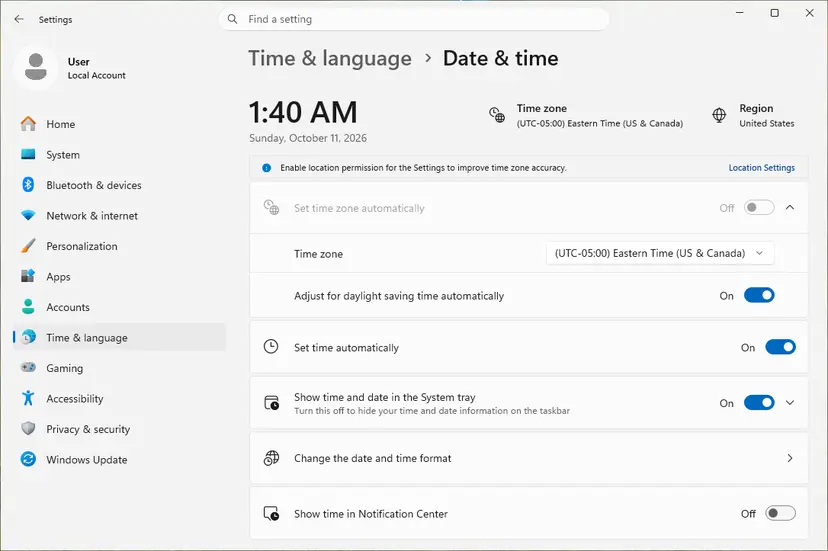
- Check the date, time and time zone in the corner of the taskbar. If they are wrong, turn on automatic time: How to fix the date and time in Windows.
- Press Win + R, type
inetcpl.cpland press Enter. Open the Advanced tab. - Select Restore advanced settings.
- Scroll to Security and make sure Use TLS 1.2 is ticked. Tick Use TLS 1.3 too if it is listed.
- Select OK and restart the PC.
One Microsoft support answer says to tick TLS 1.0 and 1.1 as well. Microsoft's sign-in does not need those old versions, so leave them off. Windows 10 left support on 14 October 2025: without Extended Security Updates, it no longer gets fixes for these parts.
It worked if: The clock is right, TLS 1.2 is ticked, and the sign-in finishes.
If not: If both were already right, check the hosts file with Fix 6.
Fix 6. Remove Microsoft entries from the hosts file
10 minutesRead the warningA tweak tool, an ad-block list, a game patch or a privacy script was ever used on this PC.
The hosts file overrides DNS. One line that points a Microsoft sign-in address elsewhere breaks the sign-in on every network, and Microsoft support suggests cleaning the hosts file for this code.
A wrong edit can block other sites, and some programs need their own lines. Copy hosts to your desktop first. If anything stops working, copy it back.
- Press Win + R, type
%SystemRoot%\System32\drivers\etcand press Enter. - Copy the file hosts to your desktop as a backup.
- Select Start, type
notepad, right-click Notepad and select Run as administrator. - Select File > Open, go to
C:\Windows\System32\drivers\etc, set the file type to All files and open hosts. - Delete every line that does not start with
#and namesmicrosoft,live.com,msft,xboxoroffice. Lines that start with#are only comments. - Select File > Save and restart the PC.
A clean Windows hosts file contains only comment lines. If yours has hundreds of entries from an ad-block list, the safest test is to rename it to hosts.old and restart: Windows then uses DNS for every address.
It worked if: No line without # names a Microsoft address, and the app signs in after the restart.
If not: If only the Microsoft Store still fails, reset it with Fix 7. Otherwise go to Fix 8.
Fix 7. Reset the Microsoft Store cache and repair the Store
5 minutesLow riskOnly the Microsoft Store or the Xbox app shows 0x80048823, other apps sign in.
The Store keeps its own cached account state. Microsoft support suggests wsreset.exe for this code once the network is clean, and a repair replaces damaged Store app files.
- Close the Microsoft Store.
- Press Win + R, type
wsreset.exeand select OK. - Wait. A blank window opens for about ten seconds and closes, then the Store opens.
- Sign in again. If it still fails, open Settings > Apps > Installed apps, select the three dots next to Microsoft Store and select Advanced options.
- Select Repair. If that does not help, select Reset.
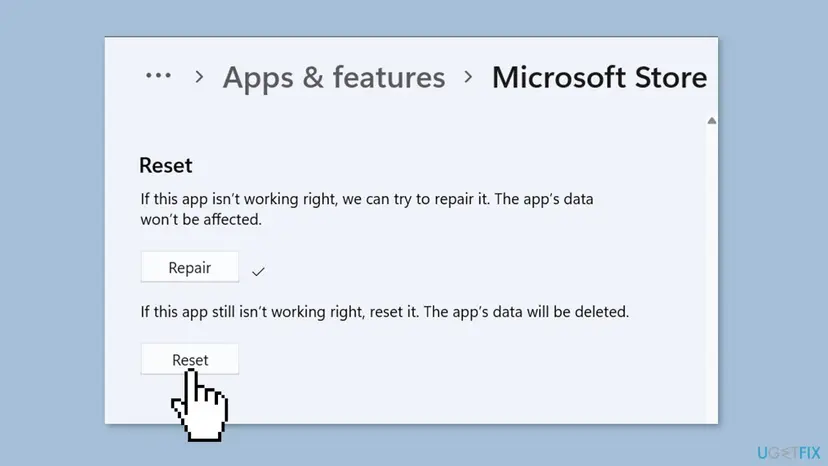
Every screen, with the Windows 10 path: Reset the Microsoft Store.
It worked if: The Store opens, your account picture appears in the top corner and downloads start.
If not: If the Store still refuses the account, try a clean boot with Fix 8.
Fix 8. Start Windows with a clean boot and try again
15 minutesLow riskFix 1 to Fix 7 did not help, and a third-party security suite, VPN client or network filter is installed.
Some security suites and network tools inspect secure connections from the background. A clean boot starts Windows without them, so a sign-in that works then points to one of those programs.
- Turn off third-party services and startup apps and restart, as the procedure shows: How to perform a clean boot in Windows.
- Open the app and sign in.
- If it works, turn the services back on in halves and restart each time until the error returns.
- Update or remove the program you found, then return to a normal startup.

It worked if: In the clean boot the app signs in. You then find the program behind it by turning items back on.
If not: If the error appears in a clean boot too, collect the details in the next section and contact Microsoft support.
If 0x80048823 is still there: what to check and who can help
When the account works online, the network is clean and a clean boot does not help, the cause is usually on Microsoft's side of the account. Collect these details before you contact anyone.
- From the error window: the code, and in Office or Minecraft also the Correlation Id, the Timestamp and the Tag.
- Windows' own log: right-click Start, open Event Viewer and look under Windows Logs > Application for errors at the time of the sign-in.
- Other accounts: try a second Microsoft account in the same app. If it signs in, the PC is fine and the problem is tied to your account.
- Microsoft support: at
https://support.microsoft.com/contact, sign in with any personal Microsoft account, search for account issues and choose Chat with a support agent. The chat is for personal accounts only.
| What you see | Likely reason | Who can fix it |
|---|---|---|
| The account fails in the browser too | Locked, suspended or compromised account | Account recovery, then Microsoft support |
| A new account with the same email as a closed one fails in every Windows app | Both accounts are still tied to the address | Microsoft support |
| A second account signs in, yours does not | A block or limit on your account | Microsoft support |
| Every account fails on every network and in a clean boot | Windows sign-in components on this PC | Run DISM and SFC to repair Windows system files, then Microsoft support |
A user on Microsoft Q&A created a new account with the same email after the old one was suspended. The new account worked on the web, but every Windows feature showed 0x80048823. No setting on the PC can fix that case: only Microsoft support can.
How to keep 0x80048823 from coming back
Once the PC reaches Microsoft's sign-in service cleanly, the error does not return on its own. It comes back when something changes that path again.
- Disconnect a VPN before you sign in to the Store or the Xbox app, and reconnect afterwards.
- Keep automatic time on and leave Use TLS 1.2 ticked.
- Avoid tools that edit the hosts file or block Microsoft addresses to stop telemetry: they often block the sign-in too.
- Keep your account's security info current, a phone number and a second email, so a verification never locks you out.
- Keep Windows updated. Fixes for the sign-in parts arrive through Windows updates.
Frequently asked questions
What is error 0x80048823?
It is a Microsoft account sign-in error. The Microsoft Store, the Xbox app, the Minecraft Launcher, OneDrive or Office asked for your account and the sign-in did not finish. Microsoft has not published a definition, and its support staff treat it as a network or account problem. Start with Fix 1, a sign-in at account.microsoft.com in a browser, which tells you whether the account or the PC is the cause.
Why does the Microsoft Store show error 0x80048823?
The Store signs you in through the same Microsoft account service as the other apps, so a blocked network path or an account problem shows up there first. Fix 2 tells you if it is your network. If only the Store fails while Outlook or OneDrive sign in, reset the Store cache with wsreset.exe and repair the Store app in Fix 7. Your apps and purchases stay after a cache reset.
Is 0x80048823 a problem with my account or my PC?
Sign in at account.microsoft.com in a browser to find out. If that fails too, the account needs recovery and nothing on the PC will help. If the browser works, try the app on a phone hotspot. Success on the hotspot points to your home network, failure points to a proxy, VPN, clock, hosts file or background program on the PC, covered in Fix 3 to Fix 8.
What does Minecraft or Office error code 2147780643 mean?
It is 0x80048823 written as a decimal number. Office and the Minecraft Launcher show it with Tag 7q6ca, a correlation ID and a timestamp, often with the text that an unexpected error occurred. The cause and the fixes are the same as for 0x80048823: test the account in a browser, then the network, then the PC. Keep the correlation ID and timestamp for Microsoft support if the fixes do not help.
Does error 0x80048823 affect the Xbox app?
Yes. The Xbox app and Game Pass sign in with the same Microsoft account service, and users report 0x80048823 there with the text Something went wrong. Follow Fix 1 to Fix 3 first. If only the Xbox app and the Store fail, Fix 7 resets the Store, which the Xbox app relies on for installs. This page covers the PC; an Xbox console has its own network tests.
I do not use a VPN. What else can cause 0x80048823?
A VPN is only one cause. A proxy set by a program, a DNS server typed in by hand, a router that filters addresses, a wrong clock or a line in the hosts file can all stop the sign-in. Run the hotspot test in Fix 2 first, because it shows whether your network or your PC is the problem. Then follow the fix the result points to.
Should I just wait and try again later?
Sometimes it helps. The message itself says Please try again later, and a Microsoft support answer suggests waiting 24 to 48 hours when nothing else is wrong. That fits a short outage or a temporary block on the account after many failed tries. Check Microsoft's service health page in Fix 1. If the error is still there the next day, the cause is on your side and the fixes apply.
Will reinstalling Windows fix 0x80048823?
Rarely, and it costs hours. The error usually comes from the account or the network, and both stay the same after a reinstall. Work through the tests and fixes first. Only when every account fails on every network, even in a clean boot, are the Windows sign-in parts a likely cause. Then run the system file repair first: Run DISM and SFC to repair Windows system files.
Is this page available in Russian, Portuguese or French?
No, this guide is in English only. Searches such as ошибка 0x80048823, erro 0x80048823 or erreur 0x80048823 land here because they contain the code. The fixes do not depend on the language of Windows: the commands in Fix 3 and Fix 4, inetcpl.cpl and wsreset.exe work the same on every language version. Only the names of menus and buttons are translated.
Sources
- Microsoft Q&A: 0x80048823 error (Microsoft Community Support answer with network, TLS and account recovery steps) (learn.microsoft.com)
- Microsoft Q&A: Error code 0x80048823 when logging in to any Windows feature (WinHTTP proxy, Store cache, hosts file, DNS) (learn.microsoft.com)
- Microsoft Q&A: Error Code 0x80048823, can't log in anywhere on my PC (Minecraft, code 2147780643, tag 7q6ca) (learn.microsoft.com)
Did this fix work?
One click, no account. It tells the next reader which guides are worth their time.
Questions and experiences: fix 0x80048823 error in Windows
Still broken, or found a fix we did not cover? Ask here: members and our editors answer. Reading is open; writing needs a free account.
…