
How to fix 0x800f0821 error when installing optional features in Windows?

Prefer to fix it yourself? The manual steps follow.
- 9methods
- 10 to 40 minutes
- Medium
Applies to Windows 11 and Windows 10: Settings > Optional features, Turn Windows features on or off, and DISM /Add-Capability
9 methods in this guide
On Windows, I received error code 0x800f0821 when trying to install optional features via Settings. I have no clue why this is happening, because everything else seems to work fine.
Error 0x800f0821 means the servicing job that adds an optional feature took too long, and Windows stopped it. Microsoft lists it as CBS_E_ABORT, a CBS transaction timeout. Restart the PC, close heavy programs and add the feature again before you try anything else (Fix 1).
0x800f0821 is CBS_E_ABORT: Microsoft says the CBS transaction timeout was exceeded, so the servicing job that installs the feature ran too long and was stopped. Restart, close heavy programs and add the feature again (Fix 1). Then install all pending updates (Fix 2), give a slow PC or virtual machine more resources (Fix 3), or add the feature with DISM (Fix 5).
| Error | 0x800f0821, named CBS_E_ABORT; client abort, IDABORT returned by ICbsUIHandler method except Error() by Microsoft. |
|---|---|
| Where it appears | In Settings > Optional features after Add, in Turn Windows features on or off, or as Error: 0x800f0821 after a DISM /Online /Add-Capability command. |
| Main cause | The servicing operation takes too long and the servicing stack watchdog timer expires (Microsoft: CBS transaction timeout exceeded). |
| Fastest fix | Restart, let the PC go idle for a few minutes, close heavy programs and add the feature again (Fix 1). |
| Also written as | 0x800F0821, error 0x800f0821, error code 0x800f0821, CBS_E_ABORT. |
| Affects | Windows 11 and Windows 10. Windows 10 left support on 14 October 2025. |
| Microsoft's status | A known servicing error. Microsoft's mitigation: extend the timeout, add resources, add virtual CPU and memory to a virtual machine, and install KB4493473 or later. |
| Log files | C:\Windows\Logs\CBS\CBS.log and C:\Windows\Logs\DISM\dism.log. |
| Time to fix | 10 minutes for a restart and retry, up to 40 minutes with updates and repairs. |
Facts checked on 16 October 2026. Steps written for Windows 11 (25H2 and 26H2) and Windows 10 22H2.
What error 0x800f0821 means when you install an optional feature
0x800f0821 comes from Component Based Servicing (CBS), the part of Windows that adds and removes features, language packs and updates. Microsoft's list of common Windows Update errors names it CBS_E_ABORT and describes it as CBS transaction timeout exceeded. In plain words: the job started, ran longer than Windows allows, and the servicing stack stopped it.
That is why the error often feels random. The feature, the download and your Windows can all be fine. The job simply did not finish in time, usually because the PC was busy, slow or waiting for a restart. The same code can appear in three places:
| Where you see it | What it looks like |
|---|---|
| Settings > System > Optional features (Windows 11) or Settings > Apps > Optional features (Windows 10) | The feature shows as failed under recent actions, with code 0x800f0821. |
| Turn Windows features on or off | The window stops with a message that Windows could not complete the changes and shows the code. |
| Command Prompt or Terminal after DISM | Error: 0x800f0821 followed by The DISM log file can be found at C:\Windows\Logs\DISM\dism.log. |
Microsoft's mitigation for 0x800f0821 reads: a servicing operation is taking a long time to finish, the servicing stack watchdog timer expires, and extending the timeout mitigates the issue. It adds: increase the resources on the device, give a virtual machine more virtual CPU and memory, and make sure the update in KB4493473 or later is installed.
Why the optional feature install times out with 0x800f0821
Old guides list corrupted files, network problems and update failures as equal causes. For this code the order is clearer, because Microsoft ties it to a timeout. These are the causes, from the most common to the rarest, each with the fix that answers it.
| Cause | How often | How to tell | Fix |
|---|---|---|---|
| Windows was busy: a restart is pending, updates install in the background, or heavy programs run. | Most often | Windows Update shows Restart now, or the PC fan and disk are busy. | Fix 1 |
| Old servicing stack or pending updates. | Often | Check for updates offers cumulative or servicing updates. | Fix 2 |
| Too few resources: a virtual machine, little memory, a nearly full or slow disk. | Often on VMs | Task Manager shows memory or disk near 100 % during the install. | Fix 3 |
| The Settings page itself fails for this feature. | Sometimes | Other updates install, only Optional features fails. | Fix 4 and Fix 5 |
| Damaged Windows Update cache or component store. | Less often | Windows updates fail too, or DISM reports damage. | Fix 6 and Fix 7 |
| The Windows Modules Installer service is disabled. | Rarely | The service shows Disabled in Services. | Fix 8 |
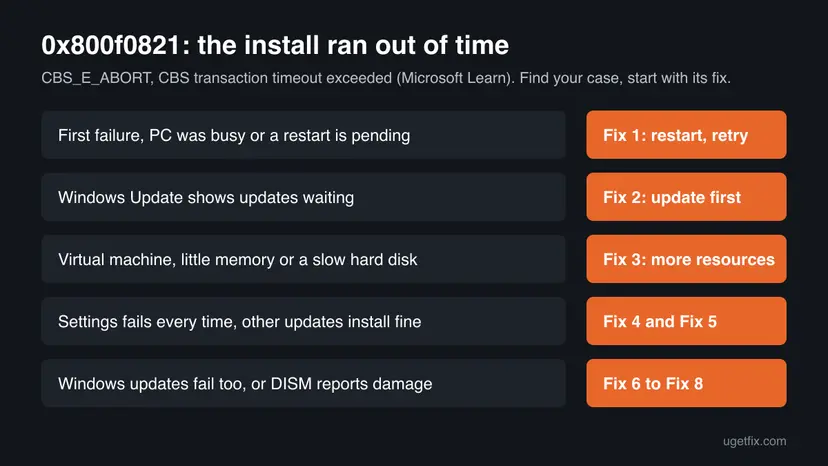
How to fix error 0x800f0821 in Windows 11 and Windows 10
Fixes 1 to 3 answer the timeout itself and solve most cases. Fixes 4 and 5 add the feature another way. Fixes 6 to 8 repair Windows Update and the component store, and Fix 9 is for .NET Framework 3.5 only.
| What you see or have | Start with |
|---|---|
| The first failure, or Windows Update asks for a restart. | Fix 1 |
| Check for updates offers updates you have not installed. | Fix 2 |
| A virtual machine, a PC with little memory, or a disk that is almost full. | Fix 3 |
| Settings fails every time, other updates install fine. | Fix 4, then Fix 5 |
| You need Wireless Display, a language part or another capability by name. | Fix 5 |
| Windows updates fail as well, or DISM reports damage. | Fix 6, then Fix 7 |
| The feature is .NET Framework 3.5 and nothing else works. | Fix 9 |
Fix 1. Restart Windows and add the feature again on an idle PC
10 minutesNo riskEvery reader first, and especially when Windows Update shows a pending restart.
Microsoft says 0x800f0821 means the servicing job ran past its time limit. A pending restart or background updates hold the same servicing stack, so the feature waits in line and times out. A clean restart and an idle PC give the job the time it needs.
- Save your work and select Start > Power > Restart. If Windows offers Update and restart, choose it and let it finish.
- After the restart, wait five minutes so startup programs and background tasks settle.
- Close games, video editors, virtual machines and large downloads.
- On a laptop, plug in the charger so Windows does not slow down to save power.
- On Windows 11 open Settings > System > Optional features and select View features. On Windows 10 open Settings > Apps > Apps & features > Optional features and select Add a feature.
- Select the feature, select Next and Add (or Install on Windows 10), and wait without starting other heavy work.
- Restart again if Windows asks for it.
A large feature or a language pack can sit at the same percent for a long time. Let it run. Cancelling and starting again only restarts the same job.
It worked if: The feature shows as Installed under recent actions in Optional features, with no error code.
If not: If it fails again with 0x800f0821, install all pending updates with Fix 2.
Fix 2. Install all pending Windows updates, including the servicing stack
15 to 30 minutesLow riskWindows Update offers updates you have not installed yet, or you have not checked for a while.
Microsoft's mitigation for this code asks you to install KB4493473 or later. On a current PC that means the latest cumulative update, which carries the newest servicing stack. Pending updates also keep the component store busy, which makes a timeout more likely.
- On Windows 11 open Settings > Windows Update. On Windows 10 open Settings > Update & Security > Windows Update.
- Select Check for updates and install everything offered.
- Restart when Windows asks, then check again until it says You're up to date.
- Add the optional feature again the same way as in Fix 1.
If an update itself fails, run the troubleshooter first: Run the Windows Update troubleshooter. If one update keeps failing, download it from Microsoft and install it by hand: Install an update from the Microsoft Update Catalog.
It worked if: Windows Update shows You're up to date with no restart pending, and the feature installs.
If not: If updates install but the feature still times out, give the PC more resources with Fix 3.
Fix 3. Give the PC or virtual machine more memory, processor time and disk space
10 to 20 minutesLow riskA virtual machine, an older PC, a PC with little memory, or a system drive that is almost full.
Microsoft's own advice for 0x800f0821 is to increase the resources on the device and, in a virtual machine, add virtual CPU and memory to speed up the operation. A faster job finishes before the watchdog timer expires.
- Press Ctrl + Shift + Esc to open Task Manager and look at CPU, Memory and Disk while you add the feature.
- Close programs that use a lot of memory or disk, and pause cloud sync such as OneDrive until the feature is installed.
- Open Settings > System > Storage and check that drive C: has free space. Free some if it is almost full: Free up disk space and delete temporary files.
- In a virtual machine, shut it down, add virtual processors and memory in the VM settings, and start it again.
- Add the feature again and leave the PC alone until it finishes.
In a virtual machine, a dynamic memory setting that starts very low can slow servicing down. Give it a fixed amount of memory for the install, then set it back.
It worked if: Task Manager no longer shows memory or disk at the top during the install, and the feature finishes as Installed.
If not: If the PC has plenty of resources and still fails, add the feature another way with Fix 4 or Fix 5.
Fix 4. Turn the feature on in Windows Features instead of Settings
5 minutesLow riskThe feature you need is in the classic Windows Features list, such as .NET Framework 3.5, Hyper-V or Windows Sandbox.
Settings > Optional features and Turn Windows features on or off are two different lists. When Settings fails, the classic window sometimes works for the features it holds, because it starts the change through another path.
- Press Win + R, type
optionalfeaturesand press Enter. You can also search for Turn Windows features on or off. - Find the feature and select its box so it is filled.
- Select OK, and choose Let Windows Update download the files for you if Windows asks.
- Wait for Windows completed the requested changes, then select Restart now.
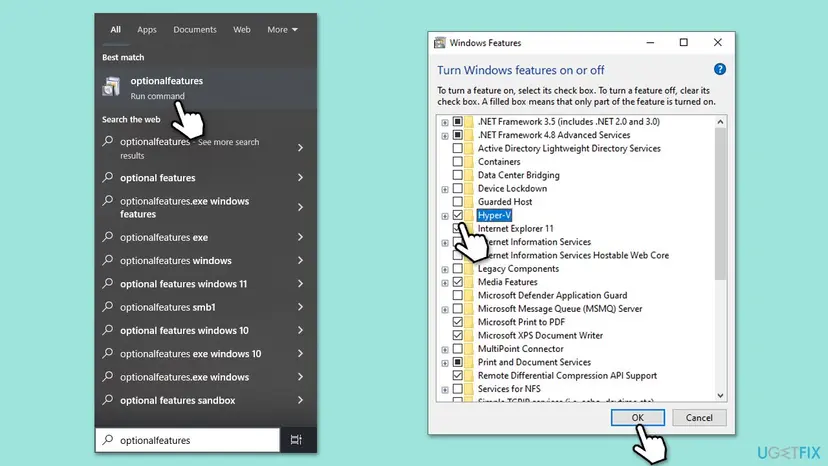
If this window stays empty or will not open, see our guide on Turn Windows features on or off not working.
It worked if: The box next to the feature is filled after the restart, and the feature works.
If not: If your feature is not in this list, it is a capability: add it by name with DISM in Fix 5.
Fix 5. Add the optional feature by name with DISM /Add-Capability
10 to 20 minutesLow riskSettings fails every time, or you need a capability such as Wireless Display, a language part or RSAT by its exact name.
Optional features in Settings are capabilities, and DISM installs the same capability directly. DISM shows its progress and the exact error, and it can take the files from a source you choose instead of Windows Update.
- Right-click Start and select Terminal (Admin). On Windows 10 select Windows PowerShell (Admin). Select Yes in the User Account Control window.
- Run
DISM /Online /Get-Capabilities /Format:Tableto list every capability and its state. - Find the line of your feature and copy its full Capability Identity, including the tildes and version.
- Run
DISM /Online /Add-Capability /CapabilityName:followed by that identity, as in the example below. - Wait until DISM reaches 100 % and shows The operation completed successfully, then restart.
DISM /Online /Get-Capabilities /Format:Table | findstr /i "wireless"
DISM /Online /Add-Capability /CapabilityName:App.WirelessDisplay.Connect~~~~0.0.1.0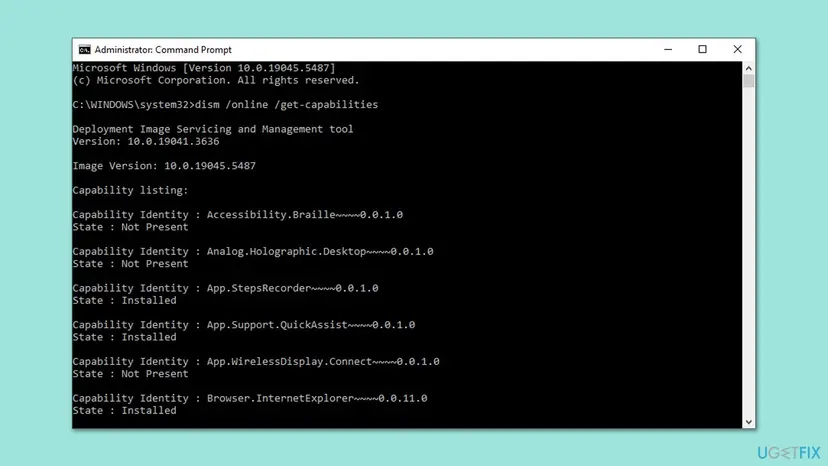
Microsoft's DISM reference explains where DISM looks for files: first in a /Source you give, then in a location set by Group Policy, then on Windows Update unless you add /LimitAccess. On a home PC you normally add no source and let Windows Update provide the files.
It worked if: DISM ends with The operation completed successfully, and DISM /Online /Get-CapabilityInfo shows the capability as Installed.
If not: If DISM also shows Error: 0x800f0821, reset Windows Update with Fix 6 and read dism.log as shown after the fixes.
Fix 6. Reset Windows Update components and run the Windows Update troubleshooter
15 minutesLow riskWindows updates fail as well, or downloads for features hang at the start.
Optional features download through Windows Update. A damaged update cache or a stuck update service can slow the job until it hits the time limit, and resetting the components gives the servicing job a clean start.
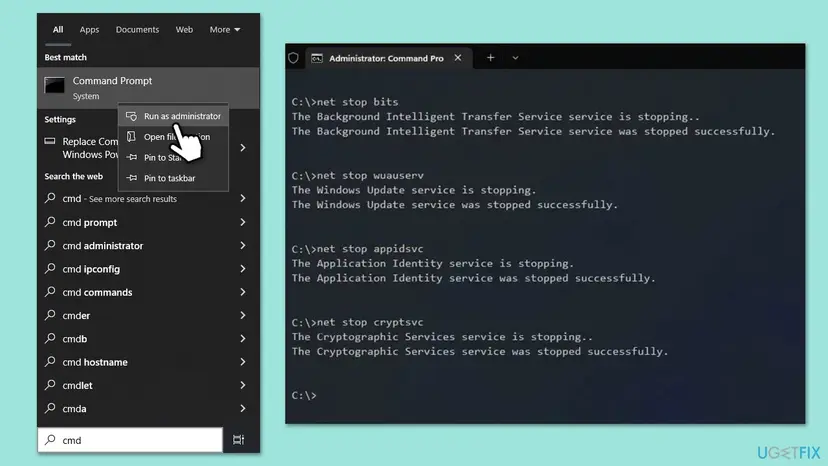
The reset stops the update services, renames the SoftwareDistribution and catroot2 folders and starts the services again. Step by step: Reset Windows Update components.
- Open Command Prompt as administrator. Type cmd in the search box, right-click Command Prompt and select Run as administrator. Select Yes when Windows asks for permission.
- Stop the update services. Type the commands below and press Enter after each one. If Windows says that other services depend on Cryptographic Services, it stops them too. A message that a service is not started is fine.
net stop wuauserv net stop bits net stop cryptsvc - Delete the download queue files. This clears the list of downloads that the Background Intelligent Transfer Service keeps. If Windows says it cannot find the files, continue.
del "%ALLUSERSPROFILE%\Application Data\Microsoft\Network\Downloader\qmgr*.dat" - Rename the update cache folders. Renaming keeps a copy in case you need it; Windows creates new, empty folders when the services start again. If you get Access is denied, a service is still running: repeat the previous step.
ren %systemroot%\SoftwareDistribution SoftwareDistribution.old ren %systemroot%\System32\catroot2 catroot2.old - Start the services again. Type the commands below and press Enter after each one. The requested service has already been started is fine: Windows started it on its own.
net start cryptsvc net start bits net start wuauserv - Restart and check for updates. Restart the PC. Then select Start > Settings > Windows Update > Check for updates. The first check can take longer than usual because everything is downloaded again.
These steps were written for Windows 11 and Windows 10 (the steps are the same). The full page with the other versions and what each result means: Reset Windows Update components
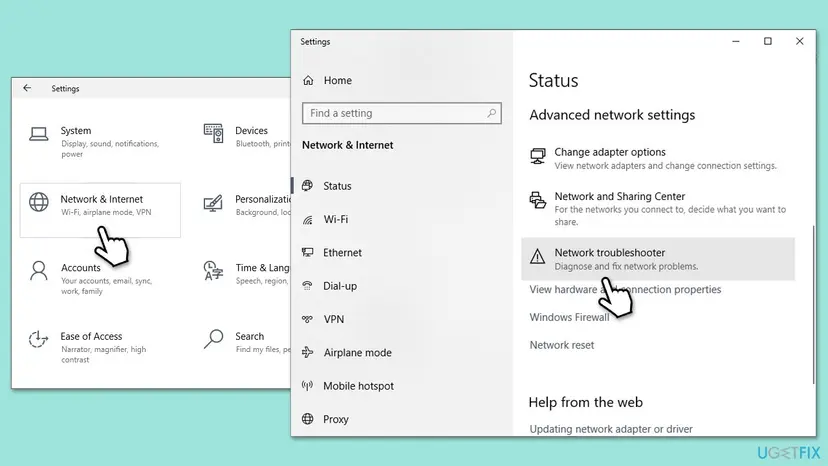
- On Windows 10, also open Settings > Network & Internet > Status and select Network troubleshooter if downloads fail.
- On Windows 11, check the connection with Settings > Network & internet, or follow How to check your internet connection in Windows.
It worked if: Check for updates works again, and the feature installs without the code.
If not: If updates still fail or the feature times out again, repair the component store with Fix 7.
Fix 7. Repair the component store with DISM RestoreHealth and SFC
20 to 30 minutesLow riskDISM or SFC reports damage, or several features and updates fail with servicing codes.
Features are added from the component store. If its records are damaged, CBS spends a long time checking and repairing before it can add anything, which can push the job past the time limit.
- Open an elevated command window. Right-click Start and select Terminal (Admin), or type cmd in the search box, right-click Command Prompt and select Run as administrator. Select Yes when Windows asks for permission.
- Run DISM first. Type the command below and press Enter. DISM downloads clean copies of damaged components from Windows Update, so it can take several minutes. Wait until it says The operation completed successfully.
DISM.exe /Online /Cleanup-Image /RestoreHealth - Run System File Checker. In the same window, type the command below and press Enter. Do not close the window until the verification reaches 100%.
sfc /scannow - Read the result and restart. Compare the last message with the table below this guide, then restart the PC so that repaired files are loaded.
These steps were written for Windows 11 24H2 and 25H2. The full page with the other versions and what each result means: Run DISM and SFC to repair Windows system files
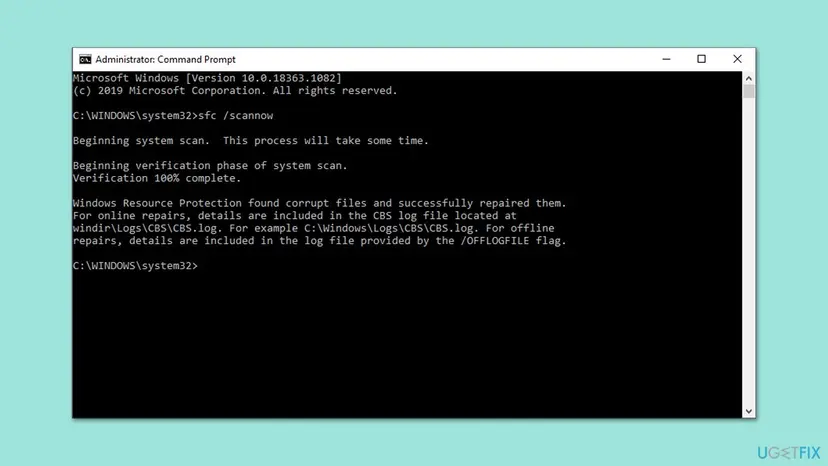
Step by step, with what each result means: Run DISM and SFC to repair Windows system files. If RestoreHealth cannot reach Windows Update, Microsoft's DISM options let you point it at mounted Windows media of the same version with /Source and /LimitAccess.
It worked if: DISM reports The restore operation completed successfully and SFC finds no problems or repairs them.
If not: If both run clean and the feature still fails, check the Windows Modules Installer service with Fix 8.
Fix 8. Check that the Windows Modules Installer service is not disabled
5 minutesLow riskA cleanup tool or a tweak guide changed services, or the service shows Disabled.
Windows Modules Installer (TrustedInstaller) is the service that installs and removes Windows components. If it is disabled, servicing jobs cannot run properly. Its normal startup type is Manual: Windows starts it when needed.
- Press Win + R, type
services.mscand press Enter. - Scroll to Windows Modules Installer and double-click it to open Properties.
- If Startup type is Disabled, set it to Manual and select Apply.
- Select Start if the service is stopped, then OK.
- Restart and add the feature again.
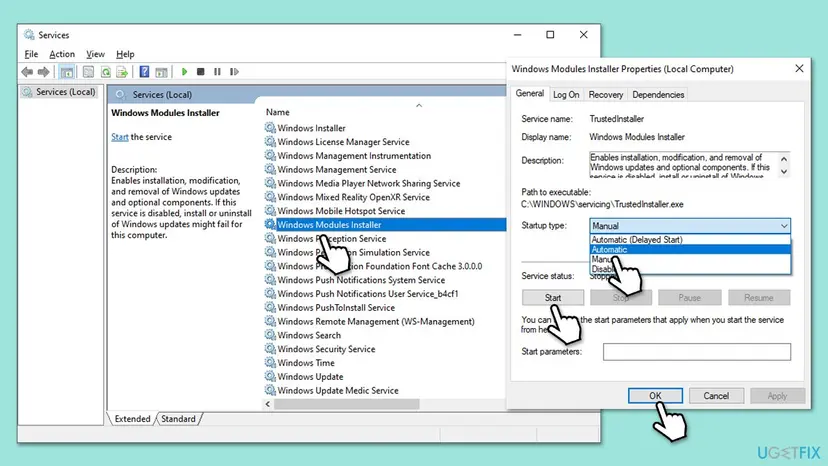
Do the same check for Windows Update and Background Intelligent Transfer Service. More on services: Check and restart Windows services.
It worked if: The service is set to Manual or runs, and the feature installs after the restart.
If not: If the feature is .NET Framework 3.5, use Fix 9. Otherwise read the logs as shown in the next section.
Fix 9. Install .NET Framework 3.5 from Windows installation media
20 to 30 minutesLow riskThe feature you need is .NET Framework 3.5 on Windows 10 or Windows 11 25H2 and earlier, and the other fixes did not help.
Windows media holds the .NET 3.5 files in its sources\sxs folder. With /LimitAccess DISM takes the files from there and skips Windows Update, so the download part of the job is gone.
- Check your version with Win + R,
winver, OK. - Download the ISO of the same Windows version and language from Microsoft's own download page.
- Right-click the ISO file and select Mount. Note its drive letter, for example D:.
- Open Terminal (Admin) and run the command below with your drive letter.
- Restart when DISM shows The operation completed successfully.
DISM /Online /Enable-Feature /FeatureName:NetFx3 /All /Source:D:\sources\sxs /LimitAccess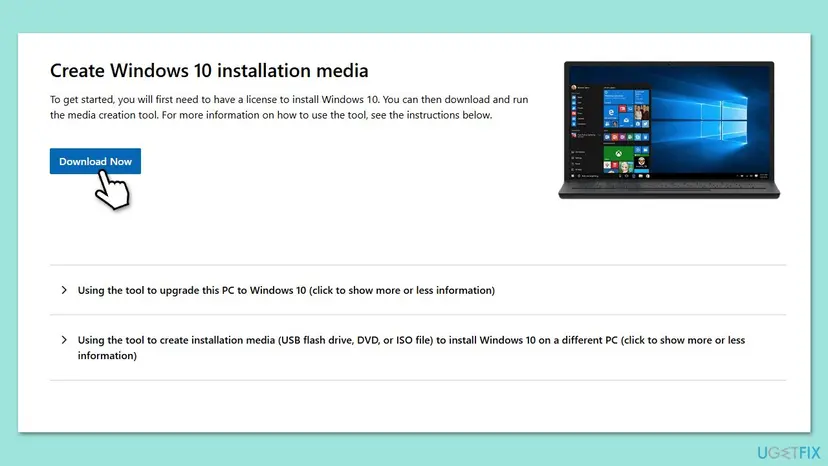
We could not confirm that the consumer Windows ISO holds the files of other optional features, so this route is for .NET Framework 3.5 only. On Windows 11 build 28000 and later .NET 3.5 is a standalone installer instead: see our guide on .NET Framework error 0x800f080c.
It worked if: .NET Framework 3.5 shows a filled box in Windows Features, and the program that needed it starts.
If not: If DISM fails with the media, the ISO does not match your version: check winver and download the right one.
If error 0x800f0821 is still there
The CBS log shows which part of the job ran out of time. Look at the lines just before the timeout, at the same time as your last attempt.
- Press Win + R, type
notepad C:\Windows\Logs\CBS\CBS.logand select OK. If Notepad says the file is in use, copy it to the desktop first and open the copy. - Press Ctrl + End to jump to the newest lines.
- Press Ctrl + F and search upward for
0x800f0821orCBS_E_ABORT. - Read the package or capability name a few lines above it: that is the part that took too long.
- If you used DISM, also open
C:\Windows\Logs\DISM\dism.logand check the last lines.
For Microsoft support or your IT department, send the feature name, your edition and build from winver, the time of the failure and the CBS.log lines around it. 0x800f0821 is not a licence or account limit. Repeated timeouts on a PC that is idle and fully updated can point to a failing or very slow disk: check the drive's health in Settings > System > Storage > Advanced storage settings > Disks & volumes.
Windows 10 reached the end of support on 14 October 2025. The fixes work the same on Windows 10 22H2, but without Extended Security Updates the PC no longer gets security fixes.
How to keep error 0x800f0821 from coming back
- Restart when Windows Update asks, before you add features.
- Add large features and language packs when the PC is idle and plugged in.
- Keep drive C: with free space and Windows fully updated.
- Give virtual machines enough virtual processors and memory before servicing them.
- Do not cancel a feature install that seems stuck: it restarts the same job.
- Do not disable Windows Modules Installer or Windows Update with tweak tools.
- Do not download feature or .cab files from sites other than Microsoft.
Frequently asked questions
What does error 0x800f0821 mean?
It means the servicing job that installs a feature or update ran out of time. Microsoft lists 0x800f0821 as CBS_E_ABORT, client abort, IDABORT returned by ICbsUIHandler method except Error(), and describes it as CBS transaction timeout exceeded. The servicing stack watchdog timer expired before the job finished, so Windows stopped it. Nothing is usually broken. Restart, let the PC go idle and add the feature again (Fix 1).
How do I fix 0x800f0821 when adding an optional feature in Windows 11?
Restart first and add the feature again with no heavy programs running, from Settings > System > Optional features > View features (Fix 1). Install all pending Windows updates (Fix 2), because Microsoft names updates as part of the mitigation. If the PC is slow or a virtual machine, give it more memory and processor time (Fix 3). If Settings keeps failing, add the capability by name with DISM /Add-Capability (Fix 5).
Does 0x800f0821 happen on Windows 10 too?
Yes. The code comes from Component Based Servicing, which works the same way on Windows 10 and Windows 11. On Windows 10 the optional features page is Settings > Apps > Apps & features > Optional features > Add a feature. The fixes are the same. Windows 10 reached the end of support on 14 October 2025, so a Windows 10 22H2 PC without Extended Security Updates no longer gets security fixes.
How do I install Wireless Display with DISM?
Open Terminal (Admin) and run DISM /Online /Add-Capability /CapabilityName:App.WirelessDisplay.Connect~~~~0.0.1.0, then restart when DISM reports The operation completed successfully. Before that, check the exact name on your PC with DISM /Online /Get-Capabilities /Format:Table, because the identity must match letter for letter. If DISM shows Error: 0x800f0821, restart, install pending updates and try again with nothing else running (Fixes 1 and 2).
Why does the optional feature install stay at the same percent for a long time?
Because CBS is still working on the package, checking the component store and writing files, and the progress bar only moves at certain stages. Large features and language packs take longer on slow disks and in virtual machines. Cancelling and starting again repeats the whole job. Let it run with the PC idle. If it then fails with 0x800f0821, the job ran past its time limit: free resources with Fix 3 and try again.
Is 0x800f0821 caused by a virus or by my antivirus?
Microsoft does not name either as a cause: it ties the code to a servicing timeout. A full or busy security scan can slow the PC while a feature installs, so let a running scan finish first. Do not turn protection off for good. If you suspect malware, run a full scan with Microsoft Defender and add the feature after it ends, when the PC is idle.
What is KB4493473 and do I need it?
It is the update Microsoft names in its mitigation for 0x800f0821: make sure that the device has installed the update in KB4493473 or later. On a current Windows 10 22H2 or Windows 11 PC you do not search for that one update. You install all cumulative updates offered in Windows Update, because they carry the newer servicing code. Fix 2 shows how, and Fix 2 also links the manual install route.
Can I install optional features without the internet?
Partly. Microsoft's DISM reference says DISM looks for files first in a /Source you give, then in a Group Policy location. Only then does it use Windows Update, and /LimitAccess turns that last step off. .NET Framework 3.5 can be added from the sources\sxs folder of Windows media of the same version (Fix 9). For other capabilities we could not confirm that a consumer Windows ISO contains their files, so a home PC normally needs Windows Update.
Is 0x800f0821 the same as 0x800f081f or 0x800f0954?
No. Microsoft lists 0x800f081f as CBS_E_SOURCE_MISSING, which means the source files for a package were not found, often with component store damage. 0x800f0821 is a timeout: the job had what it needed but took too long. We did not check the meaning of 0x800f0954 today, so we do not describe it here. For 0x800f081f, the source and RestoreHealth steps in Fixes 5 and 7 are the better place to start.
Sources
Did this fix work?
One click, no account. It tells the next reader which guides are worth their time.
Questions and experiences: fix 0x800f0821 error when installing optional features in Windows
Still broken, or found a fix we did not cover? Ask here: members and our editors answer. Reading is open; writing needs a free account.
…