
How to fix 0x89240101 error in Age of Empires IV?

Prefer to fix it yourself? The manual steps follow.
- 7methods
- 10 to 60 minutes
- Beginner
Applies to Age of Empires IV on Windows 11 and Windows 10: Steam, Microsoft Store, Xbox app and PC Game Pass copies
7 methods in this guide
Hello. I installed Age of Empires IV, but it does not launch. I receive error code 0x89240101. What could be the problem?
Error 0x89240101 means Age of Empires IV started, asked Windows for the Microsoft game runtime and could not find it, so the game closes before the menu. It is a missing or broken Windows component, not a slow PC. Repair Gaming Services from the Xbox app first, then update Microsoft Store apps and Windows.
0x89240101 is E_GAMERUNTIME_DLL_NOT_FOUND, "The game runtime DLL was not found", in Microsoft's Game Development Kit error table. Age of Empires IV cannot load the Xbox game runtime that Gaming Services provides. Run the Gaming Services Repair Tool in the Xbox app and restart (Fix 1). If the code stays, update all Microsoft Store apps and Windows (Fix 2), then verify the game files (Fix 3).
| Error | 0x89240101, name E_GAMERUNTIME_DLL_NOT_FOUND, description "The game runtime DLL was not found." |
|---|---|
| Where it appears | When you start Age of Empires IV, before the intro video or the main menu. The game window closes or never opens. |
| Main cause | Gaming Services, the Microsoft Store component that holds the Xbox game runtime, is missing, outdated or damaged on this PC. |
| Fastest fix | Xbox app > profile picture > Support > Gaming Services Repair Tool > Start Troubleshooting, then restart (Fix 1). |
| Also written as | 0x89240101, 0X89240101, 89240101, "error code 0x89240101". Neighbor 0x89240102 means the runtime is there but too old for the game. |
| Affects | Age of Empires IV on Windows 11 and Windows 10, bought on Steam, in Microsoft Store or played with PC Game Pass. Other games built with the same Microsoft kit can show it too. |
| Vendor status | A documented Microsoft game runtime code, not an Age of Empires IV bug with one patch. The game's support asks for Windows 10 build 19043 or later. |
| Not the cause | A weak graphics card or too little RAM. Those give other errors or poor performance, not a missing runtime DLL. |
| Time to fix | About 10 minutes for the Gaming Services repair. Up to an hour when Windows updates or a game file check have to run. |
Facts checked on 15 October 2026. Steps written for Windows 11 (25H2 and 26H2) and Windows 10 22H2.
What error 0x89240101 means in Age of Empires IV
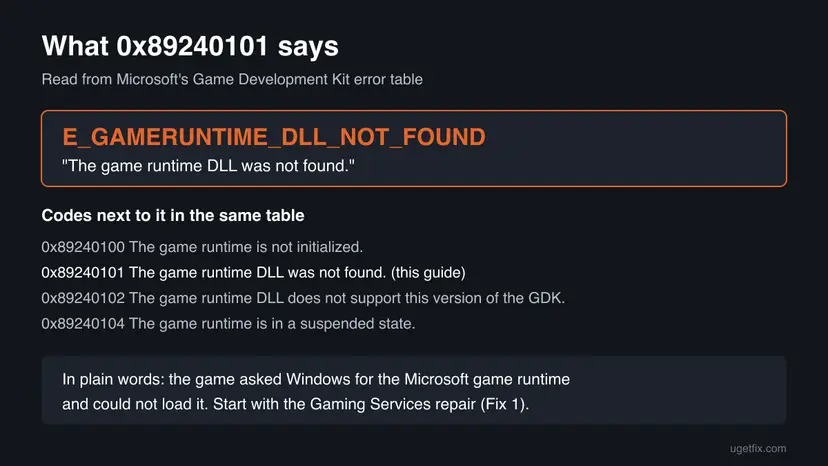
Microsoft builds its PC games, Age of Empires IV included, on the Microsoft Game Development Kit (GDK). Its error table gives 0x89240101 the name E_GAMERUNTIME_DLL_NOT_FOUND and the description "The game runtime DLL was not found." The game runtime is the Windows part that lets a GDK game talk to Xbox services, your account and the Store.
So the code does not point at the game's own files or your graphics card. It says the game looked for a shared Microsoft library on your PC and could not load it. On home PCs that library comes with Gaming Services, a Microsoft Store app that installs itself next to the Xbox app. That is why every fix below starts with Gaming Services and the Store.
| Code | Name in Microsoft's table | What it tells you |
|---|---|---|
| 0x89240100 | E_GAMERUNTIME_NOT_INITIALIZED | The game runtime is not initialized. Usually a game bug, not your PC. |
| 0x89240101 | E_GAMERUNTIME_DLL_NOT_FOUND | The game runtime DLL was not found. The component is missing or broken on this PC. |
| 0x89240102 | E_GAMERUNTIME_VERSION_MISMATCH | The runtime DLL does not support this version of the GDK. It is there but too old: update it (Fix 2). |
| 0x89240104 | E_GAMERUNTIME_SUSPENDED | The game runtime is in a suspended state. |
- Spellings people search: 0x89240101, 0X89240101, 89240101 and "error code 0x89240101". They are the same code.
- No wording of its own. The game shows the code with a short launch error. The code is what decides the fix.
Why Age of Empires IV shows 0x89240101: the causes, most common first
Microsoft does not publish one cause for this code. The ranking below follows what the code means, the launch checklist on the Age of Empires support site, and what players report on the game's forum and Steam page.
| How often | Cause | Sign | Fix |
|---|---|---|---|
| Most often | Gaming Services is missing, half installed or damaged | Other Xbox app or Game Pass games also fail to start or install | Fix 1 |
| Often | Gaming Services, Microsoft Store or Windows is outdated, so the runtime is older than the game needs | It started after a game update, or Windows has not updated for months | Fix 2 |
| Less often | Game files are damaged or incomplete | Only Age of Empires IV fails, often after a stopped download or a disk error | Fix 3 |
| Less often | The Visual C++ 2015 to 2022 runtime is missing or broken | A fresh Windows install, or other games complain about MSVCP or VCRUNTIME files | Fix 4 |
| Less often | Security software blocks or quarantines RelicCardinal.exe | A Protection history entry or an antivirus alert at launch | Fix 5 |
| Rarely | Broken settings in the game's My Games folder | The game started before and fails after a settings change or a mod | Fix 6 |
| Rarely | Damaged Windows system files | Several Store apps and games misbehave | Fix 7 |
Start another game from the Xbox app or the Microsoft Store, for example a free one. If it fails too, the problem is Gaming Services or Windows (Fixes 1, 2 and 7). If only Age of Empires IV fails, start with its files (Fix 3).
How to fix error 0x89240101 in Age of Empires IV on Windows 11 and 10
Fix 1 helps most readers and takes ten minutes. Fixes 2 to 4 cover an outdated runtime, damaged game files and missing Visual C++ files. Fixes 5 and 6 come from the game's own support checklist. Fix 7 is the general Windows repair. Steps are written for Windows 11, with the Windows 10 path where it differs. Windows 10 left support on 14 October 2025.
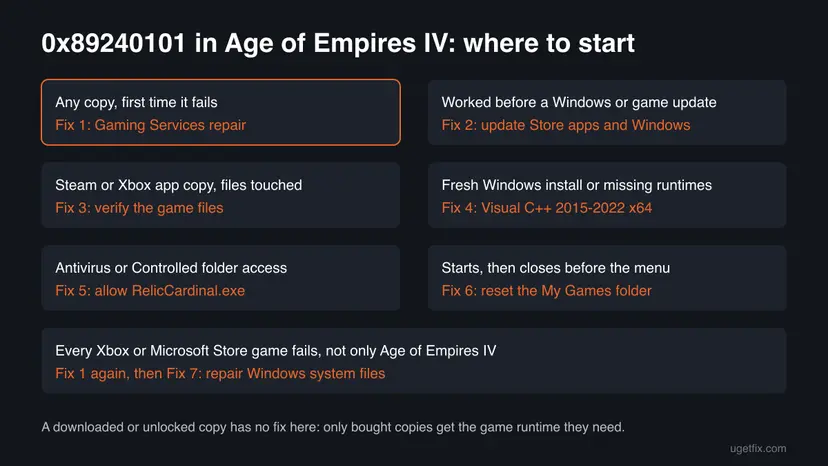
| What you see or have | Start with |
|---|---|
| Any copy of the game, first time you see the code | Fix 1 |
| It worked yesterday and failed after a game or Windows update | Fix 2, then Fix 1 |
| Only Age of Empires IV fails, other Store and Xbox games start | Fix 3, then Fix 4 |
| Windows Security or your antivirus showed an alert when you started the game | Fix 5 |
| The game started before and closes after you changed settings or added mods | Fix 6 |
| Every Xbox and Microsoft Store game fails, even after Fixes 1 and 2 | Fix 7 |
Fix 1. Run the Gaming Services Repair Tool in the Xbox app and restart
10 minutesLow riskEveryone, first. Above all when other Xbox app or Game Pass games also fail.
The code says the game runtime DLL is missing. On a home PC the game runtime comes with Gaming Services, and Xbox Support's Gaming Services Repair Tool repairs or reinstalls that component. A restart afterwards makes sure the game loads the repaired files.
- Close Age of Empires IV and its launcher. In Task Manager (Ctrl + Shift + Esc), select End task for
RelicCardinal.exeif it still runs. - Open the Xbox app. If it is not installed, get it from Microsoft Store first.
- Select your profile picture at the top, then Support.
- Select Gaming Services Repair Tool, then Start Troubleshooting, and wait until it finishes.
- Select Start > Power > Restart.
- Start Age of Empires IV again from the same launcher you bought it in.
- Steam copy too: players report this code with Steam copies as well. The game still needs Microsoft's runtime, so the repair is the same.
- The tool will not run, or Gaming Services will not install: that is its own error. The steps are in our guide to error 0x80073CF6, so they are not repeated here.
- No Xbox app on purpose? Search for Gaming Services in Microsoft Store and select Get or Update. Xbox Support's repair tool page also offers the tool as a separate download.
It worked if: The repair tool reports that it finished, and after the restart Age of Empires IV shows the Relic and Xbox logos and the intro video.
If not: Go to Fix 2. A runtime that is installed but too old also stops the game.
Fix 2. Update Gaming Services, Microsoft Store and Windows
15 to 40 minutesLow riskThe code appeared after a game update, or the PC has not installed Windows or Store updates for a while.
Each game update is built with a newer Game Development Kit. Microsoft's table has a separate code for a runtime that is too old, 0x89240102, and an old or half updated Gaming Services can leave the DLL unusable. The Age of Empires support site asks for Windows 10 build 19043 or later.
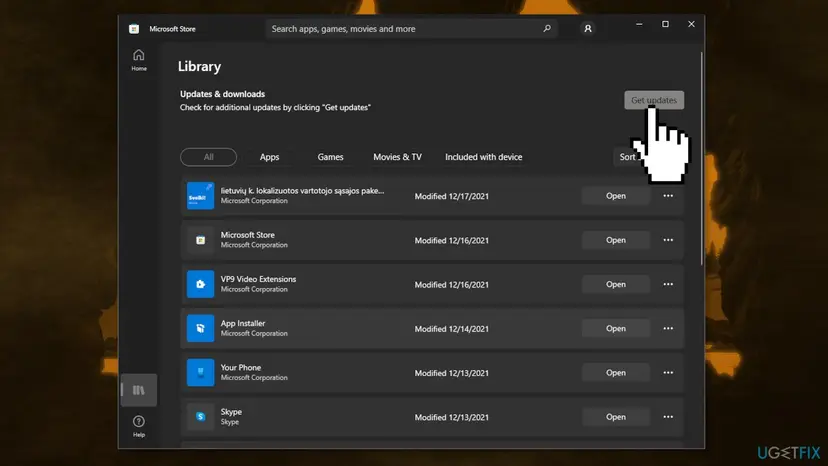
- Open Microsoft Store, select Library at the bottom left, then Get updates.
- Wait until Gaming Services, Xbox and Xbox Identity Provider show Open instead of a progress bar.
- Press Win + I and open Windows Update (Windows 10: Update & Security > Windows Update).
- Select Check for updates and install everything offered, then restart when Windows asks.
- On Windows 10, press Win + R, type
winverand press Enter. The build must be 19043 or higher.
Clear the Store cache with wsreset.exe from Win + R, then try Get updates again. If the Store itself is broken: Reset the Microsoft Store
It worked if: Microsoft Store shows no pending updates, Windows Update says you are up to date, and the game starts.
If not: If only Age of Empires IV still fails, go to Fix 3. If every Store game fails, go to Fix 7.
Fix 3. Verify the Age of Empires IV game files in Steam or the Xbox app
10 to 30 minutesNo riskOnly Age of Empires IV fails, or a download stopped halfway, or the drive had errors.
The game loads the runtime from its own start file. When game files around it are incomplete, the start can fail before the game reaches its menu. The check compares every file with the store's copy and downloads only what is wrong.
- Restart and open Steam. Restart your computer and launch Steam.
- Open the game's menu. Right-click the game in your Library, or open the game's Library page and select the gear icon on the far right.
- Open Properties. Select Properties in the menu.
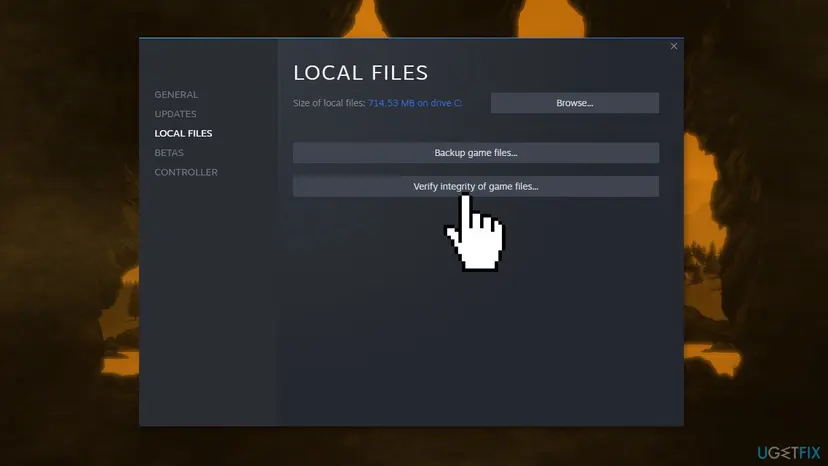
- Verify the files. Select the Installed Files tab and select Verify integrity of game files.
- Wait for the result. Steam checks the game's files. This can take several minutes.
These steps were written for Steam on Windows. The full page with the other versions and what each result means: How to verify game files in Steam, Epic Games, Xbox app, EA app, Battle.net and GOG Galaxy
It worked if: Steam reports that all files validated or reacquires a few files, the Xbox app finishes Verify and repair, and the game starts.
If not: Go to Fix 4. A missing Visual C++ runtime breaks the start in the same place.
Fix 4. Repair or install the Visual C++ 2015 to 2022 redistributable
10 minutesLow riskA fresh Windows install, a PC cleaned with an "optimizer", or other games that complain about MSVCP or VCRUNTIME files.
The Age of Empires support site lists the Visual C++ Redistributable for Visual Studio 2022 as a file the game needs, the x64 package on 64-bit Windows. Without it the game's start file cannot load its own parts, and the launch stops before the menu.
- Open Programs and Features. Type control panel in the search box on the taskbar and select Control Panel. Select Programs > Programs and Features.
- Find the installed versions. Look for the entries that start with Microsoft Visual C++. Each one shows a year and an architecture, x64 or x86. Several entries side by side are normal: older versions stay installed next to newer ones.
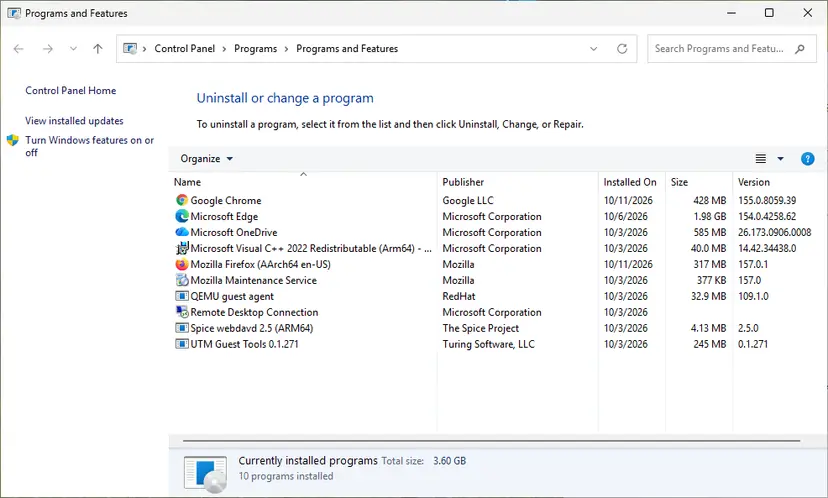
Each Visual C++ version is its own entry in Programs and Features. Screenshot: Windows 11 26H2. - Repair each Visual C++ entry. Right-click an entry and select Change, then select Repair in the window that opens. Do the same for every Microsoft Visual C++ entry.
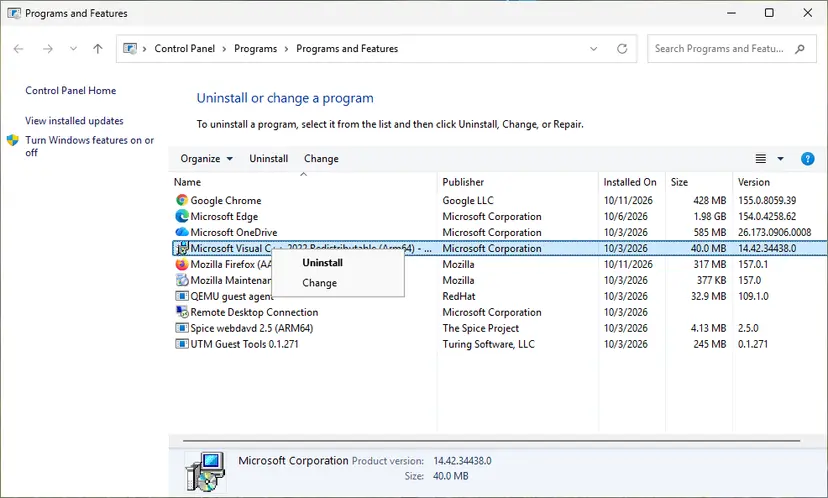
Right-click the entry and select Change to reach the repair option. Screenshot: Windows 11 26H2. - Install the latest supported version. Download the latest Visual C++ v14 Redistributable from Microsoft: Visual C++ Redistributable latest supported downloads and run it. On a 64-bit PC install both X64 and X86, because 32-bit programs need the x86 package. On an ARM64 PC install ARM64. This one version serves programs built with Visual Studio 2017 to 2026.
These steps were written for Windows 11 25H2 and 26H2, Windows 10 22H2. The full page with the other versions and what each result means: How to repair Microsoft Visual C++ Redistributable and .NET Framework
It worked if: Programs and Features lists Microsoft Visual C++ 2015-2022 Redistributable (x64) and the repair ends with a success message.
If not: Restart and test once more, then go to Fix 5.
Fix 5. Allow RelicCardinal.exe in Windows Security and your antivirus
5 to 10 minutesLow riskWindows Security, Controlled folder access or a third-party antivirus showed an alert when you started the game.
The game's support site names RelicCardinal.exe as the file to allow. If security software blocks it or quarantines one of its files, the start fails before the game can load the runtime.
- Open Windows Security from Start and select Virus & threat protection > Protection history.
- Look for a recent entry that names
RelicCardinal.exe. Select it, then Actions > Allow only if the path is inside your Age of Empires IV install folder. - Type Controlled folder access in Start and open it. Select Allow an app through Controlled folder access.
- Select Add an allowed app > Recently blocked apps, pick
RelicCardinal.exeand add it. - In third-party antivirus, look in its quarantine for game files, restore them and add the game folder to its allow list.
Leave Windows Security on. If you must test with protection paused, do it for one launch and turn it back on at once: Turn off Microsoft Defender protection for a moment. The game's support notes that some antivirus programs remove the game from the allow list after an update, so check again after big patches.
It worked if: No new Protection history entry appears when you start the game, and it reaches the menu.
If not: Go to Fix 6 if the game started in the past. Otherwise go to Fix 7.
Fix 6. Rename the Age of Empires IV folder in Documents\My Games
5 minutesRead the warningThe game started before and now fails after a settings change, a crash or a mod.
The Age of Empires support site suggests removing this folder because data in it can stop the game from starting. Renaming it keeps a copy, and the game builds a fresh folder at the next launch.
The game's support says deleting the folder removes in-game settings such as hotkeys. Rename it instead of deleting it, so you can copy your hotkey files back later.
- Close the game and its launcher.
- Press Win + E and open Documents, then My Games.
- Right-click the Age of Empires IV folder and rename it to
Age of Empires IV old. - Start the game. It creates a new Age of Empires IV folder.
It worked if: The game starts with default settings and a new folder appears in My Games.
If not: Delete the new folder, rename the old one back so you keep your settings, and go to Fix 7.
Fix 7. Repair Windows system files when every Store game fails
20 to 40 minutesLow riskGaming Services will not stay repaired, and every Xbox and Microsoft Store game fails, not only Age of Empires IV.
Gaming Services relies on Windows components. If those are damaged, the runtime cannot load however often you repair it. DISM and SFC replace damaged Windows files with clean copies, after which Fix 1 can work.
Run DISM first, then SFC, in Terminal as administrator. Step by step with screenshots: Run DISM and SFC to repair Windows system files
Terminal (Admin)
DISM /Online /Cleanup-Image /RestoreHealth
sfc /scannow
When both finish, restart and run Fix 1 once more. If a third-party program changed Windows in the background, a clean start shows it: How to perform a clean boot in Windows
It worked if: SFC reports that it found no integrity violations or repaired them, and Gaming Services repairs without errors.
If not: Read "If 0x89240101 is still there" below and contact support with the facts it lists.
If 0x89240101 is still there: what to check and what to send support
No Windows log names this code for a home user. What helps support is a clear picture of your PC and where the start stops. Gather these facts before you write to them.
- Where you bought the game: Steam, Microsoft Store or PC Game Pass, and the account it belongs to.
- Your Windows version: press Win + R, type
winverand note the version and build. - DxDiag: press Win + R, type
dxdiag, select Save All Information and keep the text file. The game's support asks for it with crash reports. - The other-game test: does another Xbox app or Store game start? Write down the answer.
- What you tried: the fix numbers from this guide and what each one showed.
Age of Empires IV problems go to the game's own support at support.ageofempires.com. If every Xbox game on the PC fails, Xbox Support is the better address, because Gaming Services is theirs.
This code is a software problem. Hardware gives other signs: a game that runs and then freezes, blue screens, or graphics errors. Check that your graphics card supports DirectX 12: in DxDiag, the Display tab shows Feature Levels, and the game's support says levels that start with 11 or lower do not meet its minimum.
How to keep 0x89240101 from coming back
- Let Microsoft Store update Gaming Services and the Xbox app. Select Library > Get updates after a big Windows update.
- Keep Windows updated, so the runtime and the game come from the same period.
- Keep
RelicCardinal.exeon your antivirus allow list and check it after big game patches. - Buy and run the game from Steam, Microsoft Store or PC Game Pass.
- Do not remove Gaming Services or the Xbox app with "debloat" scripts if you play Age of Empires IV.
- Do not delete Visual C++ entries to free space. They are small and many programs share them.
- Do not download DLL files from DLL sites to replace the runtime. They do not install Gaming Services and can carry malware.
Frequently asked questions
What does error code 0x89240101 mean?
It means the game could not load the Microsoft game runtime. Microsoft's Game Development Kit table names the code E_GAMERUNTIME_DLL_NOT_FOUND with the description "The game runtime DLL was not found." Games built with that kit, like Age of Empires IV, need the runtime that Gaming Services installs on Windows. When it is missing or damaged, the game closes at launch with this code. Repairing Gaming Services from the Xbox app (Fix 1) is the first thing to do.
Why does Age of Empires IV not launch and show 0x89240101?
Most often because Gaming Services is missing, half installed or outdated on the PC. Less often the game files, the Visual C++ runtime or security software are the cause. The game itself is fine in most cases. Run the Gaming Services Repair Tool and restart (Fix 1), then update Microsoft Store apps and Windows (Fix 2). The chooser table above shows where to start for your situation.
I bought Age of Empires IV on Steam. Why does it need Gaming Services?
Because the game is built on Microsoft's Game Development Kit, whichever store sold it. Players on the game's Steam page report 0x89240101 with Steam copies too. The Steam client starts the game, but the game still loads Microsoft's runtime for its Xbox features. Install or repair Gaming Services as in Fix 1. You do not need to buy the game again or move it to the Xbox app.
Does reinstalling Age of Empires IV fix 0x89240101?
Usually not on its own. The missing file belongs to Windows and Gaming Services, not to the game folder, so a fresh game install hits the same wall. A reinstall of the game can help only when its own files are damaged, and a file check in Steam or the Xbox app does that faster (Fix 3). Repair Gaming Services first, because it takes ten minutes and does not download the whole game again.
Is 0x89240101 caused by a weak PC or old graphics card?
No. A PC below the minimum gives other errors, a gray screen or poor frame rates, not a missing runtime DLL. The Age of Empires support site does ask for DirectX 12 and a graphics card whose feature level starts with 12, and for Windows 10 build 19043 or later. Check those in DxDiag and winver, but do not expect a new graphics card to fix this code.
Can I download the missing DLL file and copy it into the game folder?
No, and we advise against it. The runtime is part of Gaming Services, a Microsoft Store package with its own services and registration. A single DLL copied from a download site does not install those parts, so the game still fails, and such sites are a common way to get malware. Repair or install Gaming Services from the Xbox app or Microsoft Store instead (Fix 1).
What is the difference between 0x89240101 and 0x89240102?
0x89240101 means the runtime DLL was not found at all. 0x89240102, E_GAMERUNTIME_VERSION_MISMATCH, means the DLL was found but does not support the version of the kit the game was built with. The first points to a missing or broken Gaming Services, the second to an old one. Fix 1 and Fix 2 cover both, in that order.
Other Xbox games fail with the same code. Is it the same fix?
Yes. The code comes from Microsoft's runtime, not from Age of Empires IV, so any game built on the same kit can show it. Users report it with Forza and other Xbox PC games. When several games fail at once, the cause is almost always Gaming Services or Windows itself. Run Fix 1 and Fix 2, and Fix 7 if the repair does not hold.
I downloaded the game from another site. Can this guide help?
No. This page is about bought copies from Steam, Microsoft Store and PC Game Pass. Some searches that lead here mention unofficial downloads, and those copies often fail at this exact point because they lack the Microsoft parts and ownership checks a bought copy uses. We do not help get them running. Buy the game, or play it with PC Game Pass, and use the fixes above if the code appears.
What does the error mean if my game is in another language?
The code is the same in every language: 0x89240101 means the game runtime DLL was not found. Many readers search in Russian, Spanish, Portuguese or Indonesian with words like "what is this error" or "how to fix". The fixes do not change with the language of Windows or the game. Start with Fix 1, then follow the chooser table.
Sources
- Microsoft Learn: XGameRuntimeInit error codes, Microsoft Game Development Kit (E_GAMERUNTIME_DLL_NOT_FOUND 0x89240101 and neighbors) (learn.microsoft.com)
- Age of Empires Support: Crash on Launch before Intro Video; Game Does Not Launch (support.ageofempires.com)
- Xbox Support: Gaming Services Repair Tool for PC (support.xbox.com)
Did this fix work?
One click, no account. It tells the next reader which guides are worth their time.
Questions and experiences: fix 0x89240101 error in Age of Empires IV
Still broken, or found a fix we did not cover? Ask here: members and our editors answer. Reading is open; writing needs a free account.
…