
How to fix "A connection to the Steam VAC servers could not be made" error in Windows?

Prefer to fix it yourself? The manual steps follow.
- 8methods
- 2 minutes for the first fix, 5 to 30 minutes for the others
- Easy
Applies to Steam games with VAC secured servers, such as Team Fortress 2 and Counter-Strike, on Windows 11 and Windows 10
8 methods in this guide
Yesterday I was trying to join a Team Fortress 2 game, and it took several minutes before I got a black pop-up box saying "A connection to the Steam VAC servers could not be made." This continues today, and I was wondering if there is something on my end I could do to fix this.
"A connection to the Steam VAC servers could not be made" means Steam could not reach Valve Anti-Cheat, so the game will not let you join VAC secured servers. Valve names four causes: the connection, security software, background programs and third-party anti-cheat tools. Exit Steam completely and restart the PC first, then repair the Steam Service.
Steam could not open a secure connection to Valve Anti-Cheat, so the game keeps you off VAC secured servers. It is not a ban. Start with Fix 1: exit Steam from the Steam menu, restart the PC and the router, and try again. If it comes back, repair the Steam Service (Fix 2) and reset the firewall entries for Steam (Fix 3), which Valve names as the usual cause right after a Steam update.
| Error | "A connection to the Steam VAC servers could not be made. For troubleshooting network issues, please click the link below." Steam Support files it with "Secure connection failed" and "No Steam logon". |
|---|---|
| Where it appears | In the game, when you try to join a VAC secured server, often after a long wait. Team Fortress 2 and Counter-Strike are the games readers name most. |
| Main cause | Steam cannot reach VAC. Valve names four sources: connection issues, security software, background applications and third-party anti-cheat applications. |
| Fastest fix | Exit Steam through the Steam menu, restart the PC and the router, then join again (Fix 1). |
| Also written as | A connection to the VAC servers could not be made, Steam VAC error, Secure connection failed, No Steam logon. Related but different: "Disconnected by VAC: You cannot play on secure servers". |
| What VAC is | Valve Anti-Cheat, Valve's system that checks players on secure servers. Without a working VAC connection the game will not put you on those servers. |
| Vendor status | Not a bug with a patch. Steam Support has a page for this message with the four causes, and says a problem right after a Steam update is most likely caused by a firewall. |
| Affects | Any Steam game with VAC secured servers on Windows 11 and Windows 10. Microsoft ended support for Windows 10 on 14 October 2025, which does not change this error. |
| Time to fix | 2 minutes for Fix 1, about 5 minutes for Fixes 2 and 3, up to 30 minutes for verifying a large game. |
Facts checked on 15 October 2026. Steps written for the Steam client on Windows 11 (25H2 and 26H2) and Windows 10 22H2, read against Steam Support's pages for this message, for "Disconnected by VAC" and for the ports Steam needs.
What "A connection to the Steam VAC servers could not be made" means
VAC is Valve Anti-Cheat. A server marked as VAC secured only lets players in when Steam on their PC can talk to Valve's anti-cheat servers. When that connection fails, the game stops the join and shows this message. Your account, your game and your purchase are not affected.
Steam Support lists the message together with two others that mean the same thing: "Secure connection failed" and "No Steam logon". The page names four main sources: connection issues, security software, background applications and third-party anti-cheat applications. Each one has a fix below.
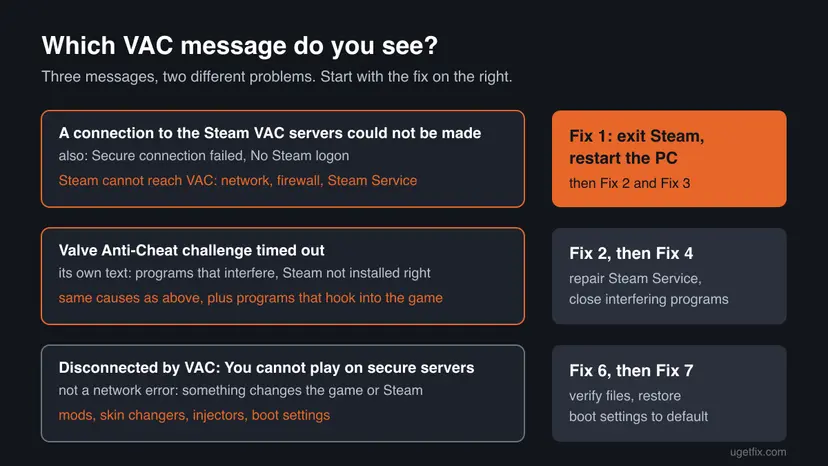
| Text on screen | What it means | Where to start |
|---|---|---|
| A connection to the Steam VAC servers could not be made. For troubleshooting network issues, please click the link below. | Steam could not reach VAC. A network, firewall or Steam Service problem. | Fix 1 |
| A connection to the VAC servers could not be made / Secure connection failed / No Steam logon | The same problem, Steam Support's spellings. | Fix 1 |
| Valve Anti-Cheat challenge timed out | The VAC check did not finish. The message asks you to close programs that may interfere with VAC and to check that Steam is correctly installed. | Fix 2, then Fix 4 |
| Disconnected by VAC: You cannot play on secure servers | Not a network error. Steam Support: third party software interferes with the game or Steam, or game files were modified. | Fix 6, then Fix 7 |
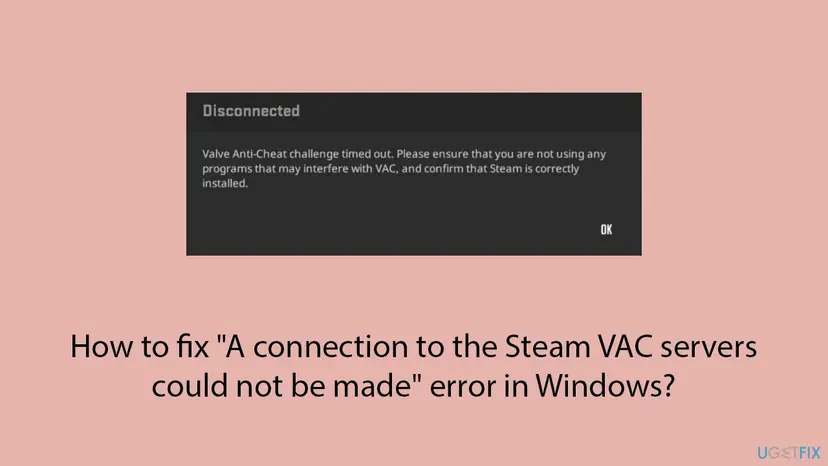
This message says Steam could not reach VAC. It says nothing about your account. Steam Support says VAC bans are permanent, and that a ban issued by mistake is removed automatically. A connection error does not lead to a ban, and none of the fixes on this page touch how VAC works.
What causes the Steam VAC connection error, from most to least likely
Steam Support names the four sources but publishes no numbers. The order below is ours. It follows Valve's own hints: that a problem right after a Steam update is most likely a firewall, and that a restart of the PC can clear an error that shows on all servers.
| Cause | How to tell | Fix |
|---|---|---|
| A stuck Steam session or a stuck router. | It started out of nowhere, on every server, and Steam was left open for days. | Fix 1 |
| A failed Steam Service. Steam Support: the error "may also indicate a Steam service failure". | Other Steam features work, only secure servers fail. | Fix 2 |
| Old firewall permissions after a Steam update. Valve: "Every time the Steam client is updated, your firewall permissions need to be reset." | It began right after Steam updated itself. | Fix 3 |
| A program in the way: a second firewall, PeerGuardian, NetLimiter, an IP masking tool, a third-party anti-cheat program, Cheat Engine, a DLL injector, a hypervisor, a Steam idler. | It began after you installed such a program. It works after a clean boot. | Fix 4 |
| The router or the network. Dual WAN routers, closed ports, a university or business network, P2P downloads. | It fails on one network and works on another, such as a phone hotspot. | Fix 5 |
| Modified game files. Custom textures, skin changers, mods. | The message is "Disconnected by VAC", or only one game fails. | Fix 6 |
| Boot settings changed from default: kernel debugging, test signing, DEP turned off. | You or a tool changed boot settings with bcdedit. | Fix 7 |
| Damaged Windows files or malware. | Nothing above helped, and other programs also act up. | Fix 8 |
Many guides tell you to turn Windows Defender Firewall off for both networks. Valve's advice is different: remove the old firewall entries for Steam and let them be learned again, and never run two firewalls at once. Fix 3 does exactly that and keeps the firewall on.
How to fix "A connection to the Steam VAC servers could not be made"
Fixes 1 to 3 follow Steam Support's own steps for this message and take a few minutes each. Fixes 4 and 5 look for a program or a network that blocks VAC. Fixes 6 to 8 are for the stubborn cases and for "Disconnected by VAC".
| What you see or did | Start with |
|---|---|
| The error came out of nowhere, on every server. | Fix 1 |
| Restarting helped only for a while, or other Steam features work. | Fix 2 |
| It started right after a Steam update. | Fix 3 |
| You recently installed a firewall, VPN, network limiter, cheat tool or another anti-cheat program. | Fix 4 |
| It works on another network, such as a phone hotspot, but not at home, school or work. | Fix 5 |
| The message is "Disconnected by VAC: You cannot play on secure servers". | Fix 6, then Fix 7 |
| Nothing above helped. | Fix 8 |
Fix 1. Exit Steam completely and restart the PC and the router
2 to 5 minutesNo riskEveryone starts here, and above all when the error shows on every server.
Steam Support says the error "may be resolved by exiting Steam and restarting your computer" when it persists on all servers. Closing the Steam window is not enough: Steam keeps running in the system tray with its old connection.
- Close the game.
- Open the Steam menu in the top left corner of Steam and select Exit. Closing the window only hides Steam.
- Press Ctrl + Shift + Esc and check Processes for any entry that starts with Steam. Select it and select End task.
- Turn off the router or modem, wait 30 seconds and turn it back on.
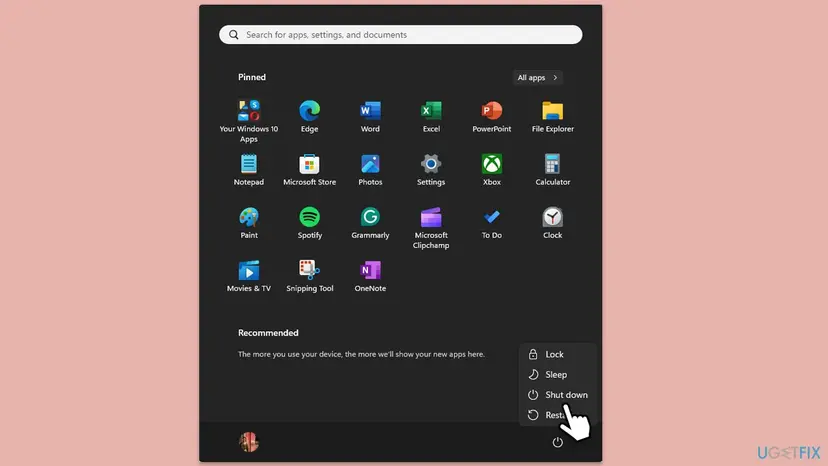
- Restart Windows: Start > Power > Restart.
- Start Steam, wait until it has signed in and finished any update, then join a VAC secured server.
A Steam process that will not close in Task Manager is common after a game crash. Step by step: Close a frozen app (Task Manager, Force Quit)
It worked if: Steam signs in again and the game joins the secure server without the message.
If not: If the error is back on the next join, repair the Steam Service with Fix 2.
Fix 2. Repair the Steam Service with SteamService.exe /repair
3 minutesLow riskThe error stays after a restart, or shows together with "Valve Anti-Cheat challenge timed out".
Steam Support says the VAC error "may also indicate a Steam service failure". The Steam Service is the part of Steam that runs with system rights, and the repair command installs it again in place.
- Exit Steam through the Steam menu and Exit.
- Press Win + R to open Run.
- Type the command below and select OK. Keep the quotation marks.
- Select Yes when Windows asks for administrator permission. Steam Support says the command needs administrator rights and may take a few minutes.
- Start Steam and join a secure server again.
"C:\Program Files (x86)\Steam\bin\SteamService.exe" /repair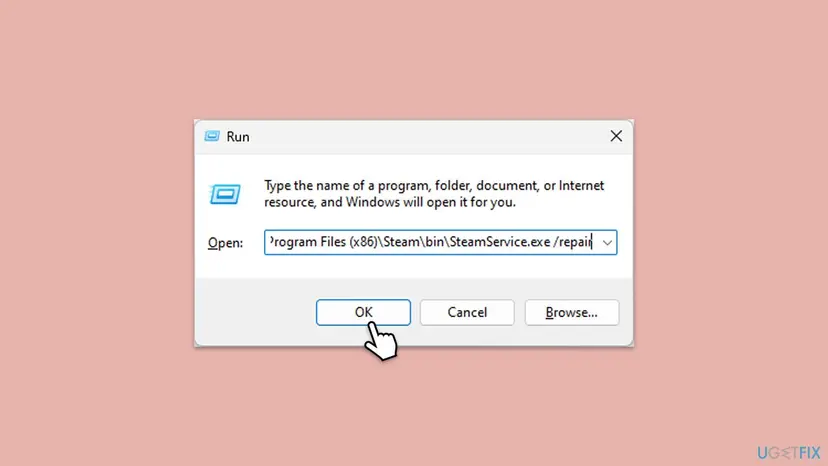
If you installed Steam elsewhere, replace C:\Program Files (x86)\Steam with your folder, for example D:\Steam. To find it, right-click the Steam shortcut, select Properties and read Start in.
It worked if: A console window may flash, and the next join works without the message.
If not: If Windows says it cannot find the file, check the Steam folder. If the repair ran and nothing changed, reset the firewall entries with Fix 3.
Fix 3. Remove the old firewall entries for Steam and the game and let Windows learn them again
5 minutesLow riskThe error started right after a Steam update, or you use Windows Defender Firewall together with another firewall.
Steam Support: "If you have a connection problem immediately after a Steam update, it is most likely being caused by a firewall." Valve's fix is to delete the old rules and create new ones. The firewall stays on.
- Exit Steam through the Steam menu and Exit.
- Press Win + R, type
firewall.cpland press Enter. Windows Defender Firewall opens. - Select Allow an app or feature through Windows Defender Firewall on the left.
- Select Change settings and confirm the administrator prompt.
- Select each entry for Steam and for the game, such as Team Fortress 2, and select Remove. Valve names
Steam.exe,HL.exeandHL2.exe. - Select OK and close the window.
- Start Steam and the game. When Windows Security asks about network access, allow it for Private networks.
- Join a secure server.
- Another firewall program. Do the same in its program rules: remove the Steam and game rules and let it ask again. Valve: "Just because there are existing permissions does NOT mean they are correct permissions."
- Two firewalls at once. Valve says never to run more than one firewall while using Steam. Its examples include Windows Firewall with a third-party firewall, and Windows Firewall with a motherboard's built-in firewall. Keep one, and keep it on.
- Security suite. Add
Steam.exeand the game's .exe as trusted programs, as Steam Support asks. If you cannot find the setting, pause protection for one test and turn it back on: Turn off Microsoft Defender protection for a moment
Turning Windows Defender Firewall off for private and public networks is the advice of many old guides, including our own earlier version. It is not needed for VAC and leaves the PC open. Remove and relearn the entries instead.
It worked if: Windows asks once about network access for Steam and the game, and the next join works.
If not: If no prompt appears and the error stays, a different program is in the way. Go to Fix 4.
Fix 4. Close the programs that interfere with VAC and test with a clean boot
10 to 15 minutesLow riskYou run a network tool, VPN, cheat tool, overlay, idler, virtual machine program or another anti-cheat program, or the error began after you installed one.
Steam Support lists background applications and third-party anti-cheat applications as two of the four causes, and names programs that interfere. A clean boot starts Windows without all of them at once, so you can see whether one of them is the cause.
| Kind | Named by Steam Support | What to do |
|---|---|---|
| Network limiters and IP masking | NetLimiter, Cybersitter, X-Fire, Steganos Anonymous Internet | Close before you start Steam |
| Blocklists | PeerGuardian ("not compatible with Steam") | Close before you start Steam |
| P2P, FTP and web servers | BitTorrent, eMule, Apache, MySQL, IIS | Close, then exit and restart Steam |
| Third-party anti-cheat | Client or server side anti-cheat tools | Do not run them on VAC secured servers |
| Tools that touch games | Cheat Engine, DLL injectors, Steam idlers, IObit Start Menu 8, CCleaner, PowerShell | Close while you play |
| Hypervisors | Virtual machine software | Close the virtual machine program while you play |
- Exit Steam through the Steam menu and Exit.
- Close every program from the table that is running, including its icon in the system tray.
- Disconnect a VPN and exit its app.
- Start Steam and join a secure server.
- If it still fails, do a clean boot so Windows starts with Microsoft services only. Step by step: How to perform a clean boot in Windows
- After the restart, start Steam and join again.
- If it works now, turn the services and startup apps back on in small groups until the error returns. The last group holds the cause.

This fix closes programs so VAC can do its normal check. It never hides, blocks or tricks VAC. A cheat tool or injector on the PC can also lead to a permanent VAC ban, which Steam Support cannot remove.
It worked if: With the program closed, or after the clean boot, the game joins the secure server.
If not: If the error stays in a clean boot, the cause is outside Windows programs. Test the network with Fix 5.
Fix 5. Test another network, check the router and open the ports Steam needs
10 to 20 minutesLow riskThe error shows on one network only, you use a university, office or hotel network, or your router has two internet lines.
Steam Support says routers, "especially Wireless routers", can cause these errors, that Dual WAN routers are not compatible with Steam, and that many university and business networks block the ports Steam needs. A test on another network tells you whether the PC or the network is at fault.
- Connect the PC to another network, such as a phone hotspot, and join a secure server. If it works, the home network is the cause.
- Connect the PC by cable straight to the modem, without the router, as Steam Support suggests. If it works now, the router is the cause.
- If the router has two internet lines, use one line only for the test. Valve says Dual WAN routers are not compatible with Steam.
- If the router has its own firewall, open the ports from the table below in its settings, then exit and restart Steam.
- On a school, office or hotel network, ask the network administrator to open the Steam ports. Valve says they cannot be remapped to other ports.
- Check the connection itself if it drops often. Step by step: How to check your internet connection in Windows
| Purpose | Ports |
|---|---|
| Sign in to Steam and download | TCP 80 and 443, UDP and TCP remote 27015 to 27050 |
| Steam client: game traffic | UDP remote 27000 to 27250 |
| Steam client: other | UDP remote 4380 |
| Voice chat and Steamworks P2P | UDP remote 3478, 4379, 4380 and 27014 to 27030 |

If Steam itself also says it cannot connect, the problem is wider than VAC. Our guide to Steam error code 105 covers DNS and router filters that block Steam's addresses.
It worked if: The game joins on the test network or straight through the modem, which points at the router or the network you can now fix.
If not: If it fails on every network, the cause is on the PC. Go to Fix 6.
Fix 6. Remove mods and skin changers and verify the game files
5 to 30 minutes, by the size of the gameLow riskThe message is "Disconnected by VAC: You cannot play on secure servers", or one VAC game fails while others work.
Steam Support says modifying game files or in-game textures may cause the VAC error. Verifying compares the game folder with the original files and downloads what was changed or is missing.
- Remove custom textures, skin changers and any program that modifies game files, as Steam Support asks.
- Restart the PC.
- Open Steam, right-click the game in the Library and select Properties.
- Select Installed Files and then Verify integrity of game files.
- Wait for the check to finish and join a secure server.
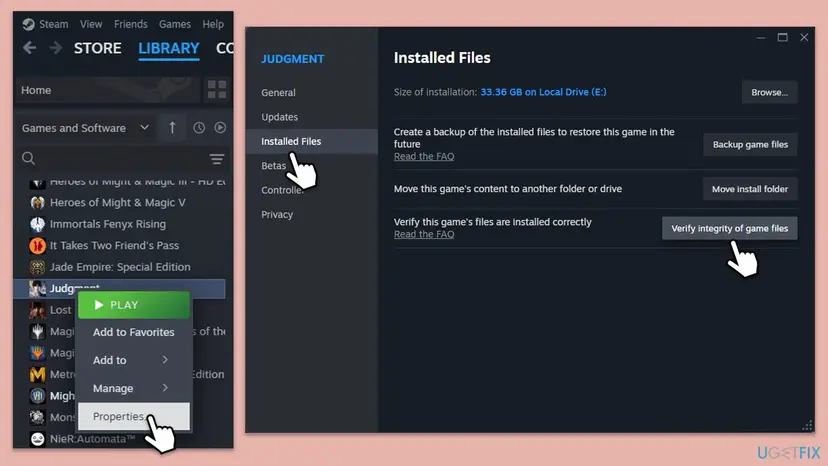
The full steps, with what Steam shows when files are replaced: How to verify game files in Steam, Epic Games, Xbox app, EA app, Battle.net and GOG Galaxy
It worked if: Steam reports that all files were validated or that it reacquired some, and the game joins the secure server.
If not: If the error stays and you have ever changed boot settings, go to Fix 7. Otherwise go to Fix 8.
Fix 7. Restore the Windows boot settings that VAC requires to default
5 minutesRead the warningThe message is "Disconnected by VAC", or you or a tool ever changed boot settings for driver testing, debugging or test signing.
Steam Support says kernel integrity checks, kernel debugging and Data Execution Prevention "must be set to default to play on VAC secured servers". These commands put those settings back to the Windows defaults, which also makes Windows safer.
These commands remove custom boot options. If you use test signing for a driver you develop or a special device, that driver may stop loading. Save the current settings first with the first command below, so you can bring them back with bcdedit /import.
- Exit Steam through the Steam menu and Exit.
- Search for Command Prompt, right-click it and select Run as administrator.
- Type
bcdedit /export C:\bcd-backupand press Enter to save the current settings. - Type each of the four commands below and press Enter after each one.
- Restart the PC, start Steam and join a secure server.
bcdedit /deletevalue nointegritychecks
bcdedit /deletevalue loadoptions
bcdedit /debug off
bcdedit /deletevalue nx
Steam Support notes that if a command answers "The value is protected by Secure Boot policy and cannot be modified or deleted.", that setting is already at its default. Leave Secure Boot on: it does not have to change for VAC.
It worked if: Each command reports success or says the value is already default, and after the restart the game joins.
If not: If every value was already default, repair Windows files and scan for malware with Fix 8.
Fix 8. Repair Windows system files and scan for malware
20 to 40 minutesNo riskFixes 1 to 7 did not help, or other programs on the PC also act up.
Steam Support lists a system file check as a fix for VAC errors, because damaged Windows files can break the parts VAC relies on. It also warns that viruses and spyware cause connection problems with Steam.
- Exit Steam through the Steam menu and Exit.
- Run SFC and DISM from an administrator Command Prompt. Steam Support asks for
sfc /scannow. Step by step: Run DISM and SFC to repair Windows system files - Restart the PC when the check is done.
- Run a full scan with Microsoft Defender while Steam is closed, as Steam Support suggests. Step by step: How to scan for malware with Microsoft Defender
- Start Steam and join a secure server.

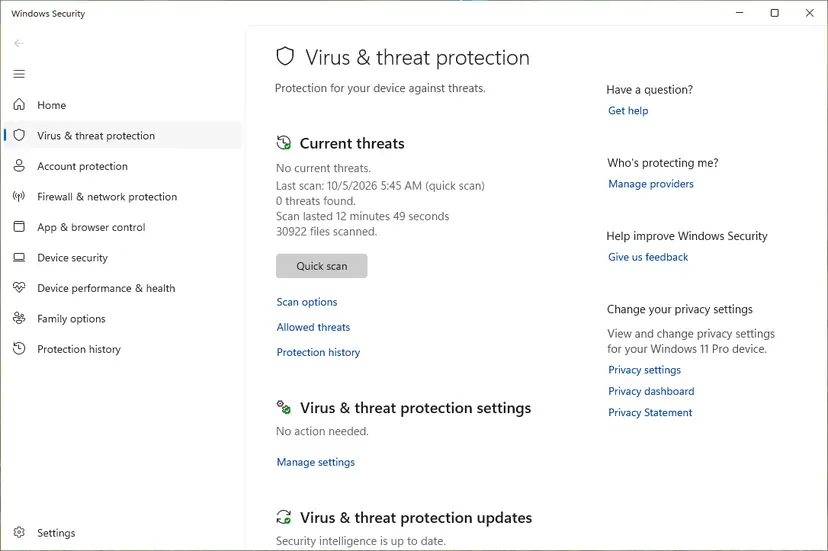
It worked if: SFC reports that it found and repaired files, or found no problems, the scan is clean, and the game joins.
If not: If the error still shows, collect the details below and contact Steam Support.
If the Steam VAC error still shows: what to check and whom to ask
The message has no log file you can read yourself. What helps support is a clear picture: the exact text, when it shows, on which networks, and what you already tried. Steam Support has a help wizard at https://help.steampowered.com that leads to a ticket.
- Take a screenshot of the message with its full text.
- Note whether it shows on every VAC server or only on some, and in one game or in all.
- Note whether it works on another network, from Fix 5.
- List the security, network and anti-cheat programs on the PC.
- Open the help wizard, choose the game and the connection problem, and attach what you collected.
- When it is the network: it works on a hotspot but not at home, school or work. The router or the network administrator has to open the Steam ports.
- When it is your internet provider: the connection drops often even without games. Steam Support says to contact the provider.
- When it is a ban, not this error: the message says you are banned, not that a connection failed. Steam Support says VAC bans are permanent and cannot be removed by support.
How to keep the Steam VAC connection error from coming back
- Exit Steam through the Steam menu now and then instead of leaving it open for weeks.
- After a Steam update, if the error appears, reset the firewall entries as in Fix 3.
- Keep one firewall on, and keep it on.
- Close network limiters, VPNs and P2P programs before you join VAC servers.
- Verify the game files after you remove a mod.
- Do not turn Windows Defender Firewall off to play.
- Do not run a second firewall next to Windows Defender Firewall.
- Do not run third-party anti-cheat tools, Cheat Engine or DLL injectors while you play on VAC servers.
- Do not change boot settings with
bcdeditfor games. - Do not uninstall Steam through Windows to cure the error, because that can remove your installed games.
The rule behind all of this is short. VAC needs Steam running cleanly, a firewall that knows the current Steam files, a network that lets Steam through, and a game and Windows nobody has changed. Keep those four as they are and the message stays away.
Frequently asked questions
What does "A connection to the Steam VAC servers could not be made" mean?
It means Steam on your PC could not reach Valve Anti-Cheat, so the game will not let you join a VAC secured server. Steam Support lists four sources: connection issues, security software, background applications and third-party anti-cheat applications. The message does not mean your account is banned or your game is broken. In most cases an exit of Steam through the Steam menu and a restart of the PC and the router clear it. If not, repair the Steam Service and reset the firewall entries for Steam, as Fixes 2 and 3 show.
Can I get VAC banned because of this error?
No. The error says that Steam could not talk to VAC, and nothing on this page changes how VAC works. A VAC ban comes from cheats detected on the PC, not from a failed connection. Steam Support says VAC bans are permanent and cannot be removed by support, and that a ban issued by mistake is removed automatically. The one real risk is a tool that touches the game, such as Cheat Engine or a DLL injector. Steam Support names those for VAC errors too, so close them while you play.
What does "Disconnected by VAC: You cannot play on secure servers" mean?
It is a different message from the connection error. Steam Support says it is caused by third party software that interferes with the game or Steam, or by modified game files and textures. Remove custom textures, skin changers and programs that modify game files, restart the PC and verify the game files (Fix 6). If it stays, repair the Steam Service (Fix 2), restore the boot settings to default (Fix 7) and run a system file check (Fix 8). Steam Support names CCleaner, Cheat Engine, DLL injectors, hypervisors and Steam idlers as common conflicts.
Why did the VAC error start right after a Steam update?
Steam Support says a connection problem immediately after a Steam update is most likely caused by a firewall. The firewall still holds rules for the old Steam files. Valve's advice is to remove all firewall entries for Steam.exe, HL.exe and HL2.exe and let them be learned again, because existing permissions are not always correct ones. Fix 3 shows how in Windows Defender Firewall. Exit Steam before you change the rules, then start Steam again so Windows can ask for network access.
Should I turn off my antivirus or firewall to fix the VAC error?
No. Steam Support asks you to set security programs to recognise Steam.exe and the game as trusted, and to remove and relearn old firewall entries. That keeps the protection on. If you want to test whether the antivirus is the cause, pause it for one join and turn it back on at once, then add the exception if it was the cause. What Valve does warn against is running two firewalls at the same time, such as Windows Firewall together with a third-party one.
Which ports does Steam need for VAC secured servers?
Steam Support's page Required Ports for Steam lists them. To sign in and download: TCP 80 and 443, and UDP and TCP remote ports 27015 to 27050. For game traffic: UDP remote ports 27000 to 27250. Voice chat and peer to peer use UDP 3478, 4379, 4380 and 27014 to 27030. Open them on a router with a built-in firewall and restart Steam afterwards. Valve notes that many university and business networks block these ports and that they cannot be moved to other ports.
Why does Team Fortress 2 or Counter-Strike take minutes and then show the VAC error?
The game waits for Steam to confirm the VAC connection before it joins a secure server. When Steam cannot reach VAC, the game waits until the attempt times out, and only then shows the message. That is why readers describe a long wait followed by a black pop-up box. The fixes are the same for both games: exit Steam and restart (Fix 1), repair the Steam Service (Fix 2) and reset the firewall entries (Fix 3). We could not confirm exact time-out values from Valve.
This device can't reach Steam servers: is that the same error?
Not quite. "This device can't reach Steam servers" and similar messages mean Steam itself cannot connect, so the store, the friends list and downloads also fail. The VAC error appears while Steam works, and only secure game servers fail. When Steam as a whole is offline, start with Fix 1 and Fix 5 on this page, then read our guide to Steam error code 105 for DNS and router filter problems. Once Steam is online again, the VAC connection usually returns with it.
I searched in Spanish, Russian or Polish. Is this the same problem?
Yes, if the game showed the message about the Steam VAC servers. Readers find this page with "que paso" (what happened), "не подключается" (does not connect), "все пробовал не помогло" (tried everything, nothing helped) and "nie pomogło" (did not help). The cause and the fixes do not depend on the language of Windows or Steam. If you tried everything, follow the fixes in order and do not skip Fix 3 and Fix 4. Roblox does not use VAC, so this page does not apply to Roblox.
Sources
- Steam Support: Secure connection failed, No Steam logon, or A connection to the VAC servers could not be made (help.steampowered.com)
- Steam Support: Disconnected by VAC: You cannot play on secure servers (Steam Service repair, boot settings, system file check) (help.steampowered.com)
- Steam Support: Required Ports for Steam (help.steampowered.com)
Did this fix work?
One click, no account. It tells the next reader which guides are worth their time.
Questions and experiences: fix "A connection to the Steam VAC servers could not be made" error in Windows
Still broken, or found a fix we did not cover? Ask here: members and our editors answer. Reading is open; writing needs a free account.
…