
How to fix the ACPI.sys error and blue screen in Windows

Prefer to fix it yourself? The manual steps follow.
- 8methods
- 15 to 60 minutes
- Intermediate
Applies to Windows 11 and Windows 10 PCs, laptops and virtual machines
8 methods in this guide
I have an issue with my Windows 10. It seems that a driver or another system file is not accessible. I get an ACPI.sys error on my laptop, and the corrupted file message scares me. I don't know how to replace such a file on my own. Can you help?
ACPI.sys is the Microsoft driver that lets Windows talk to your PC's firmware about power, sleep and built-in devices. When it is named on a stop screen or a recovery screen, the cause is usually the BIOS, a driver or an update, not a broken file. Find out which screen you have, then start with the matching fix.
ACPI.sys is a Windows driver, not a virus, and you never need to download it. If Windows will not start and shows error 0xc0000098 with File: ACPI.sys, open the recovery screen and remove the latest update (Fix 1). If a blue screen says What failed: ACPI.sys, install the newest BIOS from your PC maker (Fix 2), then the chipset and power drivers (Fix 3).
| Error | A stop screen (blue, or black on Windows 11 24H2 and later) with What failed: ACPI.sys, or a recovery screen that says Your PC/Device needs to be repaired with File: ACPI.sys and Error code: 0xc0000098. |
|---|---|
| Where it appears | At startup, when waking from sleep, when a laptop switches between battery and mains, or right after a Windows update. |
| Main cause | Faulty instructions in the BIOS or UEFI firmware that ACPI.sys has to run, a chipset or power driver that does not match, or a Windows update that broke startup. |
| Fastest fix | Not starting: remove the latest update from the recovery screen (Fix 1). Crashing: update the BIOS (Fix 2). |
| Also written as | acpi.sys failed, acpi sys error, ACPI.sys BSOD, ACPI.sys blue screen, C:\Windows\System32\drivers\ACPI.sys is missing or corrupt, ACPI.sys 0xc0000098. |
| Who makes it | Microsoft. Microsoft Learn calls it an inbox component of Windows: the Windows Advanced Configuration and Power Interface driver. |
| Vendor status | Microsoft confirmed a startup failure with File: ACPI.sys and 0xc0000098 after the May 2025 updates on Windows 11 22H2 and 23H2, mostly in virtual machines. It was fixed by the out-of-band update KB5062170 (31 May 2025). |
| Where the cause is logged | C:\Windows\Minidump (one .dmp per crash) and Event Viewer, Windows Logs > System, source BugCheck, event ID 1001. |
| Time to fix | 15 minutes to remove an update, 15 to 30 minutes for a BIOS update, up to an hour for the repair scans. |
Facts checked on 15 October 2026. Steps written for Windows 11 (25H2 and 26H2) and Windows 10 22H2.
What ACPI.sys is and what the error means
ACPI stands for Advanced Configuration and Power Interface. ACPI.sys lives in C:\Windows\System32\drivers and is part of every Windows installation. Microsoft Learn describes it as an inbox component whose jobs are power management and Plug and Play device enumeration: it finds the devices built into the board and handles sleep, wake and power states for them.
Windows loads ACPI.sys very early at startup, at the base of the device tree. It is the link between Windows and the ACPI BIOS, and it runs small programs called control methods that the PC maker stored in the firmware. That is why a fault in the BIOS, or in a driver sitting on top of ACPI.sys, so often shows up with ACPI.sys named on the screen.
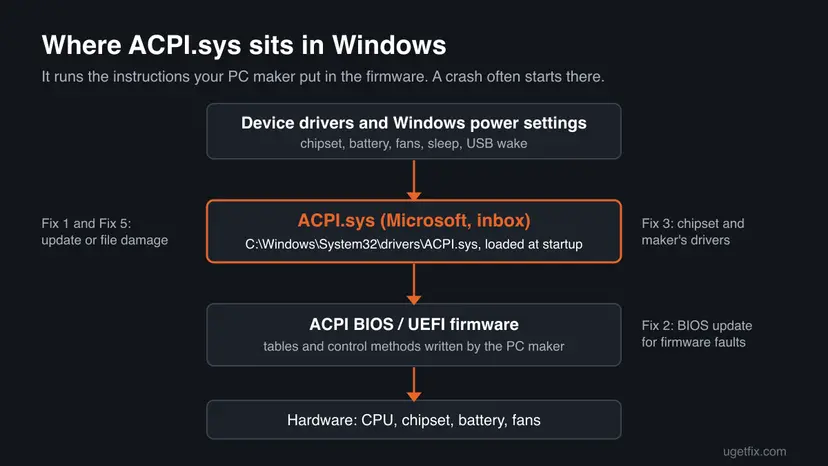
The error comes in two forms. The startup failure that Microsoft confirmed in 2025 shows this text on a recovery screen:
Your PC/Device needs to be repaired
The operating system couldn't be loaded because a required file is missing or contains errors.
File: ACPI.sys
Error code: 0xc0000098| What you see | What it means |
|---|---|
| What failed: ACPI.sys on a blue or black stop screen | ACPI.sys was the code running when Windows stopped. The stop code above it, for example SYSTEM_THREAD_EXCEPTION_NOT_HANDLED, says what kind of fault it was |
| File: ACPI.sys with Error code: 0xc0000098 | Windows could not load the driver at startup, so it never reached the desktop |
windows\system32\drivers\acpi.sys is missing or corrupt | The older wording of the same startup failure on Windows 7 and early Windows 10 |
| ACPI_BIOS_ERROR stop code | A related stop code: the firmware's ACPI tables do not meet what Windows expects. The BIOS update in Fix 2 is the main fix |
| ACPI.sys at the top of LatencyMon | No crash: the driver spends a long time handling firmware requests, which users report as crackling sound or stutter |
The real ACPI.sys is a signed Microsoft file that Windows Update keeps current. Do not download ACPI.sys from DLL or driver sites, and do not turn ACPI off in the BIOS: Windows needs it to start.
Why the ACPI.sys error happens: the causes, most common first
The driver file itself is rarely the problem. ACPI.sys runs what the firmware tells it to run and serves the drivers above it, so look at those first. The order below follows how the error shows up: a startup failure points to an update or file damage, a crash in use points to the BIOS and drivers.
| How often | Cause | Sign | Fix |
|---|---|---|---|
| Most often | A Windows update that broke startup | Error 0xc0000098 with File: ACPI.sys right after updates, often in a virtual machine | Fix 1 |
| Often | Old or faulty BIOS or UEFI firmware | Crashes on wake from sleep, on battery changes or at startup, What failed: ACPI.sys | Fix 2 |
| Often | A chipset, battery or power driver that does not match | Laptop, crashes after a driver update or a Windows reset | Fix 3 |
| Less often | A recent cumulative update on a PC that still starts | Blue screens began on the day of an update | Fix 4 |
| Rarely | Damaged Windows files or disk errors | The message says missing or corrupt, SFC finds problems | Fix 5, Fix 6 |
| Rarely | Failing RAM | Random stop codes, crashes in many programs | Fix 8 |
Old guides and forum posts suggest replacing the file by hand. Windows repairs its own files with DISM and SFC (Fix 5), which take the right version for your build. A copy from another build can stop Windows from starting at all.
Check what the ACPI.sys crash really says
Write down three things before you change anything: which screen you get, the stop code, and when the crash happens (startup, wake from sleep, unplugging the charger, after an update). They pick your first fix in the table under the methods.
- If Windows starts, press Win + R, type
msinfo32and press Enter. Note System Model, BIOS Version/Date and Version (the Windows build). - Press Win + R, type
eventvwr.mscand press Enter. Open Windows Logs > System and find the newest BugCheck event, ID 1001. It holds the stop code. - Open
C:\Windows\Minidumpin File Explorer. One.dmpfile is written per crash, named by date. - For details, install WinDbg from Terminal with
winget install Microsoft.WinDbg, open the newest dump as administrator and run!analyze -v. - Read BUGCHECK_CODE, IMAGE_NAME and FAILURE_BUCKET_ID. If the bucket names another driver next to ACPI.sys, update or roll back that driver first.
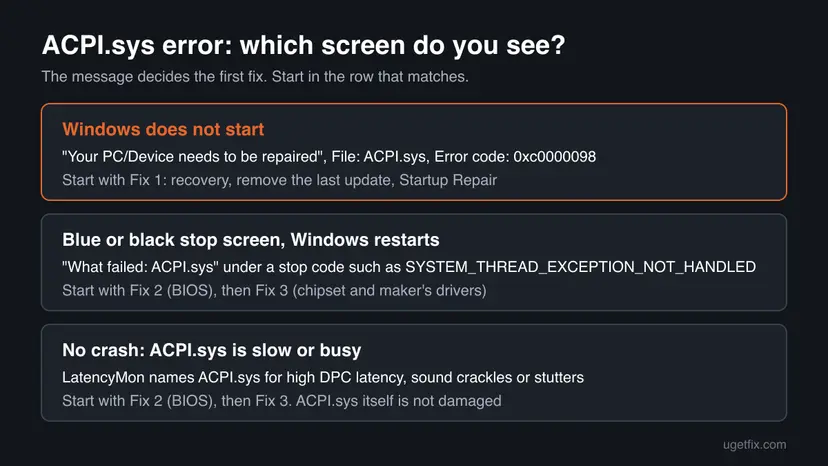
How to fix the ACPI.sys error in Windows
Fix 1 is for a PC that no longer starts. Fixes 2 and 3 treat the firmware and drivers that ACPI.sys depends on, which is where blue screens usually start. Fixes 4 to 8 are for crashes that began with a change or whose cause is still unknown.
| What you see or what your PC has | Start with | Then |
|---|---|---|
| Windows does not start: File: ACPI.sys, Error code: 0xc0000098 | Fix 1 | Fix 5 |
| Stop screen with What failed: ACPI.sys, often on wake or at startup | Fix 2 | Fix 3 |
| Laptop, crashes after a driver update, a reset or a battery change | Fix 3 | Fix 2 |
| Blue screens began right after a Windows update, PC still starts | Fix 4 | Fix 2 |
| Message says the file is missing or corrupt | Fix 5 | Fix 6 |
| Stop codes change from crash to crash | Fix 8 | Fix 5 |
Fix 1. Windows does not start (0xc0000098): remove the latest update from the recovery screen
15 to 30 minutesLow riskThe PC stops at Your PC/Device needs to be repaired with File: ACPI.sys and Error code: 0xc0000098, often right after updates.
Microsoft confirmed that the May 2025 updates left some Windows 11 22H2 and 23H2 devices, mostly virtual machines on Azure, Citrix or Hyper-V, unable to start with this exact message. Removing the update from the Windows Recovery Environment returns the PC to the last working state.
- If the error screen offers a key for the recovery environment, press it. If not, switch the PC on and off three times during startup until Automatic Repair opens, then select Advanced options.
- Select Troubleshoot > Advanced options.
- Select Uninstall Updates, then Uninstall latest quality update. Confirm and let the PC restart.
- If Windows still does not start, go back to Advanced options and run Startup Repair. Step by step: Run Startup Repair
- Once Windows starts, install the fixed update. On Windows 11 22H2 and 23H2 that is KB5062170 (builds 22621.5415 and 22631.5415) or any later cumulative update. It was not offered automatically, so get it from the Microsoft Update Catalog: Install an update from the Microsoft Update Catalog
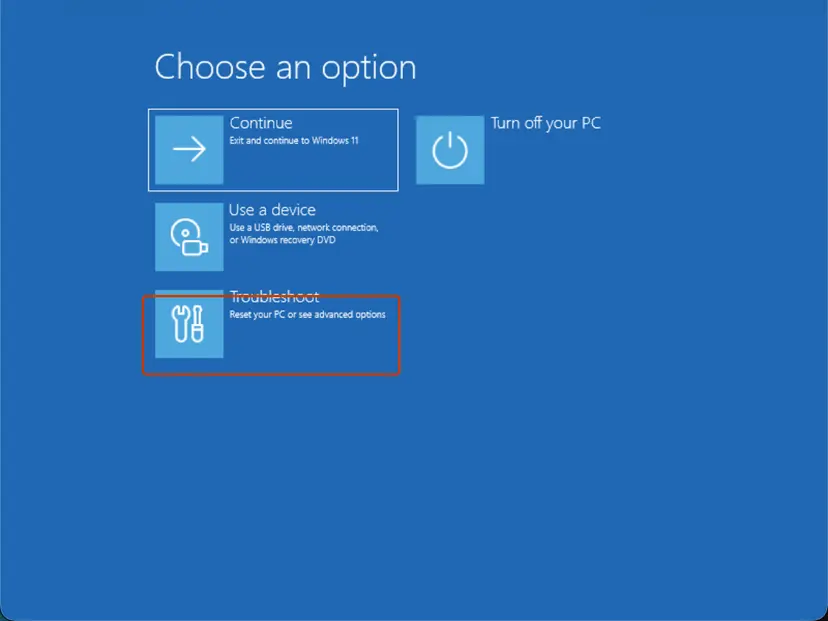
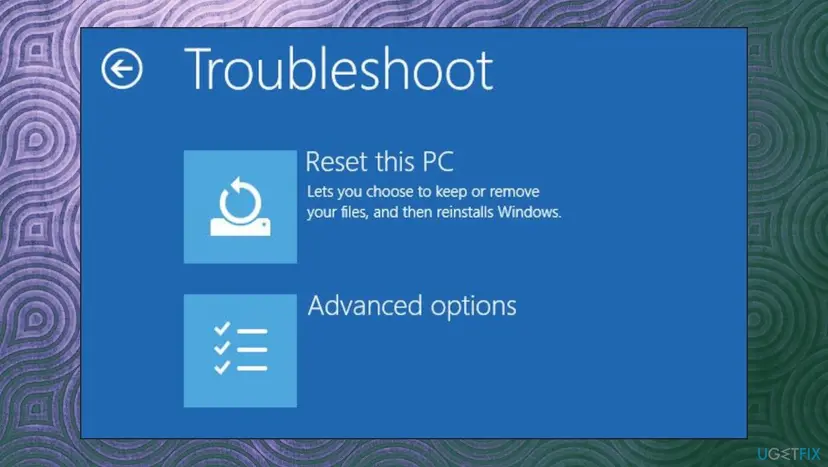
Microsoft's advice for VMs without WinRE is to attach the virtual disk to another VM or PC as a data drive, then attach it back to the affected VM and start it normally. On Azure, Microsoft's VM repair commands do the same.
It worked if: Windows reaches the sign-in screen, and Settings > Windows Update > Update history shows the update removed.
If not: If Uninstall Updates fails or there is no update to remove, repair the files offline in Fix 5, then check the disk in Fix 6.
Fix 2. Update the BIOS or UEFI firmware from your PC maker
15 to 30 minutesRead the warningA stop screen names ACPI.sys, above all when it happens at startup, on wake from sleep or when a laptop is plugged in or unplugged.
ACPI.sys reads the device tables and runs the control methods that the PC maker stored in the firmware. If those are wrong, ACPI.sys is the driver that fails. Only a BIOS update from the maker replaces them.
A BIOS update that is interrupted can leave the PC unable to start. Plug a laptop into power, do not switch off during the update, and write down your custom BIOS settings first, because the update usually resets them. Your files are not touched.
- Press Win + R, type
msinfo32and press Enter. Note System Model (or BaseBoard Product on a self-built PC) and BIOS Version/Date. - Open the support page of your PC or motherboard maker and search for that exact model.
- Open the BIOS or firmware downloads and compare the newest version with yours. Read its notes for words such as ACPI, sleep, battery or blue screen.
- Install it the way the maker describes: with its Windows updater, or from a USB drive inside the BIOS menu.
- After the update, open the BIOS and load the default settings. Leave ACPI and the sleep options at their defaults.
- Start Windows and use sleep, wake and battery as you did when the crashes happened.
It worked if: msinfo32 shows the new BIOS date, and the PC sleeps, wakes and switches power sources without a stop screen.
If not: If there is no newer BIOS or the crashes go on, update the chipset and power drivers in Fix 3.
Fix 3. Update the chipset and the PC maker's power drivers, or roll back the one that changed
20 minutesLow riskA laptop, a crash after a driver update or a Windows reset, or a dump that names another driver next to ACPI.sys.
Microsoft Learn explains that device makers add their own function drivers on top of ACPI.sys for the devices it manages. When one of those drivers does not match the firmware, the fault surfaces inside ACPI.sys.
- Open the support page of your PC model and download the newest chipset driver and the maker's power, battery or system management packages.
- Install the chipset package first, then the others in the order the maker gives, and restart.
- Press Win + X and select Device Manager. Open System devices and Batteries and look for yellow warning marks.
- If a driver was updated just before the crashes began, open it, go to the Driver tab and select Roll Back Driver. Step by step: Update, roll back or reinstall a driver
- Do not try to update Microsoft ACPI-Compliant System itself: it uses Windows' own ACPI.sys and has no separate download.

It worked if: No warning marks in Device Manager and a day of normal use, including sleep, without a stop screen.
If not: If the crashes started on the day of a Windows update, go to Fix 4. If the stop codes keep changing, test the RAM in Fix 8.
Fix 4. Remove the Windows update that started the blue screens
15 minutesLow riskWindows still starts, but ACPI.sys blue screens began on the day of a cumulative or driver update.
ACPI.sys is serviced by Windows Update, and the 2025 incident shows an update can break it on some hardware. Matching the first crash to an update date tells you whether this is the cause.
- Open Settings > Windows Update > Update history and note the KB number and date of the newest update.
- Compare that date with the first BugCheck event in Event Viewer.
- If they match, uninstall that update. Step by step: How to uninstall a Windows update
- Pause updates for one or two weeks and check the Windows release health page for a known issue on your build.
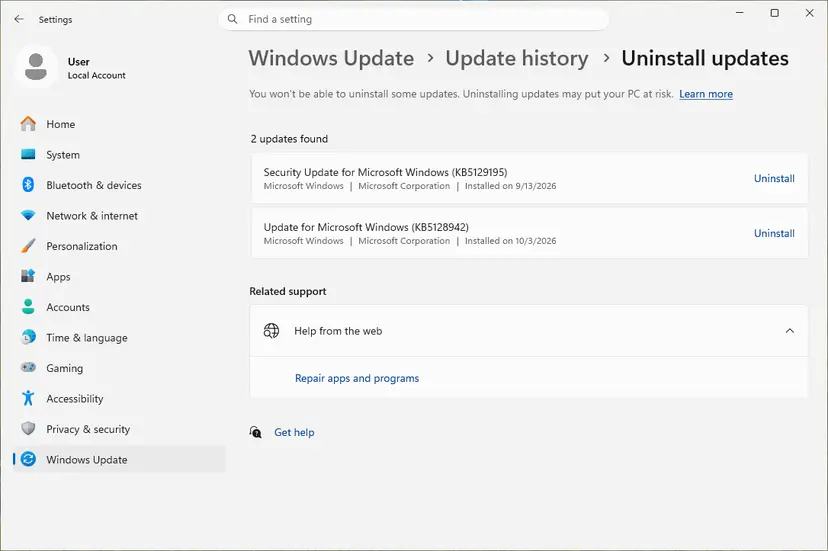
It worked if: The PC runs through the days that used to crash without the stop screen.
If not: Install the update again once Microsoft has fixed it, since it carries security fixes. If no update matches, go back to Fix 2.
Fix 5. Repair Windows system files with DISM and SFC
20 to 30 minutesNo riskThe message says ACPI.sys is missing or corrupt, or SFC has never run on this PC.
ACPI.sys is a protected Windows file. DISM fetches a clean copy for your exact build and SFC puts it back, which is the safe version of replacing the file by hand.
- If Windows starts, right-click Start and select Terminal (Admin).
- Run
DISM.exe /Online /Cleanup-Image /RestoreHealth, thensfc /scannow. - If Windows does not start, open Command Prompt from Troubleshoot > Advanced options and run SFC offline. Both ways step by step: Run DISM and SFC to repair Windows system files
- Restart when SFC is done.

It worked if: SFC reports that it found no integrity violations or that it repaired them, and Windows starts normally.
If not: If SFC cannot repair some files, check the disk in Fix 6 and run SFC again.
Fix 6. Check the system drive for errors
15 minutes to over an hourLow riskSFC could not repair files, or the PC lost power during an update.
If the sectors that hold ACPI.sys are damaged, Windows reads a broken file at startup and stops with 0xc0000098. chkdsk finds and repairs file system errors so SFC can do its job.
- Open File Explorer, right-click the C: drive and select Properties > Tools > Check.
- Select Scan drive. If errors are found, let Windows fix them at the next restart.
- From the recovery screen, run
chkdsk C: /fin Command Prompt instead. Step by step: Check a disk for errors (chkdsk)
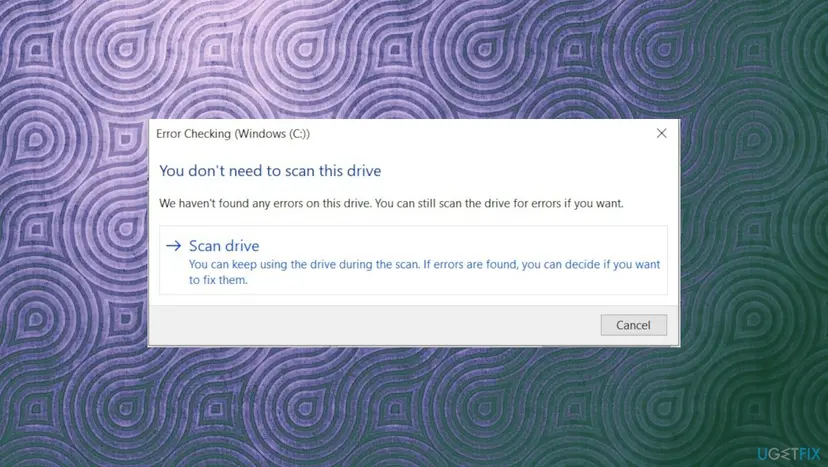
It worked if: chkdsk reports no problems or that it fixed them, and SFC now completes.
If not: If chkdsk finds bad sectors, back up your files and test or replace the drive. Otherwise go to Fix 7.
Fix 7. Return Windows to an earlier restore point
20 to 40 minutesLow riskThe error began after a driver, program or update change, and System Restore was turned on.
A restore point brings back the drivers, registry and system files from before the change, while your documents stay. It also works from the recovery screen when Windows does not start.
- In Windows, press Win + R, type
rstruiand press Enter. From the recovery screen, choose Troubleshoot > Advanced options > System Restore. - Pick a restore point dated before the first ACPI.sys error and select Scan for affected programs to see what changes.
- Confirm and let the PC restart. Step by step: Undo recent changes with System Restore
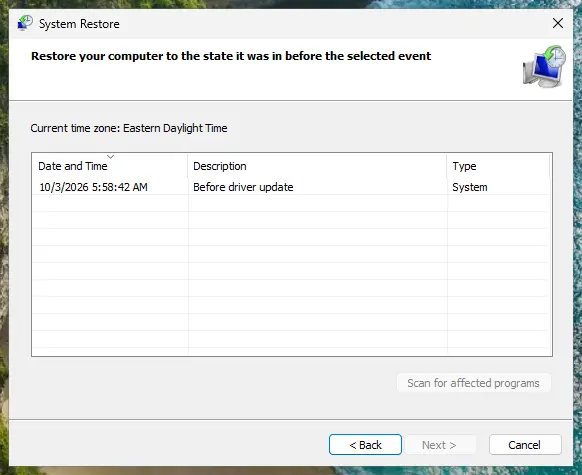
It worked if: Windows reports that System Restore completed, and the error does not return.
If not: If there is no restore point, or the error returns, test the memory in Fix 8.
Fix 8. Test the memory and look for a hardware fault
30 to 60 minutesLow riskStop codes change between crashes, or nothing above helped.
Faulty RAM corrupts whatever code is running, and ACPI.sys runs at every power change. A clean memory test rules out hardware before you contact the PC maker.
- Run the memory test built into Windows: How to test your RAM with Windows Memory Diagnostic
- Check the stop codes of the last crashes in Event Viewer. Many different codes, such as MEMORY_MANAGEMENT or WHEA_UNCORRECTABLE_ERROR, point to hardware.
- On a laptop, test once with the charger and once on battery. A crash only on one of them points to the battery or the charger.
- Keep the dump files and the BIOS version for the support request.
It worked if: The memory test reports no errors.
If not: If the test finds errors, replace the RAM. If it finds none, send the dumps to the PC maker as described below.
Still getting the ACPI.sys error: what to send and to whom
ACPI.sys is a Microsoft file, but most lasting fixes come from the PC maker's firmware. Collect the facts once and send them to the right place.
- The three newest
.dmpfiles fromC:\Windows\Minidump, zipped. - The System Model, BIOS Version/Date and Windows build from
msinfo32. - When it happens: startup, wake from sleep, charger plugged or unplugged, after an update.
- Which fixes above you tried and what happened.
| Where to report | When |
|---|---|
| Your PC or motherboard maker | Crashes on the newest BIOS, crashes tied to sleep or battery, ACPI_BIOS_ERROR |
| Microsoft Q&A or Feedback Hub | The error began with one Windows update and stops when it is removed |
| Your cloud or virtualization provider | A virtual machine that will not start with 0xc0000098 |
How to keep the ACPI.sys error from coming back
- Check your PC maker's page for BIOS and chipset updates twice a year.
- Create a restore point before large driver or BIOS changes.
- Keep the Windows recovery environment working, and keep a recovery USB drive for laptops.
- Install updates on test VMs first if you run virtual machines for work.
- Download ACPI.sys or any driver file from DLL sites.
- Copy ACPI.sys from another PC or another Windows build.
- Turn ACPI off or change the ACPI mode in the BIOS.
- Switch the PC off during a BIOS or Windows update.
Windows 10 left support on 14 October 2025, and Windows 7 long before that. ACPI.sys errors on those systems no longer get Microsoft fixes, so only the BIOS, driver and repair steps remain there.
Frequently asked questions
What is ACPI.sys?
ACPI.sys is the Windows Advanced Configuration and Power Interface driver, made by Microsoft and stored in C:\Windows\System32\drivers. Microsoft Learn calls it an inbox part of Windows that handles power management and finds the devices built into the board. It loads at startup and acts as the interface between Windows and the ACPI BIOS. Every Windows PC uses it, and Windows Update keeps it current.
What does ACPI.sys failed mean?
It means the What failed line of a stop screen named ACPI.sys, so this driver was running when Windows stopped. It does not prove the file is damaged. ACPI.sys runs the firmware's instructions and serves the drivers above it, so a BIOS bug or a mismatched chipset or power driver often fails inside it. Start with the BIOS update in Fix 2 and the drivers in Fix 3.
How do I fix the ACPI.sys error on Windows 11?
Start with the screen you see. If Windows 11 does not start and shows File: ACPI.sys with error 0xc0000098, remove the latest quality update from the recovery screen (Fix 1). Microsoft confirmed this failure after the May 2025 updates on 22H2 and 23H2 and fixed it with KB5062170. If Windows 11 shows a black stop screen naming ACPI.sys, update the BIOS and chipset drivers (Fixes 2 and 3).
What is error code 0xc0000098 with ACPI.sys?
0xc0000098 means Windows could not load a file it needs to start, and the screen names ACPI.sys as that file. In May 2025 Microsoft confirmed this on Windows 11 22H2 and 23H2 after the monthly updates, mainly in virtual machines on Azure, Citrix and Hyper-V. Microsoft also noted that other file names can appear. Removing the update from the recovery screen and installing KB5062170 or later fixes it.
Is ACPI.sys a virus?
No. The genuine file is a signed Microsoft driver in C:\Windows\System32\drivers. Right-click it, select Properties and open the Details tab to see Microsoft Corporation as the maker. A file called ACPI.sys anywhere else, or without Microsoft's signature, deserves a scan with Microsoft Defender. The blue screen itself is almost never caused by malware, so do not skip the BIOS and driver fixes.
Can I download ACPI.sys or replace it by hand?
Do not. ACPI.sys must match your Windows build exactly, and copies from DLL sites or another PC can be the wrong version or carry malware. A wrong copy can stop Windows from starting. Use DISM and SFC instead (Fix 5): they take a clean copy from Windows' own component store or Windows Update. If Windows does not start, run SFC from the recovery screen.
How do I fix SYSTEM_THREAD_EXCEPTION_NOT_HANDLED with ACPI.sys?
Treat it like the other ACPI.sys crashes. The stop code means a system thread hit an error it could not handle, and ACPI.sys was running at that moment. Update the BIOS (Fix 2), then the chipset and the PC maker's power drivers, and roll back any driver updated just before the crashes (Fix 3). If the stop codes keep changing between crashes, test the RAM in Fix 8.
Should I disable ACPI in the BIOS to stop the error?
No. Windows needs ACPI to start, manage power and find built-in devices, so turning it off or changing the ACPI mode can leave the PC unable to boot or without sleep and battery control. Load the BIOS defaults instead, and install the newest BIOS from your PC maker. If the maker has no fix, report the crash to them with your dump files.
Why does LatencyMon show high latency for ACPI.sys?
LatencyMon lists the driver that spent the longest time on deferred work, and ACPI.sys does that work when the firmware reports battery, temperature or power events. Users report crackling sound or stutter when this time is high. It is not a crash and the file is not damaged. A BIOS update (Fix 2) and the PC maker's chipset and power drivers (Fix 3) are the fixes to try.
What does acpi sys danneggiato mean, and does this help on Windows 7?
Danneggiato is Italian for damaged, so the search means a corrupt ACPI.sys file, the same problem this page covers. The fixes work on every language version of Windows. On Windows 7 the older message reads that windows\system32\drivers\acpi.sys is missing or corrupt. Windows 7 no longer gets Microsoft updates, so only the repair, disk check and BIOS steps apply there.
Sources
Did this fix work?
One click, no account. It tells the next reader which guides are worth their time.
Questions and experiences: fix the ACPI.sys error and blue screen in Windows
Still broken, or found a fix we did not cover? Ask here: members and our editors answer. Reading is open; writing needs a free account.
…