
How to fix Alt + F4 not working in Windows?

Prefer to fix it yourself? The manual steps follow.
- 8methods
- 1 to 20 minutes
- Easy
Applies to Windows 11 and Windows 10 on laptops and desktops, with built-in, wired, wireless and gaming keyboards
8 methods in this guide
- What Alt + F4 does
- Causes, most common first
- 30-second test
- The fixes
- 1. Fn key and Fn Lock
- 2. Desktop focus for shutdown
- 3. Gaming Mode and remapping
- 4. End one stuck app
- 5. Restart Windows Explorer
- 6. Check the shutdown policy
- 7. Keyboard and its driver
- 8. Clean boot and new account
- Still not working
- Ways around Alt + F4
- Prevent it
- FAQ
I recently updated my laptop to Windows 11. Since then, the Alt+F4 shortcut doesn't work when I try to shut down my laptop unless I refresh the desktop first. If anyone knows how to resolve this issue, please let me know.
Alt + F4 closes the active window, and on the empty desktop it opens the box to shut down Windows. When it does nothing, the cause is usually the keyboard, not Windows: on most laptops F4 sends a media action unless you hold Fn. Try Fn + Alt + F4 first.
Press Fn + Alt + F4. If that works, your F4 key is in media mode: turn on Fn Lock (Fn + Esc on ThinkPads and many other keyboards) or switch the hotkey setting in the BIOS (Fix 1). For shutdown, press Win + D first so the desktop is active, then Alt + F4 (Fix 2). Gaming keyboards can block the shortcut in Gaming Mode (Fix 3).
| Error | No error message. Alt + F4 does nothing: the window stays open, or the Shut Down Windows box does not appear on the desktop. |
|---|---|
| Where it appears | In any app, on the desktop when you want to shut down, and in games. Most reports come from laptops and compact or gaming keyboards. |
| Main cause | The F4 key sends a media or hotkey action (mute, brightness and similar) instead of F4, so Windows never sees Alt + F4. |
| Fastest fix | Hold Fn and press Alt + F4. To make plain F4 the default, turn on Fn Lock or change Hotkey Mode or Action Keys Mode in the BIOS (Fix 1). |
| Also written as | alt f4 not working, alt+f4 not working, alt + f4 is not working, alt f4 doesn't work, alt f4 does nothing, alt f4 not working for shutdown. |
| Affects | Windows 11 and Windows 10 alike. Microsoft documents the same shortcut for both. Windows 10 itself left support on 14 October 2025. |
| Vendor status | Not a known Windows bug in the Microsoft pages we read. Lenovo, HP and Dell document the Fn key behaviour; Razer documents Gaming Mode blocking Alt + F4. |
| Time to fix | Under a minute for the Fn key and the desktop focus. About 10 minutes for a BIOS change. Up to 20 minutes for a clean boot. |
Facts checked on 14 October 2026. Steps written for Windows 11 (25H2 and 26H2) and Windows 10 22H2.
What Alt + F4 does, and what "not working" usually means
Microsoft's list of Windows keyboard shortcuts gives Alt + F4 one job with two faces: "Close the active window. If no windows are open, prompt to shutdown." So the same keys close Notepad when Notepad is in front, and open the Shut Down Windows box when the desktop is in front.
Under the surface, Windows turns the shortcut into a close request for the active window (the window menu's Close command). Microsoft's developer documentation says an app receives that request and may ask you to confirm first. By default the window is then destroyed. An app can also handle the request in its own way.
| What happens when you press Alt + F4 | What it means |
|---|---|
| Nothing anywhere, but the volume, the microphone or the screen brightness changes | The F4 key sent its media action. Windows never received F4. Go to Fix 1. |
| Nothing anywhere, and nothing else changes | Something between the keyboard and Windows ate the shortcut: Fn layer, Gaming Mode, a remapping tool or the keyboard itself. |
| Apps close, but on the desktop no shutdown box appears | The desktop was not the active window, or File Explorer is stuck. Go to Fix 2. |
| Every app closes except one game or program | That program is frozen, is waiting for a hidden question, or handles close requests itself. Go to Fix 4. |
| The shutdown box opens, but Enter does not shut down | The list in the box is set to another action, such as Switch user. Pick Shut down in the list. |
On a laptop the top row has two meanings. Lenovo's support article calls them the hotkey function and the legacy Fx function. If the hotkey function comes first, pressing F4 alone mutes, dims or switches something, and Alt + F4 never happens.
Why Alt + F4 is not working: causes ranked by how often they apply
The keys pass through five layers before the window gets the close request. Any layer can swallow the shortcut, so the fix depends on where it gets lost. The order below follows how often each cause is behind the symptom, judged from the vendor documents and the questions on Microsoft's own forum.
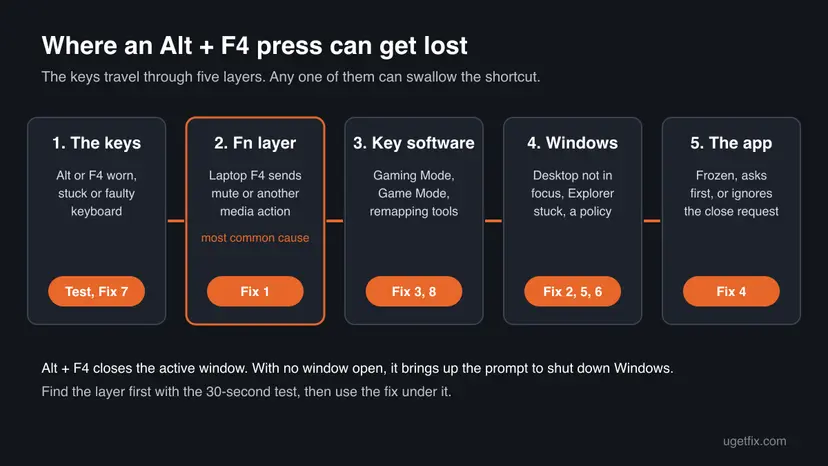
| How often | Cause | Typical sign | Fix |
|---|---|---|---|
| Most often | F4 is in hotkey or media mode (laptops, compact and office keyboards) | Fn + Alt + F4 works, Alt + F4 alone does not | Fix 1 |
| Often | The desktop is not the active window when you want to shut down | Works after a click on the desktop or a refresh | Fix 2 |
| Often on gaming keyboards | Gaming Mode or a key remapping tool blocks the combination | Started after installing the keyboard's app; a lit Gaming Mode key | Fix 3 |
| Common in games | The app is frozen, shows a hidden question, or handles the close itself | Only one program ignores the shortcut | Fix 4 |
| Less often | File Explorer, which draws the desktop and taskbar, is stuck | Desktop and taskbar react slowly or not at all | Fix 5 |
| Rarely, on work PCs | A policy removed the shut down commands | Shut down is also missing from Start | Fix 6 |
| Rarely | A faulty key, keyboard firmware or driver | Alt + F4 works on the On-Screen Keyboard only | Fix 7 |
| Rarely | Third-party software or a damaged user profile | Works in a clean boot or another account | Fix 8 |
Older guides send you to update Windows, run SFC and DISM and scan for malware first. None of these touches the Fn layer or the desktop focus, which cause most cases. We kept only fixes that act on a layer the shortcut really passes through.
The 30-second test: find out which fix is yours
Before changing anything, find the layer. Open Notepad, click inside it so it is the active window, and try the steps below in order. Stop at the first one that closes Notepad.
- Press Alt + F4. If Notepad closes, the keys work: the problem is the desktop or one app. Go to step 4.
- Hold Fn and press Alt + F4. If Notepad closes now, the F4 key is in hotkey mode. Use Fix 1.
- Open the On-Screen Keyboard with Win + Ctrl + O, or Settings > Accessibility > Keyboard > On-Screen Keyboard. Click inside Notepad, then click Alt and F4 on the screen keyboard. If Notepad closes only this way, the physical keyboard or its software is the cause: Fix 3, then Fix 7.
- Press Win + D, then Alt + F4. If the Shut Down Windows box opens, the shortcut works and you only need Fix 2. If nothing opens, try Fix 5, then Fix 6.
- If only one game or program ignores Alt + F4 while Notepad closes, go to Fix 4.
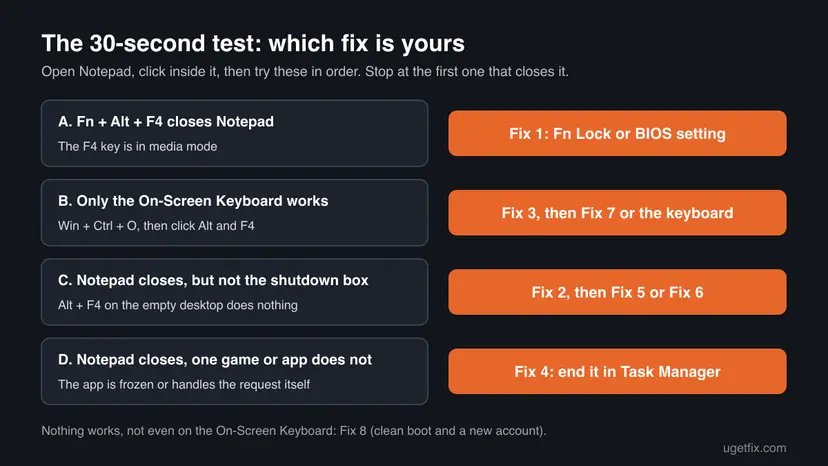
On Windows 10 the On-Screen Keyboard switch is under Settings > Ease of Access > Keyboard, in the toggle Use the On-Screen Keyboard. Microsoft documents both paths.
How to fix Alt + F4 not working in Windows
Fixes 1 to 3 solve the keyboard side and cover most laptops and gaming keyboards. Fixes 4 to 6 are for one app or for the shutdown box. Fixes 7 and 8 are for the rare case where nothing above helps. Use the test above to jump straight to yours.
| What you see or have | Start with |
|---|---|
| A laptop, or a keyboard whose F4 key also shows an icon; Fn + Alt + F4 works | Fix 1 |
| Alt + F4 closes apps, but on the desktop no shutdown box appears until you click or refresh it | Fix 2 |
| A Razer or other gaming keyboard, or a key remapping tool such as PowerToys | Fix 3 |
| One game or program ignores Alt + F4, everything else closes | Fix 4 |
| Desktop and taskbar respond slowly, and the shutdown box never comes | Fix 5 |
| A work or school PC, and Shut down is missing from Start as well | Fix 6 |
| Alt + F4 works only on the On-Screen Keyboard | Fix 7 |
| Nothing above helps | Fix 8 |
Fix 1. Press Fn + Alt + F4, then turn on Fn Lock or change the hotkey setting
1 to 10 minutesLow riskYou use a laptop, or a keyboard where F4 also carries an icon such as a speaker, a microphone or a sun.
On these keyboards the top row sends its media or hotkey action first. Windows only receives a real F4 when Fn is held, or when the keyboard is switched so the F keys come first.
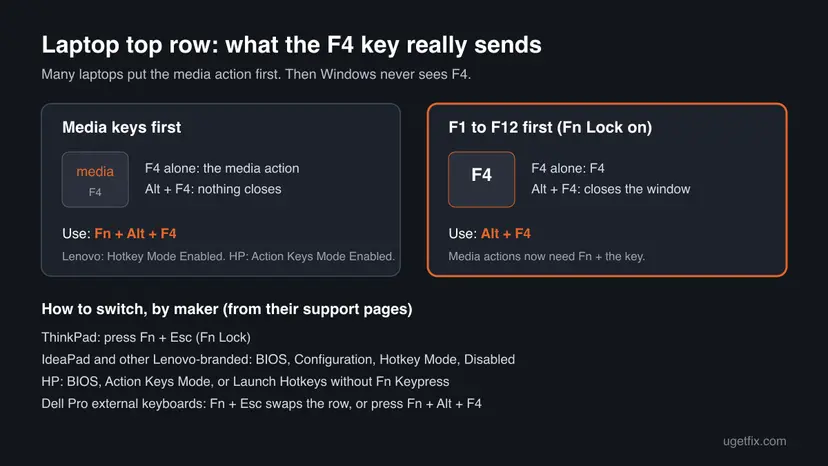
- Click inside the window you want to close.
- Hold Fn, keep it down, and press Alt + F4. If the window closes, the shortcut works and only the F4 mode is in the way.
- To make plain Alt + F4 work again, turn on Fn Lock. On ThinkPads Lenovo's instruction is Fn + Esc. Dell's office keyboards and some Dell Latitude laptops use the same keys.
- Press Alt + F4 without Fn. If it now closes the window, you are done. Media actions now need Fn plus the key.
- If Fn + Esc does nothing, or the setting is lost after a restart, use the BIOS setting of your maker below.
| Maker | Setting | What to choose for plain Alt + F4 |
|---|---|---|
| Lenovo ThinkPad (Think-branded) | Fn + Esc turns on Fn Lock | Fn Lock on |
| Lenovo IdeaPad and other Lenovo-branded | BIOS, Configuration tab, Hotkey Mode | Disabled, then F10 and Enter to save. On some Yoga models the setting is in Lenovo Vantage instead. |
| HP consumer laptops | BIOS, System Configuration, Action Keys Mode | Disabled |
| HP ProBook and EliteBook (models in HP's article) | Press Esc at power-on, then F10, Advanced, System Options, Launch Hotkeys without Fn Keypress | Cleared |
| Dell office keyboards (KB216, KB500, KB700 and others) | Fn + Esc swaps the primary and secondary functions | Swap once, or press Fn + Alt + F4 |
Lenovo's article adds two useful notes. If Fn + Esc works but does not stay on after a restart, update the BIOS or the hotkey software. If Hotkey Mode is missing from the BIOS, check Lenovo's site for a BIOS update.
It worked if: Alt + F4 closes the active window without Fn, and on the desktop it opens the Shut Down Windows box.
If not: If even Fn + Alt + F4 does nothing, the F key mode is not the cause. Go to Fix 2 for the desktop, or Fix 3 for a gaming keyboard.
Fix 2. Make the desktop the active window before you press Alt + F4 to shut down
1 minuteNo riskAlt + F4 closes apps, but the shutdown box appears only after you click the desktop or refresh it.
Alt + F4 always acts on the active window. The shutdown box belongs to the desktop, so it opens only when the desktop itself has focus. If the taskbar, a tray app or an invisible window has focus, the shortcut goes there instead.
This matches the question at the top of this page exactly: the shortcut works after a refresh of the desktop, because the refresh puts the focus on the desktop. Raymond Chen of Microsoft described the same trick years ago: click on the desktop and type Alt + F4 to call up the shutdown dialog.
- Save your work in open apps.
- Press Win + D. Microsoft lists it as "Display and hide the desktop": all windows step aside and the desktop becomes active.
- Press Alt + F4. The Shut Down Windows box opens with a list of actions.
- Check the list in the box. If it shows Switch user, Sign out or Restart, open the list and choose Shut down.
- Select OK or press Enter.
Click once on an empty part of the desktop, away from icons, and press Alt + F4. If that also fails, File Explorer may be stuck: go to Fix 5.
Some readers on Microsoft's forum report that the box started to default to Switch user instead of Shut down in Windows 11, so pressing Enter did not turn the PC off. A volunteer moderator there linked it to the policy Change Start Menu power button. We could not confirm the cause; choosing Shut down in the list works either way.
It worked if: The Shut Down Windows box opens on the first press, and Shut down turns the PC off.
If not: If the box does not open even with the desktop active, go to Fix 5 to restart File Explorer, then Fix 6.
Fix 3. Turn off Gaming Mode or remove a key remapping that blocks Alt + F4
3 minutesLow riskYou use a gaming keyboard, a keyboard app, PowerToys or another key remapping tool.
Gaming keyboards can block Alt + F4 on purpose so a game is not closed by accident. Remapping tools can turn the combination into something else. Both act before Windows sees the shortcut.
Razer documents this plainly. The BlackWidow V4 master guide says Fn + F10 turns on Gaming Mode, which "disables the Windows Key, Menu/Apps Key, Alt+Tab, and Alt+F4 functions to avoid accidental usage". The Gaming Mode key lights up while it is on.
- Look at your keyboard for a lit Gaming Mode key or indicator, often on F10 or near the arrow keys.
- Press the Gaming Mode combination of your keyboard to turn it off. On the Razer BlackWidow V4 it is Fn + F10.
- If you want to keep Gaming Mode for games, open Razer Synapse, select the keyboard, and change the Gaming Mode settings so Alt + F4 stays enabled.
- If you use PowerToys, open PowerToys Settings, then Keyboard Manager, then Remap a shortcut. Delete any row that uses Alt + F4 as the shortcut to change.
- For other keyboard apps, look for a Gaming Mode, Game Mode or Windows key lock in the app and turn it off for a test.
We confirmed the Alt + F4 block only in Razer's own guides. Other makers name their game modes differently and may block only the Windows key. Microsoft notes that PowerToys remappings work only while PowerToys runs and Keyboard Manager is enabled, so quitting PowerToys is a quick test.
It worked if: With Gaming Mode off or the remapping removed, Alt + F4 closes Notepad again.
If not: If the keyboard app is closed and the shortcut still fails, test the keyboard itself in Fix 7, then look for other software in Fix 8.
Fix 4. End the app that ignores Alt + F4 in Task Manager
1 minuteRead the warningAlt + F4 closes Notepad and other apps, but one game or program does not react.
A close request is a message the app must process. A frozen app cannot process it, and an app may wait for an answer to a question hidden behind another window. Microsoft documents that apps can handle the close request in their own way.
Ending a task does not let the app save. Before you end it, press Alt + Tab to look for a hidden save question, and give a busy app a minute to finish. Your other apps and files are not affected.
- Press Alt + Tab and look for a small window from the same app, such as Do you want to save changes? Answer it if you find one.
- In a full-screen game, use the game's own menu to quit first. Some games show their own exit screen on Alt + F4 or ignore it.
- If the app is frozen, press Ctrl + Shift + Esc to open Task Manager.
- Select the app under Apps, then select End task.
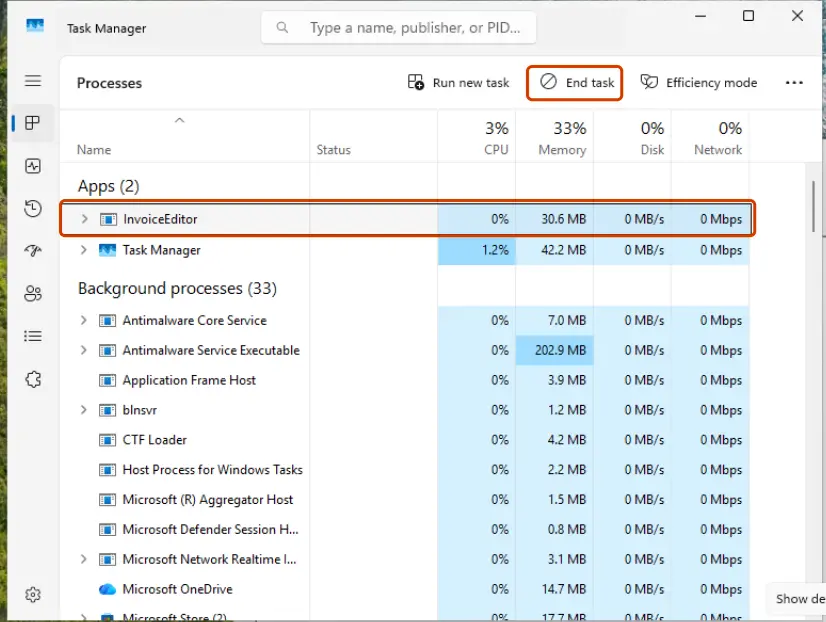
Full steps, including the command taskkill for an app that does not end: Close a frozen app (Task Manager, Force Quit).
It worked if: The app disappears from the screen and from the Apps list in Task Manager, and it starts normally the next time.
If not: If the same app keeps ignoring Alt + F4 while not frozen, it handles the shortcut itself: use its own Exit command. If every app ignores it, go back to Fix 1.
Fix 5. Restart Windows Explorer so the desktop can answer Alt + F4
2 minutesLow riskThe shutdown box never appears on the desktop, and the desktop or taskbar responds slowly.
The desktop and the taskbar belong to the Windows Explorer process. When it hangs, the desktop cannot take the focus or open its shutdown box. A restart builds the desktop again without signing you out.
- Press Ctrl + Shift + Esc to open Task Manager.
- On the Processes page, find Windows Explorer.
- Select it and choose Restart task at the top, or right-click it and choose Restart.
- Wait until the taskbar and desktop icons return, then press Win + D and Alt + F4.
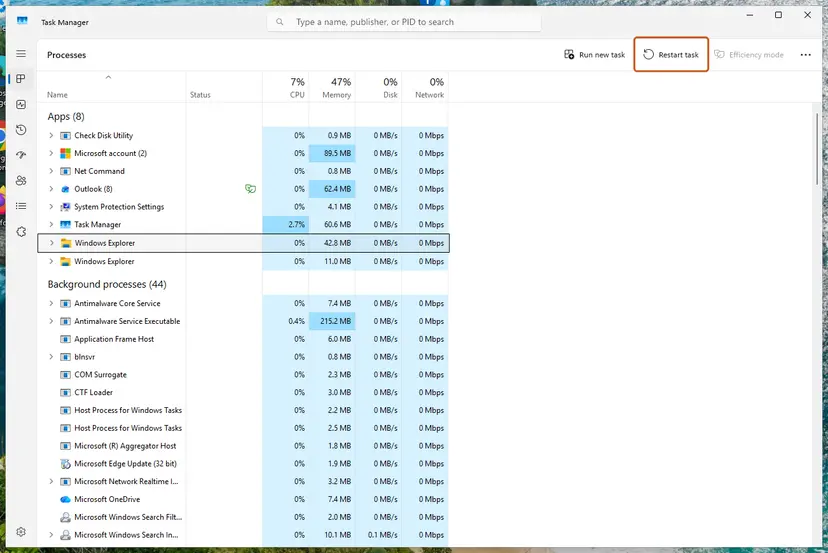
Step by step for Windows 11 and Windows 10: Restart File Explorer. The taskbar disappears for a few seconds during the restart, which is normal.
It worked if: The taskbar flickers and comes back, and Alt + F4 on the desktop opens the Shut Down Windows box.
If not: If the box still does not open and Shut down is also missing from Start, go to Fix 6. Otherwise try Fix 8.
Fix 6. Check whether a policy removed the shut down commands
5 minutesLow riskShut down is missing from Start as well, or the PC is managed by work, school or a previous owner.
Microsoft's policy Remove and prevent access to the Shut Down, Restart, Sleep, and Hibernate commands removes these commands from the Start menu and the Windows Security screen. If it is on, shutting down by shortcut is blocked by design, not broken.
A policy set by your organisation comes back at the next sync, and changing it may break their rules. On your own PC, back up the registry before deleting a value: Back up the registry before editing it. The backup lets you put it back in one step.
- Open Terminal or Command Prompt and check your user policy:
reg query "HKCU\Software\Microsoft\Windows\CurrentVersion\Policies\Explorer" /v NoClose - If the answer says that the value was not found, this policy is not set. Skip to Fix 7.
- If it shows NoClose with 0x1, the policy is on.
- On Windows 11 or 10 Pro, open the Local Group Policy Editor (Open the Local Group Policy Editor) and go to User Configuration > Administrative Templates > Start Menu and Taskbar.
- Open Remove and prevent access to the Shut Down, Restart, Sleep, and Hibernate commands, choose Not Configured, and select OK.
- On Home editions there is no editor. After the registry backup, delete the value from an administrator window:
reg delete "HKCU\Software\Microsoft\Windows\CurrentVersion\Policies\Explorer" /v NoClose /f - Sign out and sign in again, then test with Win + D and Alt + F4.
Microsoft's description covers the Start menu and the Windows Security screen. It does not say exactly what the Alt + F4 box shows under this policy, and we could not confirm that from a Microsoft source. Treat this fix as a check for managed PCs.
It worked if: Shut down is back in the Start power menu, and Alt + F4 on the desktop offers it again.
If not: If NoClose was not set, the policy is not your cause. Test the keyboard in Fix 7.
Fix 7. Test the keyboard and reinstall its driver
10 minutesLow riskAlt + F4 works on the On-Screen Keyboard but not on the physical keyboard, even with Fn and without any keyboard app.
When the on-screen keys work, Windows and the app are fine, and the fault sits in the keyboard, its firmware or its driver. Reinstalling the driver rules out the software part in a few minutes.
- Connect another USB keyboard, or try your keyboard on another PC. Microsoft staff on its forum suggest the same cross test.
- Right-click Start and choose Device Manager.
- Expand Keyboards. Right-click your keyboard, usually HID Keyboard Device or Standard PS/2 Keyboard on laptops.
- Choose Update driver, then Search automatically for drivers.
- If nothing changes, right-click the keyboard again, choose Uninstall device, confirm, and restart. Windows installs the driver again at startup.
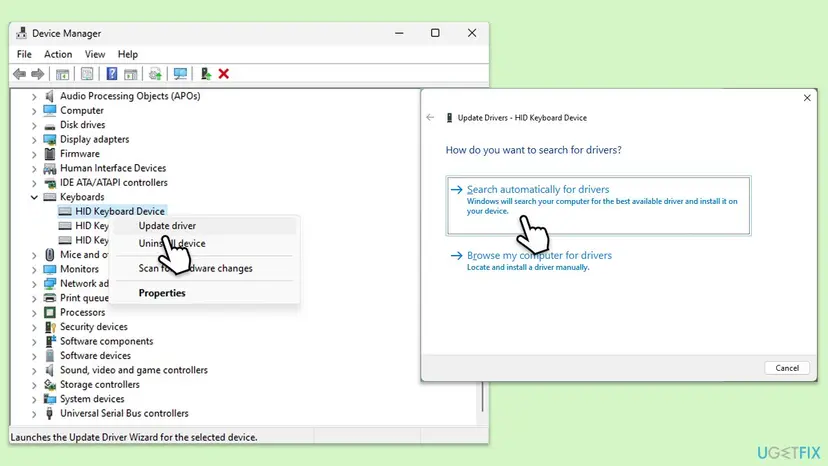
The full driver steps, with roll back for a driver that stopped working after an update: Update, roll back or reinstall a driver. A case on Microsoft's forum shows why the cross test matters: a user's wireless keyboard failed Alt + F4 on two different PCs while another keyboard worked, so the keyboard itself was at fault.
It worked if: Alt + F4 works on the physical keyboard again, or the cross test shows clearly that the keyboard is the cause.
If not: If the keyboard works on another PC but not on yours, run Fix 8. If it fails everywhere, replace the keyboard or ask its maker about a firmware update.
Fix 8. Run a clean boot, then test in a new user account
20 minutesLow riskNothing above helped, and the keyboard works on another PC.
A background program can intercept key combinations without any visible sign. A clean boot starts Windows without third-party services and startup apps. A new account shows whether the problem lives in your user profile.
- Press Win + R, type
msconfigand press Enter. - On the Services tab, tick Hide all Microsoft services, then select Disable all.
- On the Startup tab, select Open Task Manager and disable each startup app.
- Restart and test Alt + F4 in Notepad and on the desktop.
- If it works now, turn the services and apps back on in small groups to find the one that blocks the shortcut.
- If it still fails, create a local test account and test there.

Step by step with screenshots: How to perform a clean boot in Windows and Create a new user account to test a problem. When the test is over, undo the clean boot so your programs start normally again.
It worked if: Alt + F4 works in the clean boot or in the new account, which points to one program or to your old profile.
If not: If it fails in both, read the section below on what to check next and what to send to support.
Alt + F4 still not working: what to check and send to support
There is no Windows log for a shortcut that did nothing, so the evidence is the test results. Collect them before you contact the laptop or keyboard maker.
- The results of the 30-second test: does Fn + Alt + F4 work, does the On-Screen Keyboard work, does Win + D then Alt + F4 work.
- The laptop or keyboard model and the BIOS version. Lenovo, HP and Dell tie the F key behaviour to the BIOS and their hotkey software.
- Whether the keyboard fails on another PC too. If it does, it is a hardware or firmware matter for the maker, not Windows.
- Whether the clean boot or a new account changed anything. If yes, name the program you found.
Other keys with Alt also fail, F4 alone fails in apps, a key feels loose, or the keyboard fails on a second PC. On a laptop, test an external USB keyboard: if that one works, the built-in keyboard needs service.
Other ways to close a window or shut down without Alt + F4
While you look for the cause, these shortcuts from Microsoft's own list do the same jobs.
| You want to | Press |
|---|---|
| Close the active window without F4 | Alt + Spacebar, which opens the window's menu, then choose Close |
| Close one document in apps with several documents | Ctrl + F4 |
| End a frozen app | Ctrl + Shift + Esc for Task Manager, then End task |
| Shut down without the desktop box | Ctrl + Alt + Del, then the power button on the security screen |
| Get to the desktop first | Win + D |
How to keep Alt + F4 working
- After a BIOS update or a reset of BIOS defaults, check the Fn Lock or Hotkey Mode setting again. Defaults may put media keys first.
- Know where your Gaming Mode key is, and turn Gaming Mode off when you leave a game.
- Keep a list of the shortcuts you remapped in PowerToys or a keyboard app, so you know where to look.
- Before shutting down with Alt + F4, press Win + D, and glance at the list in the box before you press Enter.
- Install the keyboard and hotkey software from your laptop maker's support page, where Lenovo says the Fn Lock memory depends on it.
Windows 10 left support on 14 October 2025. The shortcut works the same there, but BIOS and hotkey software updates for older laptops may stop coming.
Frequently asked questions
Why is Alt + F4 not working in Windows 11?
Windows 11 did not change the shortcut: Microsoft's shortcut list still says Alt + F4 closes the active window, or prompts to shut down when no window is open. When it fails after an upgrade, the cause is usually around Windows. A new laptop may put media keys first, a BIOS update may reset Fn Lock, or the desktop may not be the active window when you press it. Run the 30-second test above to see which layer is at fault.
Is Alt + F4 not working on Windows 10 a different problem?
No. The shortcut, the Fn key behaviour and every fix on this page are the same on Windows 10 22H2. Only the menu names differ in places, such as the On-Screen Keyboard switch under Settings > Ease of Access > Keyboard. Keep in mind that Windows 10 left support on 14 October 2025, so the PC no longer gets security updates. Your laptop maker may also have stopped releasing BIOS and hotkey updates for it.
Why does Alt + F4 not work on my laptop when it works on my desktop?
Laptop keyboards share the top row between F1 to F12 and hotkeys such as volume, microphone and brightness. When the hotkeys come first, F4 performs its icon's action and Windows never sees F4. Hold Fn and press Alt + F4 to check. To make it permanent, turn on Fn Lock (Fn + Esc on ThinkPads) or change Hotkey Mode on other Lenovo laptops and Action Keys Mode on HP laptops in the BIOS.
How do I use Alt + F4 without the F4 key?
Use Alt + Spacebar in the window you want to close: it opens the window's own menu, where Close does the same as Alt + F4. You can also open the On-Screen Keyboard with Win + Ctrl + O or from Accessibility settings, click inside the target window, then click Alt and F4 on the screen. To shut down, press Ctrl + Alt + Del and use the power button on that screen.
Why does Alt + F4 not close my game?
Alt + F4 sends a close request, and the game decides what to do with it. Some games show their own exit menu, some ignore the request, and a frozen game cannot answer at all. Gaming keyboards add another layer: Razer's Gaming Mode blocks Alt + F4 on purpose. Turn Gaming Mode off, use the game's own exit, or end the game with Ctrl + Shift + Esc and End task.
Why does the Alt + F4 box choose Switch user instead of Shut down?
Users on Microsoft's forum report that the Shut Down Windows box in Windows 11 sometimes preselects Switch user. Pressing Enter then switches users instead of turning off the PC, which looks like Alt + F4 not working for shutdown. A volunteer moderator linked it to the policy Change Start Menu power button, which we could not confirm. The safe habit is to open the list in the box and pick Shut down before you press Enter.
Can Alt + F4 be turned off on purpose?
Yes, by software around Windows. Razer documents that its keyboards' Gaming Mode disables Alt + F4, and tools such as PowerToys Keyboard Manager can remap the combination to another one. A shutdown policy on managed PCs removes the shut down commands from Start and the security screen. In Microsoft's documentation we found no plain Windows setting that turns off Alt + F4 alone, so look at keyboard apps and remapping tools first.
Do I lose unsaved work when I press Alt + F4?
Usually not. Microsoft's developer documentation says an app can ask you to confirm before it closes, and most editors ask whether to save changes. Some apps close at once, though, so save first. Ending an app in Task Manager is different: it does not let the app save. Shutting down from the Alt + F4 box closes all apps, and Windows may wait for or warn about apps with unsaved work.
Did a Windows update break Alt + F4?
We found no Microsoft statement of a known issue with Alt + F4 in the pages we read. A recent question on Microsoft's forum blamed a January update, but the user later found that the keyboard failed on another PC too, while a different keyboard worked. If the problem started after an update, check the Fn Lock setting and the keyboard app first, then roll back the keyboard driver in Device Manager.
Sources
- Microsoft Support: Keyboard shortcuts in Windows (Alt+F4, Ctrl+F4, Alt+Spacebar, Win+D, Ctrl+Alt+Del) (support.microsoft.com)
- Microsoft Support: Use the On-Screen Keyboard (OSK) to type (support.microsoft.com)
- Microsoft Learn: WM_CLOSE message (learn.microsoft.com)
Did this fix work?
One click, no account. It tells the next reader which guides are worth their time.
Questions and experiences: fix Alt + F4 not working in Windows
Still broken, or found a fix we did not cover? Ask here: members and our editors answer. Reading is open; writing needs a free account.
…