
How to fix amd_ags_x64.dll missing or not found error in Windows?

Prefer to fix it yourself? The manual steps follow.
- 6methods
- 5 to 40 minutes
- Easy
Applies to Windows 11 and Windows 10, 64-bit games that ship amd_ags_x64.dll, on AMD, NVIDIA and Intel graphics
6 methods in this guide
Hi. I keep trying to launch Phantasy Star Online via Steam, and I keep getting the "amd_ags_x64.dll is missing" error. Please advise. Any help is appreciated.
amd_ags_x64.dll is the 64-bit AMD GPU Services (AGS) library that a game ships next to its own .exe, not a Windows or driver file. When Windows says it was not found, an antivirus removed it or the game's installation is incomplete. Check Protection history first, then verify the game's files in its launcher.
amd_ags_x64.dll belongs to the game, not to Windows or the AMD driver. Open Windows Security > Virus & threat protection > Protection history: if it removed the file from a game you bought, restore it (Fix 1). Otherwise verify the game's files in Steam or its launcher, which puts the genuine copy back (Fix 2). If the box says agsInitialize could not be located, a wrong copy is in the way (Fix 3). Never download the DLL from a DLL site.
| Error | "The code execution cannot proceed because amd_ags_x64.dll was not found. Reinstalling the program may fix this problem." Older wording: "The program can't start because amd_ags_x64.dll is missing from your computer." |
|---|---|
| Where it appears | In a small error window the moment you start a game, before any game window opens. The title bar names the game's .exe. |
| Main cause | An antivirus quarantined the file from the game's folder. Next most common: an incomplete or damaged game installation. |
| Fastest fix | Restore the file from Windows Security's Protection history (Fix 1), or verify the game's files in its launcher (Fix 2). |
| Also written as | amd ags x64.dll, amd_ags_x64, amd-ags-x64.dll, amd.ags.x64.dll, ags_x64.dll, ags x64 dll. All mean the same file. |
| The file | The DLL build of AMD GPU Services (AGS), an AMD library that lets a game read GPU and driver details and use AMD's DirectX 11 and 12 extensions. |
| Who makes it | AMD, through its GPUOpen AGS SDK (version 6.3.1, May 2026). The game's developer copies it into the game. Windows and the graphics driver do not install the game's copy. |
| Related message | "The procedure entry point agsInitialize could not be located in the dynamic link library amd_ags_x64.dll." A copy is present but is a different AGS version than the game expects. |
| Do not | Download it from a DLL site, copy it from another game, or put it in System32. Installing AMD Software on an NVIDIA PC does not help either. |
| Time to fix | 5 minutes for a quarantine restore, up to 40 minutes for a verify or reinstall of a large game. |
Facts checked on 16 October 2026. Steps written for Windows 11 (25H2 and 26H2) and Windows 10 22H2, games from Steam and other launchers.
What amd_ags_x64.dll is and what "amd_ags_x64.dll was not found" means
amd_ags_x64.dll is the 64-bit DLL of the AMD GPU Services (AGS) library. AMD describes AGS as a way for developers to query AMD GPU software and hardware state that standard operating systems and graphics APIs do not expose. That covers the driver version, the GPU's memory and clocks, displays and HDR modes, and extra DirectX 11 and 12 extensions.
- Who ships it
- The game. AMD's own setup steps for developers say: "Copy the AGS dll into the same directory as your game executable."
- The name
x64marks the 64-bit build. AMD added 32-bit (x86) libraries in AGS 5.4.1 (June 2020), so a 32-bit game asks for the x86 build instead.- Which graphics cards
- Any. AMD's SDK notes say AGS also runs on non-AMD hardware, only with limited use. That is why NVIDIA and Intel PCs see this box too.
- Current version
- AGS 6.3.1 (May 2026). Each game carries the version its developer built it with, which can be years older.
The error box comes from Windows, not from the game or from AMD. Before the game runs a single line of its own code, Windows loads the DLLs listed in its .exe. If one of them is not in the game's folder or any other folder Windows searches, the start stops and the box appears.
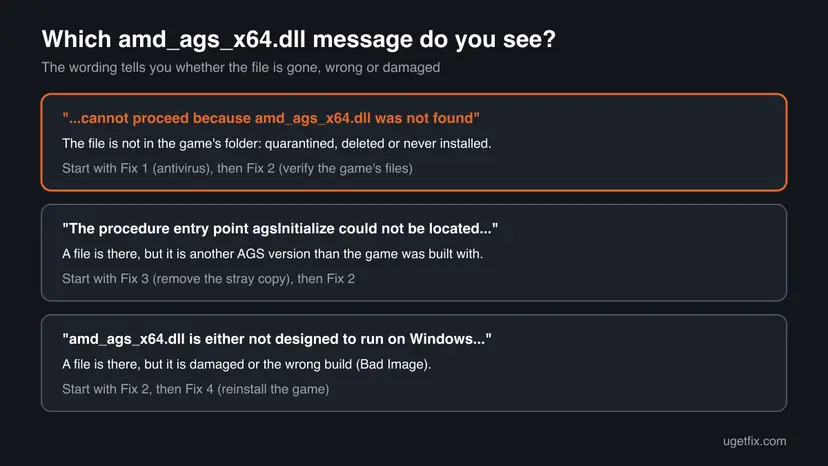
| What the window says | What it tells you | Start with |
|---|---|---|
| "The code execution cannot proceed because amd_ags_x64.dll was not found. Reinstalling the program may fix this problem." | The file is not in the game's folder: quarantined, deleted or never downloaded. | Fix 1, then Fix 2 |
| "The program can't start because amd_ags_x64.dll is missing from your computer." | The same case in older Windows wording. Searches for "amd_ags_x64.dll is missing" mean this box. | Fix 1, then Fix 2 |
| "The procedure entry point agsInitialize could not be located in the dynamic link library amd_ags_x64.dll." | A file is there, but it lacks the start function in the form the game calls. It is another AGS version. | Fix 3 |
| "amd_ags_x64.dll is either not designed to run on Windows or it contains an error." (title Bad Image) | A file is there but damaged, cut short by a failed download or a disk error. | Fix 2, then Fix 4 |
- Same file, other spellings: amd ags x64.dll, amd_ags_x64, amd-ags-x64.dll, amd.ags.x64.dll and ags_x64.dll in searches all mean amd_ags_x64.dll. Windows ignores upper and lower case.
- "amd_ags_x64 not found" without .dll: the same box. Some launchers and crash reporters drop the extension.
- Windows 11 and Windows 10: the box and the fixes are the same on both. Windows 10 left support on 14 October 2025, which does not change this error.
- Not this error: a box that names another file, such as VCRUNTIME140.dll or MSVCP140.dll, is a Visual C++ runtime problem. Fix 5 and our VCRUNTIME140_1.dll guide cover it.
Where the amd_ags_x64.dll file belongs: the game's folder, not Windows or the driver
Every game that uses AGS carries its own copy next to its .exe. For a Steam game that is a folder under steamapps\common\, one per game. Some games keep the .exe and its DLLs in a subfolder such as bin or Binaries\Win64. The quickest way to open the right folder is the launcher's own Browse local files or Open folder command.
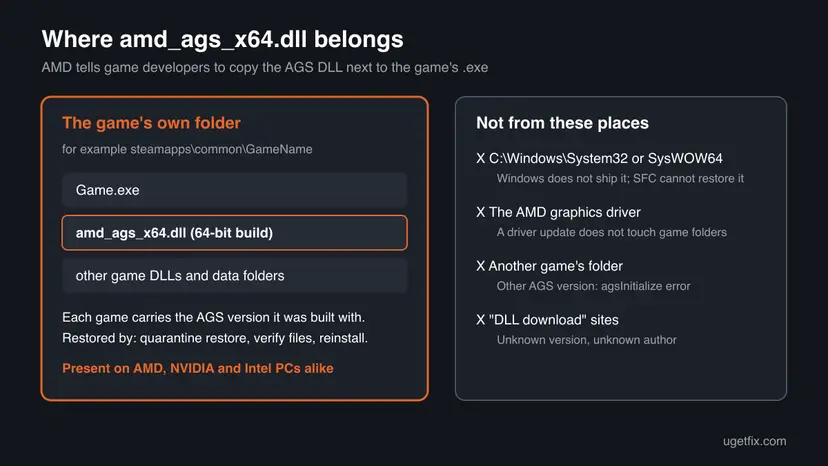
- Not a Windows file. Windows does not ship amd_ags_x64.dll, so SFC, DISM and Windows Update cannot restore it. A copy in
C:\Windows\System32orSysWOW64was put there by hand or by a tool and does not belong. - Not a driver file. The AGS code talks to the AMD driver, but the DLL the game loads is the game's own. Updating or reinstalling AMD Software does not write into a game's folder, which is why the driver tip of the earlier version of this guide rarely helped.
- Not shared between games. AMD changed the AGS start function in version 6.0 "to make sure the AGS dll matches the header and calling code". A copy from another game can be a different version, and the game then stops with the agsInitialize message.
- Not from AMD's download page either, for a player. AMD publishes the AGS SDK on GitHub under the MIT licence for developers. Its DLL is the newest version, not necessarily the one your game was built with.
Why amd_ags_x64.dll goes missing, from most to least common
Three causes cover almost every case. The way to tell them apart is in Protection history and in the wording of the box, so you rarely need to guess.
| Cause | How you recognise it | Fix |
|---|---|---|
| An antivirus quarantined or deleted the file | The box appeared after a scan or a definitions update; Protection history lists the file. This is why people search "amd_ags_x64.dll virus". | Fix 1 |
| The game's installation is incomplete or damaged | No antivirus entry; the download was interrupted, the drive ran out of space, or the game was moved by hand. | Fix 2, then Fix 4 |
| A wrong copy sits in the game's folder or in System32 | The agsInitialize message, or the box began after you copied a DLL from somewhere. | Fix 3 |
| An older AGS build cannot load its Visual C++ runtime | Before AGS 6.1 (January 2023) the DLL linked the runtime separately; the box often names a VCRUNTIME or MSVCP file. | Fix 5 |
| The copy of the game did not come from an official store | A repack or a folder copied from someone else; the antivirus flags its files. | Fix 6 |
| A failing disk | Several games lose or damage files; verifies keep finding new damage. | Still broken section |
The make of your graphics card does not. A game that ships amd_ags_x64.dll needs the file on an NVIDIA or Intel PC as well, so switching drivers or installing AMD Software changes nothing. The registry does not either: Windows finds this DLL by looking in the game's folder, not through a registry entry.
How to fix the amd_ags_x64.dll missing or not found error
Fix 1 checks whether your antivirus took the file and brings it back. Fix 2 lets the launcher replace it with the genuine copy, and Fix 3 removes a wrong copy behind the agsInitialize message. Fix 4 reinstalls the game. Fix 5 is for older games whose AGS build needs the Visual C++ runtime, and Fix 6 for a copy that did not come from an official store.
| What you see or have | Start with |
|---|---|
| The box appeared after a scan, or Windows Security showed an alert. | Fix 1 |
| No alert, and the game is in your Steam, Epic, EA, Xbox or GOG library. | Fix 2 |
| The box says agsInitialize could not be located, or you copied a DLL in by hand. | Fix 3, then Fix 2 |
| The file is back after a verify but the box returns, or verifying finds nothing. | Fix 4 |
| The box names VCRUNTIME140.dll or MSVCP140.dll as well, or the game is from before 2023. | Fix 5 |
| The game is not in any store library: a repack, a crack or a copied folder. | Fix 6 |
Fix 1. Restore amd_ags_x64.dll from Microsoft Defender quarantine
5 minutesLow riskYour game is from an official store and Windows Security, or another antivirus, removed the file.
An antivirus that quarantines a file moves it out of the game's folder, and Windows then reports it as not found. Protection history shows whether this happened, the exact path and the detection name. Restoring a genuine store file puts it back where the game expects it.
- Close the game.
- Open Windows Security from the Start menu and select Virus & threat protection.
- Under Current threats, select Protection history.
- Open the entry whose affected item path ends in
amd_ags_x64.dll. Note the detection name and the folder. - If the folder is your own game folder from Steam or another store and you added no patch or crack, select Actions > Restore.
- If the file is flagged again right away, open the new entry and select Allow on device, only for this genuine file.
- Start the game from its launcher.
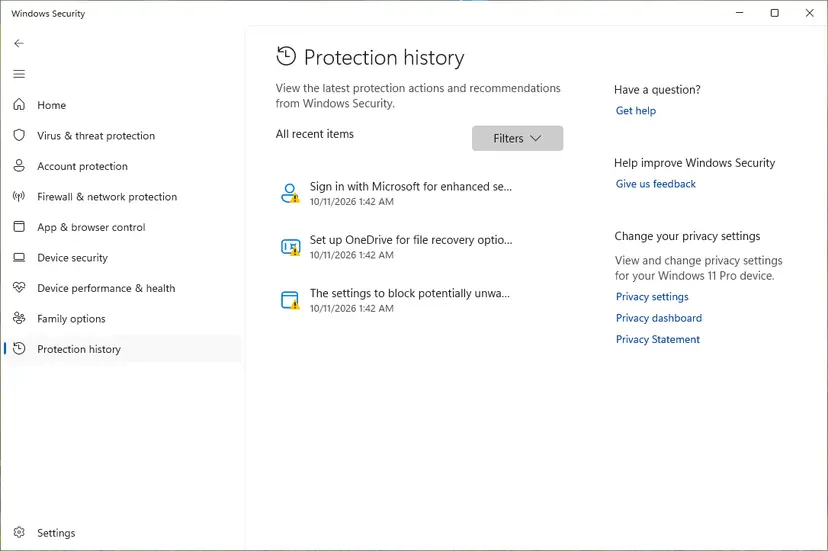
| What the entry shows | What to do |
|---|---|
| A path in your store game folder, a game you bought, no mods or patches | Restore it, or skip this and use Fix 2 to get a fresh copy from the store. |
| A path in a folder no launcher created, or a game not in any store library | Do not restore. Select Remove and go to Fix 6. |
| A detection name of a trojan, stealer or backdoor | Do not restore. Remove it and run the scans in Fix 6. |
| No entry at all | The antivirus did not take it. Go to Fix 2. |
- Another antivirus. If a third-party antivirus is installed, Microsoft Defender steps aside and that program keeps its own quarantine, often called Vault or Chest. Look there for the same path.
- If the file keeps disappearing. Send the file to your antivirus vendor as a false positive. If you must, add an exclusion for the one game folder only, never the whole drive, and remove it after the next game update.
It worked if: Protection history shows the item as restored or allowed, the file is back next to the game's .exe, and the game starts.
If not: If there is no entry, or the restored file does not help, go to Fix 2.
Fix 2. Verify the game's files in Steam or its launcher
5 to 30 minutesNo riskThe game is in your Steam, Epic Games, EA app, Xbox app, Battle.net or GOG Galaxy library.
The launcher compares every installed file of the game with the version on its servers and downloads what is missing or changed. That includes the exact amd_ags_x64.dll build the developer shipped, so you get the right version without guessing.
- Close the game and keep its launcher open.
- In Steam, right-click the game in your Library and select Properties.
- Open the Installed Files tab and select Verify integrity of game files.
- Wait until it finishes. Do not run a virus scan or verify another game at the same time.
- Start the game from Steam.
Epic Games, the EA app, the Xbox app, Battle.net and GOG Galaxy have the same check under the game's options. Steps for every launcher: How to verify game files in Steam, Epic Games, Xbox app, EA app, Battle.net and GOG Galaxy
Open the game's folder with Manage > Browse local files in Steam, or the launcher's Open folder command. Turn on View > Show > File name extensions in File Explorer and look for amd_ags_x64.dll next to the game's .exe. If the verify reports files reacquired but the DLL is gone again a minute later, your antivirus took it again: go back to Fix 1.
Many games keep local settings files that the launcher reports as different and leaves alone. What counts is whether amd_ags_x64.dll is back in the folder and the game starts.
It worked if: The launcher reports that it replaced one or more files, amd_ags_x64.dll is next to the game's .exe, and the game starts.
If not: If the box now names agsInitialize, go to Fix 3. If nothing changes, reinstall the game with Fix 4.
Fix 3. Remove a wrong copy of amd_ags_x64.dll behind the agsInitialize error
10 minutesLow riskThe box says the procedure entry point agsInitialize could not be located, or you copied the DLL from another game, a DLL site or the AGS SDK.
agsInitialize is the first AGS function a game calls. AMD's documentation says games call it on start, and AMD revised this start function in AGS 6.0. A copy from another AGS version does not offer the function in the form the game calls, so Windows stops the start with the entry point message.
- Close the game and its launcher.
- Open Command Prompt and list every copy in the game's folder. Replace the path with your game's folder.
dir /s /b "C:\Program Files (x86)\Steam\steamapps\common\GameName\amd_ags*.dll" - Check the Windows folders as well. A result here was put there by hand and does not belong.
dir /b C:\Windows\System32\amd_ags*.dll C:\Windows\SysWOW64\amd_ags*.dll - Move every copy you or a tool added, including any in System32 or SysWOW64, to a folder on your desktop rather than deleting it.
- Verify the game's files with Fix 2 so the launcher puts its own copy back.
- Start the game. If it runs, delete the moved copies.
Only move files named amd_ags followed by a build name, and only after the dir command shows them. Do not touch any other file in System32 or SysWOW64. Removing the wrong system file can stop Windows or other programs from starting. If you are unsure, leave System32 alone and only clean the game's folder.
Right-click a copy, open Properties > Details and read Product version to compare two copies. A different version from the one the launcher installs is the wrong one. We could not confirm that every AGS build carries an AMD digital signature, so a missing Digital Signatures tab alone does not prove a file is fake.
It worked if: The game's folder holds one amd_ags_x64.dll, the one the launcher installed, and the entry point box no longer appears.
If not: If the game still stops, reinstall it cleanly with Fix 4.
Fix 4. Uninstall and reinstall the game
15 to 60 minutes, depending on the game's sizeRead the warningVerifying did not bring the file back, the game has no verify option, or the box returns right after a verify.
A verify repairs files the launcher knows about. A folder that was moved, copied in by hand or mixed with mod files can still load a wrong DLL. A clean installation leaves only what the launcher puts there, including the matching amd_ags_x64.dll.
Many games keep saves in the cloud or in your Documents or AppData folder, and those survive an uninstall. Some keep them inside the game folder, which is deleted. If you are unsure, copy the game folder's save and config subfolders to another place first: Back up your files (Windows Backup, File History, Time Machine)
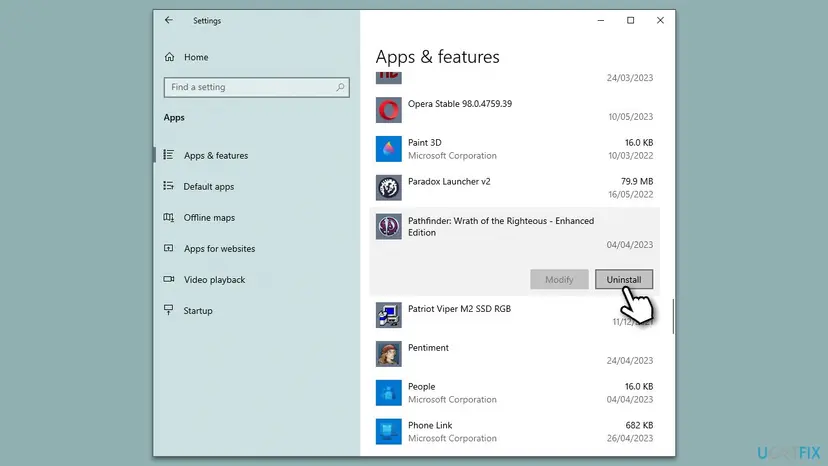
- Uninstall the game from its launcher: in Steam, right-click it and select Manage > Uninstall. For a game with its own installer, use Settings > Apps > Installed apps.
- Open the game's old folder and delete what the uninstaller left behind, after saving anything you need.
- Restart the PC.
- Install the game again from its launcher, on a drive with room for the full game.
- Start the game once before you add any mods.
It worked if: The game installs again, its folder holds amd_ags_x64.dll, and it starts.
If not: If a fresh installation still shows the box, read the still-broken section below; the game build itself may be faulty.
Fix 5. Repair the Visual C++ runtime for older games
15 to 30 minutesLow riskThe game is from before 2023, the file is present, and the box also names VCRUNTIME140.dll or MSVCP140.dll, or says the DLL cannot be loaded.
AMD's release notes say that from AGS 6.1 (January 2023) the DLL links the runtime library statically. Builds before that rely on the Microsoft Visual C++ runtime being installed. A damaged runtime can then make amd_ags_x64.dll fail to load even though it sits in the right folder.
- Press Win + R, type
appwiz.cpland press Enter to open Programs and Features. - Find each Microsoft Visual C++ Redistributable entry, x64 and x86, for the newest version installed.
- Select one, choose Change and then Repair. Repeat for each entry.
- Restart the PC and start the game.
If no such entry is installed, add the latest supported version from Microsoft's own page. Full steps with pictures: How to repair Microsoft Visual C++ Redistributable and .NET Framework
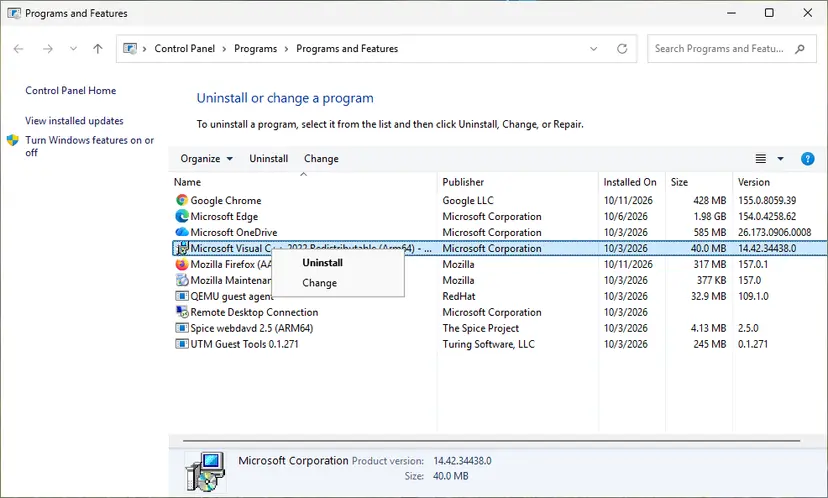
It worked if: The Visual C++ entries repair or install without errors, and after a restart the game starts.
If not: If the box only ever named amd_ags_x64.dll, this fix will not help: go back to Fix 2 or Fix 4.
Fix 6. Remove a copy of the game that did not come from an official store, and scan the PC
30 to 60 minutesRead the warningThe game is not in any store library: a repack, a crack, a trainer pack or a folder copied from elsewhere.
In a copy from an unknown source any DLL may be replaced or missing, and an antivirus removes files it cannot trust. No safe fix makes such a file load. The safe end is to remove the copy and check the PC, because files from such sources are a common way malware arrives.
Removing the game deletes saves kept inside its folder. A full scan does not delete your documents, but it may remove other files it detects. Back up your personal files first if you have no recent copy: Back up your files (Windows Backup, File History, Time Machine)
- Do not restore or allow the flagged amd_ags_x64.dll in Protection history. Select Remove on its entry.
- Uninstall the game, or delete its folder if it had no installer: Uninstall a program or app in Windows
- Run a Full scan in Windows Security, then a Microsoft Defender Antivirus (offline scan): How to scan for malware with Microsoft Defender
- Open Protection history after the offline scan and read what it found.
- If anything was found under a stealer, trojan or backdoor name, change the passwords of your important accounts from another, clean device.
- Get the game from an official store. Its own files include the genuine DLL.
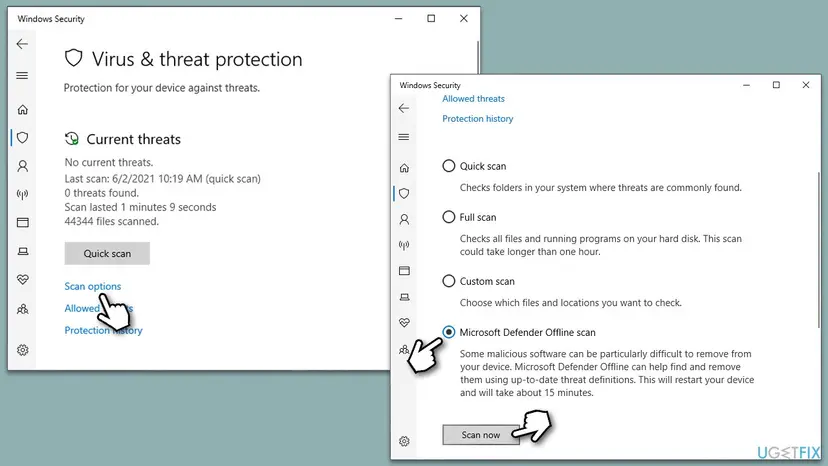
It worked if: The scans finish with no threats or with the found items removed, and the PC no longer holds the untrusted copy.
If not: If the offline scan keeps finding threats, back up your files and reset the PC: Reinstall Windows without losing files
If the amd_ags_x64.dll error is still there: what to check and what to send
When the box survives the fixes for your case, collect facts before you change anything else. Four places hold them: the box itself, the game's folder, Protection history and the Windows Application log.
- Write down the full text of the box and its title. Note whether it says not found, agsInitialize or not designed to run on Windows.
- Run the
dircommand from Fix 3 and note every copy of the DLL and where it is. - Open Windows Security > Virus & threat protection > Protection history and note any entry with the game's path, its date and the detection name.
- Open Event Viewer and go to Windows Logs > Application. Look for Application Error or Application Popup entries at the time of the box; they name the program and, for a crash, the faulting module.
- What to send to the developer: the box text, the game's version, your Windows version and graphics card, the
dirresult and whether Protection history shows the file. Post it in the game's store discussions or on the developer's support page. - When it is the game, not your PC: the file is present, nothing is quarantined, other games start, and the box began right after a game update. Then the update shipped broken and the developer has to fix it.
- When it is a different problem: a box that names another file, or a crash after the game window opens, has its own cause.
If several games lose files, or verifies keep finding damaged files without any antivirus entry, the disk may be failing. Check it with Check a disk for errors (chkdsk) before you reinstall anything again. Memory errors can corrupt downloads too: How to test your RAM with Windows Memory Diagnostic
How to keep the amd_ags_x64.dll error from coming back
- Install games from Steam or another official store, so their files include the genuine DLL.
- Check Protection history whenever a game suddenly stops starting after a scan.
- Report a false positive to your antivirus vendor instead of turning protection off.
- Keep any exclusion to one game folder, and remove it once it is no longer needed.
- Let the launcher finish updates and verifies before you start the game.
- Download amd_ags_x64.dll from a DLL site.
- Copy the DLL from one game into another.
- Put game DLLs into System32 or SysWOW64.
- Turn off real-time protection to keep a file.
- Run game patches, trainers or cracks from unknown sources.
Frequently asked questions
What is amd_ags_x64.dll?
amd_ags_x64.dll is the 64-bit DLL of AMD GPU Services (AGS), a library AMD gives game developers through its GPUOpen site and GitHub. A game uses it to read the graphics driver version, GPU details and display modes, and to switch on extra DirectX 11 and 12 features of AMD drivers. The developer copies the DLL next to the game's .exe, so each game has its own copy. It is not part of Windows and not part of the AMD driver, which is why verifying the game's files restores it and Windows repair tools do not.
Where is amd_ags_x64.dll located?
In the game's own folder, next to the game's .exe file. For a Steam game that folder sits under steamapps\common, one subfolder per game; other launchers use their own library folder. Some games keep the .exe and its DLLs in a subfolder such as bin or Binaries\Win64. The fastest way to find it is the launcher's Browse local files or Open folder command. It does not belong in System32 or SysWOW64, and a copy there was put in by hand.
Can I download amd_ags_x64.dll?
Not from a DLL download site. Such files come from unknown sources, can be any AGS version, and can be modified. A wrong version gives the agsInitialize error, and a modified one is a security risk. AMD publishes the AGS SDK on GitHub for developers, but its DLL is the newest version and not necessarily the one your game needs. The safe way to get the right file is to let your launcher verify the game's files (Fix 2), which downloads the exact copy the developer shipped. The same answer applies to searches in other languages, such as "amd_ags_x64.dll скачать".
Is amd_ags_x64.dll a virus?
The genuine file is not. It is AMD's own library, shipped by the game's developer. Antivirus programs sometimes flag it, either by mistake or because the copy was modified, which is the usual reason the file goes missing. Look at the detection name and the path in Protection history. A file in a game folder from an official store with a generic or hack tool detection is likely a false positive. A file in a repack, a crack or an unknown folder, or a trojan or stealer detection, should be removed and the PC scanned, as in Fix 6.
Do I need an AMD graphics card for amd_ags_x64.dll?
No. A game that ships amd_ags_x64.dll asks for it on every PC, whatever the graphics card. AMD's notes say AGS runs on non-AMD hardware too, it is just of limited use there. So an NVIDIA or Intel PC shows the same not found box when the file is missing, and the fix is the same: restore the file from quarantine or verify the game's files. Installing AMD Software on a PC without an AMD GPU does not add the file and does not help.
Will updating my AMD drivers fix amd_ags_x64.dll not found?
Rarely. The file the game looks for is the copy in the game's own folder, and a driver update does not write into game folders. An outdated driver can cause other game problems, so keeping it current is good practice, but it does not bring back a quarantined or deleted amd_ags_x64.dll. Restore the file from Protection history (Fix 1) or verify the game's files (Fix 2) instead. Steps for drivers, if you need them for another reason: Update, roll back or reinstall a driver
What does "agsInitialize could not be located" mean?
It means a copy of amd_ags_x64.dll is present, but it is not the AGS version the game was built with. agsInitialize is the function a game calls to start AGS, and AMD revised this start function in AGS 6.0. A game built for one version cannot use the function from another. The usual cause is a DLL copied from another game, a DLL site or the AGS SDK. Remove the extra copies, including any in System32, and verify the game's files, as in Fix 3.
Does the amd_ags_x64.dll error look different on Windows 11?
No. Windows 11 and Windows 10 show the same box, "The code execution cannot proceed because amd_ags_x64.dll was not found. Reinstalling the program may fix this problem.", and every fix on this page works the same on both. AMD lists Windows 11 among the systems AGS supports. If you see the error right after moving to Windows 11, the likely cause is the game folder you carried over or an antivirus scan, not Windows 11 itself.
Can I put amd_ags_x64.dll in System32 to fix it?
No. Windows searches the game's folder first, and the game needs the exact AGS version it was built with. A copy in System32 or SysWOW64 is often a different version, which leads to the agsInitialize error, and it can affect every other game that loads the DLL from there. If you put one there earlier, move it out as described in Fix 3 and let the launcher restore the game's own copy.
What does "amd_ags_x64.dll introuvable" mean?
It is the French wording of the same error: "introuvable" means "not found". The French box says the code cannot run because amd_ags_x64.dll is missing, and it has the same causes and the same fixes as on this page. Start with Protection history (Fix 1), then verify the game's files in its launcher (Fix 2).
Sources
- AMD GPUOpen: AMD GPU Services (AGS) Library (version 6.3.1, requirements, version history) (gpuopen.com)
- AMD GPU Services (AGS) documentation: Using the AGS library (copy the AGS dll next to the game executable, agsInitialize) (gpuopen-librariesandsdks.github.io)
- GitHub, GPUOpen-LibrariesAndSDKs: AMD AGS SDK README (6.0 initialization change, 6.1 static runtime, 5.4.1 x86 libs, non-AMD hardware) (github.com)
Did this fix work?
One click, no account. It tells the next reader which guides are worth their time.
Questions and experiences: fix amd_ags_x64.dll missing or not found error in Windows
Still broken, or found a fix we did not cover? Ask here: members and our editors answer. Reading is open; writing needs a free account.
…