
How to fix app is opening as background processes in Windows?

Prefer to fix it yourself? The manual steps follow.
- 9methods
- 1 to 40 minutes
- Easy
Applies to Desktop programs, Microsoft Store apps and games on Windows 11 and Windows 10
9 methods in this guide
I have a problem with one of my apps: it keeps opening in the background as a process, but I can't use it otherwise. I can't see any UI elements or access its functions, even though I see it active in Task Manager.
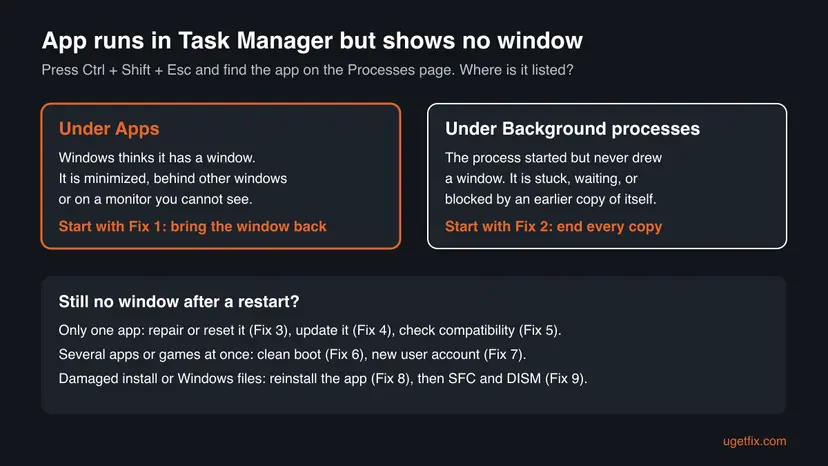
When an app shows up in Task Manager but no window appears, either the window exists and is hidden, or the process started and never drew a window. Task Manager tells you which: look at whether the app sits under Apps or under Background processes, then start with Fix 1 or Fix 2.
Press Ctrl + Shift + Esc. If the app is listed under Apps, its window is open but off screen or behind others: bring it back with Alt + Tab or Win + Shift + Left arrow (Fix 1). If it sits under Background processes, end every copy of it and restart Windows with Restart, not Shut down (Fix 2). Still nothing? Repair or reset the app in Settings (Fix 3).
| Error | No error message. The app starts, its process appears in Task Manager, but no window and often no taskbar button appear. |
|---|---|
| Where it appears | Right after you start the app or game, from the Start menu, a shortcut or a launcher such as Steam or Epic. |
| Main cause | A copy of the app that hung earlier still runs in the background, so the new start hands over to it and closes. Less often the window opens off screen or on a disconnected monitor. |
| Fastest fix | End every copy of the process on the Details page of Task Manager, then use Restart (Fix 2, about 3 minutes). |
| Also searched as | Program running in Task Manager but not opening, app opens in background instead of foreground, game running in background but won't open, I can't open the app. |
| Affects | Any desktop program, Microsoft Store app or game on Windows 11 and Windows 10. Users report it with Microsoft Access, Photos, older 32-bit programs and games. |
| Microsoft's status | Not a known issue with one cause. Microsoft's general advice for an app that does not run correctly is Repair, then Reset, in Settings (checked 16 October 2026). |
| Time to fix | 1 to 5 minutes for Fixes 1 and 2. 20 to 40 minutes for a clean boot, a new account or a reinstall. |
Facts checked on 16 October 2026. Steps written for Windows 11 (25H2 and 26H2) and Windows 10 22H2.
What it means when an app opens as a background process
Task Manager sorts everything that runs into two groups on its Processes page. Apps are programs that have a window you can switch to. Background processes run without a window: updaters, tray tools, services of other programs. A background process is normal. It only becomes this problem when the app you just opened lands in that second group and stays there.
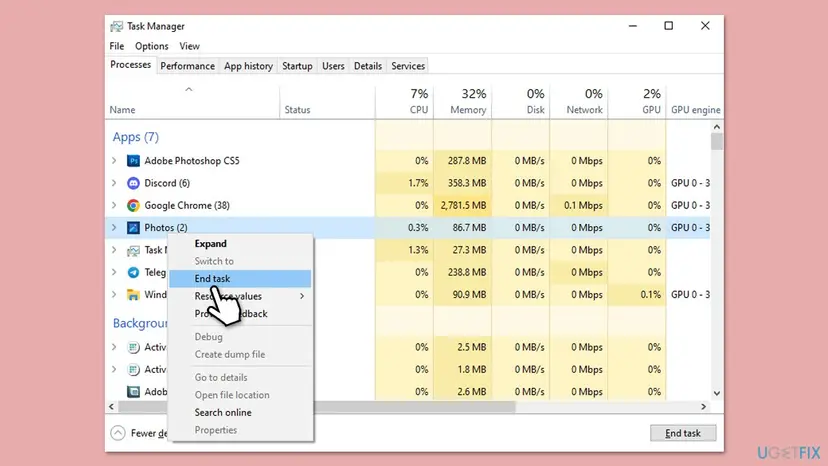
- Listed under Apps, but nothing on screen: Windows thinks the window exists. It is minimized, behind other windows, or placed on a monitor that is no longer connected. Start with Fix 1.
- Listed under Background processes only: the process started but never created its window. It is waiting for something, it crashed while starting, or it found an older copy of itself and handed over to it. Start with Fix 2.
- Listed several times: you clicked the icon more than once. Each click can start a new copy that waits for the first one. End them all (Fix 2).
People describe the same problem in many ways: a program running in Task Manager but not opening, an app opening in the background instead of the foreground, or a game that runs in the background but won't open. The fixes below cover all of these.
Why apps open in the background and not on screen: causes, most common first
There is no single cause, and the old advice of updating drivers rarely helps first. The table ranks the causes by how often each one explains what users report, and ties each to the fix that answers it.
| How often | Cause | Typical sign | Fix |
|---|---|---|---|
| Most often | An earlier copy of the app hung and still runs, so each new start waits for it | Several copies in Task Manager; it works after End task | Fix 2 |
| Often | The window opens off screen, minimized or behind other windows | Listed under Apps; a taskbar button may appear | Fix 1 |
| Often | Damaged app data or settings | Only this app; it started after a crash or a forced shutdown | Fix 3 |
| Less often | An old app version after a Windows update | Started after an update; the app has a newer version | Fix 4 |
| Less often | The program is not compatible with Windows 11 | An old 32-bit program, often one that installs its own driver | Fix 5 |
| Less often | Another program blocks it: an overlay, a security tool, a tray utility | Several apps or games fail at random times | Fix 6 |
| Rarely | A damaged user profile | The app opens for another Windows user | Fix 7 |
| Rarely | Damaged program or Windows files | Nothing above helps | Fix 8, Fix 9 |
A user on Microsoft's Tech Community reports that new games opened only as background processes, across several drives and launchers, and that Windows then hung on the shutdown screen until the power was cut. That pattern points to Windows itself or a program that loads with it, not to one game. Go to Fix 6 and Fix 7.
How to fix an app opening as a background process
Fixes 1 and 2 solve most cases in a few minutes and match what Task Manager shows. Fixes 3 to 5 repair one app. Fixes 6 and 7 find another program or a profile problem when many apps fail. Fixes 8 and 9 are the last repairs.
| What you see | Start with |
|---|---|
| The app is under Apps in Task Manager, or it has a taskbar button, but no window. | Fix 1 |
| The app is under Background processes, or listed several times. | Fix 2 |
| Only one app does it, every time, even after a restart. | Fix 3, then Fix 4 |
| An old program asks for admin rights, then shows nothing. | Fix 5 |
| Many apps or games do it at random, and shutdown sometimes hangs. | Fix 6, then Fix 7 |
| Nothing above helped. | Fix 8, then Fix 9 |
Fix 1. Bring a hidden or off-screen window back into view
1 minuteNo riskThe app is listed under Apps in Task Manager, or a taskbar button appears, but you see no window.
Windows remembers where a window was last placed. If that was a second monitor that is now unplugged, or a spot outside the screen, the app opens there and looks invisible. Moving it with the keyboard puts it back on the screen you use.
- Press Alt + Tab and look for the app among the open windows. Select it if it is there.
- Press Win + Tab to see every window on every desktop. If you use more than one virtual desktop, check each one at the top.
- If the app has a taskbar button, select it once so its window is active.
- Press Win + Shift + Left arrow or Win + Shift + Right arrow. This moves the active window to the other monitor, and back to the one you see.
- Still not visible? With the app active, press Win + Up arrow to maximize it on the current screen.
- Check the notification area at the right of the taskbar. Select the small arrow for hidden icons: some apps start there as a tray icon and open their window when you double-click it.
Right-click the shortcut you use, select Properties and look at Run on the Shortcut tab. If it says Minimized, set it to Normal window and select OK.
It worked if: The app's window slides onto your screen and you can use it normally.
If not: If no window appears with any of these keys, the window was never created. Go to Fix 2.
Fix 2. End every copy of the app and restart Windows properly
3 minutesLow riskThe app is under Background processes, appears several times, or nothing happened in Fix 1.
Many programs allow only one copy at a time. If an earlier copy hung while starting, every new start finds it, hands over and closes, so you never see a window. Ending every copy clears that block. A user on Microsoft Q&A reports that Microsoft Access opened only after End task.
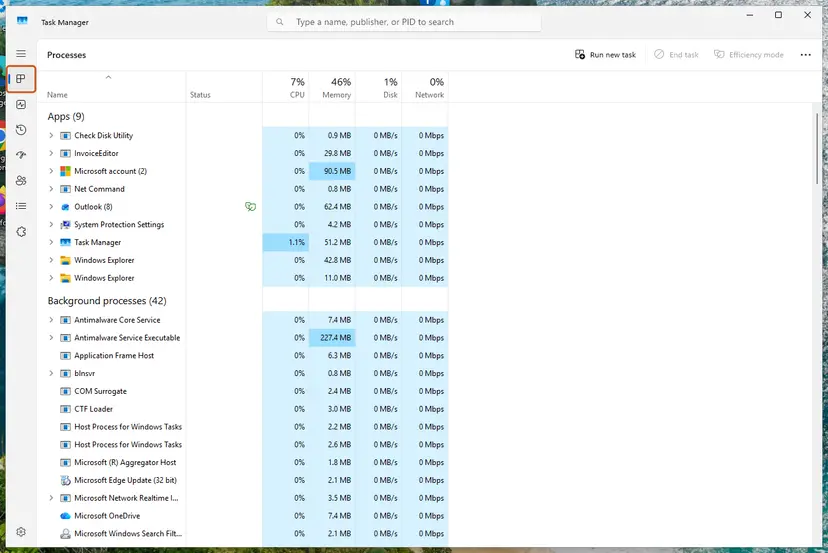
- Save your work in other apps. Press Ctrl + Shift + Esc to open Task Manager.
- On the Processes page, look under Apps and under Background processes for the app's name.
- Right-click each entry of the app and select End task. Unsaved work in that app is lost. Step by step: Close a frozen app (Task Manager, Force Quit)
- Open the Details page and look for the app's .exe file, for example
MSACCESS.EXEfor Access. Right-click each copy and select End task. - Start the app once and wait 30 seconds before clicking again.
- Still nothing? Open Start, select Power and choose Restart, not Shut down. Then start the app.
With Fast Startup on, Shut down keeps part of the running Windows session for the next start, so a stuck component can survive it. Restart always starts Windows fresh. If you prefer Shut down, you can turn Fast Startup off: Turn off Fast Startup
It worked if: Task Manager shows the app once, under Apps, and its window opens normally.
If not: If the app goes back to the background after a restart, the app itself is damaged. Go to Fix 3.
Fix 3. Repair or reset the app in Settings
5 minutesRead the warningOnly this one app opens in the background, every time, even after a restart.
Microsoft's advice for an app that does not run correctly is to select Repair first and Reset second. Repair fixes the app's files and keeps your data; Reset also clears the app's settings and saved data, which removes a damaged state that stops the window from loading.
Reset removes the app's settings, sign-in and local data. Try Repair first. Before a Reset, sync or export what the app keeps only on this PC.
- End the app in Task Manager as in Fix 2.
- Select Start > Settings > Apps > Installed apps. On Windows 10: Settings > Apps > Apps & features.
- Select More (the three dots) next to the app, then Advanced options. Some apps do not have this option.
- Select Repair if it is there. Then start the app.
- If it still opens in the background, go back and select Reset.
- For a classic desktop program: open Control Panel > Programs > Programs and Features, right-click it and select Repair, or Change if Repair is missing.
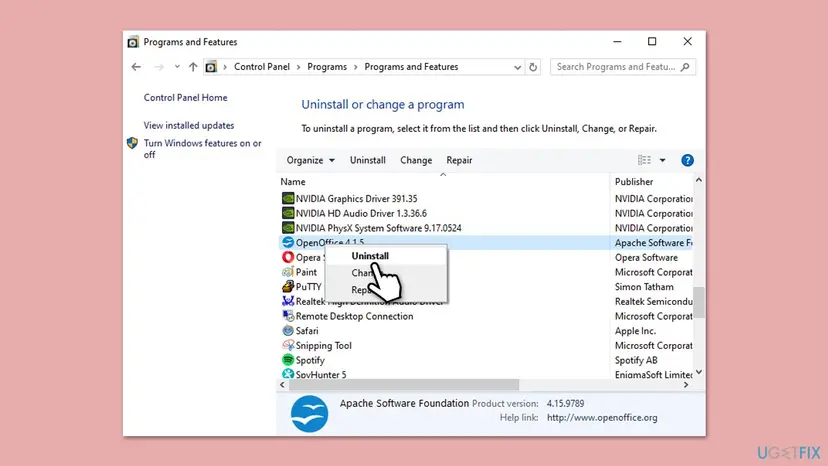
Step by step with screenshots: How to repair or reset an app in Windows
It worked if: After Repair or Reset the app opens its window, possibly asking you to sign in or set it up again.
If not: If the app has no Repair or Reset option, or nothing changed, update it in Fix 4.
Fix 4. Update the app
5 minutesLow riskThe problem started after a Windows update, or the app is several versions old.
An app built for an older Windows build can fail at the moment it draws its window after Windows changes. Developers fix such starts in new versions, so updating replaces the failing code.
- For a Microsoft Store app such as Photos: open Microsoft Store, select Library (Windows 10: Downloads and updates) at the bottom left.
- Select Get updates and wait until the app's update has finished.
- For a desktop program, use its own update option if it opens on another account, or download the latest installer from the developer's website and run it over the old version.
- For a game, update it in its launcher, then use the launcher's verify option. Step by step: How to verify game files in Steam, Epic Games, Xbox app, EA app, Battle.net and GOG Galaxy
- Restart Windows and start the app.
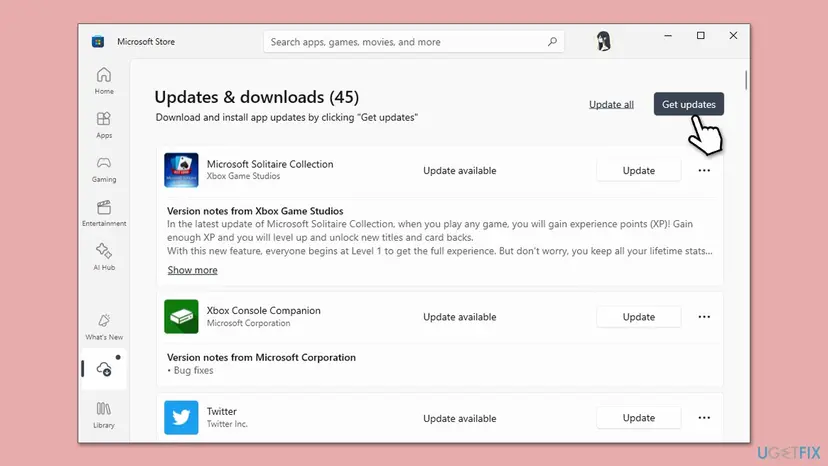
It worked if: The app is on its latest version and opens in the foreground.
If not: If you already have the latest version and the program is old, check compatibility in Fix 5.
Fix 5. Run an older program as administrator or in compatibility mode
5 minutesLow riskAn older program, often 32-bit, asks for permission to make changes and then shows nothing.
On Microsoft Q&A a user describes exactly this: an old 32-bit program asked for admin rights on Windows 11, then ran in Task Manager with no window, while it worked on Windows 7. Compatibility settings can help such a program, but the Microsoft advisor there concluded it was simply not compatible.
- End the program in Task Manager.
- Right-click the program's shortcut or .exe file and select Properties.
- Open the Compatibility tab and select Run compatibility troubleshooter, or tick Run this program in compatibility mode for and choose the Windows version it last worked on.
- Tick Run this program as an administrator, select OK and start it.
- Step by step: How to run a program as administrator or in compatibility mode
Programs that install their own driver may not run on Windows 11 at all. The honest fix is a newer version from the developer, or running the old program in a virtual machine with the older Windows.
It worked if: The program opens its window in the chosen compatibility mode.
If not: If it still hides, ask the developer for a Windows 11 version, or try Fix 6 to rule out a conflict.
Fix 6. Find a conflicting program with a clean boot
20 minutesLow riskSeveral apps or games open in the background at random times, or shutdown hangs when it happens.
Overlays, screen recorders, macro tools and security programs hook into every window that opens. If one of them hangs, new windows wait for it. A clean boot starts Windows without them, which shows whether one of them is the cause.
A clean boot turns off non-Microsoft services and startup apps until you turn them back on. It is not Safe Mode: do not tick Safe boot for this test. Step by step: How to perform a clean boot in Windows
- Press Win + R, type
msconfigand press Enter. - On the Services tab tick Hide all Microsoft services, then select Disable all.
- On the Startup tab select Open Task Manager and disable every startup app.
- Restart and use the PC as usual until you can tell whether the problem returns.
- If it is gone, turn half of the services back on, restart and test again. Repeat until you find the program, then update or remove it.

It worked if: After the clean boot your apps open in the foreground, and turning services back on in halves shows the program at fault.
If not: If apps still open in the background in a clean boot, undo it in msconfig and test a new user account in Fix 7.
Fix 7. Test the app in a new user account
10 minutesLow riskThe problem stays after a clean boot, or only one Windows user has it.
Each Windows user has their own app data and window settings. If the app opens normally for a new user, your profile holds the damaged setting, and you know the program and Windows are fine.
- Open Settings > Accounts > Other users (Windows 10: Family & other users) and select Add account.
- Choose I don't have this person's sign-in information, then Add a user without a Microsoft account, and create the account.
- Sign out, sign in to the new account and start the app.
- If it works there, move your files to the new account or reset the app for your own account (Fix 3).
- Step by step: Create a new user account to test a problem
It worked if: The app opens its window normally in the new account.
If not: If the app hides in the new account too, the program files or Windows are damaged. Go to Fix 8.
Fix 8. Remove the app and install it again
15 minutesRead the warningThe app fails for every user and Repair did not help.
A reinstall replaces every program file, including ones Repair does not check. It also clears a half-finished update that leaves the program starting without its window.
Uninstalling can remove local projects, settings and saved games. Check where the app keeps its data and copy that folder, or make sure it is synced to your account.
- End the app in Task Manager.
- Open Settings > Apps > Installed apps, select More next to the app and select Uninstall. Step by step: Uninstall a program or app in Windows
- Restart Windows.
- Install the latest version from Microsoft Store or the developer's website.
- Start the app before you install plug-ins or restore its settings.
It worked if: The freshly installed app opens its window on the first start.
If not: If even a fresh install opens only in the background, repair Windows itself in Fix 9.
Fix 9. Repair Windows system files with SFC and DISM
20 minutesLow riskSeveral apps fail and Fixes 1 to 8 did not help.
Windows draws every app window with its own components. If one of those files is damaged, apps can start without a window. DISM and SFC check these files and replace damaged ones.
- Open Terminal (Admin) or Command Prompt as administrator.
- Run DISM first, then SFC:
DISM /Online /Cleanup-Image /RestoreHealth sfc /scannow - Restart Windows and start the app.
- Step by step with screenshots: Run DISM and SFC to repair Windows system files
It worked if: SFC reports that it found and repaired files, or that there were no problems, and after the restart the app opens.
If not: Read the crash record in Event Viewer as the next section shows, and send it to the app's developer.
Still the same? Read the crash record and what to send to support
When an app hangs or crashes while starting, Windows writes an entry about it. That entry names the program and often the file that failed, which tells you more than any guess.
- Right-click Start and select Event Viewer.
- Open Windows Logs > Application.
- Look for Error entries with source Application Hang or Application Error (event ID 1000) at the time you started the app.
- Open one and read Faulting application name and Faulting module name on the General tab.
| What the entry shows | What it means | Next step |
|---|---|---|
| Application Hang for the app | It started and stopped responding before its window appeared | Fix 2, then Fix 6 |
| Faulting module of the app itself | The app's own files | Fix 3, then Fix 8 |
| Faulting module of another company | An overlay or add-on loaded into the app | Fix 6 |
| No entry at all | The app is waiting, not crashing | Fix 1, then Fix 2 |
- For the app's support team: the app version, your Windows version (press Win + R, type
winver), the event entry text and what you have tried. - If the PC also freezes, restarts by itself or hangs on shutdown, check for a hardware problem: test the memory with How to test your RAM with Windows Memory Diagnostic.
How to stop apps from getting stuck in the background again
- Click an app's icon once and give it time. Several clicks start several copies that block each other.
- Close apps from their own window or tray icon before you shut down, instead of letting Windows end them.
- Use Restart when something acts strangely: it clears the running session, Shut down with Fast Startup does not.
- Keep apps updated through Microsoft Store and the developers' own updaters, especially after a large Windows update.
- Install only one overlay or recorder at a time. Several programs that hook into every window are a common cause of conflicts.
- Before you unplug a second monitor, move your windows to the main screen.
Windows 10 stopped receiving free security updates on 14 October 2025. Apps keep updating there for a while, but new versions are tested first on Windows 11, so start problems after app updates grow more likely on Windows 10.
Frequently asked questions
Why is a program running in Task Manager but not opening on Windows 10?
The reasons are the same on Windows 10 and Windows 11. Most often an earlier copy of the program hung and every new start hands over to it, so End task on every copy and a Restart fix it (Fix 2). Sometimes the window opens off screen; Alt + Tab and Win + Shift + arrow keys bring it back (Fix 1). On Windows 10 the Task Manager may open in its small view first: select More details to see the Apps and Background processes groups.
What is a background process in Windows?
A background process is a program that runs without a window you can switch to. Updaters, tray tools, sync clients and helpers of larger programs work this way, and Task Manager lists them under Background processes. Most of them are normal and needed. It is only a problem when an app you meant to use lands there and never shows its window, which is what this page is about.
Is it safe to end a background process in Task Manager?
Ending the process of the app that will not open is safe; you only lose unsaved work in that app. Do not end processes you do not recognize, and never end Windows processes such as Windows Explorer, Desktop Window Manager or Service Host just to test. If you are unsure what a process is, right-click it and select Search online before you end it.
Why do programs open in the background instead of the foreground on Windows 11?
If the window opens but stays behind other windows, Windows is stopping a program from taking the focus while you work in another one. Select its taskbar button or press Alt + Tab to bring it forward. If no window exists at all, the app is listed under Background processes and you need Fix 2. Programs that always start minimized can also be set to Normal window in their shortcut's Properties (Fix 1).
What does "there is a background process running, please try again later" mean?
That message is not the same problem. It is shown by some installers and updaters when an earlier copy of their own setup or update is still running. Wait a few minutes, or end the installer's leftover process in Task Manager, then run setup again. A restart also clears it. We could not confirm which programs show this exact wording, so check the developer's help page for your app.
Blitz is not opening (Blitz açılmıyor): what can I do?
Apps like the Blitz game companion often start into the notification area instead of a window. First check the hidden icons at the right of the taskbar and double-click the app's icon. If the process runs but nothing opens, end every copy in Task Manager and restart (Fix 2), then reinstall the newest version from the developer (Fix 8). We could not confirm a Blitz specific cause.
How do I start a program as a background process on purpose?
You usually do not need to. A program decides itself whether it opens a window. Many tools offer a setting such as Start minimized or Start with Windows that keeps them in the notification area. Windows also lets you choose which Store apps may keep running in the background when you are not using them, in each app's Advanced options. Step by step: the guide on background apps in Windows.
Why can't I shut down the PC when apps open in the background?
A user on Microsoft's Tech Community describes exactly this: games opened only as background processes and Windows then hung on the shutdown screen. That points to a program or driver that blocks other processes, not to the games. Hold the power button only as a last resort, then do a clean boot (Fix 6) and check Event Viewer for Application Hang entries.
I tried everything and it still doesn't work. What now?
Read the Event Viewer entry for the app (still-broken section). It names the file that failed and points to the right fix. Test the app in a new user account if you skipped Fix 7. If it works there, your profile is the problem; if not, contact the app's developer with your app version, your Windows version and the event text. Older programs may simply not support Windows 11.
Does turning off background apps in Settings fix this?
No. The background apps setting decides whether a Store app may keep running when you are not using it. It does not create a missing window, and turning it off for the app you want to open can stop its notifications and sync. Leave it as it is and use Fix 1 and Fix 2. More about that setting: Stop apps from running in the background
Sources
- Microsoft Support: Repair apps and programs in Windows (support.microsoft.com)
- Microsoft Q&A: Program running in Task Manager but not displaying or on taskbar (user reports and an advisor's answer) (learn.microsoft.com)
- Microsoft Tech Community: Problem with apps opening as background processes (user report) (techcommunity.microsoft.com)
Did this fix work?
One click, no account. It tells the next reader which guides are worth their time.
Questions and experiences: fix app is opening as background processes in Windows
Still broken, or found a fix we did not cover? Ask here: members and our editors answer. Reading is open; writing needs a free account.
…