
How to fix the bhtsddr.sys blue screen (BSOD) in Windows

Prefer to fix it yourself? The manual steps follow.
- 7methods
- 10 to 60 minutes
- Easy to intermediate
Applies to Windows 11 and Windows 10 laptops with a BayHub (BayHubTech) SD or memory card reader, such as the BayHub OZ621 and OZ777 readers in Fujitsu notebooks
7 methods in this guide
Hi, I keep getting bhtsddr.sys BSOD crashes in Windows. I'd appreciate it if you could explain how to solve this ASAP. Thanks.
bhtsddr.sys is the BayHubTech SD Reader Driver, the driver of the built-in memory card slot on many laptops. When the stop screen says What failed: bhtsddr.sys, that card reader driver crashed Windows. Check its version first: if it is 2.1.101.10670, replace it with a newer one or roll it back.
bhtsddr.sys is your laptop's BayHub SD card reader driver, and the stop screen means that driver crashed. Open Device Manager and read its Driver Version. Users tied the crashes to version 2.1.101.10670 from Windows Update and report that 2.1.101.10690 fixed them, so install a newer driver from your PC maker or Windows Update (Fix 1). If none exists, roll back to the older one (Fix 2).
| Error | A stop screen (blue, or black on Windows 11 24H2 and later) with What failed: bhtsddr.sys, usually with SYSTEM_THREAD_EXCEPTION_NOT_HANDLED or PAGE_FAULT_IN_NONPAGED_AREA. |
|---|---|
| Where it appears | At random while Windows runs, often soon after start, and on some PCs at every start until the card reader is turned off. |
| Main cause | A faulty BayHub card reader driver, in the reports version 2.1.101.10670 installed by Windows Update. |
| Fastest fix | A newer BayHub driver (users report 2.1.101.10690 fixed it) or a roll back to the previous one (Fix 1 and Fix 2). |
| Also written as | bhtsddr, bhtsddr sys, bhtsddr.sys blue screen, BayHubTech SD Reader Driver, BayHubTech - SCSIAdapter - 2.1.101.10670. |
| Who makes it | BayHub Technology (BayHubTech). PC makers ship it in their own packages, for example Fujitsu's BayHub OZ621/OZ777 Memory Card Driver. It is not a Windows file. |
| Affects | Windows 11 and Windows 10. Windows 10 left support on 14 October 2025. |
| Vendor status | No public BayHub or Microsoft notice. The faulty version and the fixed one are known only from user reports on Microsoft Q&A. |
| Where the cause is logged | C:\Windows\Minidump, one .dmp file per crash, and Event Viewer > Windows Logs > System around the crash time. |
| Time to fix | 10 to 20 minutes for the driver fixes, up to an hour if Windows no longer starts. |
Facts checked on 15 October 2026. Steps written for Windows 11 (25H2 and 26H2) and Windows 10 22H2.
What bhtsddr.sys is and why it stops Windows
bhtsddr.sys is the kernel driver of BayHub SD and memory card readers. Its file description is BayHubTech SD Reader Driver, and Windows Update lists it as BayHubTech - SCSIAdapter with a version number. BayHub readers are built into many laptops; on Microsoft Q&A, owners of Fujitsu UH-X and Fujitsu U7511 notebooks reported this crash.
Because the driver runs inside the Windows kernel, Windows cannot catch its mistakes. When it reads a wrong memory address, Windows stops the PC and writes What failed: bhtsddr.sys under the stop code. On Windows 11 24H2 and later the screen is black, not blue.
| What you see | What it means |
|---|---|
| What failed: bhtsddr.sys | The BayHub card reader driver was running when Windows stopped. |
SYSTEM_THREAD_EXCEPTION_NOT_HANDLED (0x7E) | A system thread hit an error nobody caught. With bhtsddr.sys, the driver is the thread that failed. |
PAGE_FAULT_IN_NONPAGED_AREA (0x50) | Microsoft: invalid system memory has been referenced. It can be caused by faulty driver code, defective RAM or a corrupted NTFS volume. |
| BayHubTech - SCSIAdapter - 2.1.101.10670 | How Windows Update names the driver package. SCSIAdapter is its device class, which Device Manager shows as Storage controllers. |
| BayHub OZ621/OZ777 Memory Card Driver | How Fujitsu names the same driver on its download pages. |
The genuine bhtsddr.sys sits in C:\Windows\System32\drivers and is signed. It belongs to your card reader, so deleting it only takes the SD slot away. Never download it from a DLL or driver site.
Why bhtsddr.sys crashes: the causes, most common first
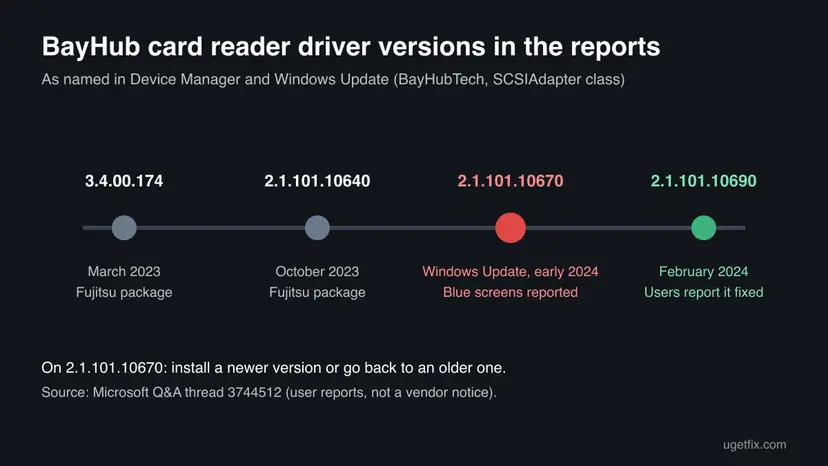
In the Microsoft Q&A thread, the crashes began when Windows Update installed version 2.1.101.10670, and they came back after a System Restore because Windows Update installed it again. Users later reported that 2.1.101.10690 stopped them. That gives this order.
| How often | Cause | Sign | Fix |
|---|---|---|---|
| Most often | Driver version 2.1.101.10670 from Windows Update | Driver Version on the Driver tab reads 2.1.101.10670 | Fix 1, Fix 2 |
| Often | Windows Update installs the faulty driver again after you fix it | The crash returns days after a roll back or restore | Fix 3 |
| Less often | The card reader itself or a card left in the slot | Crashes stop when the slot is empty or turned off | Fix 4 |
| Rarely | Defective memory (RAM) | Many different stop codes, not only bhtsddr.sys | Fix 6 |
| Rarely | Damaged Windows system files | SFC finds files it cannot repair | Fix 7 |
The crash can come at any moment while the driver is loaded. Copy what you need from the SD card to the PC or the cloud before you start, and save open documents often.
Check your card reader driver version
The version number decides which fix to use. These steps show it, and the crash dumps confirm that bhtsddr.sys is really the culprit.
- Right-click Start and select Device Manager.
- Expand Storage controllers and look for a BayHub or BayHubTech entry. On some PCs the card reader sits under Memory technology devices instead.
- Right-click it, select Properties and open the Driver tab. Note Driver Date and Driver Version.
- To confirm the file is loaded, right-click Start, select Terminal (Admin) (on Windows 10: Windows PowerShell (Admin)) and run:
driverquery /v | findstr /i bhtsddr - Open
C:\Windows\Minidump. Windows writes one small dump per crash there, named by date. - Install Microsoft's debugger with
winget install Microsoft.WinDbg, open the newest.dmpfile as administrator, run!analyze -vand read IMAGE_NAME.bhtsddr.sysconfirms the card reader driver.
How to fix the bhtsddr.sys blue screen
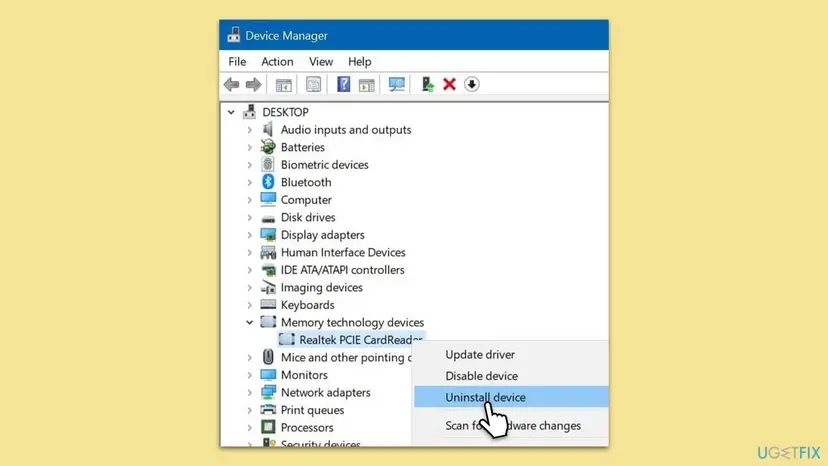
Most readers start with Fix 1 or Fix 2, depending on whether a newer BayHub driver is available. Fix 3 keeps Windows Update from bringing the faulty one back. Fix 4 is a safe stopgap, Fix 5 is for PCs that no longer start, and Fixes 6 and 7 rule out memory and Windows itself.
| What you see or what your PC has | Start with | Then |
|---|---|---|
| Driver Version is 2.1.101.10670 | Fix 1 | Fix 2 |
| The crashes began after Windows Update installed a driver | Fix 2 | Fix 3 |
| The crash returns after every roll back or restore | Fix 3 | Fix 1 |
| You need the PC stable today and can live without the SD slot | Fix 4 | Fix 1 |
| Windows will not start, it loops on the stop screen | Fix 5 | Fix 4 |
| Many different stop codes, not only bhtsddr.sys | Fix 6 | Fix 7 |
Fix 1. Install a newer BayHub card reader driver
10 minutesLow riskWindows starts, and the Driver tab shows 2.1.101.10670 or an old Driver Date.
The crashes are tied to one driver release. Users on Microsoft Q&A report that version 2.1.101.10690 fixed them, and Microsoft's advice for a driver named on a stop screen is to ask the driver vendor for an updated driver.
- Open your laptop maker's support page, enter your model and look for the card reader, memory card or BayHub driver. Compare its version with yours.
- If it is newer than 2.1.101.10670, download it, run the setup and restart.
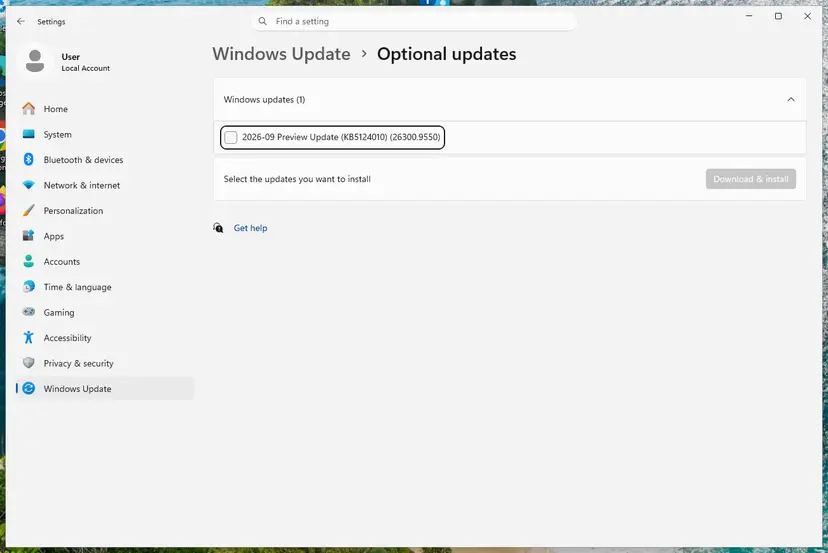
- If the maker has nothing newer, open Settings > Windows Update > Advanced options > Optional updates (on Windows 10: Settings > Update & Security > Windows Update > View optional updates).
- Open Driver updates, tick the BayHubTech entry if there is one, select Download & install and restart.
- Check the Driver tab again and use the PC normally for a day.
Every way to update, roll back or reinstall a driver, with screenshots: Update, roll back or reinstall a driver
Driver updater tools and file-sharing links can install a package made for another reader. Use your PC maker's page or Windows Update only.
It worked if: Driver Version shows 2.1.101.10690 or later, the SD card works, and no new file appears in C:\Windows\Minidump over the next days.
If not: If no newer driver exists, or the new one also crashes, go back to the previous version with Fix 2.
Fix 2. Roll back or reinstall the older card reader driver
10 minutesLow riskThe crashes began right after Windows Update installed a BayHubTech driver, and no newer version is available.
Windows keeps the previous driver after an update. Going back to the version that worked removes the faulty bhtsddr.sys at once. In the Q&A thread, Fujitsu owners installed the older packages 3.4.00.174 and 2.1.101.10640 from Fujitsu's site to use the SD slot again.
- Right-click Start and select Device Manager.
- Expand Storage controllers (or Memory technology devices), right-click the BayHub entry and select Properties.
- Open the Driver tab and select Roll Back Driver.
- Choose a reason, select Yes and restart the PC.
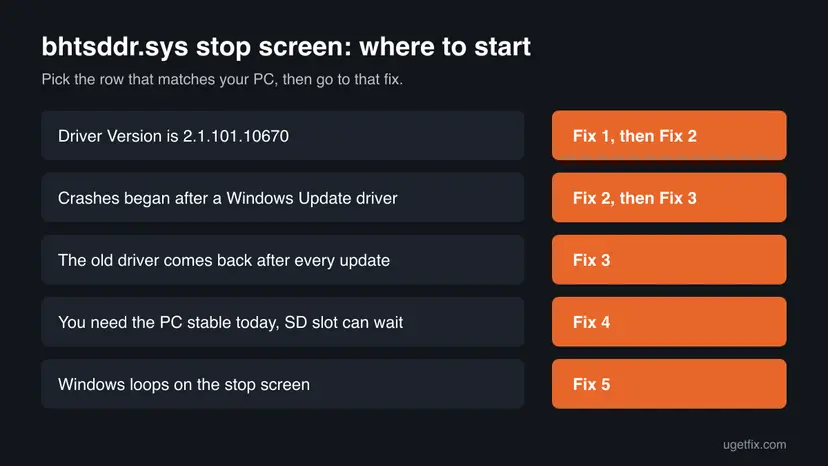
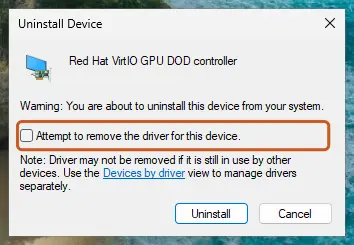
- If Roll Back Driver is greyed out, select Uninstall Device, tick Attempt to remove the driver for this device (on Windows 10: Delete the driver software for this device), restart and install the older package from your PC maker.
It worked if: Driver Version shows the older number and the stop screen does not return.
If not: If the faulty version comes back after a few days, Windows Update installed it again: do Fix 3, then repeat this fix.
Fix 3. Stop Windows Update from installing the faulty driver again
5 minutesLow riskThe crash returns after a roll back or a System Restore, because Windows Update puts 2.1.101.10670 back.
In the Q&A thread, the crashes came back after a restore because Windows Update reinstalled the same driver automatically. This setting stops Windows from fetching device drivers on its own until a fixed version is out.
- Press Win + R, type
sysdm.cpland press Enter. - Open the Hardware tab and select Device Installation Settings.
- Choose No (your device might not work as expected) and select Save Changes.
- Do Fix 2 again so the older driver is in place.
This setting blocks all automatic driver downloads, not only BayHub. Once your PC maker or Windows Update offers 2.1.101.10690 or later, install it with Fix 1 and set Device Installation Settings back to Yes.
It worked if: The older driver stays in place after the next Windows updates, and the crashes do not return.
If not: If the crash continues even with the older driver, the reader itself may be at fault: try Fix 4.
Fix 4. Take the SD card out or turn the card reader off
5 minutesLow riskYou need a stable PC now and can do without the SD slot for a while, or Fixes 1 to 3 did not help.
If the reader is off, Windows never loads bhtsddr.sys, so it cannot crash. On Microsoft Q&A, owners of Fujitsu laptops reported that disabling the SD card reader in the BIOS stopped the blue screens and let the laptops start normally.
- Take any card out of the SD slot and see whether the crashes stop.
- If not, open Device Manager, right-click the BayHub entry and select Disable device, then Yes.
- If Windows crashes before you can do that, restart into the BIOS or UEFI setup (on most laptops F2 at power on) and look for SD card reader, Card reader or Media card under the device or security settings.
- Set it to Disabled, save and exit.
The SD slot does not work while the reader is off. A USB card reader works in the meantime. Turn the slot back on once a fixed driver is installed.
It worked if: Windows runs without the stop screen. The BayHub entry shows a down arrow in Device Manager, or disappears after the BIOS change.
If not: If the crashes continue with the reader off, bhtsddr.sys was not the real cause: check the dumps again and go to Fix 6.
Fix 5. Get Windows started again with Safe Mode or System Restore
20 to 40 minutesRead the warningWindows no longer starts and shows the bhtsddr.sys stop screen every time.
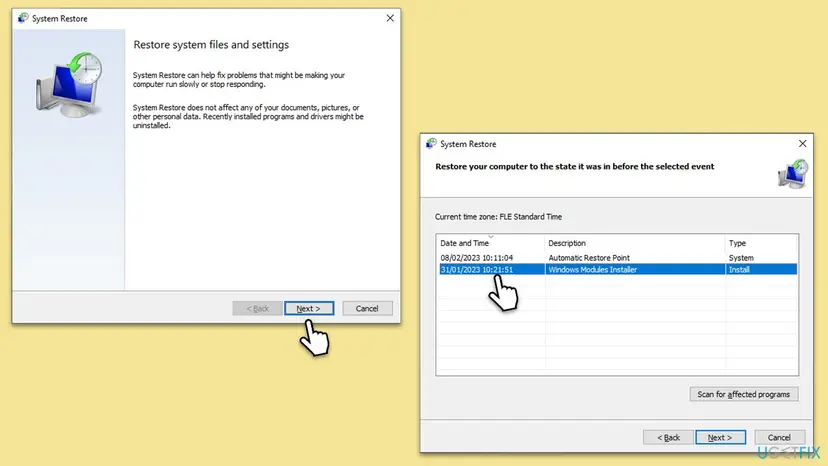
Safe Mode starts Windows with a minimal set of drivers, so you can roll back or disable the card reader from inside. System Restore returns drivers and system settings to a day before the crashes began.
System Restore removes apps, drivers and updates installed after the restore point. Your documents and photos stay, but programs installed since then must be installed again. Do Fix 3 afterwards, or Windows Update may bring the faulty driver back.
- Switch the PC on. If the stop screen returns, let it fail twice; Windows opens the blue Choose an option screen on the third start.
- Select Troubleshoot > Advanced options > Startup Settings > Restart, then press 4 for Safe Mode. Full steps: Start Windows or a Mac in Safe Mode
- In Safe Mode, do Fix 2 (roll back) or disable the BayHub entry as in Fix 4, then restart normally.
- If Safe Mode does not start either, go back to Advanced options and select System Restore.
- Pick a restore point dated before the first crash, select Next and Finish. Full steps: Undo recent changes with System Restore
It worked if: Windows starts normally. After a restore, the Driver tab shows the older card reader driver.
If not: If neither works, turn the reader off in the BIOS (Fix 4) and start again, or try Startup Repair from the same screen: Run Startup Repair
Fix 6. Rule out defective memory
30 to 60 minutesLow riskYou see many different stop codes, or the dumps name a different driver each time.
Microsoft lists defective RAM as a cause of PAGE_FAULT_IN_NONPAGED_AREA. Bad memory can corrupt the data any driver reads, and a driver that is loaded all the time can be the one that trips.
- Undo any memory overclock. In the BIOS, set the memory profile (XMP, DOCP or EXPO) to Disabled as a test.
- Test the memory with the tool built into Windows: How to test your RAM with Windows Memory Diagnostic
- After the restart, read the result in Event Viewer > Windows Logs > System, entry MemoryDiagnostics-Results.
It worked if: The memory test reports no errors, and the PC runs without a stop screen.
If not: If the test finds errors, replace the RAM. If not, run Fix 7.
Fix 7. Repair Windows system files as a last check
20 minutesNo riskThe fixes above did not help, or SFC has never run on this PC.
bhtsddr.sys is not a Windows file, so this cannot repair the driver. It rules out damaged Windows storage components the driver works with, and Microsoft names a corrupted NTFS volume as another cause of 0x50.
DISM fetches clean copies of Windows components and SFC replaces damaged system files. Step by step with screenshots: Run DISM and SFC to repair Windows system files
In Terminal (Admin), one after the other:
DISM.exe /Online /Cleanup-Image /RestoreHealth
sfc /scannow
To check the drive itself for file system errors: Check a disk for errors (chkdsk)
It worked if: SFC reports that it found no integrity violations or repaired them, and the PC runs without a stop screen.
If not: Collect the dumps and read the next section on what to send to support.
Still crashing: what to check and whom to ask
Microsoft's advice for this kind of stop is to check the System log in Event Viewer for critical errors in the same time window as the crash. Open Event Viewer > Windows Logs > System and look at the minutes before each crash for warnings from the card reader or storage.
- Zip the three newest
.dmpfiles fromC:\Windows\Minidump. - Note your Windows edition and version from Settings > System > About.
- Note the BayHub entry's Driver Date and Driver Version from Device Manager.
- Note the laptop model and BIOS version, and whether a card was in the slot at each crash.
| Where to ask | When |
|---|---|
| The laptop maker's support | The card reader is built into the laptop, which is almost always the case |
| Your company's IT team | It is a work laptop that gets drivers from a patch tool |
| A repair shop | Memory tests report errors, or the crashes stay with the reader turned off |
If the crash comes back with every driver version but stops when the reader is disabled, the reader itself may be failing. Keep it disabled, use a USB card reader and ask the laptop maker about a repair under warranty.
How to keep the bhtsddr.sys blue screen from coming back
- Note the card reader's Driver Version before you accept a new driver from Windows Update.
- Get card reader drivers from your laptop maker or Windows Update.
- Keep a copy of the driver package that works for you.
- Keep restore points turned on for drive C.
- Delete or rename bhtsddr.sys to stop the crash.
- Download bhtsddr.sys from DLL or driver sites.
- Use driver updater programs for the card reader.
- Turn off Memory integrity or other Windows Security protection to stop a driver crash.
Windows 10 left support on 14 October 2025. A laptop that can run Windows 11 gets current driver fixes through Windows Update for longer.
Frequently asked questions
What is bhtsddr.sys?
bhtsddr.sys is the Windows driver for BayHub SD and memory card readers. Its file description is BayHubTech SD Reader Driver, and Windows Update calls the package BayHubTech - SCSIAdapter. It runs in the Windows kernel and handles everything the built-in card slot reads and writes. It comes from your laptop maker or Windows Update and is not part of Windows itself. You only have it if your laptop has a BayHub card reader.
Is bhtsddr.sys a virus?
No. The genuine file is a signed BayHub driver in C:\Windows\System32\drivers. To check your copy, right-click it, select Properties and open the Digital Signatures tab. If the tab is missing, or the file sits in another folder such as your user folder or Temp, scan the PC with Microsoft Defender before anything else. A blue screen alone is not a sign of malware; in the reports it came from a faulty driver release.
Which bhtsddr.sys version causes the blue screen?
In the Microsoft Q&A reports, the crashes started with BayHubTech - SCSIAdapter 2.1.101.10670, installed by Windows Update, and users report that 2.1.101.10690 fixed them. Fujitsu owners also used the older packages 3.4.00.174 and 2.1.101.10640 to get the SD slot working again. Neither BayHub nor Microsoft has published a notice, so treat these as user reports and check your own Driver Version first.
Can I just delete bhtsddr.sys?
You can, but you lose the SD slot and may cause new errors. Windows can reinstall the driver from its store at the next start, and a missing file can leave the device in an error state. The clean way is to roll back or uninstall the driver in Device Manager (Fix 2), or disable the card reader in Device Manager or the BIOS (Fix 4) until a fixed driver is out.
Why does the crash come back after System Restore?
Because Windows Update installs the same driver again. System Restore removes the faulty bhtsddr.sys, but at the next driver check Windows fetches BayHubTech - SCSIAdapter 2.1.101.10670 once more. That is what happened in the Microsoft Q&A thread. Turn off automatic driver downloads under Device Installation Settings (Fix 3), roll back again, and turn the setting back on once a fixed driver is available.
Should I turn off Memory integrity to fix bhtsddr.sys?
No. Memory integrity (Core isolation) protects the Windows kernel from malicious code, and we found no source that ties this crash to it. The reports point at one driver version instead. Turning protection off leaves the PC weaker and does not repair the driver. If Windows Security says Memory integrity cannot turn on because of bhtsddr.sys, install a newer driver from your laptop maker (Fix 1).
Does the crash happen only when an SD card is inserted?
Not always. The driver loads at start whether or not a card is in the slot, and Fujitsu owners reported crashes at start that stopped only when the reader was disabled in the BIOS. Still, taking the card out is the quickest first test. If the crashes stop with the slot empty, copy your files to the PC and use a USB card reader until you install a fixed driver.
What do SYSTEM_THREAD_EXCEPTION_NOT_HANDLED and PAGE_FAULT_IN_NONPAGED_AREA mean here?
Both are stop codes reported with this crash. SYSTEM_THREAD_EXCEPTION_NOT_HANDLED (0x7E) means a system thread hit an error nobody caught. PAGE_FAULT_IN_NONPAGED_AREA (0x50) means, in Microsoft's words, that invalid system memory has been referenced, often by faulty driver code. When What failed names bhtsddr.sys, both point at the card reader driver and the same fixes apply. If the codes vary and other files appear, test the memory (Fix 6).
Sources
- Microsoft Learn: Bug Check 0x50 PAGE_FAULT_IN_NONPAGED_AREA (learn.microsoft.com)
- Microsoft Q&A: BayHubTech - SCSIAdapter - 2.1.101.10670 causing Blue Screen (bhtsddr.sys) (learn.microsoft.com)
Did this fix work?
One click, no account. It tells the next reader which guides are worth their time.
Questions and experiences: fix the bhtsddr.sys blue screen (BSOD) in Windows
Still broken, or found a fix we did not cover? Ask here: members and our editors answer. Reading is open; writing needs a free account.
…