
How to fix Bootstrapper.exe error in Windows?

Prefer to fix it yourself? The manual steps follow.
- 8methods
- 5 to 40 minutes
- Intermediate
Applies to bootstrapper.exe and vs_setup_bootstrapper.exe errors in Visual Studio setup, the message This package can only be run from a bootstrapper for any program, and missing bootstrapper.exe files of games and launchers on Windows 11, Windows 10 and Windows 7
8 methods in this guide
Hello. I tried to install Visual Studio on my computer, but I received the vs_setup_bootstrapper.exe error. How do I fix this?
bootstrapper.exe is the small first stage of an installer: it checks the PC and then starts the real setup. A bootstrapper.exe error means that first stage failed, most often in Visual Studio setup, after an .msi was opened on its own, or in a game launcher. Start with a fresh setup file from the program's maker, run as administrator.
Download a new setup file from the program's maker, save it to a local folder and run it as administrator (Fix 1). If Visual Studio setup says The procedure entry point nextafterf could not be located, repair .NET Framework and the Visual C++ runtimes (Fix 2). If the message is This package can only be run from a bootstrapper, start the setup .exe, not the .msi (Fix 3).
| Error | A window that names bootstrapper.exe or vs_setup_bootstrapper.exe, or the message This package can only be run from a bootstrapper. |
|---|---|
| Where it appears | Right after you start an installer, most often Visual Studio setup, an .msi file, or a game launcher that starts its own bootstrapper. |
| Main cause | The first stage of setup cannot start the real installer: a runtime it needs is missing or damaged, the .msi was opened without its setup .exe, or the file itself is missing. |
| Fastest fix | A fresh setup file from the maker, run as administrator from a local folder (Fix 1). |
| Also written as | bootstrapper exe, bootstrapper error, boostrapper.exe, bootstraper.exe, this program can only be run from a bootstrapper, the package can only be run from a bootstrapper. |
| Visual Studio setup file names | VisualStudioSetup.exe for Visual Studio 2022 and later, vs_<edition>.exe for Visual Studio 2019 and earlier. Setup then starts its own vs_setup_bootstrapper.exe. |
| Vendor status | Microsoft has no article for the nextafterf message. Its Visual Studio troubleshooting page lists repair, a reset of the Installer folder and a full cleanup. |
| Where the cause is logged | Visual Studio: %TEMP%\vslogs.zip from Microsoft's log collection tool. An .msi: a verbose log made with msiexec /l*v. |
| Not the same error | Microsoft Setup Bootstrapper has stopped working is an Office setup crash with its own guide. |
| Time to fix | 5 minutes for Fix 1 and Fix 3. 20 to 40 minutes when runtimes or Visual Studio must be repaired. |
Facts checked on 15 October 2026. Steps written for Windows 11 (25H2 and 26H2) and Windows 10 22H2, with notes for Windows 7, read against Microsoft's Visual Studio documentation, Microsoft Q&A reports and installer documentation.
What a bootstrapper.exe error means
A bootstrapper is the small program you start first. It checks the PC, downloads or unpacks what is needed and then starts the real installer, often a Windows Installer package (.msi). Many installers call that first stage bootstrapper.exe, and Visual Studio calls it vs_setup_bootstrapper.exe.
So bootstrapper.exe is not one program. It is a role, and the error belongs to the program you were installing or starting. Three messages make up almost all searches for it:
- Visual Studio setup: a window from vs_setup_bootstrapper.exe says The procedure entry point nextafterf could not be located in the dynamic link library MSVCR120_CLR0400.dll. This is the case in the reader's question above.
- Any installer: This package can only be run from a bootstrapper. An .msi file refuses to run because it was started without its own setup .exe.
- A game or launcher: Windows cannot find bootstrapper.exe when you start the game, because the file is missing from the game folder.
The procedure entry point nextafterf could not be located in the dynamic link library MSVCR120_CLR0400.dll.
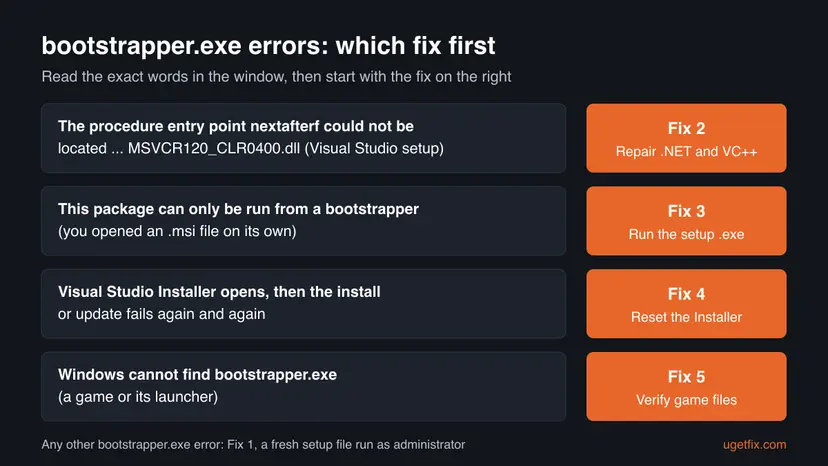
People search it as bootstrapper.exe, bootstrapper exe, bootstrapper error and with typos such as boostrapper.exe or bootstraper.exe. The fix depends on the words in the window, not on the spelling.
What causes bootstrapper.exe errors, from the most common to the rare
No vendor publishes a ranking. The order below comes from what the messages themselves say and from the Microsoft Q&A thread about the Visual Studio error. It is an order of likelihood, not a statistic.
| How often | Cause | Typical sign | Fix |
|---|---|---|---|
| Most often | An old, incomplete or blocked setup file | Setup closes at once or shows an error before its first screen. | Fix 1 |
| Often | A missing or damaged runtime that setup loads: .NET Framework or Visual C++ | The nextafterf or another entry point message names a .dll file. | Fix 2 |
| Often | An .msi opened on its own, without the setup .exe that should start it | This package can only be run from a bootstrapper. | Fix 3 |
| Less often | Damaged Visual Studio Installer files or install records | The Visual Studio Installer opens, then install or update fails again and again. | Fix 4, Fix 6 |
| Less often | A game's bootstrapper.exe was deleted or quarantined | Windows cannot find bootstrapper.exe when you start the game. | Fix 5 |
| Rarely | Damaged Windows files or a background program that blocks setup | Several installers fail, not only one. | Fix 7, Fix 8 |
On Microsoft Q&A, a volunteer moderator first pointed to the Visual C++ 2013 runtime and later called the nextafterf message a red herring for a .NET problem. Neither answer was confirmed as the solution, so Fix 2 repairs both.
How to fix a bootstrapper.exe error in Windows
Fix 1 helps with every installer and costs five minutes. Fix 2 to Fix 5 each match one message, so pick by the words you see. Fix 6 to Fix 8 are for setups that still fail.
| What you see or have | Start with |
|---|---|
| Any bootstrapper.exe error, or setup closes with no message | Fix 1 |
| Visual Studio setup: nextafterf and MSVCR120_CLR0400.dll | Fix 2 |
| This package can only be run from a bootstrapper | Fix 3 |
| The Visual Studio Installer opens but install or update fails | Fix 4, then Fix 6 |
| A game says Windows cannot find bootstrapper.exe | Fix 5 |
| Other installers fail too | Fix 7, then Fix 8 |
Fix 1. Download a fresh setup file and run it as administrator from a local folder
5 minutesLow riskEveryone, first. It helps with any installer that names bootstrapper.exe.
A bootstrapper reads files next to it and downloads the rest. A setup file that is old, half downloaded, run from inside a .zip or from a network drive often fails before its first screen.
- Download the installer again from the program maker's own website. For Visual Studio that is the downloads page at
visualstudio.microsoft.com/downloads. - Save it to a local folder, for example
C:\Setup. If it came in a .zip file, right-click the .zip, select Extract All and use the extracted folder. - Right-click the setup file and select Properties. On the Compatibility tab, clear Run this program in compatibility mode for if it is ticked, then select OK.
- Right-click the setup file again and select Run as administrator, then Yes.
- Keep the PC online until setup finishes: Visual Studio setup downloads most of its files while it runs.
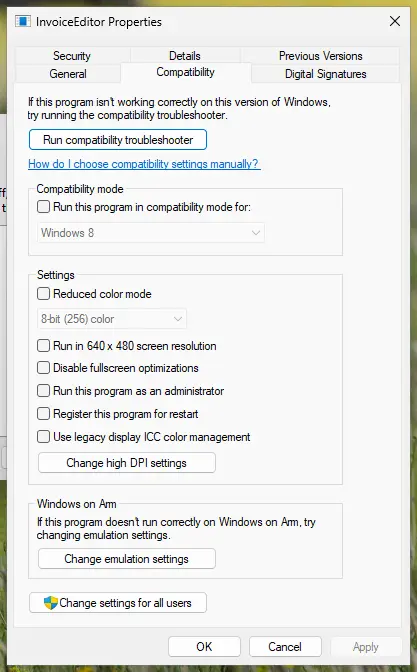
Step by step, with the compatibility troubleshooter as a last step: How to run a program as administrator or in compatibility mode.
It worked if: The installer opens its first screen, for Visual Studio the window where you pick workloads, with no bootstrapper error.
If not: Read the exact message and use the chooser above: Fix 2 for nextafterf, Fix 3 for an .msi, Fix 5 for a game.
Fix 2. Repair .NET Framework and the Visual C++ runtimes for the nextafterf error
20 minutesLow riskVisual Studio setup shows The procedure entry point nextafterf could not be located in the dynamic link library MSVCR120_CLR0400.dll.
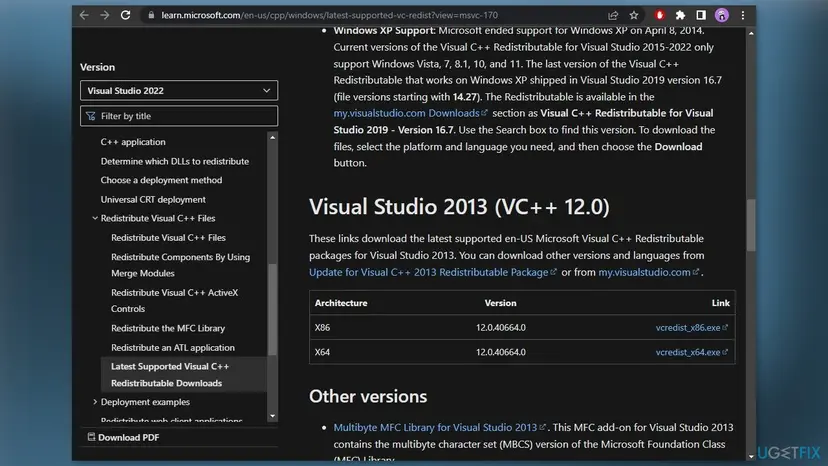
The message says that a function setup needs is missing from a runtime .dll. On Microsoft Q&A, the advice for this exact message was to install the Visual Studio 2013 (VC++ 12.0) runtime and to check .NET Framework, so this fix does both.
- Open Programs and Features. Type control panel in the search box on the taskbar and select Control Panel. Select Programs > Programs and Features.
- Find the installed versions. Look for the entries that start with Microsoft Visual C++. Each one shows a year and an architecture, x64 or x86. Several entries side by side are normal: older versions stay installed next to newer ones.
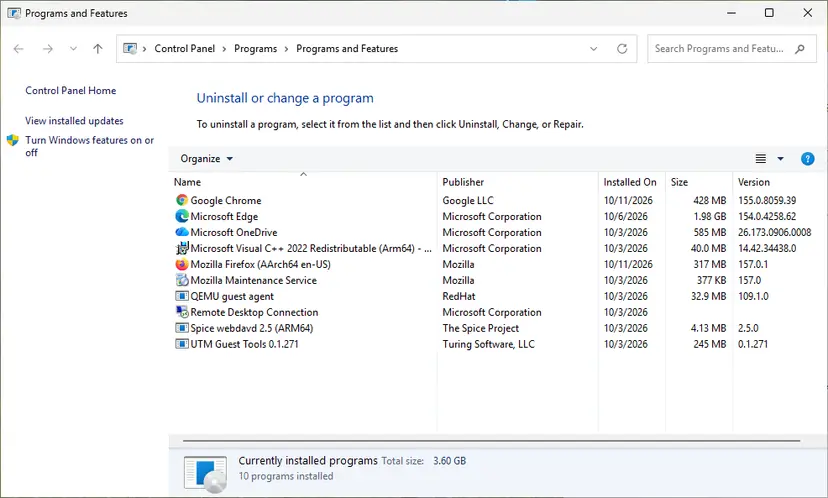
Each Visual C++ version is its own entry in Programs and Features. Screenshot: Windows 11 26H2. - Repair each Visual C++ entry. Right-click an entry and select Change, then select Repair in the window that opens. Do the same for every Microsoft Visual C++ entry.
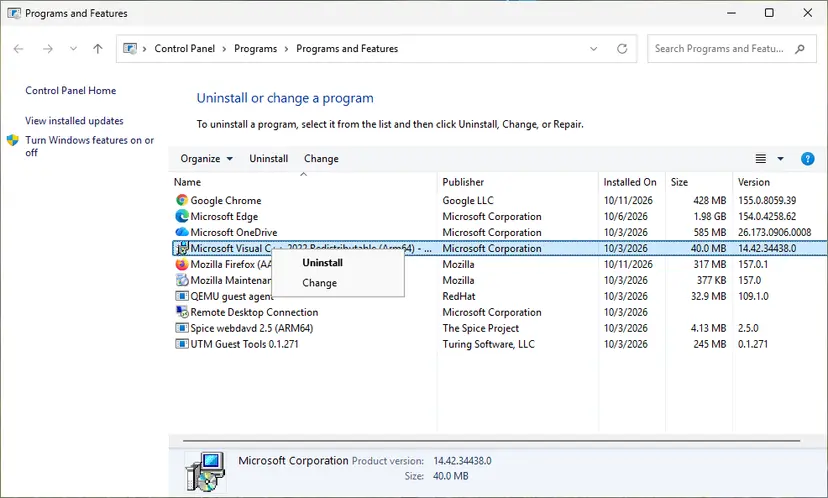
Right-click the entry and select Change to reach the repair option. Screenshot: Windows 11 26H2. - Install the latest supported version. Download the latest Visual C++ v14 Redistributable from Microsoft: Visual C++ Redistributable latest supported downloads and run it. On a 64-bit PC install both X64 and X86, because 32-bit programs need the x86 package. On an ARM64 PC install ARM64. This one version serves programs built with Visual Studio 2017 to 2026.
- Run the .NET Framework Repair Tool. Download the Microsoft .NET Framework Repair Tool and run NetFxRepairTool.exe. The wizard looks for setup problems, asks for your consent before it applies fixes, then repairs the installed .NET Framework versions. The tool is in English only.
These steps were written for Windows 11 25H2 and 26H2, Windows 10 22H2. The full page with the other versions and what each result means: How to repair Microsoft Visual C++ Redistributable and .NET Framework
- Open Microsoft's page Latest supported Visual C++ Redistributable downloads and scroll to Visual Studio 2013 (VC++ 12.0).
- Download
vcredist_x86.exeand, on 64-bit Windows, alsovcredist_x64.exe. - Run each file and select Repair if it is already installed, or Install if it is not.
- Restart the PC and run the Visual Studio setup file again as administrator.
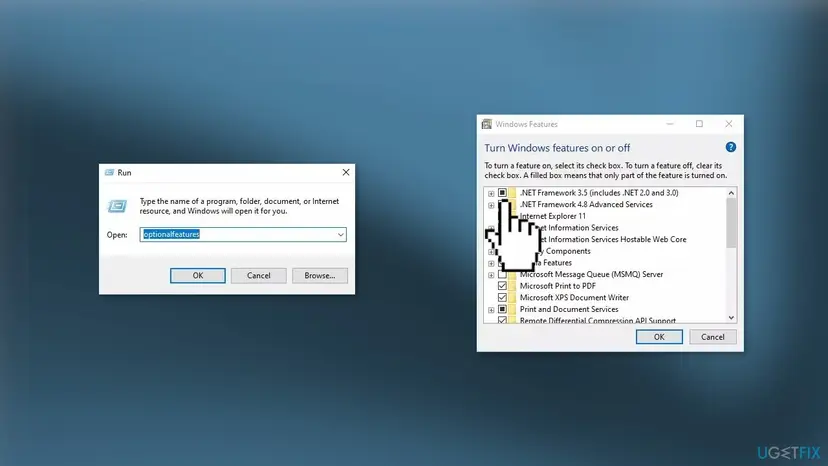
The report on Microsoft Q&A came from Windows 7 Professional. Microsoft no longer supports Windows 7, and current Visual Studio versions are built for Windows 10 and 11. If the runtimes are in place and setup still fails on Windows 7, the Windows version is the likely limit.
It worked if: The Visual Studio setup window opens and no entry point message appears.
If not: If the same message returns on Windows 10 or 11, repair Windows files with Fix 7, then try Fix 1 again.
Fix 3. Run the setup .exe when the message says This package can only be run from a bootstrapper
5 minutesLow riskWindows Installer shows This package can only be run from a bootstrapper after you open an .msi file.
Some .msi packages check that their own setup .exe started them, and stop otherwise. This happens when the .msi was taken out of the setup file with an archive tool, or found in a temporary folder such as %temp% or %programdata%\Package Cache.
- Close the message. Do not run the .msi again.
- Find the setup .exe that came with the same download, usually called setup.exe or named after the program.
- Right-click it and select Run as administrator.
- If you only have the .msi, download the full installer again from the program's maker and run its .exe.
- To remove or change the program, use Settings > Apps > Installed apps instead of the .msi.
For administrators who must install the .msi silently: a package made with InstallShield accepts the property ISSETUPDRIVEN=1, according to the installer maker Advanced Installer. For other packages, a verbose log shows which check stops it.
In an elevated Command Prompt: the InstallShield property, then a verbose log
msiexec /i "C:\Setup\YourPackage.msi" ISSETUPDRIVEN=1
msiexec /i "C:\Setup\YourPackage.msi" /l*v "C:\Setup\setup.log"
It worked if: The program's setup wizard opens and installs with no bootstrapper message.
If not: Open the verbose log in Notepad and search for return value 3. The lines just above it name the check that failed. Send them to the program's maker.
Fix 4. Reset the Visual Studio Installer folder and run the bootstrapper again
10 minutesLow riskThe Visual Studio Installer opens, but an install or update fails, or the Installer itself will not start.
Microsoft's troubleshooting page says that deleting the Installer folder and running the bootstrapper again reinstalls the Installer files and resets the installation metadata. Your installed Visual Studio stays in place.
- Check Microsoft's known issues for your version first: the release notes of Visual Studio 2026, 2022 or 2019 list them.
- Close the Visual Studio Installer.
- Open File Explorer and go to
C:\Program Files (x86)\Microsoft Visual Studio. - Delete the Installer folder and select Continue when Windows asks for permission.
- Run the setup file again:
VisualStudioSetup.exefor Visual Studio 2022 and later, orvs_<edition>.exefor 2019 and earlier. It is often in your Downloads folder. - Install or update Visual Studio again.
If the Installer starts, also try More > Repair on your Visual Studio entry. Microsoft lists a repair as the first thing to try for update problems.
It worked if: The Installer downloads itself again, opens, and the install or update runs to the end.
If not: Remove all Visual Studio setup files with Fix 6.
Fix 5. Restore a missing bootstrapper.exe of a game by verifying its files
10 to 30 minutesLow riskA game, for example Call of Duty, says Windows cannot find bootstrapper.exe or will not start from its launcher.
A game's bootstrapper.exe is part of the game's files. The launcher's file check compares every file with the original and downloads the missing one, which is the safe way to get it back.
- Open Windows Security and select Virus & threat protection > Protection history.
- If bootstrapper.exe from the game folder is listed as quarantined, read the details. Restore it only if the file is from the game you installed from its official store.
- Open the game's launcher, such as Steam or Battle.net, and run its file check. The steps for each launcher: How to verify game files in Steam, Epic Games, Xbox app, EA app, Battle.net and GOG Galaxy.
- Start the game from the launcher, not from an old desktop shortcut.
A bootstrapper.exe offered on its own by a download site is not from the game's maker and can be malware. The launcher's file check or a reinstall from the official store gives you the right file.
It worked if: The launcher reports that it repaired or downloaded files, and the game starts.
If not: Uninstall the game from its launcher and install it again. If Windows Security keeps removing the file, ask the game's support before you restore it.
Fix 6. Remove all Visual Studio setup files with InstallCleanup.exe and install again
30 to 40 minutesRead the warningFix 1, Fix 2 and Fix 4 did not help and Visual Studio setup keeps failing.
Microsoft calls this the last resort: it removes all Visual Studio installation files and product information, so the next setup starts from nothing.
All installed Visual Studio versions and their workloads are removed. Your projects stay, but note your workloads and extensions, and back up any settings you need, before you start.
- Open Microsoft's page Uninstall Visual Studio and go to the section on removing all files with InstallCleanup.exe.
- Run InstallCleanup.exe from an elevated Command Prompt as that page describes.
- Restart the PC.
- Download a new
VisualStudioSetup.exefromvisualstudio.microsoft.com/downloadsand run it as administrator. - Select your workloads again and install.
It worked if: The bootstrapper opens the Installer as on a new PC and Visual Studio installs.
If not: Collect the setup logs as described under the methods and send them to Microsoft with Report a problem.
Fix 7. Repair Windows system files with DISM and SFC
20 minutesLow riskSeveral installers fail, or the runtime errors return after Fix 2.
Installers load Windows files as well as their own. DISM and SFC replace damaged Windows files, so the bootstrapper does not fail on a broken system file.
- Open an elevated command window. Right-click Start and select Terminal (Admin), or type cmd in the search box, right-click Command Prompt and select Run as administrator. Select Yes when Windows asks for permission.

Search for cmd and choose Run as administrator. Screenshot: Windows 11 26H2. - Run DISM first. Type the command below and press Enter. DISM downloads clean copies of damaged components from Windows Update, so it can take several minutes. Wait until it says The operation completed successfully.
DISM.exe /Online /Cleanup-Image /RestoreHealth
DISM /RestoreHealth running. Screenshot: Windows 11 26H2. - Run System File Checker. In the same window, type the command below and press Enter. Do not close the window until the verification reaches 100%.
sfc /scannow
sfc /scannow at 100%. Screenshot: Windows 11 26H2. - Read the result and restart. Compare the last message with the table below this guide, then restart the PC so that repaired files are loaded.

The result line tells you what SFC did. Screenshot: Windows 11 26H2.
These steps were written for Windows 11 24H2 and 25H2. The full page with the other versions and what each result means: Run DISM and SFC to repair Windows system files
It worked if: SFC reports that it found no problems or that it repaired files. After a restart, setup starts.
If not: Test setup in a clean boot with Fix 8.
Fix 8. Run setup in a clean boot to rule out background programs
15 minutesLow riskSetup still fails and a third-party security, tuning or download tool runs on the PC.
A bootstrapper downloads and starts other files, which security and tuning programs watch closely. A clean boot starts Windows without other companies' services, so nothing can block that step.
- Start Windows in a clean boot: How to perform a clean boot in Windows.
- Run the setup file as administrator from the local folder.
- Undo the clean boot as the procedure describes and restart.

If setup works only in the clean boot, turn the services back on in small groups to find the one that blocks it, and ask its maker. Do not uninstall your protection as a fix.
It worked if: Setup runs to the end in the clean boot, and the program works after a normal restart.
If not: Read the logs as described below and send them to the program's maker.
If the bootstrapper.exe error is still there: where the real cause is written
The error window rarely gives the reason. Setup logs do, and support will ask for them.
- Visual Studio: download Microsoft's Visual Studio and .NET Framework log collection tool (
aka.ms/vscollect). - Open an elevated Command Prompt in the folder where you saved it and run
Collect.exe. Use the same Windows account that ran the failed setup. - Find
vslogs.zipin%TEMP%. Open the Visual Studio Installer, select Report a problem and attach it. - An .msi package: make a verbose log with
msiexec /i package.msi /l*v setup.logand search it forreturn value 3. - Any other program: send the exact message, the setup file name and your Windows version to the program's maker.
If the same setup file fails on two healthy PCs, the file or the Windows version is the problem, not your hardware. A bootstrapper error is never a licence or activation error.
How to avoid bootstrapper.exe errors next time
Most bootstrapper errors start with the wrong file or an old one. These habits avoid them.
- Download installers from the maker's own site, just before you install.
- Run the setup .exe from a local folder, as administrator.
- Keep Windows updated so .NET Framework and Visual C++ stay repaired.
- Fix a game through its launcher's file check.
- Open an .msi taken out of a setup file or found in a temporary folder.
- Download a single bootstrapper.exe from a file site.
- Run setup from inside a .zip file or a network drive.
- Uninstall your security program to make setup work.
Frequently asked questions
What is bootstrapper.exe?
bootstrapper.exe is the first stage of an installer or launcher. It checks the PC, gets the files that are needed and then starts the real setup, often an .msi package. Many programs use this name, so the file belongs to whichever program you were installing or starting. It is not a part of Windows itself. If you are unsure which program it belongs to, right-click the file, select Properties and look at the Details and Digital Signatures tabs.
What is vs_setup_bootstrapper.exe?
It is the bootstrapper of the Visual Studio Installer. The setup file you download, VisualStudioSetup.exe for Visual Studio 2022 and later or vs_<edition>.exe for older versions, unpacks it and starts it. It then installs the Visual Studio Installer, which installs Visual Studio. An error that names vs_setup_bootstrapper.exe is a Visual Studio setup problem: start with Fix 1, then Fix 2 for the nextafterf message or Fix 4 when the Installer itself fails.
What is bootstrapper in Windows 10 or Windows 11?
Windows has no program called bootstrapper that you need to manage. The word is used by installers on Windows 10 and Windows 11 alike for their first stage, and by some game launchers. If you see bootstrapper.exe in Task Manager, it belongs to a setup or launcher that is running. Right-click it and select Open file location to see which program's folder it is in. When setup ends, the bootstrapper usually closes too.
Is bootstrapper.exe a virus?
Usually not, but the name is easy to copy. A real bootstrapper.exe sits in the folder of a program you installed or in a temporary folder while setup runs, and carries a valid digital signature from that program's maker. Check it with Properties > Digital Signatures. A file with no signature that starts on its own, sits in a random folder or keeps using the CPU deserves a full scan with Microsoft Defender. Steps: How to scan for malware with Microsoft Defender.
Where can I download bootstrapper.exe, for example for Call of Duty?
Do not download bootstrapper.exe on its own. There is no single file that fits every program, and a copy on a download site may be altered or malware. For a game such as Call of Duty, the file comes with the game: verify the game files in its launcher, as Fix 5 shows, or reinstall the game from its official store. For any other program, download its full installer again from the maker.
Windows cannot find bootstrapper.exe when I start Call of Duty. What do I do?
The file the game shortcut points to is missing. Check Windows Security > Protection history first, because security software may have quarantined it. Then run the file check in the launcher the game came from and start the game from the launcher, not from an old shortcut. We could not confirm a Call of Duty specific cause from its maker, so if verifying does not help, reinstall the game and contact the game's support.
What does This package can only be run from a bootstrapper mean?
It means you opened an .msi file directly, while the program's maker wants its setup .exe to start it. The .msi checks for that and stops. The fix is to run the setup .exe from the same download, or to download the full installer again, as Fix 3 describes. The same answer covers every wording people search, such as this program can only be run from a bootstrapper or the package can only be run from a bootstrapper.
Lỗi this package can only be run from a bootstrapper: is the fix different on a Vietnamese Windows?
No. The message comes from the installer, not from Windows, so it often stays in English on a Vietnamese Windows. The cause and the fix are the same everywhere: start the program's setup .exe instead of the .msi file, or download the full installer again from the program's maker. Fix 3 gives the steps, and administrators can use the InstallShield property shown there.
Can I delete bootstrapper.exe?
You can, but it rarely helps. A bootstrapper left in a temporary folder after setup is safe to remove with Disk Cleanup or by emptying %temp%. A bootstrapper.exe in a game or program folder is part of that program, and deleting it breaks it until you verify or reinstall the files. If you want the program gone, uninstall it from Settings > Apps > Installed apps instead of deleting single files.
Is this the same as Microsoft Setup Bootstrapper has stopped working?
No. Microsoft Setup Bootstrapper has stopped working is a crash of the setup program of older Office versions, mostly Office 2010 and 2013, and it has other fixes, such as clearing compatibility data. If that is your message, use our guide Microsoft Setup Bootstrapper has stopped working. This page covers Visual Studio setup, .msi packages and game launchers.
Sources
- Microsoft Learn: Troubleshoot Visual Studio installation and upgrade issues (learn.microsoft.com)
- Microsoft Q&A: vs_setup_bootstrapper.exe error (nextafterf, MSVCR120_CLR0400.dll) (learn.microsoft.com)
- Advanced Installer: How to fix the This package can only be run from a bootstrapper error (advancedinstaller.com)
Did this fix work?
One click, no account. It tells the next reader which guides are worth their time.
Questions and experiences: fix Bootstrapper.exe error in Windows
Still broken, or found a fix we did not cover? Ask here: members and our editors answer. Reading is open; writing needs a free account.
…