
How to fix can't type in WhatsApp desktop app in Windows?

Prefer to fix it yourself? The manual steps follow.
- 7methods
- 2 to 20 minutes
- Easy
Applies to WhatsApp for Windows (Microsoft Store app) on Windows 11 and Windows 10 laptops and desktop PCs, with notes for WhatsApp Web
7 methods in this guide
Hello. When I open the WhatsApp application on Windows I can't type in the text box anymore. How do I fix this?
When you cannot type in WhatsApp for Windows, the keys either never reach the message box or the chat does not accept messages at all. Most often the window lost focus or a WhatsApp process hung, less often Windows text input or the app's data is broken. Click in the box, check what the chat shows, then close every WhatsApp process and open it again.
First look at the bottom of the chat: a grey line instead of a text field means the chat does not take messages (Fix 1). Otherwise close WhatsApp completely with Terminate or End task and open it again (Fix 2). If you cannot type in Notepad either, the fault is Windows input, not WhatsApp (Fix 3). Then update, repair or reset the app.
| Error | No error message. The cursor does not appear in the Type a message box, keys do nothing, or the box is replaced by a grey line. |
|---|---|
| Where it appears | In WhatsApp for Windows, the app from Microsoft Store, in one chat or in every chat. The same symptom can appear in WhatsApp Web in a browser. |
| Main cause | The window lost keyboard focus or a WhatsApp process hung. Less often: a chat that does not accept your messages, a Windows input setting, or damaged app data. |
| Fastest fix | Click in the message box, then close every WhatsApp process with Terminate in Settings > Apps > Installed apps and open the app again (Fix 2). |
| Also written as | Can't type in WhatsApp desktop, WhatsApp keyboard not working on PC, why can't I type on WhatsApp, WhatsApp text box not working, wa tidak bisa mengetik. |
| Affects | WhatsApp for Windows on Windows 11 and Windows 10. Windows 10 left Microsoft support on 14 October 2025, so a Windows 10 PC no longer gets Windows fixes. |
| WhatsApp's status | No known-issue notice. WhatsApp's article Can't use keyboard in WhatsApp covers Android and iPhone only and says the keyboard there is controlled by the phone's system. |
| Not the cause | Your WhatsApp account or your phone. A computer is a linked device, so your chats stay on the phone whatever you do to the PC app. |
| Time to fix | 1 minute for the chat check and the restart. Up to 20 minutes if the app has to be reset or installed again. |
Facts checked on 15 October 2026. Steps written for WhatsApp for Windows from Microsoft Store on Windows 11 (25H2 and 26H2) and Windows 10 22H2.
What it means when you can't type in the WhatsApp desktop app
Typing in WhatsApp for Windows is a chain. Your keyboard sends a key to Windows, Windows text input passes it to the window that has focus, and WhatsApp puts it into the message box of the open chat. The problem has no error code because nothing crashes: one link of the chain simply stops passing the key on.
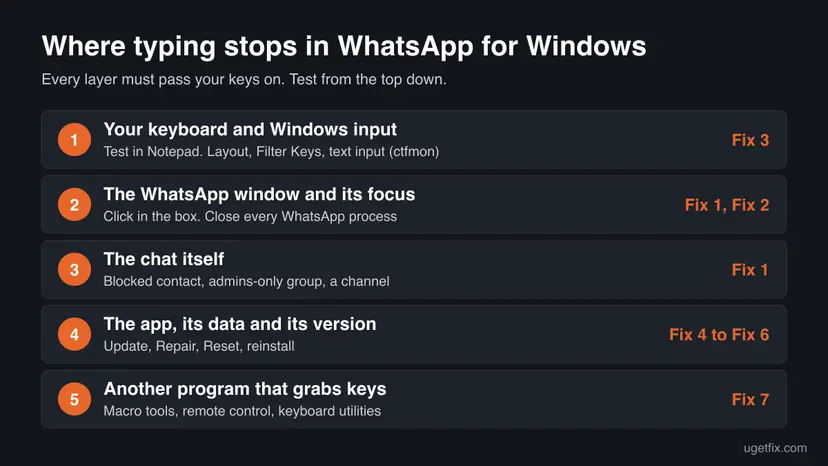
| What you see | What it tells you |
|---|---|
| A grey line at the bottom of the chat instead of the Type a message field | The app works. This chat does not accept messages from you: a blocked contact, a group where only admins send, a channel, or a group you left. |
| The field is there, but no cursor appears when you click it | The WhatsApp window does not get keyboard focus. Usually a hung process (Fix 2). |
| You can type in other apps but not in any WhatsApp chat | The fault is in the app: its process, version or data (Fixes 2, 4 and 5). |
| You cannot type in Notepad or the browser either | The fault is the keyboard or Windows input, not WhatsApp (Fix 3). |
| Letters appear, but Enter sends the message or adds a line you did not want | Not a fault: the Enter is send setting (see the next section). |
WhatsApp's help article for this problem is written for phones. It says that on Android every part of the keyboard is controlled by the operating system, so a broken phone keyboard is an Android issue. On a Windows PC the same logic holds for Windows input, which is why Fix 3 tests Notepad first.
Why you can't type in WhatsApp on a PC: the causes in order
Most often the WhatsApp window lost focus or one of its processes hung after sleep, a long uptime or an update. Less often the chat itself does not let you write, or Windows input is in a wrong state. Rarely the app's saved data is damaged or another program grabs the keys.
| Cause | How often | How to tell | Fix |
|---|---|---|---|
| The window has no keyboard focus, or a WhatsApp process hung | Most often | No cursor in the box. Other apps type fine. It began after the PC woke from sleep. | Fix 2 |
| The chat does not accept your messages | Often | Only one chat is affected, and a grey line replaces the text field. | Fix 1 |
| Windows input: keyboard layout, Filter Keys or text input services | Sometimes | Notepad behaves the same, or keys only register when held down. | Fix 3 |
| An outdated WhatsApp build | Sometimes | Microsoft Store lists an update for WhatsApp. | Fix 4 |
| Damaged app data | Rarely | Every chat fails even after a full restart, and WhatsApp Web works on the same PC. | Fix 5, Fix 6 |
| Another program that captures the keyboard | Rarely | A macro tool, remote control app or keyboard utility runs in the background. | Fix 7 |
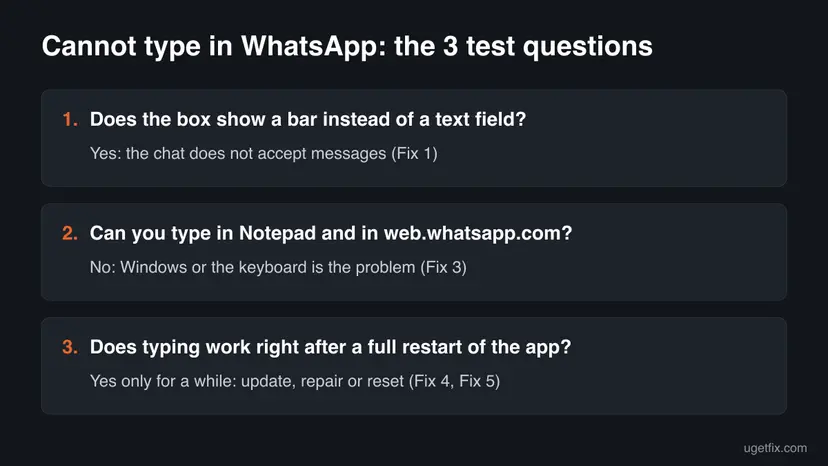
WhatsApp publishes no article about typing in the Windows app and no known-issue notice. The order above follows how the app is built and what readers of the old version of this page reported. It is not a measured statistic.
Enter sends the message, Shift + Enter does not work: the Enter is send setting
Some readers can type but cannot start a new line, or the message leaves too early. That is a setting, not a fault. WhatsApp lets you choose whether pressing Enter sends a message, on Windows, Mac and WhatsApp Web as well as on phones.
- Open WhatsApp.
- Go to Settings or your profile picture, then Chats.
- Turn Enter is send on or off.
- With the setting on, press Shift + Enter for a new line. With it off, Enter adds a line and you send with the send button.
Check that no keyboard utility remaps Shift, and test Shift in Notepad with a capital letter. If Shift works in Notepad, switch Enter is send off and on once and restart WhatsApp as in Fix 2.
How to fix can't type in the WhatsApp desktop app on Windows 11 and 10
Fixes 1 and 2 solve most cases and change nothing on the PC. Fix 3 is for when Windows input is the problem. Fixes 4 to 6 repair the app itself, and Fix 7 finds a program that takes the keyboard away from WhatsApp.
| What you see or have | Start with |
|---|---|
| Only one chat is affected, and a grey line replaces the Type a message field. | Fix 1 |
| No cursor in the box in any chat, other apps type normally. | Fix 2 |
| You cannot type in Notepad or the browser either, or keys only register when held. | Fix 3 |
| It worked yesterday and stopped after an update or a long time without one. | Fix 4 |
Nothing helps, but web.whatsapp.com types fine on the same PC. | Fix 5, then Fix 6 |
| It fails only while a certain program runs, such as a macro or remote control tool. | Fix 7 |
Fix 1. Check that the chat accepts messages and give the box focus
1 minuteNo riskEveryone, and above all readers who cannot type in only one chat.
Some chats do not offer a text field at all, so no repair will make you able to type there. If other chats work, the app and Windows are fine and only this chat's rules stop you.
- Click once inside the Type a message field at the bottom of the chat and type a letter.
- If nothing appears, open another chat, for example your own chat with yourself, and try there.
- If the bottom of a chat shows a grey line instead of a field, read that line: it names the reason.
- A blocked contact: open the contact's info and select Unblock if you want to write to them again.
- A group where only admins send messages, an announcement group or a channel: only admins can post. Ask an admin or reply in private.
- A group you left or were removed from: you can read the old messages, but you cannot write until someone adds you again.
| Chat | Why you cannot type | What to do |
|---|---|---|
| A contact you blocked | WhatsApp does not send messages to blocked contacts. | Unblock in the contact's info. |
| A group set so that only admins send messages | A group admin changed who can send messages. | Ask an admin, or write to the person directly. |
| A community announcement group or a channel | Only admins post there by design. | Use the reactions, or a private chat. |
| A group you are no longer in | You are not a participant any more. | Ask a member to add you. |
It worked if: The cursor blinks in the field and letters appear as you type in at least one chat.
If not: If no chat lets you type and there is a normal text field, go to Fix 2.
Fix 2. Close every WhatsApp process and open the app again
2 minutesNo riskThe field is there in every chat, but no cursor appears or keys do nothing.
Closing the window does not always stop WhatsApp. The current app shows WhatsApp Web inside a Microsoft Edge WebView2 window, and a hung helper process can keep the window from receiving keys until every process ends.
- Open Settings > Apps > Installed apps. On Windows 10 open Settings > Apps > Apps & features.
- Select the three dots next to WhatsApp, then Advanced options. On Windows 10 select WhatsApp, then Advanced options.
- Select Terminate. It closes the app and its related processes at once.
- If a WhatsApp window stays open, press Ctrl + Shift + Esc, select WhatsApp under Apps and select End task.
- Open WhatsApp from the Start menu, click in a chat's message box and type.
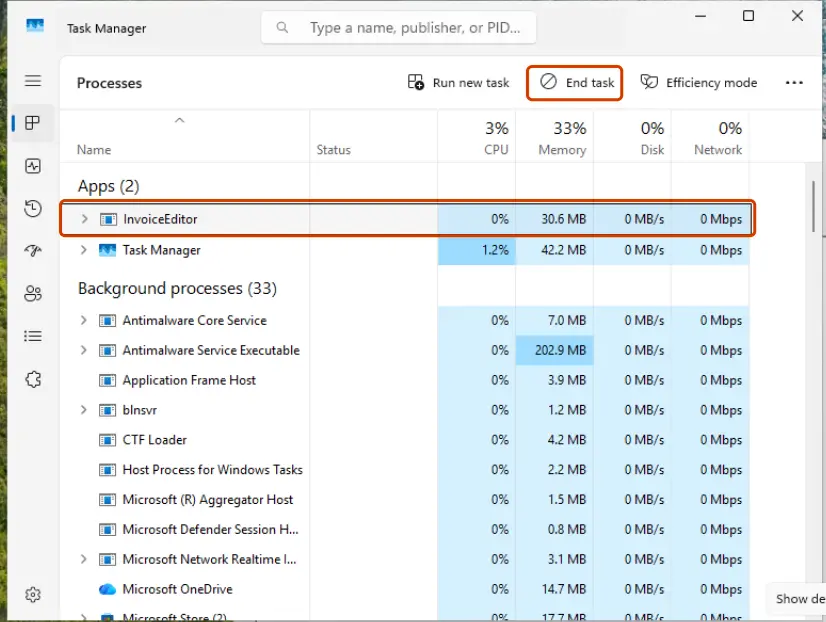
More ways to close a stuck app: Close a frozen app (Task Manager, Force Quit). If the problem began after the PC woke from sleep, a full restart of Windows does the same for every process at once.
It worked if: After the app opens again, the cursor appears in the message box and your letters show up.
If not: If you still cannot type, test the keyboard outside WhatsApp in Fix 3.
Fix 3. Test the keyboard and Windows text input outside WhatsApp
5 minutesNo riskTyping fails in WhatsApp after a restart, or you suspect the keyboard or Windows.
WhatsApp only receives what Windows passes on. If Notepad fails too, no change to WhatsApp can help, and the fix is a Windows input setting or the keyboard itself.
- Press Win + R, type
notepadand press Enter. Type a few words. - If Notepad types normally, open
web.whatsapp.comin Edge or Chrome and try typing there as well. - If letters come out wrong, press Win + Space to switch the keyboard layout and try again.
- If keys only register when held down, open Settings > Accessibility > Keyboard and turn Filter keys off. On Windows 10 it is Settings > Ease of Access > Keyboard.
- If no app shows a cursor or takes text, press Win + R, type
ctfmon.exeand press Enter. This starts the Windows text input process, shown as CTF Loader in Task Manager. - On a laptop, plug in a USB keyboard, or on a desktop PC try another USB port, to rule out the keyboard.
| Result | Meaning | Next |
|---|---|---|
| Notepad and WhatsApp Web type, the app does not | Windows is fine. The app is the problem. | Fix 4 |
| Nothing types anywhere | Keyboard, driver or Windows input. | Another keyboard, then Update, roll back or reinstall a driver |
Typing came back after ctfmon.exe or after Filter Keys went off | A Windows input setting was the cause. | Done. See the prevention list |
Users report that starting ctfmon.exe brought typing back in apps that show web content. It is a normal Windows process and starting it changes no setting. We could not confirm a Microsoft article that ties it to WhatsApp.
It worked if: You can type in Notepad and in the WhatsApp message box, with the right letters.
If not: If Notepad works and only the WhatsApp app does not, go to Fix 4.
Fix 4. Update WhatsApp in Microsoft Store, then Windows
5 minutesNo riskThe app has not been updated for a while, or typing stopped right after an update.
WhatsApp for Windows is updated through Microsoft Store. A half-installed or outdated build can leave the message box unresponsive, and a new build replaces the app's files without touching your linked account.
- Open Microsoft Store and select Library at the bottom left.
- Select Get updates (on some versions Check for updates).
- If WhatsApp is in the list, let it update, or select Update next to it.
- Open Settings > Windows Update and select Check for updates. Install what is offered and restart.
- Open WhatsApp and test typing.
If Microsoft Store itself does not update apps, reset it first: Reset the Microsoft Store.
It worked if: WhatsApp has no update waiting in Library, and the message box takes text after the restart.
If not: If the newest version still does not type, repair the app in Fix 5.
Fix 5. Repair WhatsApp, then reset it
5 minutesRead the warningTyping fails in every chat after Fixes 2 to 4, but WhatsApp Web types fine on the same PC.
Repair checks the app's files and keeps its data. Reset also deletes the app's local data, which removes a damaged profile that can stop the message box from working.
Reset deletes WhatsApp's data on this computer, and you link the PC again with a QR code. Your chats stay on your phone and come back after linking. Files you saved from WhatsApp to Downloads or Documents are not touched. Keep your phone at hand before you select Reset.
- Open Settings > Apps > Installed apps, select the three dots next to WhatsApp and select Advanced options.
- Select Terminate first, then Repair. Wait for the check mark.
- Open WhatsApp and test typing.
- If it still fails, go back and select Reset, then confirm.
- Open WhatsApp, scan the QR code with your phone under Linked devices, and test typing.
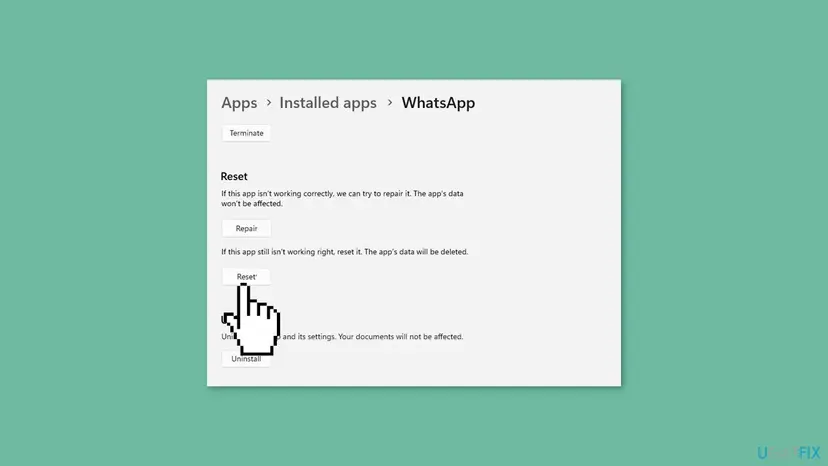
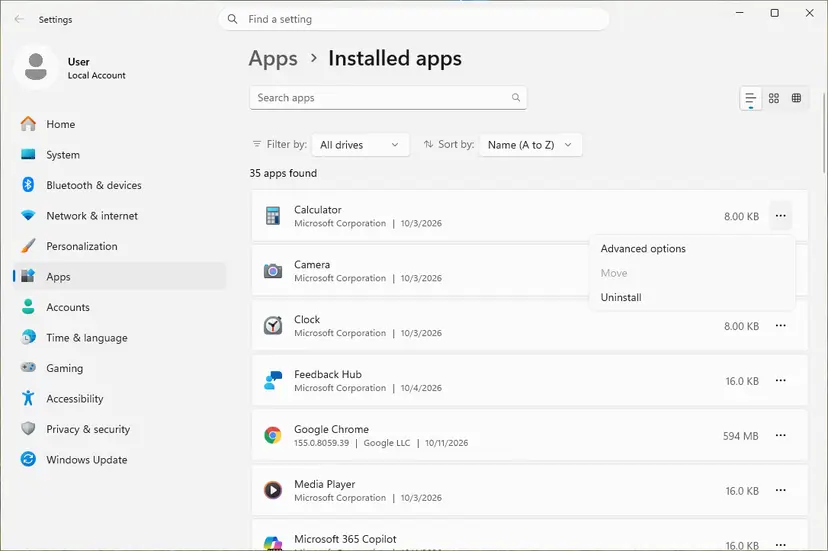
Step by step, with the Windows 10 path: How to repair or reset an app in Windows.
It worked if: After the repair, or after the reset and a new QR link, your letters appear in the message box.
If not: If a reset did not help, install the app again in Fix 6.
Fix 6. Uninstall WhatsApp and install it again from Microsoft Store
10 minutesRead the warningRepair and Reset did not help, or the Advanced options page is missing for WhatsApp.
A reinstall replaces every file of the app and its data folder. It also replaces an old desktop installer copy with the current Store version, which WhatsApp names as the place to download it.
Uninstalling removes WhatsApp's data on this PC, as Reset does. Your chats stay on the phone. Media you saved to your own folders stays. Have your phone ready to scan the QR code.
- Select Terminate in WhatsApp's Advanced options, as in Fix 2.
- In Settings > Apps > Installed apps, select the three dots next to WhatsApp and select Uninstall.
- Restart the PC.
- Open Microsoft Store, search for WhatsApp from WhatsApp Inc. and select Get or Install.
- Open WhatsApp, link it with the QR code and test typing.
If WhatsApp does not leave the list of apps: Uninstall a program or app in Windows.
It worked if: The new install opens to the QR code, and after linking you can type in every chat.
If not: If a clean install still does not type, find a program that interferes in Fix 7.
Fix 7. Start Windows with a clean boot to find a program that takes the keyboard
15 minutesLow riskTyping in WhatsApp fails only at times, or a keyboard, macro or remote control tool runs on the PC.
Programs that capture keys for shortcuts, remapping or remote control sit between the keyboard and every window. A clean boot starts Windows without them, so if WhatsApp types then, one of them is the cause.
- Close WhatsApp and any keyboard, macro, clipboard or remote control tools you know of, and test typing again.
- If it still fails, follow the clean boot steps in the procedure below and restart.
- Open WhatsApp and type. If it works, the cause is one of the services or startup apps you turned off.
- Turn them back on in small groups and restart each time, until typing fails again.
- Update or remove the program you found, then undo the clean boot.
Step by step, including how to undo it: How to perform a clean boot in Windows.
It worked if: WhatsApp types normally in a clean boot, and you can name the program that broke it.
If not: If even a clean boot does not help, read the section on what to do when nothing works.
Still can't type in WhatsApp? Use WhatsApp Web and contact support
If none of the fixes worked, keep chatting in a browser while you wait for help. WhatsApp Web is the same account and works without the Windows app. Readers who wrote that a fix did not work for them, in any language, usually had one of the two cases below.
- WhatsApp Web types, the app does not. The app is the problem. Report it to WhatsApp from the app: Settings > Help > Contact us, describe that the message box takes no input, and attach your Windows version.
- Nothing types anywhere. The keyboard, its driver or Windows is the problem. Try another keyboard and reinstall the keyboard driver: Update, roll back or reinstall a driver.
- Only one chat fails. Go back to Fix 1 and read the grey line at the bottom of that chat.
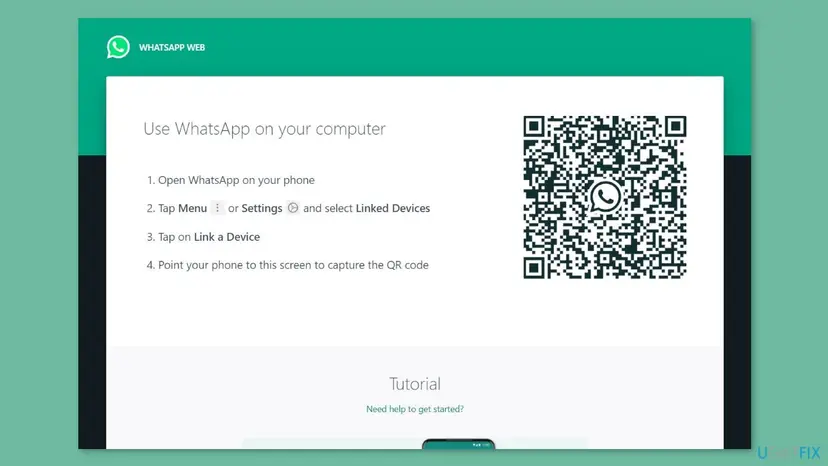
- Open
web.whatsapp.comin Edge or Chrome. - On your phone, open WhatsApp and go to Linked devices, then Link a device.
- Scan the QR code on the computer screen and wait for your chats to load.
How to keep WhatsApp for Windows typing normally
- Let Microsoft Store update apps on its own, so WhatsApp never runs a build that has expired.
- Close WhatsApp with Terminate or a Windows restart once in a while if the PC sleeps for days instead of shutting down.
- Keep only one keyboard remapping or macro tool, and update it when Windows updates.
- Do not turn on Filter keys by holding the right Shift key for 8 seconds by accident. If the prompt appears, select No.
- Install WhatsApp only from Microsoft Store or WhatsApp's own download page, not from mirror sites.
- On Windows 10, plan the move to Windows 11: Windows 10 no longer receives Microsoft fixes after 14 October 2025.
Leaving WhatsApp Web linked in one browser costs nothing and gives you a way to answer messages the moment the app stops taking input.
Frequently asked questions
Why can't I type on WhatsApp on my PC?
Most often the WhatsApp window has no keyboard focus, or one of its processes hung after sleep or an update. Close the app with Terminate under Settings > Apps > Installed apps > WhatsApp > Advanced options and open it again. If only one chat is affected and a grey line replaces the text field, the chat does not accept your messages: the contact is blocked, only admins can send, or you left the group. If you cannot type in Notepad either, the problem is the keyboard or Windows input, not WhatsApp.
Why does a chat show a line instead of the message box?
WhatsApp hides the text field when you are not allowed to write in that chat. That happens when you blocked the contact, when a group admin set the group so that only admins send messages, in a community announcement group, in a channel, and in a group you left or were removed from. The line at the bottom says which case it is. No repair of the app changes this. Unblock the contact, ask an admin, or write to the person in a private chat.
Will resetting or reinstalling WhatsApp on Windows delete my chats?
No, your chats stay on your phone. The computer is a linked device. Reset and uninstall delete the app's data on this PC only, so you scan the QR code again and the chats load from the phone. Files you already saved from WhatsApp into your own folders, such as Downloads, are not removed. Before you reset, make sure your phone is at hand and connected, because without it you cannot link the PC again.
How do I start a new line in WhatsApp Desktop without sending the message?
Press Shift + Enter while Enter is send is on. If you want Enter to add a line instead, open Settings or your profile picture, then Chats, and turn Enter is send off. WhatsApp offers this setting on Windows, Mac and WhatsApp Web. If Shift + Enter still sends the message, test the Shift key in Notepad and check that no keyboard utility remaps it, then restart WhatsApp fully as in Fix 2.
Why can I type in every app except WhatsApp?
Because Windows and the keyboard are fine and the fault sits in WhatsApp. The current app shows WhatsApp Web inside a Microsoft Edge WebView2 window, and a hung helper process can stop that window from taking keys. Close every WhatsApp process with Terminate, update the app in Microsoft Store and then repair it. If web.whatsapp.com in a browser types normally on the same PC, Reset or a reinstall of the app usually helps. If the app also shows a white window, read our WhatsApp white screen guide.
Is WhatsApp's keyboard problem on my phone the same thing?
No. WhatsApp's own article on this problem is about phones. It says that on Android all parts of the keyboard, including languages, text correction, spell check and predictive text, are controlled by the Android system and set in Settings > System > Keyboard. A keyboard that fails there is an Android issue, not a WhatsApp one. This page is about the Windows app on a laptop or desktop PC, where the keys pass through Windows input and the WhatsApp window.
Kenapa tidak bisa mengetik di WA di laptop atau PC?
This page is in English and covers exactly this question for WhatsApp on a Windows laptop or PC. Readers searching in Indonesian, Spanish, Italian and other languages describe the same thing: the WhatsApp desktop app does not let them type. Start with Fix 1 to check the chat, then Fix 2 to close every WhatsApp process with Terminate and open it again. If you cannot type in Notepad either, use Fix 3. The menu names in the steps are the English ones and match the Windows menus in your language in the same order.
Can I use WhatsApp Web while the desktop app does not let me type?
Yes. Open web.whatsapp.com in Edge or Chrome, go to Linked devices on your phone, select Link a device and scan the code. It is the same account, and it also tells you where the problem is: if you can type in WhatsApp Web, Windows and the keyboard are fine. If you cannot log in to WhatsApp Web either, check that your phone is online and that the QR code is fresh, and reload the page before scanning again.
Do these fixes work on Windows 10?
Yes, all seven fixes work on Windows 10 22H2, and the steps give the Windows 10 menu names where they differ. Keep in mind that Windows 10 left Microsoft support on 14 October 2025, so it no longer gets regular fixes for Windows input or other parts of the system. If the problem started after a Windows 10 update and nothing on this page helps, the long term answer is a move to Windows 11, where WhatsApp for Windows is fully supported.
Sources
Did this fix work?
One click, no account. It tells the next reader which guides are worth their time.
Questions and experiences: fix can't type in WhatsApp desktop app in Windows
Still broken, or found a fix we did not cover? Ask here: members and our editors answer. Reading is open; writing needs a free account.
…