
How to fix WhatsApp white screen error?

Prefer to fix it yourself? The manual steps follow.
- 8methods
- 2 to 20 minutes
- Easy
Applies to WhatsApp for Windows from Microsoft Store (version 2.2584.3.0 and later) on Windows 11 and Windows 10; WhatsApp Web; WhatsApp on Android and iPhone in separate sections
8 methods in this guide
- What the white screen means
- The causes, ranked
- The fixes
- 1. Test the web, restart fully
- 2. Repair WebView2 Runtime
- 3. Update the app and Windows
- 4. Repair or reset the app
- 5. Reinstall WhatsApp
- 6. Rule out the graphics driver
- 7. Remove a recent update
- 8. Check the network
- WhatsApp Web in a browser
- White screen on Android
- White screen on iPhone
- Still a white screen
- Prevent it
- FAQ
Hello, my WhatsApp goes to a white screen as soon as I open it. The problem happened seemingly out of nowhere: I open the app and there is nothing visible. I cannot use the application, and it is very important to my day-to-day communication. Please help me fix the WhatsApp white screen! I am using Windows 10, if that helps.
A white screen in WhatsApp for Windows means the app window opened but the web page inside it never drew. Since version 2.2584.3.0 the Windows app shows web.whatsapp.com through Microsoft Edge WebView2, so the fault is usually in that runtime, not in your account. Test WhatsApp Web in a browser first, then repair the runtime.
Your chats are safe on your phone. On a PC, open web.whatsapp.com in a browser: if it works, the fault is in the Windows app, not in your account (Fix 1). Then open Settings > Apps > Installed apps, find Microsoft Edge WebView2 Runtime and select Modify > Repair (Fix 2). If that changes nothing, update, repair and reset WhatsApp itself (Fix 3 and Fix 4). Phone and browser readers: use the sections after the fixes.
| Error | No code and no message. The WhatsApp window opens and stays white, blank or black. Some users see a pale phone logo in the middle and nothing can be clicked. |
|---|---|
| Where it appears | Most searches are about WhatsApp for Windows on Windows 11 and Windows 10, right after the app starts. It also happens in a WhatsApp Web tab and when the phone app opens. |
| Main cause | On Windows: the Microsoft Edge WebView2 Runtime that draws the app is missing, damaged or broken by an update. Less often the app's saved profile, the graphics driver or a network that blocks WhatsApp. |
| Fastest fix | Open web.whatsapp.com in a browser to keep chatting, then repair Microsoft Edge WebView2 Runtime in Settings > Apps > Installed apps (Fix 1 and Fix 2). |
| Also written as | WhatsApp blank screen, WhatsApp Desktop white screen, WhatsApp black screen, WhatsApp stuck on white screen, WhatsApp showing blank screen. |
| App version this applies to | WhatsApp for Windows 2.2584.3.0 and later, the build that shows web.whatsapp.com inside WebView2. Windows Latest reported the switch from the earlier native app in November 2025. |
| Supported systems | WhatsApp for Windows: Windows 10 64-bit version 1903 and newer. Phones: Android 6.0 and newer, iOS 15.1 and newer (from 30 November 2026 only iOS 15.5 and newer). |
| Vendor status | The WhatsApp Help Center has no article about a white screen. Its advice for the Windows app is to quit and restart, log out and back in, then uninstall and download again. |
| Is data lost | No. A computer is a linked device. Your chat history lives on the primary phone and is shown again after you link the PC. |
| Time to fix | 2 minutes for the test, 5 minutes for the runtime repair, up to 20 minutes if a Windows update has to be removed. |
Facts checked on 14 October 2026. Steps written for WhatsApp for Windows 2.2584.3.0 and later (the WebView2 app) on Windows 11 25H2 and 26H2 and Windows 10 22H2.
What the WhatsApp white screen means on a Windows PC
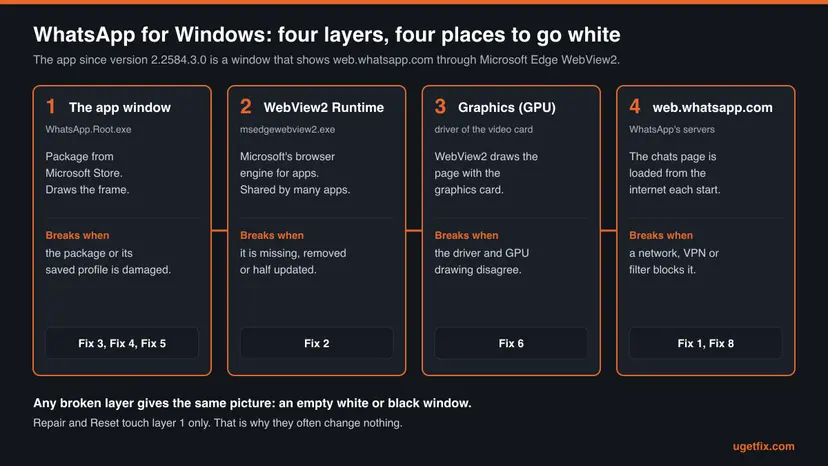
The white screen is not an error message from WhatsApp. It is an empty canvas. The app's window frame has started, but the content that should fill it, the list of chats, was never drawn. That is why there is no code to search for and why people describe it in so many ways: white screen, blank screen, black screen, stuck on loading.
To see why it happens you need one fact about the current app. WhatsApp for Windows is no longer a program that draws its own buttons. Windows Latest, which tested the change, reports that version 2.2584.3.0 replaced the native app with a wrapper that loads web.whatsapp.com inside Microsoft Edge WebView2. WebView2 is Microsoft's browser engine for apps. So the app is a small window around a web page, and four separate things must work before you see a chat.
| What you use | How to recognise it | Do the Windows fixes apply |
|---|---|---|
| WhatsApp for Windows, the WebView2 app | Installed from Microsoft Store. Version 2.2584.3.0 or later. | Yes. Fix 1 to Fix 8 were written for it. |
| An older build of the Windows app | A version number below 2.2584.3.0, or a message that the version has expired. | Update first (Fix 3). Users report that old builds stop with a notice that the version has expired. |
| WhatsApp Web | A tab at web.whatsapp.com in Chrome, Edge, Firefox, Safari or Opera. | No. Use the browser section below. |
| WhatsApp on a phone or tablet | The app from Google Play or the App Store. | No. Use the Android or iPhone section below. |
Open Settings > Apps > Installed apps and find WhatsApp. Windows 11 prints the version of many apps under the name, next to the publisher. If no number is shown there, open Advanced options from the three dots next to the app.
The WhatsApp Help Center itself does not name WebView2 anywhere. It says only that WhatsApp for Windows is supported on Windows 10 64-bit version 1903 and newer and can be downloaded from the WhatsApp download page or the Microsoft Store. The technical base described here comes from independent testing and from Microsoft's own WebView2 documentation.
Why WhatsApp is showing a white screen: the causes in order
Most often the runtime under the app is the problem. Less often it is the app's own saved data. Rarely it is the graphics driver, a Windows preview update or the network. The table ties each cause to the fix that answers it.
| Cause | How it shows | What the sources say | Fix |
|---|---|---|---|
| WebView2 Runtime missing or damaged | White window from the first start, sometimes with a pale phone logo. Repair and Reset of WhatsApp change nothing. | Microsoft: the runtime is part of Windows 11, but a small number of Windows 10 devices do not have it. Users on Microsoft Q&A report that installing it ended the white window. | Fix 2 |
| An expired or half-updated app | It worked, then went white after an automatic update or after a notice that the version expired. | WhatsApp: use the most up to date version of WhatsApp for the best experience. | Fix 3 |
| The app's saved profile is damaged | The window turns white after a crash, a full disk or a forced shutdown. A new Windows user account is not affected. | Microsoft: deleting the WebView2 user data folder is a way to recover from data corruption. | Fix 4, Fix 5 |
| Graphics drawing fails | White or black window, flicker or freezes that come back even after a clean reinstall. | One documented case on Windows 11 ended only when WebView2 was started without GPU drawing. | Fix 6 |
| A Windows update, mostly a preview build | It broke on the day Windows installed an update. | Windows Insiders reported in March 2026 that removing KB5079491 brought WhatsApp back. | Fix 7 |
| The network blocks WhatsApp | White or endlessly loading window at work or on campus, fine at home. | WhatsApp: office or university Wi-Fi can cause connection issues. Let traffic to web.whatsapp.com and .whatsapp.net through. | Fix 8 |
Microsoft made the WebView2 Runtime a part of Windows 11 only. On Windows 10 it was added later, by apps and by Microsoft, and Microsoft admits that a small number of Windows 10 devices still lack it. Users also report losing it on Windows 11 after running a so called debloat script. Microsoft ended support for Windows 10 on 14 October 2025, so such gaps are no longer repaired by updates.
Two things the white screen is not. It is not a sign that your account was banned, that someone blocked you or that someone read your chats: the same account keeps working on your phone. Malware is not a typical cause either. If the PC shows other strange behaviour, scan it with Microsoft Defender, but do not expect the scan to bring the chat list back.
How to fix the WhatsApp white screen on Windows 11 and Windows 10
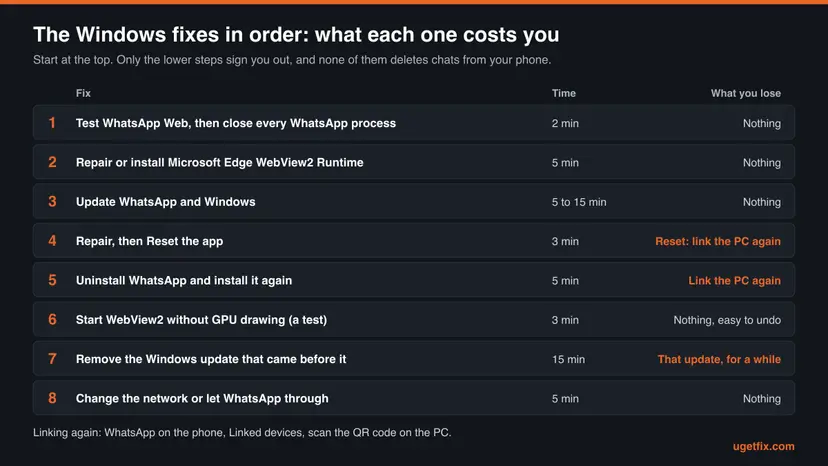
The fixes are ordered by how often they help and how little they cost. The first three change nothing on your PC that you would miss. Only Reset and a reinstall sign the computer out of WhatsApp, and linking it again takes a minute. If your problem is in a browser tab or on a phone, jump to the sections after Fix 8.
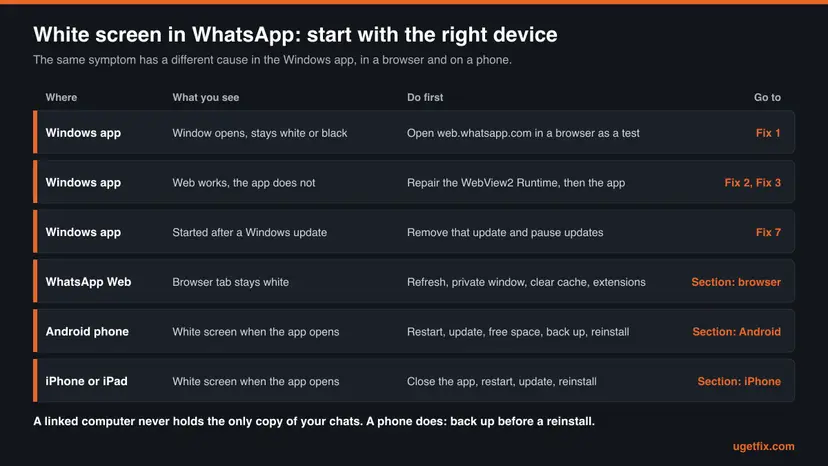
| What you see or have | Start with |
|---|---|
| The Windows app opens to a white, blank or black window and you have tried nothing yet. | Fix 1 |
| WhatsApp Web works in your browser, the app does not. | Fix 2 |
| A white window with a pale phone logo, or the PC was cleaned with a debloat tool. | Fix 2 |
| The app said the version expired, or it went white right after it updated itself. | Fix 3 |
| Repair and Reset did nothing and the white screen survives a reinstall. | Fix 2, then Fix 6 |
| A black window, flicker or freezes while scrolling. | Fix 6 |
| It stopped on the day Windows installed an update, or you run an Insider build. | Fix 7 |
| White at the office, on campus or with a VPN, fine on another network. | Fix 8 |
The white screen is in a browser tab at web.whatsapp.com. | The section about WhatsApp Web |
| The white screen is on an Android phone, an iPhone or a tablet. | The Android or iPhone section |
Fix 1. Test WhatsApp Web, then close every WhatsApp process and start again
2 minutesNo riskEveryone with a white Windows app starts here, because it tells you which layer failed.
The app and WhatsApp Web load the same page from the same servers. If the page works in a browser, your account, your phone link and WhatsApp's servers are fine and the fault sits on this PC. Closing the window does not always stop the app, because its WebView2 processes can stay behind in a hung state.
- Open Microsoft Edge or Chrome and go to
web.whatsapp.com. - If you see a QR code or your chats, WhatsApp itself works. Follow the on-screen instructions to scan the code with your phone if you need to chat right now.
- Open Settings > Apps > Installed apps, select the three dots next to WhatsApp and select Advanced options.
- Select Terminate. It closes the app and its related processes at once.
- If the app still has a window, press Ctrl + Shift + Esc, select WhatsApp under Apps and select End task.
- Turn the PC off, wait 30 seconds and turn it on again. WhatsApp's own advice names this pause.
- Open WhatsApp from the Start menu.
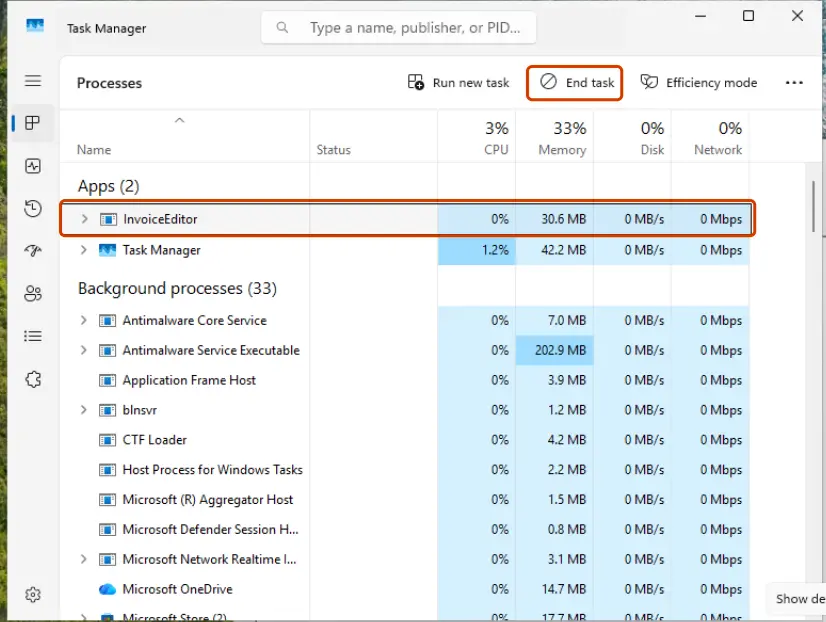
On Windows 10 the path is Settings > Apps > Apps & features: select WhatsApp, then Advanced options under its name. More ways to close a stuck app: Close a frozen app (Task Manager, Force Quit)
A browser tab is a full replacement for the app while you work through the fixes. It uses the same account and counts as one of your linked devices. You can have up to four linked devices at a time.
It worked if: The chat list appears within a few seconds of opening the app, as it did before.
If not: If WhatsApp Web works and the app is still white, go to Fix 2. If WhatsApp Web is white too, go to Fix 8 and then to the section about WhatsApp Web.
Fix 2. Repair or install the Microsoft Edge WebView2 Runtime
5 minutesNo riskWhatsApp Web works in a browser but the app stays white, above all on Windows 10 or on a PC cleaned with a debloat tool.
The current app cannot draw anything without this runtime, and repairing or resetting WhatsApp never touches it. Microsoft says a WebView2 app can only use the WebView2 Runtime, not the Edge browser itself, so a working Edge proves nothing about the runtime.
- Close WhatsApp (Fix 1, steps 3 and 4).
- Open Settings > Apps > Installed apps. On Windows 10 open Settings > Apps > Apps & features.
- Type
webviewin the search box of the list. - If Microsoft Edge WebView2 Runtime is listed, select the three dots next to it and select Modify.
- Select Repair in the window that opens and wait until it finishes. It downloads the runtime again, so you need an internet connection.
- Restart the PC and open WhatsApp.
If the runtime is not in the list at all, check the registry value that Microsoft documents for this purpose. Type cmd in the search box on the taskbar, open Command Prompt and run the two commands. They only read, nothing is changed.
Is the WebView2 Runtime installed (64-bit Windows)?
reg query "HKLM\SOFTWARE\WOW6432Node\Microsoft\EdgeUpdate\Clients\{F3017226-FE2A-4295-8BDF-00C3A9A7E4C5}" /v pv
reg query "HKCU\Software\Microsoft\EdgeUpdate\Clients\{F3017226-FE2A-4295-8BDF-00C3A9A7E4C5}" /v pv| What the command prints | Meaning | Next step |
|---|---|---|
pv REG_SZ 151.0.4129.78 or another version above 0.0.0.0, in at least one of the two | The runtime is installed. The number is its version. | Repair it as above. If it is already repaired, go to Fix 3. |
ERROR: The system was unable to find the specified registry key or value in both | The runtime is not installed. | Install it with the steps below. |
pv is empty or 0.0.0.0 | Microsoft counts this as not installed. | Install it with the steps below. |
- Open
https://developer.microsoft.com/microsoft-edge/webview2/in a browser. This is Microsoft's own download page for the runtime. - In the section Download the WebView2 Runtime, select Download under Evergreen Bootstrapper. Microsoft names the file
MicrosoftEdgeWebview2Setup.exeand gives its size as about 2 MB. - Right-click the file and select Run as administrator, so the runtime is installed for the whole PC and not for one user.
- Wait for the installer to finish, restart the PC and open WhatsApp.
Users report this on PCs where the runtime's files were removed by hand but its registry entry stayed. We could not confirm one official cure for that state. What Microsoft staff suggest in such threads is the Modify > Repair route above and, on the same Microsoft page, the Evergreen Standalone Installer (button x64) run as administrator.
It worked if: WhatsApp opens to the QR code or to your chats, and Task Manager shows Microsoft Edge WebView2 processes under the WhatsApp entry.
If not: If the runtime is installed and repaired and the window is still white, the fault is in the app itself. Go to Fix 3.
Fix 3. Update WhatsApp, then Windows
5 to 15 minutesNo riskThe app went white after an update, showed a notice that the version expired, or has not been updated for months.
Because the app only wraps a web page that WhatsApp changes on its servers, an old wrapper can stop matching the page it loads. WhatsApp's own advice for connection problems ends with using the most up to date version.
- Close WhatsApp.
- Open Microsoft Store from the Start menu.
- Select Library and then Check for updates. Microsoft's help page names this button.
- Wait until WhatsApp is updated. If it is not in the list of updates, open its Store page and look for an Update button there.
- Open Settings > Windows Update and select Check for updates. On Windows 10 open Settings > Update & Security > Windows Update.
- Install what is offered, restart the PC and open WhatsApp.
The WebView2 Runtime needs no manual update. Microsoft calls it evergreen: new versions are downloaded on their own, and an app starts using the new version the next time it is started. A WhatsApp that has been left running for weeks therefore still runs on the old runtime. Fix 1 took care of that.
Old advice told readers to download an earlier WhatsApp build from a third-party site. Do not. Users report that old builds stop with a notice that the version has expired, the installers on such sites cannot be verified, and WhatsApp warns that unofficial apps can lead to a temporary or permanent ban of the account.
It worked if: The Store shows no pending update for WhatsApp and the app opens to your chats.
If not: If the app is up to date and still white, repair its installation in Fix 4.
Fix 4. Repair WhatsApp, then reset it
3 minutesRead the warningThe runtime is fine and the app is current, but the window stays white for this Windows user.
The app keeps a browser profile of its own: cookies, cache and the key that links this PC to your phone. If that profile is damaged, the page cannot start. Repair checks the installation and keeps the profile. Reset deletes the profile, which Microsoft lists as the way to recover a WebView2 app from data corruption.
Reset deletes the app's data on this PC, including the sign-in. You will scan the QR code again and the chat history will be loaded again from your phone, which takes a while. Nothing is deleted from the phone. Before you reset, make sure the phone with your WhatsApp account is at hand, switched on and online. Try Repair first: it loses nothing.
- Open Installed apps. Select Start > Settings > Apps > Installed apps.
- Open the app's advanced options. Find the app in the list, select the three dots next to it and select Advanced options. Some apps do not have this option: for those, see the section about desktop programs below.
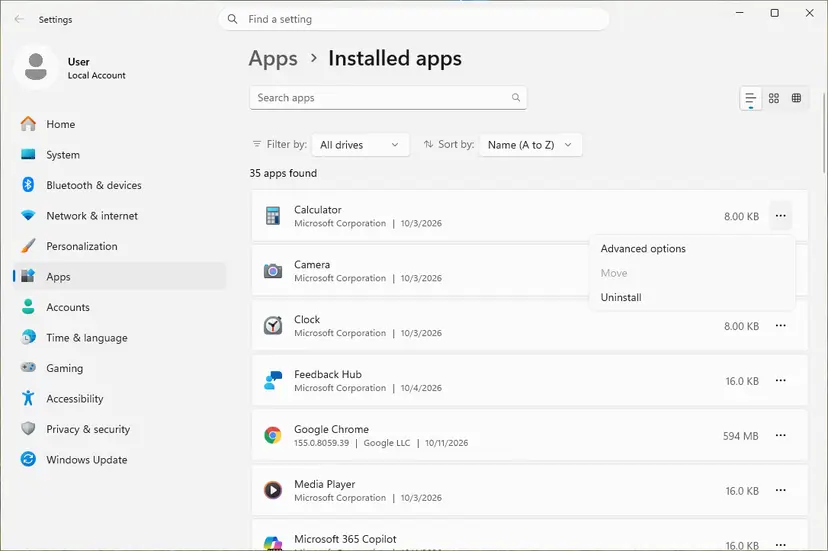
The three dots next to an app open Advanced options. Screenshot: Windows 11 26H2. - Repair first. On the page that opens, select Repair if it is there. The app's data stays. Open the app and check whether it works.

Repair keeps the app data. Reset deletes it. Screenshot: Windows 11 26H2. - Reset if Repair did not help. Select Reset. This deletes the app's data on this PC, including sign-in details and settings. Open the app and set it up again.
These steps were written for Windows 11 25H2 and 26H2. The full page with the other versions and what each result means: How to repair or reset an app in Windows
After a reset, open WhatsApp on the PC and follow the on-screen instructions to scan the QR code with your phone. On the phone the entry is called Linked devices. A linked PC shows messages without the phone being online, but WhatsApp logs it out if the phone is not used for more than 14 days.
It worked if: After Repair the chats appear at once. After Reset you see the QR code, and once scanned the chats load.
If not: If even the QR code never appears after a reset, the package itself is suspect. Go to Fix 5.
Fix 5. Uninstall WhatsApp and install it again from Microsoft Store
5 minutesRead the warningRepair and Reset are missing, fail, or leave the window white.
This is the last step on WhatsApp's own list for the Windows app: uninstall and download again. It replaces the whole package, not only its data. For a Store app Windows deletes the WebView2 profile together with the app, so you also get a clean profile.
Uninstalling removes the app and its data from this PC, including the sign-in. Your chats stay on the phone. Keep the phone at hand to scan the QR code. If the PC is the only place where you saved a received file, copy it from the chat or from your Downloads folder first.
- Open Settings > Apps > Installed apps. On Windows 10 open Settings > Apps > Apps & features.
- Find WhatsApp, select the three dots next to it, select Uninstall and confirm.
- If the list shows a second WhatsApp entry, such as WhatsApp Beta, remove it too. Two builds on one PC confuse the test.
- Restart the PC.
- Open Microsoft Store, search for
WhatsAppand install the app named WhatsApp. - Open the app and follow the on-screen instructions to scan the QR code with your phone.
WhatsApp also offers the app on its own download page. Other ways to remove a program, and what to do when Uninstall is greyed out: Uninstall a program or app in Windows
It worked if: A fresh WhatsApp opens to the QR code, and after scanning it your chats load.
If not: A white window in a freshly installed app with a healthy runtime points below the app. Go to Fix 6, and to Fix 7 if Windows was updated recently.
Fix 6. Start WebView2 without GPU drawing as a test, then fix the graphics driver
3 minutesLow riskThe window is white or black, flickers or freezes, and the problem comes back even after a clean reinstall.
WebView2 draws the page with the graphics card. If that path fails with your driver, the window stays empty although every file is healthy. Microsoft documents an environment variable, WEBVIEW2_ADDITIONAL_BROWSER_ARGUMENTS, whose value WebView2 adds to its start options. An independent investigation of WhatsApp 2.2631.102.0 on Windows 11 ended its hangs with this one setting.
Microsoft confirms that WebView2 reads this variable. The value --disable-gpu is a Chromium switch that Microsoft does not list on that page, and the evidence that it helps WhatsApp is one documented case, not a vendor statement. Treat it as a test that is easy to undo. The setting applies to every WebView2 app of your Windows user, not only to WhatsApp.
- Close WhatsApp fully (Fix 1, steps 3 and 4).
- Type
powershellin the search box on the taskbar and open Windows PowerShell. Administrator rights are not needed. - Paste the first command below and press Enter.
- Sign out of Windows and sign in again, so that every app sees the new variable.
- Open WhatsApp and use it for a while.
Turn GPU drawing off for WebView2 apps of this user
[Environment]::SetEnvironmentVariable('WEBVIEW2_ADDITIONAL_BROWSER_ARGUMENTS', '--disable-gpu', 'User')Undo: remove the variable again
[Environment]::SetEnvironmentVariable('WEBVIEW2_ADDITIONAL_BROWSER_ARGUMENTS', $null, 'User')If the app now works, the graphics path was the cause. The lasting repair is a driver that works: install the current driver from the maker of your graphics card, or roll back if the trouble began after a driver update. Then run the undo command and test again. Step by step: Update, roll back or reinstall a driver
It worked if: WhatsApp draws its chat list and stays responsive. Drawing is done by the processor, which you will not notice in a chat app.
If not: If nothing changed, run the undo command so the variable does not stay behind, then go to Fix 7.
Fix 7. Remove the Windows update that arrived just before the white screen
15 minutesLow riskThe app stopped on the day Windows installed an update, most of all on a Windows Insider preview build.
The app depends on Windows parts that an update replaces. In March 2026 Windows Insiders reported on Microsoft Q&A that WhatsApp opened to a white screen after the Beta build 26220.8138 (KB5079491), and that Repair, Reset and reinstalling did not help. Removing the update brought the app back at once. Microsoft's release post for that build lists no such known issue, so this rests on user reports.
- Open Windows Update. Select Start > Settings > Windows Update.
- Open the update history. Under More options, select Update history. Note the KB number and the date of the update you suspect.
- Open the list of removable updates. Scroll down to Related settings and select Uninstall updates.
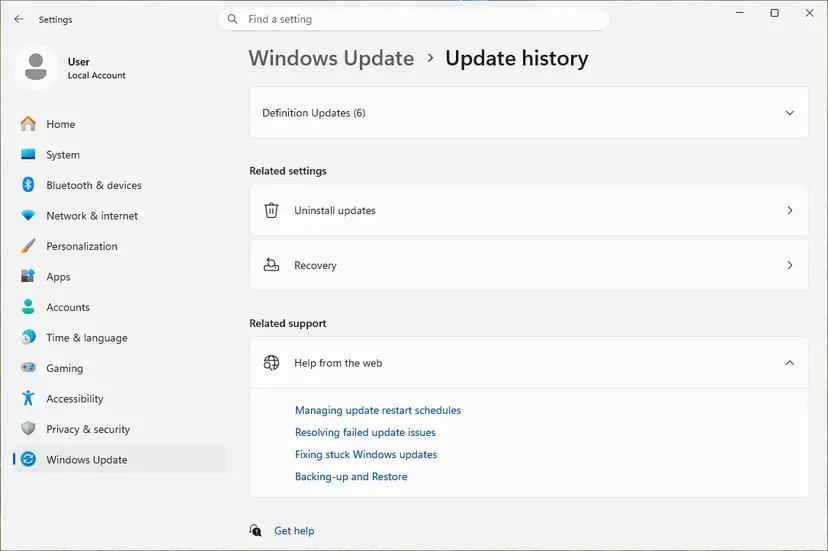
Uninstall updates is under Related settings. Screenshot: Windows 11 26H2. - Uninstall the update. Find the update in the list and select Uninstall next to it. If the update is not in the list, Windows does not allow it to be removed this way.
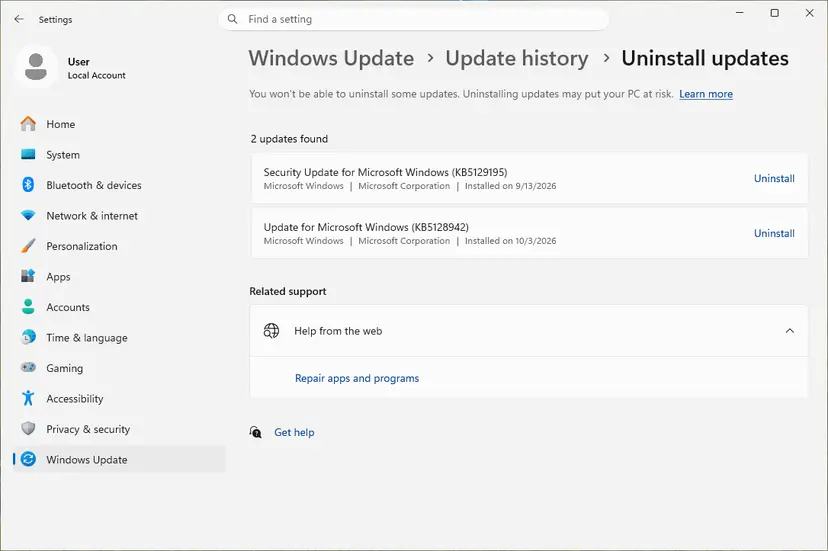
Each removable update has its own Uninstall link. Screenshot: Windows 11 26H2. - Pause updates. Go back to Settings > Windows Update and select Pick a date on the Pause updates control. If your PC shows a list there instead, select the pause length you prefer. Without a pause Windows downloads the same update again.
These steps were written for Windows 11 25H2 and 26H2. The full page with the other versions and what each result means: How to uninstall a Windows update
- Remove only the update whose date matches the day the white screen began. Security updates protect the PC, so do not strip several of them on a guess.
- Pause updates for a week or two, not for good. Check after each new update whether WhatsApp still opens.
- On an Insider build, report the fault in Feedback Hub. Microsoft's volunteer moderators point there, and to WhatsApp support, for exactly this case.
- Use WhatsApp Web in the meantime. The Insiders in those threads named it as the app that failed, which shows how often the two are mixed up, but a normal browser tab is not affected by the app's packaging.
It worked if: After the restart WhatsApp opens normally, and the update is gone from Update history.
If not: If the update cannot be removed or the app is still white, keep using WhatsApp Web and read the section about what to do when it is still broken.
Fix 8. Change the network or let WhatsApp through it
5 minutesNo riskThe app is white or loads without end at work, on campus, in a hotel or with a VPN, and works on another connection.
The chat page is fetched from WhatsApp's servers every time the app starts. A filter that blocks those addresses leaves the window empty, and the app looks broken although nothing on the PC is wrong. WhatsApp names office and university Wi-Fi as a known source of this.
- Turn on the hotspot of your phone and connect the PC to it.
- Open WhatsApp. If it works now, the first network is blocking it.
- Disconnect a VPN or a proxy for one test and open WhatsApp again.
- On a network you manage, allow traffic to
web.whatsapp.comand.whatsapp.netwithout filtering. This is the wording of WhatsApp's own advice. - On a network you do not manage, send that line to the administrator.
- Look for a yellow banner with the text Computer not connected in the app. It means the PC itself has no internet connection.
If other websites fail as well, the problem is the connection of the PC and not WhatsApp. Check it from the adapter to the DNS server: How to check your internet connection in Windows
It worked if: The app loads on the hotspot or after the rule is added, and keeps working on your normal network.
If not: If the app is white on every network while WhatsApp Web works on the same PC, the network is not the cause. Go back to Fix 2.
WhatsApp Web blank or white screen in a browser tab
This section is for a white tab at web.whatsapp.com in a normal browser. Nothing here needs the Windows app. WhatsApp Web is supported on Windows, Linux and macOS, with these minimum versions: Chrome 100, Edge 100, Firefox 115, Safari 15 and Opera 86. It does not work in Internet Explorer.
- Refresh the page. This is the first step on WhatsApp's list.
- Open a private or incognito window and load
web.whatsapp.comthere. If it works, an extension or stored data of the normal profile is the cause. - Pause your extensions, above all content blockers, script blockers and privacy tools, and reload. Turn them on again one by one to find the one that breaks the page.
- Clear the cache and cookies of the browser, which WhatsApp recommends next. You will scan the QR code again afterwards.
- Update the browser to its current version and restart it.
- Log out of WhatsApp Web and log back in. From the phone: Linked devices, tap the device, tap Log out.
- Try another network or your phone's hotspot, as in Fix 8.
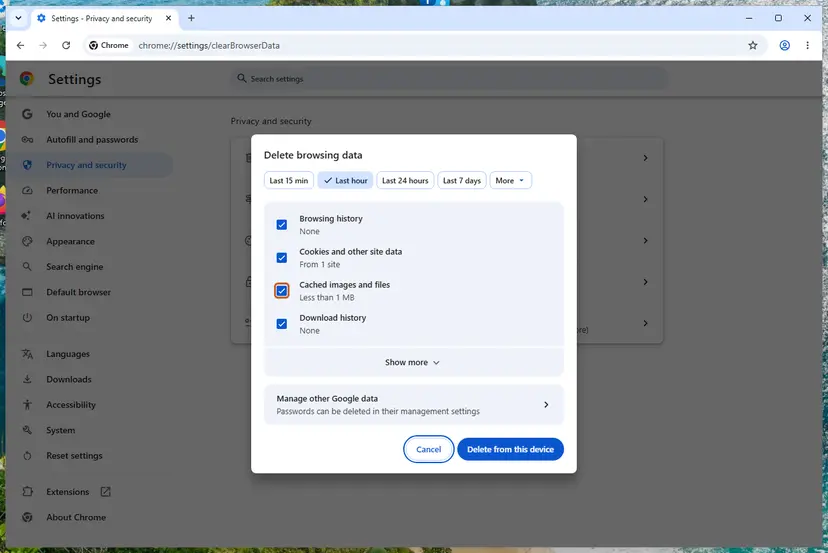
The same box in Edge and Firefox, with every step: Clear the browser cache and cookies. If you use WhatsApp's Code Verify extension and it warns that the network timed out, WhatsApp's advice is to reload, try another Wi-Fi network and pause your other extensions during the check.
Open web.whatsapp.com in a second browser on the same PC. If it loads there, the first browser's profile is the cause and your account is fine. If it is white in every browser on this network but loads on your phone's hotspot, the network is blocking it.
WhatsApp blank white screen on an Android phone or tablet
On Android the white screen is a different fault with the same look. The app is not a web page here, so nothing about WebView2 applies. The usual reasons are a stuck app process, an outdated app, a phone that is nearly full or an Android version WhatsApp no longer supports. WhatsApp supports Android 6.0 and newer.
Unlike a PC, the phone holds the original chat history. Clear storage and uninstalling delete it from the phone. Before either, open WhatsApp Settings > Chats > Chat Backup and check the time and size of the last backup. If the app is too broken to open, a backup made earlier is all that can be restored, and messages received after it are lost.
- Restart the phone. If it does not react, Google's help says to hold the power button for about 30 seconds to force a restart.
- Open Google Play Store, tap your profile icon, tap Manage apps & devices and install what is listed under Updates available.
- Open Settings > System > Software update and install a pending Android update.
- Check free space. Google says problems can start when less than 10% of storage is free. Delete or move files if you are near that.
- Open Settings > Apps > See all apps > WhatsApp > Storage & cache and tap Clear cache. This deletes temporary data only.
- If the screen is still white and you have a backup, uninstall WhatsApp, install it again and tap Restore when asked. Do not tap Skip if you want your old chats.
Menu names differ between phone makers. Google notes that settings can vary by phone, and the paths above are those of Pixel phones. An Android tablet that is linked to your phone account behaves like a PC: it holds a copy, and unlinking and linking it again loses nothing.
WhatsApp white screen on an iPhone or iPad
WhatsApp supports iPhones running iOS 15.1 and newer. From 30 November 2026 only iOS 15.5 and newer will be supported, so an old iPhone that suddenly shows an empty WhatsApp may simply have aged out. Apple's own order of steps for any app that will not open is short.
- Force the app to close, then open it again.
- Restart the iPhone or iPad and open the app again.
- Open the App Store, tap your profile icon, tap App Updates and update WhatsApp. If no app update is offered, update iOS.
- Check the backup first: WhatsApp Settings > Chats > Chat Backup shows the time and size of the last one.
- Delete the app and download it again. Apple warns that you might lose data that was stored in the app, so this is the last step.
- After the reinstall, verify your phone number and Apple ID and tap Restore Chat History.
WhatsApp says a backup older than 120 days may not be restorable, and that a backup made on Android cannot be restored on an iPhone or the other way round. An iPad linked to your phone account is a linked device: remove the app and link it again without any risk to the chats.
If WhatsApp for Windows is still a white screen
The app shows no error, but Windows records one. Type event viewer in the search box on the taskbar, open Event Viewer and go to Windows Logs > Application. Sort by date and look at the entries from the moment you opened WhatsApp.
| Source and Event ID | Text to look for | What it means | Where to go |
|---|---|---|---|
Application Hang, 1002 | The program WhatsApp.Root.exe stopped interacting with Windows and was closed. | The app froze during start. No file is named, which points to drawing or to the profile. | Fix 4, then Fix 6 |
Application Error, 1000 | Faulting application name WhatsApp.Root.exe, with a faulting module name and an exception code such as 0xc0000005. | A real crash. The named module tells support which part failed. | Fix 5, then report it |
| No entry at all | Nothing from WhatsApp at that time. | The app is running and waiting for a page that does not arrive. | Fix 2 and Fix 8 |
- What to send to WhatsApp support: the app version, your Windows version and build (press Win + R, type
winver), the WebView2 Runtime version from Fix 2, the Event ID and the faulting module. Use the Contact Us link at the bottom of the Help Center. - Test another Windows user. Create a second local account and open WhatsApp there. If it works, the fault is in your profile, not in Windows.
- Where the app keeps its profile. An independent analysis of version 2.2631.102.0 found it under
%LOCALAPPDATA%\Packages\5319275A.WhatsAppDesktop_cv1g1gvanyjgm\LocalCache\EBWebView. Reset and uninstall clear it for you. We could not confirm this path from WhatsApp or Microsoft. - When it is not software. A white or black window in several apps at once, with screen flicker or artefacts elsewhere, points to the graphics card, its driver or a docking station.
- When the PC is too old. On Windows 10 older than version 1903, or on 32-bit Windows, the app is not supported. Use WhatsApp Web.
How to keep the white screen from coming back
The current app has more moving parts than the old one, and each of them updates on its own schedule. A few habits keep them in step.
- Leave automatic updates on for Microsoft Store apps and for Windows, so the app, the runtime and the page stay matched.
- Close WhatsApp fully and restart the PC from time to time. A new WebView2 Runtime is used only after the app restarts.
- Keep the phone with your account online at least once every 14 days, or the linked PC is logged out.
- Back up the chats on your phone on a schedule. It is the only copy that matters.
- Keep WhatsApp Web bookmarked as a fallback for the day the app breaks.
- Do not remove Microsoft Edge WebView2 Runtime with a cleanup or debloat tool. WhatsApp and every other app built on it stop drawing without it.
- Do not install WhatsApp builds from third-party download sites or use modified clients. WhatsApp can ban accounts linked to unofficial apps.
- Do not run preview builds of Windows on the PC you rely on for work chats.
- Do not run WhatsApp in compatibility mode or as administrator. That advice was for a desktop program from 2020 and does nothing for a Store app.
Frequently asked questions
Why is my WhatsApp showing a white screen?
On a Windows PC the app window started but the page inside it was never drawn. The current app shows web.whatsapp.com through Microsoft Edge WebView2, so the white screen most often means that runtime is missing or damaged. Less often the app's saved profile is corrupted, the graphics driver fails or a network blocks WhatsApp. On a phone the reasons are different: a stuck process, an outdated app, almost no free storage or an operating system WhatsApp no longer supports. In every case your account is fine and the chats are still on your phone.
Why is my WhatsApp Desktop screen blank on Windows 11?
Windows 11 includes the WebView2 Runtime, so on a normal PC the cause is usually a damaged copy of it, an app profile that broke or a Windows update. Repair Microsoft Edge WebView2 Runtime under Settings > Apps > Installed apps with Modify > Repair, then update WhatsApp in Microsoft Store. If the app went blank on the day Windows installed an update, mostly a preview build, removing that update is what users report as the cure. A PC that was cleaned with a debloat script may have lost the runtime completely and needs it installed again from Microsoft's page.
Does the WhatsApp white screen on Windows 10 need a different fix?
The fixes are the same, but the first suspect is stronger. The WebView2 Runtime is a built-in part of Windows 11 only, and Microsoft says a small number of Windows 10 devices do not have it. On such a PC the app can only show an empty window until the runtime is installed. The menu path also differs: Settings > Apps > Apps & features instead of Installed apps. WhatsApp supports Windows 10 64-bit from version 1903. Microsoft ended support for Windows 10 on 14 October 2025, so the system no longer gets regular fixes.
Will I lose my chats if I reset or reinstall WhatsApp on my PC?
No. A computer is a linked device and holds only a copy. Reset and uninstall delete that copy and the sign-in, nothing else. When you open the app again you scan the QR code with your phone and the history is loaded again. WhatsApp notes a known issue where some linked devices do not show up to one year of history, and says the full history remains on the primary phone. On a phone the answer is the opposite: uninstalling the phone app deletes the chats unless you restore them from a backup.
Is WhatsApp compatible with Windows 11?
Yes. The WhatsApp Help Center says WhatsApp for Windows is supported on Windows 10 64-bit version 1903 and newer versions, which includes every version of Windows 11. You can get it from the WhatsApp download page or from Microsoft Store. A white screen is therefore not a sign of an unsupported system on Windows 11. On a 32-bit Windows or on Windows 10 older than version 1903 the app is not supported at all, and WhatsApp points those users to WhatsApp Web in a browser, which works on Windows, Linux and macOS.
Why is WhatsApp Desktop a black screen instead of a white one?
Black and white are the same fault in two colours: an empty window whose content was never drawn. Which colour you get depends on the theme and on the moment drawing stopped. A black window, flicker or freezes that survive a clean reinstall point to the graphics path of WebView2. Test it by starting WebView2 without GPU drawing, as in Fix 6, and install the current driver for your graphics card if the test helps. If the window is black only for a second while the app starts, that is normal loading and needs no repair.
Does running WhatsApp in compatibility mode or as administrator still help?
No. That advice dates from 2020, when WhatsApp for PC was a classic program with its own setup file, and the build 2.2043.21 was reported as faulty. Today's app is a Microsoft Store package whose content is drawn by the WebView2 Runtime. A Store app has no Compatibility tab to set, and administrator rights do not repair a missing runtime or a damaged profile. Looking for the old 2.2041.7 installer on third-party sites is worse than useless: old versions expire, and WhatsApp warns that unofficial apps can get an account banned.
Why does WhatsApp show a white screen on my tablet?
It depends on how the tablet uses WhatsApp. An iPad or an Android tablet linked to your phone account is a linked device, like a PC. Remove the app, install it again and link it once more: nothing is lost, because the history is on the phone. An Android tablet registered with its own number is a primary device, and there the chats live in the app. In that case check Settings > Chats > Chat Backup before you clear storage or uninstall, and follow the Android section of this page.
Is this page available in other languages, for example for 'layar WhatsApp putih' or 'WhatsApp pantalla blanca'?
This page is in English only. The searches 'whatsapp blank putih', 'kenapa layar wa jadi putih semua' and 'whatsapp pantalla blanca' describe the same fault: WhatsApp opens and the screen stays white. The answer does not change with the language. On a Windows PC, test web.whatsapp.com in a browser and repair the Microsoft Edge WebView2 Runtime. On an Android phone, restart, update the app, free some storage and reinstall only after you have checked the chat backup. The menu names in your language will differ from the English labels printed here.
Sources
- Microsoft Learn: Distribute your app and the WebView2 Runtime (Windows 11 and 10, registry value pv, installers) (learn.microsoft.com)
- Microsoft Learn: Manage user data folders (what a WebView2 app stores, recovering from data corruption) (learn.microsoft.com)
- Microsoft Learn: WebView2 Win32 reference (the WEBVIEW2_ADDITIONAL_BROWSER_ARGUMENTS environment variable) (learn.microsoft.com)
Did this fix work?
One click, no account. It tells the next reader which guides are worth their time.
Questions and experiences: fix WhatsApp white screen error
Still broken, or found a fix we did not cover? Ask here: members and our editors answer. Reading is open; writing needs a free account.
…