
How to fix Chrome.exe application error in Windows?

Prefer to fix it yourself? The manual steps follow.
- 9methods
- 10 to 40 minutes
- Intermediate
Applies to Google Chrome on Windows 11 and Windows 10 22H2
9 methods in this guide
I recently installed a Windows update, or rather it was installed automatically as usual, and I was surprised when I realized I can no longer use Chrome. When I try to launch it, I get a pop-up saying "Chrome.exe - Application Error."
Chrome.exe - Application Error is a Windows dialog, not a Chrome page. Windows shows it when chrome.exe touches memory it may not use, or a file it has no right to open, and then stops the program. Start with Fix 1 and Fix 2 to see which of the two it is.
Windows closes Chrome with this dialog when chrome.exe reads or writes memory it may not touch (0xC0000005) or is denied access to an object (0xC0000022). Run Chrome as administrator first (Fix 1), then read which module crashed in Event Viewer (Fix 2). If the error began after a Windows update, remove that update (Fix 5). Reinstalling Chrome (Fix 9) is the last step.
| Error | chrome.exe - Application Error, sometimes with the code 0xC0000005 or 0xC0000022 in the text. |
|---|---|
| Where it appears | In a Windows dialog box, when you start Chrome or while it is running. It is not a page inside the browser. |
| Main cause | Chrome or a file loaded into it breaks a memory or access rule. Damaged files, blocked rights, security software and a recent Windows update are the usual starting points. |
| Fastest fix | Run Chrome as administrator (Fix 1). If that works, the cause was rights, not a damaged program. |
| Also written as | chrome exe application error, chrome.exe error, chrome application error, chrome.exe system error, chrome.exe 응용 프로그램 오류. |
| Affects | Google Chrome on Windows 11 and Windows 10. Windows 10 left support on 14 October 2025, so a Windows 10 PC gets no more security updates. |
| Vendor status | We found no Google or Microsoft page that documents this exact dialog for Chrome. The code meanings are Microsoft's; the fixes follow Google's Chrome Help. |
| Time to fix | 5 minutes for rights and updates, up to 40 minutes when the update must be removed or Chrome reinstalled. |
Facts checked on 16 October 2026. Steps written for Steps read against Windows 11 25H2 and Windows 10 22H2. We did not reproduce the dialog ourselves; the code meanings come from Microsoft's own ntstatus.h file and the Chrome steps from Google's Chrome Help..
What the Chrome.exe application error means
The title bar of the dialog is the name of the program that crashed, followed by Application Error. Here the program is chrome.exe, the file that starts Google Chrome. Windows draws the dialog itself, so it appears even when Chrome never gets as far as opening a window.
The text under the title is a template that Windows fills in: The instruction at 0x... referenced memory at 0x..., and on the next line The memory could not be read. or The memory could not be written. The two addresses are different on every PC and every crash. They are not a fix and not worth searching for.
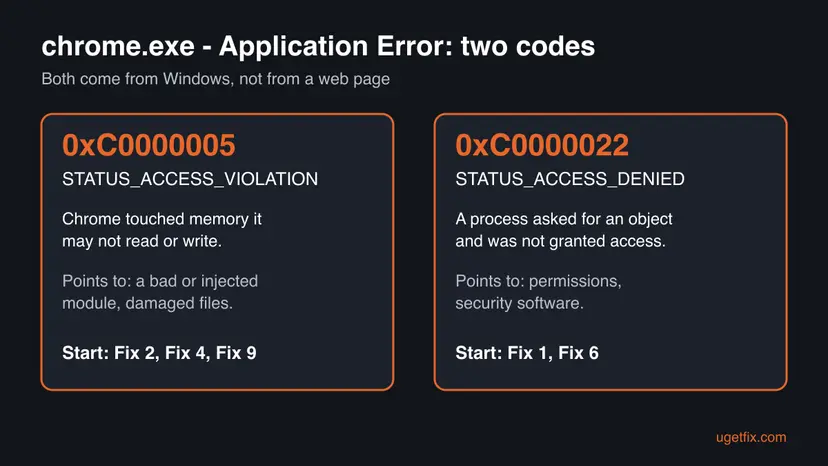
| Code | Windows name | Microsoft's wording | What it points to |
|---|---|---|---|
| 0xC0000005 | STATUS_ACCESS_VIOLATION | The instruction at 0x%p referenced memory at 0x%p. The memory could not be %s. | A bad file or module inside the Chrome process: damaged Chrome files, a file injected by other software, or a conflict after an update. |
| 0xC0000022 | STATUS_ACCESS_DENIED | {Access Denied} A process has requested access to an object, but has not been granted those access rights. | A rights problem: Chrome or a helper is refused a file, folder or object. Security software and folder permissions are the usual cause. |
Many readers only see chrome.exe - Application Error with the memory lines and no 0xC code. The memory text is the 0xC0000005 case. If your dialog says nothing about memory, the fixes below still apply, in the same order.
What causes the Chrome.exe application error, from most to least likely
Google and Microsoft publish no statistics for this dialog, so the order below is ours. It follows what the two codes mean and what Google lists as the usual reasons for Chrome failures: security software, extensions, cookies, low memory and damaged settings. Each cause points to one fix.
| Cause | How you recognise it | Fix |
|---|---|---|
| Chrome is refused access to a file or folder (0xC0000022). | The dialog or the log says access denied. Chrome starts when you run it as administrator. | Fix 1 |
| A file loaded into Chrome is damaged, or other software injected it. | Event Viewer names a faulting module that is not part of Chrome, often a security or overlay program. | Fix 2, Fix 6 |
| Chrome is out of date or its files are damaged. | The error appears on start, and the module named in the log lies in the Chrome folder. | Fix 4, Fix 9 |
| A Windows update changed something Chrome relies on. | The first crash came right after a restart that installed updates. Users report this pattern. | Fix 5 |
| Damaged Windows system files. | Other programs crash too, or SFC reports repaired files. | Fix 7 |
| Malware that tampers with the browser. | Extra toolbars, a changed start page, or a chrome.exe outside the normal Chrome folder. | Fix 6 |
| Extensions, a damaged profile or too little memory. | The crash comes later, while pages load, and not at the first launch. | Fix 8 |
Readers often see the dialog right after Windows installs updates. An update replaces system files and drivers, which can expose a file in Chrome or in another program that no longer fits. Removing the update (Fix 5) is a test, not a verdict, and Microsoft decides when it ships a repair.
How to fix the Chrome.exe application error in Windows
Fix 1 and Fix 2 tell you whether this is a rights problem or a module problem. Fix 3 and Fix 4 cost a few minutes each. Fix 5 helps when the dialog began after a Windows update. Fix 6 and Fix 7 check for malware and damaged Windows files, Fix 8 tidies the browser itself, and Fix 9 replaces Chrome.
| What you see or have | Start with |
|---|---|
| The dialog mentions access denied, or you see 0xC0000022. | Fix 1 |
| The dialog says the memory could not be read or written. | Fix 2, then Fix 4 |
| Chrome worked yesterday and a Windows update installed overnight. | Fix 5, then Fix 3 |
| Chrome opens for a moment and crashes later. | Fix 8 |
| Chrome never opens at all. | Fix 1, Fix 2, Fix 9 |
| Other programs crash too. | Fix 7 |
| Extra toolbars, ads or a changed start page. | Fix 6 |
Fix 1. Run Chrome as administrator
2 minutesLow riskThe dialog or the code speaks of access denied, or Chrome stopped working after a Windows update changed permissions.
0xC0000022 means a process asked for an object and was not granted the access. Starting Chrome with administrator rights shows at once whether the crash is a rights problem or a problem inside the program.
- Close every Chrome window. Chrome sometimes keeps running in the background after the last window closes, so also open the arrow in the taskbar tray and exit Chrome there if it is listed.
- Type Chrome in the Windows search box.
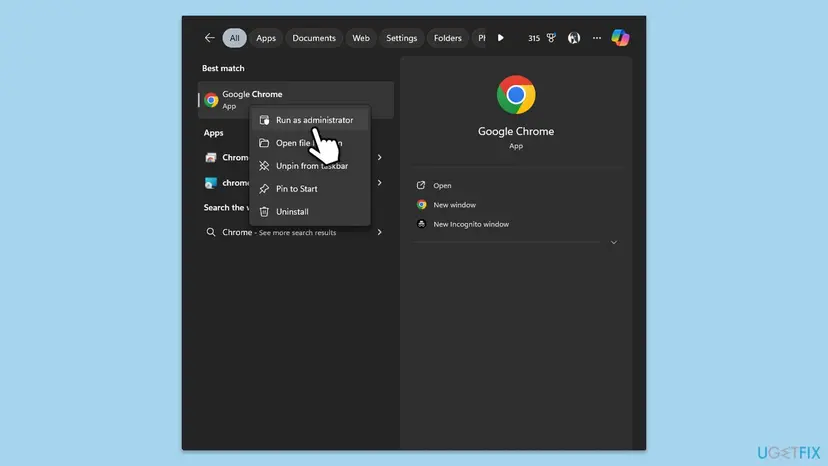
- Right-click Google Chrome in the results and select Run as administrator.
- Select Yes when User Account Control asks for permission.
- Check whether Chrome opens without the application error.
More about this setting and its compatibility tab: How to run a program as administrator or in compatibility mode.
A program that runs as administrator has full access to Windows. Browsing the web that way is a security risk, so use this only to find out the cause. If it fixes the dialog, the real repair is the permissions or the security software that blocked Chrome, not permanent elevation.
It worked if: Chrome opens and stays open. That tells you the program is fine and something denied it normal access.
If not: Chrome still shows the dialog as administrator, so it is not a rights problem. Go on with Fix 2.
Fix 2. Read which module crashed in Event Viewer
5 minutesNo riskEveryone whose dialog came back after Fix 1. It names the file that actually crashed.
Windows writes every application crash to its Application log, with the name of the program and, usually, the module where it failed. A module inside the Chrome folder points to damaged Chrome files. A module from another folder points to that other program.
- Right-click Start and select Event Viewer.
- Open Windows Logs > Application.
- Select Filter Current Log on the right and tick Error, or just look for the newest entry with the source Application Error.
- Open the entry from the minute of the crash and read Faulting application name (it should say chrome.exe) and Faulting module name.
- Write down the module name and the folder of the file if the entry gives it.
| Faulting module | Next |
|---|---|
| chrome.exe, chrome.dll or another file in the Chrome folder | Fix 4, then Fix 9 |
| A file named after a security or overlay program | Update or repair that program, then Fix 6 |
| ntdll.dll, kernelbase.dll or another Windows file | Fix 5, then Fix 7 |
| No Chrome entry at all | Fix 3 and Fix 8 |
Type chrome://conflicts in the address bar. Chrome lists the modules loaded into it and flags third-party ones. We could not confirm this page from Google's help pages today, so treat it as a hint and trust the Event Viewer entry.
It worked if: You have a module name and know whether it belongs to Chrome, to Windows or to other software.
If not: We could not confirm that Windows logs every crash of this kind. With no entry, carry on with Fix 3.
Fix 3. Restart Chrome completely and restart the PC
3 minutesNo riskThe dialog appeared once, or after Windows installed updates and has not been restarted since.
A restart clears temporary conflicts in memory and finishes updates that Windows has only half applied. Google's own steps for loading errors in Chrome also start with a full restart of the browser.
- Close Chrome with the X at the top right of the window, or select the three dots and then Exit.
- Open Chrome again from the Start menu or the desktop shortcut and check the error.
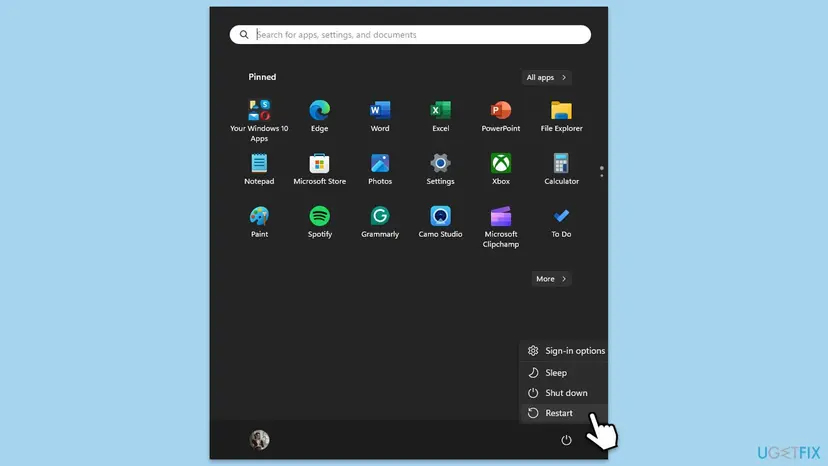
- If it is still there, save your work, select Start, select the power icon and then Restart.
- Wait until Windows has finished starting, then open Chrome once and leave other programs closed for the test.
It worked if: Chrome opens normally after the restart.
If not: The same dialog appears right after a clean restart, so the cause stays in Chrome, Windows or other software. Continue with Fix 4.
Fix 4. Update Google Chrome
5 minutesNo riskChrome opens at least for a moment, or you can install the newest version over the old one.
Google's Chrome Help names an outdated browser among the reasons for loading and connection errors. A new Chrome build can also replace a file that no longer fits the current Windows build.
- Open Google Chrome.
- Select the three dots at the top right to open the menu.
- Select Help, then About Google Chrome.
- Wait while Chrome checks for updates. Any update it finds installs by itself.
- Select Relaunch when the button appears.
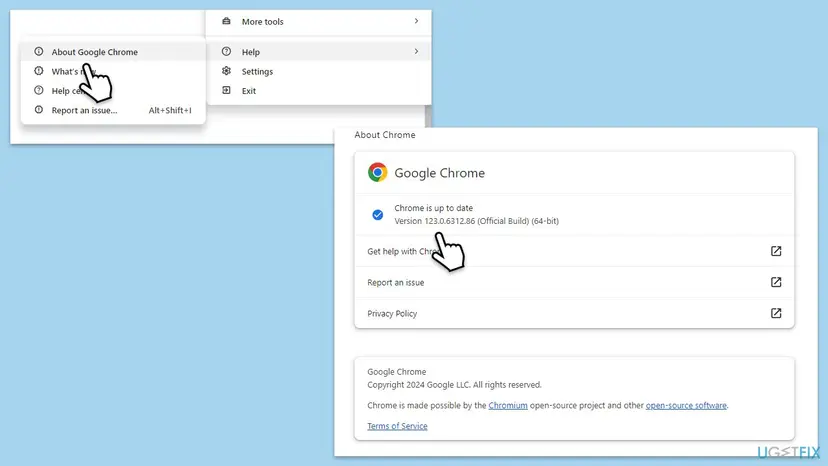
If Chrome crashes before you reach this page, you cannot update it from inside. Go to Fix 9, which installs the newest version fresh.
It worked if: The page says that Chrome is up to date, and the browser starts without the dialog.
If not: The version is current and the dialog remains. Continue with Fix 5 if it began after a Windows update, otherwise with Fix 6.
Fix 5. Remove the Windows update that started it
15 minutesLow riskThe first crash came after Windows installed updates, and Chrome worked before.
An update replaces system files and drivers. If Chrome or a module in it does not agree with the new files, removing that one update shows it in minutes. Microsoft delivers its repair through a later update.
Step by step: How to uninstall a Windows update. Remove only the update that was installed just before the first crash, and note its KB number so you can search for it later.
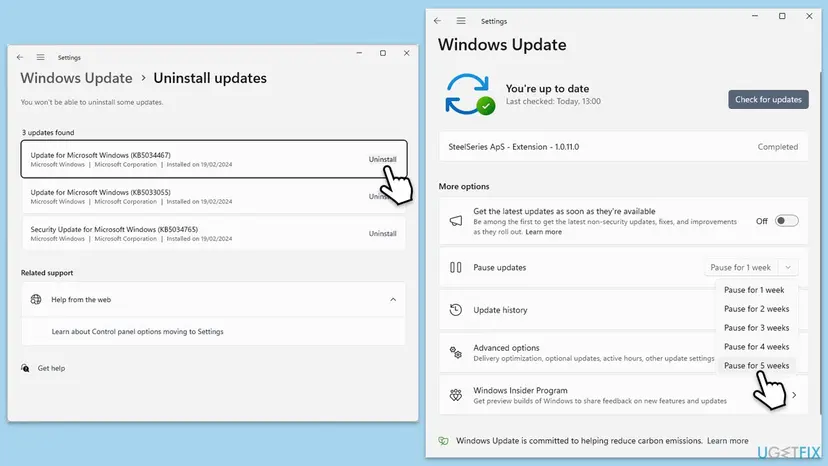
- Uninstall the newest update with the procedure above and restart the PC.
- Open Chrome and check the error.
- If Chrome works, open Settings > Windows Update and use Pause updates for the shortest period offered.
- Install updates again once Microsoft has released a newer update. Do not leave a PC unpatched for months.
It worked if: Chrome starts normally after the update is gone.
If not: Chrome still crashes, so the update was not the trigger. Install updates again and go on with Fix 6.
Fix 6. Scan for malware with Microsoft Defender
20 minutesNo riskChrome changed its start page, shows extra ads, or the faulting module is in a folder you do not recognise.
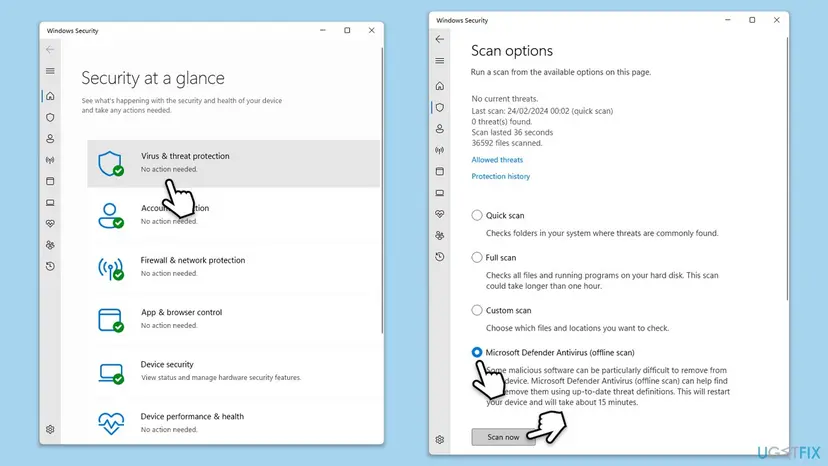
Malware can inject its own files into a browser, which fits an access violation. An offline scan runs before Windows starts, so the malware is not active to hide itself.
Step by step: How to scan for malware with Microsoft Defender. Choose the offline scan if a quick scan finds nothing and the dialog stays.
- Open Windows Security and select Virus & threat protection.
- Select Scan options and choose Microsoft Defender Antivirus (offline scan).
- Select Scan now. Windows restarts and scans before it loads.
- When Windows starts again, open Protection history in the same window and read what was removed.
The real chrome.exe sits in a Chrome folder under Program Files. Right-click the Chrome shortcut, select Open file location and compare. A chrome.exe in a Temp or Downloads folder is not Google's file.
It worked if: The scan finishes, removes what it found, and Chrome opens without the dialog.
If not: The scan found nothing, so malware is unlikely. Go on with Fix 7.
Fix 7. Repair damaged Windows system files
20 minutesNo riskOther programs crash as well, or Event Viewer named a Windows file as the faulting module.
Chrome relies on Windows system files. If one is damaged, the program can crash at the point where it calls it. SFC replaces damaged protected files, and DISM repairs the stored copies SFC takes them from.
Step by step: Run DISM and SFC to repair Windows system files. Run SFC first, DISM second, and restart when both are done.
- Open Command Prompt as administrator and run
sfc /scannow. Wait until it reaches 100 percent. - Run
DISM /Online /Cleanup-Image /RestoreHealthand wait for it to finish. - Restart the PC and open Chrome.
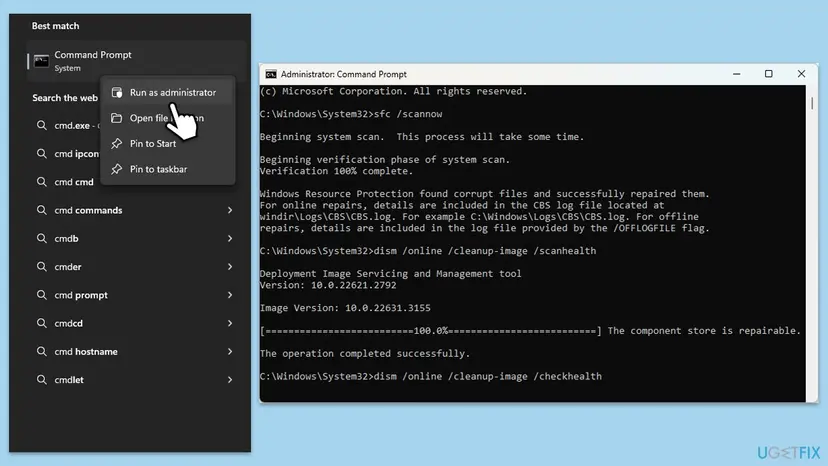
It worked if: SFC reports that it repaired files or found no violations, and Chrome starts after the restart.
If not: Both tools finished cleanly and Chrome still fails. Go to Fix 8 and then Fix 9.
Fix 8. Switch off extensions, free memory and reset Chrome
10 minutesLow riskChrome opens for a short time and the dialog comes later, or the crash happens only on certain pages.
Google lists extensions, cookies, memory use and damaged settings as causes of Chrome failures, and describes reset and reinstall as the last steps. These cost nothing and leave your Google Account data in place.
- Open a window in Incognito mode. If the problem is gone there, an extension or stored site data is the cause.
- Open the extensions page and turn all extensions off. If this fixes it, turn them back on one at a time to find the guilty one.
- Close unused tabs and stop unwanted background tasks, because Google names low memory as a cause of page crashes.
- Reset Chrome to its defaults as Google describes in its reset instructions.
- Restart Chrome and test again.
Google says the info you saved to your Google Account stays when you sign in again. Anything that was never synced is not covered by that promise, so sign in and check sync before you reset.
It worked if: Chrome stays open on every page you try.
If not: A reset changes settings, not program files. Continue with Fix 9.
Fix 9. Reinstall Google Chrome
10 minutesRead the warningThe module in the log lies in the Chrome folder, Chrome never opens, or nothing else worked.
A fresh install replaces every program file with the newest version. Google's Chrome Help says that uninstalling and reinstalling fixes most problems.
Local data can be lost if you also tick the box to delete browsing data when you uninstall. Open Chrome if you can, confirm you are signed in and that bookmarks and passwords are syncing. If Chrome does not open, leave that box unticked so your profile stays on the disk.
Step by step: Uninstall a program or app in Windows. Download the installer again from Google's own site, never from a link in an e-mail or an ad, and install it.
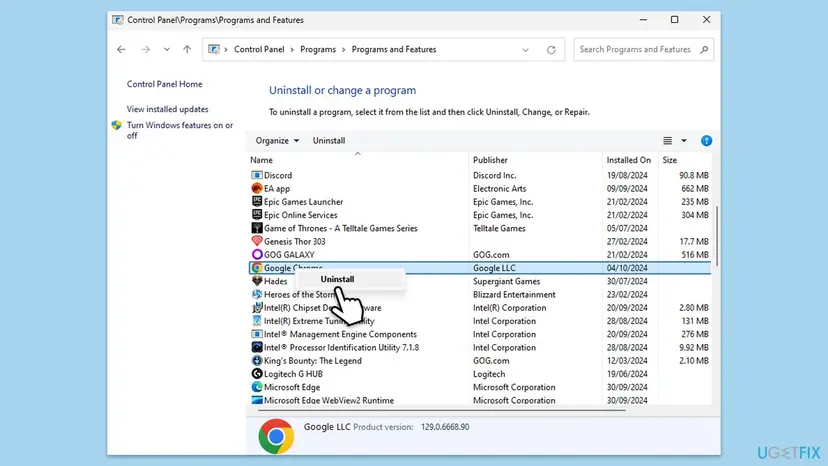
- Uninstall Google Chrome with the procedure above and restart the PC.
- Download the installer from Google's Chrome page and run it.
- Open Chrome and sign in to your Google Account to bring your bookmarks and passwords back.
- Check whether the dialog is gone.
It worked if: A new Chrome opens without the dialog, and your synced data comes back after you sign in.
If not: Even a fresh Chrome fails, so the cause is outside the browser. Read Still not working below.
Chrome.exe application error still shows: what to check and who can help
If a fresh Chrome crashes in the same way, the fault is in Windows, a driver, other software or the hardware, not in the browser. Gather the evidence first, then take it to whoever can change that part.
- In Event Viewer, copy the details of the newest Application Error entry for chrome.exe.
- Note the Windows version from Settings > System > About.
- Note the Chrome version from the About Google Chrome page, or the version you installed in Fix 9.
- Try a second browser, such as Microsoft Edge. If Edge also crashes with a memory error, the fault is not Chrome.
| Situation | Who can fix it | What to send |
|---|---|---|
| The log names a security or overlay program | That program's support | The log entry and the Chrome version |
| Work or school PC | Your IT department | The log entry and the dialog text |
| Many programs crash with memory errors | A hardware check | The Windows Memory Diagnostic result |
| Only Chrome fails after a clean reinstall | The Chrome Help Forum | The log entry and both version numbers |
Windows has a free test for memory: How to test your RAM with Windows Memory Diagnostic. We found no Google or Microsoft page that ties this dialog to faulty RAM, but an access violation in several unrelated programs is a reason to test it. Google also gives the Chrome Help Forum as the place to ask when its steps fail.
How to stop the Chrome.exe application error from coming back
- Let Chrome update itself and relaunch when it asks.
- Restart the PC after Windows installs updates, then open Chrome once before you start work.
- Keep one antivirus program active. Microsoft Defender is enough for most home PCs.
- Remove extensions you no longer use.
- Sign in to Chrome so your profile can come back after a reinstall.
- Do not run Chrome as administrator every day. It is a test, not a fix.
- Do not download Chrome from sites other than Google's.
- Do not change system-wide security settings such as DEP on advice that names no source.
- Do not delete files from the Chrome folder by hand.
Frequently asked questions
What does "Chrome.exe - Application Error" mean?
It is a Windows dialog that appears when the program chrome.exe breaks a memory or access rule and Windows ends it. The text under the title is a template: the instruction at one address referenced memory at another address, and the memory could not be read or written. That is the 0xC0000005 case. The addresses differ on every PC and carry no fix. What matters is which file caused the break, which Event Viewer shows (Fix 2).
What do 0xC0000005 and 0xC0000022 mean?
Microsoft's ntstatus.h file names 0xC0000005 STATUS_ACCESS_VIOLATION: an instruction referenced memory that could not be read or written. It names 0xC0000022 STATUS_ACCESS_DENIED: a process requested access to an object but was not granted the rights. The first points to a bad or conflicting module, the second to permissions. Both can show up in this dialog, which is why Fix 1 tests rights and Fix 2 looks for the module.
Can a Windows update cause the Chrome.exe application error?
Users report that the dialog appeared right after an automatic update, and an update does replace system files and drivers. We found no Microsoft statement that a given update breaks Chrome, so treat the update as a possible trigger. Uninstall only the newest one (Fix 5), pause updates for a short time, and install updates again once Microsoft ships a newer one. A PC left unpatched for months is at risk.
Will reinstalling Chrome delete my bookmarks and passwords?
Not if you are signed in and sync is on. Google's Chrome Help says that the info saved to your Google Account is still there after you reinstall and sign in. Data that was never synced can be lost, especially if you tick the option to delete browsing data when you uninstall. Check sync first, and if Chrome does not open, leave that option unticked so the profile folder stays on the disk.
Chrome exe application error unable to start correctly: is it the same?
No. The message "The application was unable to start correctly" comes with its own code, and it is a different dialog from the memory one on this page. If your message ends in a code such as 0xc0000141, read our guide to error 0xc0000141 instead. Fix 4, Fix 7 and Fix 9 here still apply, because a damaged program or Windows file can cause either message.
What if Windows cannot find chrome.exe or shows a chrome.exe system error?
These are different messages from the Application Error dialog. "Windows cannot find chrome.exe" usually means the shortcut points to a file that is no longer there, and a fresh install in Fix 9 puts the file back. A "System Error" dialog tells you what is missing, often a named DLL file, so follow that message. In both cases Fix 7 and Fix 9 are sensible first steps.
Should I add chrome.exe to the DEP exception list?
We do not recommend it. The old version of this page listed it, but no Google or Microsoft page we read connects Data Execution Prevention to this dialog, and the settings window we could not verify for Chrome. DEP is a system-wide protection against code running from memory areas that should hold only data. Weakening it for one program is a security change for a cause nobody has confirmed, so this guide leaves it out.
Is chrome.exe itself a virus?
No. chrome.exe is the file that starts Google Chrome, and it is normally in the Chrome folder under Program Files. Malware can use the same name from another folder, so the file location matters more than the name. Right-click the Chrome shortcut, select Open file location, and compare. A chrome.exe in Temp, Downloads or a random folder under your user profile is a reason to run the scan in Fix 6.
Are the Korean "chrome.exe 응용 프로그램 오류" and the Japanese "chrome アプリケーションエラー" the same error?
Yes. Both are Windows' own translations of Application Error, so the dialog is the same and the fixes in this guide apply in the same order. The code and the memory text in the dialog may appear in Korean or Japanese, but the codes 0xC0000005 and 0xC0000022 and the module name in Event Viewer stay the same. Use them when you search for help or contact support.
Is this the same as "Application error: a client-side exception has occurred" in Chrome?
No. That message appears inside a web page and comes from the site's code, not from Windows or chrome.exe. Our guide to that error covers it. This page is only about the Windows dialog with chrome.exe in its title. For other errors on uGetFix, search the site by the code you see.
Sources
- Microsoft win32metadata: ntstatus.h with the text of STATUS_ACCESS_VIOLATION (0xC0000005) and STATUS_ACCESS_DENIED (0xC0000022) (github.com)
- Google Chrome Help: Fix connection and loading errors in Chrome (support.google.com)
- Google Chrome Help: Get help with common error messages in Chrome (support.google.com)
Did this fix work?
One click, no account. It tells the next reader which guides are worth their time.
Questions and experiences: fix Chrome.exe application error in Windows
Still broken, or found a fix we did not cover? Ask here: members and our editors answer. Reading is open; writing needs a free account.
…