
How to fix Desktop is not refreshing automatically in Windows?

Prefer to fix it yourself? The manual steps follow.
- 7methods
- 1 to 20 minutes
- Easy
Applies to Windows 11 and Windows 10 desktop and File Explorer windows (Windows 10 support ended on 14 October 2025)
7 methods in this guide
Hi. When I save items on my desktop (no matter which type of files: pictures, text files, Office documents, etc.), they don't show up straight away. Sometimes they don't show up at all until I click on "Home" in File Explorer, and that's where I see the downloaded file. Why are files not appearing on my desktop straight away? I'm using Windows 11.
When the desktop does not refresh automatically, your files are saved, but File Explorer does not redraw the view until you press F5. Restart Windows Explorer first. If the lag comes back, check whether OneDrive backs up your Desktop and whether File Explorer lists a network location that no longer exists.
Your files are saved; only the redraw is late. Open Task Manager with Ctrl + Shift + Esc, right-click Windows Explorer and choose Restart (Fix 1). If the desktop stops refreshing again, turn off OneDrive backup of the Desktop folder (Fix 2), remove network locations that no longer exist (Fix 3) and restore the Folder Options defaults on all three tabs (Fix 4).
| Error | No message and no code. New, renamed, moved or deleted files do not change on the desktop or in File Explorer until you press F5, choose Refresh or reopen the window. |
|---|---|
| Where it appears | On the desktop and in File Explorer windows, often in the Desktop, Downloads and Documents folders and on network folders. |
| Main cause | A stuck File Explorer session, a Desktop folder that OneDrive or another cloud app backs up, or a network location or mapped drive that is no longer reachable. |
| Fastest fix | Restart Windows Explorer in Task Manager (Fix 1). It takes under a minute and closes no programs. |
| Also written as | Desktop not refreshing, File Explorer not refreshing automatically, Windows Explorer not auto refreshing, folders not updating without refresh, files not appearing on desktop until refresh. |
| Affects | Windows 11 and Windows 10. The same reports go back to Windows 7. |
| Vendor status | We found no Microsoft article that names this as a known issue. Microsoft Q&A has a thread with more than 200 people asking the same question, answered with the Folder Options reset and a registry change. |
| Data at risk | None from the fault itself. Fix 2 moves files between your PC and OneDrive, so read its warning first. |
| Time to fix | 1 minute for Fix 1, 5 to 10 minutes for Fixes 2 to 5, about 20 minutes for a clean boot. |
Facts checked on 15 October 2026. Steps written for Windows 11 (25H2 and 26H2) and Windows 10 22H2.
What it means when the desktop is not refreshing automatically
When an app saves, renames or deletes a file, Windows tells File Explorer that the folder changed, and Explorer redraws the icons on its own. File Explorer also draws the desktop. When that notice is lost or ignored, the change is real on the disk, but the screen keeps the old picture until you ask for a refresh.
That is why the reader above sees the file under Home in File Explorer but not on the desktop. The file was saved; the desktop view was never told to redraw. Typical signs:
- A file you save or download to the desktop appears only after F5 or right-click > Refresh.
- A deleted file stays on the desktop or in the folder until you refresh.
- A renamed file keeps its old name on screen, and opening it may say it cannot be found.
- A new folder you create does not show up in the window where you created it.
- A moved file still shows in the old place and not in the new one.
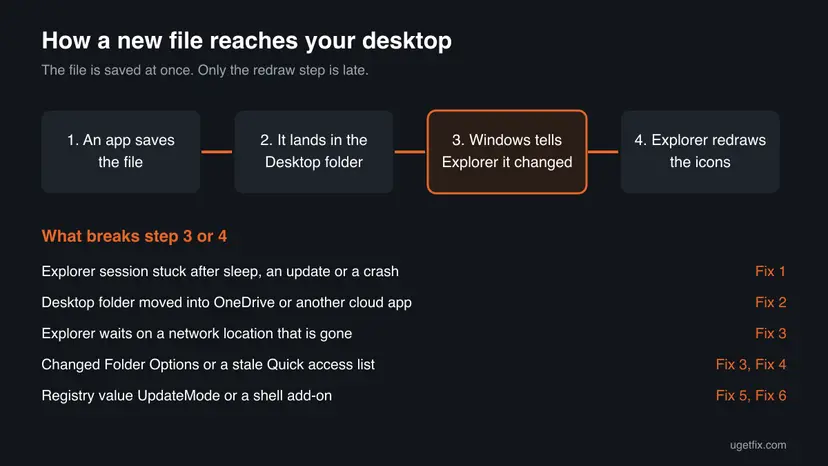
If your desktop or File Explorer keeps refreshing on its own and the icons flash every few seconds, that is a different fault, usually an app or a cloud client writing to the folder again and again. The clean boot in Fix 6 finds that app too.
Why the desktop and File Explorer do not refresh: causes ranked
The causes below are ranked by how often they appear in the Microsoft Q&A thread with 200 or more followers and in the user reports collected by WinTips. Each one is tied to the fix that removes it.
| Cause | Typical sign | Fix |
|---|---|---|
| A stuck File Explorer session. Explorer missed change notices after sleep, an update or a crash. | Started suddenly; a restart of the PC fixes it for a while. | Fix 1 |
| The Desktop folder is backed up by OneDrive or handled by another cloud app (users name iCloud and Proton Drive). | OneDrive settings show Desktop as backed up; the problem began when you signed in to OneDrive or updated a cloud app. | Fix 2 |
| A network location, mapped drive or removed drive that no longer answers. Explorer waits for it. | A NAS, a work share or a USB drive was used once and is now gone, but still listed. | Fix 3 |
| Stale Quick access and recent file lists, often pointing to that missing location. | Home in File Explorer lists old network folders or files. | Fix 3 |
| Changed Folder Options. A setting on the General, View or Search tab differs from the default. | You or a tweak app changed File Explorer settings. | Fix 4 |
The registry value UpdateMode under the Control\Update key is missing or not 0. | Nothing else helped; often older PCs upgraded over many versions. | Fix 5 |
| A shell add-on or startup app hooks into File Explorer. | Comes back after every restart, even after Fixes 1 to 5. | Fix 6 |
| Damaged system files. Rare for this symptom alone. | Other parts of Windows misbehave too. | Fix 7 |
Two other reports are worth knowing. One WinTips commenter fixed it by removing a drive that Windows no longer recognised. Another says the problem began with a Windows update and ended when the update was uninstalled. We could not confirm which update, so treat that as a last resort.
How to fix the desktop not refreshing automatically in Windows
Fix 1 is a one-minute test that tells you whether Explorer itself is stuck. Fixes 2 and 3 remove the two causes users report most often. Fixes 4 and 5 reset settings. Fixes 6 and 7 are for a problem that keeps coming back.
| What you see or have | Start with |
|---|---|
| The desktop stopped refreshing today, or after sleep or an update. | Fix 1 |
| You use OneDrive and your desktop files also appear on OneDrive.com or in the OneDrive folder. | Fix 2 |
| You use iCloud, Proton Drive, Google Drive or another cloud app that syncs the desktop. | Fix 2, then Fix 6 |
| File Explorer lists a mapped drive, a NAS or a network location you no longer use. | Fix 3 |
| No cloud app and no network drive, and the lag returns after Fix 1. | Fix 4, then Fix 5 |
| It comes back after every restart, whatever you try. | Fix 6 |
Fix 1. Restart Windows Explorer from Task Manager
1 minuteNo riskEveryone, first. It also shows whether the fault is a stuck Explorer session or something that keeps coming back.
File Explorer draws the desktop and every folder window. Restarting it starts a new session that listens for file changes from scratch, which clears a session that stopped hearing them.
- Press Ctrl + Shift + Esc to open Task Manager.
- On the Processes page, find Windows Explorer. If you see only a small window, select More details first.
- Right-click Windows Explorer and select Restart. On Windows 11 you can also select it and use Restart task at the top.
- Wait a few seconds while the taskbar and desktop icons disappear and come back.
- Save a test file to the desktop, for example a new text document with right-click > New > Text Document, and watch whether it appears at once.
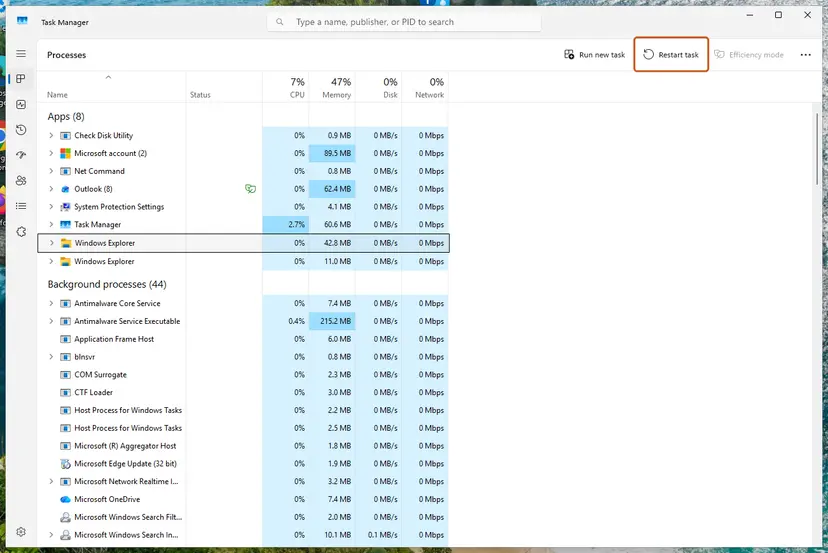
Step by step with more pictures: Restart File Explorer. Restarting Explorer does not close your open programs, but File Explorer windows close and must be opened again.
It worked if: The test file appears on the desktop at once, and deleting it removes the icon without a refresh.
If not: If it works now but stops again within hours or after a restart, something keeps breaking it: go on with Fix 2.
Fix 2. Stop OneDrive from backing up the Desktop folder
5 minutesRead the warningOneDrive runs on your PC and backs up the Desktop, or another cloud app syncs your desktop.
OneDrive folder backup moves the Desktop into the OneDrive folder, and the sync app then places its own files and status icons on every item. Users report that the desktop stops refreshing while a cloud client handles the Desktop folder, and starts again once it no longer does.
When you stop the backup, Microsoft says OneDrive asks you to keep the files only in OneDrive or only on my PC. Choose only on my PC to keep the desktop as it is. Files that are online-only must be downloaded first, or OneDrive says that some files couldn't be moved.
- Select the OneDrive cloud icon in the notification area at the right end of the taskbar.
- Select the Help & Settings gear icon, then Settings.
- Open the Sync and backup tab and select Manage backup.
- Find Desktop in the list. If it says Not backed up, OneDrive is not the cause: close the window and go to Fix 3.
- If Desktop is backed up, select its toggle to turn it off.
- Choose to keep the files only on my PC, then confirm.
- Restart Windows Explorer as in Fix 1 and save a test file to the desktop.
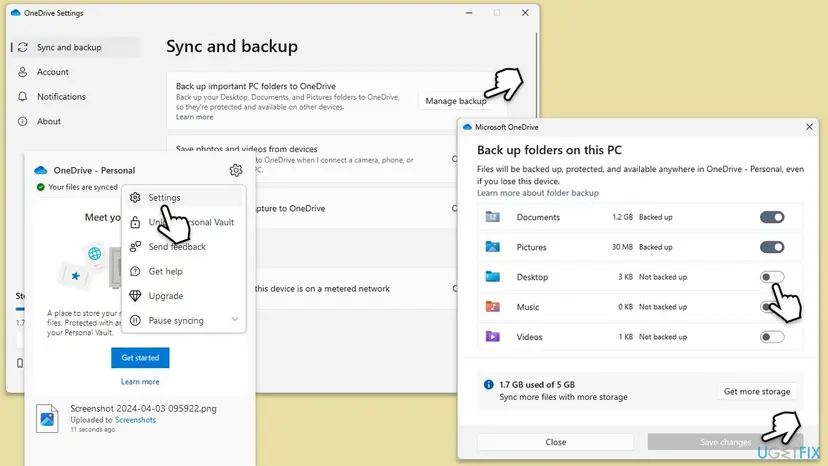
Other cloud apps work the same way. WinTips readers name iCloud Drive and Proton Drive: one fixed it by unticking iCloud Drive, another by removing the app. Turn off the desktop or folder sync in that app, or quit it for a test.
The old version of this guide told you to pause syncing and delete the Desktop folder inside OneDrive. Do not do that: while the Desktop is backed up, that folder is your desktop, and deleting it deletes your desktop files. Turning the backup off is the safe way.
It worked if: After the Explorer restart, new and deleted desktop files show up at once, and OneDrive lists Desktop as not backed up.
If not: If you do not use a cloud app, or turning it off changed nothing, turn the backup back on if you want it and go to Fix 3.
Fix 3. Remove dead network locations and clear Quick access lists
10 minutesLow riskFile Explorer lists a mapped drive, a NAS, a work share or a removed drive that is no longer available, or Home shows old folders.
File Explorer keeps checking every location it lists. A location that does not answer makes it wait, and users in the Microsoft Q&A thread report that removing a mapped network drive and restarting brought the refresh back. WinTips adds that an old network shortcut in Quick access does the same.
- Open File Explorer with Win + E and select This PC.
- Under Network locations, right-click any drive or location you no longer use and select Disconnect or Delete.
- On the left, under Home or Quick access, right-click any pinned folder on a server that is gone and select Unpin from Quick access.
- Unplug and plug back, or remove, any external drive that Windows shows but cannot open.
- Restart the PC and test with a new file on the desktop.
If the lag stays, clear the recent lists that Quick access is built from. WinTips gives these three folders. Paste each path into the File Explorer address bar, press Enter and delete everything in it:
Paste one path at a time into the File Explorer address bar
%APPDATA%\Microsoft\Windows\Recent\AutomaticDestinations
%APPDATA%\Microsoft\Windows\Recent\CustomDestinations
%APPDATA%\Microsoft\Windows\RecentThese folders hold only shortcuts: the lists of recent files and jump lists on the taskbar. Your real files stay where they are. Two files in AutomaticDestinations usually cannot be deleted while Explorer runs; WinTips says that is normal.
Restart Windows Explorer as in Fix 1 after deleting. If you need the network drive, map it again later and check whether the problem returns. That tells you the share itself is the trigger.
It worked if: File Explorer opens faster, Home shows no old locations, and new files appear on the desktop without a refresh.
If not: If you must keep a network drive and the problem comes back with it, see the network note in Fix 5. Otherwise go to Fix 4.
Fix 4. Restore the Folder Options defaults on all three tabs
3 minutesLow riskFile Explorer settings were changed by you or a tweak app, or nothing above helped.
This is the accepted answer in the Microsoft Q&A thread on this problem: restore the defaults on the General, View and Search tabs. It undoes any File Explorer setting that changed how folders are shown and listed.
- Open File Explorer with Win + E.
- On Windows 11, select See more (the three dots) on the command bar, then Options. On Windows 10, select View > Options > Change folder and search options.
- On the General tab, under Privacy, select Clear to clear the File Explorer history.
- Still on General, select Restore Defaults.
- Open the View tab and select Restore Defaults, then Reset Folders and confirm with Yes.
- Open the Search tab and select Restore Defaults.
- Select Apply, then OK, and restart Windows Explorer as in Fix 1.
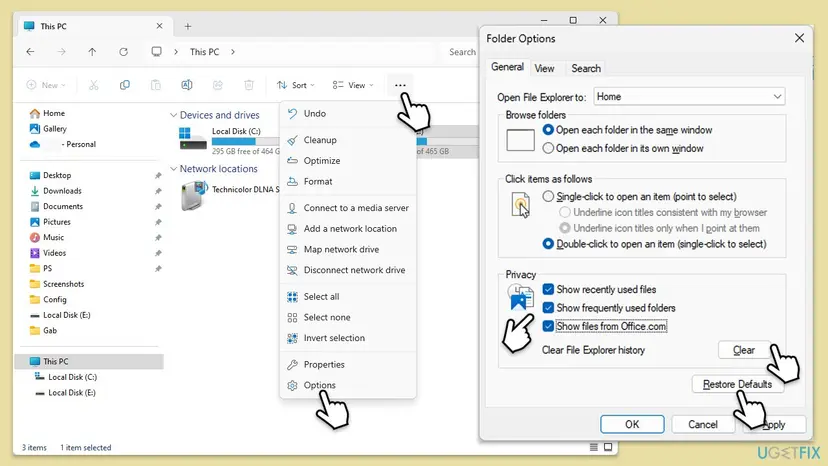
Reset Folders sets every folder back to its default view, so a folder you set to Details or Large icons may look different afterwards. Nothing in your files changes.
It worked if: Folder windows open with the default layout, and new files appear on the desktop and in open folders without F5.
If not: If nothing changed, go to Fix 5.
Fix 5. Set the UpdateMode registry value to 0
10 minutesRead the warningFixes 1 to 4 did not hold, or you must keep a network share that triggers the problem.
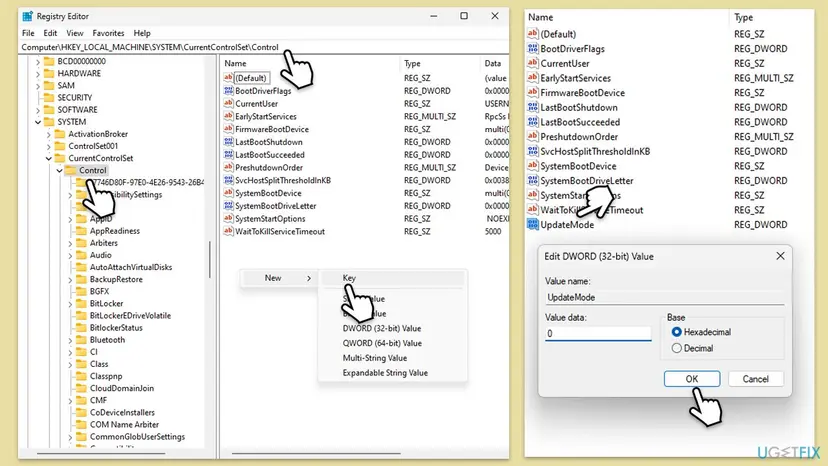
A Microsoft Community Support Specialist suggested this in the Microsoft Q&A thread: create the Update key and set UpdateMode to 0. WinTips notes that it comes from Windows 7 and that users report it works on Windows 10 too; we could not confirm what the value does internally.
A wrong change under HKEY_LOCAL_MACHINE affects the whole PC. Export the Control key before you change anything, as shown in Back up the registry before editing it. To undo this fix later, delete the UpdateMode value you created.
- Press Win + R, type
regeditand press Enter. Select Yes in the User Account Control prompt. - Paste this path into the address bar of Registry Editor and press Enter:
HKEY_LOCAL_MACHINE\SYSTEM\CurrentControlSet\Control\Update - If Registry Editor stops at
Controlbecause there is no Update key, right-click Control, select New > Key and name itUpdate. - Select the Update key. In the right pane, look for UpdateMode.
- If it is missing, right-click an empty spot in the right pane, select New > DWORD (32-bit) Value and name it
UpdateMode. - Double-click UpdateMode, set Value data to
0and select OK. - Close Registry Editor and restart the PC.
Folders on a network share only. WinTips also lists the value DirectoryCacheLifetime set to 0 under HKEY_LOCAL_MACHINE\System\CurrentControlSet\Services\Lanmanworkstation\Parameters. It applies to shared folders on other computers, not to your own desktop, so use it only when network folders lag. Back up first and delete the value to undo it.
It worked if: After the restart, the desktop and folders redraw on their own when files change.
If not: If nothing changed, delete the UpdateMode value you created, restart, and go to Fix 6.
Fix 6. Find the app that blocks the refresh with a clean boot
20 minutesLow riskThe problem returns after every restart, or the desktop keeps refreshing by itself.
Cloud clients, file sync tools and shell add-ons plug into File Explorer and can hold up its change notices. A clean boot starts Windows without third-party services and startup apps, so you see at once whether one of them is to blame.
Step by step: How to perform a clean boot in Windows. Test with a new desktop file after the clean restart. If it appears at once, turn services and startup apps back on in small groups until the problem returns; the last group holds the culprit.
- Open System Configuration. Select Search on the taskbar, type msconfig and select System Configuration from the results.
- Hide Microsoft services. On the Services tab, select the Hide all Microsoft services check box. Only services from other companies stay in the list.
- Disable the remaining services. Select Disable all, then select Apply.
- Open Task Manager. On the Startup tab of System Configuration, select Open Task Manager.
- Disable the startup apps. On the Startup apps tab in Task Manager, select each item whose status is Enabled and select Disable. Write down or take a screenshot of the items you disable: you need the list to turn them back on.
- Confirm the changes. Close Task Manager. On the Startup tab of System Configuration, select OK.
- Restart and test. Restart the PC. Windows now starts in a clean boot environment: try again the thing that failed (run the app, install the update, uninstall the program).
These steps were written for Windows 11 25H2 and 26H2. The full page with the other versions and what each result means: How to perform a clean boot in Windows
The old version of this guide told you to tick Safe boot on the Boot tab of System Configuration. That is not a clean boot: it starts Safe Mode with most drivers off. Leave it unticked, and set System Configuration back to Normal startup when you are done.
It worked if: In the clean boot the desktop refreshes on its own, and after you find the app, it keeps working with everything else turned back on.
If not: If the problem stays even in a clean boot, no third-party app is to blame. Go to Fix 7.
Fix 7. Repair Windows system files with SFC and DISM
20 minutesNo riskOther parts of Windows misbehave too, or every fix above failed.
File Explorer and the change notices it relies on are part of Windows. If one of their system files is damaged, SFC replaces it, and DISM repairs the store SFC copies from.
WinTips lists this as its last main method. Run DISM first, then SFC, then restart. Step by step: Run DISM and SFC to repair Windows system files.
- Open an elevated command window. Right-click Start and select Terminal (Admin), or type cmd in the search box, right-click Command Prompt and select Run as administrator. Select Yes when Windows asks for permission.
- Run DISM first. Type the command below and press Enter. DISM downloads clean copies of damaged components from Windows Update, so it can take several minutes. Wait until it says The operation completed successfully.
DISM.exe /Online /Cleanup-Image /RestoreHealth - Run System File Checker. In the same window, type the command below and press Enter. Do not close the window until the verification reaches 100%.
sfc /scannow - Read the result and restart. Compare the last message with the table below this guide, then restart the PC so that repaired files are loaded.
These steps were written for Windows 11 24H2 and 25H2. The full page with the other versions and what each result means: Run DISM and SFC to repair Windows system files
It worked if: SFC reports that it found and repaired files, or that it found no integrity violations, and after a restart the desktop refreshes on its own.
If not: Go to the next section to narrow it down.
Desktop still not refreshing: narrow it down
Windows writes no error or Event Viewer entry for a missed refresh that we could find, so the checks below take the place of a log. Each one rules out a group of causes:
| Check | Result | What it means |
|---|---|---|
| Sign in to a second user account, or create a test one, and save a file to its desktop. | It refreshes there. | Your own profile holds the cause: OneDrive or another cloud app, Quick access lists or Folder Options. Repeat Fixes 2 to 4. |
| Same test account. | It does not refresh there either. | The cause applies to the whole PC: the registry (Fix 5), a service (Fix 6) or system files (Fix 7). |
| Unplug the network cable or turn off Wi-Fi, restart, and test. | It refreshes offline. | A network location or share is the trigger. Use Fix 3 and the network note in Fix 5. |
| Check the date the problem started against Settings > Windows Update > Update history. | It began right after an update. | Users report that removing that update helped. Step by step: How to uninstall a Windows update. |
- User Account Control: WinTips notes that on Windows 7 Explorer stopped refreshing when User Account Control was turned off. If you turned it off, set it back to the default level; that is also safer.
- What to send to support: your Windows version from
winver, whether OneDrive backs up the Desktop, the list of network drives, and the result of the test account check. - When it is not software: a missed refresh is never a hardware fault on its own. If files are really missing after a refresh, check the drive instead.
If the problem started after a recent change and nothing held, System Restore can take Windows back to a point before it. It keeps your documents but removes apps and drivers installed after that point. Step by step: Undo recent changes with System Restore.
Keep the desktop refreshing on its own
Most returns of the problem come from a few habits. These keep File Explorer listening for changes:
- Disconnect a mapped drive or network location when you stop using that server or NAS.
- Use one cloud app per folder; do not let two clients sync the Desktop at the same time.
- Restart Explorer with Restart in Task Manager when the desktop acts up, before you change settings.
- Keep a
.regexport of every registry change you make. - Let updates finish before you shut down.
- Do not delete the Desktop folder inside OneDrive to stop syncing it.
- Do not tick Safe boot when you mean a clean boot.
- Keep User Account Control at its default level.
- Do not install several File Explorer tweak tools at once.
- Do not reset Windows over a desktop that needs F5.
If your icons also look wrong, for example black boxes behind folders, that is a cache problem with its own guide: black squares behind folder icons.
Frequently asked questions
Why are files not appearing on my desktop straight away?
The files are saved at once, but File Explorer, which also draws the desktop, did not redraw the view. Windows sends Explorer a notice when a folder changes, and that notice was lost or ignored. The usual reasons are a stuck Explorer session, a Desktop folder that OneDrive or another cloud app backs up, and a network location that no longer answers. Restart Windows Explorer in Task Manager first. If the problem comes back, check OneDrive folder backup and remove old network locations.
How do I refresh the desktop in Windows 11?
Click an empty spot on the desktop and press F5, or right-click an empty spot and select Refresh. In File Explorer, F5 or the refresh arrow next to the address bar does the same for the open folder. A manual refresh only redraws the icons once. If you need it every time you save a file, the automatic refresh is broken, and the fixes on this page bring it back.
How do I refresh the desktop in Windows 10?
Click an empty spot on the desktop and press F5, or right-click the desktop and select Refresh. The menu item is in the main right-click menu on Windows 10. If new files still appear only after a refresh, restart Windows Explorer in Task Manager and work through the fixes above; they are the same on Windows 10 22H2. Windows 10 stopped receiving support on 14 October 2025, so no later update will fix it there.
Why is File Explorer not refreshing automatically in Windows 11?
It has the same causes as the desktop, because one process draws both. Most often Explorer is stuck after sleep or an update, a network drive is unreachable, or a cloud app handles the folder. In the Microsoft Q&A thread on this problem, the accepted answer is to restore the defaults on all three tabs of Folder Options, and another answer points to a mapped network drive. Restart Explorer first, then use Fix 3 and Fix 4.
Does OneDrive stop the desktop from refreshing?
It can. When OneDrive backs up your Desktop folder, the desktop lives inside the OneDrive folder and the sync app handles every file in it. Users report that the desktop stops refreshing in that state and works again once the backup is off. You can check it in OneDrive Settings > Sync and backup > Manage backup. Turning the backup off asks where the files should stay; choose only on my PC to keep them on the desktop.
Is it safe to delete the Desktop folder in OneDrive?
No, not while the Desktop is backed up. In that state the Desktop folder inside OneDrive is your real desktop, so deleting it deletes your desktop files, and the deletion syncs to OneDrive.com. Turn the backup off in Manage backup instead and choose to keep the files on your PC. If you already deleted it, look in the Recycle Bin and in the OneDrive recycle bin online before you do anything else.
What does the UpdateMode registry value do?
It is a DWORD value under HKEY_LOCAL_MACHINE\SYSTEM\CurrentControlSet\Control\Update. A Microsoft Community Support Specialist recommended setting it to 0 for desktops and folders that do not refresh, and WinTips reports that users found it helps on Windows 7 and Windows 10. We could not find a Microsoft document that explains what the value controls, so treat it as a tested workaround, not an official setting. Back up the registry first and delete the value to undo it.
Why does my desktop keep refreshing by itself?
That is the opposite problem: something writes to the Desktop folder again and again, or Explorer restarts over and over. A cloud app retrying a sync, a program that saves temporary files to the desktop or a crashing shell add-on are the usual sources. A clean boot (Fix 6) shows whether a third-party app is to blame. If Explorer itself crashes, the whole taskbar flashes too, and the system file repair in Fix 7 is the next step.
Why do network folders not update until I press F5?
Windows keeps a short cache of what shared folders on other computers contain, and a slow or missing server makes File Explorer wait. Remove network locations you no longer use (Fix 3). For a share you need, WinTips lists the DirectoryCacheLifetime value set to 0 under the Lanmanworkstation\Parameters key, described in Fix 5. It applies only to network folders, not to your own desktop, so leave it alone if you have no shares.
Sources
- Microsoft Support: Back up your folders with OneDrive (Manage backup, stop folder backup) (support.microsoft.com)
- Microsoft Q&A: Desktop and file folders do not refresh automatically (accepted answer, UpdateMode suggestion by a Microsoft Community Support Specialist) (learn.microsoft.com)
- WinTips: FIX Explorer Does Not Refresh Changes in Windows 10/11 (Quick access, registry values, user reports) (wintips.org)
Did this fix work?
One click, no account. It tells the next reader which guides are worth their time.
Questions and experiences: fix Desktop is not refreshing automatically in Windows
Still broken, or found a fix we did not cover? Ask here: members and our editors answer. Reading is open; writing needs a free account.
…