
How to fix Discord stream stuck on loading in Windows?

Prefer to fix it yourself? The manual steps follow.
- 9methods
- 5 to 30 minutes
- Easy
Applies to Discord desktop app for Windows 11 and Windows 10, for the person who streams and the person who watches
9 methods in this guide
Hello, I have a problem where when I try to stream in Discord, it doesn't work and all I'm getting is a loading screen. Do you have any advice for me or how could I fix it? I am using Windows 11.
A Discord stream that never leaves the loading spinner has not made its first connection or has not started encoding video. Discord's own help points mostly at hardware acceleration, the graphics driver and the network. Quit Discord completely first, press Go Live again, then test hardware acceleration.
Quit Discord completely from the system tray and Task Manager, start it again and press Go Live once more (Fix 1). If the spinner comes back, open User Settings > Voice & Video > Video and switch Hardware Acceleration to the opposite of its current state (Fix 2). Then update the graphics driver from the maker's website (Fix 3). Viewers stuck on the spinner can use the same fixes.
| Error | No message: the stream window shows a loading spinner that never ends. Discord's error table has no code named for it. The closest are 2001 (stream failed to start), 2011 and 2014 (streamer timeout) and 2012 and 2015 (viewer timeout). |
|---|---|
| Where it appears | In the Discord desktop app, in the Go Live or Screen Share window of a voice channel or a direct message call, for the person who streams or for a viewer who clicks Watch Stream. |
| Main cause | The video connection or the video encoder or decoder does not start. Discord's help lists hardware acceleration, an old graphics driver, a weak or unstable network and an overloaded PC. |
| Fastest fix | Quit Discord fully and press Go Live again (Fix 1). If it returns, switch Hardware Acceleration under Voice & Video > Video to the opposite setting (Fix 2). |
| Also written as | discord stream loading forever, discord stream infinite loading, discord stream not loading, discord stream failed to start, discord screen share loading forever. |
| Affects | The Discord desktop app on Windows 11 and Windows 10. Windows 10 left Microsoft support on 14 October 2025, so plan a move to Windows 11. |
| Discord's status | Not a single bug with a patch date. Discord Support gives the same short list of fixes for stream start failures and timeouts: hardware acceleration, drivers, network, restart. |
| Time to fix | 2 minutes for Fix 1, about 5 minutes for Fixes 2 to 5, 20 to 30 minutes for a clean reinstall. |
Facts checked on 16 October 2026. Steps written for Windows 11 (25H2 and 26H2) and Windows 10 22H2 with the Discord desktop app, read against Discord Support's Go Live, error code and voice and video guides.
What a Discord stream stuck on loading means
The loading spinner is not an error message, so there is no code to look up. Discord's Go Live window shows it while the stream connects. If the connection or the video encoder never finishes starting, the spinner stays. Discord does not describe this exact state, so the reading here is ours, drawn from the cases it does describe.
Discord's audio and video error code guide lists four cases close to a spinner that never ends. Which one you are in depends on whether you stream or watch, and the stream usually shows no number.
| Code | What Discord says is happening | What Discord suggests |
|---|---|---|
| 2001 | The stream fails to start. | Click Go Live again. If it persists, close and reopen Discord, then try again. |
| 2011 and 2014 | Streamer timeout: the stream or camera cannot make its first connection. | Check that the network is stable, turn hardware acceleration on, and make sure the PC is not overloaded. |
| 2012 and 2015 | Viewer timeout: you cannot make the first connection to a stream you are watching. | Turn hardware acceleration on, check the network, and close and reopen Discord. |
| 2008 and 2009 | Video decoder or encoder error, inside Discord. | Turn hardware acceleration on, update the graphics driver from its maker, restart Discord completely. |
The error code guide says to turn Hardware Acceleration on. The voice and video guide, in its screen share and video sections, says to turn it off. Both are tests, not rules, so Fix 2 tells you to try the opposite of whatever your setting is now.
Why a Discord stream gets stuck on loading, ranked
Discord does not rank the causes. We ranked them by how many of its own stream error rows name each fix, and by how little each one costs you to test.
| Cause | How it shows | Fix |
|---|---|---|
| Hardware acceleration in the wrong state for your PC | Appears in most of the timeout and encoder rows. Streams start on some PCs only with it on, on others only with it off. | Fix 2 |
| Old or damaged graphics driver | Discord uses the graphics card to encode and decode video. Discord tells Windows users to get the driver from the card maker's website. | Fix 3 |
| Network that is weak, unstable or blocking the first connection | Timeout codes 2011, 2012, 2014 and 2015 name the network. The spinner is more likely on Wi-Fi with packet loss. | Fix 4 |
| A Discord process stuck from an earlier session, or a heavy app using the PC | Streams fail to start after a long uptime. Discord asks for a complete quit and relaunch, not just closing the window. | Fix 1 |
| Channel permission, a game Discord does not recognize, or a full stream | Only some servers or some sources fail, or only the viewer is stuck. | Fix 5 |
| Damaged Discord files or settings | Nothing else helps and other Discord features misbehave too. | Fixes 7 to 9 |
Other apps that record the screen or render video also use the graphics card and can compete with Discord's encoder. Close them before a test. If the stream only fails while one of them runs, you found the cause.
Discord stream limits that look like a loading problem
Some stalled streams are Discord working as designed. Check these before you change settings, because none of them are fixed by a driver or a reinstall.
- Viewer limit. A Go Live stream has a maximum of 50 viewers plus the broadcaster. Discord shows error 2010 to a viewer who tries to join a full stream and says to wait until someone leaves.
- Quality limit. Everyone can stream up to 720p at 30 frames per second. Nitro and Nitro Classic subscribers can stream up to 4K at 60 frames per second. Asking for more than your PC or network can carry is a common reason for a slow start.
- One stream at a time. A viewer can watch one stream in one voice channel at a time. Joining another voice channel disconnects the stream and it disappears.
- Permission. Screen share in a voice channel is controlled by the Video permission, which is on by default. A server owner or an administrator can switch it off for a role or a channel.
- Games. To share a game directly, Discord's game detection has to recognize it. If it does not appear, add it under User Settings > Game Activity > Add it, or share the whole screen instead.
How to fix a Discord stream stuck on loading in Windows
Fixes 1 to 4 solve most stuck streams and take a few minutes each. Fix 5 applies when only one server, one source or one viewer is affected. Fixes 6 to 9 are for when nothing above helped.
| What you see | Start with |
|---|---|
| The spinner appears after Discord has been open for hours or days | Fix 1 |
| It worked before, and the spinner started after a Windows or graphics driver update | Fix 2, then Fix 3 |
| Voice calls lag or drop, or the Wi-Fi is weak | Fix 4 |
| It fails in one server or one game, and works in a direct message call | Fix 5 |
| A friend who watches your stream sees the spinner while you see your own screen | Fix 4, then Fix 5 |
| The spinner appears only when you share a game, not the whole screen | Fix 5 |
| Discord is slow or odd everywhere, not only in streams | Fix 8 |
Fix 1. Quit Discord completely and start the stream again
3 minutesNo riskEveryone first, and especially when Discord has been open for a long time.
Closing the Discord window only sends it to the system tray, so the old process keeps running with its old video connection. Discord asks for a complete quit, not just minimizing, before you try again.
- Close any screen recorder or video editor you do not need for the stream.
- Open the hidden icons arrow in the notification area. Right-click the Discord icon and choose Quit Discord.
- Press Ctrl + Shift + Esc to open Task Manager. In Windows 10, click More details first if you only see a short list.
- Find every Discord entry under Apps and Background processes, select it and choose End task.
- Start Discord from the Start menu, join the voice channel and press Go Live again.
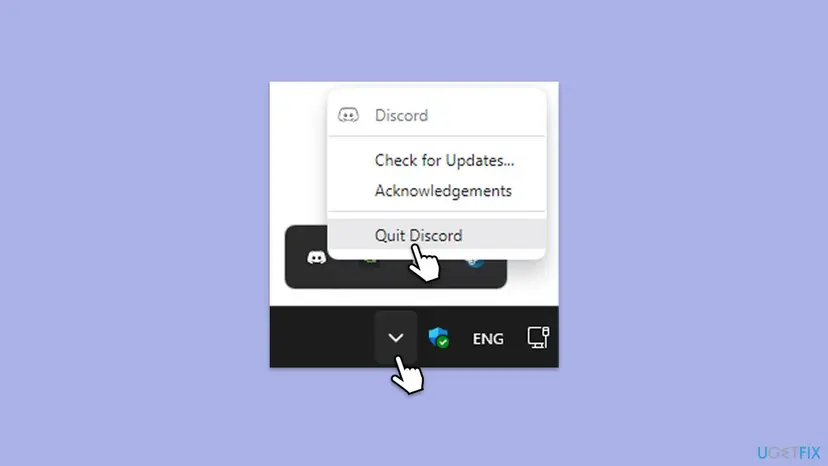
Step by step with Task Manager: Close a frozen app (Task Manager, Force Quit). Pressing Ctrl + R inside Discord also refreshes the client, which Discord lists as a way to load the newest app code.
It worked if: The stream window shows your screen or game within a few seconds and viewers see the Go Live badge.
If not: If the spinner returns, go to Fix 2.
Fix 2. Switch hardware acceleration to the opposite setting
3 minutesNo riskThe spinner appears only when you share or watch video, and other Discord features work.
Hardware acceleration moves video encoding and decoding to the graphics card. It is named in most of Discord's stream timeout and encoder fixes, and Discord gives both on and off as tests, because the right state depends on the PC and its driver.
- In Discord, click the cogwheel at the bottom left to open User Settings.
- Select Voice & Video in the left list, then open the Video tab.
- Scroll down to the Advanced section and find Hardware Acceleration.
- Switch it to the opposite of its current state: off if it is on, on if it is off.
- Confirm any prompt that asks to restart Discord, then start the stream again.
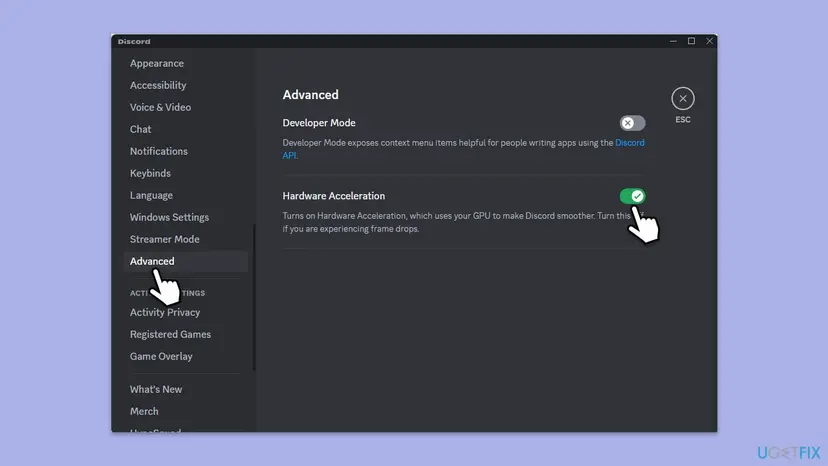
If the spinner appeared on a PC where streaming worked before, try off first: Discord's screen share and video sections say to turn it off. If you only watch and time out, Discord's timeout rows say to turn it on.
It worked if: The stream starts. Keep the setting that works.
If not: If it fails in both states, set it back to what it was and go to Fix 3.
Fix 3. Update the graphics driver from its maker
10 minutesLow riskThe spinner began after a Windows update or you have not updated the graphics driver for months.
Discord uses the graphics card to capture and encode your screen. A mismatched or out of date driver is a known reason for the encoder to fail, and Discord tells Windows users to keep the graphics driver current.
Discord points to the card maker's website for the latest stable driver for your model, and to Windows Device Manager. Avoid third party driver updater programs. The library steps below use Device Manager and Windows Update.
- Open Device Manager. Right-click Start and select Device Manager.
- Open the device's Driver tab. Expand the category (for example Display adapters), right-click the device, select Properties and open the Driver tab. Driver Date and Driver Version show what is installed now.
- Update the driver. Select Update Driver and let Windows search automatically. To use a driver you downloaded from the device maker, select Browse my computer for drivers instead and point to the unpacked folder.
These steps were written for Windows 11 24H2 and later. The full page with the other versions and what each result means: Update, roll back or reinstall a driver
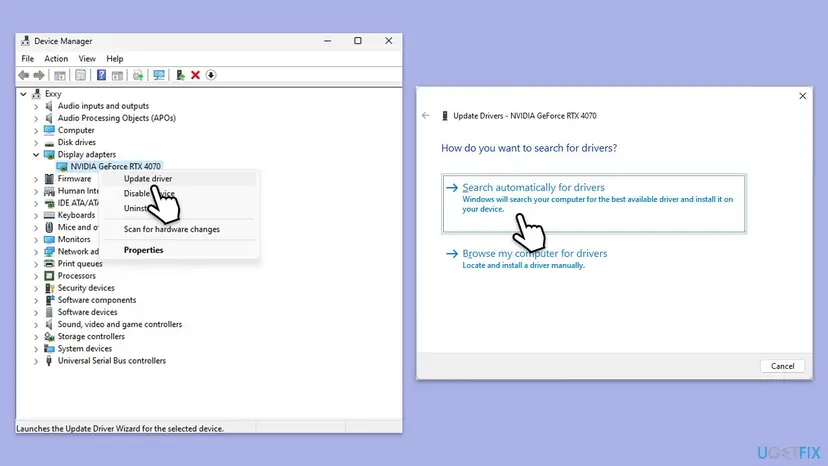
Restart Windows after the driver installs, start Discord and try the stream again.
It worked if: Device Manager shows a newer driver date under the card's properties, and the stream starts.
If not: If you use a laptop with two graphics chips, update the one from the PC maker too, then go to Fix 4.
Fix 4. Check the network and lower the stream quality
10 minutesNo riskYou are on Wi-Fi, calls drop, or viewers and you both see the spinner.
Discord's timeout codes 2011 to 2015 describe a first connection that cannot be made, and its fixes name the network and the stream quality. A lower resolution and frame rate need less of both.
- Restart the router and PC if you have not for a long time, and use a cable instead of Wi-Fi if you can.
- Run the Windows network troubleshooter and apply what it offers.
- In Discord, open User Settings > Voice & Video and find Ensure Quality of Service High Packet Priority. Discord lists it in both its connection and its audio quality steps, and the audio steps say to turn it off. Try switching it, then test.
- Before you press Go Live, choose 720p and 30 FPS in the stream window.
- Close heavy downloads, cloud backups and other video apps, then try again.
Step by step: How to check your internet connection in Windows.
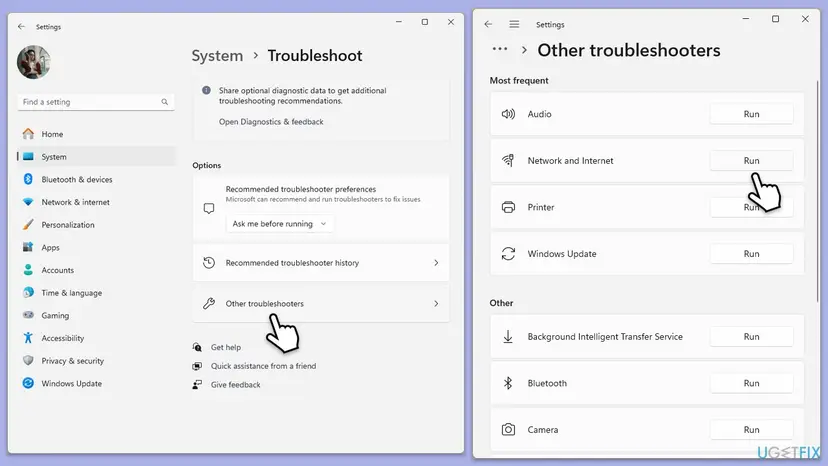
It worked if: The troubleshooter reports no problem or fixes one, and the stream starts at 720p and 30 frames per second.
If not: If the stream starts at low quality only, your upload speed is the limit. If it never starts, go to Fix 5.
Fix 5. Check the channel, the permission and what you share
10 minutesNo riskIt fails in one server, with one game, or only for the viewers.
Discord says problems that only affect some servers or channels usually come from permissions, and a game it does not recognize cannot be streamed. A test in a direct message call separates your PC from the server.
- Start a call in a direct message with a friend and press Share Your Screen. Choose a Screen, not an application window, and press Go Live.
- If that works, the problem is the server: ask the owner to check that your role has Video under Voice Channel Permissions in Server Settings > Roles, and on the channel under Edit Channel > Permissions.
- If a game is the problem, open User Settings > Game Activity and use Add it to add the game, or share the whole screen.
- As a viewer, check that the stream has fewer than 50 viewers and that you stay in the same voice channel. Joining another channel ends your view.
- Click the streamer's name in the voice channel and choose Watch Stream again.
It worked if: The direct message stream loads, which points to a server permission or a game source, not to your PC.
If not: If the direct message stream also shows the spinner, the cause is on your PC: go to Fix 6.
Fix 6. Run Discord as administrator once
2 minutesLow riskDiscord cannot capture a window or a game that runs with higher privileges.
Discord Support lists running as administrator as a step for Windows users. It can help when another app runs elevated and blocks Discord from capturing it, so use it as a test, not a permanent setting.
- Quit Discord fully as in Fix 1.
- Right-click the Discord shortcut and choose Run as administrator.
- Click Yes in the User Account Control prompt.
- Join a voice channel and press Go Live.
Step by step with the compatibility settings: How to run a program as administrator or in compatibility mode.
It worked if: The stream starts only when Discord runs as administrator, which means the app you share runs with higher rights.
If not: Close Discord and open it normally, then go to Fix 7.
Fix 7. Reset the voice and video settings
3 minutesLow riskYou changed several video or audio options in Discord and the spinner started after that.
Discord's own troubleshooting guide lists this reset for voice and video faults. It puts every option back to default, including hardware acceleration and the quality settings that can stall a stream.
- Open User Settings > Voice & Video.
- Scroll down to the debugging area. Discord's guide calls it the Debugging tab of Voice & Video.
- Click Reset Voice and Video Settings and confirm.
- Quit Discord fully, start it and try the stream with the default settings.
Discord Support also suggests trying Discord PTB, its public test build, because it carries the newest code. Download it from discord.com, sign in and test the stream there. It is separate from your normal app and can be removed afterwards.
It worked if: Voice and video options return to defaults and the stream starts.
If not: If PTB streams and the normal app does not, continue with Fix 8 and Fix 9 for the normal app.
Fix 8. Clear Discord's cache and settings folders
10 minutesLow riskNothing else helps and Discord is slow or odd in other places too.
Discord stores its cache and local settings in two folders. Deleting them forces Discord to build clean copies, which removes damaged cache files that can stall a stream.
You are signed out of Discord on this PC and local app settings return to default, such as keybinds and startup options. Messages, servers and friends are on your account and stay. Have your password and two-factor codes ready before you start.
- Quit Discord fully, then end every Discord process in Task Manager as in Fix 1.
- Press Win + R, type
%AppData%and press Enter. - Select the discord folder and press Delete.
- Press Win + R, type
%LocalAppData%and press Enter. - Delete the Discord folder the same way, but only after you have a fresh installer ready for Fix 9 if the app does not start.
- Start Discord from the Start menu, sign in and test the stream.
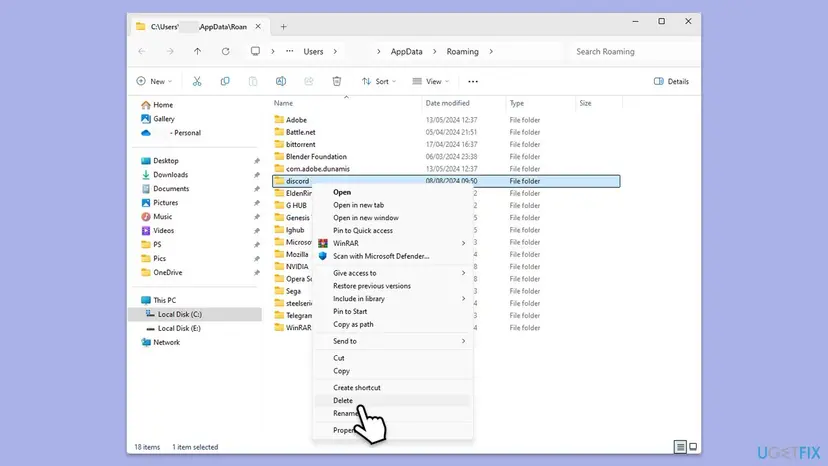
It worked if: Discord starts as a first run, asks you to sign in, and the stream loads.
If not: If Discord no longer starts, or the spinner stays, reinstall it in Fix 9.
Fix 9. Reinstall Discord from discord.com
15 minutesLow riskEverything above failed and Discord misbehaves in several ways.
A damaged installation can break video capture and encoding. Discord Support says to download a fresh copy from its own site and do a clean installation.
Remove Discord first, then install a new copy. Step by step: Uninstall a program or app in Windows.
- Uninstall from the Start menu. Select Start > All apps and find the app. Right-click it (or press and hold) and select Uninstall.
- Or uninstall in Settings. Select Start > Settings > Apps > Installed apps. Find the app, select More (the three dots) > Uninstall, and confirm.
- Or uninstall from Control Panel. Some programs can only be removed here. Type Control Panel in the search box on the taskbar and open it, then select Programs > Programs and Features. Right-click the program and select Uninstall or Uninstall/Change, then follow the program's own uninstaller.
- Restart if the uninstaller asks. Some programs finish removing their files only after a restart.
These steps were written for Windows 11 24H2 and 25H2. The full page with the other versions and what each result means: Uninstall a program or app in Windows
- Restart the PC after the uninstall finishes.
- Go to
discord.com/downloadand download the Windows installer. Do not use any other site. - Run the installer and wait for the update screen to finish.
- Sign in and try the stream before you change any settings.
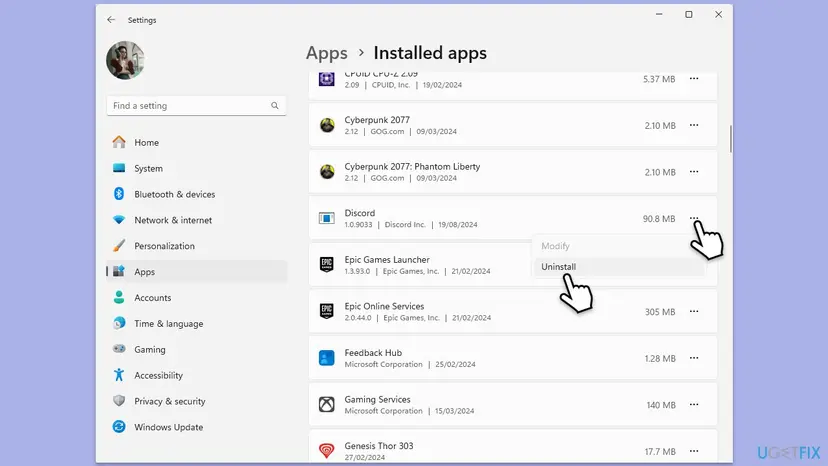
It worked if: A new Discord opens, you sign in, and the stream starts.
If not: Read the next section: another program or the PC itself may be the cause.
Discord stream still stuck on loading after all fixes
If a stream still never loads, narrow it down before you contact Discord. Start Discord in the browser at discord.com in Chrome and try a stream there: Discord's article says Chrome can capture audio for a stream, which shows it can stream. If the browser works and the desktop app does not, the problem is the app, the driver or something that hooks into the app.
To test for a conflict with other software, use a clean boot, which starts Windows with Microsoft services only: How to perform a clean boot in Windows. If the stream works there, turn services back on in small groups until it breaks again, then update or remove the program that did it.
- Your Windows version and Discord version: press Win + R, type
winver, and note the Discord version from Installed apps. - Which client: desktop, browser or mobile, and whether you stream or watch.
- Screenshots of your Voice & Video settings and the list of your input and output devices, which Discord asks for.
- The debug log from the Debugging tab of Voice & Video, which Discord's guide asks you to attach.
- Which fixes you tried, in order, and the result of the direct message test from Fix 5.
Discord Support takes requests at dis.gd/contact. If the same spinner appears on every PC and every network, or other PCs also fail to watch your stream, the limit is probably your upload speed, your quality setting or the server, not Windows.
How to keep Discord streams from getting stuck on loading
- Quit Discord fully from the system tray now and then, instead of leaving it open for weeks.
- Update the graphics driver from the card maker's website, and test a stream after big Windows updates.
- Start with 720p and 30 frames per second, and raise the quality only if the connection holds.
- Keep Windows and Discord up to date. Windows 10 left Microsoft support on 14 October 2025.
- Do not stream while a large download, backup or video render is running.
- Do not use third party driver updater programs, which can install the wrong driver.
- Do not delete Discord folders at the first sign of trouble. Try Fixes 1 to 5 first.
- Do not download Discord from any site except discord.com.
Frequently asked questions
Why is my Discord stream stuck on loading forever?
The stream cannot finish its first connection or its video encoder will not start. Discord does not name this state, but its help lists hardware acceleration, an outdated graphics driver, a weak network and an overloaded PC as the usual reasons. Quit Discord completely from the system tray and Task Manager, start the stream again, then switch Hardware Acceleration under Voice & Video and Video to the opposite setting. If that fails, update the graphics driver from the maker's website and test again.
Is it my internet or Discord when the stream will not load?
Test both. Start a direct message call and share your screen at 720p and 30 frames per second. If that loads, your internet is fine and the problem is the server permission, the game or the source you chose. If it also stalls, run the Windows network troubleshooter and use a cable instead of Wi-Fi. Discord's timeout codes name the network, but they also name hardware acceleration and system load, so a good connection does not rule out the app.
Should hardware acceleration be on or off for streaming?
Try the opposite of what it is now. Discord's error code guide says to turn it on for the timeout and encoder errors 2008 to 2015. Its voice and video guide says to turn it off for screen share and video faults. Both are tests, and the right setting depends on your graphics card and driver. Change it under User Settings, Voice & Video, Video tab, Advanced, restart Discord, and keep the setting that starts the stream.
Will I lose messages or servers if I clear the Discord cache?
No. Messages, servers, friends and Nitro belong to your Discord account, not to your PC. Deleting the discord folder in AppData signs you out on this computer and resets local app settings such as keybinds and startup options. Deleting the Discord folder in LocalAppData removes the program files, and the installer downloads them again. Have your password and two-factor codes ready, because you will sign in again.
Why do my viewers see a loading spinner while my stream looks fine?
Your own preview and the viewers' connection are separate. Viewer timeout codes 2012 and 2015 mean a viewer cannot make a first connection, which can be their network, their hardware acceleration setting or their graphics driver. A stream also holds at most 50 viewers plus you, and a full stream shows error 2010. Ask a viewer to quit Discord fully, try hardware acceleration the other way, and stay in the same voice channel.
What does a Discord stream failed to start error mean?
Discord lists it as error 2001, stream start failure. Its advice is short: press Go Live again, and if it persists, close Discord completely and open it before another attempt. A stream that never starts at all can also be a server permission, because screen share needs the Video permission, or a game that Discord does not recognize. Test in a direct message call and add the game under Game Activity if needed.
My whole Discord app is stuck loading or on an infinite loading screen. Is this the same problem?
Not quite. This page is about a stream or screen share that will not load inside a working Discord. If the app itself never gets past its loading or connecting screen, Discord Support has a separate article about the main connecting screen. It suggests a malware scan, and a check of the console with Ctrl + Shift + I. The shared parts with this page are Fix 1, Fix 8 and Fix 9: quit completely, clear the cache folders and reinstall.
Does lowering the stream quality help a stream that will not load?
It can. Discord says the stream quality errors from 2002 to 2007 come from low frame rates, packet loss or poor network quality. It tells you to reduce resolution or frame rate and to check that your CPU, graphics card and memory can handle the setting. Everyone can stream up to 720p at 30 frames per second. Nitro and Nitro Classic raise that to 4K at 60 frames per second, which needs a strong PC and a fast upload.
Does this apply to Windows 10 and to the browser version of Discord?
The steps work on Windows 11 and Windows 10, but Windows 10 left Microsoft support on 14 October 2025, so plan to move to Windows 11. In the browser you cannot adjust the stream quality, as Discord says. Use the browser as a test: if it streams, the desktop app, the driver or a conflicting program is the cause.
Sources
- Discord Support: Go Live and Screen Share (support.discord.com)
- Discord Support: Discord Audio and Video Error Codes: Troubleshooting Guide (support.discord.com)
- Discord Support: Discord Voice and Video Troubleshooting Guide (support.discord.com)
Did this fix work?
One click, no account. It tells the next reader which guides are worth their time.
Questions and experiences: fix Discord stream stuck on loading in Windows
Still broken, or found a fix we did not cover? Ask here: members and our editors answer. Reading is open; writing needs a free account.
…