
How to fix "sent an invalid response" ERR_SSL_PROTOCOL_ERROR on Google Chrome?

Prefer to fix it yourself? The manual steps follow.
- 8methods
- 2 to 20 minutes
- Easy
Applies to Google Chrome and other Chromium browsers on Windows 11 and Windows 10; the same error and causes in Chrome on macOS and Android; owners of websites and of local development servers
8 methods in this guide
- What the error means
- Invalid response, look-alikes
- Causes, ranked
- The fixes
- 1. Test another network
- 2. Check https and the port
- 3. VPN, proxy, HTTPS scanning
- 4. Incognito, extensions, update
- 5. Test without QUIC
- 6. Localhost over https
- 7. For website owners
- 8. Browsing data, hosts file
- Still there: read the log
- Keep it from coming back
- FAQ
I cannot access a website with Google Chrome. It gives the ERR_SSL_PROTOCOL_ERROR error and says that this site can't provide a secure connection. But everything was just fine yesterday. Is this site hacked, or did my Chrome just break?
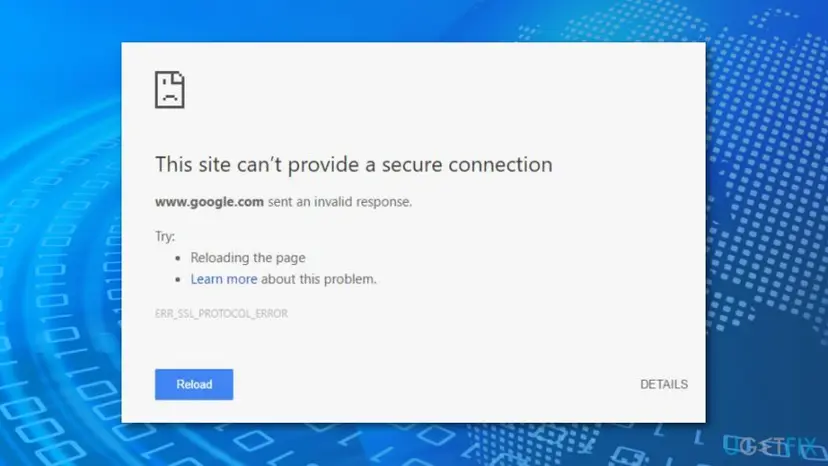
"Sent an invalid response. ERR_SSL_PROTOCOL_ERROR" in Chrome means that Chrome asked the site for an encrypted connection and the answer was not valid TLS. The cause is the website's server, something on your network that cuts into the connection, or an https:// address on a port that only speaks HTTP. Open the same address on mobile data first: that one test shows which of the three you have.
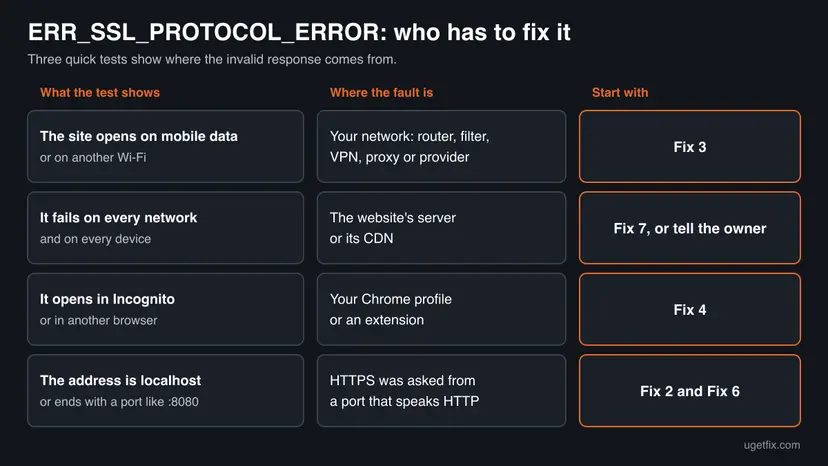
"This site can't provide a secure connection. The site sent an invalid response. ERR_SSL_PROTOCOL_ERROR" means the answer to Chrome's HTTPS request was not valid TLS. Your Chrome is rarely broken. Open the address on mobile data or another network (Fix 1). If it loads there, your network, VPN or security software interferes (Fix 3). If it fails everywhere, only the site owner can repair it (Fix 7). For localhost or an address with a port, change https:// to http:// (Fix 2 and Fix 6).
| Error | ERR_SSL_PROTOCOL_ERROR, Chromium network error -107. The source code describes it in one line: "An SSL protocol error occurred." |
|---|---|
| Where it appears | In a Chrome tab under the heading This site can't provide a secure connection, with the line "(site name) sent an invalid response." and a Reload button. In DevTools it reads net::ERR_SSL_PROTOCOL_ERROR. |
| Main cause | The first bytes that came back on the HTTPS connection were not TLS, or the TLS handshake broke in a way Chrome has no more exact code for. The sender is the server or a device between you and it. |
| Fastest fix | Open the same address on mobile data or another network (Fix 1). For localhost, a router or any address with a port, change https:// to http:// (Fix 2). |
| Also written as | net::ERR_SSL_PROTOCOL_ERROR, err ssl protocol error, "sent an invalid response", "This site can't provide a secure connection", "localhost sent an invalid response". |
| Affects | Chrome on Windows 11, Windows 10, macOS, Linux and Android, and other Chromium browsers such as Edge, Brave and Opera. The code comes from the browser's own TLS code, not from Windows. |
| Google's status | Not a Chrome bug with a patch date. Google's help page says: "You can get this error if the page has an error that Chrome couldn't understand. To fix this error, contact the website owner." |
| Not the cause | A wrong PC clock, an expired certificate or a server limited to TLS 1.0 and 1.1. Chrome has separate pages and codes for each of those. |
| Time to fix | 2 minutes to find out where the fault is. Up to 20 minutes for a security program, a VPN or a local server. A broken website waits for its owner. |
| Where the cause is logged | chrome://net-export/ writes a NetLog file. Look for the event SSL_HANDSHAKE_ERROR with net_error -107 and the fields error_lib and error_reason. |
Facts checked on 14 October 2026. Steps written for Chrome 155 on Windows 11 (25H2 and 26H2) and Windows 10 22H2.
What "sent an invalid response" and ERR_SSL_PROTOCOL_ERROR mean
When an address starts with https://, Chrome opens a connection to the server and starts a TLS handshake. TLS is the current name of what used to be called SSL, which is why the code still says SSL. The handshake is a fixed exchange of messages in a fixed format. If what comes back does not fit that format, Chrome cannot build an encrypted connection and stops.
Chromium's list of network errors gives this case the number -107 and the description "An SSL protocol error occurred". The error page pairs it with the heading This site can't provide a secure connection and the sentence "(site name) sent an invalid response." The site name in that sentence is simply the host you typed. It is not proof that the site itself wrote the bad answer.
Chrome's TLS library reports dozens of exact failures. Chromium's code gives a handful of them their own error codes, and the last line of that list sends everything else to ERR_SSL_PROTOCOL_ERROR. So the code tells you that the handshake failed, and that the failure was not one of the well-known kinds. It does not tell you who caused it.
| What you see | Where | What it tells you |
|---|---|---|
This site can't provide a secure connection, "(site) sent an invalid response.", ERR_SSL_PROTOCOL_ERROR | A Chrome tab on Windows, macOS, Linux or Android | The TLS handshake with that address failed. On Windows the page also offers a link to run Windows Network Diagnostics. |
| "localhost sent an invalid response." with the same code | A Chrome tab while you develop a site on your own PC | Almost always an https:// address on a port where the local server answers in plain HTTP. See Fix 6. |
net::ERR_SSL_PROTOCOL_ERROR after "Failed to load resource" | The DevTools Console or Network panel | One request of the page failed this way. The page itself may still load. |
| "Secure Connection Failed" in Firefox, or Safari's message that it could not establish a secure connection | Other browsers, same site | Cloudflare lists these as the same kind of handshake failure. If they appear too, Chrome is not the cause. |
What an "invalid response" is, and which errors look similar
Every TLS message starts with a short header that carries a record type and a version number. Before any encryption is agreed, Chrome's TLS library checks the first byte of that version number. Ordinary text fails the check at once. A web server that answers a TLS hello with an HTTP reply such as HTTP/1.1 400 Bad Request sends exactly such text, and so does a filter that pushes its own block page into the connection.
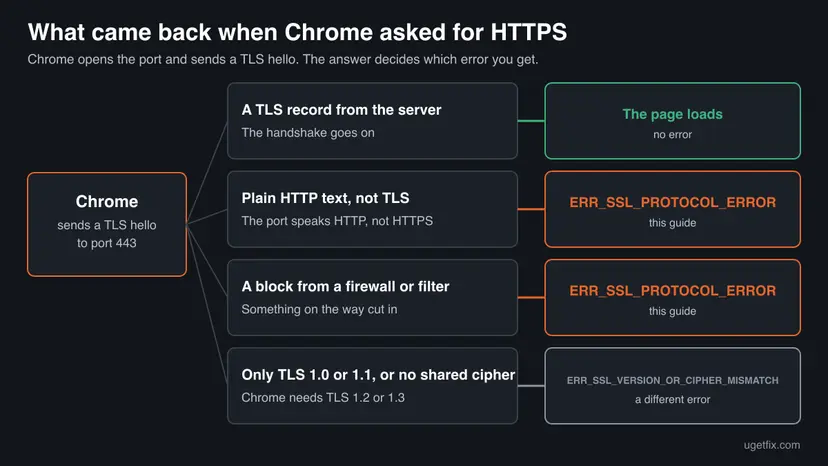
One more route into this code is written down in Chromium's source. A TLS alert called access_denied is meant for sign-in with client certificates. The developers note that "some buggy firewalls use it when blocking a page", and to avoid a confusing message Chrome turns that alert into the generic protocol error when no certificate was asked for.
| The real problem | What Chrome shows instead | Why it matters |
|---|---|---|
| The PC's date or time is wrong | "Your clock is behind" or "Your clock is ahead", NET::ERR_CERT_DATE_INVALID | Setting the clock does not fix ERR_SSL_PROTOCOL_ERROR. If you see the clock page, use How to fix the date and time in Windows |
| The certificate is expired, self-signed or issued for another name | "Your connection is not private" with a NET::ERR_CERT_ code | A bad certificate arrives inside a valid handshake. It is a trust problem, not a protocol error. |
| The server offers only TLS 1.0 or 1.1, or no cipher that Chrome accepts | "(site) uses an unsupported protocol.", ERR_SSL_VERSION_OR_CIPHER_MISMATCH | Chromium maps a version or cipher refusal to this separate code. Its default range is TLS 1.2 to TLS 1.3. |
| A broken HTTP/3 (QUIC) connection | ERR_QUIC_PROTOCOL_ERROR | QUIC failures have their own code, although Cloudflare notes that HTTP/3 trouble can also surface as SSL protocol errors. See Fix 5. |
| The site wants a login certificate that you do not have | "didn't accept your login certificate", ERR_BAD_SSL_CLIENT_AUTH_CERT | Common on bank and company portals. The fix is a certificate from that organization. |
Chromium's code shows which failures end in this code. It does not say how often each one happens, and no vendor publishes such numbers. The order of causes below follows what Google, Cloudflare and the server documentation describe, plus the page's own search data.
What causes ERR_SSL_PROTOCOL_ERROR, from most to least likely
For a visitor the cause is most often outside the PC: the site's server answers badly, or a filter, firewall, VPN or provider on the way answers in its place. Less often a security program on the PC opens HTTPS traffic and fails. For developers and for owners of routers and other home devices, the usual cause is HTTPS requested from a port that only speaks HTTP. A damaged Chrome profile is the rare case.
| Cause | How often | How to tell | Fix |
|---|---|---|---|
| The website's server or CDN answers port 443 without valid TLS: HTTPS is not switched on, the certificate is not active yet, or the configuration is broken. | Most often when one site fails for everyone | The site fails on every network and device, also in other browsers. | Fix 1, then Fix 7 or a message to the owner |
| A content filter, parental control, company firewall or provider blocks the site and answers in its place. | Most often when one site fails on one network only | The site opens on mobile data or through another connection. | Fix 1, then Fix 3 |
The address says https:// but the port speaks HTTP: localhost, a development server, a router, printer, camera or NAS. | Often for developers and home devices | The address has a port such as :8080, an IP address, or the name localhost. | Fix 2, Fix 6 |
| A security program, VPN or proxy inspects HTTPS and does not handle TLS 1.3 correctly. | Sometimes | Many HTTPS sites fail on this PC, and they work with the VPN or the HTTPS scanning off. | Fix 3 |
| The network mishandles HTTP/3 (QUIC) on UDP port 443. | Sometimes, and then not on every load | The error comes and goes, and a few reloads help. | Fix 5 |
| An extension or stored data in the Chrome profile interferes, or Chrome is out of date. | Rarely | The site opens in an Incognito window or in another browser on the same PC. | Fix 4, Fix 8 |
| A line in the Windows hosts file sends the site's name to another address. | Rarely | Only this PC fails, in every browser, on every network. | Fix 8 |
Setting the Windows clock, deleting the hosts file and the Clear SSL state button of Internet Options are repeated on many pages for this code. A wrong clock produces a different Chrome page. The hosts file should be read, not deleted. Chrome negotiates TLS with its own library, and we could not confirm that the Windows button changes anything in Chrome.
How to fix ERR_SSL_PROTOCOL_ERROR in Chrome
Fix 1 is a test and takes two minutes: it tells you whether to go on with your own PC and network or to leave the repair to the site. Fixes 2 to 5 are for visitors. Fix 6 is for localhost and development servers, Fix 7 for website owners. Fix 8 holds the general clean-up that Google lists for every connection error.
| What you see or have | Start with |
|---|---|
| One website shows the error and you do not know why. | Fix 1 |
The address is an IP address, has a port such as :8080, or belongs to a router, printer, camera or NAS. | Fix 2 |
| The site opens on mobile data but not on your Wi-Fi, or only fails with the VPN on. | Fix 3 |
| Many HTTPS sites fail on this PC and work on other devices on the same network. | Fix 3, then Fix 4 |
| The error comes and goes, and reloading a few times helps. | Fix 5 |
| "localhost sent an invalid response" while you run a development server. | Fix 6 |
| Visitors report the error on your own website. | Fix 7 |
| The site fails on every network, every device and every browser, and it is not yours. | Tell the owner: see "If the error is still there" |
Fix 1. Open the site on another network and another device
2 minutesNo riskYou see the error on a website and want to know whose fault it is before you change anything.
The error page cannot say who sent the invalid response. The same address on a different connection and a different device can: Cloudflare gives this test to site owners as the way to identify interference by a network or provider.
- Select Reload on the error page once. Google's first step for every loading error is to check the address for typing mistakes and reload.
- Open another HTTPS site in a new tab, for example
https://www.google.com. Note whether only one site fails or many. - Take a phone, turn off its Wi-Fi so it uses mobile data, and open the same address in its browser.
- On the PC, open the address in a second browser if you have one, such as Microsoft Edge.
- If another PC or phone is on your Wi-Fi, open the address there as well.
- Read the result in the table below and go to the fix it names.
| Result | What it means | Next |
|---|---|---|
| The site opens on mobile data, but not on any device on your Wi-Fi. | Your network or provider answers in place of the site, or blocks it. | Fix 3 |
| The site opens on other devices on the same Wi-Fi, but not on this PC. | Something on this PC: a security program, VPN, proxy, the hosts file or the Chrome profile. | Fix 3, then Fix 4 and Fix 8 |
| The site opens in another browser on this PC. | The Chrome profile, an extension or an outdated Chrome. | Fix 4 |
| The site fails everywhere, on every device and connection. | The website's server sends the invalid response. | Nothing on your side. Tell the owner, or use Fix 7 if the site is yours. |
| Many unrelated HTTPS sites fail, with different codes. | A connection problem, not this error alone. | How to check your internet connection in Windows |
"It was fine yesterday" fits two causes best. The site's owner changed the server or let HTTPS break, which the last row of the table shows. Or your network started to filter the site, which the first row shows. Neither one means that the site was hacked or that your Chrome broke.
It worked if: You know which row of the table you are in: this PC, this network, or the website itself.
If not: If the results are mixed or change from one minute to the next, treat it as a network problem and continue with Fix 3 and Fix 5.
Fix 2. Check the address: https on a port that only speaks HTTP
1 minuteLow riskThe address is an IP address, has a port number, or belongs to a router, printer, camera, NAS or another device on your own network.
A port that serves plain HTTP answers a TLS hello with HTTP text, and Chrome reads that as an invalid response. Apache's documentation names the case directly: connecting via HTTPS to a server that does not support it, or that supports it on another port.
- Look at the address bar. Select the address to see it in full, with
https://in front. - If it ends with a port, such as
https://192.168.1.1:8080, note the number after the colon. - Change
https://tohttp://, leave the rest as it is, and press Enter. - If the device's manual lists a separate port for HTTPS, use that port with
https://instead. - If a bookmark or a saved link opened the wrong address, edit it so the next visit goes to the right one.
An http:// page is not encrypted, and Chrome marks it Not Secure in the address bar. That is acceptable for a router or a printer at home. Do not sign in, pay or enter personal data on a public website over http:// only because its HTTPS is broken. Wait until the owner repairs it.
- Why https appeared by itself. Chrome tries to upgrade some
http://visits to HTTPS. With Always use secure connections turned on, Google says Chrome upgrades addresses to HTTPS and displays a warning before you visit a site that does not support it. - Where the switch is. More (the three dots), then Settings, then Privacy and security, then Security, under Secure connections. You can choose warnings for public sites only, so devices on your own network are left alone.
- Any port can be HTTPS. Apache's documentation notes that HTTPS can run on any port and that a browser only looks at 443 by default. The port number alone does not tell you which protocol is behind it.
It worked if: The device's page or the site loads over http://, with Not Secure in the address bar.
If not: If http:// fails too, or the address is an ordinary public website, go back to the result of Fix 1.
Fix 3. Rule out the VPN, the proxy and HTTPS scanning by security software
10 to 20 minutesLow riskThe site opens on another network or another device, or many HTTPS sites fail on this PC only.
A program or device that inspects HTTPS sits in the middle of the handshake and answers in the site's place. Cloudflare documents that such middleboxes can fail with TLS 1.3, and Chromium's code notes firewalls that block a page with an alert Chrome reports as this error.
Every switch in this fix is turned off for one page load and then turned on again. If the site works only with HTTPS scanning off, the cure is an update of the security program or a word with whoever runs the network. It is not a PC that stays unprotected.
- If a VPN is connected, disconnect it and reload the page. If the VPN was off, skip this step.
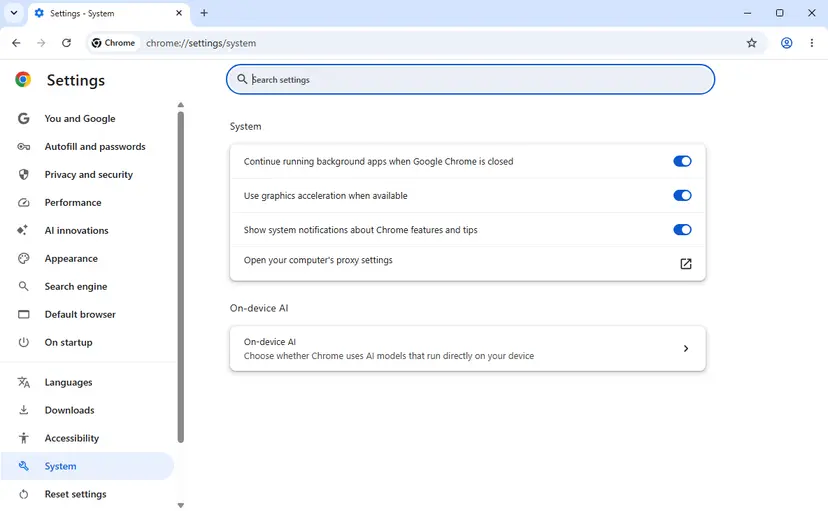
- In Chrome, select More (the three dots), then Settings, then System.
- Select Open your computer's proxy settings. Windows opens its proxy page.
- Check whether a proxy server is set that you did not set up yourself. On a work or school PC, do not change it: ask the administrator.
- Open your security program and find its web protection settings. Google's help calls the feature "HTTPS protection" or "HTTPS scanning". The name differs between products.
- Turn that one feature off, reload the page, and turn the feature back on right away.
- If the page loaded with the feature off, update the security program to its latest version and test again with the feature on.
- Restart the router and the modem, then test once more. Google lists this for connection errors that affect several sites.
- Works with the VPN off: the VPN's servers or its own filtering break the handshake. Change the VPN server or protocol, or report the address to the VPN's support.
- Works with HTTPS scanning off: Cloudflare's advice is to update the security software to a version that supports TLS 1.3. Most products also let you exclude one site from scanning.
- Fails on your whole network for one site only: a content filter, parental control or the provider blocks that site. Cloudflare notes that some providers switch such features off on request or add a domain to an allowlist.
- A work, school or public network: the filter is a rule of that network. The person who runs it decides, and no setting on your PC changes it.
How to pause Microsoft Defender's real-time protection for a single test, and why it turns itself back on, is shown here: Turn off Microsoft Defender protection for a moment. Use it only if Defender is your one security program and the steps above pointed at this PC.
It worked if: The page loads after one of the switches, so you know which program or device answers in the site's place.
If not: If nothing on the network side changes the result on this PC, test the Chrome profile with Fix 4.
Fix 4. Test an Incognito window, turn off extensions and update Chrome
5 to 10 minutesLow riskThe site opens in another browser on the same PC, or Fix 3 found nothing.
These are steps 3 to 5 of Google's own list for connection errors. An extension that filters or reroutes traffic can break a handshake, and an outdated Chrome can lack what a current server expects. Incognito separates the profile from the rest in one step.
- Press Ctrl + Shift + N to open an Incognito window and open the address there.
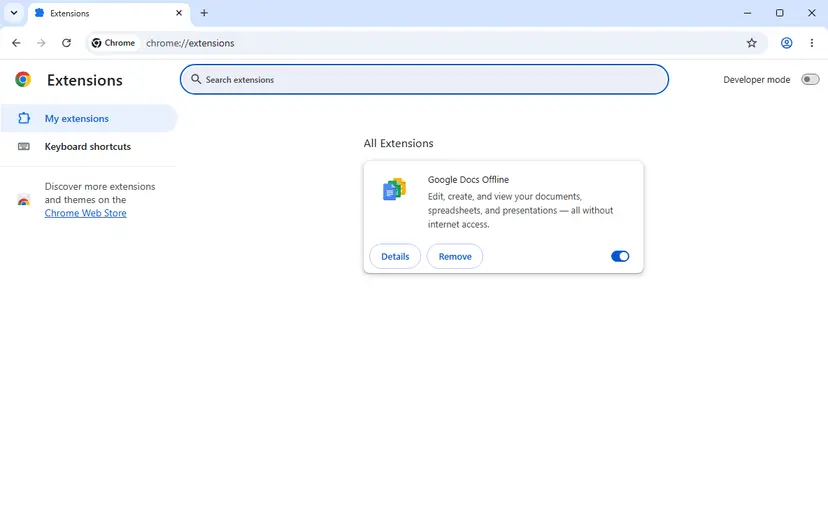
- If the page loads, close the Incognito window and select More, then Extensions, then Manage extensions.
- Turn every extension off with its switch and load the page in a normal window.
- Turn the extensions on one at a time until the error returns. Google recommends exactly this order.
- Select Remove on the extension that brings the error back, or leave it switched off.
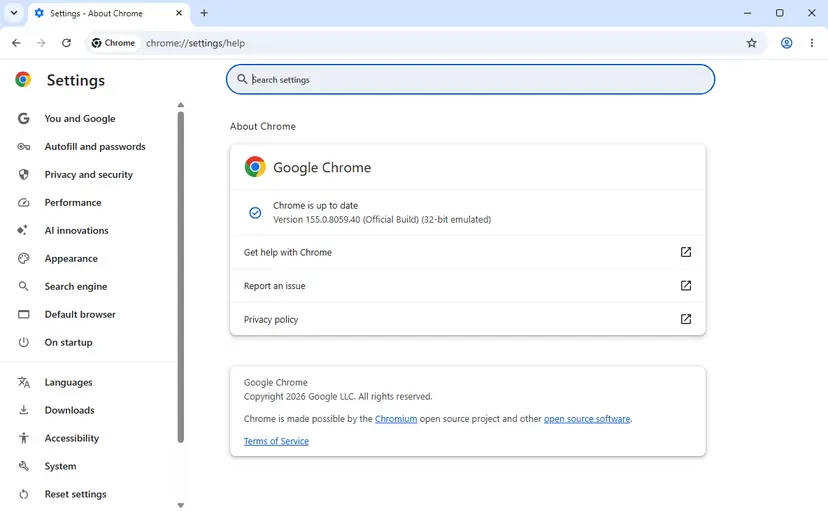
- Select More, then Help, then About Google Chrome. Chrome checks for an update on this page.
- Select Relaunch if the button appears, then test the address again.
- The error is the same in Incognito: the profile is not the cause. Do not remove extensions or reset Chrome. Go back to the table in Fix 1.
- VPN, ad blocking and antivirus extensions are the ones to suspect first, because they handle every connection.
- Chrome reports that it is up to date and the error stays: the version is not the cause either.
It worked if: The page loads in a normal window once the extension that interfered is off, or after Chrome relaunched with an update.
If not: If the error only shows now and then, try Fix 5. If it is there on every load, use Fix 8 and then the log under "If the error is still there".
Fix 5. Turn off QUIC as a test
2 minutesLow riskThe error comes and goes on sites that otherwise work, above all on a company, hotel or mobile network.
Cloudflare writes that intermittent SSL protocol errors can come from HTTP/3, which runs over QUIC on UDP port 443, on networks that do not fully support it. With the flag off Chrome uses HTTP/2 over TCP, so the test shows whether QUIC is involved.
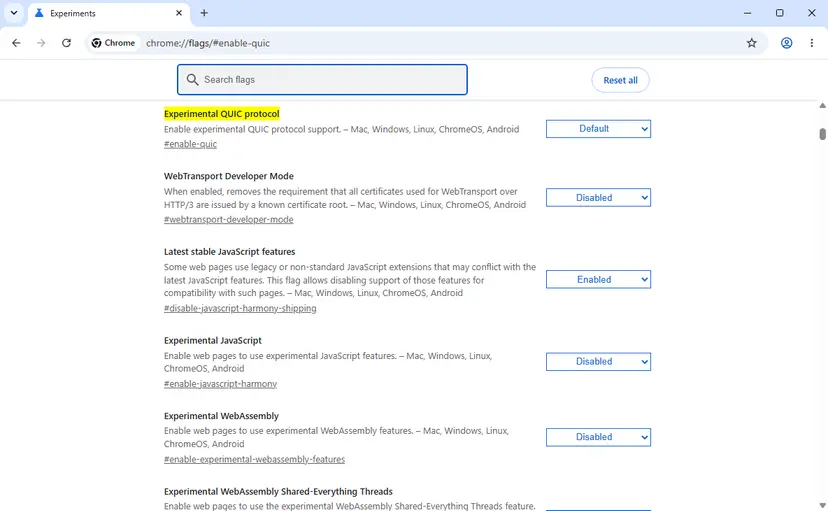
- Type
chrome://flags/#enable-quicin the address bar and press Enter. - Find Experimental QUIC protocol at the top of the list, highlighted in yellow.
- Open the menu on its right and select Disabled.
- Select Relaunch at the bottom of the window. Chrome restarts with your tabs.
- Open the site several times, the way that used to bring the error.
- Afterwards, go back to the flag and set it to Default, unless the test changed the result.
Chrome has a separate code for QUIC failures, ERR_QUIC_PROTOCOL_ERROR, and an error that is there on every single load is not a QUIC problem. If the error stops with the flag off, the network handles UDP port 443 badly. What to do about that is described in our guide to ERR_QUIC_PROTOCOL_ERROR.
It worked if: The error no longer appears during repeated loads while the flag is set to Disabled.
If not: If nothing changes, set the flag back to Default. QUIC is not involved, and the cause is one of the others in the table.
Fix 6. Fix "localhost sent an invalid response" on a development server
5 to 15 minutesLow riskYou run a site on your own PC and Chrome shows the error for localhost, 127.0.0.1 or a local test name.
Development servers start with plain HTTP unless HTTPS is switched on. Angular's ssl option, for example, is false by default. An https://localhost address then reaches an HTTP port, the server answers in text, and Chrome reports an invalid response.
- Read what the server printed when it started. It names the address it listens on, with
http://orhttps://and a port. - Open exactly that address. If it says
http://localhost:4200, typehttp://in full, so the address is exactly the one the server printed. - If the project has two ports, one for HTTP and one for HTTPS, make sure
https://goes with the HTTPS port. In ASP.NET Core development these are typically 5000 and 5001. - If you need HTTPS locally, switch it on in the server with one of the options in the table below and start the server again.
- If Chrome keeps turning a local test name into
https://, openchrome://net-internals/#hsts. - Under Delete domain security policies, type the host name and select Delete.
- Close the tab, open a new one and load the address again.
| Server | What its documentation says | Command or setting |
|---|---|---|
| Angular CLI | ssl: "Serve using HTTPS." Default false. The default port is 4200. ssl-cert and ssl-key take your own certificate and key. | ng serve --ssl |
| Vite | server.https enables TLS and needs a valid certificate. The plugin @vitejs/plugin-basic-ssl creates and caches a self-signed one for a basic setup. | server.https in the Vite config |
| ASP.NET Core | The .NET SDK installs an HTTPS development certificate that is not trusted until you run the trust command once. It works on Windows and macOS. | dotnet dev-certs https --trust |
Commands named above
ng serve --ssl
dotnet dev-certs https --trust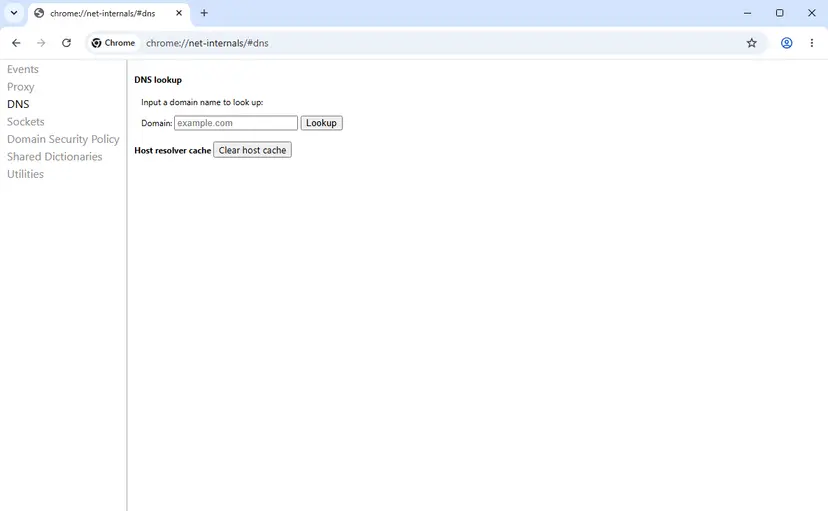
- HSTS and plain localhost. A site can tell the browser to use HTTPS only, and Chrome remembers it. Chromium's current code ignores such headers for localhost names, so a stored entry is a likely cause only for other local names you made up.
- Preloaded names cannot be deleted. The delete form says so itself: it removes the dynamic policy of a domain, not entries from Chrome's built-in list.
- A self-signed certificate is a different page. Once the server really speaks HTTPS, an untrusted certificate gives "Your connection is not private", not this error. Microsoft describes that warning for its development certificate.
- A reverse proxy in front. If nginx or another proxy forwards to your app, the same rule applies to each hop: the address and the port must agree on HTTP or HTTPS.
It worked if: The local site loads: over http:// on the HTTP port, or over https:// after HTTPS was switched on in the server.
If not: If the HTTPS port still answers with this error, check the server itself with the commands in Fix 7.
Fix 7. On your own website: make port 443 answer with TLS
15 to 30 minutesLow riskThe site is yours and visitors report the error, or it fails on every network in Fix 1.
If the error appears for everyone, the server or the service in front of it sends the invalid response. The usual reasons are a port 443 without TLS switched on, a certificate that is not active yet, or a TLS setup that breaks the handshake.
- Test the port from outside your own network with the two commands below. Replace
example.comwith your domain. - Read the output of
openssl s_client. A working server prints a certificate chain. If none appears, the port did not answer with TLS. - On nginx, check that the listening socket has the
sslparameter and that the certificate and key are set, as in the example below. - On Apache, check that the virtual host for port 443 contains
SSLEngine onand both certificate lines. The engine is disabled by default. - Offer TLS 1.2 and TLS 1.3. Chrome's default range is exactly these two versions.
- If a CDN or proxy stands in front of the server, check that its certificate for your domain is active.
- Reload the web server and run the two commands again. Then open the site in Chrome on mobile data.
Test the HTTPS port (commands from Apache's SSL documentation)
curl https://example.com/
openssl s_client -connect example.com:443 -state -debug
nginx: an HTTPS server block, as in the nginx documentation
server {
    listen              443 ssl;
    server_name         www.example.com;
    ssl_certificate     www.example.com.crt;
    ssl_certificate_key www.example.com.key;
    ssl_protocols       TLSv1.2 TLSv1.3;
}
Apache: the lines the virtual host for port 443 needs
<VirtualHost _default_:443>
    SSLEngine on
    SSLCertificateFile    "/path/to/this/server.crt"
    SSLCertificateKeyFile "/path/to/this/server.key"
</VirtualHost>| Cause on the server | Source | What to do |
|---|---|---|
| Port 443 listens without TLS | nginx: to configure an HTTPS server, the ssl parameter must be enabled on listening sockets. Apache: the SSL/TLS engine is off until SSLEngine on. | Add ssl to listen 443, or SSLEngine on to the 443 virtual host. |
Listen and virtual host do not match | Apache's FAQ asks you to make sure your Listen directives match your VirtualHost directives. | Compare both lines, then start from the default mod_ssl configuration if needed. |
| Old TLS versions only | nginx 1.27.3 and later default to TLSv1.2 and TLSv1.3. Older versions had other defaults. Google asks site owners to offer TLS 1.3 and to keep TLS 1.2 for older clients. | Set ssl_protocols TLSv1.2 TLSv1.3; or the same in your server. Old versions alone give Chrome's unsupported protocol page instead. |
| Certificate not yet active on a CDN | Cloudflare lists a certificate that is not active yet as the first thing to rule out for this error on a newly added domain. | Wait for activation and check the certificate status in the CDN's dashboard. |
| Only some visitors are affected | Cloudflare: test with HTTP/3 off, then with TLS 1.3 off, and switch both back on after the test. | If a test helps, the visitor's network or security software is the cause. See Fix 3 and Fix 5. |
| Errors under heavy load | Apache's FAQ names the SSL session cache, above all the DBM type, as the main reason for random SSL protocol errors under load. | Use the SHM session cache. |
A wrong, expired or incomplete certificate produces "Your connection is not private" in Chrome, because the handshake works and only the trust check fails. For ERR_SSL_PROTOCOL_ERROR, look first at whether the port speaks TLS at all, then at what stands between the visitor and your server.
It worked if: openssl s_client prints your certificate chain, and Chrome opens the site on a connection outside your own network.
If not: If the server is correct and only some visitors fail, collect what Cloudflare asks for under "If the error is still there" and work through Fix 3 with one affected visitor.
Fix 8. Delete Chrome's browsing data and read the hosts file
5 to 10 minutesLow riskOnly this PC fails, also after Fix 3 and Fix 4, or the site fails in every browser on this PC and works on other devices.
Deleting browsing data is step 6 of Google's list for connection errors. The hosts file can send a site's name to another address, and Microsoft notes that a changed hosts file overrides normal name lookup and can cause problems reaching websites.
- Open Delete browsing data. Press Ctrl + Shift + Delete. Or select More (the three dots at the top right) > Delete browsing data.
- Choose how far back to delete. Select a time range at the top, such as Last hour. To clear everything, open More next to the ranges and choose All time.
- Choose what to delete. Check Cached images and files. Check Cookies and other site data too if a site will not sign you in. Uncheck anything you want to keep.
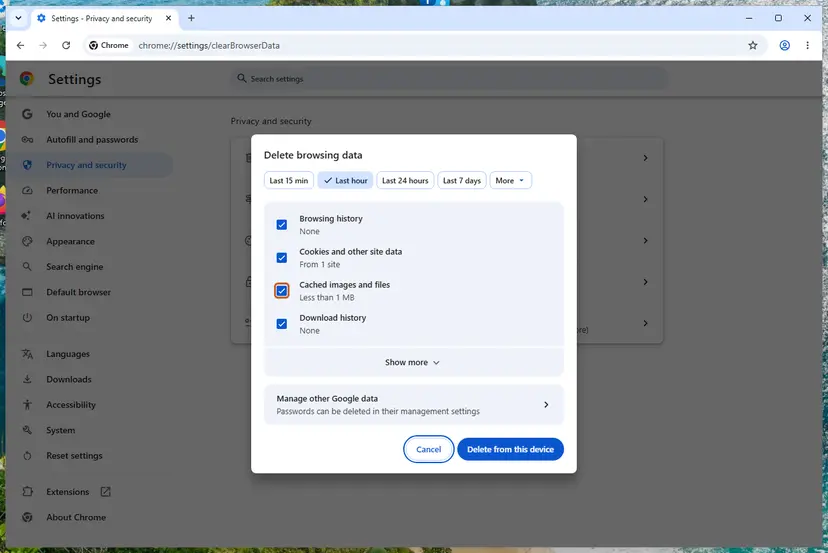
Chrome: Delete browsing data, with the time ranges at the top. Screenshot: Windows 11 26H2. - Delete the data. Select Delete from this device.
These steps were written for Chrome for Windows (screenshot: Windows 11 26H2). The full page with the other versions and what each result means: Clear the browser cache and cookies
Start with Cached images and files only. If the error stays, repeat with Cookies and other site data ticked too. That signs you out of websites, so make sure you know your passwords.
- Press Win + R, type
%WinDir%\System32\Drivers\Etcand press Enter. The folder is typicallyC:\Windows\System32\drivers\etc. - Right-click the file hosts, select Open with and choose Notepad.
- Read the lines that do not start with
#. A default hosts file has none: every line in it is a comment. - Look for a line that contains the name of the site that fails.
- If you find one that you did not add yourself, restore the default file with the steps of Microsoft's article in the sources. It keeps the old file as a backup.
- Close Chrome completely, open it again and load the site.
Older versions of this guide told readers to delete the hosts file. Some programs add their own lines to it, and those lines would be lost. A single wrong line is the thing to find. If Windows refuses to save the file, that is expected: the folder needs administrator rights.
It worked if: The site loads after the cache was deleted, or after the line that pointed its name elsewhere was removed.
If not: Record a network log with the steps in the next section and send it to the site's support or your network administrator.
If the error is still there: record what Chrome received
When no test points anywhere, let Chrome write down the handshake. Chromium's instructions for network problems use a built-in recorder. For a failed handshake the file holds an event named SSL_HANDSHAKE_ERROR with the fields net_error, ssl_error, error_lib and error_reason. The last two are the exact reason from Chrome's TLS library, which the error page hides.
- Open a new tab and go to
chrome://net-export/. - Select Start Logging to Disk and choose where to save the file. Leave the options as they are.
- Load the failing address in a different tab. The recorder tab must stay open, or logging stops.
- Go back to the recorder tab and select Stop Logging.
- Send the whole file. The Chromium team says that snippets are rarely sufficient.
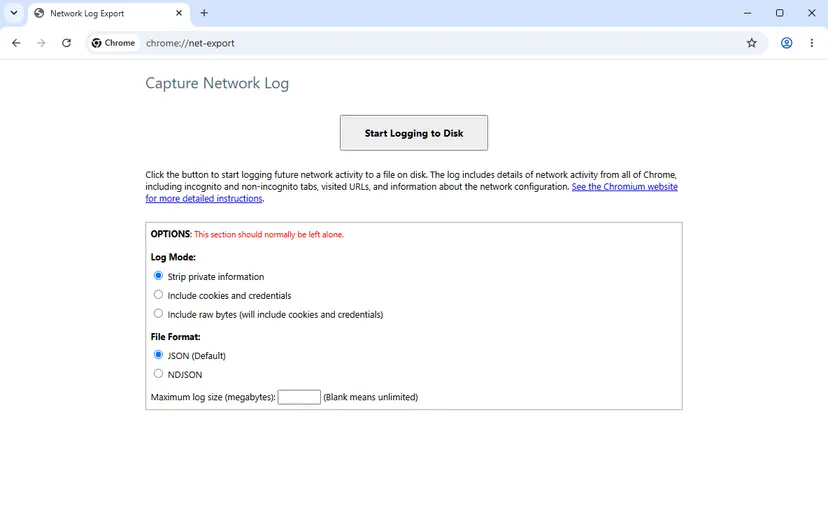
The default setting strips private information, but the file still lists the addresses that Chrome contacted while it recorded, in every window. Close other tabs first, send the file only to the person who investigates, and do not post it in a public forum.
- What to send to the website: the exact address, the date and time, the full error text and your Chrome version from Help > About Google Chrome. Add your Windows version, the name of your security software, and whether you use a VPN, a proxy or a company network. This is the list Cloudflare asks site owners to collect.
- For a site behind Cloudflare: open
https://plus the domain plus/cdn-cgi/traceand add the text it shows. Cloudflare names this as its diagnostic data. - When it is not your PC: the site fails on mobile data, on other devices and in other browsers. Google's help says the same in one sentence: contact the website owner.
- When it is the network's rule: one site fails on one network and works elsewhere. A filter at work, at school, on a parental control or at the provider decides that, and only its owner can change it.
- When it is a different problem: several sites fail with several codes. Start with How to check your internet connection in Windows, and use Reset the network and flush DNS only if that page points at Windows.
We found no Google page that offers a setting to switch this error off, and Chrome gives no Proceed link on this page. That is by design: without a completed handshake there is no encrypted connection to proceed with.
How to keep ERR_SSL_PROTOCOL_ERROR from coming back
- Keep Chrome and your security program updated, so both handle TLS 1.3.
- Save bookmarks for routers, printers and local servers with the right scheme and port.
- Test a failing site on mobile data before you change settings on the PC.
- On your own site, test port 443 from outside after every change to the server, the certificate or the CDN.
- On a development server, decide once whether the project runs on HTTP or HTTPS and keep the address the same.
- Do not leave HTTPS scanning, the firewall or the antivirus off after a test.
- Do not delete the hosts file or reset Chrome for an error that also appears on other devices.
- Do not change the Windows clock for this code. A wrong clock shows a different page.
- Do not sign in or pay over
http://on a public site because its HTTPS is broken. - Do not install a certificate that a website or a pop-up offers as a fix. Google's help calls installing one on your own a security risk.
Most of this error is outside your control, because the invalid response is written by a server or a network device. What you control is the two-minute test that shows where it comes from, and the address you type for the devices and servers that are your own.
Frequently asked questions
What does "sent an invalid response" ERR_SSL_PROTOCOL_ERROR mean in Chrome?
It means the TLS handshake with that address failed: Chrome asked for an encrypted connection and what came back was not a valid TLS answer. Chromium lists the code as network error -107, "An SSL protocol error occurred", and shows it under the heading This site can't provide a secure connection. The site name in the sentence is the host you typed, not proof of who sent the bad answer. It can be the website's server, a filter or firewall on the way, a security program on the PC, or a port that only speaks plain HTTP.
Is the website hacked, or is my Chrome broken?
Usually neither. The error says that no encrypted connection could be built, so no page content reached your browser at all. A site that worked yesterday and fails today has most often had its server or certificate setup changed, or your network has started to filter it. Test the address on mobile data. If it fails there too, the site's owner has to repair it and nothing on your PC is wrong. If it loads there, something on your network or PC interferes, and Fix 3 finds it.
Why do I get ERR_SSL_PROTOCOL_ERROR on one particular site only, for example an adult or streaming site?
When a single site fails on your connection and opens on another one, a filter is the likely reason. Cloudflare lists parental controls, content filters and inspection by the internet provider among the things that interfere with HTTPS connections to certain sites. Chromium's code also mentions firewalls that block a page with a TLS alert, which Chrome reports as this error. Such a block is set by whoever runs the network: a provider, an employer, a school or a parent. No Chrome setting removes it. This page explains the error for any site name that appears in the message.
Why does Chrome say "localhost sent an invalid response"?
Because the address starts with https:// and the local server on that port answers in plain HTTP. Development servers do not use HTTPS unless you switch it on. Angular's ssl option is false by default, for example. Type http://localhost with the port the server printed when it started. If you need HTTPS, enable it in the server: ng serve --ssl for Angular, server.https for Vite, or dotnet dev-certs https --trust and the HTTPS port for ASP.NET Core. A self-signed certificate then gives a certificate warning, which is a different and expected page.
How do I fix ERR_SSL_PROTOCOL_ERROR on an Android phone or an iPhone?
Start with the same test as on a PC: switch between Wi-Fi and mobile data and open the address again. If it works on one of them, the other network filters or breaks the connection. If it fails on both, the website has to be repaired by its owner. Google's help page for connection errors has its own tabs for Android and for iPhone and iPad, next to the one for computers. Turn off a VPN or a security app for one test and turn it back on. The detailed steps on this page are written for Chrome on Windows.
Does clearing the SSL state in Windows fix ERR_SSL_PROTOCOL_ERROR?
We could not confirm that it does. The Clear SSL state button belongs to Internet Options in Windows. Chrome negotiates TLS with its own library, as the error mapping in Chromium's source code shows, and Google's help pages for Chrome errors do not mention the button. Pressing it does no harm, but it is not a fix we can point to a source for. The same goes for the TLS version boxes in Internet Options: Chromium's code sets its own range, TLS 1.2 to TLS 1.3.
Can a wrong date and time on the PC cause this error?
No. A wrong clock makes certificates look expired or not yet valid, and Chrome has its own page for that. Google's help describes it with the titles Your clock is behind and Your clock is ahead and the code NET::ERR_CERT_DATE_INVALID. That check happens after a handshake has worked. ERR_SSL_PROTOCOL_ERROR means the handshake itself failed, so correcting the clock does not change it. If you do see the clock page, set the time automatically in Windows Settings and reload.
Is it safe to open the site with http:// instead of https://?
For a device on your own network, such as a router, a printer or a development server, yes. Many of them serve their pages over plain HTTP by design. For a public website it is only safe to read. An http:// connection is not encrypted, and Chrome marks it Not Secure. Do not sign in, pay or enter personal data that way. A public site whose HTTPS is broken should be reported to its owner and used again when it is repaired.
Which TLS versions does Chrome accept, and can an old server cause this error?
Chromium's source sets the default range to TLS 1.2 as the minimum and TLS 1.3 as the maximum. The policy that once allowed TLS 1.0 and 1.1 lost those values in Chrome 91. A server that offers only the old versions does not produce ERR_SSL_PROTOCOL_ERROR, though. Chromium maps that refusal to ERR_SSL_VERSION_OR_CIPHER_MISMATCH, and the page says the site uses an unsupported protocol. Google advises site owners to offer TLS 1.3 and to keep TLS 1.2 for older clients.
How do I disable the ERR_SSL_PROTOCOL_ERROR check in Chrome?
You cannot, and there is nothing to switch off. The message is not a warning that Chrome places in front of a working connection. It reports that no encrypted connection exists, because the handshake failed. That is why the page has a Reload button and no link to continue. The only way around it is a connection that works: another network if yours interferes, http:// for your own devices, or a repaired server. Flags and settings that claim to bypass it do not apply to this code.
Sources
- Chromium source: net/base/net_error_list.h (SSL_PROTOCOL_ERROR, -107, and the related SSL codes) (github.com)
- Chromium source: net/ssl/openssl_ssl_util.cc (which TLS library errors become which Chrome codes) (github.com)
- Chromium source: net/socket/ssl_client_socket_impl.cc (access_denied from firewalls, SSL_HANDSHAKE_ERROR log event) (github.com)
Did this fix work?
One click, no account. It tells the next reader which guides are worth their time.
Questions and experiences: fix "sent an invalid response" ERR_SSL_PROTOCOL_ERROR on Google Chrome
Still broken, or found a fix we did not cover? Ask here: members and our editors answer. Reading is open; writing needs a free account.
…