
How to fix Exception on Invalid Stack Black Screen error in Windows?

Prefer to fix it yourself? The manual steps follow.
- 8methods
- 10 minutes
- Advanced
Applies to Windows 11 and Windows 10 PCs that stop with EXCEPTION_ON_INVALID_STACK (bug check 0x1AA), including crashes during a Windows 11 upgrade or clean install
8 methods in this guide
Hello. When I tried to install Windows 11, I received an Exception on Invalid Stack Black Screen error. What should I do?
Exception on Invalid Stack, written EXCEPTION_ON_INVALID_STACK or 0x1AA, is a stop code: Windows found a corrupted or illegal kernel stack and stopped. Start with the module named on the screen and any hardware you added, then repair files, disk and boot data.
Exception on Invalid Stack is stop code 0x1AA: Windows found its kernel stack in an invalid place, usually because of a driver or damaged memory. Unplug new hardware and note the module named on the screen (Fix 1 and Fix 2). If it happens during Windows 11 setup, test with third-party security software paused (Fix 3), then repair files, disk and boot data.
| Error | A stop screen with Stop code: EXCEPTION_ON_INVALID_STACK. Microsoft lists it as bug check 0x000001AA. |
|---|---|
| Where it appears | At random while Windows runs, and, as readers report, during an upgrade to Windows 11 or a clean install. Windows then restarts by itself. |
| Main cause | Per Microsoft: exception handling crossed into an invalid kernel stack. The stack pointer may be corrupted, or a driver runs on a stack that is not a legal kernel stack. |
| Fastest fix | Remove new hardware, then update, roll back or disable the driver of the module the stop screen names (Fix 1, Fix 2). |
| Also written as | exception on invalid stack, exception in invalid stack, invalid stack error, 0x1AA, 0x000001AA, EXCEPTION_ON_INVALID_STACK (0x1AA), black screen or BSOD. |
| Affects | Windows 11 and Windows 10. On Windows 11 24H2 and later the stop screen is black; earlier versions show it blue. Windows 10 left support on 14 October 2025. |
| Vendor status | Microsoft documents 0x1AA for programmers only and points customers to its stop code checklist. We found no statement of a known issue or a patch for it. |
| Where the cause is logged | The module name on the stop screen and the crash dump. In WinDbg, !analyze -v shows Arg1 to Arg4 and the faulting module. |
| Time to fix | 10 minutes for a driver or hardware fix. 30 to 60 minutes when the disk, boot data or memory has to be checked. |
Facts checked on 16 October 2026. Steps written for Windows 11 (25H2 and 26H2) and Windows 10 22H2.
What the Exception on Invalid Stack error (0x1AA) means
Microsoft's bug check reference says the EXCEPTION_ON_INVALID_STACK bug check has a value of 0x000001AA. It means exception dispatch crossed over into an invalid kernel stack. Either the kernel stack pointer became corrupted while Windows handled or unwound an exception, or a driver was running on a stack that is not a legal kernel stack.
In plain words: every piece of kernel code runs on a small, fixed-size stack. If code reads or writes outside it, Windows cannot continue safely and stops with this code. Microsoft says the page is written for programmers and sends customers to its stop code troubleshooting page, so there is no single official fix for readers.
Microsoft says the screen colour and message of a stop code error vary by Windows 11 version. On Windows 11 24H2 and later the screen is black. The line Your device ran into a problem and needs to restart and the stop code stay the same.
| What you see | Where |
|---|---|
| Stop code: EXCEPTION_ON_INVALID_STACK | The stop screen, with the module name when Windows knows it |
0x000001AA, 0x1AA, EXCEPTION_ON_INVALID_STACK (1aa) | Microsoft's bug check reference and WinDbg after !analyze -v |
| Exception on invalid stack, invalid stack error, black screen | Typed names of the same stop code |
The same number also exists as a Win32 error, ERROR_CLOUD_FILE_REQUEST_TIMEOUT, about a cloud file operation that timed out. It is unrelated to this stop screen.
What causes the Exception on Invalid Stack black screen, most common first
Microsoft names the mechanism, not a single culprit: a corrupted stack pointer or a driver on a wrong stack. Its resolution section also warns that kernel stacks are small, for example when code copies blocks of video memory. Its own example dump ends in the graphics scheduler (dxgmms2), so graphics code is one place to look. Beyond that, the ranking below is our reading of Microsoft's checklist and of what readers report, not a vendor statistic.
| How often | Cause | Sign | Fix |
|---|---|---|---|
| Most often | A faulty or outdated driver, graphics most of all | The stop screen or dump names a third-party .sys file | Fix 2 |
| Often | A newly added device, dock or USB gadget | Crashes began after you plugged something in | Fix 1 |
| Often, readers report | Third-party security software during a Windows upgrade | The crash comes only while Windows 11 setup runs | Fix 3 |
| Less often | Damaged system files, a full drive or missing updates | Other odd crashes, little free space | Fix 4, Fix 5 |
| Less often | File system errors or damaged boot data | Crash in the early startup or at the setup copy step | Fix 6, Fix 7 |
| Rarely | Failing RAM or other hardware | Random stop codes of different names | Fix 8 |
Find the module behind the 0x1AA stop code
Microsoft's resolution for this bug check uses a crash dump and the debugger, because the four parameters decide where to look. If the PC still starts, ten minutes is enough.
- Open File Explorer and go to
C:\Windows\Minidump. Each crash leaves one.dmpfile named by its date. - Install the debugger: open Terminal and run
winget install Microsoft.WinDbg. - Start WinDbg as administrator, select File > Open dump file and open the newest
.dmpfile. - Type
!analyze -vand press Enter. Note Arg2, the faulting module and the exception record.
| Arg2 | Stack the kernel expected |
|---|---|
0x1 | A processor DPC stack |
0x3 | A normal kernel thread stack |
0x6 | A processor ISR stack |
0x5 | A win32k kernel or user callout stack |
Arg1 is a pointer to the current stack, Arg3 the context record being unwound and Arg4 the active exception record. Microsoft's example exception record shows an access violation (c0000005) inside dxgmms2, which is why a graphics driver is worth a look when your dump names one. If the dump names a Windows file only, treat it as a sign of damage and continue with Fix 4 to Fix 7.
How to fix the Exception on Invalid Stack black screen error
Fix 1 and Fix 2 cost nothing and fit most crashes in installed Windows. Fix 3 is for crashes during a Windows 11 upgrade. Fix 4 to Fix 7 repair Windows itself, in an order from least to most invasive. Fix 8 is for hardware.
| What you see | Start with | Then |
|---|---|---|
| The crash began after you added a device or dock | Fix 1 | Fix 2 |
| The stop screen or dump names a third-party driver or graphics | Fix 2 | Fix 1 |
| It happens only while Windows 11 setup or an upgrade runs | Fix 3 | Fix 1 |
| Windows starts, but crashes at random and the disk is nearly full | Fix 4 | Fix 5 |
| Windows does not start, or setup stops at the copy step | Fix 6 | Fix 7 |
| Several different stop codes appear, or nothing above helped | Fix 8 | Fix 5 |
Fix 1. Remove new hardware and unplug what you do not need
5 minutesLow riskThe crash began after you added a device, dock, drive or USB gadget, or it happens during setup with many devices connected.
Microsoft lists removing new hardware as its first step for repeated stop codes, because a new device brings a new driver, and a bad driver is the textbook way to end on an invalid stack.
- Shut the PC down completely.
- Unplug the device you added last, then docks, hubs, printers and extra drives. Keep only the screen, keyboard, mouse and the system drive.
- Start the PC, or start Windows 11 setup again.
- If the error is gone, plug the devices back one at a time and restart after each, until the crash returns.
It worked if: Windows or setup runs through the step that used to stop, and the crash returns only when one specific device is connected.
If not: If it still stops with nothing extra connected, go to Fix 2.
Fix 2. Update, roll back or disable the driver the stop screen names
15 minutesLow riskWindows starts, and the stop screen, Reliability Monitor or the dump shows a module name, or the crashes began after a driver update.
Microsoft's checklist says to look in Device Manager for devices marked with an exclamation point, update the driver, and if that fails to disable or uninstall the device. For this bug check a driver off its stack is a named cause.
- Search the module name (for example a
.sysfile) to learn which device it belongs to. - Right-click Start and select Device Manager. Look for devices marked with an exclamation point and for the device you found.
- If the crashes began after an update, open Properties > Driver and select Roll Back Driver.
- Otherwise select Update driver, or download the newest driver from the device maker or your PC maker. Step by step: Update, roll back or reinstall a driver
- If no better driver exists, select Disable device or Uninstall device for a test and restart.
Start Safe Mode first, as Microsoft advises, and do these steps from there: Start Windows or a Mac in Safe Mode
It worked if: The PC runs through the task that used to crash and no new .dmp file appears in C:\Windows\Minidump.
If not: If no driver is named, or the crash happens only during Windows 11 setup, go to Fix 3.
Fix 3. Take third-party security software out of the way for the Windows 11 upgrade
15 minutesLow riskThe error appears only while Windows 11 setup or an upgrade runs, and a third-party antivirus is installed.
Security programs sometimes treat setup files as unsafe and interfere with them. The old version of this guide said so, and users report that removing or pausing such software let the upgrade finish. We could not find a Microsoft statement for this exact stop code, so treat it as a test, not a rule.
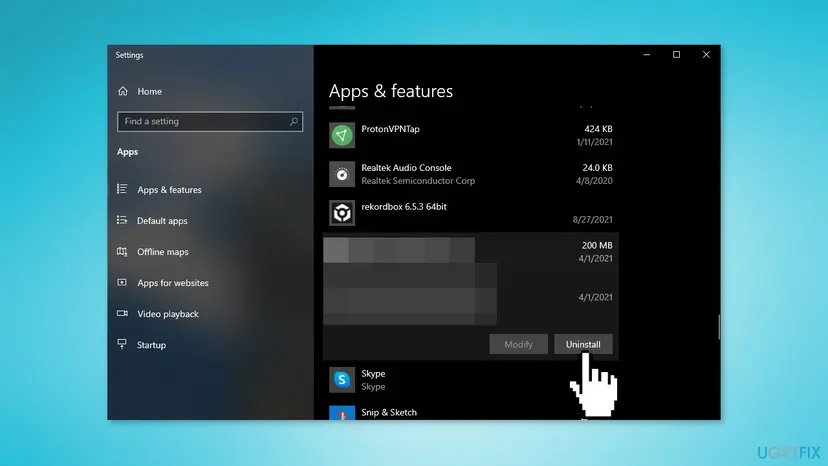
- Pause the third-party protection for one test: Turn off Microsoft Defender protection for a moment
- Run Windows 11 setup or the upgrade again.
- If it passes, uninstall the third-party program: Uninstall a program or app in Windows
- Finish the upgrade, then install the current version of your security program or keep Microsoft Defender, and switch protection back on.
Pausing is only for the test. Turn protection back on right after setup, and do not run Windows without any security program.
It worked if: Setup passes the step where it used to stop.
If not: If it stops the same way, switch protection back on and go to Fix 4.
Fix 4. Free disk space and install the latest Windows updates
20 minutesLow riskWindows starts, but the system drive is nearly full or Windows Update has not run for a long time.
Microsoft's checklist asks for 10 to 15 percent free space, because Windows needs room for swap files and other work, and for the latest updates.
- Open Settings > System > Storage and check the free space of the system drive. Free space if less than 10 to 15 percent is free: Free up disk space and delete temporary files
- Open Settings > Windows Update and select Check for updates.
- Install everything offered, including optional driver updates, and restart.
It worked if: The system drive has 10 to 15 percent free and Windows Update shows that you are up to date.
If not: If you still get the black screen, go to Fix 5.
Fix 5. Repair damaged system files with DISM and SFC
20 minutesNo riskThe crash comes at random, the dump names a Windows file, or earlier fixes changed nothing.
A damaged system file can corrupt what the kernel does while it handles an exception. The old guide ran the system file check for this reason and it stays a cheap, safe test.
- Open an elevated Command Prompt or Terminal and run DISM first, then the System File Checker. Step by step with screenshots: Run DISM and SFC to repair Windows system files
- Read the result of each scan and restart the PC.
- If Windows does not stay up long enough to finish the scans, open Safe Mode and run them there: Start Windows or a Mac in Safe Mode
It worked if: The scan reports that it found no integrity violations or repaired the files it found.
If not: If the scan cannot repair files, or Windows does not start, go to Fix 6.
Fix 6. Check the system drive for errors
30 to 90 minutesLow riskWindows does not start properly, or setup stops while copying files.
File system errors and bad sectors can leave damaged files that crash the kernel. The old guide ran the disk check for this reason.
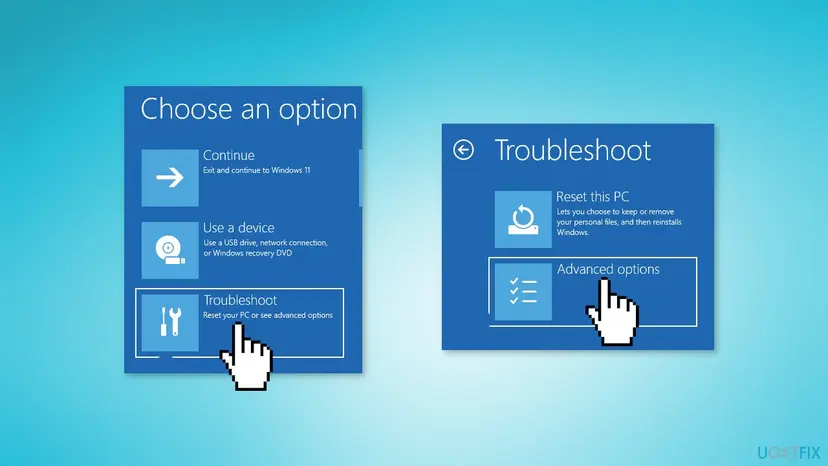
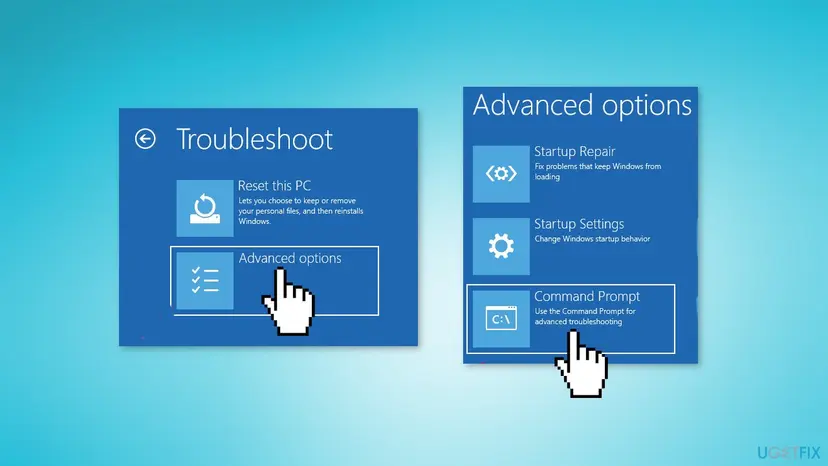
Microsoft's recovery environment page lists Command Prompt among the tools you reach this way. If Windows starts, you can also run the check from inside it. Step by step: Check a disk for errors (chkdsk)
- Restart the PC while holding Shift, or use the install media as in Fix 7, to open the recovery environment.
- Select Troubleshoot > Advanced options > Command Prompt.
- Run the disk check as described in the procedure, then restart.
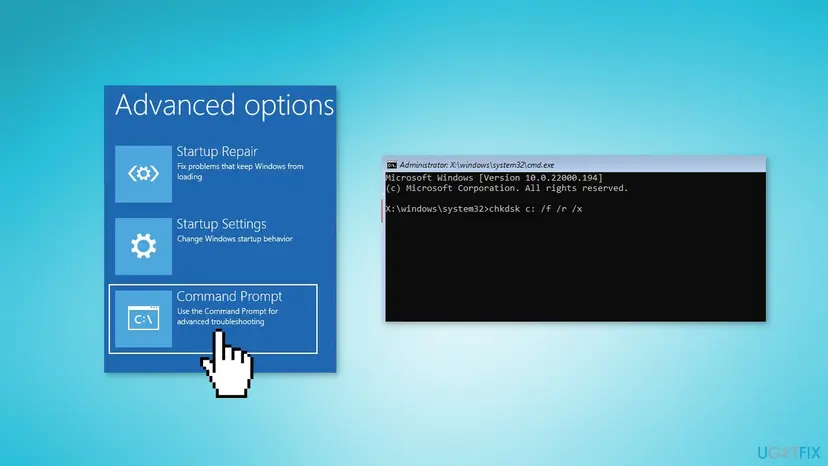
It worked if: The check ends with no errors, or reports that it repaired them, and Windows or setup starts again.
If not: If the disk is clean, go to Fix 7.
Fix 7. Repair the boot data from the installation media
30 minutesRead the warningWindows does not start at all, or the crash comes in the first seconds of startup.
Damaged boot data stops the loading of the kernel and its drivers in order. The old guide used the boot repair tool for this.
These commands rewrite boot records and can leave the PC unable to start if you pick the wrong disk. Back up your files first if you can reach them, and have the BitLocker recovery key ready: the recovery environment can ask for it.
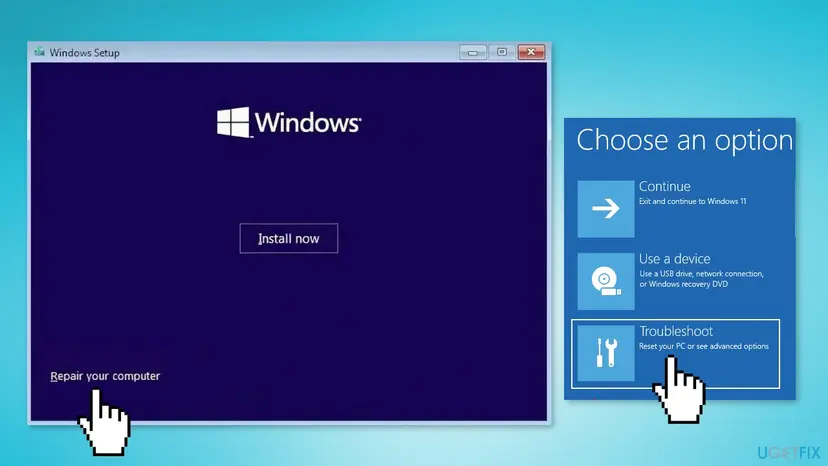
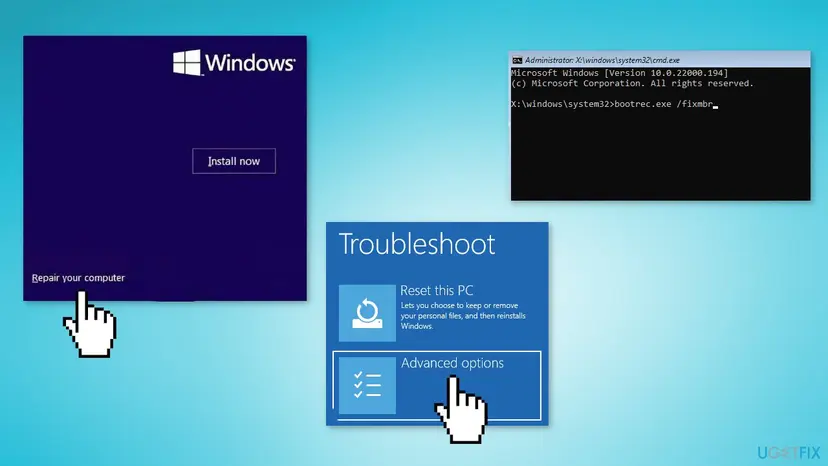
- Insert a Windows 11 installation USB made for this PC and press any key to boot from it.
- Select Repair your computer in the bottom left corner.
- Select Troubleshoot > Advanced options > Command Prompt.
- Run
bootrec /scanosand press Enter, thenbootrec /rebuildbcd.
The old guide also listed bootrec /fixmbr and bootrec /fixboot, and a misspelled /scans; the real option is /scanos. Answers on Microsoft's own Q&A say /fixmbr is meant for old MBR disks, so run it only on one. Run bootrec /? to see what your version supports. Our other repair route is Startup Repair: Run Startup Repair
It worked if: bootrec /scanos finds your Windows installation, bootrec /rebuildbcd offers to add it, and the PC starts.
If not: If it still fails and other stop codes appear, go to Fix 8.
Fix 8. Test the memory and rule out failing hardware
30 minutesLow riskThe stop code changes between crashes, or nothing else worked.
A corrupted stack pointer can come from bad memory. Users who got this error report that replacing the RAM made it go away. We could not find an official statement that RAM is a common cause, so test it before you buy anything.
- Run the Windows memory test: How to test your RAM with Windows Memory Diagnostic
- If it reports errors, shut down and test one RAM stick at a time in the first slot.
- If a stick fails on its own, replace it.
- If memory passes and Fix 1 to Fix 7 changed nothing, restore Windows from a restore point made before the first crash: Undo recent changes with System Restore
It worked if: The test finds no errors, or a single stick that fails.
If not: Take the PC to a repair shop and give them the facts from the section below.
Still getting Exception on Invalid Stack: what to collect and when it is hardware
Microsoft says a real fix for this bug check needs the code of the faulting driver, so the answer comes from whoever makes it. Collect the facts once.
- The three newest
.dmpfiles fromC:\Windows\Minidump, zipped. - Arg2 and the module name from
!analyze -v. - Your Windows edition and build from Settings > System > About.
- What you were doing at each crash: idle, gaming, installing Windows 11.
- Which fixes you tried and whether the stop code changed.
| Sign | What it points to |
|---|---|
| The stop code changes: other names appear | Memory or another hardware part, Fix 8 |
| It crashes at the same moment every time | A driver or device, Fix 1 and Fix 2 |
| Setup fails on several PCs the same way | The installation media; make it again from Microsoft's site |
For the general checklist see Microsoft's page on stop code errors, linked in the sources. Do not buy parts before the memory test has failed.
How to keep the Exception on Invalid Stack error from coming back
- Add drivers only from Windows Update or the device maker.
- Keep 10 to 15 percent of the system drive free.
- Install Windows updates regularly.
- Create a restore point before you change drivers.
- Use driver updater programs.
- Overclock memory without a stability test.
- Leave drivers of removed devices installed.
- Ignore a second stop code with another name.
Before a Windows 11 upgrade, also make the installation USB fresh from Microsoft's site and disconnect every device you do not need during setup. Both cost minutes and remove the two most common upgrade-time suspects.
Frequently asked questions
What is the Exception on Invalid Stack error?
It is the stop code EXCEPTION_ON_INVALID_STACK, bug check 0x000001AA. Microsoft says exception dispatch crossed into an invalid kernel stack: the stack pointer may have become corrupted, or a driver is running on a stack that is not a legal kernel stack. Windows stops instead of continuing, which is why you see the stop screen and the restart. The fix is to find the driver or device behind it.
Is Exception on Invalid Stack the same as 0x1AA?
Yes. The 0x1AA you see in WinDbg and Microsoft's reference is the hexadecimal number of this stop code, written in full as 0x000001AA. Searches for exception on invalid stack 0x1aa, exception on invalid stack (0x1aa) and exception on invalid stack error all point to the same stop code, so the fixes on this page apply. The same number also exists as an unrelated Win32 error about cloud files.
Why do I get the Exception on Invalid Stack black screen when installing Windows 11?
We found no Microsoft statement about a specific cause during setup. Readers report it during upgrades and clean installs. Likely suspects are a driver or device that setup loads, damaged installation files or media, a full drive, third-party security software, or failing RAM. Unplug extra devices, make the USB media again, pause third-party antivirus for the test, then follow Fix 3 to Fix 8.
Is it the same as the black screen with no error text?
No. Microsoft treats a blank black screen without a stop code, or with only a cursor, as a different problem and has a separate page for it. The Exception on Invalid Stack screen is black on Windows 11 24H2 and later but shows the line Your device ran into a problem and needs to restart and the stop code. If you see only a cursor, use Microsoft's blank screen page.
Is it exception on valid stack or exception in invalid stack?
Both are mistyped names of the same stop code. The real name is EXCEPTION_ON_INVALID_STACK, and it means an exception ran on an invalid stack. A valid stack would not cause it. The searches exception on valid stack and exception in invalid stack lead to this page for that reason, and the fixes are the same for every spelling.
Exception on invalid stack hatası: what does it mean?
This page is in English, but the stop code is the same in every language. Exception on invalid stack (0x1AA) is a stop code: Windows caught an exception on an invalid kernel stack and restarted. The steps are the same in every language. First remove new hardware, then update the driver named on the screen, then repair system files, the disk and boot data. Start with Fix 1.
Can bad RAM cause the Exception on Invalid Stack error?
It can, as users report: some who saw this error say replacing the RAM removed it. Microsoft does not list memory as the cause, so test it with the Windows memory test before buying a new stick. If the test finds errors, or the stop code changes between crashes, memory becomes the main suspect, as in Fix 8.
Can I fix it without a working Windows?
Yes. Start the recovery environment from the Windows 11 installation USB, or by interrupting startup three times so Automatic Repair opens, then choose Troubleshoot and Advanced options. From there you can open Startup Repair, System Restore or Command Prompt. Have the BitLocker recovery key ready, because the recovery environment can ask for it.
Should I reinstall Windows because of this error?
Not first. A reinstall removes software problems but not a failing RAM stick or a bad device, and the same stop code returns. Work through Fix 1 to Fix 8 first. If the PC crashes the same way right after a clean setup with nothing extra connected, treat it as hardware and see Fix 8.
Sources
- Microsoft Learn: Bug Check 0x1AA EXCEPTION_ON_INVALID_STACK (learn.microsoft.com)
- Microsoft Support: Troubleshooting Windows unexpected restarts and stop code errors (support.microsoft.com)
- Microsoft Support: Windows recovery environment (support.microsoft.com)
Did this fix work?
One click, no account. It tells the next reader which guides are worth their time.
Questions and experiences: fix Exception on Invalid Stack Black Screen error in Windows
Still broken, or found a fix we did not cover? Ask here: members and our editors answer. Reading is open; writing needs a free account.
…