
How to fix Fatal Error C0000022 on Windows?

Prefer to fix it yourself? The manual steps follow.
- 8methods
- 5 minutes for the printer page, 15 to 60 minutes for the update loop
- Intermediate
Applies to PCs that stop at start with "Fatal error C0000022 applying update operation", Windows Update showing code C0000022, and printer setup pages that show "fatal error C0000022"
8 methods in this guide
I've been trying to install Windows 10 updates and patches, but all attempts ended up with a Fatal Error C0000022 while rebooting. Therefore, the update gets aborted, and zero patches are installed. I don't know why this is happening, so I would highly appreciate your help!
C0000022 is Windows' code for "access denied". On a black start screen that reads "applying update operation", an update could not change a protected file, so undo or finish it from recovery. On a printer driver web page with a phone number, it is a scam, not an error on your PC.
If a printer driver site showed "fatal error C0000022" and a support number, close it, do not call, and add the printer through Settings or the maker's own site (Fix 1). If the PC stops at start with Fatal error C0000022 applying update operation, boot into Safe Mode once so the update can finish (Fix 3), then use System Restore or DISM from recovery (Fixes 4 to 6).
| Error | Fatal error C0000022, also seen as 0xC0000022. Microsoft's NTSTATUS list names it STATUS_ACCESS_DENIED: a process asked for access to an object and was not granted it. |
|---|---|
| Where it appears | 1) A black screen while Windows applies updates at start: Fatal error C0000022 applying update operation 348 of 84901 (bfsvc.exe). 2) A printer driver web page. 3) Rarely, in Windows Update as "Windows could not search for new updates". |
| Main cause | At start: the update could not write a file or registry key because something held or blocked it, often security software. On a printer page: a fake driver site that uses the code to make you call "support". |
| Fastest fix | Printer page: close it and add the printer in Settings (Fix 1). Startup loop: one start in Safe Mode (Fix 3), then System Restore from recovery (Fix 4). |
| Also written as | C0000022, 0xc0000022, c00000022, Fatal error "C0000022", error code C0000022, Error C0000022 during installation, printer error C0000022. |
| Affects | The startup message: every report we found is from Windows 7, 8, 8.1 or Windows Server. The printer page: any Windows version, including Windows 11. |
| Vendor status | No open Microsoft known issue. In October 2018 administrators linked a wave of these errors on Windows 8.1 to update KB4462926 together with Sophos endpoint software; Sophos then released a fix. Windows 8.1 left support on 10 January 2023. |
| Time to fix | Printer page: 5 to 10 minutes. Startup loop: 15 to 60 minutes, depending on which recovery tool works. |
Facts checked on 15 October 2026. Steps written for Windows 11 (25H2 and 26H2) and Windows 10 22H2, with the Windows 7 and 8.1 recovery paths where they differ.
What Fatal Error C0000022 means and where you see it
C0000022 is not a Windows Update code or a printer code. It is an NTSTATUS value, the internal result codes Windows uses everywhere. Microsoft's list defines 0xC0000022 STATUS_ACCESS_DENIED as: a process has requested access to an object but has not been granted those access rights. The word "fatal" only says the program that hit it gave up.
So the same code means very different things depending on the window it shows up in. Find your case in the table first, because the fixes for a startup loop and for a printer web page have nothing in common.
| What you see | Where | What it really means |
|---|---|---|
| Fatal error C0000022 applying update operation 348 of 84901 (bfsvc.exe), white text on a black screen, often with spinning dots | While Windows starts, after an update was installed | The update could not finish because Windows was denied access to the file or registry key named in brackets. The PC loops or stops here. |
| Printer driver installation has been failed due to fatal error "C0000022" preventing product driver installation, with a phone number or chat button | A web page that offered a printer driver | A tech support scam page. Nothing on your PC failed. See "Fake printer page" below. |
| Windows could not search for new updates with code C0000022 | Windows Update, reported on Windows 7 | The update service was denied access to its own files or keys. Go to Fix 8. |
| The application was unable to start correctly (0xc0000022) | When you open a program | Same access denied code, different problem: a program cannot read its own files. This page does not cover that dialog. |
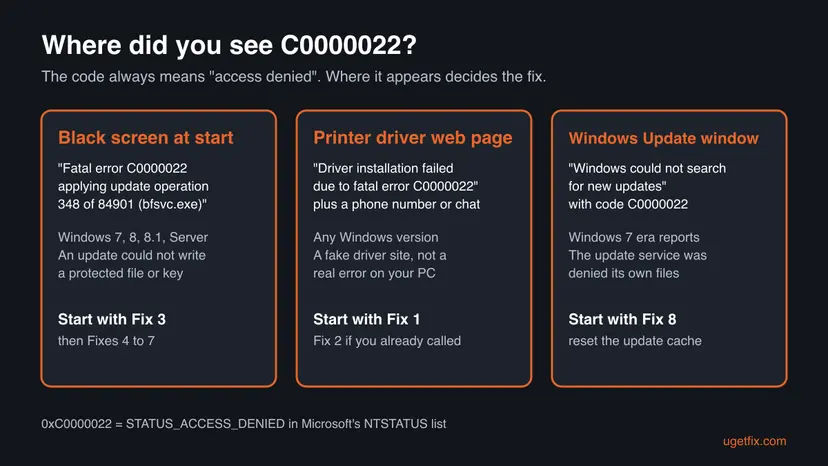
Users report names such as bfsvc.exe, prnmn or \Registry after the operation numbers. That is the item Windows could not change. Write it down: it tells you whether a boot file, a printer component or the registry was blocked, and support will ask for it.
Why C0000022 happens: causes ranked from most to least common
In the reports from 2022 to 2025 that we read, most people who search for this code met it on a printer driver page. The startup message is older and limited to Windows 7, 8, 8.1 and Server, but it is the one that stops a PC from working. The causes differ by place.
| How often | Cause | Sign | Fix |
|---|---|---|---|
| Most often | A fake printer driver site shows the code on purpose | A web page, a phone number or chat, a request for payment or remote access | Fix 1, then Fix 2 if you called |
| Often | Security software locks a file the update must replace | Startup loop right after a monthly update; third party antivirus installed | Fix 3, then Fix 8 |
| Often | An update package that fails at the same operation every time | Same operation number on every restart | Fix 4, Fix 5 or Fix 6 |
| Sometimes | Damaged boot files or boot configuration | File in brackets is bfsvc.exe, or Startup Repair starts by itself | Fix 7 |
| Sometimes | Damaged Windows Update cache or permissions | Windows starts, but Windows Update shows C0000022 | Fix 8 |
| Rarely | A failing drive | Clicking, very slow starts, disk errors in diagnostics | See "Still broken" below |
The security software link is not a guess. In October 2018 Windows 8.1 PCs that got update KB4462926 began stopping with this error, and administrators traced it to Sophos endpoint software. Users quoted a Sophos notice that an update to Sophos Core Agent 2.1.3 fixed it. We could not open that Sophos article ourselves.
The printer "fatal error C0000022" page: how to tell it is fake
Malwarebytes documented the pattern in May 2022 for Canon printers: a bogus driver download site lets the download fail, then shows a message about fatal error C0000022 and a number to call. The same text appears with HP, Epson and other brands. An HP community expert answering a scam victim put it plainly: if a site asks for money or wants to log into your computer, it is a fake site.
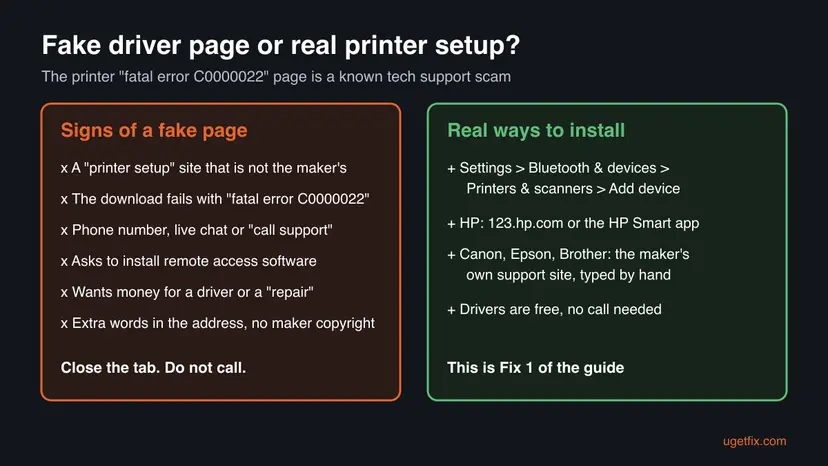
- Close the tab or the browser.
- Type the maker's address by hand, for example
123.hp.comfor HP. - Let Windows add the printer first: most printers need no extra driver.
- If you already called, follow Fix 2 today.
- Do not call the number or open the chat.
- Do not install remote access tools such as UltraViewer, AnyDesk or TeamViewer for a stranger.
- Do not pay for a driver. HP and Canon give drivers for free.
- Do not run "repair" tools the page offers.
How to fix Fatal Error C0000022 on Windows
Fixes 1 and 2 are for the printer page. Fixes 3 to 7 are for the black startup screen and run from the recovery screens, which Windows opens by itself after two failed starts in a row. Fix 8 is for when Windows starts again or when Windows Update shows the code.
| What you see or what happened | Start with |
|---|---|
| A printer driver site showed "fatal error C0000022" and a phone number | Fix 1 |
| You called the number, paid, or let someone connect to your PC | Fix 2 |
| Black screen at start: Fatal error C0000022 applying update operation | Fix 3 |
| Safe Mode did not help, and you have restore points | Fix 4 |
| No restore point, or System Restore failed | Fix 5, then Fix 6 |
The file in brackets is bfsvc.exe, or the PC now stops before the update screen | Fix 7 |
| Windows starts, but Windows Update shows C0000022 or the same update fails again | Fix 8 |
Fix 1. Close the fake driver page and add the printer from Windows or the maker's own site
5 to 10 minutesNo riskA web page showed "fatal error C0000022" while you tried to download a printer driver.
The error came from the web page, not from your PC, so there is nothing to repair. Microsoft says Windows supports most printers out of the box and that the best way to get a printer driver is Windows Update.
- Close the tab with the error. If it will not close, press Ctrl + Shift + Esc, select the browser and select End task.
- Turn on the printer and connect it to the PC by USB, or to the same network as the PC.
- Open Settings > Bluetooth & devices > Printers & scanners. On Windows 10, open Settings > Devices > Printers & scanners.
- Select Add device next to Add a printer or scanner and wait. The list can take a few minutes to fill.
- Select Add device next to your printer. Windows installs a driver by itself.
- If you want the maker's full software, type the address by hand:
123.hp.comfor HP, or the support section of the maker's own site for Canon, Epson or Brother. - Print a test page from Printers & scanners > your printer > Print test page.
If a Find drivers button appears next to the printer, Microsoft explains that the printer works but may have fewer features until a full driver arrives through Windows Update. If the printer is not listed or Windows says it cannot connect, our guide to error 0x000003eb when installing a printer covers the real driver errors.
It worked if: The printer shows in Printers & scanners and the test page prints, with no error page and no phone number.
If not: If you already called the number or let someone connect, do Fix 2 now. If the printer still will not install, follow the 0x000003eb guide linked above.
Fix 2. If you called the number or allowed remote access, lock the scammer out
20 to 40 minutesLow riskYou called the number from the C0000022 page, paid, or installed software someone asked you to install.
The people behind the page do not fix printers. They try to get remote access, payment or personal data. Removing their access and checking the PC stops further damage; the FTC lists remote access and financial information as the scammers' goal.
- Disconnect the PC from the internet: turn off Wi-Fi or unplug the network cable.
- Uninstall any remote access tool they asked for, such as UltraViewer, AnyDesk or TeamViewer. Step by step: Uninstall a program or app in Windows.
- Run a full scan with Microsoft Defender, then an offline scan: How to scan for malware with Microsoft Defender.
- Reconnect, and from another device change the passwords of your email, bank and Microsoft account. Turn on two-step sign-in.
- If you paid, call your bank or card company with the number on the back of your card and ask to reverse the charge.
- Report the site and the phone number at
reportfraud.ftc.govin the US, or to your national fraud office.
Scammers often call back, sometimes offering a "refund". Do not allow remote access again and do not read out codes sent to your phone. Real HP or Canon support does not ask you to install remote tools from a driver download page.
It worked if: No remote access program is left in Installed apps, Defender finds no threats, and your accounts have new passwords.
If not: If Defender finds threats it cannot remove, or you see programs you did not install, have the PC checked by a trusted local technician or reset it as described in "Still broken" below.
Fix 3. Start in Safe Mode once so the pending update can finish
10 to 20 minutesLow riskThe PC stops at "Fatal error C0000022 applying update operation" on every start.
Safe Mode starts Windows without third party drivers and services, so security software that blocks a file is not loaded. Users on Microsoft Q&A and Spiceworks report that the update then completed and Windows started normally afterwards.
- Force the recovery screens. Turn on the PC. As soon as the maker's logo appears, hold the power button until the PC turns off. Do this twice. On the third start Windows should open the recovery environment. If you see a screen with Advanced options, select it.
- Select Troubleshoot. On the Choose an option screen, select Troubleshoot.
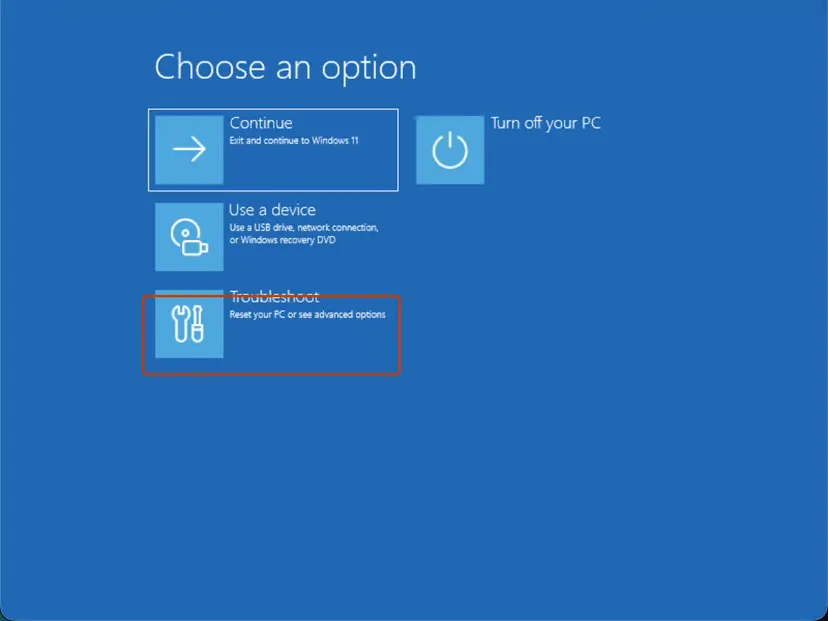
Choose an option: select Troubleshoot. Screenshot: Windows 11 26H2. - Open Startup Settings. Select Advanced options > Startup Settings.
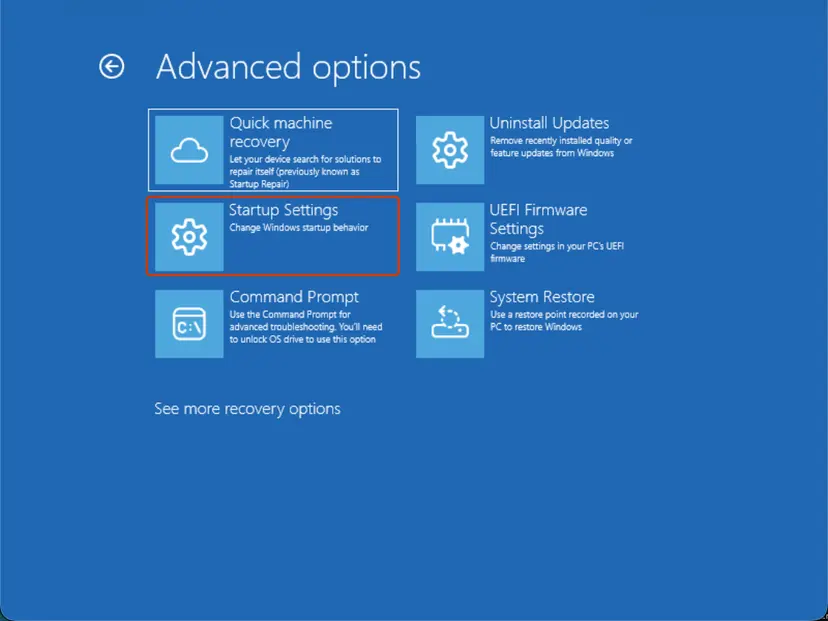
Advanced options: select Startup Settings. On 26H2 the first tile is Quick machine recovery, previously Startup Repair. Screenshot: Windows 11 26H2. - Restart. On the Startup Settings page, select Restart. The PC restarts and shows a numbered list.
- Choose Safe Mode. Press 4 or F4 for Enable Safe Mode. Press 5 or F5 for Enable Safe Mode with Networking if you need the internet, for example to download a scanner or a driver.
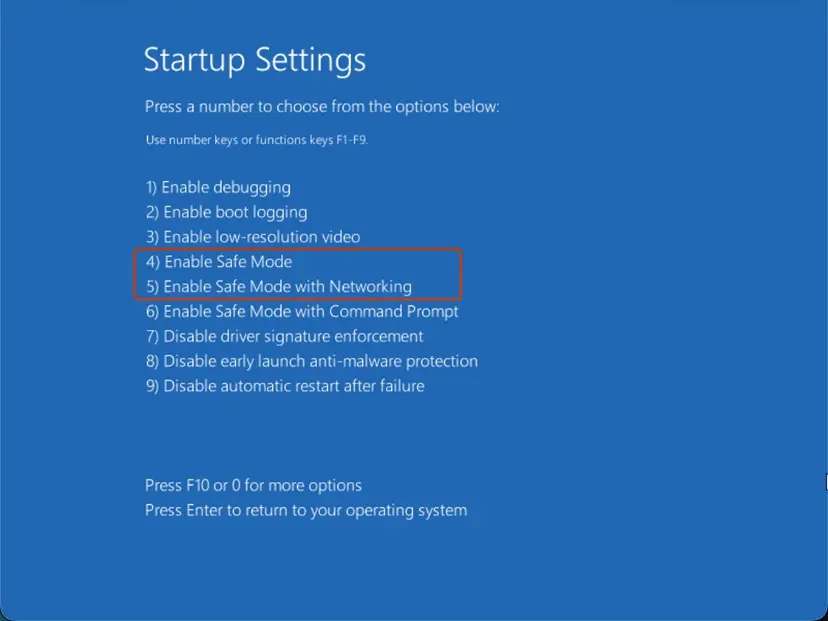
Press 4 for Safe Mode or 5 for Safe Mode with Networking. Screenshot: Windows 11 26H2.
These steps were written for Windows 11 and Windows 10, from the Windows Recovery Environment. The full page with the other versions and what each result means: Start Windows or a Mac in Safe Mode
- Windows 8 and 8.1: the recovery screens and the Startup Settings > 4 choice look the same as above.
- Windows 7: press F8 before the Windows logo and choose Safe Mode in Advanced Boot Options.
- A user on Spiceworks describes the result: after choosing Safe Mode, the PC went through the update steps again and started in normal mode. Sign in when it does.
Once you are in Windows, do not install updates yet. Go to Fix 8 first, so the same update does not hit the same block. More ways to reach Safe Mode: Start Windows or a Mac in Safe Mode.
It worked if: Windows finishes the update operations, restarts and reaches the sign-in screen without the C0000022 message.
If not: If the same message returns at the same operation, open the recovery screens again and go back to a restore point with Fix 4.
Fix 4. Go back to a restore point with System Restore from the recovery screens
15 to 30 minutesRead the warningSafe Mode did not get past the error and System Restore was on before the update.
System Restore puts back system files, drivers and the registry from before the update, so the half applied update is gone. It is the fix HP's community experts gave for this exact message on HP laptops with Windows 8.1.
System Restore keeps your documents, photos and other personal files. It removes apps, drivers and updates installed after the restore point you pick. Select Scan for affected programs to see the list before you confirm.
- Go to Advanced options. Select Troubleshoot > Advanced options.
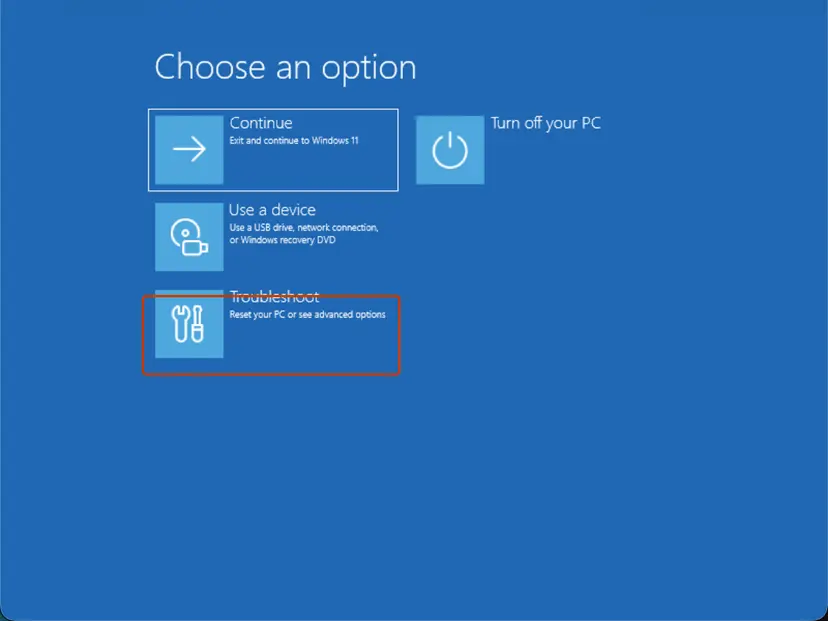
Choose an option: Troubleshoot. Screenshot: Windows 11 26H2. - Select System Restore. Select System Restore. If the drive is encrypted, enter your BitLocker recovery key when asked.
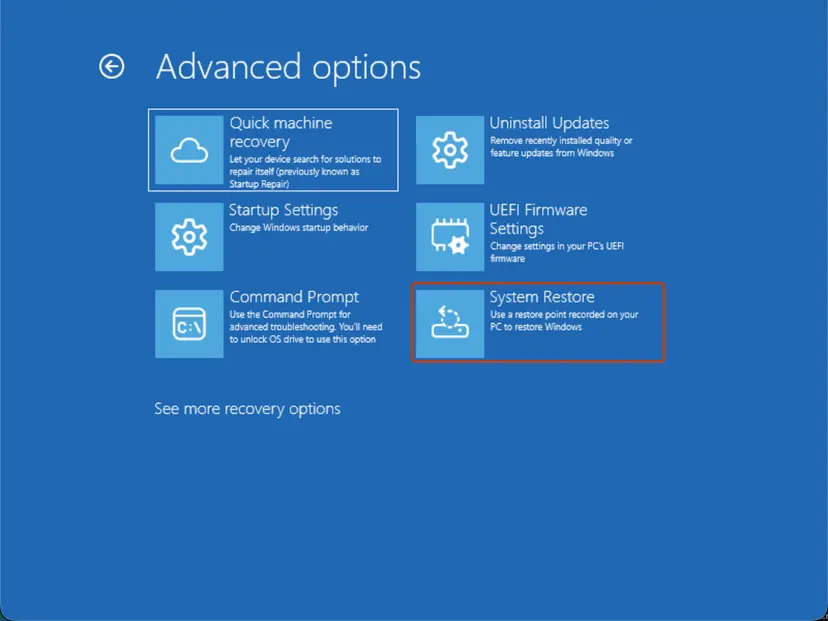
Advanced options: System Restore. Screenshot: Windows 11 26H2. - Choose a restore point and finish. Select a restore point from before the problem, optionally Scan for affected programs, then select Next and Finish.
- Restart. When the restore is done, select Restart.
These steps were written for Windows 11 and Windows 10, from the Windows Recovery Environment. The full page with the other versions and what each result means: Undo recent changes with System Restore
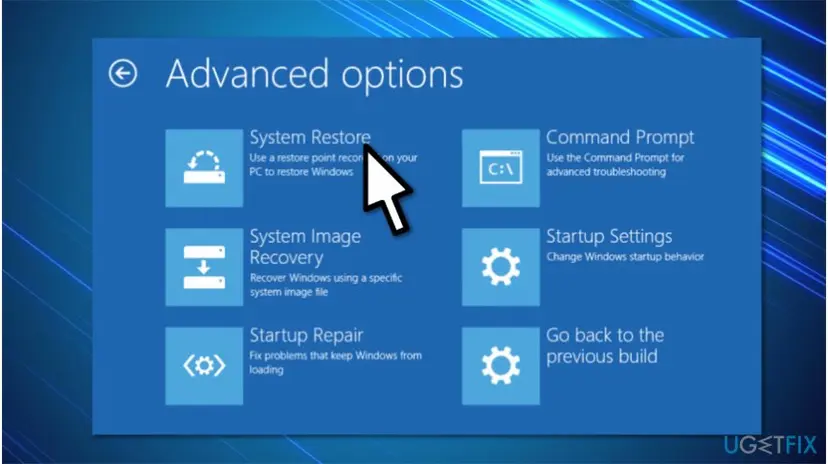
On HP PCs you can also reach recovery by pressing Esc repeatedly at power on, then F11. On Windows 7, press F8 and choose Repair your computer > System Restore.
It worked if: System Restore reports that it completed, the PC restarts and Windows reaches the sign-in screen.
If not: If there is no restore point or the restore fails, revert the pending update actions with DISM in Fix 5.
Fix 5. Revert the pending update actions with DISM from the recovery Command Prompt
10 minutesLow riskThere is no restore point, or System Restore failed, and the message still returns.
The update left a queue of operations for the next start, and one of them is denied every time. Microsoft documents /RevertPendingActions for a boot failure: it reverts all pending actions from earlier servicing operations, because they might be the cause.
- In the recovery screens, select Troubleshoot > Advanced options > Command Prompt. On Windows 7, choose Command Prompt in System Recovery Options.
- Find the drive that holds Windows. In recovery it is often not C. Try
D:andE:if C shows no Windows folder.dir C:\Windows - Run DISM against that drive. Replace
C:with the letter you found.dism /image:C:\ /cleanup-image /revertpendingactions - Wait until DISM reports that the operation completed. Do not close the window while it works.
- Type
exit, press Enter, and select Continue or restart the PC.
In recovery, /online points at the recovery system itself, not at your Windows. Microsoft also says to use /RevertPendingActions only on a Windows image that did not boot.
It worked if: DISM ends with "The operation completed successfully" and Windows starts, sometimes after one more restart, without the error.
If not: If DISM reports an error or the message returns, remove the update package by name with Fix 6.
Fix 6. Remove the failing update package with DISM
15 minutesLow riskReverting pending actions did not help and you can see which update was installed last.
Windows 7 and 8.1 have no Uninstall Updates button in recovery, so DISM is the way to take an installed update out of a Windows that does not start. A Microsoft community answer gave this method for the C0000022 loop after Windows 7 SP1.
- Open the recovery Command Prompt as in Fix 5 and find your Windows drive letter.
- List the installed packages in a table. Replace
C:with your drive letter.dism /image:C:\ /get-packages /format:table - Find the newest entry whose name starts with
Package_for_KBand whose install time matches the day the error began. Write the full name down exactly. - Remove that package. Paste or type the full name after
/packagename:.dism /image:C:\ /remove-package /packagename:PASTE_THE_PACKAGE_NAME_HERE - Wait for DISM to finish, type
exit, and restart the PC.
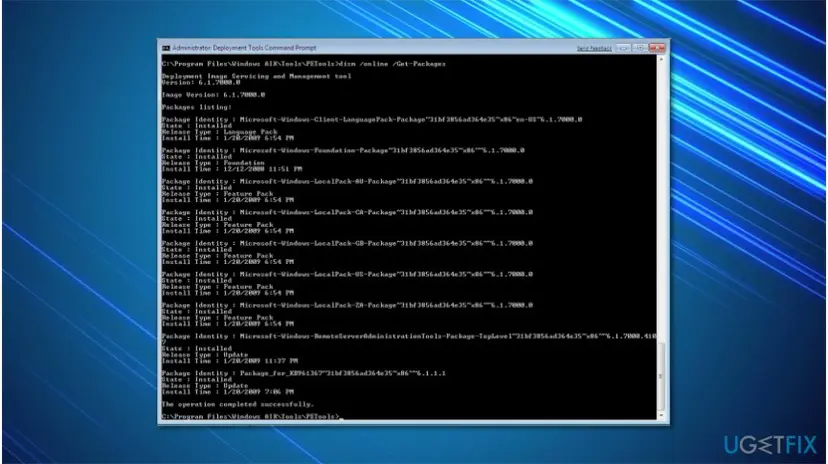
A name looks like Package_for_KB4462926~31bf3856ad364e35~amd64~~ followed by a version number. We could not confirm the exact version of every package, so always copy the name from your own list.
It worked if: DISM reports the package was removed, and the PC starts to the sign-in screen without applying update operations.
If not: If DISM says the package cannot be removed, or the PC now stops before Windows loads, run Startup Repair with Fix 7.
Fix 7. Run Startup Repair to fix the boot files
10 to 30 minutesLow riskThe file in brackets is a boot file such as bfsvc.exe, or Windows now stops before the update screen.
bfsvc.exe is the Windows boot file servicing tool. When the update is denied while it changes boot files, the boot configuration can be left half done. Startup Repair checks why Windows does not start and repairs the boot files and settings it finds damaged.
- Select Troubleshoot. On Choose an option, select Troubleshoot.
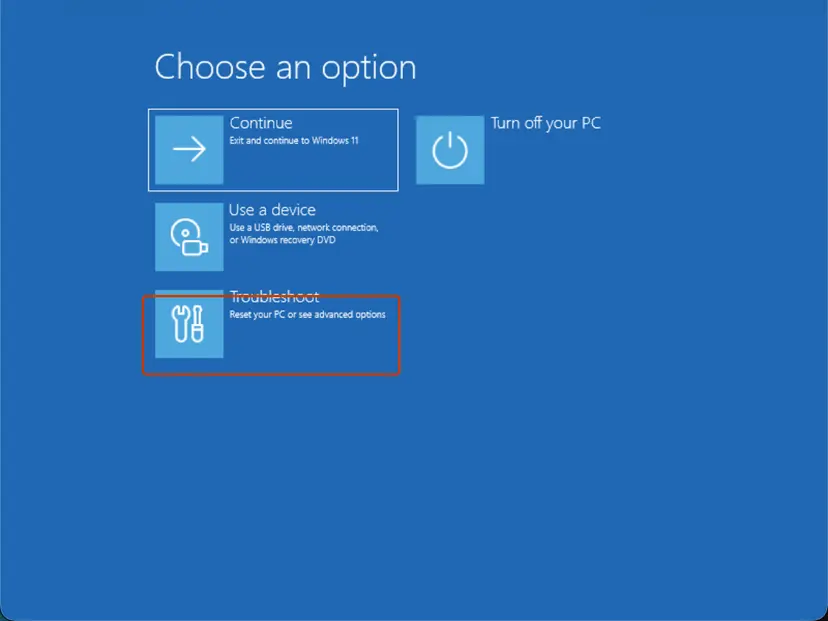
Choose an option: Troubleshoot. Screenshot: Windows 11 26H2. - Open Advanced options. Select Advanced options.
- Start the repair. Select Quick machine recovery (or Startup Repair on older versions).
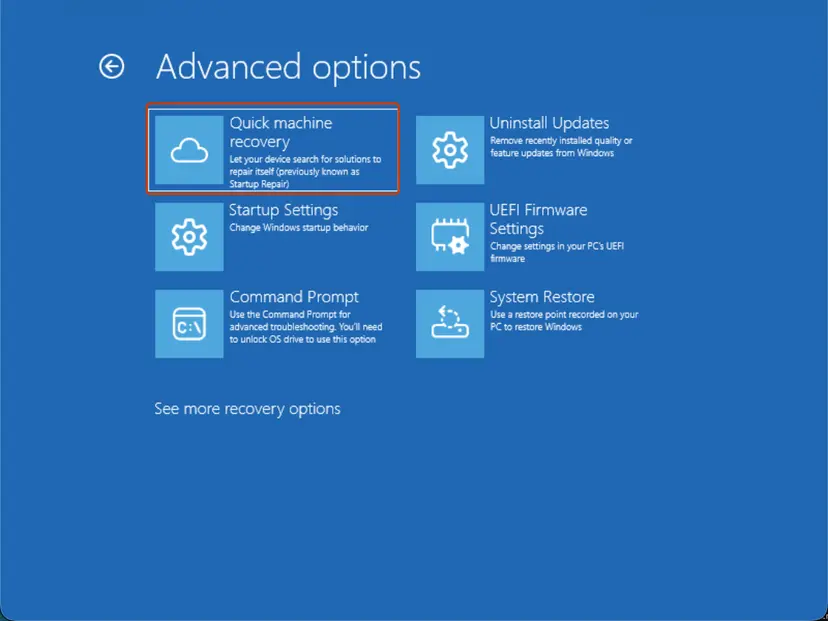
Quick machine recovery is the former Startup Repair tile. Screenshot: Windows 11 26H2. - Sign in if asked. Choose an administrator account and type its password. If Windows asks for the BitLocker recovery key, enter it.
- Wait for the result. The check can take a while. If it fixes the problem, the PC restarts into Windows. If it cannot, it says so and shows where its log file is; select Advanced options and continue below.
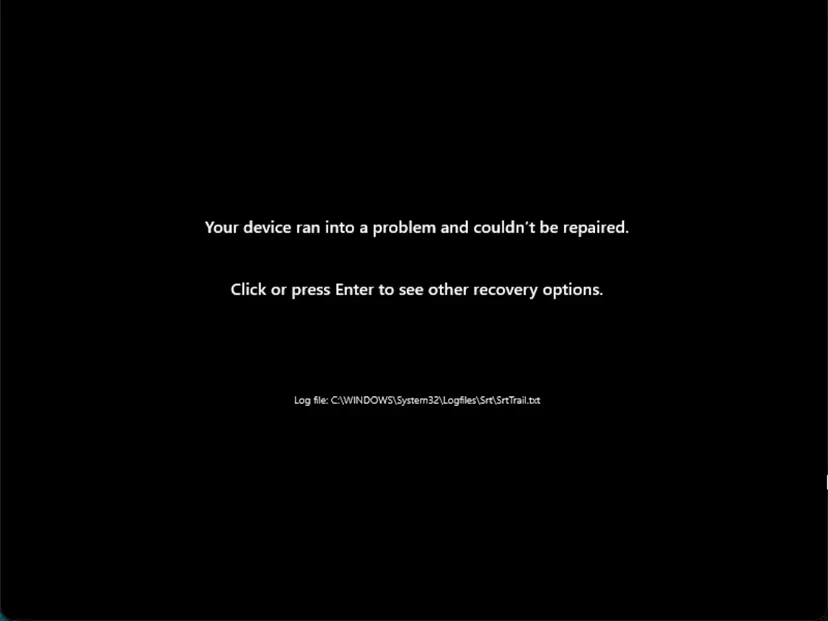
This message means the repair found nothing it could fix. Screenshot: Windows 11 26H2.
These steps were written for Windows 11 and Windows 10, from the Windows Recovery Environment. The full page with the other versions and what each result means: Run Startup Repair
On Windows 7 and 8.1 the tile is called Startup Repair; Windows 11 26H2 calls it Quick machine recovery. Full steps: Run Startup Repair. If Startup Repair reports it cannot repair the PC, its log is at C:\Windows\System32\Logfiles\Srt\SrtTrail.txt.
It worked if: Startup Repair reports a repair, the PC restarts and Windows reaches the sign-in screen.
If not: If Startup Repair cannot repair the PC, read the log as described in "Still broken" and consider reinstalling Windows.
Fix 8. Once Windows starts, update the security software and reset Windows Update
20 to 40 minutesLow riskWindows starts again after any fix above, or Windows Update shows C0000022 without a startup loop.
The update you removed will be offered again, and the same block will deny it again. Updating or pausing the security software and clearing the update cache removes both causes before the next attempt.
- Open your antivirus or endpoint software and update it to the newest version. In 2018 a Sophos update fixed the KB4462926 case.
- If the error came back with a third party antivirus, pause its protection for the next update only, and turn it back on right after: Turn off Microsoft Defender protection for a moment.
- Reset the Windows Update components and rename the
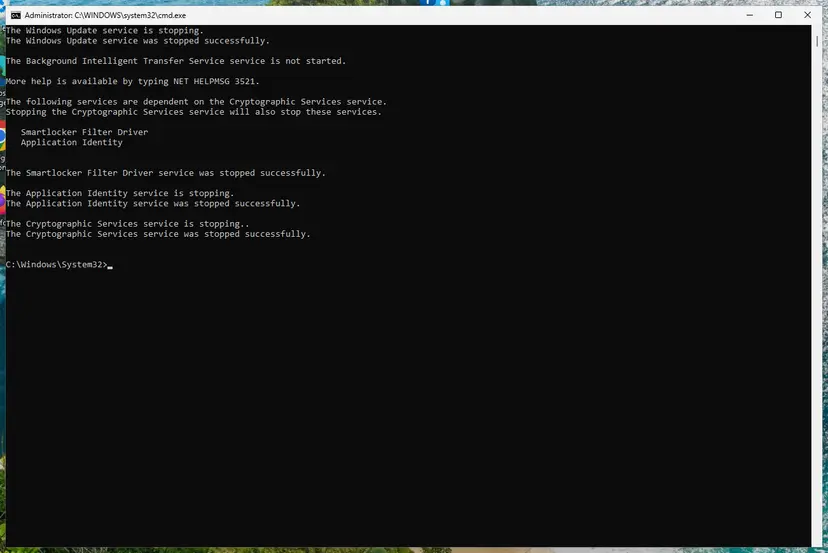
SoftwareDistributionandcatroot2folders: Reset Windows Update components. - Check system files with
sfc /scannowin an administrator Command Prompt: Run DISM and SFC to repair Windows system files. - Install the updates again and restart while you are at the PC, so you see at once whether it passes.
Microsoft ended support for Windows 8.1 on 10 January 2023 and offers no paid extension for it. A PC that keeps hitting this error on Windows 7 or 8.1 is safer on a supported Windows version, if the hardware allows it.
It worked if: Windows Update installs the updates, the restart passes without the C0000022 message, and Update history lists them as installed.
If not: If the same update fails again, remove it as in Fix 6, keep updates paused, and collect the logs in "Still broken" below.
Still seeing Fatal Error C0000022? Read the logs and check the hardware
The startup message shows only the operation number and a short file name. The servicing log shows the full path and the step that was denied. From the recovery Command Prompt, type notepad and use File > Open to browse the Windows drive and read these files.
| Log | Where | What to look for |
|---|---|---|
| CBS.log | C:\Windows\Logs\CBS\CBS.log | Search for c0000022 or ACCESS_DENIED. The lines around it name the file or key and the update package. |
| SrtTrail.txt | C:\Windows\System32\Logfiles\Srt\SrtTrail.txt | What Startup Repair tested and why it could not repair the PC. |
| System event log | Event Viewer > Windows Logs > System, once Windows starts | Errors from the antivirus driver or from Windows Servicing at the time of the failed start. |
- What to send to support: the full message with both operation numbers and the file in brackets, your Windows version, the KB number of the last update, your antivirus, and the CBS.log lines around
c0000022. - When it is hardware: the drive clicks, starts take minutes, or the maker's diagnostics fail. HP's experts ask for the built in hardware test first (Esc, then F2 on HP PCs). Replace a failing drive before you reinstall.
- When nothing works: copy your files off the drive on another PC, then reinstall Windows. From a working desktop, see Reinstall Windows without losing files.
How to stop Fatal Error C0000022 from coming back
The startup loop and the printer page have different roots, but both are easy to avoid with a few habits. The first three points prevent the update loop; the last two keep you away from the fake driver sites.
- Keep security software up to date before monthly updates install. The 2018 wave hit PCs with an older endpoint agent.
- Keep System Protection turned on for drive C, so Fix 4 has a restore point to go back to.
- Restart for updates while you are at the PC, not with an overnight shutdown, so a loop is caught at once.
- Add printers through Settings > Printers & scanners first. Get extra software only from an address you type by hand, such as
123.hp.com. - Treat any driver page that shows a phone number or a chat with "support" as fake. Printer makers do not ask you to call to download a driver.
Frequently asked questions
What is fatal error C0000022?
It is Windows' access denied code, STATUS_ACCESS_DENIED in Microsoft's NTSTATUS list. A program asked Windows for access to a file, folder or registry key and did not get it, so it stopped. On a black startup screen it means an update could not change a protected file. On a printer driver web page that shows a phone number, it is part of a scam and nothing on your PC is wrong. Find your case in the table near the top.
During printer setup a page said fatal error C0000022. What does it mean?
It means you were on a fake driver download site. Malwarebytes and HP's community experts describe the same pattern: the download fails, the page shows a fatal error C0000022 message, and it asks you to call or chat with "support", who then ask for payment or remote access. Close the page and add the printer in Settings, or get the software from the maker's own address, as in Fix 1.
Is the HP fatal error C0000022 message real?
Not when it appears on a website together with a phone number or a chat window. HP gives printer drivers for free on 123.hp.com and through the HP Smart app, and an HP community expert warns that a site asking for money or remote access is fake. A real installer error never comes with a number to call. If you already let someone connect, follow Fix 2.
I called the number on the C0000022 page. What should I do now?
Disconnect from the internet, uninstall any remote access program they asked for, and run a full Microsoft Defender scan, as in Fix 2. Then change your email, bank and Microsoft passwords from another device. If you paid, call your bank or card company and ask to reverse the charge. Report the site and the number at reportfraud.ftc.gov in the US, or to your national fraud office elsewhere. Do not answer if they call back.
How do I fix "Fatal error C0000022 applying update operation" when Windows will not start?
Force the recovery screens by turning the PC off twice during start, then choose Safe Mode under Startup Settings (Fix 3). Users report that the update then finishes. If not, use System Restore from Advanced options (Fix 4), then DISM with /RevertPendingActions (Fix 5) or remove the update package by name (Fix 6). Your personal files stay with all of these.
What does 0xc0000022 mean, and is it the same as C0000022?
Yes, it is the same code. Windows writes NTSTATUS values with the 0x prefix in some places and without it in others, so 0xC0000022 and C0000022 both mean access denied. People also type c00000022 with an extra zero. The meaning stays the same, but the fix depends on the window. As "The application was unable to start correctly (0xc0000022)", it is a program that cannot read its own files, not the update or printer problem on this page.
Can antivirus software cause fatal error C0000022?
Yes, that is the best documented cause of the startup message. In October 2018 Windows 8.1 PCs with Sophos endpoint software stopped with this error after update KB4462926, and users reported that Sophos fixed it with a new Core Agent version. Safe Mode works around it because third party security drivers do not load there. Do not remove protection for good: update the software, or pause it for one update and turn it back on.
Does fatal error C0000022 happen on Windows 10 or Windows 11?
The startup message with "applying update operation" belongs to Windows 7, 8 and 8.1 and their Server versions. Every report we found names one of those, and we could not confirm a single Windows 10 or 11 case with that text. On Windows 11 the code shows up mostly on fake printer driver pages, which do not depend on the Windows version. Windows 10 and 11 use different update screens.
Will I lose my files fixing the C0000022 startup loop?
Not with Fixes 3 to 7. Safe Mode, DISM and Startup Repair do not touch personal files. System Restore keeps your documents and photos but removes apps, drivers and updates installed after the restore point. Only a full reinstall removes files, and only if you choose that option. If your PC holds files you have no copy of, copy them to another drive before a reinstall.
How long does the C0000022 fix take?
The printer page takes 5 to 10 minutes: close it and add the printer in Settings. The startup loop takes 15 to 60 minutes, because each recovery tool needs a restart. Safe Mode is the quickest when it works. System Restore usually takes 15 to 30 minutes. DISM can take longer on an old hard disk, and you should not interrupt it while it runs.
Sources
- Microsoft Learn: [MS-ERREF] NTSTATUS values (0xC0000022 STATUS_ACCESS_DENIED) (learn.microsoft.com)
- Microsoft Learn: DISM operating system package servicing options (/RevertPendingActions, /Get-Packages, /Remove-Package) (learn.microsoft.com)
- Microsoft Learn: Windows Recovery Environment (Windows RE) (learn.microsoft.com)
Did this fix work?
One click, no account. It tells the next reader which guides are worth their time.
Questions and experiences: fix Fatal Error C0000022 on Windows
Still broken, or found a fix we did not cover? Ask here: members and our editors answer. Reading is open; writing needs a free account.
…