
How to fix GeForce NOW 0x0000012E error in Windows?

Prefer to fix it yourself? The manual steps follow.
- 8methods
- 5 to 30 minutes
- Easy
Applies to Windows 11, Windows 10 (64-bit); GeForce NOW app for Windows and play.geforcenow.com
8 methods in this guide
- What the error means
- Why it appears
- The fixes
- 1. Check the service status
- 2. Restart app, PC and router
- 3. Check speed and latency
- 4. Turn off VPN and proxy
- 5. Test another game and browser
- 6. Run as administrator
- 7. Clean reinstall of the app
- 8. Reset network settings
- Still broken: logs and support
- Keep it from coming back
- FAQ
Hello. I wanted to use the GeForce NOW app on my Windows PC, but I got the 0x0000012E error code. Is there a way to fix this?
GeForce NOW shows error code 0x0000012E when a game session cannot start because the app could not reach or keep a connection to NVIDIA's server. Most often it is a short problem on NVIDIA's side that passes on its own. Check the GeForce NOW status page first, then restart the app, the PC and the router.
0x0000012E means GeForce NOW could not connect your PC to a game server. Open status.geforcenow.com first: if an incident is listed, only waiting helps (Fix 1). If the service is up, close the app and restart the PC and the router (Fix 2). Then check that your line meets NVIDIA's minimum of 15 Mbps and under 80 ms of latency, and turn off any VPN (Fix 3 and Fix 4).
| Error | "There was a problem starting your session. Try again." with ERROR CODE: 0x0000012E. |
|---|---|
| Where it appears | In the GeForce NOW app or at play.geforcenow.com, after you select Play and before the stream starts. Some users see it while a game is already running. |
| Main cause | A temporary server problem on NVIDIA's side, or a connection from your PC that cannot reach the server: slow or unstable internet, a VPN or proxy, or a stuck network state. |
| Fastest fix | Check status.geforcenow.com, wait out any incident, then restart the app, the PC and the router (Fix 1 and Fix 2). |
| Also written as | 0x0000012e, 0x12E, "Network Error 0x0000012E", "error code: 0x0000012E". |
| Affects | The Windows app and the browser version on 64-bit Windows 11 and Windows 10. 32-bit Windows is not supported by GeForce NOW at all. |
| NVIDIA's status | No knowledge base article for this code. Threads on NVIDIA's own forum report it in waves that end without any change on the user's PC. |
| Network minimum (NVIDIA) | 15 Mbps for 720p at 60 FPS, 25 Mbps for 1080p at 60 FPS, under 80 ms latency to an NVIDIA data centre, wired Ethernet or 5 GHz Wi-Fi. |
| Where the cause is logged | In the app folder %localappdata%\NVIDIA Corporation\GeForceNOW, which you can zip and send to NVIDIA support. |
| Time to fix | Minutes when it is the app or the network. Nothing to fix on your side during an outage. |
Facts checked on 15 October 2026. Steps written for Windows 11 (25H2 and 26H2) and Windows 10 22H2.
What GeForce NOW error code 0x0000012E means
GeForce NOW runs your game on a computer in an NVIDIA data centre and streams only the picture to your PC. Error 0x0000012E appears when that link fails: the app asked for a session, but the server did not answer or the connection dropped. The window reads "There was a problem starting your session. Try again." with "ERROR CODE: 0x0000012E" below it.
NVIDIA has not published a description of the code. Its own forum lists it in thread titles such as "Network Error 0X00000099/0X00000012E", so users and moderators treat it as a network error. Independent write-ups describe it the same way: a temporary server issue, or a PC that cannot reach the server it needs.
The game runs on NVIDIA's computer, so your GPU, your drivers and your game files play no part in this error. The things that matter on your side are the internet connection, a VPN or proxy, and the GeForce NOW app itself.
People search the code in several ways: 0x0000012e in lower case, the short form 0x12E, or the full message. They are all the same error. A different number, such as 0xC192000C, is a different code with its own causes.
Why GeForce NOW shows error 0x0000012E
Most often the service itself has a short problem: an outage, maintenance or an overloaded region. Often the PC or the router holds a broken connection after sleep or a network change. Less often the line is too slow or too far from a data centre, or a VPN hides your location. Rarely the app on your PC is damaged.
| Cause | How often | How to tell | Fix |
|---|---|---|---|
| Outage or maintenance of GeForce NOW | Most often | status.geforcenow.com shows an incident, or other players report the code at the same time. | Fix 1 |
| Stuck connection on the PC or router | Often | It started after sleep, a Wi-Fi change or a router restart by your provider. | Fix 2 |
| Line below NVIDIA's minimum | Sometimes | A speed test shows under 15 Mbps or over 80 ms, or you use 2.4 GHz Wi-Fi. | Fix 3 |
| VPN, proxy or a locked network | Sometimes | A VPN app is connected, or you play on a work, school or hotel network. | Fix 4 |
| Damaged app state or permissions | Rarely | play.geforcenow.com works in a browser, the app does not. | Fix 5, Fix 6, Fix 7 |
| Broken DNS or Winsock settings | Rarely | Everything fails in the app and the browser while the status page is green. | Fix 8 |
Users on NVIDIA's forum and on Reddit report the same pattern again and again: the code appears for every game at once, on the app and in the browser, and it is gone a few hours later. That is why the status page comes before any change on your PC.
How to fix GeForce NOW error code 0x0000012E
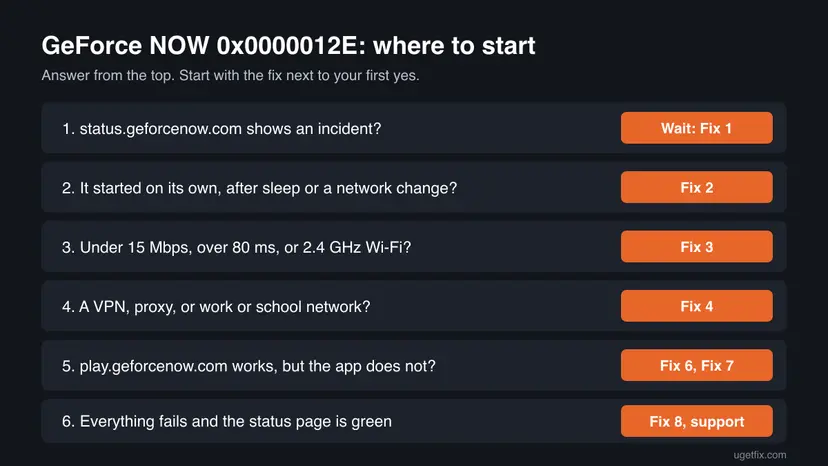
Fix 1 tells you whether the problem is on NVIDIA's side, and many readers stop there. Fixes 2 to 4 cover your connection, Fixes 5 to 7 the app on your PC, and Fix 8 resets the Windows network settings when nothing else helped.
| What you see or have | Start with |
|---|---|
| The status page shows an incident, or friends get the same error. | Fix 1 |
| The error started after sleep, a Wi-Fi change or a router restart. | Fix 2 |
| Slow internet, high ping, or 2.4 GHz Wi-Fi. | Fix 3 |
| A VPN, proxy, or work or school network is in use. | Fix 4 |
| The browser version at play.geforcenow.com works, the app does not. | Fix 5, then Fix 6 and Fix 7 |
| Every game fails in the app and the browser, and the status page is green. | Fix 8, then contact NVIDIA |
Fix 1. Check the GeForce NOW status page and wait out an outage
1 minuteNo riskEveryone, first. It takes one minute and tells you whether anything on your PC can help.
The most common cause of 0x0000012E is a temporary server problem. While NVIDIA has an outage or maintenance, no session can start, so every local fix is wasted time.
- Open
https://status.geforcenow.comin your browser. - Look for an open incident or planned maintenance at the top of the page.
- Find your region in the list and check that it is shown as working.
- If there is an incident, wait until it is marked as resolved, then select Play again.
It worked if: The status page shows no incident, or the incident is resolved and the game starts.
If not: The service is up and you still get the error: go to Fix 2.
Fix 2. Close GeForce NOW completely and restart the PC and router
5 minutesNo riskThe status page is green, or the error started after the PC woke from sleep or the network changed.
A session that failed can leave the app and the router holding an old connection. Ending every GeForce NOW process and restarting both gives the app a fresh route to the server.
- Close the GeForce NOW window.
- Press Ctrl + Shift + Esc to open Task Manager.
- Right-click each process whose name contains GeForce NOW and select End task.
- Restart Windows from Start > Power > Restart.
- Unplug the router for 30 seconds, plug it back in and wait until the internet light is steady.
- Start GeForce NOW and select Play.
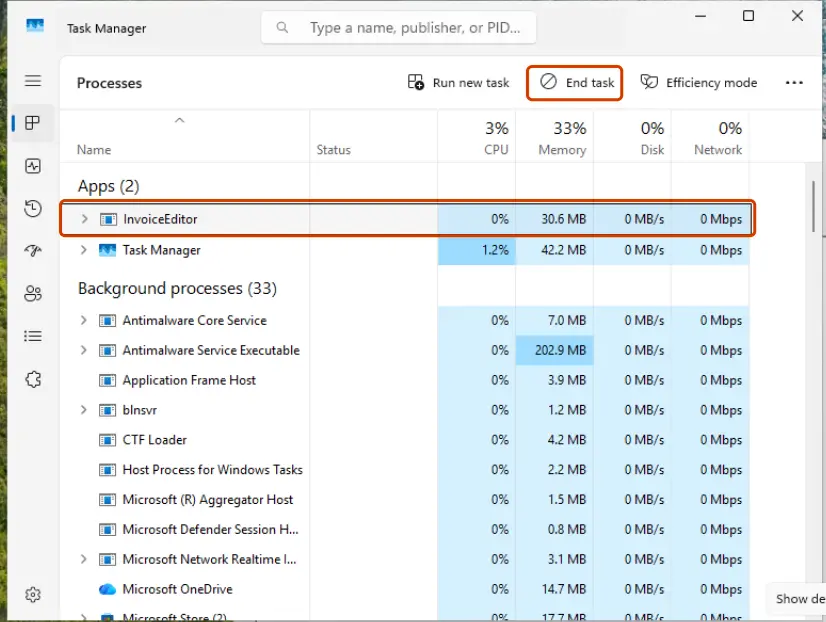
Help with Task Manager: Close a frozen app (Task Manager, Force Quit)
It worked if: The app opens normally and the game session starts.
If not: If the error comes back, check your connection in Fix 3.
Fix 3. Check your connection against NVIDIA's requirements and lower the streaming quality
10 minutesNo riskThe error appears at the start or in the middle of a game, you use Wi-Fi, or other people use the same line heavily.
NVIDIA requires at least 15 Mbps and less than 80 ms of latency to its data centre. Below that the app cannot hold the stream, and the session fails to start or drops.
| Stream | NVIDIA's minimum speed |
|---|---|
| 720p (HD) at up to 60 FPS | 15 Mbps |
| 1080p (FHD) at 60 FPS | 25 Mbps |
| 1440p (QHD) at 120 FPS | 35 Mbps |
| 4K at 120 FPS, native app | 45 Mbps |
| Latency to an NVIDIA data centre | Under 80 ms |
- Run a speed test in your browser and note the download speed and the ping.
- If you are on Wi-Fi, connect the PC by Ethernet cable, or move to the 5 GHz network of your router.
- In GeForce NOW, open the menu at the top left and select Settings.
- Scroll to STREAMING QUALITY and choose Balanced, or Data Saver on a slow line.
- Close the settings and start the game again.
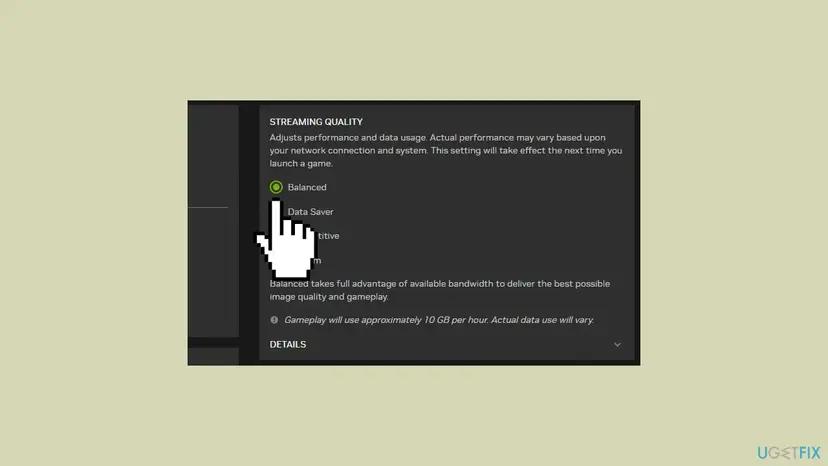
NVIDIA's requirements page links its own article on testing your network for GeForce NOW. To check the line itself step by step on Windows: How to check your internet connection in Windows
It worked if: The speed test shows enough bandwidth and a low ping, and the session starts with the lower quality.
If not: If the line is fine and the error stays, go to Fix 4.
Fix 4. Disconnect from your VPN and turn off the proxy
3 minutesNo riskA VPN app is connected, a proxy is set in Windows, or you play on a work, school or public network.
A VPN adds a detour between you and the data centre, which raises latency, and it hides where you are. NVIDIA recommends turning off any VPN when you use GeForce NOW.
- Open your VPN app and select Disconnect. Close it from the taskbar corner as well.
- Press Win + I and open Network & internet > VPN.
- Select each connection listed there and select Disconnect.
- Go back to Network & internet and open Proxy.
- Under Manual proxy setup, check that Use a proxy server is off.
- Start GeForce NOW again and select Play.
On Windows 10 the same pages are under Settings > Network & Internet > VPN and Proxy. GeForce NOW is only offered in some countries. Using a VPN to reach it from somewhere else breaks NVIDIA's terms and can get the account blocked.
A proxy set by your employer or school may be locked. Do not try to bypass it. Play from a home network, or test on a phone hotspot for a few minutes.
It worked if: The session starts and the game loads in the stream.
If not: If the error stays with no VPN or proxy, go to Fix 5.
Fix 5. Test another game and the browser version to find where the fault is
5 minutesNo riskThe service is up and the line is fine, but you do not know yet whether the fault is one game, the app or the connection.
GeForce NOW also runs in Chrome 77 or later and Edge 91 or later at play.geforcenow.com. If the browser works and the app does not, the network and the account are fine and the app on your PC is the problem.
- In the GeForce NOW app, start a different game from your library.
- If that game starts, the first game is the problem. Look for a notice about it on NVIDIA's GeForce NOW forum and try again later.
- If it also fails, open
https://play.geforcenow.comin Chrome or Microsoft Edge. - Sign in with the same NVIDIA account and start the same game there.
- Browser works, app fails: go to Fix 6. Both fail: go to Fix 8.
If the code on your screen is 0xC192000C instead, read our guide on GeForce NOW error 0xC192000C. It shares the message but often points to one game failing on the server.
It worked if: You know whether the fault is one game, the app or the connection.
If not: Browser works and app fails: Fix 6. Both fail on every game: Fix 8.
Fix 6. Run GeForce NOW as administrator
2 minutesLow riskThe browser version works but the app shows the error.
Users and independent write-ups report that the app sometimes fails to open its connection without full rights, even on an administrator account. Running it as administrator once shows whether permissions are the reason.
- Close GeForce NOW and end its processes in Task Manager (Fix 2, steps 2 and 3).
- Type GeForce NOW in the search box on the taskbar.
- Under NVIDIA GeForce NOW, select Run as administrator.
- Select Yes in the User Account Control window.
- Start the game.
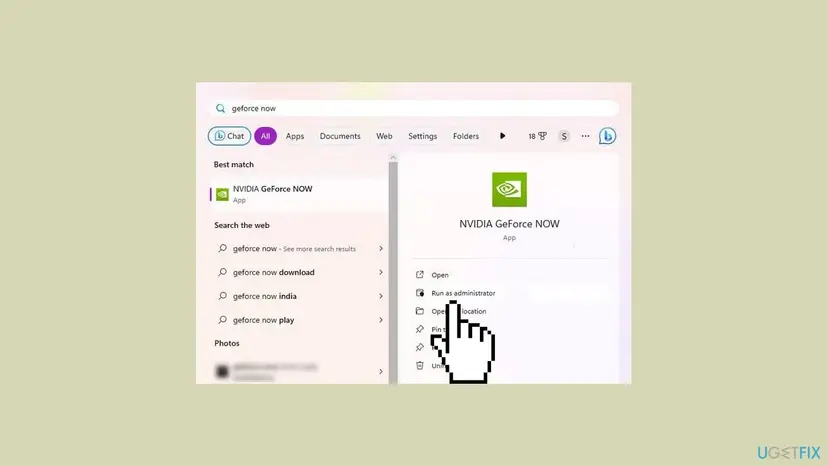
If it helps, you can make it permanent: How to run a program as administrator or in compatibility mode
It worked if: The session starts from the app.
If not: Go to Fix 7 and reinstall the app.
Fix 7. Reinstall GeForce NOW with a clean app folder
10 minutesLow riskThe browser version works and the app still fails after Fix 6.
A normal uninstall leaves the app's cache and settings in %localappdata%\NVIDIA Corporation\GeForceNOW. Renaming that folder before a fresh install removes a damaged state that could keep the connection from starting.
- Close GeForce NOW and end its processes in Task Manager.
- Open Settings > Apps > Installed apps, find NVIDIA GeForce NOW, select the three dots and Uninstall.
- Press Win + R, type
%localappdata%\NVIDIA Corporationand press Enter. - Rename the folder GeForceNOW to GeForceNOW.old. You can delete it once the new install works.
- Download the Windows app from
https://www.nvidia.com/en-us/geforce-now/download/, never from another site. - Run the file, sign in and start the game again.
On Windows 10 the app list is under Settings > Apps > Apps & features. Other ways to remove an app: Uninstall a program or app in Windows
It worked if: The fresh app signs in, shows your library and the game starts.
If not: Keep using the browser version and collect the logs for NVIDIA, as shown below.
Fix 8. Flush the DNS cache and reset the Windows network settings
15 minutesRead the warningEvery game fails in the app and the browser on a working internet line, and Fixes 1 to 5 did not help.
A stale DNS entry or a damaged Winsock catalog can send the app to a server address that no longer answers, while normal websites still load. Clearing them makes Windows look the address up again.
The commands below keep your settings. The full network reset in Settings also removes saved Wi-Fi passwords, VPN adapters and any fixed IP or DNS address. Write them down before you use it.
Run in an administrator Command Prompt, one line at a time
ipconfig /flushdns
netsh winsock reset
ipconfig /release
ipconfig /renew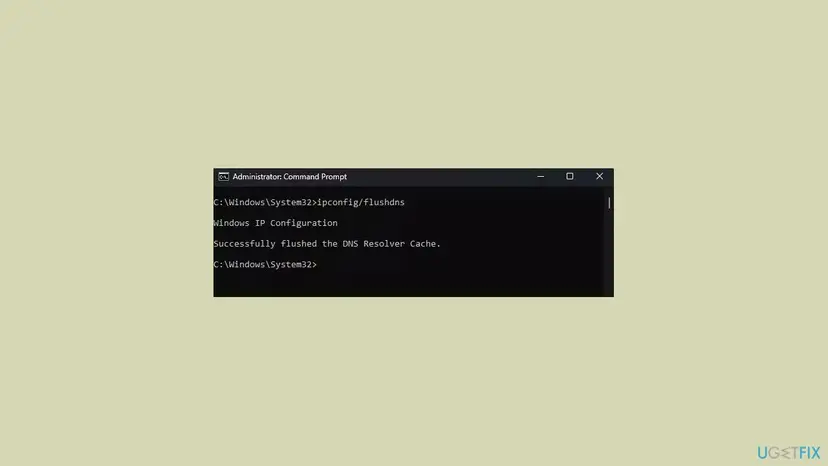
The commands and the full reset in Settings, for Windows 11 and Windows 10: Reset the network and flush DNS
It worked if: After the restart the PC is online again and the game session starts.
If not: The cause is not on your PC. Contact NVIDIA with the logs, as described below.
If error 0x0000012E is still there: collect the logs and contact NVIDIA
When the status page is green, no VPN is on, the line meets the minimum and the browser fails too, the cause is on NVIDIA's side or in your account. Only NVIDIA can see why its server did not accept the connection. Give them the logs so they do not start from zero.
- Reproduce the error once, so the newest log holds it.
- Press Win + R, type
%localappdata%\NVIDIA Corporation\GeForceNOWand press Enter. - Compress the folder to a ZIP file.
- Note the time of the error, the game, your speed test result and your server location.
- Open
https://www.nvidia.com/en-us/support/, start a chat or a request under GeForce NOW and attach the ZIP file.
- Same code on another device or network: the account or the service, not the PC. Say so to NVIDIA at once.
- Only one game, for days: ask NVIDIA whether the game is still available on GeForce NOW and linked to the right store account.
- Not a hardware problem: apart from the network adapter and the router, no part of your PC can cause this code.
How to keep error 0x0000012E from coming back
- Check status.geforcenow.com before you change anything on the PC.
- Play over Ethernet or 5 GHz Wi-Fi, and keep others from large downloads while you stream.
- Turn off the VPN before you open GeForce NOW.
- Keep the browser version as a fallback when the app fails.
- Do not reinstall Windows or change graphics drivers for this code. The game runs on NVIDIA's computer.
- Do not download GeForce NOW from sites other than nvidia.com.
- Do not use a VPN to reach GeForce NOW from a country where it is not offered.
Most cases of this error end on their own when NVIDIA fixes a server problem. The checks above make sure your own side is not the reason when the code comes back.
Frequently asked questions
What does GeForce NOW error code 0x0000012E mean?
It means GeForce NOW could not start or keep your game session because the connection to its server failed. NVIDIA has not published a description of the code, but its own forum files it as a network error, and it usually appears with "There was a problem starting your session. Try again." In most cases it is a short problem on NVIDIA's side. If the status page is green, look at your internet line, a VPN, and the app on your PC.
Is GeForce NOW down right now?
Check status.geforcenow.com. NVIDIA lists outages, maintenance and known issues there for every region. If an incident is open, error 0x0000012E and other session errors are expected, and nothing on your PC will fix them. Wait until it is marked as resolved. If the page shows everything working, the cause is more likely your connection, a VPN or the app, and Fixes 2 to 4 on this page apply.
Why do I get 0x0000012E in the browser and in the app?
When both fail, the app is not the problem. The cause is the service, your network or your account. Check the status page, restart the router, run a speed test and turn off any VPN. If all of that is fine and both still fail, reset the Windows network settings with Fix 8, then contact NVIDIA with your logs. A test on a phone hotspot quickly shows whether your home network is involved.
What internet speed does GeForce NOW need?
NVIDIA asks for at least 15 Mbps for 720p at up to 60 FPS and 25 Mbps for 1080p at 60 FPS. Higher tiers need 35 Mbps for 1440p at 120 FPS and 45 Mbps for 4K at 120 FPS in the Windows app. Latency to an NVIDIA data centre must stay under 80 ms. NVIDIA recommends a wired Ethernet connection or a router with 5 GHz Wi-Fi.
Can my graphics card or drivers cause error 0x0000012E?
Very unlikely. The game runs on NVIDIA's servers and your PC only decodes the video stream. Your graphics card, memory and game files do not take part in starting the session. GeForce NOW only needs a GPU that supports DirectX 11 on a 64-bit Windows 10 or later. That is why this page does not ask you to update GPU drivers or repair Windows system files for this code.
Does GeForce NOW work on 32-bit Windows?
No. NVIDIA's requirements say a 64-bit version of Windows 10 or later is needed, and 32-bit Windows is not supported. To check, press Win + I, open System > About and read System type. If it says 32-bit, use the browser version at play.geforcenow.com in Chrome or Edge instead. Windows 10 also left Microsoft support on 14 October 2025, so a move to Windows 11 is worth planning.
Can a VPN cause error 0x0000012E or get my account banned?
A VPN can cause it, because it adds a detour that raises latency above NVIDIA's limit and hides your real location. NVIDIA recommends turning off any VPN while you use GeForce NOW. Using a VPN to reach the service from a country where it is not offered breaks NVIDIA's rules and can lead to a blocked account. Disconnect the VPN and check the proxy setting in Windows before you play.
I searched for geforce error code -505413619. Is it the same error?
No. That negative number is how some tools print the hexadecimal code 0xE1E0000D, which is a different GeForce NOW error from 0x0000012E. We could not confirm what 0xE1E0000D means from an NVIDIA source. The first checks still help with most GeForce NOW codes: the status page, a restart of the app and the router, a speed test and a VPN check. If the problem stays, report the exact code to NVIDIA support.
The message is in another language, or I searched in Russian, Spanish or Japanese. Is it the same error?
Yes. GeForce NOW shows the same code, 0x0000012E, in every language, and only the text around it is translated. Questions such as "и что это", "помоги", "чо делает", "que pasa" or "まだでる" (it still appears) all lead to the same causes and fixes. This page uses the English names of menus and buttons. In another language the settings sit in the same places.
Who should I contact if nothing works?
Contact NVIDIA support, because only NVIDIA can see why its server did not accept your connection. Before you start a chat, reproduce the error once, compress the folder %localappdata%\NVIDIA Corporation\GeForceNOW to a ZIP file and note the time, the game, your speed test result and your server location. Attach the ZIP file to the request. If the same code appears on another device, say so at once.
Sources
- NVIDIA: System Requirements for GeForce NOW Cloud Gaming (nvidia.com)
- The Windows Club: GeForce NOW error code 0x0000012E [Fix] (thewindowsclub.com)
Did this fix work?
One click, no account. It tells the next reader which guides are worth their time.
Questions and experiences: fix GeForce NOW 0x0000012E error in Windows
Still broken, or found a fix we did not cover? Ask here: members and our editors answer. Reading is open; writing needs a free account.
…