
How to fix Kingdom Come Deliverance 2 crashing on Windows?

Prefer to fix it yourself? The manual steps follow.
- 9methods
- 5 to 30 minutes for the first fixes, longer to verify the game files
- Easy
Applies to Kingdom Come: Deliverance II on Windows PC, bought on Steam, Epic Games Store, GOG.com or the Microsoft Store (Xbox app and PC Game Pass)
9 methods in this guide
- What the crash looks like
- Causes, most common first
- The fixes
- 1. Update the game
- 2. Clear the shader cache
- 3. Update the GPU driver
- 4. Verify the game files
- 5. Lower the settings
- 6. Remove mods and user.cfg
- 7. Turn off overlays
- 8. Free RAM, fix page file
- 9. Return to stock clocks
- Still crashing
- Keep it working
- FAQ
I was excited for Kingdom Come Deliverance 2, but I have already crashed four or five times in the past 20 minutes of gameplay, mainly during cutscenes. Is this fixable, or does the game just not work right?
Kingdom Come: Deliverance II crashes on PC most often on an old game version, with a stale shader cache after a patch or driver update, or when the PC runs short of video memory or RAM. Update the game first, then clear the shader cache so it is built again.
Yes, it is usually fixable. If Kingdom Come Deliverance 2 keeps crashing on PC, first update the game to the latest patch in your launcher (Fix 1). Then delete the game's shader cache so it is rebuilt (Fix 2) and install the current graphics driver from NVIDIA, AMD or Intel (Fix 3). If crashes continue, verify the game files and lower the graphics settings.
| Error | Kingdom Come Deliverance 2 crashing (KCD2): the game closes to the desktop with no message, freezes, or will not get past the start. |
|---|---|
| Where it appears | On startup, on loading screens, in cutscenes, in busy towns, when a save loads, or after long play. On Steam, Epic, GOG and the Microsoft Store copy alike. |
| Main cause | An old game version, a shader cache left over from an older patch or driver, or a PC short of video memory or RAM. |
| Fastest fix | Update the game (Fix 1), then clear the shader cache in Saved Games\kingdomcome2 (Fix 2). |
| Also written as | KCD2 crashing, KCD2 crashing PC, Kingdom Come Deliverance 2 crashing on startup, Kingdom Come Deliverance 2 crash to desktop, Kingdom Come Deliverance 2 crash fix. |
| Affects | The PC version released on 4 February 2025 by Warhorse Studios and Deep Silver, on 64-bit Windows 10 or Windows 11. It runs on CryEngine with DirectX 12. |
| Minimum PC | Intel Core i5-8400 or AMD Ryzen 5 2600, 16 GB RAM, GeForce GTX 1060 (6 GB) or Radeon RX 580, 100 GB of space, SSD required. |
| Vendor status | Warhorse keeps patching the game: PCGamingWiki notes patches 1.2, 1.4 and 1.5 changing the upscalers, HDR and more. There is no single known crash bug that one patch closed; most crashes trace to the PC side. |
| Time to fix | A few minutes for most fixes, 15 to 40 minutes to verify about 100 GB of game files. |
Facts checked on 15 October 2026. Steps written for Windows 11 (25H2 and 26H2) and Windows 10 22H2, with the game facts read from the game's Steam store listing and from PCGamingWiki.
What Kingdom Come Deliverance 2 crashing on PC looks like
A Kingdom Come: Deliverance II crash on PC rarely shows an error code. The game simply closes to the desktop, the picture freezes and Windows marks it as not responding, or the game never gets past the intro and the main menu. Players report crashes in cutscenes, on loading screens, while opening the map and when loading a save.
Because there is no code, the place and the moment of the crash are your best clue. A crash on startup points at the files, the shader cache or the driver. A crash after an hour of play points at memory. A crash in heavy scenes on a card near the minimum points at video memory or an unstable overclock.
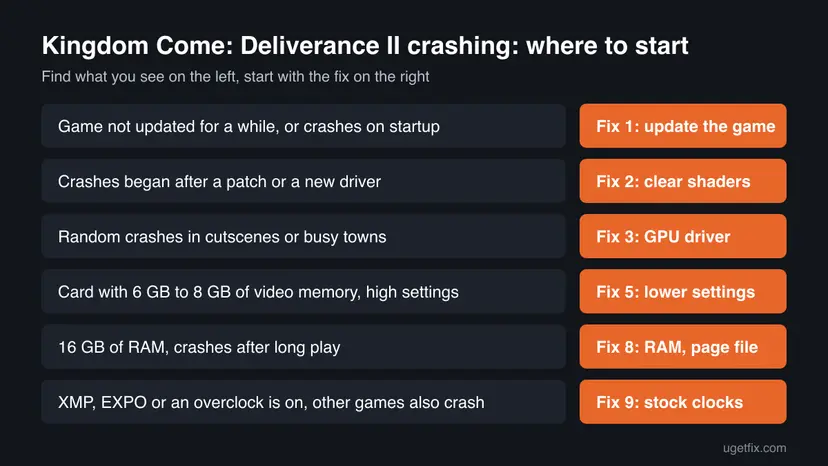
| What you see | What it usually means | Start with |
|---|---|---|
| Crash on startup or in the first menu | An old game build, a stale shader cache or damaged files | Fix 1, Fix 2, Fix 4 |
| Crashes began right after a game patch or a new driver | The old shader cache no longer matches the game or driver | Fix 2 |
| Random crashes in cutscenes and busy towns | An old or broken graphics driver, or settings above the card | Fix 3, Fix 5 |
| Crashes after you added mods or edited user.cfg | A mod or config line the current patch does not accept | Fix 6 |
| Crashes after long play on a 16 GB PC | The PC runs out of RAM and page file | Fix 8 |
| Other heavy games also crash, XMP or an overclock is on | Unstable clocks, not the game | Fix 9 |
Why Kingdom Come Deliverance 2 keeps crashing, most common cause first
Most often KCD2 crashes because the copy is not on the latest patch, or because the shader cache was built for an older patch or driver. Less often an old graphics driver, settings above the card's video memory or a PC with only 16 GB of RAM is the cause. Rarely the cause is damaged files, mods, an overlay or an unstable overclock.
| Cause | How common | Fix |
|---|---|---|
| Game older than the latest patch | Most common on copies with auto updates off | Fix 1 |
| Shader cache left over from an older patch or driver | Common, the fix players report most | Fix 2 |
| Old, broken or mismatched graphics driver | Common | Fix 3 |
| Damaged or incomplete game files | Less common, often after a drive move or a cut update | Fix 4 |
| Settings that need more video memory than the card has | Common on 6 GB and 8 GB cards | Fix 5 |
| Mods or user.cfg lines from an older patch | Only on modded copies | Fix 6 |
| Steam, Discord, NVIDIA or Xbox Game Bar overlay | Less common | Fix 7 |
| Too little RAM or a page file that is too small | Common with 16 GB of RAM | Fix 8 |
| XMP or EXPO memory profile, CPU or GPU overclock | Rare, but it survives every other fix | Fix 9 |
The Steam store page lists the minimum as Windows 10 64-bit, an Intel Core i5-8400 or AMD Ryzen 5 2600, 16 GB of RAM, a GeForce GTX 1060 (6GB) or Radeon RX 580, and 100 GB of space, with SSD required. A PC below this, or the game on a hard disk, crashes and stutters no matter which fix you try.
How to fix Kingdom Come Deliverance 2 crashing on Windows
The fixes are ordered by how often they help and how little they cost. Test the game after each one at the place where it crashed. Fix 1 to Fix 3 solve most crashes; the rest rule out files, settings, mods, memory and hardware tuning.
| What you see or what your PC has | Start with |
|---|---|
| Auto updates are off or you have not started the game for weeks | Fix 1 |
| Crashes began after a game patch or a new graphics driver | Fix 2 |
| Driver older than a few months, or crashes in cutscenes | Fix 3 |
| Crash on startup after a drive move or a cut download | Fix 4 |
| Graphics card with 6 GB or 8 GB of video memory | Fix 5 |
| You use mods or a user.cfg file | Fix 6 |
| 16 GB of RAM and crashes after long play | Fix 8 |
Fix 1. Update Kingdom Come: Deliverance II to the latest patch
5 to 20 minutesNo riskAuto updates are off, the launcher shows a pending update, or the game crashes on startup.
Warhorse has released a long run of patches since the 4 February 2025 launch, and an old build often crashes once the launcher, DLC or driver around it has moved on. A copy with a DLC newer than the game build can also fail to start.
- Steam: open Library, select Kingdom Come: Deliverance II and let any update shown on its page download.
- Epic Games Store: open Library, select the three dots on the game, choose Manage and turn on Auto update.
- GOG Galaxy: select the game, open the settings icon next to Play and check for updates.
- Xbox app (Microsoft Store, PC Game Pass): select the game, then the three dots, Manage > Files > Check for updates.
- Restart the launcher if no update shows, so it checks again, then start the game.
Patch 1.2 added the DLSS 4 option with a choice of the Convolutional or Transformer model, patch 1.4 added XeSS 2 and HDR, and patch 1.5 updated FSR 4, according to PCGamingWiki. After a big patch, expect the game to rebuild its shaders on the first start.
It worked if: The launcher shows the game as up to date and the crash you had before is gone.
If not: If it still crashes on the latest patch, clear the shader cache with Fix 2.
Fix 2. Delete the KCD2 shader cache so the game builds it again
5 minutes, plus a longer first startLow riskCrashes began right after a game patch or a graphics driver update, or the game crashes on startup or on the first loading screen.
The game stores its compiled shaders under your Saved Games folder. When a patch or a new driver changes how shaders are built, an old cache can crash the game as it loads. Deleting the folder forces a clean rebuild. Players report this as the fix that helps most often; we could not confirm it in a Warhorse document.
- Close the game and the launcher completely.
- Press Win + R, type
%USERPROFILE%\Saved Games\kingdomcome2and press Enter. - Open the
shadersfolder if you see one, select everything inside and delete it. Leave thesavesandprofilesfolders alone. - Start the game and wait in the main menu until any shader building has finished.
- Load your save and go to the place where it crashed.
The same kingdomcome2 folder holds your saves in saves and your settings in profiles. Delete only the shader files. To be safe, copy the whole kingdomcome2 folder to another drive before you change anything in it.
It worked if: The first start takes longer while shaders build, then the game passes the point where it crashed before.
If not: If the game still crashes with a fresh cache, update the graphics driver with Fix 3.
Fix 3. Install the current graphics driver from NVIDIA, AMD or Intel
10 minutesLow riskRandom crashes in cutscenes, busy towns or on the map, or a driver older than the game's latest patch.
KCD2 is a DirectX 12 game whose upscalers (DLSS 4, FSR 4, XeSS 2) lean on recent driver support. A driver older than the game's patch, or one left half replaced by a failed install, crashes the game in heavy scenes.
- Find your card: right-click Start, open Device Manager and expand Display adapters.
- Download the current driver for that card from NVIDIA, AMD or Intel.
- Install it, choosing the clean installation option if the installer offers one.
- Restart Windows, then let the game rebuild its shaders on the first start.
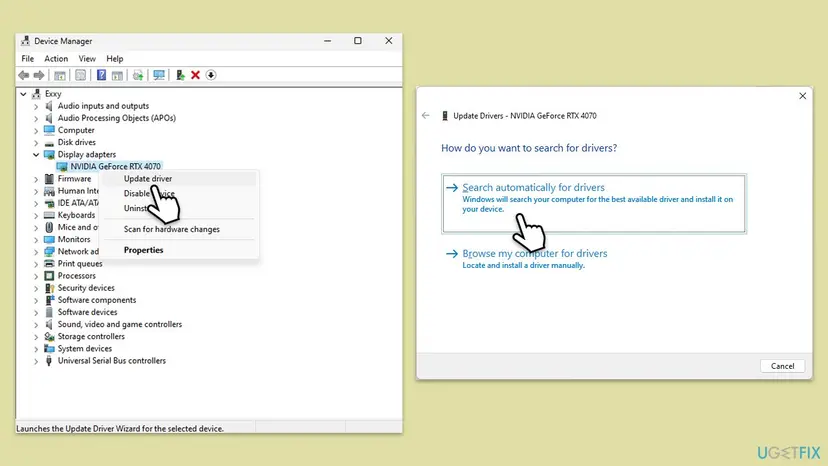
Device Manager often finds no newer driver, so the card maker's site is the better source. If the crashes began right after a new driver, roll it back: Update, roll back or reinstall a driver.
It worked if: The Driver tab shows a new driver version and the game runs past the point where it crashed.
If not: If it still crashes, verify the game files with Fix 4.
Fix 4. Verify the Kingdom Come: Deliverance II game files
15 to 40 minutesLow riskThe game crashes on startup, after a patch, after a move to another drive, or always at the same spot.
The game is about 100 GB. An update cut short or a drive error leaves damaged files that crash the game when they load, and the launcher downloads only those files again instead of the whole game.
- Steam: right-click Kingdom Come: Deliverance II in the library and select Properties.
- Open Installed Files and select Verify integrity of game files.
- Epic Games Store: open Library, select the three dots on the game, choose Manage and select Verify.
- Xbox app: select the game, the three dots, Manage > Files and Verify and repair.
- Wait until the launcher reports it has finished, then start the game.
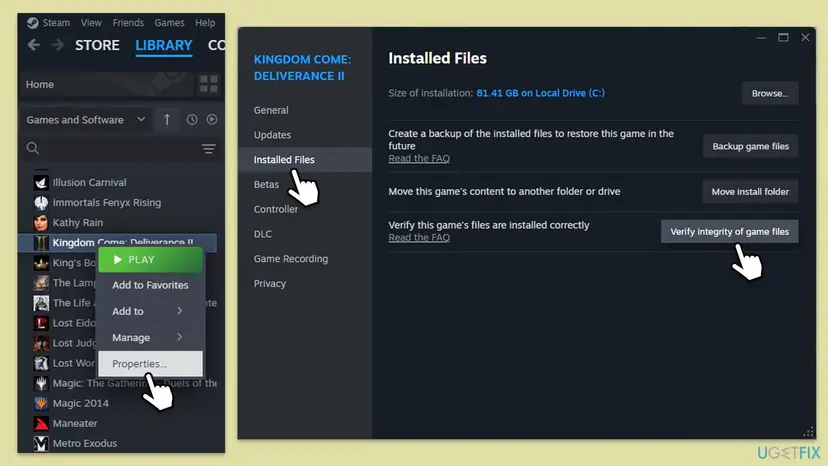
Every launcher, including GOG Galaxy and the EA app, step by step: How to verify game files in Steam, Epic Games, Xbox app, EA app, Battle.net and GOG Galaxy.
It worked if: The launcher reports the files are fine or were downloaded again, and the game starts.
If not: If the game still crashes in heavy scenes, lower the graphics settings with Fix 5.
Fix 5. Lower the graphics settings and turn on an upscaler
5 minutesNo riskThe game crashes in busy towns, cutscenes or heavy fights, on a card with 6 GB or 8 GB of video memory.
The minimum card is a GeForce GTX 1060 with 6 GB of video memory. High texture and lighting settings on such a card fill the video memory, and the game can crash when a large scene loads. An upscaler renders fewer pixels and lowers the load.
- Open Settings > Graphics in the game.
- Set Overall image quality one step lower, or lower the textures and shadows first.
- Under Resolution scaling, set Technology to DLSS, FSR or XeSS, whichever your card supports, and pick a quality mode.
- Set a Frame rate limit of 60 if the game runs far above it.
- Select Confirm, restart the game and play the scene that crashed.
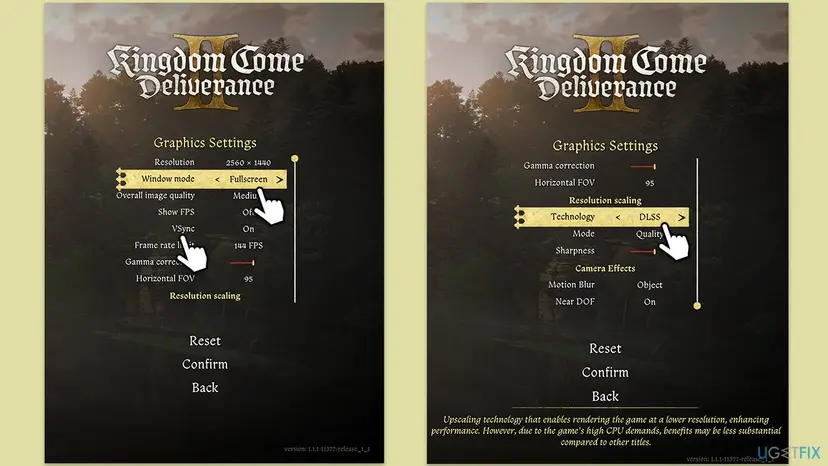
PCGamingWiki notes that at very high frame rates, such as 240 FPS, the game may need a temporary cap of 60 FPS to get past some stairs and characters in one quest. A cap of 60 also lowers the heat and power load, which helps on a laptop.
It worked if: The game runs through the scene that crashed, with the frame rate steady.
If not: If you use mods or a user.cfg file, remove them with Fix 6. If not, go to Fix 7.
Fix 6. Remove mods and the user.cfg file for one test
5 minutesLow riskYou installed mods, a skip intro mod or tweaks in user.cfg, and the crashes began after a game patch.
Mods change the game's files and a new patch can break them. PCGamingWiki lists tweaks that go into user.cfg in the game folder; a line the current patch does not accept can crash the game on startup.
- Close the game.
- Open the game's install folder: in Steam, right-click the game and select Manage > Browse local files.
- Rename
user.cfgtouser.cfg.offif it is there. - Move the mod folder out of the game folder to your desktop. On the Game Pass copy, mods sit in
Documents\kingdomcome_modsinstead. - Remove
+exec user.cfgfrom the launch options if you added it, then start the game.
It worked if: The game starts without mods and no longer crashes. Add the mods back one at a time to find the one at fault.
If not: If the clean game still crashes, turn off overlays with Fix 7.
Fix 7. Turn off the Steam, Discord, NVIDIA and Xbox Game Bar overlays
5 minutesNo riskCrashes or freezes while Discord, the Steam overlay, the NVIDIA overlay, Xbox Game Bar or an FPS counter runs.
An overlay hooks into the game's DirectX 12 frames and uses extra video memory. On a card already near its limit, that extra load can tip the game into a crash.
- Steam: open Steam > Settings > In Game and turn off Enable the Steam Overlay while in-game.
- Discord: open User Settings, go to Game Overlay and turn off Enable in-game overlay.
- NVIDIA: open the NVIDIA app settings and turn off the in-game overlay.
- Xbox Game Bar: press Win + I, open Gaming > Game Bar and turn it off.
- Close FPS counters such as MSI Afterburner and RivaTuner, then start the game.
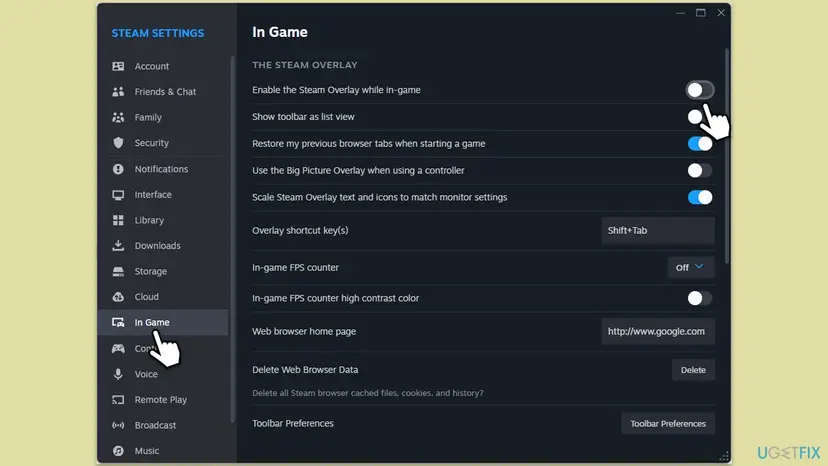
It worked if: The game runs with no overlay and the crash does not come back.
If not: Turn the overlays back on if they made no difference, then try Fix 8.
Fix 8. Free up RAM and let Windows manage the page file
5 minutesLow riskThe game crashes after long play, in large towns, or on a PC with 16 GB of RAM and a browser open.
16 GB of RAM is the minimum and 32 GB the recommended amount. When RAM runs out, Windows falls back on the page file, and if that is turned off or set very small, the game crashes. Players report that a small page file was the cause in their case.
- Close the game, then press Ctrl + Shift + Esc and end browsers, chat apps and launchers you do not need.
- Press Win + R, type
sysdm.cpland press Enter. - Open the Advanced tab and select Settings under Performance.
- Open the Advanced tab again and select Change under Virtual memory.
- Tick Automatically manage paging file size for all drives, select OK and restart Windows.
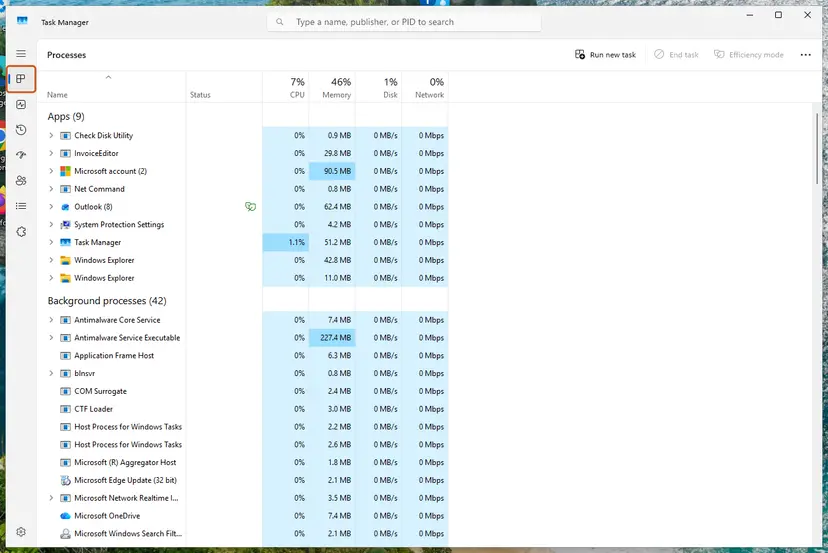
To keep apps from starting with Windows and eating RAM before you play: Stop apps from opening at startup.
It worked if: Memory use in Task Manager stays below the total during play and long sessions no longer end in a crash.
If not: If the game crashes even with RAM to spare, reset any overclock with Fix 9.
Fix 9. Turn off XMP, EXPO and any CPU or GPU overclock for one test
10 minutesLow riskEvery fix above failed, the PC has an XMP or EXPO memory profile, a tuned GPU, or other heavy games crash too.
KCD2 loads the CPU and memory hard in towns and while streaming the world. Clocks that pass lighter games can fail here, and players report crashes that stopped once XMP or an overclock was off, or after a BIOS update.
- Open the GPU tuning tool you use, such as MSI Afterburner or AMD Software: Adrenalin Edition, and reset clocks, voltage and power limit to default.
- Restart the PC and press the BIOS key shown at start, usually Del or F2.
- Find the XMP, EXPO or DOCP memory profile and set it to Disabled.
- Reset any CPU overclock or undervolt to Auto or the default.
- Save and exit, then play the scene that crashed.
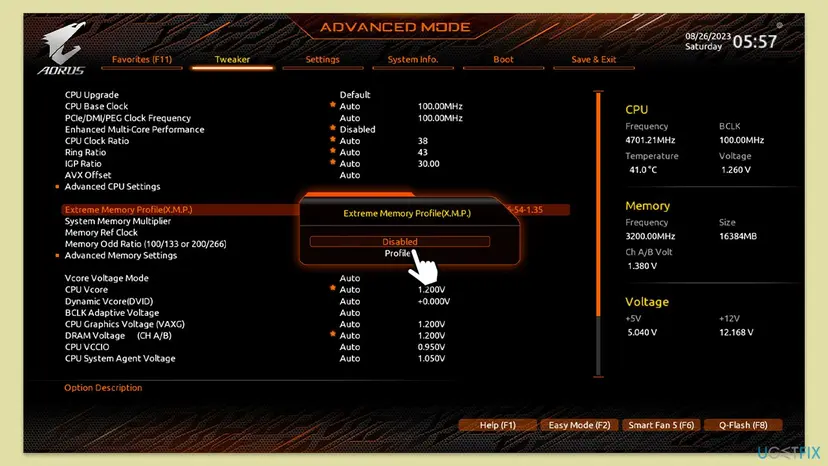
Write down your XMP and tuning values before you change them. If the game is stable at stock, turn them back on one at a time, or update the BIOS from the board maker's site first.
It worked if: The game runs past the scene that crashed, at stock clocks.
If not: Read where the real cause is written, as the next section explains, and contact Warhorse support.
If Kingdom Come Deliverance 2 keeps crashing on PC: where the real cause is written
Before you reinstall 100 GB, look at what Windows recorded at the moment of the crash. It shows whether the game, the graphics driver or the hardware failed.
| Where to look | What it holds |
|---|---|
| Event Viewer, Windows Logs > Application | An Application Error for the game's executable at the crash time, with the faulting module name |
| Event Viewer, Windows Logs > System | Display driver events at the crash time, which point at the driver or the card |
%USERPROFILE%\Saved Games\kingdomcome2 | Your saves and profiles settings folders; back them up before a reinstall |
| The game's install folder | user.cfg and mods, if you added them |
If the System log shows NVIDIA display driver events at each crash, the guide to nvlddmkm events explains what they mean. We could not confirm where the game writes its own crash log, so send Warhorse the Event Viewer details and a DxDiag report.
- Make a DxDiag report: press Win, type
dxdiag, press Enter and select Save All Information. - Send to Warhorse support: CPU, GPU and driver version, RAM, SSD or HDD, Windows version, game version and store, settings, and where it crashed.
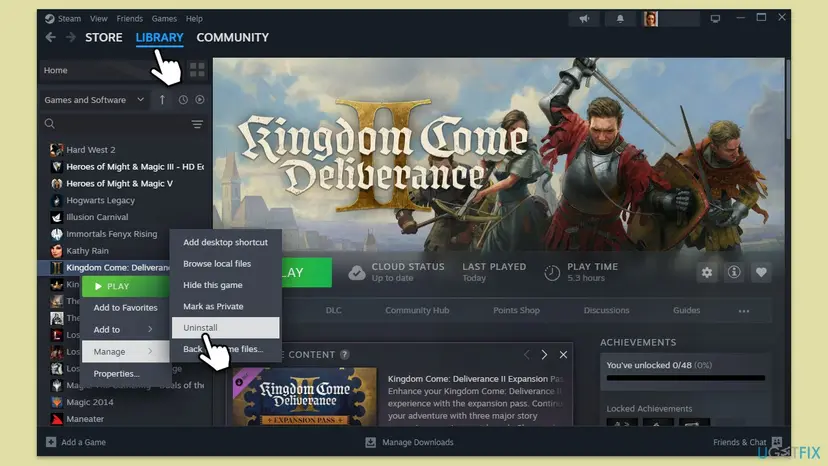
- Reinstall last: uninstall the game in the launcher, restart, and install it again on an SSD. Back up
Saved Games\kingdomcome2first. - Signs of hardware: other heavy games crash too, the PC restarts or shows a blue screen, or crashes continue at stock clocks with a fresh driver. Test the memory with How to test your RAM with Windows Memory Diagnostic and check cooling and the power supply.
How to keep Kingdom Come Deliverance 2 running without crashes
- Keep the game on the latest patch and the driver from NVIDIA, AMD or Intel current.
- Clear the shader cache after a big patch or driver change if crashes start.
- Keep the game on an SSD, as the store page requires.
- Back up
Saved Games\kingdomcome2before a reinstall or a mod change.
- Do not keep mods from an older patch after the game updates.
- Do not download "crash fix" executables from unknown sites: they replace game files and can carry malware.
- Do not turn off Windows Security or your antivirus to make the game run.
- Do not turn off the page file on a 16 GB PC.
Windows 10 left support on 14 October 2025. The game still lists Windows 10 64-bit as its minimum, and every step on this page works on Windows 10 and Windows 11.
Frequently asked questions
Why does Kingdom Come Deliverance 2 keep crashing on PC?
Most often because the game is not on the latest patch, or its shader cache was built for an older patch or driver. Less often the graphics driver is old, the settings need more video memory than the card has, or the PC runs out of RAM. Update the game, clear the shader cache in Saved Games\kingdomcome2 and install the current driver from your card maker. Those three steps solve most crashes.
Why does Kingdom Come Deliverance 2 crash on startup?
A crash on startup usually comes from a stale shader cache, damaged game files, an old game version or mods that a new patch broke. Update the game first, then delete the shader files in Saved Games\kingdomcome2, verify the files in your launcher and move mods and user.cfg out of the game folder for one test. Also check that the PC meets the minimum: 64-bit Windows 10, 16 GB of RAM and a 6 GB graphics card.
Why does KCD2 crash during cutscenes?
Cutscenes switch to heavy close-up scenes and video, which load the graphics card and its memory at once. On a card near the minimum, or with an old driver, that is where crashes show first. Install the current driver, lower the overall image quality one step and turn on DLSS, FSR or XeSS. If it continues, clear the shader cache and turn off overlays, which also hook into these scenes.
Is it safe to delete the KCD2 shaders folder?
Yes, as long as you delete only the shader files. The game builds them again on the next start, which takes a little longer once. The same kingdomcome2 folder under Saved Games also holds your saves and your settings, so leave the saves and profiles folders alone. Copy the whole folder to another drive first if you want to be completely safe.
Can my PC run Kingdom Come Deliverance 2?
The minimum is 64-bit Windows 10, an Intel Core i5-8400 or AMD Ryzen 5 2600, 16 GB of RAM, a GeForce GTX 1060 (6GB) or Radeon RX 580, and 100 GB on an SSD. The recommended PC has an Intel Core i7-13700K or AMD Ryzen 7 7800X3D, 32 GB of RAM and a GeForce RTX 4070 or Radeon RX 7800 XT. Below the minimum, crashes are hard to avoid.
Does Kingdom Come Deliverance 2 crash on PS5 and Xbox too?
This page is about the Windows PC version. Players also search for crashes on PS5 and Xbox, where the fixes are different: make sure the game and the console are fully updated, restart the console completely, and reinstall the game if it keeps crashing. The shader cache, drivers, mods and page file steps here apply only to PC.
Is this the same as the first Kingdom Come: Deliverance crashing on startup?
No, this page is about Kingdom Come: Deliverance II from 2025. The first game from 2018 is a different program with its own files and settings. Several fixes still carry over, because both run on CryEngine: update the game, verify the files in your launcher, install the current graphics driver, remove mods and turn off overlays. The shader cache path on this page belongs to the second game.
Will reinstalling Kingdom Come Deliverance 2 delete my saves?
Uninstalling in the launcher normally leaves Saved Games\kingdomcome2 in place, and Steam Cloud also keeps saves for the Steam copy. GOG.com does not sync these saves to its cloud, according to PCGamingWiki, because of its size limit. Copy the kingdomcome2 folder to another drive before you reinstall, whatever store you use, so nothing depends on the cloud.
The page shows a question in another language. What does it ask?
One search that leads here, in Arabic, asks simply how to solve this problem. The answer is the same in any language: update the game, clear the shader cache, install the current graphics driver and verify the game files, in that order. The fixes on this page are written for Kingdom Come: Deliverance II on Windows PC.
The fixes did not help. What should I do?
If nothing changed, collect the facts and contact Warhorse support. Include your CPU, GPU and driver version, RAM, storage type, Windows version, the game version and store, your settings and where it crashed. Attach a DxDiag report and the Event Viewer Application Error details. If other heavy games also crash, or crashes continue at stock clocks with a fresh driver, test the memory and check cooling and the power supply.
Sources
Did this fix work?
One click, no account. It tells the next reader which guides are worth their time.
Questions and experiences: fix Kingdom Come Deliverance 2 crashing on Windows
Still broken, or found a fix we did not cover? Ask here: members and our editors answer. Reading is open; writing needs a free account.
…