
How to fix logonUI.exe error in Windows?

Prefer to fix it yourself? The manual steps follow.
8 methods in this guide
Hello. I can't log into Windows because a Runtime Library error window appears, caused by LogonUI.exe. Is there any way to fix this quickly?
LogonUI.exe is the Windows program that draws the sign-in screen, and it loads a small DLL for every sign-in method on the PC. A LogonUI.exe error almost always means one of those DLLs, usually from a third-party face, fingerprint, VPN or security app, is broken. Start Safe Mode, sign in with your password and remove that app.
LogonUI.exe itself is rarely the problem. The window appears because a sign-in add-on (a credential provider DLL), a graphics setting or a damaged system file crashes the sign-in screen. Start Windows in Safe Mode, which loads only the Windows password sign-in, and uninstall the face, fingerprint, VPN, remote access or security app you added last (Fix 1). If the window names a DLL, find its owner first (Fix 2).
| Error | LogonUI.exe - Bad Image, LogonUI.exe - System Error, LogonUI.exe - Application Error or a Microsoft Visual C++ Runtime Library window naming C:\Windows\system32\LogonUI.exe. |
|---|---|
| Where it appears | On the lock or sign-in screen, right after Windows starts or when you pick a sign-in option. The screen often stays black or empty behind the window. |
| Main cause | A third-party credential provider: the sign-in DLL of a face or fingerprint app, a VPN, remote access tool, password manager or company security tool. |
| Fastest fix | Start Safe Mode, sign in with your password and uninstall the sign-in add-on you installed last (Fix 1). |
| The file | C:\Windows\System32\LogonUI.exe, the Windows Logon User Interface Host, signed by Microsoft Windows. It is part of Windows and cannot be uninstalled. |
| Also written as | logonui, logonui exe, logon ui error, loginui.exe, logonui exe bad image, logonui.exe system error, logonui.exe application error. |
| Affects | Windows 11 (25H2 and 26H2) and Windows 10 22H2. Windows 10 left support on 14 October 2025, so it gets no more fixes for sign-in bugs. |
| Vendor status | Microsoft has no single known issue for this error. Its developer guidance says an update can break a third-party credential provider and lock the user out unless a Windows sign-in method is also set up. |
| Time to fix | 15 to 30 minutes for Fix 1 and Fix 2, about an hour if you need System Restore or a repair. |
Facts checked on 15 October 2026. Steps written for Windows 11 (25H2 and 26H2) and Windows 10 22H2.
What the LogonUI.exe error means
LogonUI.exe is the Logon User Interface Host. When Windows wants you to sign in, the Winlogon process starts LogonUI.exe, and LogonUI asks every installed credential provider which sign-in tiles to show. A credential provider is a DLL: Windows ships its own for the password, PIN, Windows Hello and smart cards, and other programs can add theirs.
Microsoft's documentation says LogonUI reads the list of these providers from HKEY_LOCAL_MACHINE\SOFTWARE\Microsoft\Windows\CurrentVersion\Authentication\Credential Providers and loads each one into its own process. So when one provider DLL is damaged, missing or crashes, the whole sign-in screen goes down with it, and the error window carries the name LogonUI.exe even though the fault sits in someone else's file.
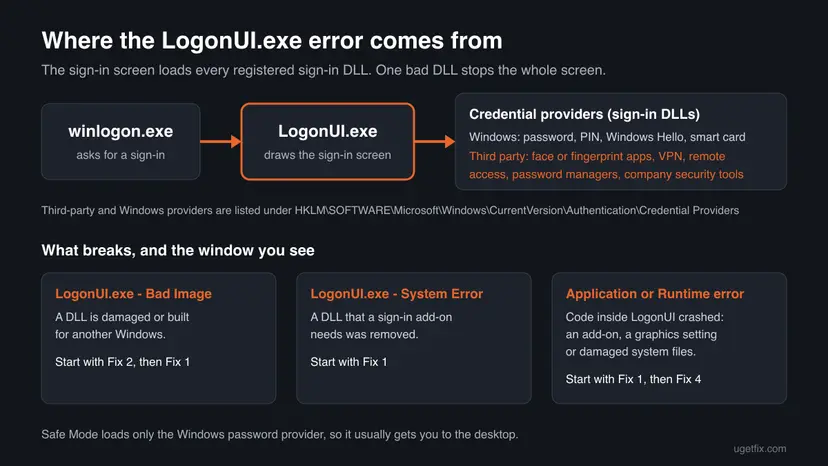
The window comes in several forms, and people search for each of them:
- LogonUI.exe - Bad Image: "C:\Windows\System32\<file>.dll is either not designed to run on Windows or it contains an error. Try installing the program again using the original installation media or contact your system administrator or the software vendor for support. Error status 0xc000012f." The DLL named in the first line is the one to look at (Fix 2).
- LogonUI.exe - System Error: "The code execution cannot proceed because <file>.dll was not found." A program was removed or updated but its sign-in part is still registered. One reported example is RPCRTRemote.dll; do not download any DLL the window names from a DLL site.
- LogonUI.exe - Application Error: "The application was unable to start correctly" with a code such as 0xc0000142, or "The instruction at" an address "referenced memory" at another address. Code inside the sign-in screen crashed.
- Microsoft Visual C++ Runtime Library with "Runtime Error!" and "Program: C:\Windows\system32\LogonUI.exe": the crash happened inside an add-on built with Visual C++, which is a third-party DLL in almost every case.
- loginui.exe and logon ui are typing variants of the same file name. The real file is always LogonUI.exe.
Do not download LogonUI.exe or the DLL from the error window from a DLL site, and do not delete or rename LogonUI.exe. Without it Windows cannot show a sign-in screen at all. Remove the add-on that broke it instead.
What causes the LogonUI.exe error, most common first
Microsoft does not publish a cause list for this error. The order below follows how LogonUI loads its providers, Microsoft's credential provider guidance and what users report on Microsoft's and NVIDIA's forums.
| Cause | How often | Start with |
|---|---|---|
| A third-party credential provider is broken or half removed: face or fingerprint login apps (users name Sensible Vision FastAccess), VPN and remote access clients, password managers, company security tools. | Most often | Fix 1, then Fix 2 |
| A Windows update changed something the third-party provider relied on. Microsoft describes exactly this case in its credential provider guidance. | Often | Fix 6 |
| The PIN or Windows Hello data of your account is damaged, so the PIN tile fails. | Sometimes | Fix 3 |
| A graphics setting or driver crashes the sign-in screen. Users report LogonUI.exe crashes when FXAA or antialiasing is forced for all programs in the NVIDIA Control Panel. | Sometimes | Fix 4, then Fix 5 |
| System files are damaged after a failed disk or partition operation, a power cut or a failing drive. | Rarely | Fix 7 |
A fake LogonUI.exe outside C:\Windows\System32 or malware that hooks the sign-in screen. | Rarely | Fix 2 and the FAQ |
Microsoft's developer article on credential providers describes the case behind most of these errors: a user relies on a third-party sign-in method, an update breaks it, and on the next restart that method no longer works. If a Windows password or PIN was also set up, the user can still sign in with it. Safe Mode uses that route.
How to fix the LogonUI.exe error
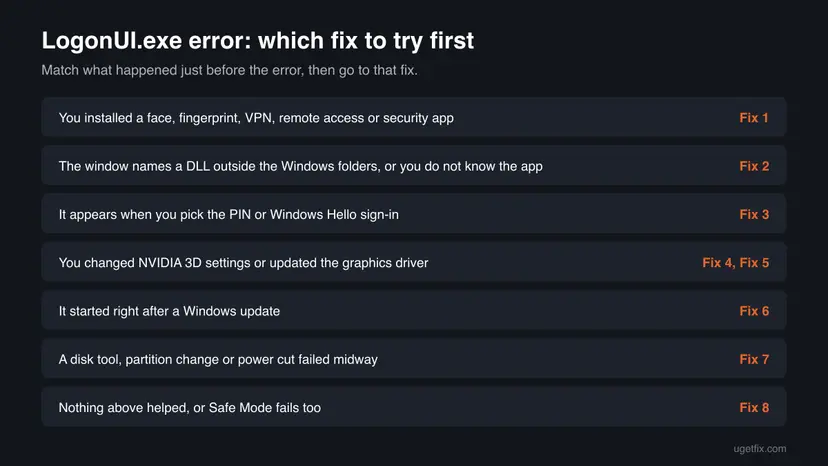
Fixes 1 to 3 remove or repair the sign-in add-on and solve most cases. Fixes 4 and 5 are for graphics crashes. Fixes 6 to 8 undo updates and repair Windows when the add-on is not the cause.
| What you see or have | Start with |
|---|---|
| You recently installed a face, fingerprint, VPN, remote access, password manager or security app. | Fix 1 |
| The window names a DLL, or you do not know which program added a sign-in option. | Fix 2 |
| The error appears when you choose the PIN or Windows Hello option. | Fix 3 |
| You changed NVIDIA 3D settings, or the error came after a graphics driver update. | Fix 4, then Fix 5 |
| It started right after a Windows update. | Fix 6 |
| A disk tool, partition change or power cut stopped midway. | Fix 7 |
| Nothing helped, or Safe Mode shows the error too. | Fix 7, then Fix 8 |
Fix 1. Sign in through Safe Mode and uninstall the third-party sign-in app
15 minutesLow riskEveryone who cannot get past the error, and especially if you added face, fingerprint, VPN, remote access or security software.
Safe Mode loads only the Windows password provider, so the broken third-party DLL is not loaded and you reach the desktop. Uninstalling the program then removes its provider from the list LogonUI reads at every start.
- On the sign-in screen, select the Power icon, hold Shift and select Restart. If you cannot reach the screen, turn the PC off during startup twice; the third start opens the recovery screens.
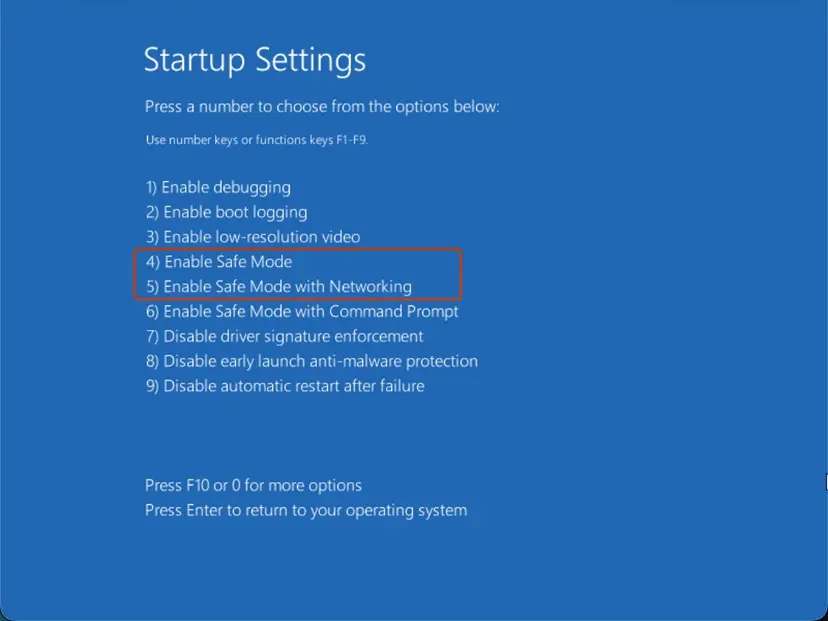
- Select Troubleshoot > Advanced options > Startup Settings > Restart.
- Press 4 or F4 for Safe Mode, or 5 or F5 for Safe Mode with Networking if you need to download a driver.
- Sign in with your account password. A PIN or Windows Hello does not work in Safe Mode. For a Microsoft account, use the account's password.
- Press Win + I and open Apps > Installed apps (Windows 10: Apps > Apps & features).
- Sort by Install date and uninstall the sign-in, face or fingerprint, VPN, remote access or security app you added last. Users name Sensible Vision FastAccess most often.
- Restart normally and sign in.
Safe Mode with pictures for every screen: Start Windows or a Mac in Safe Mode. Removing an app that does not leave: Uninstall a program or app in Windows.
It worked if: Windows starts normally and shows the sign-in screen without the LogonUI.exe window.
If not: If you cannot tell which program is to blame, or the uninstaller fails in Safe Mode, go to Fix 2.
Fix 2. Find which DLL the window names and which program owns it
15 minutesNo riskThe window names a DLL, or Fix 1 did not show an obvious program.
Every credential provider is a registered DLL with a file on disk. Reading the list shows which providers are not from Microsoft, and the file's Details tab names the company that installed it.
- Write down the full path of the DLL in the error window, for example from a phone photo.
- In Safe Mode, open File Explorer, go to that path, right-click the DLL and select Properties.
- Open the Details tab and read Product name and Copyright. Open Digital Signatures if it exists and read the signer.
- Right-click Start, open Terminal (Admin) (Windows 10: Windows PowerShell (Admin)) and run the command below. It only reads the registry and lists every sign-in provider with its DLL.
- Look for providers whose DLL is not signed by Microsoft or sits outside
C:\Windows\System32, then uninstall the program that owns it as in Fix 1.
List all credential providers and their DLLs (read only):
Get-ChildItem 'HKLM:\SOFTWARE\Microsoft\Windows\CurrentVersion\Authentication\Credential Providers' | ForEach-Object { $id = $_.PSChildName; $dll = (Get-ItemProperty "Registry::HKEY_CLASSES_ROOT\CLSID\$id\InprocServer32" -ErrorAction SilentlyContinue).'(default)'; [pscustomobject]@{ Name = $_.GetValue(''); Dll = $dll } } | Format-Table -AutoSizeRemoving a provider's key by hand can leave you with no working sign-in method. Uninstall the owning program instead. If its uninstaller is gone and support tells you to remove the key, back up the registry first: Back up the registry before editing it. Never touch the Microsoft entries such as Password, PIN or Smartcard.
It worked if: You know the program behind the DLL, it is uninstalled, and the sign-in screen loads after a normal restart.
If not: If every provider belongs to Microsoft, the add-on is not the cause: go to Fix 3 for the PIN or Fix 4 for graphics.
Fix 3. Remove the PIN and set it up again
10 minutesLow riskThe window appears when you choose the PIN or Windows Hello sign-in, but the password works.
PIN and Windows Hello use their own credential provider and saved data per account. Removing the PIN clears that data, and setting it up again builds it fresh.
- Sign in with your password, in Safe Mode if needed (Fix 1, steps 1 to 4).
- Press Win + I and open Accounts > Sign-in options.
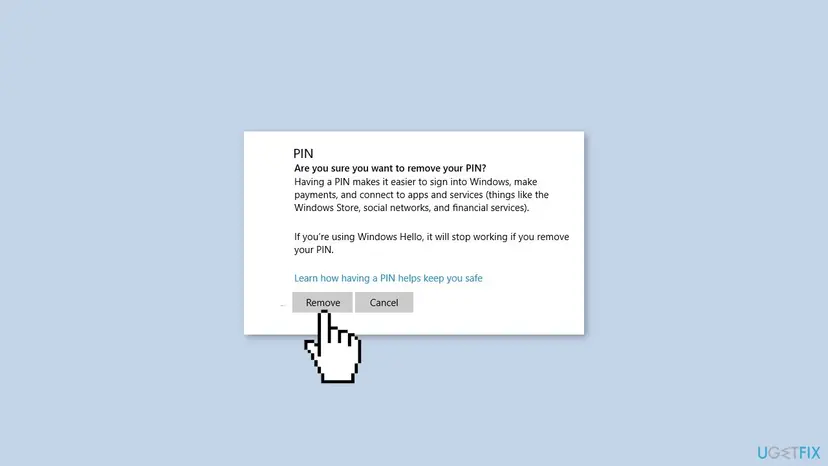
- Select PIN (Windows Hello) and then Remove. Confirm with Remove and enter your account password.
- If Remove is greyed out, turn off For improved security, only allow Windows Hello sign-in for Microsoft accounts on this device on the same page, restart and try again.
- Restart, sign in with the password, then return to Sign-in options and set up a new PIN.
It worked if: The new PIN signs you in without the LogonUI.exe window.
If not: If the error shows on the password tile too, the PIN is not the cause: continue with Fix 4.
Fix 4. Stop forcing antialiasing for all programs in the NVIDIA Control Panel
5 minutesLow riskPCs with NVIDIA graphics where FXAA or antialiasing was set in the global settings.
Global settings apply to every program that draws on screen, including LogonUI.exe. Users on NVIDIA's forum report LogonUI.exe crashes when FXAA is forced globally and none when it is set back.
- Sign in (in Safe Mode if needed, though the NVIDIA Control Panel may not open there) and right-click the desktop.
- Open NVIDIA Control Panel and select Manage 3D settings.
- On the Global Settings tab, set Antialiasing - FXAA to Off and Antialiasing - Mode to Application-controlled.
- Select Apply and restart.
- If you want FXAA in games, set it on the Program Settings tab for those games only.
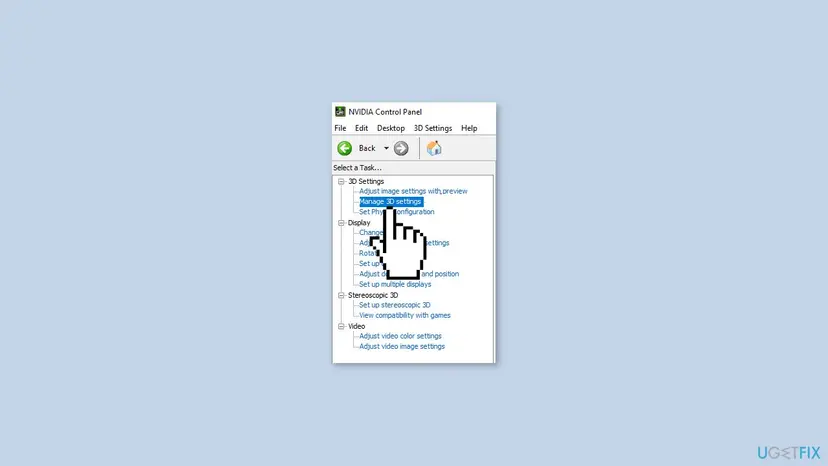
If the NVIDIA Control Panel does not open in Safe Mode, restore its defaults later with Manage 3D settings > Restore, or reinstall the driver as in Fix 5.
It worked if: The sign-in screen loads normally after the restart.
If not: If you never changed these settings, or the error stays, reinstall the graphics driver (Fix 5).
Fix 5. Reinstall the graphics driver from Safe Mode
20 minutesLow riskThe error started after a graphics driver update, or the screen flickers or stays black before the window.
The sign-in screen is drawn through the graphics driver. A damaged driver install can crash LogonUI.exe, and a clean reinstall replaces it.
- Start Safe Mode with Networking (Fix 1, steps 1 to 4, then press 5 or F5).
- Right-click Start and open Device Manager, then expand Display adapters.
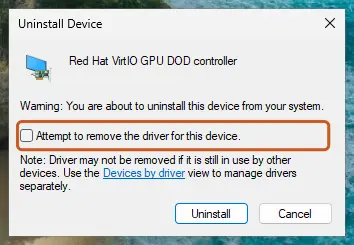
- Right-click your graphics card, select Uninstall device, tick Attempt to remove the driver for this device and select Uninstall.
- Restart. Windows uses a basic driver, then installs the current driver from Windows Update; or install the driver from the card or PC maker.
Step by step, including rolling back a driver: Update, roll back or reinstall a driver
It worked if: After the driver is back, the sign-in screen appears without the error.
If not: If the error began with a Windows update rather than a driver, go to Fix 6.
Fix 6. Return to a restore point or remove the latest Windows update
30 minutesLow riskThe error started on a known day: after a Windows update, a driver or a program install.
Microsoft's credential provider guidance describes an update breaking a third-party sign-in method. A restore point brings back drivers, programs and the provider registry as they were before; removing the update undoes its side of the change.
- Open the recovery screens: hold Shift while selecting Restart on the sign-in screen.
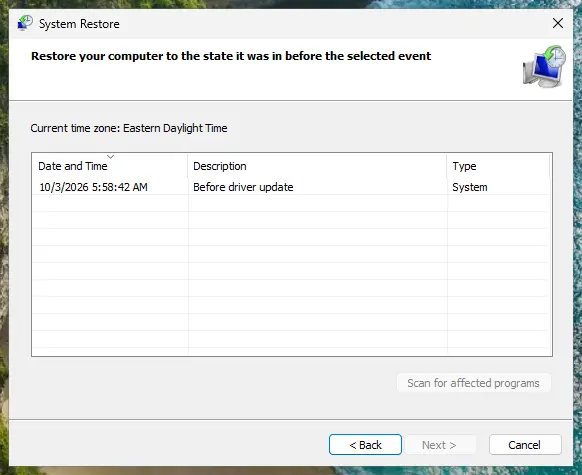
- Select Troubleshoot > Advanced options > System Restore, choose your account and enter its password.
- Pick a restore point dated before the error and select Scan for affected programs to see what changes.
- Select Next and Finish and wait for the restart.
- No restore point? Go back to Advanced options and select Uninstall Updates > Uninstall latest quality update.
Full steps with pictures: Undo recent changes with System Restore and How to uninstall a Windows update
It worked if: Windows starts at the earlier state and the sign-in screen works. Your documents are not changed.
If not: If no restore point exists and removing the update did not help, repair the system files (Fix 7).
Fix 7. Repair Windows system files and the disk
40 minutesLow riskA disk or partition tool, a power cut or a crash came before the error, or Safe Mode fails too.
If the error follows a failed disk operation, the damaged file may be a Windows DLL that LogonUI needs. DISM and SFC replace damaged Windows files, and CHKDSK repairs the file system they live on.
- If you can reach a desktop, open Terminal or Command Prompt as administrator and run DISM, then SFC.
- If you cannot, open Troubleshoot > Advanced options > Command Prompt from the recovery screens and run SFC offline with the Windows drive letter, as the procedure below shows. Plain
sfc /scannowdoes not work there. - Run
chkdsk C: /f(use the Windows drive letter) to check the file system. - Restart and test.
Step by step, including the offline commands: Run DISM and SFC to repair Windows system files. Disk check: Check a disk for errors (chkdsk).

It worked if: SFC reports that it repaired files or found none damaged, and the sign-in screen loads.
If not: If SFC cannot repair the files or CHKDSK reports bad sectors, back up your data and go to Fix 8.
Fix 8. Reinstall Windows and keep your files
1 to 2 hoursRead the warningFixes 1 to 7 did not help, or Windows no longer reaches a desktop even in Safe Mode.
A repair install replaces every Windows file, LogonUI.exe and its DLLs included, while keeping your documents. Third-party programs that broke the sign-in screen do not come back on their own.
A reinstall that keeps files still removes most installed programs and their settings. Back up important files first if you can reach them, for example from Safe Mode or by connecting the drive to another PC: Back up your files (Windows Backup, File History, Time Machine). Have your Microsoft account password and BitLocker recovery key ready.
- From the recovery screens select Troubleshoot > Reset this PC > Keep my files, or use the newer Fix problems using Windows Update option where Windows offers it.
- Choose Cloud download if the PC has internet, and follow the prompts.
- After setup, set up a password or PIN before you install any face, fingerprint or other sign-in software again.
All options, from repair install to reset: Reinstall Windows without losing files
It worked if: Windows starts with a working sign-in screen and your files are in place.
If not: If the error comes back on a fresh Windows, read the hardware signs in "Still broken" below.
If the LogonUI.exe error is still there: where to look and what to send
The error window shows only the name of the file that failed. Windows writes more detail in these places, which you can read from Safe Mode:
| What to check | Where | What it tells you |
|---|---|---|
| The crash record | Event Viewer > Windows Logs > Application, event ID 1000 with source Application Error and LogonUI.exe as the faulting application | The Faulting module name line names the DLL that crashed. If it is not a Microsoft file, its owner is the cause. |
| Recent installs | Settings > Apps > Installed apps, sorted by install date | Programs added just before the error started. |
| Sign-in add-ons | The command in Fix 2 | Every credential provider and its DLL. |
| The disk | chkdsk C: result, or the maker's disk tool | Bad sectors or a failing drive. |
When you ask Microsoft support or the software's maker for help, send the exact text of the window, the faulting module from Event Viewer, your Windows version from winver, and a list of the sign-in or security software on the PC.
If the error returns on a freshly installed Windows, CHKDSK finds bad sectors, or other programs crash at random, the drive or memory may be failing. Run the Windows Memory Diagnostic (How to test your RAM with Windows Memory Diagnostic) and the drive maker's test. On a company PC, the sign-in add-on usually belongs to your IT department: ask them before removing it.
How to keep the LogonUI.exe error from coming back
- Always keep a Windows password and PIN set up next to any third-party sign-in method, as Microsoft recommends.
- Update or remove face, fingerprint and VPN sign-in software before a big Windows feature update.
- Keep System Protection on so Windows creates restore points before updates.
- Set graphics options such as FXAA per game, not in the global settings.
- Do not download LogonUI.exe or the DLL from the error window from a DLL site.
- Do not delete credential provider keys in the registry to silence the window.
- Do not cancel a disk or partition tool while it is working.
- Do not install sign-in software meant for a different Windows version or another PC model.
Frequently asked questions
What is LogonUI.exe?
LogonUI.exe is the Windows Logon User Interface Host. It draws the lock screen and the sign-in screen and shows a tile for every sign-in method on the PC: password, PIN, Windows Hello, smart card and any third-party method. It lives in C:\Windows\System32, is signed by Microsoft and starts whenever Windows needs you to sign in, unlock or switch user. It is a core part of Windows and cannot be removed. When it shows an error, the fault is almost always in a DLL it loaded, not in LogonUI.exe itself.
Is LogonUI.exe a virus?
No. The real LogonUI.exe sits in C:\Windows\System32 and carries Microsoft's digital signature. A file with the same name anywhere else, for example in your user folder or in Temp, is not Windows and should be scanned. In Task Manager, open the Details tab, right-click LogonUI.exe and select Open file location to check the folder. If you suspect malware that hooks the sign-in screen, run a full or offline scan with Microsoft Defender: How to scan for malware with Microsoft Defender.
What does LogonUI.exe Bad Image mean?
It means LogonUI.exe tried to load a DLL that Windows could not read as a valid program file. The first line of the window names that DLL, and the error status is usually 0xc000012f. The file is damaged, half updated, or built for another version of Windows. When the path points to a third-party file, uninstall the program it belongs to (Fix 1 and Fix 2). When it is a Windows file, repair the system files with DISM and SFC (Fix 7). Do not replace the file with one from a DLL site.
How do I fix LogonUI.exe System Error on Windows 10?
The steps are the same as on Windows 11. Start Safe Mode from the recovery screens, sign in with your password and uninstall the sign-in software you added last (Fix 1). If the window names a missing DLL, find its owner with the command in Fix 2. The menus differ only slightly: on Windows 10 installed programs are under Settings > Apps > Apps & features. Windows 10 left support on 14 October 2025 and gets no more fixes unless the PC is in Extended Security Updates.
Why is the screen black behind the LogonUI.exe error?
The black screen is the sign-in screen that could not finish drawing. LogonUI.exe stopped while loading a sign-in add-on or graphics part, so Windows has nothing to show except the error window. Select OK first: on some PCs LogonUI starts again and the sign-in screen appears. If it stays black, press Ctrl + Alt + Delete once. If that also fails, start Safe Mode by turning the PC off during startup twice and follow Fix 1.
Can I sign in without fixing the error first?
Often yes, through Safe Mode. Safe Mode loads only the Windows password sign-in, so a broken third-party add-on is skipped. Use your account password there, not the PIN. On some PCs, selecting OK on the error or choosing Sign-in options > Password on the sign-in screen also works, because the broken add-on belongs to a single tile. Once you are in, remove the add-on (Fix 1) so the error does not return at every start.
What is the LogonUI registry key?
Two keys matter. HKEY_LOCAL_MACHINE\SOFTWARE\Microsoft\Windows\CurrentVersion\Authentication\Credential Providers lists every sign-in method LogonUI loads, one subkey per provider. The neighbouring key HKEY_LOCAL_MACHINE\SOFTWARE\Microsoft\Windows\CurrentVersion\Authentication\LogonUI holds sign-in screen settings, for example the last signed-in user. Neither should be edited to fix this error. Read the providers with the command in Fix 2 and uninstall the owning program. If you must edit, back up the registry first: Back up the registry before editing it.
Can a disk partition tool cause the LogonUI.exe error?
Yes. Users report the LogonUI.exe Application Error after a partition tool stopped halfway, and other programs and File Explorer failed too. In that case Windows files themselves were damaged, not a sign-in add-on. Repair them from the recovery screens with offline SFC and CHKDSK (Fix 7), or return to a restore point (Fix 6). If neither helps, back up your files and reinstall Windows while keeping them (Fix 8).
Does Microsoft have an official fix for the LogonUI.exe error?
Not a single one, because the error has many owners. Microsoft's guidance for credential providers says an update can break a third-party sign-in method, and that a Windows sign-in method such as a password or PIN should always be set up so the user can still get in. That is why Safe Mode and removing the add-on come first in this guide. For the third-party software itself, contact its maker.
Sources
- Microsoft Learn: Credential providers in Windows (learn.microsoft.com)
- Microsoft Learn (MSDN Magazine): Custom login experiences, credential providers in Windows Vista (learn.microsoft.com)
- Microsoft Q&A: Logonui.exe application error fix (learn.microsoft.com)
Did this fix work?
One click, no account. It tells the next reader which guides are worth their time.
Questions and experiences: fix logonUI.exe error in Windows
Still broken, or found a fix we did not cover? Ask here: members and our editors answer. Reading is open; writing needs a free account.
…