
How to fix Microsoft Office error 30033-44 in Windows?

Prefer to fix it yourself? The manual steps follow.
- 6methods
- 5 minutes to 1 hour
- Intermediate
Applies to Microsoft 365, Office 2024, Office 2021, Office 2019, Office 2016 and Office 2013 installed with Click-to-Run on Windows 11 and Windows 10
6 methods in this guide
I received error code 30033-44 when installing Office. Is there any way I could fix it? I am using Windows 11 Home.
Error Code: 30033-44 ends a Microsoft 365 or Office installation with Couldn't install, and the window itself asks whether your internet connection works and your main drive has enough free space. Check those two things, restart, and if the error returns, install with Microsoft's offline installer.
Do what the window asks first: free space on drive C, make sure the connection is stable, restart and run a freshly downloaded setup as an administrator (Fix 1). If 30033-44 comes back, install with Microsoft's offline installer, which is Microsoft's first fix for every 30033 code (Fix 2). If an older Office is on the PC, repair it or remove it completely before you try again (Fix 3 and Fix 4).
| Error | Couldn't install, We're sorry, we had a problem installing your Office program(s). and Error Code: 30033-44 in the Microsoft setup window. |
|---|---|
| Where it appears | While Microsoft 365 or Office installs with Click-to-Run, before any app opens. The window asks about the internet connection and free space on the main hard drive. |
| Main cause | Setup could not download or unpack the Office files: a drive that is too full, an unstable or filtered connection, or an older Office that gets in the way. |
| Fastest fix | Free space and check the connection, restart and run a new setup file (Fix 1). Then the offline installer (Fix 2), Microsoft's first fix for 30033. |
| Also written as | 30033-44, error 30033 44, 3003344, Office error 30033. Other codes of the same family: 30033-4, 30033-27, 30033-1011. |
| Affects | Click-to-Run Office: Microsoft 365 plans, Office 2024, 2021, 2019, 2016 and 2013, on Windows 11 and Windows 10. |
| Microsoft's status | Microsoft has one support page for every error that contains 30033, with five fixes in order (checked 15 October 2026). It does not explain the 44. |
| Time to fix | 5 to 15 minutes for space, connection and a new attempt. 20 to 45 minutes for the offline installer or a full removal of Office. |
Facts checked on 15 October 2026. Steps written for Click-to-Run versions of Microsoft 365 and Office on Windows 11 (25H2 and 26H2) and Windows 10 22H2, read against Microsoft's documentation.
What Microsoft Office error code 30033-44 means
Every desktop Office sold today is installed by Click-to-Run, which downloads the apps in parts, unpacks them and installs them. When that job fails, the setup window shows Couldn't install and a code. With 30033-44 the window is unusually direct: it asks two questions before it gives you the code.
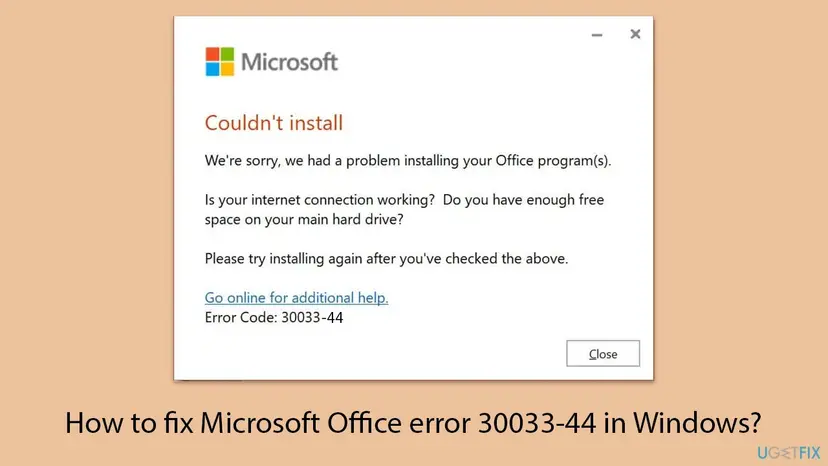
- Couldn't install: the heading.
- We're sorry, we had a problem installing your Office program(s).
- Is your internet connection working? Do you have enough free space on your main hard drive?
- Please try installing again after you've checked the above.
- Error Code: 30033-44, under the link Go online for additional help.
The code has two parts. 30033 is a family of Click-to-Run installation failures, and Microsoft's page for it covers any error that contains 30033, such as 30033-4, 30033-27 and 30033-44. 44 is the step that failed, which Microsoft does not explain. Because the window points at the connection and the drive, we read 30033-44 as a failure while setup fetches or unpacks files.
Microsoft has not published what step 44 is, and its 30033 page gives the same five fixes for every code of the family. The link to downloading and unpacking is our reading of the window's own questions, not a Microsoft statement.
What causes Office error 30033-44, from the most common to the rare
Microsoft lists its fixes for 30033 with the most common solution first, and its first fix targets proxy, firewall, antivirus and connection problems. The ranking below combines that order with the window's questions and the user reports we read. It is an order of likelihood, not a statistic.
| How often | Cause | Typical sign | Fix |
|---|---|---|---|
| Most often | Too little free space on drive C, or a download that broke off | Drive C is nearly full, or the PC is on Wi-Fi, mobile data or a slow line. | Fix 1 |
| Often | A proxy, VPN, firewall or security program that interrupts the download | It fails on a work, school or VPN connection, or with third party security software. | Fix 2, Fix 5 |
| Often | A damaged Office already on the PC, or leftovers of one removed badly | Office was installed before, or the error stays however often you reinstall. | Fix 3, Fix 4 |
| Less often | An old product whose support has ended, such as Office 2013 | You install a key bought years ago and every fix fails. | Fix 4, FAQ |
| Rarely | Damaged Windows system files | Other installers fail too, or nothing above helps. | Fix 6 |
How to fix error code 30033-44 when you install Office
Fix 1 answers the window's own questions. Fix 2 to Fix 5 follow Microsoft's order for every 30033 code, with a safer form of its antivirus and firewall advice. Fix 6 is the generic Windows repair. Use the table to pick your start.
| What you see or have | Start with |
|---|---|
| First failure, or drive C is nearly full | Fix 1 |
| Wi-Fi, mobile data, a work, school or VPN connection, or a slow download | Fix 2 |
| An Office is already installed and still opens | Fix 3 |
| You reinstalled many times, or a trial or older Office came with the PC | Fix 4 |
| Third party antivirus, firewall or VPN software is installed | Fix 5 |
| Other programs also fail to install | Fix 6 |
Fix 1. Free space, check the connection, restart and run a new setup file
5 to 15 minutesNo riskEveryone, first. Above all after the first failure, or when drive C is nearly full.
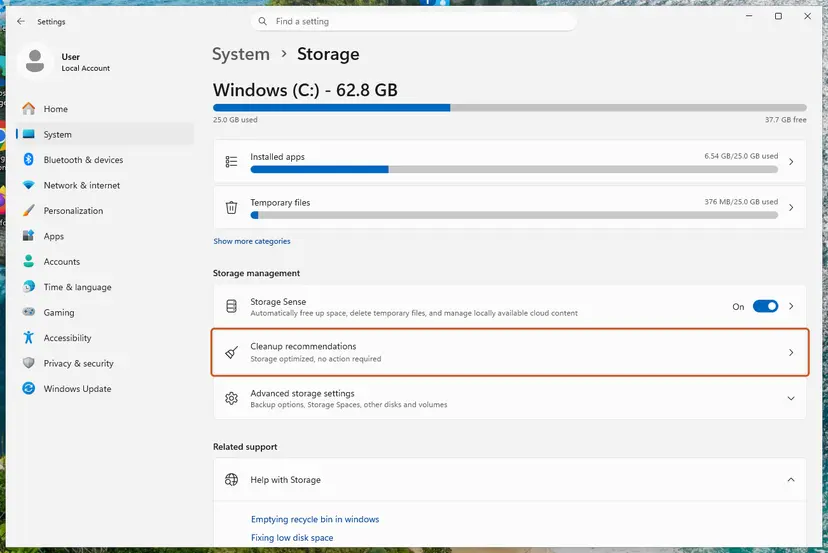
The window asks exactly these two questions, and Microsoft adds that a restart is sometimes enough. Click-to-Run downloads and unpacks the whole suite on drive C, so a full drive or a broken download stops it, and a fresh setup file rules out a damaged one.
- Open File Explorer > This PC and check the free space on drive C. If it is nearly full, free several gigabytes first: Free up disk space and delete temporary files.
- Check that the PC is online and the connection is stable. Use a cable or a strong Wi-Fi signal, not mobile data. Step by step: How to check your internet connection in Windows.
- Save your work and restart with Start > Power > Restart, not Shut down.
- Delete the setup file you downloaded before.
- Open a new InPrivate window in Microsoft Edge, sign in at
m365.cloud.microsoft/appswith the account that owns Office and select Install apps. - Right-click the new setup file, select Run as administrator and confirm the prompt.
- Keep the PC online and on mains power until you see You're all set.
The InPrivate window is a tip from a volunteer answer on Microsoft Q&A to a user with 30033-44: it signs in without old browser data and gives you a clean download. We report it as advice, not as a Microsoft fix.
It worked if: Setup passes the point where it stopped and ends with You're all set.
If not: If 30033-44 appears again, install with the offline installer in Fix 2.
Fix 2. Install Office with the offline installer
20 to 40 minutesLow riskFix 1 did not help, or you are on a slow, filtered, work, school or VPN connection.
This is the first fix on Microsoft's page for 30033. Microsoft says the offline installer may help bypass proxy, firewall, antivirus or internet connection issues during an installation, because the whole Office is on the disk before setup starts.
- Open Microsoft's page Use the Office offline installer and choose the tab for your Office.
- Sign in with the account that owns Office and open the installation page of the account.
- In the Install window, choose Offline installer from the Choose a version list, pick the language and select Download.
- Save the file to a drive with enough free space for the whole image.
- Double-click the file. Windows opens it as a new virtual drive.
- Open the Office folder on that drive and run
Setup64.exefor 64-bit Office orSetup32.exefor 32-bit Office.
If Visio, Project or another Office is already on the PC, install the same bitness, 64-bit or 32-bit. Setup refuses a mix of both with an error of its own.
It worked if: Setup started from the image runs to the end and shows You're all set.
If not: If the offline setup stops with 30033-44 too, the download was not the cause. Go to Fix 3 when Office is installed, or Fix 4 when it is not.
Fix 3. Repair the Office that is already installed
5 to 30 minutesLow riskAn Office is installed on the PC and you are adding, updating or reinstalling apps over it.
It is Microsoft's second fix for 30033. A new setup builds on the Office already present, and damaged files there stop it. Quick Repair only finds and replaces damaged files, while Online Repair installs a fresh copy, which Microsoft advises to make sure everything gets fixed.
- Close all Office apps.
- Right-click Start and select Installed apps (Windows 10: Apps and Features).
- Find Microsoft 365 or your Office, select the three dots and select Modify.
- In How would you like to repair your Office programs, select Online Repair, then Repair.
- Follow the prompts, restart when it ends and run setup again.
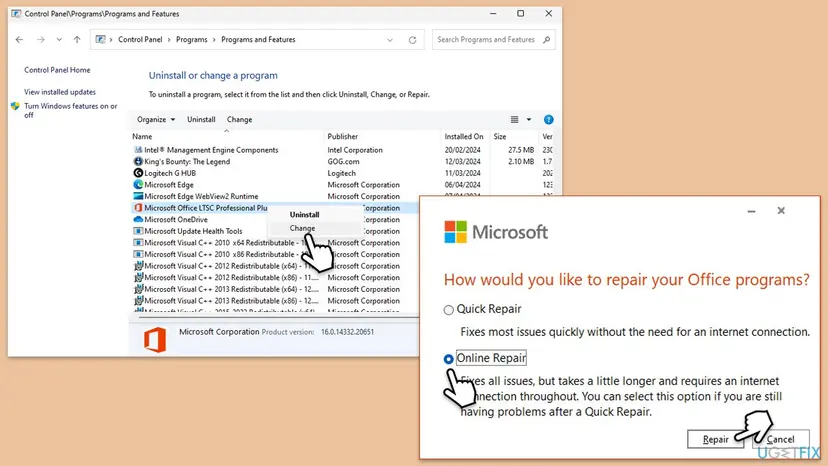
Every screen of both repair types: How to repair Microsoft 365 or Office.
It worked if: The repair ends without an error, and the next setup ends with You're all set.
If not: If the repair fails or 30033-44 stays, remove Office completely with Fix 4.
Fix 4. Remove every Office with Microsoft's uninstall troubleshooter, then install again
30 to 45 minutesRead the warningYou reinstalled many times, a trial or older Office came with the PC, or Fix 3 failed.
Microsoft's third fix for 30033. A normal uninstall can leave folders, tasks and registry keys behind, and a new setup trips over them. The troubleshooter removes Microsoft 365, Office 2021, 2019 and 2016 with those traces.
Removing Office deletes the apps, not your documents or the mail in your Microsoft account. Write down the account or product key Office belongs to, and copy custom templates and Outlook signatures first if you need them: Back up your files (Windows Backup, File History, Time Machine).
- Sign in to Windows with an administrator account.
- Open the uninstall troubleshooter from Microsoft's 30033 page.
- When the browser asks to open Get Help, select Open, and follow the prompts.
- Restart the PC when you are asked to.
- Open Settings > Apps > Installed apps and check that no Microsoft 365 or Office entry is left.
- Restart again, then install Office with Fix 1 or Fix 2.
- Office 2024: Microsoft says the troubleshooter currently cannot uninstall it. Remove it in Installed apps, and use Microsoft's manual uninstall steps if parts stay behind.
- Windows version: the troubleshooter needs Windows 10 or later and must run on the PC that has the Office.
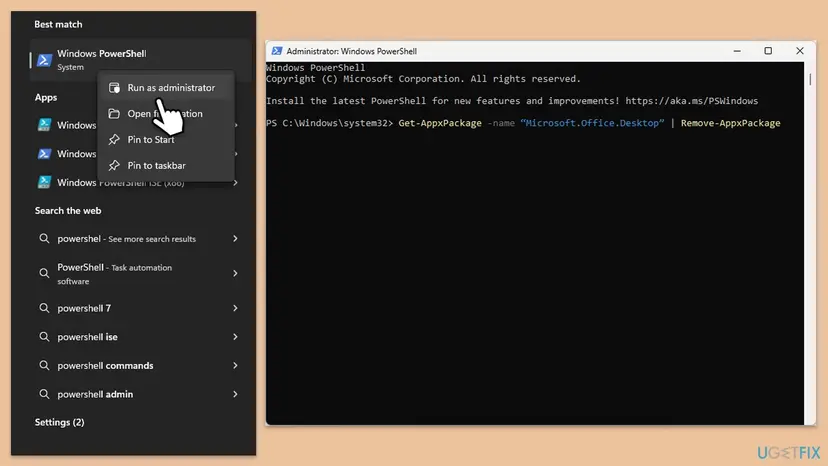
- Office that came with the PC: a Microsoft Store edition may still be installed. Remove it in an elevated PowerShell window with
Get-AppxPackage -name "Microsoft.Office.Desktop" | Remove-AppxPackage. It does nothing to a normal Click-to-Run Office.
It worked if: No Office entry is left in Installed apps, and the new installation ends with You're all set.
If not: If setup still stops with 30033-44, test without third party security software in Fix 5.
Fix 5. Install in a clean boot with security software paused for one attempt
15 to 20 minutesLow riskThird party antivirus, firewall, VPN or tuning software is installed, or Fix 1 to Fix 4 failed.
Microsoft's fourth and fifth fixes for 30033 are to turn off the antivirus and the firewall for a while. A clean boot plus a short pause tests the same thing more safely: Windows starts without third party services, and protection comes back right after.
- Disconnect any VPN and turn off a proxy you set up yourself.
- Start Windows in a clean boot, with only Microsoft services and no startup apps: How to perform a clean boot in Windows.
- If your security program still runs, pause its real-time protection for this one attempt: Turn off Microsoft Defender protection for a moment.
- Run the offline installer from Fix 2, or a new setup file as an administrator.
- Turn the protection back on as soon as setup ends, whatever the result.
- Return Windows to a normal start with the last steps of the clean boot procedure.

If Office installs only while a security program is paused, turn it back on and ask its maker for a documented exception for Microsoft's installer. Never keep the firewall or antivirus off to get Office working.
It worked if: Setup ends with You're all set in the clean boot, which names a third party program as the cause.
If not: Return to a normal start and repair Windows system files in Fix 6.
Fix 6. Repair Windows system files with SFC and DISM
20 to 30 minutesLow riskOther installers fail as well, or every fix above failed.
Click-to-Run relies on Windows components to download, unpack and register Office. When those are damaged, every Office setup fails the same way, whatever you do with Office itself.
- Open an elevated command window. Right-click Start and select Terminal (Admin), or type cmd in the search box, right-click Command Prompt and select Run as administrator. Select Yes when Windows asks for permission.
- Run DISM first. Type the command below and press Enter. DISM downloads clean copies of damaged components from Windows Update, so it can take several minutes. Wait until it says The operation completed successfully.
DISM.exe /Online /Cleanup-Image /RestoreHealth - Run System File Checker. In the same window, type the command below and press Enter. Do not close the window until the verification reaches 100%.
sfc /scannow - Read the result and restart. Compare the last message with the table below this guide, then restart the PC so that repaired files are loaded.
These steps were written for Windows 11 24H2 and 25H2. The full page with the other versions and what each result means: Run DISM and SFC to repair Windows system files
Restart when both scans end and run the offline installer from Fix 2 once more. Windows 10 left support on 14 October 2025, so a PC that still runs it is a good candidate for Windows 11 before you install a new Office.
It worked if: Both scans finish, and the next setup ends with You're all set.
If not: Read the setup log as described below and contact Microsoft support with it.
If 30033-44 is still there: where the real cause is written
The window shows one line and two questions. Office setup writes the full story into log files, which usually name the file or address it could not get.
| Where | How to open it | What to look for |
|---|---|---|
%temp% | Press Win + R, type %temp%, press Enter. Use the account that ran setup. | The newest .log file whose name starts with your PC name, written in the minute of the failure. |
%windir%\Temp | Press Win + R, type %windir%\Temp and confirm the permission prompt. | Logs written by the system account, which does the actual installing. |
| Event Viewer | Press Win + R, type eventvwr.msc, then open Windows Logs > Application. | Errors at the time of the failure from Microsoft Office Click-to-Run or MsiInstaller. |
- Run setup once more and note the time it fails.
- Open
%temp%, switch to Details view and sort by Date modified, newest first. - Open the newest log that starts with your PC name. It opens in Notepad.
- Press Ctrl + F and search for
30033, thenerroranddisk. - Read the lines just before the first hit. A path, a web address or a disk message there is what setup could not handle.
- What to send to Microsoft support: the full code, your Office product and its bitness, the Windows version from Settings > System > About, and the newest log from both folders.
- A web address in the log points to the network: try another connection or the offline installer.
- A disk or write message points to drive C: free space or check the drive.
A managed work or school PC may block installations by policy, and only its administrator can install Office there. An account that shows no product to install is a licence question for the seller or Microsoft support. A drive that keeps reporting errors needs a backup and a check before any new setup: Check a disk for errors (chkdsk).
How to avoid error 30033-44 the next time you install Office
The window tells you what setup needs: a working connection and room on the main drive. Give it both before you start, and remove old Office products first.
- Keep several gigabytes free on drive C before you install.
- Restart and let Windows Update finish before you install Office.
- Use the offline installer on slow, filtered or mobile connections.
- Remove an old or trial Office before you install a new one.
- Keep the PC online and on mains power until You're all set.
- Install over a VPN or a metered mobile connection.
- Close the installation window or put the PC to sleep halfway.
- Leave security software paused after a test installation.
- Mix 32-bit and 64-bit Office products on one PC.
- Buy keys for Office versions whose support has ended.
Frequently asked questions
What does Microsoft Office error code 30033-44 mean?
It means that Click-to-Run, the engine that installs Office, stopped before the apps were in place. The window says Couldn't install and asks whether your internet connection works and whether your main hard drive has enough free space. Microsoft does not explain the 44, and its support page treats every code that contains 30033 the same way. Start with the window's own questions: free space on drive C, a stable connection and a restart (Fix 1), then the offline installer (Fix 2).
What causes this error, and why did it happen to me?
Most often a drive C that is too full or a download that broke off, which is why the window asks about both. Less often a proxy, VPN, firewall or antivirus interrupts the download, or a damaged or leftover Office gets in the way of the new one. Rarely, damaged Windows files are to blame. The causes table above ties each one to the fix to start with. If you install a very old product such as Office 2013, its age can also be the reason.
Is 30033-44 the same as error 30033 or 30033-4?
They belong to one family. Microsoft has a single support page, Error code 30033 when installing Office, for any error that contains 30033, and it gives the same fixes in the same order: offline installer, repair, uninstall troubleshooter, then antivirus and firewall. The second number marks the step that failed, and Microsoft does not publish what each one means. So this page applies to 30033-4, 30033-27 or a plain 30033 too, and the fixes are the same.
I get error code 30015-44 or 30204-44. Does this page apply?
Only partly. These codes share the 44 but not the first number, and the first number names the failure. The code 30015-44 usually asks for a restart and comes with a Windows value in brackets. See error 30015-44. The code 30204-44 comes from Office products that cannot share one PC, such as an older Visio next to a newer Office. See error 30204-44. The offline installer and a full removal help with all three, though.
Can I still install Office 2013 or Office 2016 if I get 30033-44?
Support for Office 2013 ended on 11 April 2023, and for Office 2016 and Office 2019 on 14 October 2025. One user on Microsoft Q&A had 30033-44 with Office Home and Student 2013 even with the antivirus off, and the volunteer reply pointed to the end of support page. We could not confirm whether every old download still installs. If an old key keeps failing after Fix 1 to Fix 4, a current Office or Microsoft 365 is the lasting answer.
Do I need to turn off the firewall or antivirus to fix 30033-44?
Not for good. Microsoft lists turning them off temporarily as its last two fixes for 30033, and says to turn them on again afterwards. The offline installer in Fix 2 is a safer first test, because Microsoft says it may help bypass proxy, firewall, antivirus or connection issues. If you still suspect your security program, pause it for one attempt in a clean boot (Fix 5) and switch it back on right after. Never keep protection off to use Office.
How much free space does Office setup need?
Microsoft's 30033 page does not give a number, and the window only asks whether you have enough free space on your main hard drive. Click-to-Run downloads and unpacks the full suite on drive C even when you install it somewhere else, and the offline image is a large file too. Keeping several gigabytes free is a safe rule. Windows shows the free space in Settings > System > Storage, and Storage Sense or Disk Cleanup can free more (Free up disk space and delete temporary files).
Why does the error come back after I uninstall and reinstall Office many times?
Because a normal uninstall and a new download do not touch what is actually wrong. If the cause is a full drive, a filtered connection, leftovers of an older Office or a security program, setup meets it again every time. Use Microsoft's uninstall troubleshooter instead of a normal removal (Fix 4), install from the offline image (Fix 2), and test once in a clean boot (Fix 5). Repeating the same reinstall only costs time.
Will I lose my documents or mail if I remove Office to fix this?
No. Uninstalling Office removes the applications, not the files you created. Mail in a Microsoft 365, Outlook.com or Exchange account stays on the server, and documents in OneDrive stay in the cloud. Your Office settings, such as recent files and custom templates, may be reset. Before Fix 4, write down the account or product key your Office belongs to, and copy any custom templates or Outlook signatures you want to keep.
I searched in another language, for example "ahora me sale asi" or "lösung". Is this the right page?
For 30033-44 in any language, yes. The setup window is translated, but the code and the fixes are the same. Spanish "ahora me sale asi" (now it shows this) and German "Lösung" (solution) usually come from people who see the window for the first time: start with Fix 1. Microsoft's support page for 30033 also exists in other languages, and it gives the same five fixes in the same order as the English one.
Sources
Did this fix work?
One click, no account. It tells the next reader which guides are worth their time.
Questions and experiences: fix Microsoft Office error 30033-44 in Windows
Still broken, or found a fix we did not cover? Ask here: members and our editors answer. Reading is open; writing needs a free account.
…