
How to fix Microsoft Store error 0x800713AB?

Prefer to fix it yourself? The manual steps follow.
- 8methods
- 5 to 30 minutes
- Beginner
Applies to Windows 11 and Windows 10; Microsoft Store when it opens, signs in, downloads or updates apps
8 methods in this guide
Hello. When I try to access the Microsoft Store on my Windows PC, I get the 0x800713AB error. Is there a way to fix this issue?
Error 0x800713AB means Microsoft Store could not reach its servers and decided the PC has no network, even when web pages open. Most often a VPN, proxy, DNS filter or a shaky connection is behind it. Check what Windows reports about the connection first, then turn off anything that sits between the PC and Microsoft.
0x800713AB is a network error: the code carries Windows error 5035, which Microsoft's list describes as "A cluster network is not available for this operation." In the Store it means the app could not reach Microsoft. Check that Windows itself says Connected and restart the router (Fix 1). Then turn off any VPN, proxy or DNS filter such as Pi-hole (Fix 2). If the browser works and only the Store fails, clear and reset the Store (Fix 4).
| Error | 0x800713AB. The low part, 0x13AB, is Windows error 5035: "A cluster network is not available for this operation." The Store uses it when it cannot reach its servers. |
|---|---|
| Where it appears | Microsoft Store, when it opens, when you sign in, or when an app download or update starts. Users report a page that says the PC is not connected to the internet, with the code below it. |
| Main cause | The Store cannot reach Microsoft: a VPN, proxy or DNS filter blocks it, or the connection is unstable. Less often a wrong clock, a damaged Store cache or broken network settings. |
| Fastest fix | Check the connection in Settings and restart the router (Fix 1), then turn off the VPN, proxy and DNS filter (Fix 2). |
| Also written as | 0x800713ab, 800713AB, Ox800713AB (with the letter O) and the signed number -2147019861. |
| Affects | Windows 11 and Windows 10. Windows 10 left Microsoft support on 14 October 2025; the fixes below still work on it. |
| Microsoft's status | Not a known bug of one Store or Windows version. Microsoft has no page for this code; its staff answers treat it as a connection problem. |
| Often seen with | 0x800704CF ("network location cannot be reached") when the Microsoft account sign-in fails at the same time. |
| Time to fix | 5 minutes for Fixes 1 to 3. Up to 30 minutes when the Store or the network settings need a reset. |
Facts checked on 15 October 2026. Steps written for Windows 11 (25H2 and 26H2) and Windows 10 22H2.
What Microsoft Store error 0x800713AB means
Codes that start with 0x8007 wrap an ordinary Windows error number. Here the number is 0x13AB, which is 5035 in decimal. Microsoft's list of Windows system error codes describes 5035 as "A cluster network is not available for this operation." The wording comes from server clusters, but the Store reuses the code for one plain fact: the network it needs is not there.
The Store is not saying your internet is down. It is saying that it could not reach Microsoft's servers. That is why many people see the code while web pages open fine: something between the PC and Microsoft, or Windows' own view of the connection, is the problem.
- What you see
- Users report that the Store shows You'll need the Internet for this. with the line It doesn't look like you're connected to the Internet. Check your connection and try again. and the code 0x800713AB under it.
- When it appears
- Right when the Store opens, when the home page tries to load, when you sign in, or when you select Get or Update.
- In logs and scripts
- The same code as a signed number,
-2147019861. - What it is not
- Not a licence, payment or account ban, and not damage to your apps. Nothing is lost: the Store simply could not talk to Microsoft.
The reader above cannot open the Store at all. That fits the most common pattern: the Store tries to load its home page, fails to reach Microsoft and shows the no internet page with this code. The fixes below look for what stands in the way.
Why the Store shows 0x800713AB: the causes, ranked
Most often the connection is unstable or something filters it, such as a VPN, a proxy or a DNS blocker. Less often the PC clock is wrong or the Store's own cache is damaged. Rarely Windows' network settings or the Store package itself are broken.
| Cause | How often | How to tell | Fix |
|---|---|---|---|
| The connection drops, or Windows shows No internet while some pages load. | Most often | The network icon shows a globe or a yellow sign, or pages load slowly. | Fix 1 |
| A VPN, proxy, firewall app or DNS filter (Pi-hole, router ad blocker) blocks Microsoft's hosts. | Often | The Store works on a phone hotspot or with the VPN off. | Fix 2 |
| The PC clock, date or time zone is wrong. | Sometimes | The time in the taskbar is off, or the PC lost its time after a battery change. | Fix 3 |
| A damaged Store cache or Store app data. | Sometimes | The browser and other apps work, only the Store fails. | Fixes 4 and 5 |
| Damaged network settings: DNS cache, Winsock or adapter. | Rarely | Several apps say they are offline while the browser works. | Fix 6 |
| An old Store or an old Windows build. | Rarely | Windows Update has not run for months. | Fix 7 |
| A broken Store package. | Rarely | The Store does not open at all, or resets did not help. | Fix 8 |
How to fix Microsoft Store error 0x800713AB
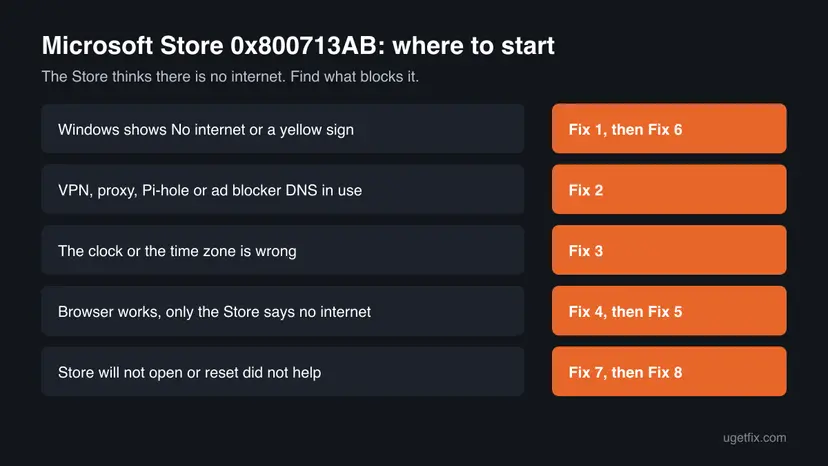
Fixes 1 to 3 deal with the connection and what sits in front of it, which is what the code is about. Fixes 4 and 5 repair the Store itself. Fixes 6 to 8 reset the network, update Windows and the Store, and register the Store again.
| What you see or have | Start with |
|---|---|
| Windows shows No internet, a globe or a yellow sign on the network icon. | Fix 1, then Fix 6 |
| A VPN, proxy, Pi-hole, router ad blocker or work network is in use. | Fix 2 |
| The clock or time zone is wrong. | Fix 3 |
| The browser works, but only the Store says there is no internet. | Fix 4, then Fix 5 |
| The Store does not open, or a reset did not help. | Fix 7, then Fix 8 |
Fix 1. Check the connection Windows reports and restart the router
5 minutesNo riskThe network icon shows a warning, the Wi-Fi is weak, or pages load slowly or stop.
The Store relies on what Windows reports about the network. If Windows marks the connection as limited, or the connection drops while the Store loads, the Store gives up with 0x800713AB.
- Open Settings > Network & internet and check that the top says Connected (Windows 10: Settings > Network & Internet > Status).
- If it says No internet or shows a warning, turn Wi-Fi off and on, or plug in a network cable.
- Unplug the modem and the router for 30 seconds, then plug them back in and wait until the lights settle.
- Restart the PC. A restart also reloads the Store and its background services.
- Open Microsoft Store again and check whether the home page loads.

The full connection check, with the network troubleshooter, router ping and DNS test: How to check your internet connection in Windows
It worked if: Settings shows Connected with no warning, and the Store home page loads.
If not: If Windows says Connected and the Store still fails, check the VPN, proxy and DNS filters with Fix 2.
Fix 2. Turn off the VPN, proxy and DNS filter
5 minutesLow riskA VPN app, a proxy, a firewall app or a DNS filter such as Pi-hole or a router ad blocker is in use, or the PC is on a work or school network.
The Store must reach several Microsoft hosts to load and to sign you in. A DNS filter that blocks one of them, or a VPN that routes them badly, looks to the Store like a missing network. Users of Pi-hole report this exact code, often together with 0x800704CF at Microsoft account sign-in.
- Disconnect the VPN app, and quit it from the taskbar's hidden icons.
- Open Settings > Network & internet > Proxy (Windows 10: Settings > Network & Internet > Proxy).
- Under Manual proxy setup, check that Use a proxy server is off, unless your workplace set it.
- If you use Pi-hole, AdGuard or a router ad blocker, pause it for a few minutes.
- Close the Store and open it again.
- If the Store now works, add the Microsoft domains your filter blocked to its allow list, then turn the filter and VPN back on.
Connect the PC to a phone hotspot and open the Store. If it works there, the cause is your router, provider, VPN or filter, not Windows. Go back to your own network and find which filter blocks Microsoft.
The proxy and firewall may come from your organisation's policy, and the Store may be blocked on purpose. Do not change these settings yourself; give the code and the time to your IT team.
It worked if: With the VPN or filter off, the Store loads and the code is gone.
If not: If the Store fails even on a hotspot with nothing in between, check the clock with Fix 3.
Fix 3. Set the correct date, time and time zone
5 minutesNo riskThe clock in the taskbar is wrong, the time zone is not yours, or the PC lost its time after a power cut or a battery change.
The Store talks to Microsoft over secure connections, and those check certificate dates against your clock. A clock that is far off makes the connection fail, and the Store reports it as no network.
- Right-click the clock in the taskbar and select Adjust date and time.
- Turn on Set time automatically and, if your PC offers it, Set time zone automatically.
- If the time zone is wrong, pick yours under Time zone.
- Select Sync now under Additional settings (Windows 10: Synchronize your clock > Sync now).
- Open the Store again.
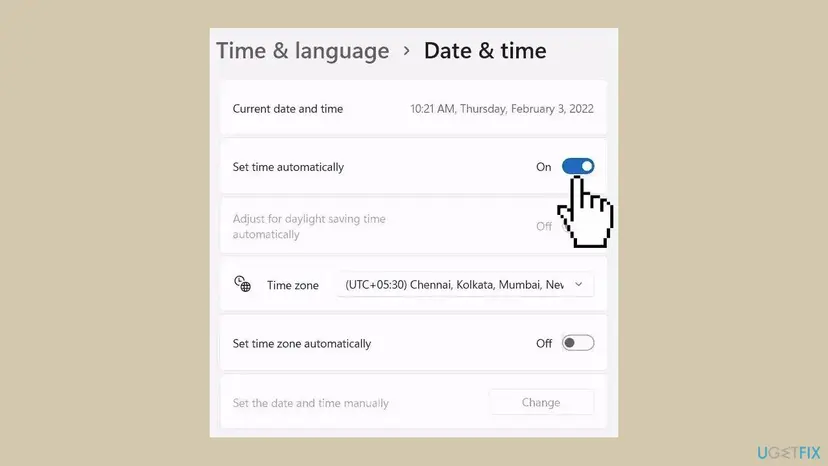
If the clock will not sync, the full steps with the time service: How to fix the date and time in Windows
It worked if: The taskbar shows the right time, and the Store loads.
If not: If only the Store fails while the browser and the clock are fine, clear and reset the Store with Fix 4.
Fix 4. Clear the Store cache, then repair or reset the Store
5 to 10 minutesLow riskThe browser and other apps work, and only the Store shows 0x800713AB.
The Store keeps its own cache and app data. If that data holds a broken connection state, the Store can keep showing the no internet page after the network is fine. wsreset.exe clears the cache, and Repair or Reset gives the Store fresh data. Your purchases stay in your Microsoft account.
- Clear the Store cache. Press Windows + R, type wsreset.exe and select OK. A blank Command Prompt window opens; after a short while it closes and Microsoft Store opens by itself.

After wsreset, the Store opens and loads again. Screenshot: Windows 11 26H2. - Open System components. If the problem stays, select Start > Settings > System > System components. Next to Microsoft Store, select the three dots and Advanced options. If Microsoft Store is not listed there, look for it in Settings > Apps > Installed apps.
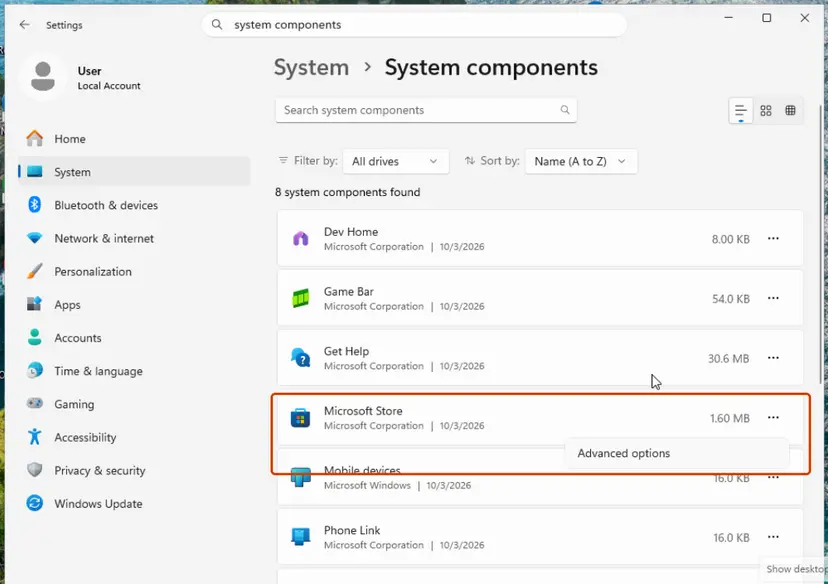
Microsoft Store is listed under System components. Screenshot: Windows 11 26H2. - Repair first. Scroll to Reset and select Repair. Repair keeps the app's data. Open the Store and check whether it works.
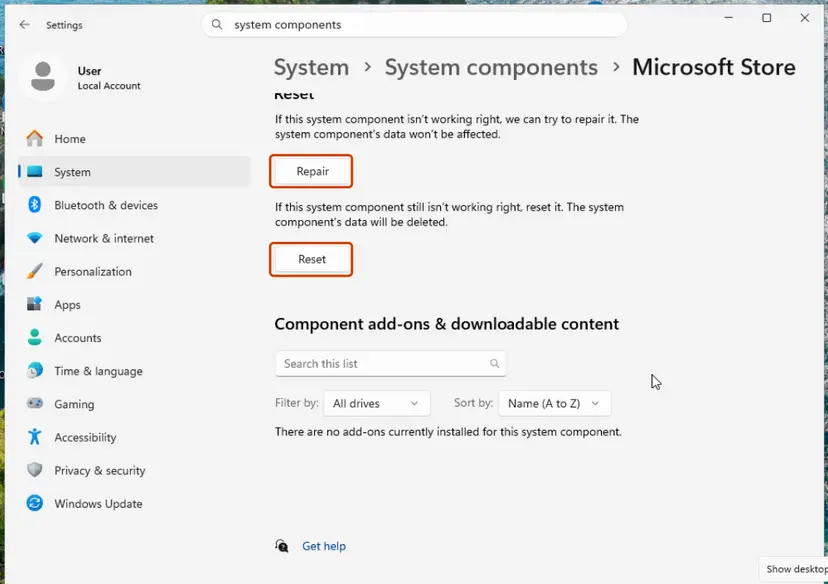
Repair keeps the app's data; Reset deletes it. Screenshot: Windows 11 26H2. - Reset if Repair did not help. Select Reset and confirm. This deletes the Store app's data on this PC; your purchases stay in your Microsoft account. Open the Store and sign in again.
These steps were written for Windows 11 26H2 (build 26300). The full page with the other versions and what each result means: Reset the Microsoft Store
After a reset, sign in to the Store with the same Microsoft account, then open Library to see your apps.
It worked if: After wsreset.exe a blank window shows for a few seconds, then the Store opens by itself and loads its home page.
If not: If the code comes back, run the Store troubleshooter with Fix 5.
Fix 5. Run the Microsoft Store Apps troubleshooter
5 minutesNo riskThe Store still fails after the reset, or you prefer Windows to check the Store for you.
The troubleshooter checks the Store's settings, cache and services and repairs what it can. Microsoft lists it among its own fixes for Store app problems.
- Windows 11: open Settings > System > Troubleshoot > Other troubleshooters.
- Find Microsoft Store Apps and select Run.
- Windows 10: open Settings > Update & Security > Troubleshoot > Additional troubleshooters, select Windows Store Apps and then Run the troubleshooter.
- Follow the prompts and apply any fix it offers.
- Restart the PC and open the Store.
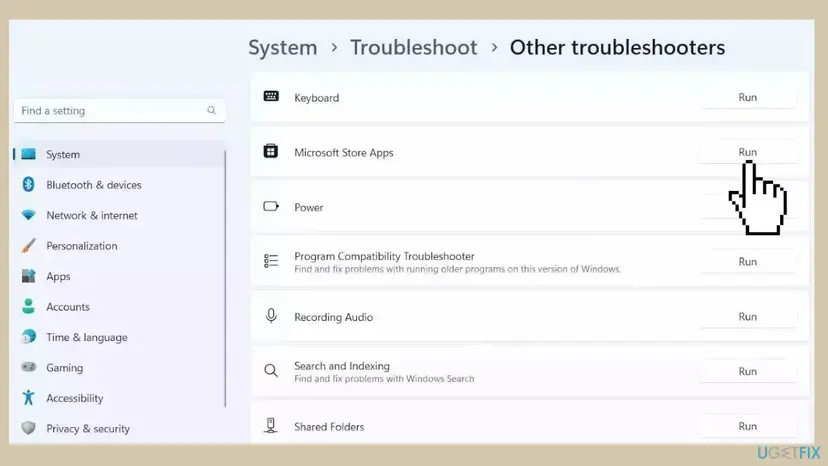
It worked if: The troubleshooter reports a problem it fixed, or none, and the Store loads after the restart.
If not: If several apps say they are offline, reset the network with Fix 6.
Fix 6. Flush DNS, reset Winsock, then reset the network
10 minutesRead the warningSeveral apps say they are offline while the browser works, Windows keeps showing No internet, or Fixes 1 to 5 did not help.
A damaged DNS cache, Winsock catalogue or adapter setting can send the Store's requests nowhere while the browser still finds its way. The reset builds these settings again from scratch.
Saved Wi-Fi networks and their passwords, VPN connections and manual IP settings are removed. Write down your Wi-Fi password and any manual settings first. The DNS flush and Winsock reset in the first part do not remove them.
- Open an elevated command window. Right-click Start and select Terminal (Admin), or type cmd in the search box, right-click Command Prompt and select Run as administrator. Select Yes when Windows asks for permission.
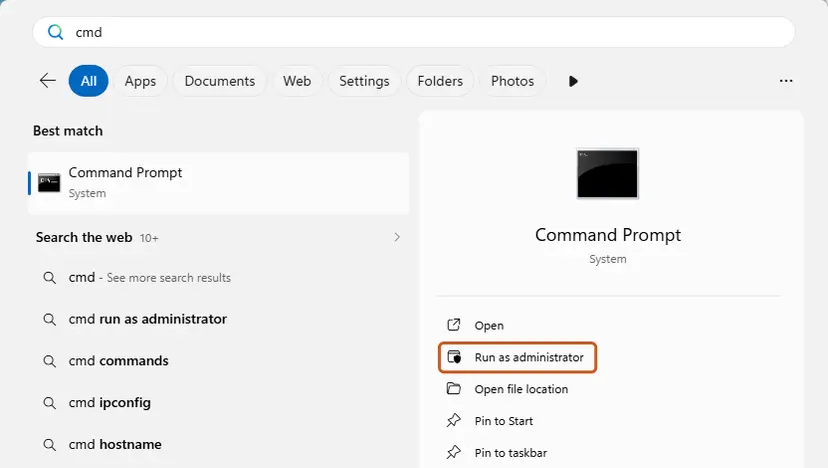
Search for cmd and choose Run as administrator. Screenshot: Windows 11 26H2. - Flush the DNS cache. Type the command below and press Enter. Windows forgets the website addresses it looked up earlier and asks for them again.
ipconfig /flushdns - Reset Winsock. Type the command below and press Enter. It returns the Windows sockets catalog to its default state.
netsh winsock reset
Both commands report success; the Winsock reset asks for a restart. Screenshot: Windows 11 26H2. - Reset TCP/IP. Type the command below and press Enter. If you entered an IP address or DNS server by hand, note it first: you may need to enter it again.
netsh int ip reset - Get a new IP address. Run these two commands one after the other. The connection drops for a moment between them.
ipconfig /release ipconfig /renew - Restart the PC. Restart Windows so the Winsock and TCP/IP resets take effect, then test the connection. If it still does not work, continue with the network reset below.
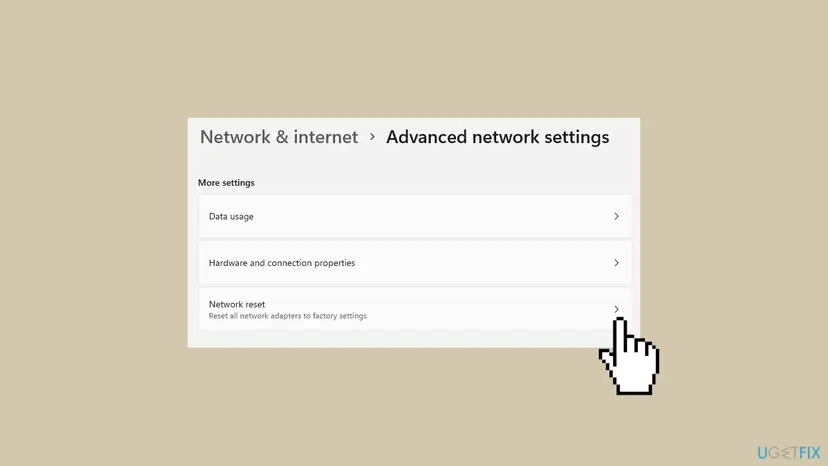
- Open Network reset. Open Settings > Network & internet > Advanced network settings and select Network reset.
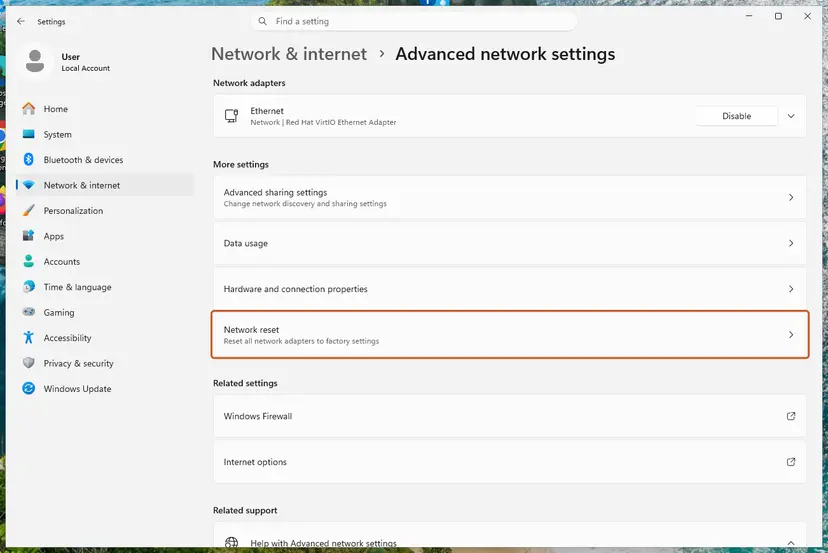
Network reset is under More settings in Advanced network settings. Screenshot: Windows 11 26H2. - Reset now. Select Reset now, then Yes to confirm. Windows removes and reinstalls all network adapters and restarts the PC.
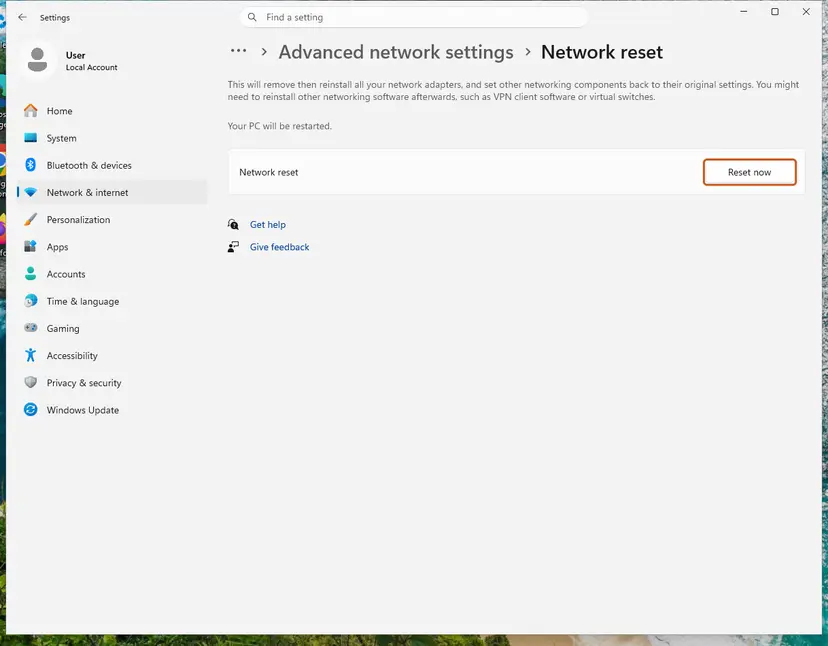
Network reset warns that VPN software or virtual switches may need to be reinstalled. Screenshot: Windows 11 26H2. - Reconnect. After the restart, connect to your Wi-Fi network again (you will need its password) and reinstall or reconfigure VPN software if it stopped working.
These steps were written for Windows 11 24H2 and later. The full page with the other versions and what each result means: Reset the network and flush DNS
It worked if: After the restart, Settings > Network & internet shows Connected without a warning, and the Store loads.
If not: If the Store still fails, update Windows and the Store with Fix 7.
Fix 7. Update Windows and the Store
10 to 30 minutesLow riskWindows Update has not run for a while, or the Store opens but some pages fail.
Microsoft's own fix list for Store problems puts updates first: Windows updates and Store updates replace the parts that talk to Microsoft's servers.
- Open Settings > Windows Update and select Check for updates (Windows 10: Settings > Update & Security > Windows Update).
- Install what it finds and restart the PC.
- Open Microsoft Store, select Library and then Get updates (Windows 10: See more > Downloads and updates > Get updates).
- Let the Store update itself, then close and open it again.
It worked if: Windows Update says you are up to date, and the Store loads its home page.
If not: If the Store does not open at all, register it again with Fix 8.
Fix 8. Register the Microsoft Store app again with PowerShell
5 minutesLow riskThe Store does not open at all, closes at once, or every fix above failed.
Registering the Store package again repairs its link to Windows without removing it. It replaces the old advice to uninstall the Store with Remove-AppxPackage, which can leave the PC with no Store at all.
- Right-click Start and select Terminal (Admin) (Windows 10: Windows PowerShell (Admin)).
- Run the command below. Red lines about other packages in use are normal.
- Restart the PC and open the Store.
Terminal (Admin): register Microsoft Store again for your account
Get-AppxPackage -AllUsers Microsoft.WindowsStore | Foreach {Add-AppxPackage -DisableDevelopmentMode -Register "$($_.InstallLocation)\AppXManifest.xml"}Step by step, with how to find any app's package: How to re-register Microsoft Store apps with PowerShell
It worked if: The Store opens and loads its home page.
If not: Test on a hotspot and in another Windows account, as the next section shows.
If 0x800713AB is still there: what to test and what to send to support
The Store shows only the code. Two quick tests tell you whether the cause is your network, your Windows account or Windows itself.
- Test another network: a phone hotspot is enough. If the Store works there, the cause is your router, provider, VPN or filter. Restart or reset the router, or ask your provider whether it filters DNS.
- Test another Windows account: if the Store works in a new local account, your own account's settings hold the problem: Create a new user account to test a problem
- Third-party firewall or antivirus: pause it for one test only and turn it back on at once: Turn off Microsoft Defender protection for a moment
- Look in Event Viewer: open Event Viewer > Applications and Services Logs > Microsoft > Windows and check the Store and AppXDeploymentServer logs for errors at the time of the failure.
- What to give Microsoft support or your IT team: the code, the time it happened, your Windows version and build from Settings > System > About, whether a hotspot worked, and the fixes you tried.
If the Store fails on every PC in the house but works on a hotspot, the router or the provider blocks Microsoft. No setting on the PC will fix that.
How to keep 0x800713AB from coming back
The code means the Store could not reach Microsoft. Prevention is about keeping the path to Microsoft open and Windows' clock and updates in order.
- Keep Set time automatically on.
- Allow Microsoft's Store and sign-in domains in any DNS filter you run.
- Let Windows Update and the Store update themselves.
- Close the VPN when you install or update Store apps, if your VPN causes trouble.
- Uninstall the Store with
Remove-AppxPackageto fix a connection error. - Turn off the firewall or antivirus for good.
- Use old hosts file or registry tweaks that block Microsoft servers; users report they break the Store later.
- Leave a manual proxy on that nobody remembers setting.
Frequently asked questions
What does error 0x800713AB mean?
It means Microsoft Store could not reach Microsoft's servers. The code wraps Windows error 5035, which Microsoft's list of system error codes describes as "A cluster network is not available for this operation." In the Store this shows as a page saying the PC is not connected to the internet. Your apps and purchases are fine. Check the connection, then turn off any VPN, proxy or DNS filter.
Why does the Store say I have no internet when my browser works?
The browser and the Store do not use the same addresses. A DNS filter, a proxy or a VPN can block the Microsoft hosts the Store needs while ordinary sites still load. Windows may also mark the connection as limited after a network change, and the Store trusts that mark. Turn off filters (Fix 2), check the clock (Fix 3) and reset the Store (Fix 4).
Is 0x800713AB the same on Windows 11 and Windows 10?
Yes. The code and its meaning are the same on Windows 11 and Windows 10, and every fix on this page works on both. Only some paths differ: the troubleshooter is under System > Troubleshoot on Windows 11 and under Update & Security on Windows 10. Windows 10 left Microsoft support on 14 October 2025. Its Store still works, but an old build is one more reason to update.
Can Pi-hole or an ad blocker cause 0x800713AB?
Yes. Users of Pi-hole report this exact code, often together with 0x800704CF when the Microsoft account sign-in fails. A DNS blocker that lists Microsoft telemetry or ad domains can also catch hosts the Store and sign-in need. Pause the filter, open the Store, and if it works, allow the domains your filter log shows as blocked at that moment.
What is 0x800704CF and why does it appear with 0x800713AB?
0x800704CF is another network code; Windows describes it as "The network location cannot be reached." It often appears when the Microsoft account sign-in in Settings or the Store fails. When both codes show together, the PC cannot reach Microsoft's sign-in and Store servers at all. Look for a filter, VPN or proxy first, then reset the network with Fix 6.
Will resetting the Microsoft Store delete my apps or purchases?
No. Clearing the cache with wsreset.exe and using Repair or Reset keeps your installed apps and your purchases, which belong to your Microsoft account. A Store reset signs you out of the Store, so you sign in again. A network reset, Fix 6, is different: it removes saved Wi-Fi passwords and VPN connections, so note them first.
Should I uninstall and reinstall the Microsoft Store?
No, not for this error. Removing the Store with Remove-AppxPackage, as older guides advise, can leave the PC without a Store, and getting it back is harder than the original problem. The code points to the network, not to a broken install. If the Store package really is damaged, register it again with Fix 8, which repairs it without removing it.
Is 0x800713AB a virus or a sign of hacking?
No. It is a Windows network code that the Store shows when it cannot reach Microsoft. No malware is linked to it. A security program or a hosts file that blocks Microsoft's servers can cause it, which is why Fix 2 checks filters. If you are worried about the PC for other reasons, run a full scan with Microsoft Defender: How to scan for malware with Microsoft Defender
I searched in another language. Is this the right page?
Yes, if the Microsoft Store on your Windows PC shows the code 0x800713AB, whatever language Windows uses. The code is the same in every language and so are the fixes; only the menu names are translated. Follow the fixes in order from Fix 1. This page is in English only.
This page did not help. What else can I do?
Test the Store on another network, such as a phone hotspot. If it works there, the cause is the router, the provider or a filter, not Windows. If it fails everywhere, test a new Windows account and read the Store logs in Event Viewer, as the section after the fixes shows. Then contact Microsoft support with the code, the time and your Windows build.
Sources
- Microsoft Learn: System Error Codes (4000-5999), error 5035 (0x13AB) (learn.microsoft.com)
- Microsoft Support: Fix problems with apps from Microsoft Store (support.microsoft.com)
- Microsoft Q&A: ms error Ox800713AB (user report and answer) (learn.microsoft.com)
Did this fix work?
One click, no account. It tells the next reader which guides are worth their time.
Questions and experiences: fix Microsoft Store error 0x800713AB
Still broken, or found a fix we did not cover? Ask here: members and our editors answer. Reading is open; writing needs a free account.
…