
How to fix Microsoft Store error 0x803F800B?

Prefer to fix it yourself? The manual steps follow.
- 8methods
- 5 to 30 minutes
- Intermediate
Applies to Windows 11 and Windows 10 with Microsoft Store and the Xbox app; Xbox Series X|S and Xbox One consoles; games played through PC Game Pass or another Xbox subscription, Minecraft included
8 methods in this guide
Hey, when I try to install Minecraft from Microsoft Store, I keep getting the 0x803F800B error. Could you please help me with this? I am using Windows 11 Home edition.
Error 0x803F800B appears when you install or start a game, such as Minecraft, from Microsoft Store, the Xbox app or an Xbox console. Xbox Support says it means your subscription has expired, or the game is no longer available through the subscription. Check Game Pass and the signed-in account first; a Store reset helps only when both are fine.
0x803F800B is a licence check that failed: Xbox Support says your subscription has expired or the game left the subscription. Open account.microsoft.com/services and check that Game Pass is active and paid (Fix 1). Then check that you still own the game or that it is still in Game Pass (Fix 2), and sign in with that same account in Microsoft Store and the Xbox app (Fix 3).
| Error | 0x803F800B. In Microsoft Store it shows as "Sorry about that!" with the code; in the Xbox app as "Make sure your subscription is active". |
|---|---|
| Where it appears | When you install or launch a game from Microsoft Store or the Xbox app on Windows, or launch it on an Xbox console. Minecraft is the game readers name most. |
| Main cause | Xbox Support: the subscription has expired, or the game is no longer available through the subscription. |
| Fastest fix | Check Game Pass at account.microsoft.com/services (Fix 1), then the game's purchase or catalog status (Fix 2). |
| Also written as | 0x803f800b, 803f800b, "error code 0x803f800b", "Code: 0x803F800B". |
| Similar codes | 0x803F800F (the subscription used to get a game expired), 0x803f800e (renew Game Pass) and 0x803F8001 (do you own this game). All are Xbox licence checks. |
| Affects | Windows 11, Windows 10 and Xbox consoles. Windows 10 left support on 14 October 2025, but the Store and the Xbox app still run on it. |
| Vendor status | Xbox Support has its own page for 0x803f800b with four solutions, all about payment, subscription and purchase (checked 16 October 2026). |
| Time to fix | 5 minutes for the account checks; up to 30 minutes when the Store needs a reset, updates and a repair. |
Facts checked on 16 October 2026. Steps written for Windows 11 (25H2 and 26H2) and Windows 10 22H2.
What error code 0x803F800B means
Before Windows or the console installs or starts a game from Microsoft, it asks the Xbox service whether your account may have it. 0x803F800B is the answer "no" for content that comes with a subscription. Xbox Support puts it plainly: This means that your subscription has expired.
Microsoft Store shows the code in a generic window that does not mention a subscription at all, which is why so many readers try the wrong fixes first:
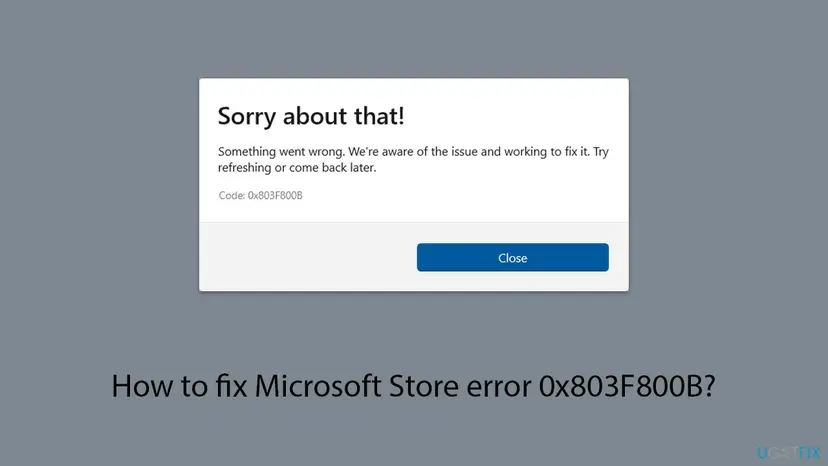
In Microsoft Store: Sorry about that! Something went wrong. We're aware of the issue and working to fix it. Try refreshing or come back later. Code: 0x803F800B. In the Xbox app on a PC, Xbox Support quotes: Make sure your subscription is active, "[game] isn't available because either the game is no longer available through the subscription, or your subscription has expired. If everything appears up to date, try quitting and relaunching the game."
- Code
- 0x803F800B (also 0x803f800b, 803f800b)
- Shown by
- Microsoft Store, the Xbox app on Windows, Xbox consoles
- Meaning
- No active subscription for this game on the signed-in account (Xbox Support)
- Not about
- Damaged Windows files, a broken disk or the Store app itself, in most cases
0x803F800B, 0x803F800F, 0x803f800e and 0x803F8001: the Xbox licence codes
The codes that start with 0x803F80 are all answers of the same licence check. The last digits tell you which right is missing. If your screen shows a neighbour of 0x803F800B, read its row before you start.
| Code | Message | What Xbox Support says | Start with |
|---|---|---|---|
| 0x803F800B | Make sure your subscription is active | The subscription expired, or the game left the subscription | Fix 1 |
| 0x803F800F | The person who acquired this needs an active subscription | A game got with Games with Gold, while the Game Pass plan used to get it has expired | Fix 1, then Fix 2 |
| 0x803f800e | Looks like you need to renew your Xbox Game Pass | No active Game Pass found for the account on this console | Our 0x803f800e guide |
| 0x803F8001 | Do you own this game or app? | Trouble checking usage rights, or the game left the Game Pass catalog | Fix 2, then Fix 3 |
One search on this page asks about "Failed to install or upgrade Microsoft Store package. Error code: 0x803f8001". That is the last row: the same family, a different check. Fix 2 and Fix 3 below cover it too.
Why 0x803F800B appears: the causes, ranked
Microsoft publishes no numbers for this code. The order below follows the Xbox Support page, whose four solutions are all about payment, subscription and purchase, and then what users report. The first three causes take minutes to check and need no repair.
| Cause | How often | How to tell | Fix |
|---|---|---|---|
| Game Pass or another subscription ended, a renewal payment failed, or the account has an unpaid balance. | Most often | account.microsoft.com/services shows the plan as expired, canceled or with a payment problem. | Fix 1 |
| The game left the Game Pass catalog, was refunded, or you played it only through a subscription you no longer have. | Often | The game shows a Buy button in the Store, or your order history shows a refund. | Fix 2 |
| Microsoft Store, the Xbox app or the game launcher is signed in with a different account than the one that has the subscription. | Often | The profile picture in the Store or the Xbox app is not the account that pays. | Fix 3 |
| The Store holds an old licence answer or a damaged cache. | Sometimes | The plan is active and the game works on another PC with the same account. | Fix 4 and Fix 5 |
| Windows, the Store or Gaming Services is out of date, or the Store registration is damaged. | Rarely | Other Store downloads fail too, with other codes. | Fix 6 to Fix 8 |
| The Xbox service is down. | Rarely | The Xbox status page shows a problem with store or account services. | Wait, see "Still broken" |
Readers most often see this code when they install Minecraft from Microsoft Store. Users on Microsoft Q&A report it both from players with Game Pass and from players who say they own the game. In both cases the question is the same: does the signed-in account hold an active subscription or a purchase for this exact edition?
How to fix error code 0x803F800B in Microsoft Store, the Xbox app and on Xbox
Fix 1 to Fix 3 check the licence itself, which is what the code is about. No Store reset can bring back a subscription or a purchase the account does not have, so do these first. Fix 4 to Fix 8 repair the Store and Windows for the cases where the account is fine.
| What you see or have | Start with |
|---|---|
| You play through PC Game Pass or Game Pass Ultimate, or are not sure it is still active. | Fix 1 |
| The game shows a Buy button, or you got it with a subscription you no longer have. | Fix 2 |
| Someone else in the family pays for Game Pass, or you have two Microsoft accounts. | Fix 3 |
| Game Pass is active, and the same game installs on another PC. | Fix 4 |
| Every Store download fails, not just this game. | Fix 5, then Fix 6 |
| The error is on an Xbox console, not a PC. | Fix 1, then our 0x803f800e guide |
Fix 1. Check that Game Pass or your subscription is active and paid
5 minutesLow riskEveryone who sees 0x803F800B, even if you are sure the plan is paid.
Xbox Support says the code means the subscription has expired, and its first two solutions are to review the payment information and pay any outstanding balance. A renewal that failed on an old card ends access to every subscription game at once.
- Open account.microsoft.com/services in a browser and sign in with the account you use in Microsoft Store.
- Find PC Game Pass, Xbox Game Pass Ultimate or the plan you use, and read its status and next renewal date.
- If it shows a payment problem, select Manage and update the card, or renew the plan.
- Open Payment & billing on the same site and pay any outstanding balance it shows.
- On an Xbox console, the same is in Profile & system > Settings > Account > Subscriptions, where Extend your subscription renews it.
- Restart the PC or the console and try the game again.
When a provider bills Game Pass, the renewal happens on their side. If the plan shows as ended on your Microsoft account, ask the provider whether the add-on is still active.
It worked if: The plan shows as active with a future renewal date, and the game installs or starts.
If not: If the plan is active, go to Fix 2 and check the game itself.
Fix 2. Check that the game is still in Game Pass or still yours
5 minutesLow riskThe subscription is active, but this one game still fails, or it shows a Buy button.
The PC message says the game may be "no longer available through the subscription". Xbox Support's third and fourth solutions cover games played through Game Pass before and content that was refunded, canceled or never bought.
- Open Microsoft Store, search for the game and open its page.
- Read the button: Install or Play with a Game Pass badge means it is in your plan; Buy means it is not in your plan any more.
- Open account.microsoft.com/billing/orders and look for the game. A refund or a canceled preorder shows there.
- If you bought the game, check that you bought this exact edition. Minecraft, for example, is sold in several editions for PC.
- If the game left Game Pass and you want to keep playing, buy it. Your saves usually stay in the cloud.
- Install or start the game again.
It worked if: The Store page shows Install or Play, and your order history shows the purchase or the plan that covers it.
If not: If you own the game or it is in your plan, go to Fix 3: the Store may be signed in with another account.
Fix 3. Sign in with the same account in Microsoft Store, the Xbox app and the game
5 minutesLow riskYou have more than one Microsoft account, a family member pays, or the plan and the game both look fine.
The licence check runs for the account that is signed in where you install, not for the account that pays. Signing out and back in also makes the Store fetch the licence again instead of using what it remembered.
- Open Microsoft Store, select your Profile picture at the top and select Sign out.
- Open the Xbox app, select your profile picture and sign out there too.
- Restart the PC with Start > Power > Restart.
- Sign back in to Microsoft Store and the Xbox app with the account that holds Game Pass or bought the game.
- If the game has its own launcher, such as the Minecraft Launcher, sign in there with the same account.
- Install or start the game again.
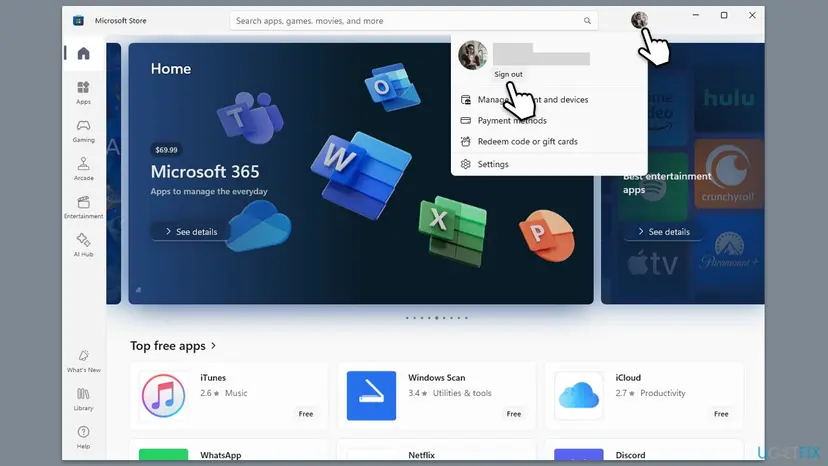
It worked if: The Store and the Xbox app show the same account, and the game installs without the code.
If not: If the right account is signed in everywhere, go to Fix 4 and clear the Store.
Fix 4. Clear the Store cache, then repair or reset Microsoft Store
10 minutesLow riskThe subscription, the game and the account are fine, but the Store still shows 0x803F800B.
The Store keeps licence and download data in a local cache. If that data is old or damaged, the Store can keep repeating a failed licence answer. wsreset clears it, and Repair or Reset rebuilds the app without touching your games.
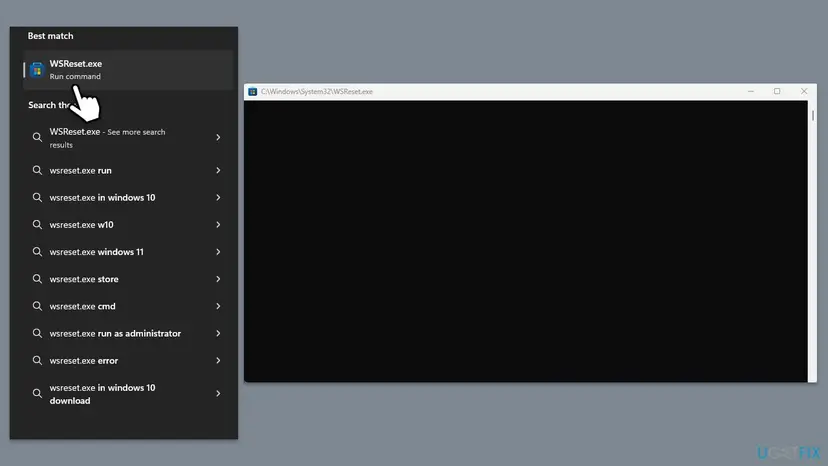
- Clear the Store cache. Press Windows + R, type wsreset.exe and select OK. A blank Command Prompt window opens; after a short while it closes and Microsoft Store opens by itself.
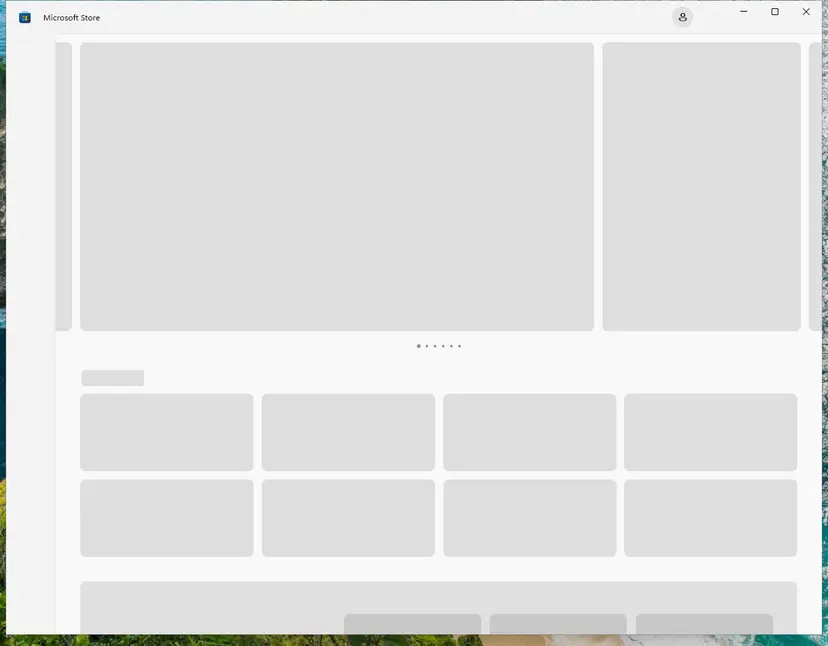
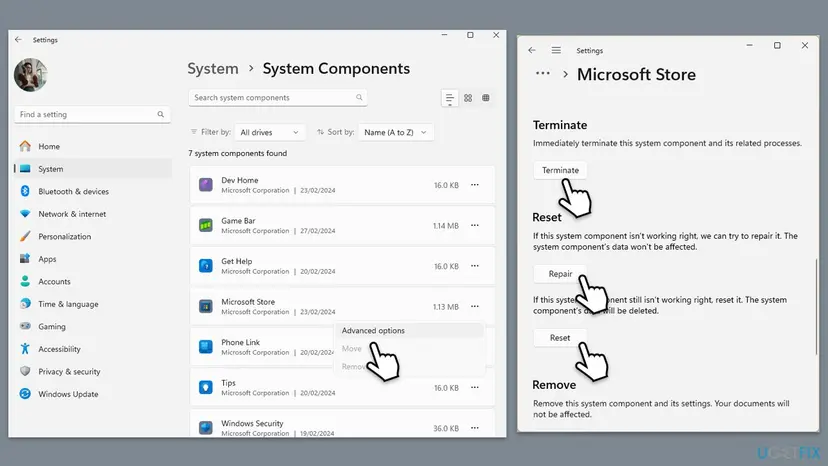
After wsreset, the Store opens and loads again. Screenshot: Windows 11 26H2. - Open System components. If the problem stays, select Start > Settings > System > System components. Next to Microsoft Store, select the three dots and Advanced options. If Microsoft Store is not listed there, look for it in Settings > Apps > Installed apps.
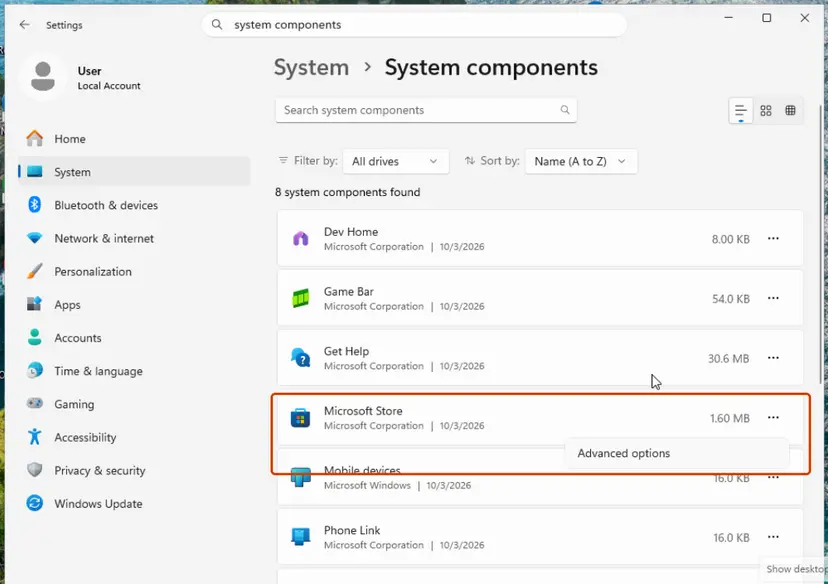
Microsoft Store is listed under System components. Screenshot: Windows 11 26H2. - Repair first. Scroll to Reset and select Repair. Repair keeps the app's data. Open the Store and check whether it works.
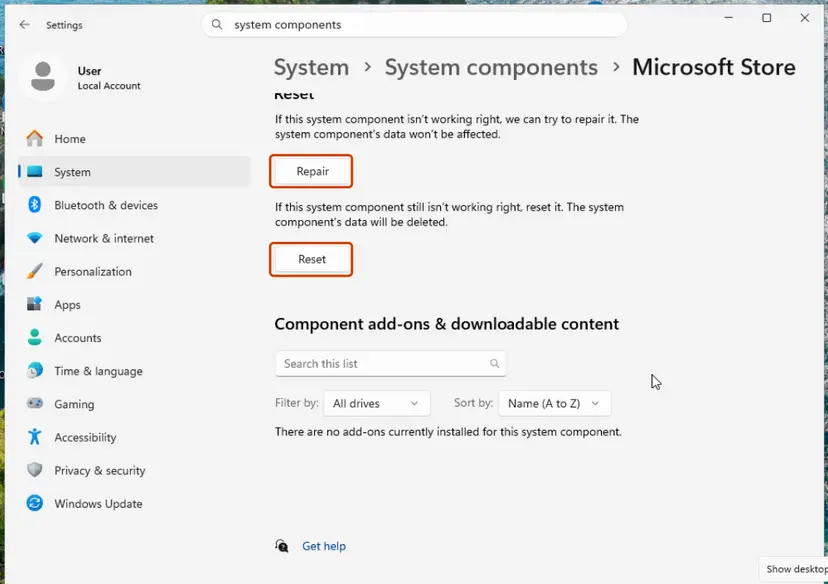
Repair keeps the app's data; Reset deletes it. Screenshot: Windows 11 26H2. - Reset if Repair did not help. Select Reset and confirm. This deletes the Store app's data on this PC; your purchases stay in your Microsoft account. Open the Store and sign in again.
These steps were written for Windows 11 26H2 (build 26300). The full page with the other versions and what each result means: Reset the Microsoft Store
Reset signs you out of the Store. Sign back in with the account from Fix 3 before you try the game again.
It worked if: The Store opens, you sign in, and the game installs or starts.
If not: Go to Fix 5 and run the Store apps troubleshooter.
Fix 5. Run the Windows Store Apps troubleshooter
5 minutesLow riskOther Store apps also misbehave, or you want Windows to check the Store's settings for you.
The troubleshooter checks things the Store needs that a reset does not touch, such as its temporary folder and connection settings. It cannot fix a missing subscription, so it comes after the account checks.
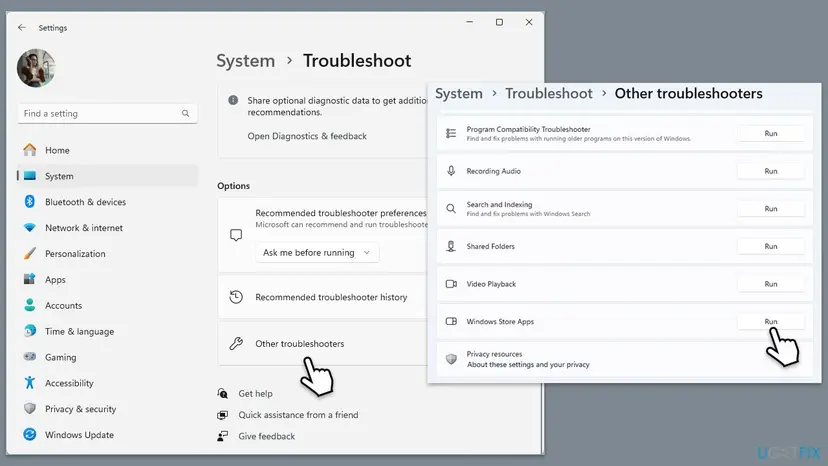
- Type Troubleshoot in Windows search and press Enter.
- Select Other troubleshooters (Windows 10: Additional troubleshooters).
- Scroll to Windows Store Apps. If your version of Windows no longer lists it, skip this fix.
- Select Run (Windows 10: Run the troubleshooter).
- Apply the fixes it suggests, then open Microsoft Store and try the game again.
It worked if: The troubleshooter reports what it fixed, and the Store downloads the game.
If not: Go to Fix 6 and update Windows, the Store and Gaming Services.
Fix 6. Update Windows, Microsoft Store and Gaming Services
10 to 30 minutesLow riskWindows has pending updates, or other Store downloads fail too.
Games from the Store and the Xbox app are installed through the Store and Gaming Services. Old versions of them can fail checks that newer games expect, and the restart after updating signs everything in again.
- Type Updates in Windows search and press Enter.
- Select Check for updates and install what Windows offers (Windows 10: Settings > Update & Security > Windows Update).
- If Optional updates are listed, install them too.
- Restart the PC.
- Open Microsoft Store, select Library and select Get updates, so the Store, the Xbox app and Gaming Services are current.
- Try the game again.
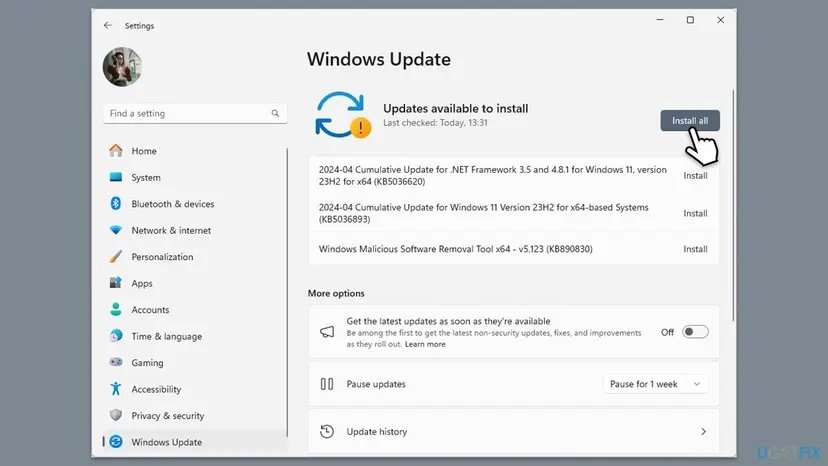
If Windows Update itself fails, fix that first: Run the Windows Update troubleshooter
It worked if: Windows Update says you are up to date, Library shows no pending updates, and the game installs.
If not: Go to Fix 7 and register the Store again.
Fix 7. Register Microsoft Store again for your account
5 minutesLow riskThe Store opens but behaves oddly after a reset, or several Store downloads fail with different codes.
Each Store app is registered to your user account. Registering the Store again repairs that link from the files already on the disk, without removing the Store or downloading anything.
Use Microsoft.WindowsStore as the name in the commands of this procedure:
- Open PowerShell. Select Start, type PowerShell and select Windows PowerShell. Open it the normal way, not as administrator: in an administrator window the app is registered to the administrator account instead of yours.
- Find the app's package. Type the command below with a part of the app's name between the asterisks and press Enter. If the app is installed, PowerShell prints its details, including Name and InstallLocation. If nothing is printed, the app is not installed for your account: see the section below.
Get-AppxPackage -Name '*WindowsCalculator*' - Re-register the app. Paste the three commands below, with the same name between the asterisks, and press Enter. They read the folder the app is installed in and register its manifest again. If no red text appears, it worked.
$InstallLocation = Get-AppxPackage -Name '*WindowsCalculator*' | Select-Object -ExpandProperty InstallLocation $ManifestPath = $InstallLocation + '\Appxmanifest.xml' Add-AppxPackage -Path $ManifestPath -Register -DisableDevelopmentMode - Open the app. Close PowerShell and start the app from Start. If it still fails, restart the PC and try once more.
These steps were written for Windows 11 25H2 and 26H2, Windows 10 22H2. The full page with the other versions and what each result means: How to re-register Microsoft Store apps with PowerShell
The earlier version of this guide removed the Store first with Get-AppxPackage Microsoft.WindowsStore | Remove-AppxPackage. Removing the Store is not needed for this licence error, and getting it back can be hard. Registering it again does the repair without that risk.
It worked if: PowerShell finishes without a red error for Microsoft.WindowsStore, and the Store opens normally.
If not: Go to Fix 8 and repair the Windows system files.
Fix 8. Repair Windows system files with DISM and SFC
20 minutesLow riskFix 1 to Fix 7 did not help, and other parts of Windows also show errors.
This is the last, generic check. 0x803F800B is about the licence, so damaged system files are rarely the cause, but they can break the Store's licence service and its downloads.
- Open an elevated command window. Right-click Start and select Terminal (Admin), or type cmd in the search box, right-click Command Prompt and select Run as administrator. Select Yes when Windows asks for permission.
- Run DISM first. Type the command below and press Enter. DISM downloads clean copies of damaged components from Windows Update, so it can take several minutes. Wait until it says The operation completed successfully.
DISM.exe /Online /Cleanup-Image /RestoreHealth - Run System File Checker. In the same window, type the command below and press Enter. Do not close the window until the verification reaches 100%.
sfc /scannow - Read the result and restart. Compare the last message with the table below this guide, then restart the PC so that repaired files are loaded.
These steps were written for Windows 11 24H2 and 25H2. The full page with the other versions and what each result means: Run DISM and SFC to repair Windows system files
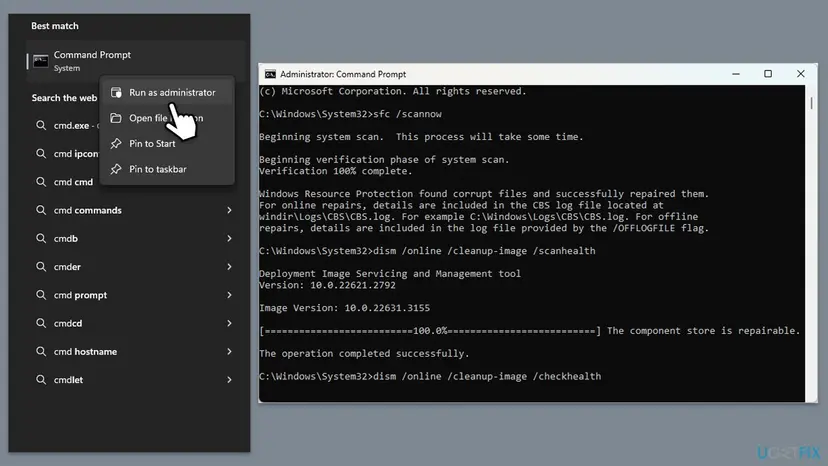
It worked if: SFC reports that it found no integrity violations or repaired them, and the Store installs the game after a restart.
If not: Read "If 0x803F800B is still there" below.
If 0x803F800B is still there
When the plan is active, the game is yours or in the plan, and the right account is signed in everywhere, the problem sits with the Xbox service or with the account itself. More repairs on the PC will not change that.
- Check the Xbox status page at support.xbox.com/xbox-live-status. When store or account services are down, licence checks fail until they are back. Restarting your router helps only if other sites are slow too.
- Test the account on another device. If the game also fails on another PC or a console with the same account, the licence is the problem, not your PC.
- Contact Xbox Support from the 0x803f800b page with its virtual agent. Have ready the exact code, the game and edition, the account e-mail, the plan and how you pay for it.
- A provider bundle needs the provider too, because they control the renewal.
0x803F800B is not a sign of failing hardware. A damaged disk shows other errors, such as failed writes or install codes in the 0x8007 range, and games you own outright still install.
How to keep 0x803F800B from coming back
- Keep a valid card on the Microsoft account before Game Pass renews, and replace it when the old one expires.
- Redeem the next prepaid Game Pass code before the current time runs out.
- Use one Microsoft account for Microsoft Store, the Xbox app and game launchers on the PC.
- Watch the "leaving soon" list in the Xbox app and buy the Game Pass games you want to keep.
- Leave Store app updates on in Microsoft Store > Settings > App updates.
If the error came right after you renewed or changed plans, give the account a few minutes, then sign out of the Store and back in. The new plan is read again only at sign-in.
Frequently asked questions
What does error code 0x803F800B mean?
It means the licence check for a game failed because no active subscription covers it. Xbox Support says: "This means that your subscription has expired." On a PC the Xbox app adds that the game may be no longer available through the subscription. Microsoft Store shows only a generic "Sorry about that!" window with the code. So the first things to check are Game Pass, the game's place in the catalog and the account that is signed in, not Windows files.
How do I fix Minecraft error code 0x803F800B?
Start with the account. If you play Minecraft through PC Game Pass or Game Pass Ultimate, check at account.microsoft.com/services that the plan is active (Fix 1). If you bought Minecraft, check your order history for this edition, Java Edition or Bedrock Edition (Fix 2). Then sign in with that same account in Microsoft Store, the Xbox app and the Minecraft Launcher, and restart the PC (Fix 3). Our guide to the Minecraft error No applicable app licenses found covers the launcher in more depth.
What is Xbox error code 0x803F800B on a console?
It is the same licence answer: the console found no active subscription for the game you started. Xbox Support lists the same four solutions for consoles as for PCs: review your payment information, pay any outstanding balance, check games you played through Game Pass, and check whether the content was refunded or canceled. On the console, Subscriptions is in Profile & system > Settings > Account. For the console steps in more detail, see our 0x803f800e guide, which covers the home Xbox and a profile reload.
Why does Microsoft Store say "We're aware of the issue" if the problem is my subscription?
Because the Store uses one generic window for many server answers. "Something went wrong. We're aware of the issue and working to fix it" sounds like an outage, but the code under it is what counts. For 0x803F800B, Xbox Support ties the code to an expired subscription. Waiting and refreshing helps only in the rare case that the Xbox service is really down, which the Xbox status page shows.
I have Game Pass and still get 0x803F800B. Why?
Three reasons cover most cases. The game may have left the Game Pass catalog, so it now shows a Buy button (Fix 2). The Store or the Xbox app may be signed in with another account than the one that pays (Fix 3). Or the Store holds an old licence answer from before you renewed, which a sign-out and a Store reset clear (Fix 3 and Fix 4). Also check that the plan includes PC games: not every Game Pass plan does.
Will resetting Microsoft Store delete my games?
No. wsreset clears only the Store's cache, and Repair keeps the Store's data. Reset deletes the Store app's own settings and signs you out, but the games you installed stay on the disk, and your saves stay in the cloud. The old command that removed the Store with Remove-AppxPackage is not needed for this error, and this page no longer gives it. Registering the Store again in Fix 7 repairs it without removing anything.
Is 0x803F800B the same as 0x803F8001 or 0x803F800F?
No, but they belong to the same family of Xbox licence codes. The code 0x803F800B is about an expired subscription or a game that left it. The code 0x803F800F says the person who acquired a game needs an active subscription, for games got with Games with Gold. The code 0x803F8001 asks whether you own the game or app, and covers trouble checking usage rights. For all three, check the plan, the purchase and the signed-in account before repairing Windows.
Does a malware scan or turning off the antivirus fix 0x803F800B?
Not for this code. 0x803F800B is the Xbox service's answer about your subscription, and security software on your PC does not change what your account has. The earlier version of this guide suggested both as first checks; we dropped them because they do not match the meaning Xbox Support gives. If you suspect malware for other reasons, a scan with Microsoft Defender is still a good idea: How to scan for malware with Microsoft Defender.
I searched in another language. Is this the right page?
Yes, if the code on your screen is 0x803F800B. Readers reach this page with Arabic searches such as "كيف اسوي", "وش الحل" and "كيفية حل هذه المشكلة". Others use "แล้วต้องแก้ยังไง", "mit kell csinálni", "как это исправить", "такое пишет", "hata kodu bu" or "no me deja". All of them ask how to fix it or say the code is on screen, and "แปล" asks for a translation. The fixes do not depend on the language of Windows: check the subscription, then the game, then the account. The page itself is in English only.
Sources
Did this fix work?
One click, no account. It tells the next reader which guides are worth their time.
Questions and experiences: fix Microsoft Store error 0x803F800B
Still broken, or found a fix we did not cover? Ask here: members and our editors answer. Reading is open; writing needs a free account.
…