
How to fix MS Paint not working in Windows 11?

Prefer to fix it yourself? The manual steps follow.
- 8methods
- 2 to 30 minutes
- Easy
Applies to Windows 11 and Windows 10 22H2 (build 19045.3758 or later); the Paint app from the Microsoft Store
8 methods in this guide
After the most recent Windows update, MS Paint is not working for me on Windows 11. When I click the shortcut on my taskbar, nothing happens. I even tried typing it into search and pressing Enter, only to see the same behavior. How do I fix this? It is really annoying.
Paint in Windows 11 is a Microsoft Store app, so when it will not open, the cause is almost always the app package, not Windows itself. Close every Paint process and start it again first, then update Paint from the Microsoft Store. If it still does nothing, repair, re-register or reinstall it.
Paint not working in Windows 11 usually means its app package is stuck, outdated or damaged. First end every Paint process and open it again (Fix 1), then update Paint in Microsoft Store and run Windows Update (Fix 2). If Paint still does not open, use Repair, then Reset in its Advanced options (Fix 3). Re-registering or reinstalling Paint (Fix 4 and Fix 5) fixes most of what is left.
| Error | Usually none: you click Paint and nothing happens, or the window opens and closes. Some PCs show This app can't open instead. |
|---|---|
| Where it appears | When you start Paint from the taskbar, the Start menu, search or by opening a picture with it. Sometimes Paint closes while you work and will not start again. |
| Main cause | A stuck Paint process or a damaged, half-updated Paint app package. Microsoft also documents Paint failing after a System Restore (KB5023152). |
| Fastest fix | End Paint with Terminate or Task Manager, start it again, then update Paint in Microsoft Store > Library (Fix 1 and Fix 2). |
| Also written as | paint not opening in windows 11, ms paint not responding, microsoft paint not opening, ms paint missing windows 11, mspaint not working. |
| Affects | Windows 11 and Windows 10 22H2. Paint can be uninstalled and reinstalled on Windows 10 22H2 build 19045.3758 or later, and on Windows 11. |
| Microsoft's status | No general Paint outage is listed. KB5023152 names Paint among apps that may show This app can't open after System Restore; Microsoft says it is temporary. |
| Where the cause is logged | If the Store fails to reinstall Paint: Event Viewer > Windows Logs > System, an Installation Failure line that names Microsoft.Paint and an error code. |
| Time to fix | 2 minutes for Fix 1, about 10 minutes for a repair or reinstall, longer only if you need a repair install of Windows. |
Facts checked on 15 October 2026. Steps written for Windows 11 (25H2 and 26H2) and Windows 10 22H2.
What "Paint not working in Windows 11" usually means
In Windows 11, Paint is no longer a fixed part of Windows. It is an app from the Microsoft Store, packaged in the MSIX format, with its own updates. Its package is named Microsoft.Paint, and in the Store it has the ID 9PCFS5B6T72H. Since early 2024 Microsoft lets you uninstall and reinstall it like any other app.
That matters for the fix. When Paint does not open, Windows itself is rarely broken. Far more often the Paint package is stuck, out of date, not registered for your account, or half installed after an update. Those are things you can repair in minutes without touching the rest of the system.
| What you see | What it tells you |
|---|---|
| Nothing happens when you click Paint on the taskbar or in search. | Paint starts and stops at once, or an old Paint process is still running. Start with Fix 1. |
| This app can't open after you used System Restore. | A known, temporary issue of MSIX apps described in KB5023152. Fix 1, then Fix 5. |
| Paint opens, then closes, freezes or shows Not Responding. | The app's files or settings are damaged. Fix 3, then Fix 4. |
| Paint is not in Start or in Installed apps at all. | Paint was removed. Reinstall it with Fix 5. |
| The Store starts installing Paint and then shows an error. | The Store or the app database is the problem. Fix 6. |
Sign in with another user account and try Paint there. If it opens, the problem belongs to your account's copy of Paint, and Fix 3 to Fix 5 or Fix 7 will solve it. If it fails in every account, look at the Store, security software or system files.
Why Paint stops opening in Windows 11
Most often a Paint process is stuck in the background, or Paint was half updated together with Windows and needs its own update from the Store. Less often the package is damaged or no longer registered for your account. Rarely, security software, a broken Store or damaged system files are behind it.
| Cause | How often | How to tell | Fix |
|---|---|---|---|
| A Paint process is stuck or Paint needs a restart after an update. | Most often | Paint closed while you worked, or the problem began right after an update. | Fix 1 |
| Paint or Windows is out of date. | Often | Microsoft Store Library lists an update for Paint. | Fix 2 |
| Paint's files or settings are damaged. | Often | Paint opens for a moment, then closes or freezes. | Fix 3 |
| The Paint package is no longer registered for your account. | Sometimes | Paint works for another user, or after a System Restore. | Fix 4, Fix 5 |
| The Store cannot install Paint. | Sometimes | Reinstall fails, and Event Viewer shows an Installation Failure for Microsoft.Paint. | Fix 6 |
| Security software or another program blocks Paint. | Rarely | Paint opens in a clean boot. | Fix 7 |
| Damaged Windows system files or app database. | Rarely | Several Store apps fail, not only Paint. | Fix 8 |
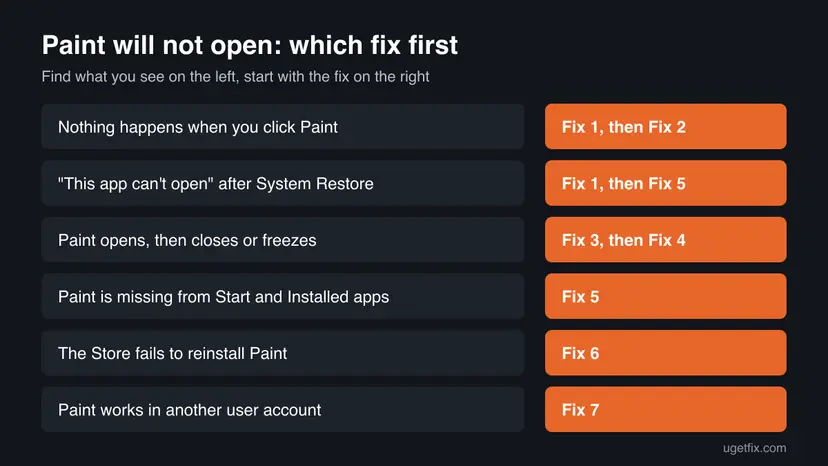
Microsoft has documented one exact cause. KB5023152 says that after a System Restore, MSIX apps such as Notepad, Paint and Terminal may show This app can't open, stop responding or crash, and that starting the app again often works.
How to fix Paint not working or not opening in Windows 11
Fixes 1 and 2 take a few minutes and solve the stuck or outdated app. Fixes 3 to 5 repair, re-register and reinstall Paint itself. Fix 6 is for a Store that refuses to install it, and Fixes 7 and 8 are for the rare cases outside Paint.
| What you see or have | Start with |
|---|---|
| Nothing happens when you click Paint, or it closed while you worked. | Fix 1, then Fix 2 |
| This app can't open after you used System Restore. | Fix 1, then Fix 5 |
| Paint opens, then closes, freezes or shows Not Responding. | Fix 3, then Fix 4 |
| Paint is missing from Start and from Installed apps. | Fix 5 |
| The Microsoft Store fails to reinstall Paint. | Fix 6 |
| Paint works in another user account but not in yours. | Fix 4, then Fix 7 |
| Several Store apps fail, not only Paint. | Fix 8 |
Fix 1. End every Paint process and start Paint again
2 minutesLow riskEveryone, first. Especially when nothing happens on click, or Paint closed while you were using it.
When a Paint process hangs in the background, a new click only hands the work to that frozen process, so you see nothing. For the System Restore case, Microsoft's own first workaround is simply to start the app again.
- Open Settings > Apps > Installed apps and find Paint.
- Select the three dots next to it and select Advanced options.
- Scroll down and select Terminate. This ends Paint and its related processes.
- Open Paint again from the Start menu.
- If it still does not open, restart the PC with Start > Power > Restart and try once more.
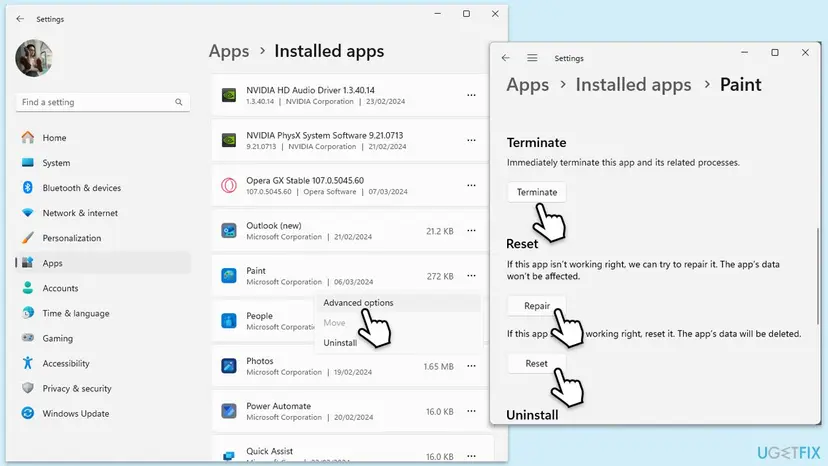
Terminate closes every open Paint window without asking. Unsaved pictures in Paint are lost, so save anything you can before you press it.
If Settings does not respond either, end Paint in Task Manager instead: Close a frozen app (Task Manager, Force Quit)
It worked if: Paint opens with a blank canvas within a few seconds.
If not: If Paint still shows nothing, update it and Windows in Fix 2.
Fix 2. Update Paint from the Microsoft Store and install Windows updates
10 minutesNo riskThe problem began after a Windows update, or Microsoft Store has an update waiting for Paint.
Paint gets its updates from the Store, separately from Windows. After a large Windows update, Paint can be left on a version that does not match. Microsoft lists running Windows Update as a workaround for Paint failing to open.
- Open Microsoft Store and select Library at the bottom left.
- Select Get updates and wait until Paint is updated, if it is on the list.
- Open Settings > Windows Update and select Check for updates.
- Install what is offered, then restart the PC.
- Open Paint again.
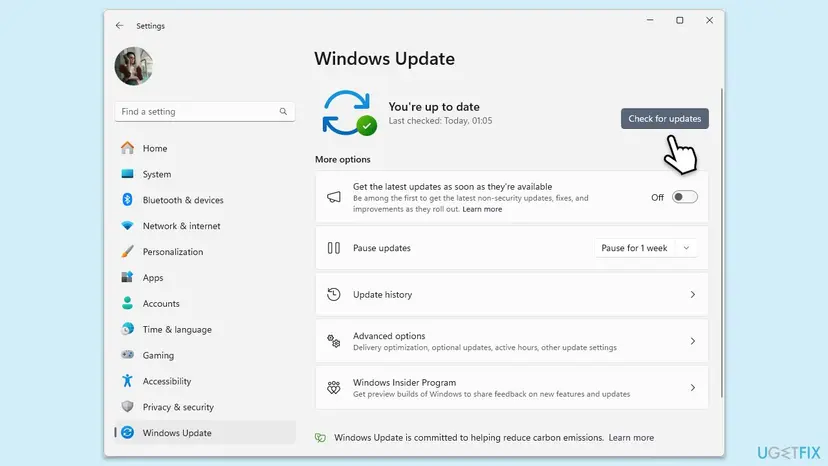
On Windows 10 the button is in Settings > Update & Security > Windows Update. Windows 10 left support on 14 October 2025, so it gets fewer fixes. If updates fail to install: Run the Windows Update troubleshooter
It worked if: Library shows no update waiting for Paint, Windows says it is up to date, and Paint opens.
If not: If Paint is current and still fails, repair it in Fix 3.
Fix 3. Repair Paint, then reset it
5 minutesLow riskPaint opens and closes at once, freezes, shows Not Responding, or does not open after Fix 1 and Fix 2.
Repair checks Paint's app files and replaces damaged ones while keeping its settings. Reset also clears Paint's own settings, which helps when a bad setting makes Paint fail at start.
- Open Installed apps. Select Start > Settings > Apps > Installed apps.
- Open the app's advanced options. Find the app in the list, select the three dots next to it and select Advanced options. Some apps do not have this option: for those, see the section about desktop programs below.
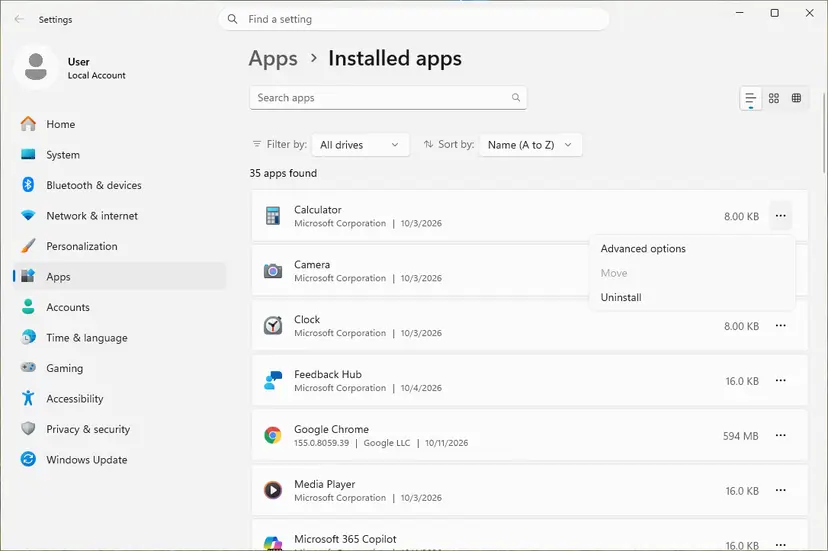
The three dots next to an app open Advanced options. Screenshot: Windows 11 26H2. - Repair first. On the page that opens, select Repair if it is there. The app's data stays. Open the app and check whether it works.

Repair keeps the app data. Reset deletes it. Screenshot: Windows 11 26H2. - Reset if Repair did not help. Select Reset. This deletes the app's data on this PC, including sign-in details and settings. Open the app and set it up again.
These steps were written for Windows 11 25H2 and 26H2. The full page with the other versions and what each result means: How to repair or reset an app in Windows
Reset clears only Paint's own settings, such as recent colours and window size. Your pictures are normal files in your folders and stay where they are.
It worked if: Paint opens with default settings and a blank canvas.
If not: If Repair and Reset do not help, re-register Paint in Fix 4.
Fix 4. Re-register Paint for your account with PowerShell
5 minutesLow riskRepair and Reset did not help, Paint works in another account, or Paint broke after a System Restore.
Windows keeps a record of which Store apps are registered for each user. If that record is damaged, the files are there but Paint will not start. On Microsoft's Q&A forum, a user whose Paint would not open fixed it by re-registering the package and then restarting.
Use the library steps below with *Microsoft.Paint* as the app name between the asterisks. Run PowerShell the normal way, not as administrator, so Paint is registered to your own account.
- Open PowerShell. Select Start, type PowerShell and select Windows PowerShell. Open it the normal way, not as administrator: in an administrator window the app is registered to the administrator account instead of yours.
- Find the app's package. Type the command below with a part of the app's name between the asterisks and press Enter. If the app is installed, PowerShell prints its details, including Name and InstallLocation. If nothing is printed, the app is not installed for your account: see the section below.
Get-AppxPackage -Name '*WindowsCalculator*'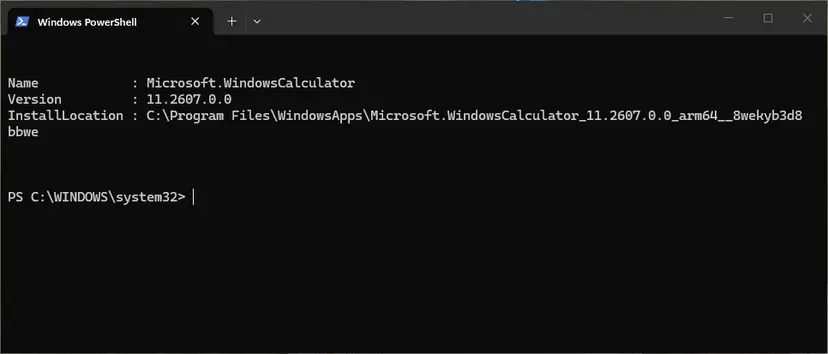
Get-AppxPackage shows the package name and where it is installed. Screenshot: Windows 11 26H2. - Re-register the app. Paste the three commands below, with the same name between the asterisks, and press Enter. They read the folder the app is installed in and register its manifest again. If no red text appears, it worked.
$InstallLocation = Get-AppxPackage -Name '*WindowsCalculator*' | Select-Object -ExpandProperty InstallLocation $ManifestPath = $InstallLocation + '\Appxmanifest.xml' Add-AppxPackage -Path $ManifestPath -Register -DisableDevelopmentMode - Open the app. Close PowerShell and start the app from Start. If it still fails, restart the PC and try once more.
These steps were written for Windows 11 25H2 and 26H2, Windows 10 22H2. The full page with the other versions and what each result means: How to re-register Microsoft Store apps with PowerShell
Restart the PC after the commands, even if no error appears. The user in the forum thread wrote that the restart was the step he had missed in his earlier attempts.
It worked if: PowerShell returns to the prompt without red text, and after a restart Paint opens from Start.
If not: If Get-AppxPackage *Microsoft.Paint* prints nothing, Paint is not installed for you. Reinstall it in Fix 5.
Fix 5. Uninstall Paint and install it again
10 minutesLow riskPaint is missing, every fix above failed, or you see This app can't open after a System Restore.
A fresh install replaces every Paint file and registers it again. Microsoft documents both the uninstall and the reinstall for Paint, and lists reinstalling from the Store as a workaround for the System Restore problem.
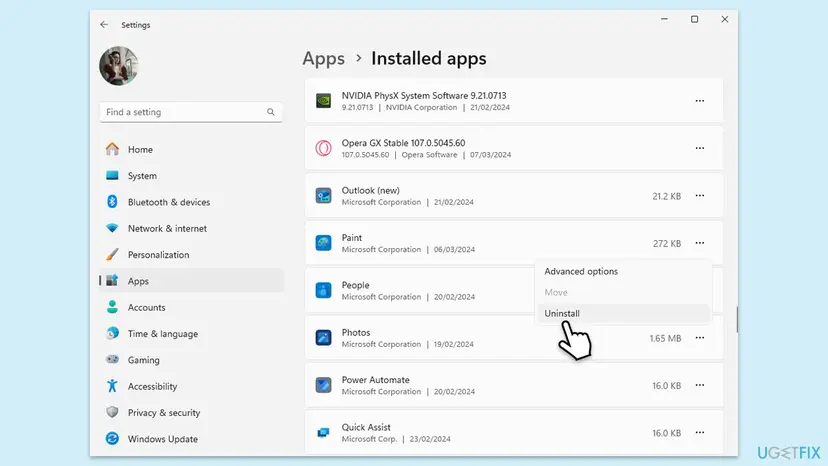
- Open Settings > Apps > Installed apps and find Paint.
- Select the three dots, select Uninstall, then Uninstall again to confirm.
- Restart the PC.
- Open Microsoft Store, search for Paint by Microsoft Corporation and select Get or Install.
- Open Paint from the Start menu.
No Store, or the Store will not install it? Microsoft offers its own Paint installer for 64-bit, 32-bit and ARM64 PCs (mspaint_setup_x64.exe for most PCs) on its page Uninstall and reinstall Paint and Snipping Tool. Run it and follow the setup to the end.
Uninstalling Paint does not delete your pictures. On Windows 10 this works only from version 22H2 build 19045.3758 onward, as Microsoft states.
It worked if: Paint is back in Start and in Installed apps, and it opens.
If not: If the Store download stops with an error, go to Fix 6.
Fix 6. When the Store cannot reinstall Paint: read the error, reset the Store
15 minutesLow riskThe Store downloads Paint, then fails, or Paint stays missing after Fix 5.
The Store shows only a vague message, but Windows writes the real error to the System log. In the Microsoft Q&A case we read, that line was Installation Failure: Windows failed to install the following update with error 0x80073CF6: 9PCFS5B6T72H-Microsoft.Paint, an app registration error.
- Try the install in the Store once more so a fresh entry is written.
- Press Win + R, type
eventvwr.mscand press Enter. - Open Windows Logs > System and look near the top for an Installation Failure entry that names Microsoft.Paint. Note the error code.
- Reset Microsoft Store with the steps linked below, then restart the PC.
- Run the re-register commands from Fix 4 once more, restart again and check Start for Paint.
Resetting the Store clears its cache and can free a blocked install: Reset the Microsoft Store If the code in Event Viewer points to the app deployment service, see our guide to the AppX Deployment Service.

It worked if: The Store finishes installing Paint, or Paint appears in Start after the restart.
If not: If the same Installation Failure comes back, test without other programs in Fix 7, then repair Windows in Fix 8.
Fix 7. Test Paint in a clean boot and in a new user account
20 minutesLow riskPaint still fails, you run third-party security software, or you want to know whether the problem is tied to your account.
Users on Microsoft's forum report Paint failing alongside third-party security software, and one traced it to a blocked registry entry with Process Monitor. A clean boot shows whether another program is to blame. A new account shows whether only your profile is affected.
First start Windows with only Microsoft services and try Paint once: How to perform a clean boot in Windows If Paint opens there, turn the other programs back on in groups until it fails again. To test security software alone, pause it for one test and turn it back on right after: Turn off Microsoft Defender protection for a moment
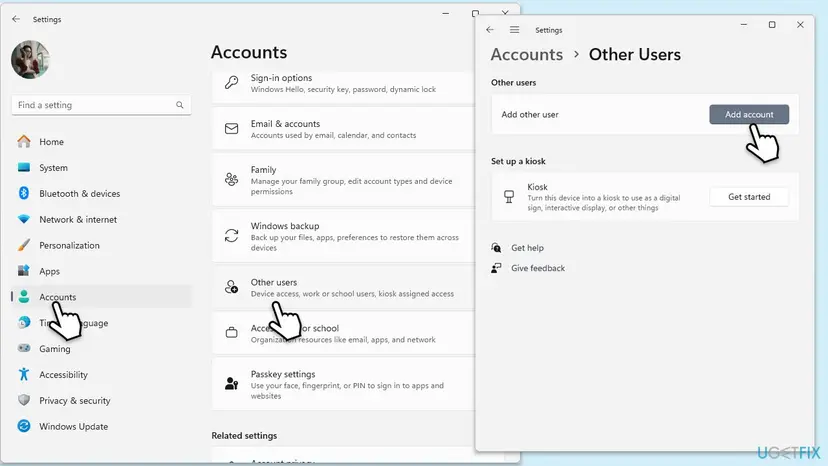
- Open Settings > Accounts > Other users and select Add account.
- Create a local account; full steps are in Create a new user account to test a problem
- Sign out, sign in to the new account and open Paint.
It worked if: You know where the fault is: Paint opens in a clean boot (another program), in the new account only (your profile), or in neither (Windows).
If not: If Paint fails in a clean boot and in the new account, repair Windows in Fix 8.
Fix 8. Repair system files, then repair-install Windows
20 minutes to 2 hoursRead the warningSeveral Store apps fail, or Paint fails in every account and in a clean boot.
DISM and System File Checker repair the Windows parts that Store apps rely on. If the app database itself is damaged, a repair install puts a fresh copy of Windows and its built-in apps in place, and keeps your files and programs.
- Right-click Start and select Terminal (Admin), then select Yes.
- Run
DISM.exe /Online /Cleanup-Image /RestoreHealthand wait until it finishes. - Run
sfc /scannowand wait until the verification reaches 100 percent. - Restart the PC and open Paint. Full steps and result messages: Run DISM and SFC to repair Windows system files

A repair install keeps your files, settings and apps when you choose to keep them, but it takes time and several restarts. Back up your important files first: Back up your files (Windows Backup, File History, Time Machine)
If Paint still fails, reinstall Windows over itself and choose to keep personal files and apps: Reinstall Windows without losing files This is the step a Microsoft forum advisor recommends when the Store and re-register commands cannot fix Paint.
It worked if: SFC reports no problems or that it repaired files, and after the repair install Paint is present and opens.
If not: Read "If Paint still does not open" below.
If Paint still does not open
Paint itself shows no error code, so the useful details are in Windows' logs. Collect them before you ask for help. They let a helper see in minutes what failed.
- Event Viewer: Windows Logs > System for Installation Failure entries about Microsoft.Paint, and Windows Logs > Application for an Application Error entry naming Paint at the moment it closed.
- What to send to Microsoft support or the Microsoft Q&A forum: the exact message, the error code from Event Viewer, your Windows version from Settings > System > About, and the fixes you already tried.
- When it is not Paint: if several Store apps fail, or the Store itself will not open, the problem is the Store or Windows. Fix 6 and Fix 8 are the right places.
This is not a hardware fault. Paint uses no special hardware, so no part of the PC needs replacing for it. While you wait for a fix, you can open pictures in the Photos app.
How to keep Paint working
- Let Microsoft Store update apps, or check Library > Get updates after a big Windows update.
- Restart the PC after Windows updates instead of only waking it from sleep.
- After a System Restore, open Paint and other Store apps once, and reinstall any that fail.
- Keep Windows itself up to date.
- Do not delete Paint's package folders by hand.
- Do not run app removal scripts or debloat tools without checking what they remove.
- Do not leave security software paused after a test.
Frequently asked questions
Why is Paint not working in Windows 11?
Most often a Paint process is stuck, or Paint is out of date after a Windows update. Paint in Windows 11 is a Microsoft Store app with its own updates, so it can fall out of step with Windows. Less often its files are damaged or it is no longer registered for your account. Start with Fix 1 and Fix 2. If Paint still does not open, Repair and Reset (Fix 3) and a reinstall (Fix 5) fix most remaining cases.
Why is Paint not opening in Windows 11 when I click it?
When you click Paint and nothing at all happens, Paint usually starts and stops at once, or an older Paint process is still hanging in the background. End it with Terminate in Paint's Advanced options and start it again (Fix 1). If that does not help, update it from Microsoft Store (Fix 2) and then use Repair and Reset (Fix 3). If you recently ran System Restore, reinstall Paint (Fix 5), as Microsoft suggests in KB5023152.
What does "This app can't open" mean for Paint?
Microsoft describes this message in KB5023152. After a System Restore, Store apps in the MSIX format, including Paint, Notepad and Terminal, may show This app can't open, stop responding or crash. Microsoft calls these symptoms temporary. Its workarounds are to start the app again, reinstall it from Microsoft Store, or run Windows Update. In this guide that is Fix 1, Fix 5 and Fix 2.
Is MS Paint missing in Windows 11? How do I get it back?
Paint can be uninstalled in Windows 11 like any other Store app, so it may have been removed by you, an update script or a debloat tool. Open Microsoft Store, search for Paint by Microsoft Corporation and install it. If the Store does not work, Microsoft offers its own Paint installer on its support page about uninstalling and reinstalling Paint and Snipping Tool. Both are covered in Fix 5. Then pin Paint to Start or the taskbar again.
What can I do when MS Paint is not responding?
If Paint freezes and shows Not Responding, wait a minute first, especially with a very large picture. If it stays frozen, end it with Terminate in Paint's Advanced options or in Task Manager (Fix 1). Unsaved changes are lost. If it freezes again every time, use Repair, then Reset (Fix 3). If it freezes with only one picture, the file itself may be the problem: try opening another picture to compare.
Why does MS Paint say it is unable to create a new document?
We could not find a Microsoft explanation for this message. Since it appears when Paint starts or opens a blank canvas, treat it like other start failures: end Paint, then repair and reset it (Fix 1 and Fix 3). If that does not help, re-register it (Fix 4) or reinstall it (Fix 5). Check also that your drive has free space, because Paint needs room for its temporary files.
Is MS Paint not opening in Windows 10 fixed the same way?
Mostly yes. On Windows 10 22H2, Paint can be repaired, reset, uninstalled and reinstalled from version 19045.3758 onward, as Microsoft states. Some paths differ: Windows Update is in Settings > Update & Security, and installed apps are in Settings > Apps > Apps & features. Windows 10 left support on 14 October 2025, so fewer app and system fixes reach it. If you can, move to Windows 11.
Will reinstalling Paint delete my pictures?
No. Your pictures are normal files in your folders, such as Pictures or Desktop, and they are not part of the Paint app. Uninstalling, repairing or resetting Paint removes only the app and its own settings, such as recent colours or window size. Unsaved work in an open Paint window is lost when you close or terminate Paint, so save open pictures first.
None of the methods worked. What now?
Readers sometimes write this in other languages too, such as no funcionó ningún método, ko mở được, não está abrindo or nefunguje: Paint still does not open. Check Event Viewer for the real error (Fix 6 and the section above), test in a clean boot and a new account (Fix 7), and if Paint fails everywhere, repair Windows with a repair install that keeps your files (Fix 8). Until then, the Photos app can open and crop pictures.
Sources
- Microsoft Support: Uninstall and reinstall Paint and Snipping Tool (Windows 10 22H2 19045.3758 or later, uninstall steps, Microsoft's Paint installers) (support.microsoft.com)
- Microsoft Support: KB5023152, "This app can't open" after System Restore (Paint among affected MSIX apps, workarounds) (support.microsoft.com)
- Microsoft Q&A: Paint stopped working and will neither uninstall nor reinstall (Event Viewer error 0x80073CF6 for Microsoft.Paint, re-register and restart, repair install advice) (learn.microsoft.com)
Did this fix work?
One click, no account. It tells the next reader which guides are worth their time.
Questions and experiences: fix MS Paint not working in Windows 11
Still broken, or found a fix we did not cover? Ask here: members and our editors answer. Reading is open; writing needs a free account.
…