
How to fix the mtkwl6ex.sys blue screen (BSOD) in Windows

Prefer to fix it yourself? The manual steps follow.
- 7methods
- 10 to 60 minutes
- Easy to intermediate
Applies to Windows 11 and Windows 10 laptops and desktops with a MediaTek Wi-Fi 6 or 6E adapter (MT7922 / AMD RZ616, AMD RZ608 and related cards)
7 methods in this guide
Help me! I get constant blue screen of death errors with the SYSTEM THREAD EXCEPTION NOT HANDLED message, and it is related to mtkwl6ex.sys. It can be serious, I googled, so I need some help here because I cannot do things properly myself, I think. Can you guide me through it?
mtkwl6ex.sys is the Windows driver of MediaTek Wi-Fi 6 and 6E cards, such as the MT7922, sold by AMD as RZ616. When the stop screen names it, the Wi-Fi driver crashed Windows. Download the Wi-Fi driver from your PC or motherboard maker first, then remove the device and install that driver again.
mtkwl6ex.sys is your MediaTek Wi-Fi driver, and the crash means that driver read memory it should not have. Download the Wi-Fi (WLAN) driver from your PC or motherboard maker's support page, uninstall the MediaTek Wi-Fi device in Device Manager with its driver, restart and install the download (Fix 1). If the crashes began after an update, roll the driver back instead (Fix 2).
| Error | A stop screen (blue, or black on Windows 11 24H2 and later) with What failed: mtkwl6ex.sys, usually with SYSTEM_THREAD_EXCEPTION_NOT_HANDLED or DRIVER_IRQL_NOT_LESS_OR_EQUAL. |
|---|---|
| Where it appears | At random while the Wi-Fi is in use, during games, or at every restart in a loop. Some PCs only start after a full power off. |
| Main cause | A damaged or faulty copy of the MediaTek Wi-Fi driver, often after a driver or Windows update. |
| Fastest fix | A clean reinstall of the Wi-Fi driver from your PC or board maker (Fix 1). |
| Also written as | mtkwl6ex, mtkwl6ex.sys error, mtkwl6ex.sys driver, mtkwl6ex.inf, AV_mtkwl6ex!unknown_function, mtkwl6ex+0x6e02. Related MediaTek names: mtkwecx.sys, mtkwl6eux. |
| Who makes it | MediaTek. AMD sells the same chips as RZ608 and RZ616, and PC makers ship the driver in their own packages. It is not a Windows file. |
| Affects | Windows 11 and Windows 10. Windows 10 left support on 14 October 2025. |
| Vendor status | No public MediaTek or Microsoft notice about this crash. MediaTek does not offer the driver for download to end users; it comes from the PC maker or Windows Update. |
| Where the cause is logged | C:\Windows\Minidump, one .dmp file per crash. WinDbg's !analyze -v shows IMAGE_NAME: mtkwl6ex.sys. |
| Time to fix | 10 to 20 minutes for the driver fixes, up to an hour if Windows no longer starts. |
Facts checked on 15 October 2026. Steps written for Windows 11 (25H2 and 26H2) and Windows 10 22H2.
What mtkwl6ex.sys is and why it stops Windows
mtkwl6ex.sys is the kernel driver for MediaTek Wi-Fi 6 and Wi-Fi 6E adapters. It is installed by the setup file mtkwl6ex.inf, which a driver database lists for the MediaTek Wi-Fi 6E MT7922 (RZ616) 160MHz PCIe Adapter and the RZ608 Wi-Fi 6E 80MHz card. The same driver runs plug-in cards too: on Microsoft Q&A, an ASUS PCE-AX5400 card crashed in mtkwl6ex.sys.
Because the driver runs in the Windows kernel, Windows cannot catch its mistakes. When it reads a wrong memory address, Windows stops the PC and writes What failed: mtkwl6ex.sys under the stop code. On Windows 11 24H2 and later the screen is black, not blue.
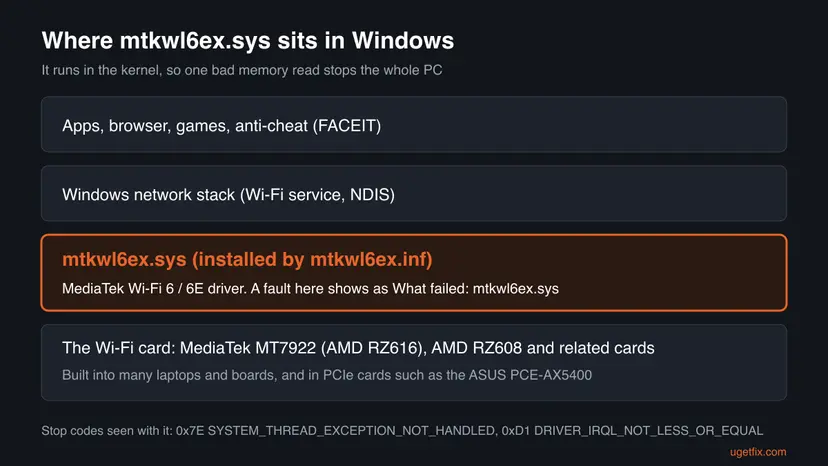
| What you see | What it means |
|---|---|
| What failed: mtkwl6ex.sys | The MediaTek Wi-Fi driver was running when Windows stopped. |
SYSTEM_THREAD_EXCEPTION_NOT_HANDLED (0x7E) | A system thread hit an error nobody caught. In the published dump it was code c0000005, an access violation: the driver tried to read address zero. |
DRIVER_IRQL_NOT_LESS_OR_EQUAL (0xD1) | Microsoft: a kernel-mode driver touched pageable or invalid memory while the interrupt level was too high. Same driver, same fixes. |
AV_mtkwl6ex!unknown_function, mtkwl6ex+0x6e02 | How WinDbg prints it: AV means access violation inside mtkwl6ex, and the number is the place in the file. |
mtkwl6ex.inf | The setup file that installs the driver. In the driver store it gets a new name such as oem12.inf. |
mtkwecx.sys, mtkwl6eux | Other MediaTek Wi-Fi driver names. We could not confirm from MediaTek which cards use them; the fixes below apply the same way. |
The genuine mtkwl6ex.sys sits in C:\Windows\System32\drivers and is signed. It belongs to your Wi-Fi card, so deleting it only takes your Wi-Fi away. Never download it from a DLL or driver site.
Why mtkwl6ex.sys crashes: the causes, most common first
In the Microsoft Q&A case, the driver was already the newest one, yet the PC crashed at every restart. Removing the device and installing the same driver again stopped the crashes, so a damaged installation was the cause. That and the reports in search results give this order.
| How often | Cause | Sign | Fix |
|---|---|---|---|
| Most often | A damaged or half-updated copy of the MediaTek Wi-Fi driver | Crashes at random or at restart, even with the newest driver | Fix 1 |
| Often | A new driver from Windows Update or the PC maker that does not suit your card | Crashes began on a date you can match to an update | Fix 2 |
| Often | An old driver from the day the PC was built | Driver Date in Device Manager is years old | Fix 3 |
| Less often | The driver restarts in a bad state through Fast Startup | Crashes on restart, but a full power off lets the PC start | Fix 4 |
| Rarely | Unstable memory or an overclock | Many different stop codes, not only mtkwl6ex.sys | Fix 6 |
| Rarely | Damaged Windows system files | SFC finds files it cannot repair | Fix 7 |
Fix 1 and Fix 5 take the Wi-Fi away for a while. Save the Wi-Fi driver from your PC or motherboard maker to a USB stick or the Desktop first, or keep an Ethernet cable at hand.
Check that mtkwl6ex.sys really caused the crash
The stop screen shows the file only for a moment. These checks tell you which Wi-Fi card you have and whether the crash dumps blame the MediaTek driver.
- Right-click Start, select Device Manager and expand Network adapters. Look for a name such as MediaTek Wi-Fi 6 MT7921 Wireless LAN Card, MediaTek Wi-Fi 6E MT7922 or RZ616.
- Right-click it, select Properties and open the Driver tab. Note Driver Date and Driver Version.
- Right-click Start, select Terminal (Admin) (on Windows 10: Windows PowerShell (Admin)) and check that the driver is loaded.
driverquery /v | findstr /i mtkwl6ex - Open
C:\Windows\Minidump. Windows writes one small dump per crash there, named by date. - Install Microsoft's debugger with
winget install Microsoft.WinDbg, open the newest.dmpfile as administrator and run!analyze -v. - Read IMAGE_NAME and FAILURE_BUCKET_ID.
mtkwl6ex.sysandAV_mtkwl6ex!unknown_functionconfirm the MediaTek driver.
If the newest dumps name a different file each time, the Wi-Fi driver may only be the victim. Test the memory first (Fix 6), then come back to the driver fixes.
How to fix the mtkwl6ex.sys blue screen
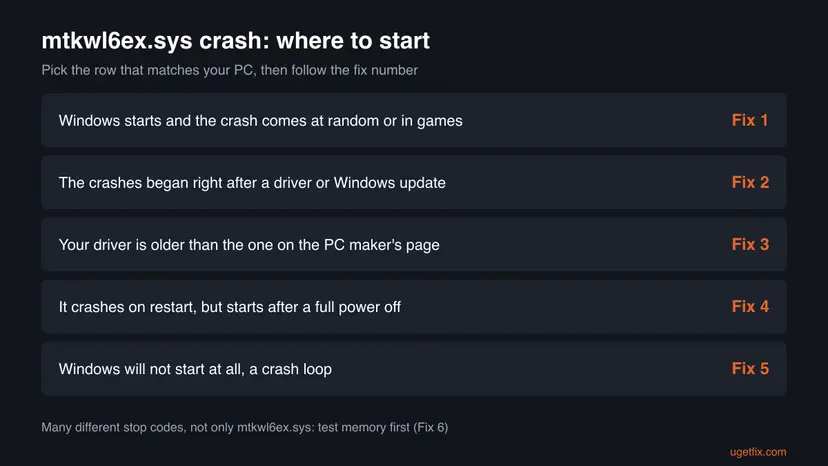
Most readers start with Fix 1, which fixed the published case. Fix 2 and Fix 3 choose the right driver version. Fix 4 and Fix 5 are for PCs that crash at restart or no longer start. Fixes 6 and 7 rule out memory and Windows itself.
| What you see or what your PC has | Start with | Then |
|---|---|---|
| Windows starts, and the crash comes at random or in games | Fix 1 | Fix 3 |
| The crashes began right after a driver or Windows update | Fix 2 | Fix 1 |
| Driver Date in Device Manager is years old | Fix 3 | Fix 1 |
| It crashes at every restart, but starts after a full power off | Fix 4 | Fix 1 |
| Windows will not start at all, it loops on the stop screen | Fix 5 | Fix 1 |
| Many different stop codes, not only mtkwl6ex.sys | Fix 6 | Fix 7 |
Fix 1. Reinstall the MediaTek Wi-Fi driver cleanly from your PC maker
15 minutesLow riskWindows starts and you can reach Device Manager. This is the right first step for most readers, even if Windows says the driver is up to date.
An update tells Windows the newest driver is in place, but it does not repair a damaged copy. Removing the device together with its driver package and installing the maker's package again replaces every file of mtkwl6ex.sys. This is what stopped the crashes in the Microsoft Q&A case.
- Open your laptop, PC or motherboard maker's support page, enter your model and download the Wi-Fi, WLAN or Wireless LAN driver for MediaTek. Save it to the Desktop and unpack it if it is a zip file.
- Right-click Start, select Device Manager and expand Network adapters.
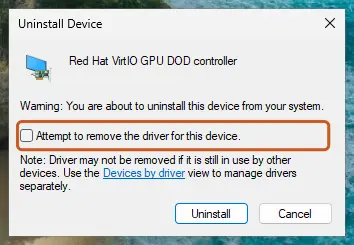
- Right-click the MediaTek Wi-Fi adapter and select Uninstall device.
- Tick Attempt to remove the driver for this device (on Windows 10: Delete the driver software for this device) and select Uninstall.
- Restart the PC. Windows may put a basic driver back on its own; that is fine.
- Run the maker's driver setup you downloaded, or in Device Manager select Update driver > Browse my computer for drivers and point it to the unpacked folder.
- Restart again and use the PC normally, including what you did when it crashed.
Every way to update, roll back or reinstall a driver, with screenshots: Update, roll back or reinstall a driver
It worked if: The Wi-Fi connects, Driver Version on the Driver tab matches the package you installed, and no new file appears in C:\Windows\Minidump over the next days.
If not: If the crashes started after an update, go back one version with Fix 2. If your driver is very old, try a newer one with Fix 3.
Fix 2. Roll back the Wi-Fi driver after an update
5 minutesLow riskThe crashes began right after Windows Update or the PC maker's tool installed a new Wi-Fi driver.
Windows keeps the previous driver after an update. If the new mtkwl6ex.sys does not suit your card or firmware, going back to the version that worked removes the faulty code at once.
- Right-click Start and select Device Manager.
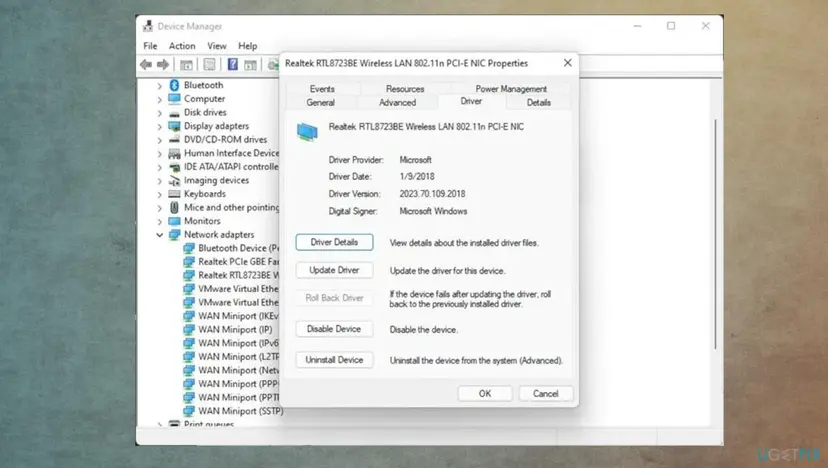
- Expand Network adapters, right-click the MediaTek Wi-Fi adapter and select Properties.
- Open the Driver tab and select Roll Back Driver.
- Choose a reason, select Yes and restart the PC.
If the old driver is stable, note its version. When Windows Update offers the newer Wi-Fi driver again under Optional updates, skip it until your PC maker publishes a newer one.
It worked if: Driver Version shows the older number, the Wi-Fi works, and the stop screen does not return.
If not: If Roll Back Driver is greyed out, there is no older driver on the PC. Install the maker's version with Fix 1 or a newer one with Fix 3.
Fix 3. Install a newer MediaTek Wi-Fi driver
10 minutesLow riskDriver Date is old, or the clean reinstall in Fix 1 did not stop the crashes.
PCs often keep the Wi-Fi driver they were built with. A newer driver from the PC maker or from Windows Update may contain fixes for crashes in mtkwl6ex.sys. Microsoft's own advice for a driver named on a stop screen is to check with the manufacturer for driver updates.
- Open your PC or motherboard maker's support page and compare its Wi-Fi driver version with the one on the Driver tab.
- If the maker has a newer one, download and run it, then restart.
- If not, open Settings > Windows Update > Advanced options > Optional updates (on Windows 10: Settings > Update & Security > Windows Update > View optional updates).
- Open Driver updates, tick the MediaTek network entry if there is one, select Download & install and restart.
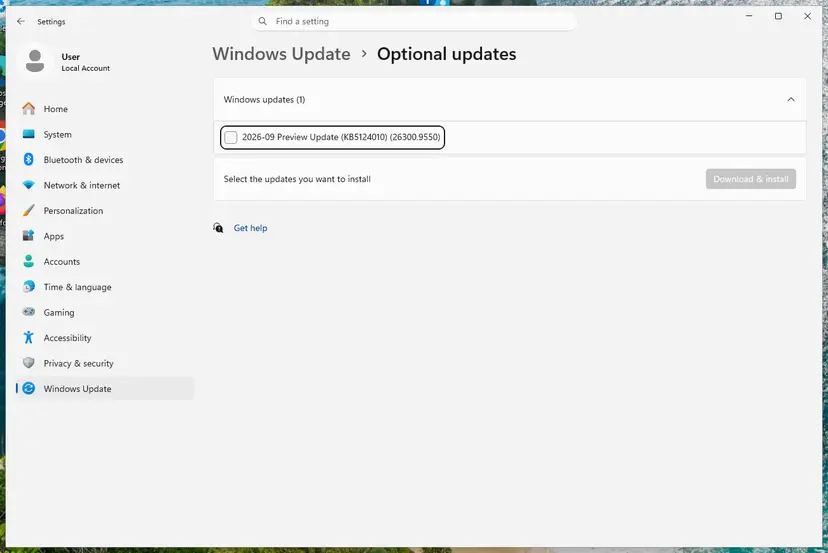
Driver updater tools and file-sharing links can install a package made for another card or another PC maker. Use the maker's page or Windows Update only.
It worked if: The Driver tab shows a newer Driver Date and Driver Version, and the PC runs a full day without a stop screen.
If not: If the newest driver also crashes, go back to the last stable version with Fix 2 and wait for the next release. If the crash comes only at restart, try Fix 4.
Fix 4. Turn off Fast Startup if the crash comes at restart
5 minutesLow riskThe PC crashes at every restart or start, but starts normally after you switch the power off fully.
With Fast Startup on, a shutdown saves the Windows kernel and its loaded drivers to disk and restores them at the next start. In the Microsoft Q&A case, only a full power off broke the crash loop. Turning Fast Startup off makes every start load mtkwl6ex.sys fresh. We could not confirm that this alone fixes the driver, so treat it as a test.
- Press Win + R, type
controland press Enter. - Open Hardware and Sound > Power Options > Choose what the power buttons do.
- Select Change settings that are currently unavailable.
- Clear Turn on fast startup (recommended) and select Save changes.
- Shut the PC down, wait ten seconds and switch it on.
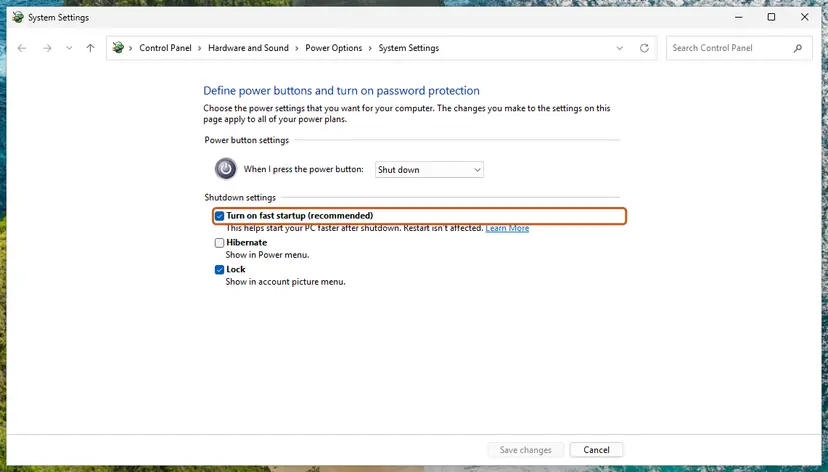
Step by step with screenshots: Turn off Fast Startup
It worked if: The PC starts and restarts without the stop screen. Starting takes a few seconds longer.
If not: If the restart crash stays, do the clean reinstall in Fix 1. You can turn Fast Startup back on when the crashes have stopped.
Fix 5. Get Windows started again with Safe Mode or System Restore
20 to 40 minutesRead the warningWindows no longer starts and shows the mtkwl6ex.sys stop screen every time.
Safe Mode starts Windows without the Wi-Fi driver, so you can remove or roll back mtkwl6ex.sys from inside. System Restore returns drivers and system settings to a day before the crashes began.
System Restore removes apps, drivers and updates installed after the restore point. Your documents and photos stay, but programs installed since then must be installed again. Its preview lists them before you confirm.
- Switch the PC off fully, then switch it on. If the stop screen returns, let it fail twice; Windows opens the blue Choose an option screen on the third start.
- Select Troubleshoot > Advanced options > Startup Settings > Restart, then press 4 for Safe Mode. Full steps: Start Windows or a Mac in Safe Mode
- In Safe Mode, do Fix 2 (roll back) or Fix 1 (uninstall the MediaTek Wi-Fi device with its driver), then restart normally.
- If Safe Mode does not start either, go back to Advanced options and select System Restore.
- Tick Show more restore points, pick one dated before the first crash, select Next and Finish. Full steps: Undo recent changes with System Restore
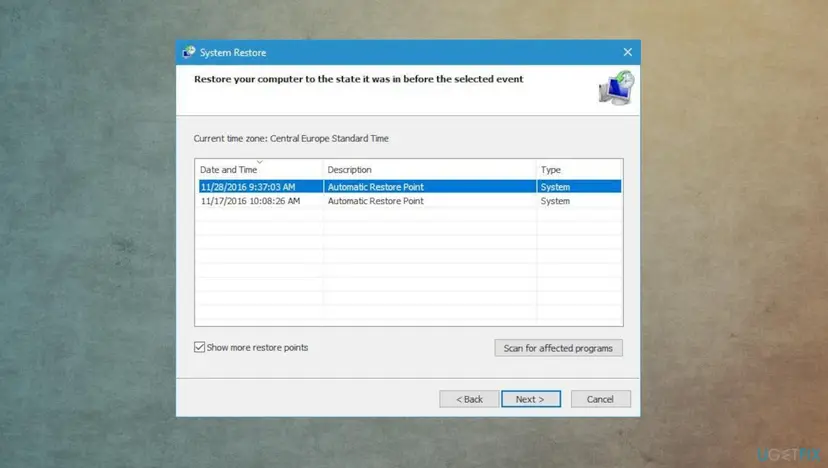
It worked if: Windows starts normally. After a restore, the Driver tab shows the older Wi-Fi driver.
If not: If neither Safe Mode nor System Restore works, try Startup Repair from the same screen: Run Startup Repair Then read the section on what to do when it still crashes.
Fix 6. Rule out unstable memory and overclocking
30 to 60 minutesLow riskYou see many different stop codes, or the dumps name a different driver each time.
The published crash was a memory read at address zero inside the driver. A bad memory module or an aggressive memory profile can corrupt the data a driver reads, and the Wi-Fi driver, busy all the time, is often the one that trips.
- Undo any CPU or memory overclock. In the BIOS, set the memory profile (XMP, DOCP or EXPO) to Disabled as a test.
- Test the memory with the tool built into Windows: How to test your RAM with Windows Memory Diagnostic
- After the restart, read the result in the notification or in Event Viewer > Windows Logs > System, source MemoryDiagnostics-Results.
It worked if: The memory test reports no errors, and the PC runs without a stop screen at default speeds.
If not: If the test finds errors, replace the RAM. If not, run Fix 7.
Fix 7. Repair Windows system files as a last check
20 minutesNo riskThe fixes above did not help, or SFC has never run on this PC.
mtkwl6ex.sys is not a Windows file, so this cannot repair the driver. It rules out damaged Windows network components that the driver works with, which is why it comes last.
DISM fetches clean copies of Windows components and SFC replaces damaged system files. Step by step with screenshots: Run DISM and SFC to repair Windows system files
In Terminal (Admin), one after the other:
DISM.exe /Online /Cleanup-Image /RestoreHealth
sfc /scannow
It worked if: SFC reports that it found no integrity violations or repaired them, and the PC runs without a stop screen.
If not: Collect the dumps and read the next section on what to send to support.
Still crashing: what to check and whom to ask
If the dumps still name mtkwl6ex.sys after Fixes 1 to 3, the driver itself or the Wi-Fi card is at fault. Check Windows Logs > System in Event Viewer around each crash time for warnings from the MediaTek adapter, which can point at the card. Microsoft's own advice is to read this log for the device that causes the bug check.
- Zip the three newest
.dmpfiles fromC:\Windows\Minidump. - Note your Windows edition and version from Settings > System > About.
- Note the Wi-Fi adapter's name, Driver Date and Driver Version from Device Manager.
- Note the PC or motherboard model and the BIOS version, and what you were doing at each crash.
| Where to ask | When |
|---|---|
| The laptop or PC maker's support | The Wi-Fi is built into the laptop or a prebuilt PC |
| The motherboard or Wi-Fi card maker | You built the PC or added a PCIe Wi-Fi card yourself |
| A repair shop | Memory tests report errors, or the crashes stay with every driver version |
If no driver version is stable, disable the MediaTek adapter in Device Manager and use a cable or a USB Wi-Fi adapter of another brand. A card that crashes with every driver may be failing and can be replaced; on most desktops and many laptops it is a small M.2 module.
How to keep the mtkwl6ex.sys blue screen from coming back
- Keep a copy of the Wi-Fi driver that works for you on the PC or a USB stick.
- Note the driver version before you accept a new Wi-Fi driver from Windows Update.
- Get Wi-Fi drivers from your PC or motherboard maker, or from Windows Update.
- Keep restore points turned on for drive C.
- Delete or rename mtkwl6ex.sys to stop the crash.
- Download mtkwl6ex.sys or mtkwl6ex.inf from DLL or driver sites.
- Use driver updater programs for the Wi-Fi driver.
- Run a memory overclock you have not tested.
Windows 10 left support on 14 October 2025. A PC that can run Windows 11 gets current driver fixes through Windows Update for longer.
Frequently asked questions
What is mtkwl6ex.sys?
mtkwl6ex.sys is the Windows driver for MediaTek Wi-Fi 6 and Wi-Fi 6E adapters, such as the MT7922, which AMD sells as RZ616, and the RZ608. It runs in the Windows kernel and handles everything your Wi-Fi card sends and receives. It is installed by the file mtkwl6ex.inf and comes from your PC maker or Windows Update. It is not part of Windows itself, and you only have it if your PC has a MediaTek Wi-Fi card.
Is mtkwl6ex.sys a virus?
No. The genuine file is a signed MediaTek driver in C:\Windows\System32\drivers. To check your copy, right-click it, select Properties and open the Digital Signatures tab. If the tab is missing, or the file sits in another folder such as your user folder or Temp, scan the PC with Microsoft Defender before you do anything else. A blue screen alone is not a sign of malware.
What is mtkwl6ex.inf?
mtkwl6ex.inf is the setup file of the MediaTek Wi-Fi driver. It tells Windows which cards the driver supports and where to copy mtkwl6ex.sys. When you install the driver, Windows copies the .inf into its driver store under a new name such as oem12.inf. If you install a downloaded driver by hand with Browse my computer for drivers, point Windows to the folder that holds mtkwl6ex.inf.
Can I just delete mtkwl6ex.sys?
You can, but you lose Wi-Fi and gain nothing. Windows may reinstall the driver from its store at the next start, and a deleted file can leave the device in an error state. The clean way is Fix 1: uninstall the MediaTek Wi-Fi device in Device Manager with Attempt to remove the driver ticked, restart, then install the maker's driver again.
What is mtkwecx.sys, and does the same fix work?
mtkwecx.sys is another MediaTek Wi-Fi driver name, and a mtkwecx.sys failed stop screen is the same kind of crash. We could not confirm from MediaTek which cards use it. The fixes on this page apply the same way: download the Wi-Fi driver from your PC maker, uninstall the MediaTek adapter with its driver, install it again, and roll back if the crash began after an update.
Does mtkwl6ex.sys have anything to do with FACEIT?
We found no statement from FACEIT or MediaTek that links the two. FACEIT's anti-cheat runs its own kernel driver, and online games keep the Wi-Fi busy, so the MediaTek driver may simply be the one that fails at that moment. If the dump names mtkwl6ex.sys, fix the Wi-Fi driver first. If it names a FACEIT driver, contact FACEIT support with the dump files. A cable connection is a quick test.
Why does Windows crash only when I restart, but not after a full power off?
With Fast Startup on, a shutdown saves the kernel and loaded drivers and restores them at the next start, while a restart and a full power off reset the hardware differently. In the published Microsoft Q&A case the PC looped on the mtkwl6ex.sys crash at every restart and only a full power off let it start. Try turning off Fast Startup (Fix 4) and reinstall the driver (Fix 1).
What do SYSTEM_THREAD_EXCEPTION_NOT_HANDLED and DRIVER_IRQL_NOT_LESS_OR_EQUAL mean here?
Both are stop codes Windows shows with this crash. SYSTEM_THREAD_EXCEPTION_NOT_HANDLED (0x7E) means a system thread hit an error nobody caught; in the published dump it was an access violation inside mtkwl6ex.sys. DRIVER_IRQL_NOT_LESS_OR_EQUAL (0xD1) means, in Microsoft's words, a kernel-mode driver accessed pageable or invalid memory at too high an interrupt level. Both point at the Wi-Fi driver, and the same fixes apply.
What should I do, step by step?
In short: download the Wi-Fi driver from your PC maker, uninstall the MediaTek Wi-Fi device with its driver, restart and install the download. If the crashes began after an update, roll the driver back instead. If Windows will not start, use Safe Mode or System Restore. Readers asking in Polish ("co mam zrobić") or Portuguese ("como arrumar esse erro") will find the same order in the table above the fixes.
Sources
- Microsoft Learn: Bug Check 0xD1 DRIVER_IRQL_NOT_LESS_OR_EQUAL (learn.microsoft.com)
- Microsoft Q&A: BSOD on reboot seemingly caused by WiFi card driver (mtkwl6ex.sys, ASUS PCE-AX5400) (learn.microsoft.com)
- DriversCloud: MediaTek_WLAN v3.3.0.467 (mtkwl6ex.inf, MT7922 RZ616 and RZ608) (driverscloud.com)
Did this fix work?
One click, no account. It tells the next reader which guides are worth their time.
Questions and experiences: fix the mtkwl6ex.sys blue screen (BSOD) in Windows
Still broken, or found a fix we did not cover? Ask here: members and our editors answer. Reading is open; writing needs a free account.
…