
How to fix .NET Framework installation error 0x800c0006 in Windows?

Prefer to fix it yourself? The manual steps follow.
- 8methods
- 2 to 20 minutes
- Easy
Applies to Windows 11, Windows 10, and older Windows 8.1 and 7: the .NET Framework 4 web installer and programs that bundle it
8 methods in this guide
Hello. I tried installing a newer .NET Framework version, but the installation failed with error code 0x800c0006. Is there any way to fix this?
Error 0x800c0006 means the .NET Framework setup asked a server for a file and the file was not found. It comes almost always from the old .NET Framework 4 web installer. On Windows 10 and 11, .NET Framework 4.8 is already part of Windows, so check that first (Fix 1) before you download anything.
0x800c0006 is the Windows download code INET_E_OBJECT_NOT_FOUND: the old .NET Framework 4 web installer asked for a file that was not there. On Windows 10 and 11 you do not need that installer, because .NET Framework 4.8 is built in. Confirm it in Windows Features (Fix 1) and close the setup. On Windows 7 or 8.1, use the .NET Framework 4.8 offline installer instead (Fix 3).
| Error | 0x800c0006, shown as Download failed with error code 0x800c0006. |
|---|---|
| Where it appears | In the Installation Did Not Succeed window of the .NET Framework 4 setup, often started by an older program's own installer, such as Windows Essentials 2012. |
| Main cause | The web installer downloads its parts while it runs, and Windows could not find the file it asked for. Microsoft lists 0x800C0006 as INET_E_OBJECT_NOT_FOUND, "The object was not found". |
| Fastest fix | On Windows 10 or 11, confirm that .NET Framework 4.8 is already there (Fix 1) and skip the old setup. On Windows 7 or 8.1, run the 4.8 offline installer (Fix 3). |
| Also written as | 0x800C0006, error 0x800c0006, INET_E_OBJECT_NOT_FOUND. Neighbouring codes from the same family: 0x800C0019 (invalid SSL certificate), 0x800C0008 (download interrupted). |
| Affects | Any Windows that runs the .NET Framework 4 web installer. Windows 10 left support on 14 October 2025; Windows 7 and 8.1 no longer get Microsoft support. |
| Microsoft's status | Not a bug with a patch. .NET Framework 4.x versions are in-place updates, and Windows 10 and 11 ship with 4.8 or 4.8.1, so an older 4.x cannot be installed over them. |
| Time to fix | 2 minutes to check Windows Features, about 15 minutes with the offline installer. |
Facts checked on 15 October 2026. Steps written for Windows 11 (25H2 and 26H2) and Windows 10 22H2.
What .NET Framework error 0x800c0006 means
The code belongs to the URL moniker family of Windows download errors, the ones that start with 0x800C. Microsoft's list of these codes names 0x800C0006 INET_E_OBJECT_NOT_FOUND and describes it in four words: "The object was not found." The connection worked, but the file the setup asked for was not at that address.
That fits the way the old setup works. Microsoft explains that a web installer (web bootstrapper) is a small file that downloads the needed components from the internet while it runs, while an offline installer already contains all of them. When one of those downloads is not found, the setup stops and shows the message below.
| What you see | Where | What it tells you |
|---|---|---|
| Installation Did Not Succeed. .NET Framework 4 has not been installed because: Download failed with error code 0x800c0006. | The .NET Framework 4 setup window, alone or inside a program's installer | The web installer could not fetch one of its parts. |
| 0x800C0019 | The same window, rarer | Microsoft: "The SSL certificate is invalid." Often a wrong PC clock or a filtering proxy (Fix 4). |
| 0x800C0008 | The same window | Microsoft: "The download has failed (the connection was interrupted)." A network problem (Fix 4). |
| code: 0x8a150006 or 0xffffffffc0000006 | Other tools | Different codes, not this .NET download error. We could not confirm their meaning in the sources we read today. |
If you reached this page with a short search such as "why", "what happened", "que erro é esse?" or "чому": this page explains the Windows error 0x800c0006 from the .NET Framework setup. It means a download file was not found, and on Windows 10 and 11 you usually do not need that download at all.
Why the .NET Framework setup cannot find its download
The error is about an old setup asking for files, not about damage on your PC. That is why the usual Windows repairs rarely help, and why the most useful question is which Windows you have.
| Cause | How often | How to tell | Fix |
|---|---|---|---|
| The old .NET Framework 4 web installer runs on Windows 10 or 11, where .NET Framework 4.8 is already built in. | Most often | winver shows Windows 10 or 11. | Fix 1 |
| An older program's setup bundles that web installer, for example Windows Essentials 2012 or an old game. | Often | The error appears while you install another program. | Fix 2 |
| Windows 7 or 8.1 really needs .NET Framework 4.x, and the web installer cannot get its files. | Sometimes | winver shows Windows 7 or 8.1. | Fix 3 |
| The download is blocked by a proxy, VPN or a wrong clock. | Less often | 0x800C0019 or 0x800C0008 instead, or all downloads fail. | Fix 4 |
| Setup is blocked: no admin rights, a pending restart, compatibility mode. | Rarely | A second message about privileges, restart or compatibility mode. | Fix 5 |
| The program really needs .NET Framework 3.5, or Windows components are damaged. | Rarely | The program names 3.5, or Fix 1 to 5 change nothing. | Fix 6 to 8 |
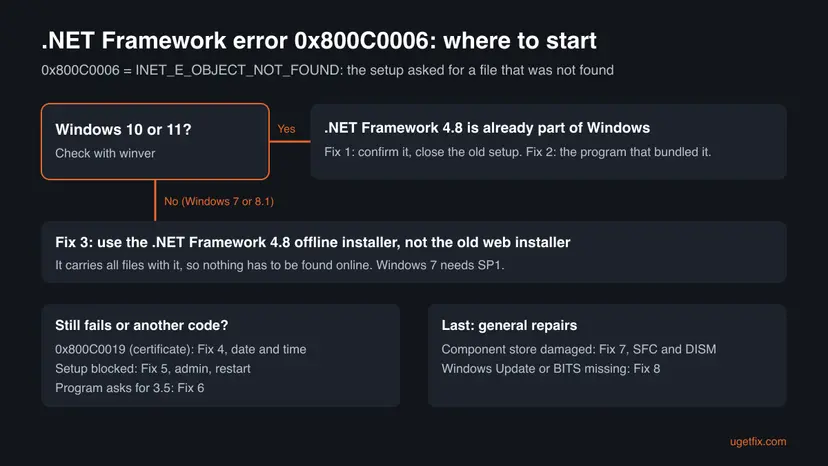
Microsoft says all .NET Framework 4.x versions are in-place updates: only one 4.x version can be on a PC, and an earlier one cannot be installed over a later one. Windows 10 (May 2019 Update and later) ships with .NET Framework 4.8, and Windows 11 22H2 and later with 4.8.1. Programs made for .NET Framework 4 run on them.
How to fix .NET Framework installation error 0x800c0006
Fix 1 takes two minutes and solves the error for most readers on Windows 10 and 11. Fix 2 deals with programs that start the old setup by themselves, Fix 3 is for Windows 7 and 8.1, and Fixes 4 to 8 cover the rarer causes.
| What you see or have | Start with |
|---|---|
| Windows 10 or Windows 11, any program or setup. | Fix 1 |
| The error appears while you install another program, such as Windows Essentials 2012. | Fix 2 |
| Windows 7 or Windows 8.1. | Fix 3 |
| Code 0x800C0019 or 0x800C0008, or a VPN or proxy is on. | Fix 4 |
| A message about privileges, a pending restart or compatibility mode. | Fix 5 |
| The program asks for .NET Framework 3.5, 3.0 or 2.0. | Fix 6 |
| A message that the component store is corrupted, or nothing above helped. | Fix 7, then Fix 8 |
Fix 1. Check that .NET Framework 4.8 is already on Windows 10 or 11
2 minutesNo riskWindows 10 or Windows 11. This is the case for most readers.
Windows 10 and 11 include .NET Framework 4.8 or 4.8.1 as part of the system. Because 4.x versions replace each other in place, the old .NET Framework 4 setup has nothing to add, and a program built for .NET 4 uses the version Windows already has.
- Close the Installation Did Not Succeed window.
- Press Win + R, type
winverand select OK. The window shows Windows 10 or Windows 11 and the version, such as 22H2 or 25H2. - Press Win + R, type
optionalfeaturesand press Enter. The Windows Features window opens. - Find .NET Framework 4.8 Advanced Services. Its name tells you that .NET Framework 4.8 is on the PC.
- If its box is empty, select it and select OK. The advanced services are extras for some network programs; most programs do not need them.
- Start the program that needed .NET Framework 4. Do not run the old setup again.
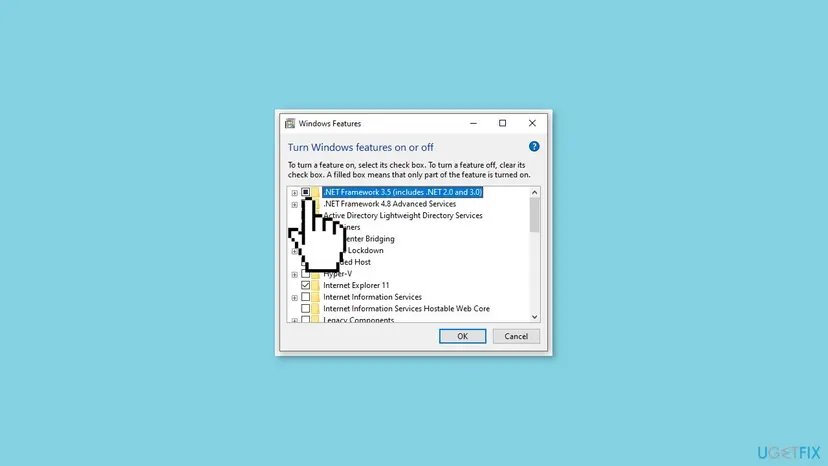
If the old setup instead says that .NET Framework 4.x "is already a part of this operating system" or "or a later version is already installed", Microsoft's answer is: no action necessary.
It worked if: Windows Features lists .NET Framework 4.8 Advanced Services, and the program starts without the old setup.
If not: If the error comes back every time you install a program, that program starts the setup by itself: Fix 2. If the program names .NET Framework 3.5, go to Fix 6.
Fix 2. Get past a program's setup that bundles the old .NET 4 installer
5 minutesNo riskThe error appears while you install another program, for example Windows Essentials 2012 (Movie Maker, Photo Gallery) or an older game or tool.
Many older installers carry the .NET Framework 4 web installer and run it first. On Windows 10 and 11 that step is not needed, so the error often stops only the .NET step, not the program itself.
- Let the program's setup finish, or close the .NET error and select Continue or Skip if the setup offers it.
- Open Start and look for the program. Users report that the programs of Windows Essentials 2012 are installed and start even after this error.
- If the program is missing, check Fix 1 first, then run the program's setup again with Run as administrator.
- If the program's maker offers a newer version, install that one: newer installers do not ask for .NET Framework 4.
Windows Essentials 2012 and similar old suites are offered on many download sites. Installers from unknown sites can carry adware or malware. If the maker no longer offers the program, prefer a current program that does the same job.
It worked if: The program starts from the Start menu, even though its setup showed the .NET error.
If not: If the program says it needs .NET Framework 3.5, use Fix 6. If it says it needs .NET 4 on Windows 7 or 8.1, use Fix 3.
Fix 3. Install .NET Framework 4.8 with the offline installer on Windows 7 or 8.1
15 minutesLow riskWindows 7 with Service Pack 1 or Windows 8.1, where .NET Framework 4.x is really missing.
Microsoft says the offline installer contains all the required components and does not need an internet connection. With no download during setup, there is nothing for 0x800c0006 to fail on.
- Open Microsoft's download page for .NET Framework 4.8 at
dotnet.microsoft.com/download/dotnet-framework/net48. - Under Runtime, choose the offline installer, not the web installer.
- Right-click the downloaded file and select Run as administrator. Microsoft says you need administrator rights to install .NET Framework 4.5 or later.
- Follow the setup and restart the PC when it asks.
- If you use Windows in another language, install the language pack for 4.8 from the same page after the runtime.
Microsoft says that on Windows 7 the .NET Framework requires SP1, and a "not supported on this operating system" message usually means SP1 is missing. Windows 7 and 8.1 no longer get security updates, so use such a PC offline or only for the old program.
It worked if: Setup ends with a success message, and after the restart the program that needed .NET 4 starts.
If not: If the setup reports a certificate or download problem, check the clock and connection with Fix 4. If it is blocked by another message, use Fix 5.
Fix 4. Check the connection, proxy and the PC clock
5 to 10 minutesLow riskYou must use the web installer, you see 0x800C0019 or 0x800C0008, or a VPN or proxy is on.
0x800C0019 means "The SSL certificate is invalid", which a wrong date often causes, and 0x800C0008 means the connection was interrupted. A proxy or VPN can also send the web installer to an address where the file is not found.
- Disconnect a VPN for the test, and connect it again afterwards.
- Open Settings > Network & internet > Proxy and make sure Use a proxy server is Off. On Windows 10 it is Settings > Network & Internet > Proxy.
- Check that the date, time and time zone are right. Step by step: How to fix the date and time in Windows
- If websites also fail to load, check the connection itself: How to check your internet connection in Windows
- Run the setup again.
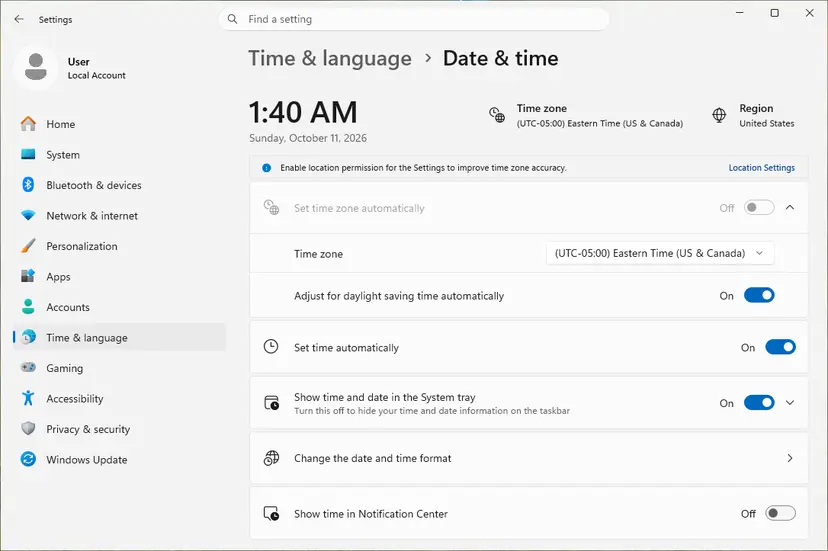
It worked if: The setup downloads its files and finishes.
If not: Use the offline installer from Fix 3, which does not download anything.
Fix 5. Run the setup as administrator, without compatibility mode, after a restart
5 minutesLow riskThe setup also mentions privileges, a pending restart or compatibility mode, or it fails again right after Fix 3.
Microsoft lists three blocks for the .NET Framework setup: it needs an administrator, it stops when a previous installation waits for a restart, and it cannot run in Program Compatibility Mode. A failed attempt can leave compatibility mode switched on for the file.
- Restart the PC. If Windows installs updates, let it finish; Microsoft says this can take more than one restart.
- Right-click the setup file and select Properties, then the Compatibility tab.
- Clear Run this program in compatibility mode for and select OK.
- Right-click the setup file and select Run as administrator, then Yes.
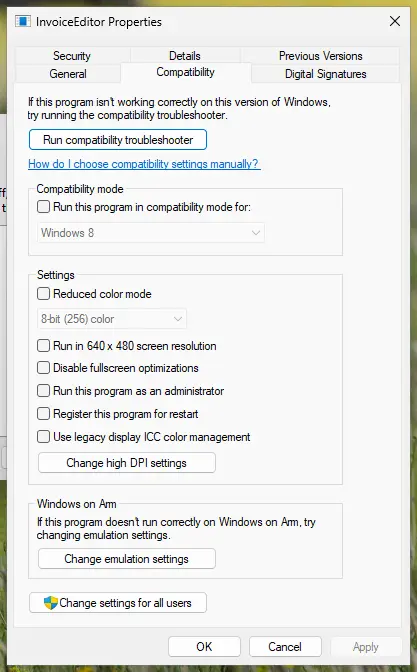
More about these two settings: How to run a program as administrator or in compatibility mode
It worked if: The setup runs without the privileges, restart or compatibility message.
If not: If it still fails with 0x800c0006, go back to Fix 3 and make sure you use the offline installer.
Fix 6. Turn on .NET Framework 3.5 if the program asks for it
5 to 10 minutesLow riskThe program names .NET Framework 3.5, 3.0 or 2.0, not version 4.
.NET Framework 4.8 does not replace 3.5: they are separate. On Windows 10 and 11, 3.5 is a Windows feature you turn on, not something the .NET 4 setup can add.
- Press Win + R, type
optionalfeaturesand press Enter. - Select .NET Framework 3.5 (includes .NET 2.0 and 3.0) and select OK.
- Choose Let Windows Update download the files for you if Windows asks.
- Restart the PC and start the program.
If this step fails with its own code, see our guide to .NET Framework error 0x80072EE6, which covers the 3.5 download in detail.
It worked if: Windows says it completed the requested changes, and the program starts.
If not: If Windows cannot download the 3.5 files, follow the linked guide, or repair Windows with Fix 7.
Fix 7. Repair system files with SFC and DISM
20 to 30 minutesLow riskThe setup says the component store has been corrupted, or Fix 1 to 6 did not help.
Microsoft lists "has not been installed because the component store has been corrupted" as a .NET setup block and points to the DISM repair. It does not fix a missing download, so do it only after the fixes above.
- Open an elevated command window. Right-click Start and select Terminal (Admin), or type cmd in the search box, right-click Command Prompt and select Run as administrator. Select Yes when Windows asks for permission.
- Run DISM first. Type the command below and press Enter. DISM downloads clean copies of damaged components from Windows Update, so it can take several minutes. Wait until it says The operation completed successfully.
DISM.exe /Online /Cleanup-Image /RestoreHealth - Run System File Checker. In the same window, type the command below and press Enter. Do not close the window until the verification reaches 100%.
sfc /scannow - Read the result and restart. Compare the last message with the table below this guide, then restart the PC so that repaired files are loaded.
These steps were written for Windows 11 24H2 and 25H2. The full page with the other versions and what each result means: Run DISM and SFC to repair Windows system files
It worked if: SFC and DISM report that they repaired the damage or found none, and the setup or the program works.
If not: If the setup mentions Windows Update or BITS, use Fix 8.
Fix 8. Reset the Windows Update components
15 minutesLow riskThe setup says the Windows Update service or the Background Intelligent Transfer Service (BITS) is not available.
Microsoft lists both messages as .NET Framework setup blocks. Resetting the update components restarts those services and clears their download cache.
- Open Command Prompt as administrator. Type cmd in the search box, right-click Command Prompt and select Run as administrator. Select Yes when Windows asks for permission.
- Stop the update services. Type the commands below and press Enter after each one. If Windows says that other services depend on Cryptographic Services, it stops them too. A message that a service is not started is fine.
net stop wuauserv net stop bits net stop cryptsvc - Delete the download queue files. This clears the list of downloads that the Background Intelligent Transfer Service keeps. If Windows says it cannot find the files, continue.
del "%ALLUSERSPROFILE%\Application Data\Microsoft\Network\Downloader\qmgr*.dat" - Rename the update cache folders. Renaming keeps a copy in case you need it; Windows creates new, empty folders when the services start again. If you get Access is denied, a service is still running: repeat the previous step.
ren %systemroot%\SoftwareDistribution SoftwareDistribution.old ren %systemroot%\System32\catroot2 catroot2.old - Start the services again. Type the commands below and press Enter after each one. The requested service has already been started is fine: Windows started it on its own.
net start cryptsvc net start bits net start wuauserv - Restart and check for updates. Restart the PC. Then select Start > Settings > Windows Update > Check for updates. The first check can take longer than usual because everything is downloaded again.
These steps were written for Windows 11 and Windows 10 (the steps are the same). The full page with the other versions and what each result means: Reset Windows Update components
It worked if: Windows Update checks for updates again, and the setup no longer warns about the services.
If not: Read the next section: the setup logs show which part failed.
If error 0x800c0006 is still there
The old .NET setup writes text logs to your Temp folder. Press Win + R, type %temp% and press Enter, then sort by Date modified. Open the newest text files whose names contain NetFx or dd_ and search for 0x800c0006. We could not confirm the exact file names for every .NET version.
- A web address next to the error: the web installer asked for a file that is gone. Use Fix 1 or the offline installer in Fix 3.
- 0x800C0019 or a certificate line: check the clock and proxy with Fix 4.
- A message about the component store, Windows Update or BITS: Fix 7 and Fix 8.
For support, send the code 0x800c0006, the result of winver, the name of the program whose setup started .NET, and the last lines of the log. This error is not a hardware fault and not a licence problem: it is always about a download the setup could not find.
Windows 10 reached the end of support on 14 October 2025. .NET Framework 4.8 still works on Windows 10 22H2, but without Extended Security Updates the PC no longer gets security fixes.
How to keep error 0x800c0006 from coming back
- On Windows 10 and 11, rely on the .NET Framework 4.8 that Windows keeps updated through Windows Update.
- On older PCs, keep the .NET Framework 4.8 offline installer from Microsoft with your other setup files.
- Prefer current versions of programs, whose installers do not bundle the .NET 4 web installer.
- Do not download .NET Framework from unofficial sites; Microsoft offers every version for free.
- Do not uninstall .NET Framework to fix this: Microsoft warns that programs may stop working.
- Do not run the .NET setup in compatibility mode.
Frequently asked questions
What does error 0x800c0006 mean?
It means a file the setup tried to download was not found. Microsoft's list of URL moniker error codes names 0x800C0006 INET_E_OBJECT_NOT_FOUND, "The object was not found". In practice you see it in the .NET Framework 4 web installer, which downloads its parts while it runs. On Windows 10 and 11 you usually do not need that installer at all, because .NET Framework 4.8 is already built in (Fix 1).
Do I need to install .NET Framework 4 on Windows 10 or 11?
No. Windows 10 from the May 2019 Update on includes .NET Framework 4.8, and Windows 11 22H2 and later include 4.8.1. Microsoft says .NET Framework 4.x versions are in-place updates, so an older 4.x cannot be installed over them, and programs made for .NET Framework 4 run on the newer one. Close the old setup and start the program (Fix 1).
How do I fix 0x800c0006 in Windows Essentials 2012?
The Windows Essentials 2012 setup runs the old .NET Framework 4 web installer first. On Windows 10 and 11, let the setup finish or skip the .NET step, then look for Photo Gallery or Movie Maker in Start; users report that the programs are installed and start despite the error. Fix 2 has the steps. Get the suite only from a trusted source, because many download sites repack it.
What is error code 0x800c0019?
It is a neighbouring code from the same family. Microsoft's list names 0x800C0019 INET_E_INVALID_CERTIFICATE: "The SSL certificate is invalid." A wrong date or time on the PC is a common reason, and a proxy or security tool that inspects secure connections can cause it too. Correct the clock and turn off a manual proxy (Fix 4), or avoid the download with the offline installer (Fix 3).
Does error 0x800c0006 happen on Windows 7?
Yes, and on Windows 7 the fix is different, because .NET Framework 4.x may really be missing there. Use the .NET Framework 4.8 offline installer from Microsoft (Fix 3), which carries all its files. Microsoft says .NET Framework on Windows 7 requires Service Pack 1. Windows 7 no longer gets security updates, so keep such a PC for the old program only.
Is 0x800c0006 the same as code 0x8a150006?
No. Both end in 0006, but they come from different code families. 0x800C0006 is a Windows download error from the URL moniker family. 0x8A150006 belongs to another tool, and we could not confirm its exact meaning in the Microsoft sources we read today. If you see 0x8A150006, search for it together with the name of the program that showed it.
Will the .NET Framework Repair Tool fix 0x800c0006?
Unlikely. The repair tool fixes damaged .NET Framework installations, while 0x800c0006 happens before anything is installed: the setup cannot find a download. On Windows 10 and 11, check the built-in version instead (Fix 1). If a program later fails on an installed .NET 4.8, the repair tool is described in How to repair Microsoft Visual C++ Redistributable and .NET Framework.
Should I unblock the installer file or turn off my antivirus?
Neither is a fix for this code. Unblocking a file changes how Windows treats a downloaded file, but 0x800c0006 means the setup could not find a file online. Turning off protection only adds risk. If you suspect your security program blocks the download, test with the offline installer (Fix 3), which needs no download during setup.
What are 0xffffffffc0000006 and NETSDK1106?
They are different problems. 0xffffffffc0000006 is the code 0xC0000006 written as a 64-bit number; it is a Windows status code, not a .NET download error, and we could not confirm its meaning for your case in today's sources. NETSDK1106 is a build message from the modern .NET SDK for developers. This page covers only the .NET Framework setup error 0x800c0006.
Sources
- Microsoft Learn: URL Moniker Error Codes (INET_E_OBJECT_NOT_FOUND 0x800C0006, INET_E_INVALID_CERTIFICATE 0x800C0019) (learn.microsoft.com)
- Microsoft Learn: Install the .NET Framework developer pack or redistributable (web and offline installers, versions in Windows) (learn.microsoft.com)
- Microsoft Learn: Troubleshoot blocked .NET Framework installations and uninstallations (learn.microsoft.com)
Did this fix work?
One click, no account. It tells the next reader which guides are worth their time.
Questions and experiences: fix .NET Framework installation error 0x800c0006 in Windows
Still broken, or found a fix we did not cover? Ask here: members and our editors answer. Reading is open; writing needs a free account.
…