
How to fix Network List Service (netprofm.dll) high CPU in Windows?

Prefer to fix it yourself? The manual steps follow.
- 9methods
- 2 minutes to restart the service, 15 to 30 minutes for the adapter and driver fixes
- Intermediate
Applies to The Network List Service (netprofm, netprofm.dll) on Windows 11 and Windows 10
9 methods in this guide
Recently, whenever Windows wakes up from sleep, Network List Service is taking 30 to 40% of the CPU, and it goes on for some time. Then I have to reboot for the problem to go away, only for it to come back a bit later.
Network List Service (netprofm) is the Windows service that identifies the networks your PC joins and tells apps when they change. A short spike after waking or joining Wi-Fi is normal. Load that lasts minutes after every wake usually comes from a faulty or extra network adapter, so restart the service first and then clean up Device Manager.
Do not disable Network List Service: Windows uses it to know which network you are on, and on Windows 11 it also runs the internet check behind the network icon. First confirm the load is really netprofm and whether it stops with Wi-Fi off (Fix 1). Then restart the service (Fix 2) and remove faulty or leftover network adapters in Device Manager (Fix 3).
| Error | No error message. Task Manager shows Service Host: Network List Service high in the CPU column, often 30% or more for a minute or longer, most often right after the PC wakes from sleep. |
|---|---|
| Where it appears | Task Manager on Windows 11 and Windows 10. The Services tab names it netprofm; the code it runs is netprofm.dll inside a svchost.exe process. |
| Main cause | Something that keeps changing the network picture: a faulty or extra network adapter, a VPN or virtual adapter, or a Wi-Fi driver that misbehaves after sleep. Each change makes the service identify the network again. |
| Fastest fix | Restart the service in services.msc (Fix 2), then remove failed or leftover adapters in Device Manager (Fix 3). |
| Also written as | netprofm, netprofm.dll, netprofm service, Network List Manager, Network Profile Manager, Service Host: Network List Service, netprofm high memory. |
| Default startup type | Manual (Microsoft Learn). Windows starts it when it is needed; you never need to set it yourself. |
| Safe to disable? | No. Microsoft gives "No guidance" on disabling it, and on Windows 11 it hosts the Network Connectivity Status Indicator that decides between "Internet" and "No internet". |
| Microsoft's status | No known issue or fix for netprofm high CPU is published. Reports on Microsoft Q&A tie it to waking from sleep and to extra adapters after a feature update. |
| Time to fix | 2 minutes for a restart of the service, 15 to 30 minutes for the adapter and driver fixes. |
Facts checked on 15 October 2026. Steps written for Windows 11 (25H2 and 26H2) and Windows 10 22H2, with the service details read from Microsoft Learn's system services table and NCSI overview.
What Network List Service (netprofm) is and why it uses CPU
Network List Service is a built-in Windows service. In Microsoft's words, it "collects and stores properties for connected networks, and notifies applications when these properties change". Its service name is netprofm, its default startup type is Manual, and its code lives in netprofm.dll, which runs inside a shared Service Host (svchost.exe) process.
On Windows 11 it does one more job. Microsoft's NCSI overview says: "As of Windows 11, NCSI is hosted within the Network List Manager service, also known as the Network Profile Manager". NCSI is the part that decides whether you have internet or only a local network, using HTTP probes and by watching traffic. On Windows 10 that check lived in Network Location Awareness (NlaSvc).
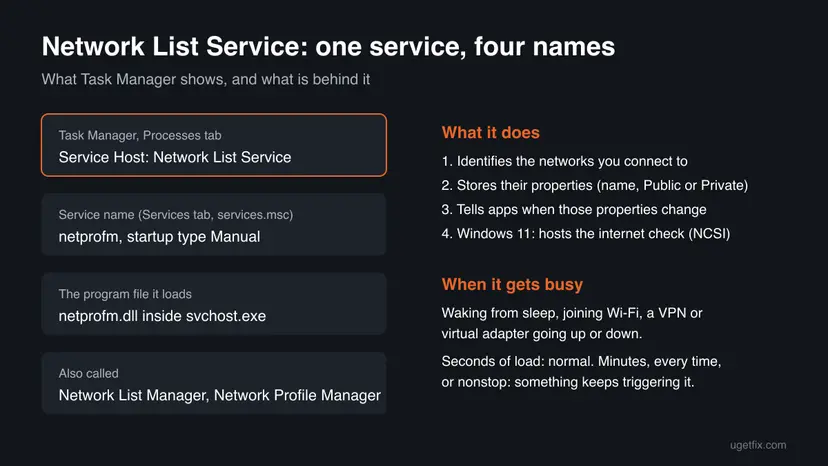
| What you see | Where | What it is |
|---|---|---|
| Service Host: Network List Service | Task Manager, Processes tab | The svchost.exe process that hosts netprofm. This is the CPU figure you are worried about. |
netprofm | Task Manager Services tab, services.msc | The short service name. Default startup type: Manual. |
netprofm.dll | Task Manager Details tab, Process Explorer | The program file the service loads. It is part of Windows, not a separate app. |
Network Location Awareness (NlaSvc) | services.msc | A neighbouring service, Automatic by default, that also stores network configuration and notifies programs of changes. |
Network Store Interface Service (nsi) | services.msc | Delivers network notifications such as an interface being added or removed. Microsoft warns that stopping it loses network connectivity. |
Every time the PC wakes, joins Wi-Fi, plugs in a cable or a VPN connects, Windows has to work out which network it is on and whether it reaches the internet. A few seconds of CPU at that moment is the service doing its job. Minutes of load after every wake, or load that never stops, is not.
Why Network List Service uses so much CPU, from most to least common
Most often something keeps changing the list of networks and adapters, so the service identifies them again and again. Less often a network driver misbehaves after sleep. Rarely the cause is damaged system files, another program, or malware hiding behind a svchost.exe name. Microsoft publishes no statistics, so this order comes from how the service works and from the reports we read.
| Cause | How often | How to tell | Fix |
|---|---|---|---|
| A failed, duplicate or leftover network adapter. A user on Microsoft Q&A found an extra adapter with an error next to the Wi-Fi card and the load stopped after removing it. Another saw many WAN Miniport entries appear with a feature update. | Most often | Device Manager shows a yellow mark under Network adapters, or greyed-out duplicates when hidden devices are shown. | Fix 3 |
| The service stuck after sleep: the load comes after every wake and a reboot clears it. | Often | It matches the reader's question above; a restart of the service calms it for a while. | Fix 2 |
| A Wi-Fi or Ethernet driver that drops and reconnects after sleep. A Q&A user reported that the load does not happen with Wi-Fi off. | Often | The load stops when Wi-Fi is off or the cable is out. | Fix 4 |
| VPN clients and virtual adapters (Hyper-V, VirtualBox, WSL, VMware) that go up and down. | Sometimes | The load starts when the VPN connects or a virtual machine starts. | Fix 5 |
| A damaged network stack, so the connectivity check keeps failing and retrying. | Sometimes | The network icon flips between connected and No internet. | Fix 6 |
| Damaged system files, a missing update, or another program hooking into networking. | Less often | Other services misbehave too, or the load disappears in a clean boot. | Fix 7 to Fix 9 |
| Malware using the svchost.exe name. | Rarely | The file behind it is not in C:\Windows\System32. | Fix 1 |
Microsoft has not published a known issue, a cause or a fix for netprofm high CPU, and no Microsoft engineer answered the Q&A thread. The adapter and Wi-Fi findings above are user reports, which is why we start with the cheap checks.
How to fix Network List Service (netprofm) high CPU
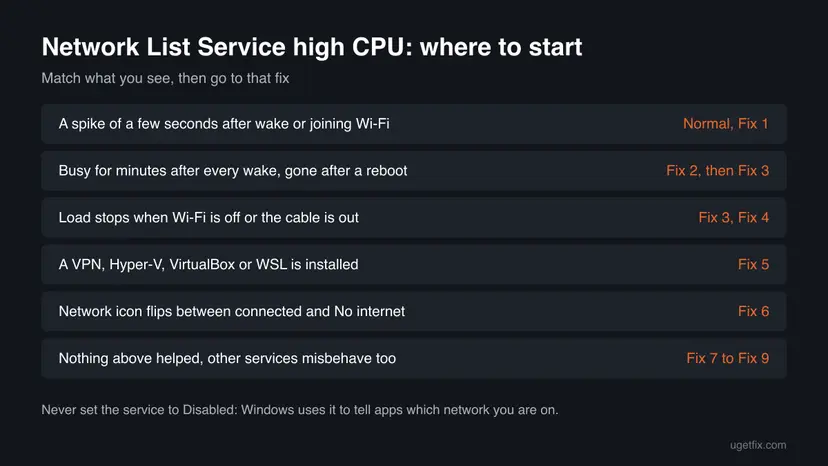
Fix 1 takes three minutes and tells you whether the network adapter is involved. Fix 2 to Fix 4 deal with the service and the adapters and solve most cases. Fix 5 and Fix 6 are for VPNs, virtual adapters and a broken network stack. Fix 7 to Fix 9 are the general repairs.
| What you see or have | Start with |
|---|---|
| A spike of a few seconds after wake or joining Wi-Fi, then quiet. | Nothing to fix; Fix 1 to be sure |
| Busy for a minute or more after every wake, gone after a reboot. | Fix 2, then Fix 3 |
| The load stops when you turn Wi-Fi off or pull the cable. | Fix 3, then Fix 4 |
| A VPN, Hyper-V, VirtualBox, VMware or WSL is installed. | Fix 5 |
| The network icon keeps switching to No internet. | Fix 6 |
| Nothing above helped and other services misbehave too. | Fix 7, then Fix 8 and Fix 9 |
Fix 1. Confirm it is Network List Service and test with Wi-Fi off
3 minutesNo riskEveryone, before changing anything. It tells you whether the network adapter is behind the load.
A Service Host line can hold more than one service, and netprofm works only when the network picture changes. Turning Wi-Fi off for a moment shows whether the load follows the network connection, which points straight at Fix 3 and Fix 4.
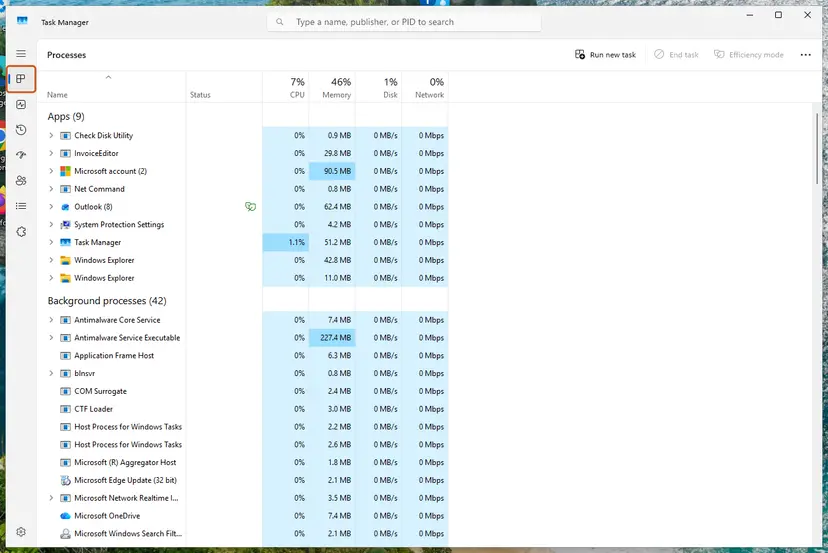
- Press Ctrl + Shift + Esc to open Task Manager. On Windows 10, select More details if you see a short list.
- On the Processes tab, select the CPU column header so the busiest process is on top.
- Expand Service Host: Network List Service and check that the service inside is Network List Service.
- Open the Services tab, find
netprofm, right-click it and select Go to details. - Right-click the highlighted svchost.exe, select Open file location and check that File Explorer opens
C:\Windows\System32. - Turn Wi-Fi off from the quick settings (or unplug the cable) for one minute and watch the CPU column, then turn it back on.
- Note when the load starts: right after wake, when a VPN connects, or all the time.
| What you see | Go to |
|---|---|
| Load drops within seconds of Wi-Fi going off | Fix 3, then Fix 4 |
| Load comes only after wake, a reboot clears it | Fix 2, then Fix 3 |
| Load starts when a VPN or virtual machine starts | Fix 5 |
svchost.exe opens from a folder other than C:\Windows\System32 | Run a full scan: How to scan for malware with Microsoft Defender |
It worked if: You know whether netprofm is busy because of the network connection, after sleep only, or on its own.
If not: If no line named Network List Service is busy, the load comes from another service in a different Service Host. Note its name and search for that one.
Fix 2. Restart Network List Service
2 minutesLow riskThe load came after a wake from sleep and a reboot normally clears it, or you want a quick test before touching drivers.
A restart ends a netprofm session that got stuck while the network came back after sleep, without a full reboot. Restarting is safe because the startup type stays Manual and Windows starts the service again when it is needed. Disabling it is not safe.
- Save open work in apps that use the network, such as cloud sync or a video call.
- Press Win + R, type
services.mscand press Enter. - Find Network List Service in the list.
- Right-click it and select Restart. If Windows asks to restart dependent services too, select Yes.
- Leave Startup type on Manual. Do not set it to Disabled.
- Open Task Manager and watch the CPU column for two minutes.

Step by step for any service, with the startup type settings: Check and restart Windows services.
It worked if: Network List Service drops to near 0% CPU within a minute, and the network icon shows your connection as before.
If not: If it is busy again after the next wake, the trigger is still there. Go to Fix 3 for the adapters and Fix 4 for the driver.
Fix 3. Remove failed, duplicate or leftover network adapters in Device Manager
10 minutesLow riskFix 1 showed the load follows the network connection, or the problem began after a feature update or a new VPN.
The service identifies every network the adapters report. A user on Microsoft Q&A found an extra adapter with an error next to the Wi-Fi card; after uninstalling both and restarting, only the real one came back and the load stopped. Another found many WAN Miniport entries added by a feature update.
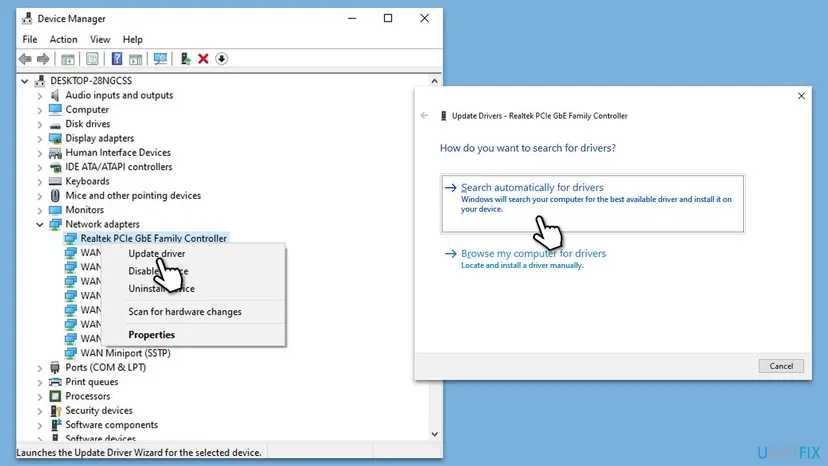
- Right-click Start and select Device Manager.
- Select View > Show hidden devices so greyed-out leftovers appear too.
- Expand Network adapters and look for a yellow warning mark, a duplicate of your Wi-Fi or Ethernet card, or a greyed-out adapter from a VPN you no longer use.
- Right-click such an adapter and select Uninstall device, then Uninstall. Leave the WAN Miniport entries alone; Windows needs them for VPN connections.
- If your real Wi-Fi or Ethernet adapter itself shows the warning, uninstall it too. Windows installs it again at the next start.
- Restart the PC, let it sleep for a few minutes, wake it and watch Task Manager.
Before you uninstall the adapter you use to get online, download its driver from the PC or adapter maker's site. If Windows does not reinstall it, you can install it without internet.
It worked if: After the restart only the adapters you really use are listed, none has a warning mark, and the CPU spike after wake is gone or lasts only seconds.
If not: If the real adapter keeps its warning mark or the spike returns, update or roll back its driver in Fix 4.
Fix 4. Update or roll back the Wi-Fi or Ethernet driver
10 minutesLow riskThe load stops when Wi-Fi is off or the cable is out, or it began right after a driver or Windows update.
If the adapter drops and reconnects after sleep, each reconnect makes netprofm identify the network and run the connectivity check again. A driver that matches your Windows version, or the one that worked before an update, stops the loop.
Open Device Manager, expand Network adapters and work on your Wi-Fi or Ethernet card. Choose Update driver if it is old, or Roll Back Driver if the trouble started after a driver update.
- Open Device Manager. Right-click Start and select Device Manager.
- Open the device's Driver tab. Expand the category (for example Display adapters), right-click the device, select Properties and open the Driver tab. Driver Date and Driver Version show what is installed now.
- Update the driver. Select Update Driver and let Windows search automatically. To use a driver you downloaded from the device maker, select Browse my computer for drivers instead and point to the unpacked folder.
- Or roll back the driver. If the problem started after a driver update, select Roll Back Driver, choose a reason and select Yes. The button is greyed out when Windows has no earlier driver to return to.
These steps were written for Windows 11 24H2 and later. The full page with the other versions and what each result means: Update, roll back or reinstall a driver
For laptops, the PC maker's support page often has a Wi-Fi driver newer than the one Windows installs. Download it there by your exact model.
It worked if: The adapter keeps its connection after wake without dropping, and netprofm stays quiet.
If not: If you use a VPN or virtual machines, test them in Fix 5. If the icon flips to No internet, go to Fix 6.
Fix 5. Test without the VPN and virtual adapters, and forget old networks
10 minutesLow riskA VPN client, Hyper-V, VirtualBox, VMware or WSL is installed, or the load starts when one of them connects.
Each VPN tunnel and virtual switch is a network adapter of its own. When it goes up or down, the adapter list changes and the service identifies the networks again. Taking them out of the picture for one test shows whether one of them is the trigger.
- Quit the VPN client from the tray so it is fully disconnected, and close any virtual machine.
- Press Win + R, type
ncpa.cpland press Enter to open Network Connections. - Right-click each VPN or virtual adapter (for example vEthernet, VirtualBox Host-Only or a TAP adapter) and select Disable.
- Let the PC sleep for a few minutes, wake it and watch Task Manager.
- Right-click the same adapters and select Enable again when the test is done.
- Open Settings > Network & internet > Wi-Fi > Manage known networks and select Forget on networks you will not use again.
If the load disappears with one adapter disabled, update that VPN or virtualisation app to its latest version, or reinstall it. Step by step: Uninstall a program or app in Windows.
It worked if: With the VPN and virtual adapters off, the spike after wake is gone, which names the program to update.
If not: If the load stays with everything disabled, enable the adapters again and go to Fix 6.
Fix 6. Reset the network stack and network adapters
15 minutesRead the warningThe network icon flips between connected and No internet, or Fix 2 to Fix 5 did not help.
On Windows 11 the internet check runs inside this service. If Winsock, TCP/IP or an adapter's settings are damaged, the check fails and retries, which keeps netprofm busy. Resetting them gives the service a clean network to identify.
Network reset removes and reinstalls all network adapters. Saved Wi-Fi passwords, a manually set IP address or DNS server and VPN adapters may have to be set up again. Write down your Wi-Fi password and VPN details first, and keep the network driver from Fix 3 at hand.
- Open an elevated command window. Right-click Start and select Terminal (Admin), or type cmd in the search box, right-click Command Prompt and select Run as administrator. Select Yes when Windows asks for permission.
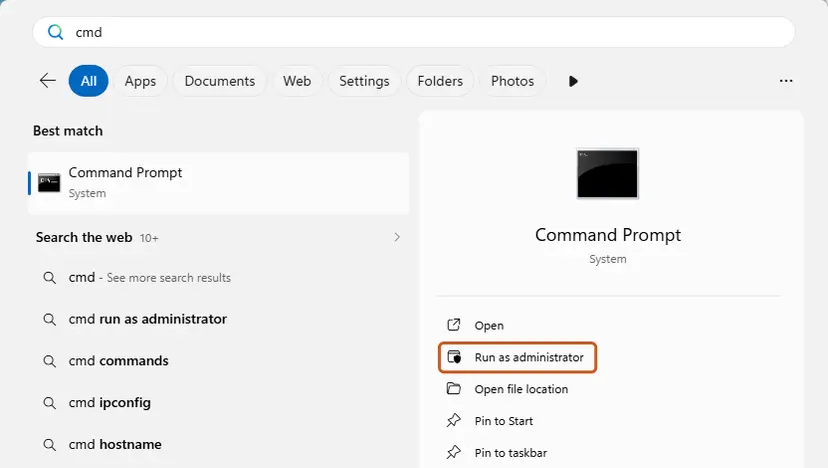
Search for cmd and choose Run as administrator. Screenshot: Windows 11 26H2. - Flush the DNS cache. Type the command below and press Enter. Windows forgets the website addresses it looked up earlier and asks for them again.
ipconfig /flushdns - Reset Winsock. Type the command below and press Enter. It returns the Windows sockets catalog to its default state.
netsh winsock reset
Both commands report success; the Winsock reset asks for a restart. Screenshot: Windows 11 26H2. - Reset TCP/IP. Type the command below and press Enter. If you entered an IP address or DNS server by hand, note it first: you may need to enter it again.
netsh int ip reset - Get a new IP address. Run these two commands one after the other. The connection drops for a moment between them.
ipconfig /release ipconfig /renew - Restart the PC. Restart Windows so the Winsock and TCP/IP resets take effect, then test the connection. If it still does not work, continue with the network reset below.
- Open Network reset. Open Settings > Network & internet > Advanced network settings and select Network reset.
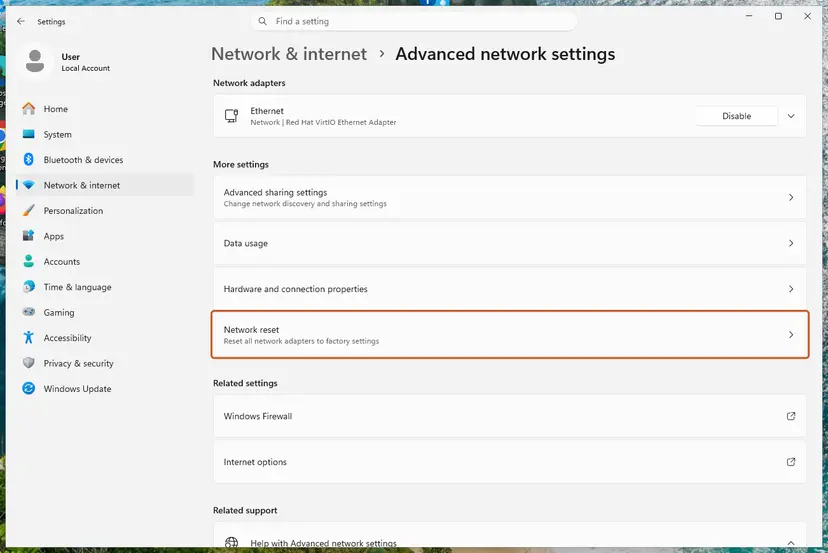
Network reset is under More settings in Advanced network settings. Screenshot: Windows 11 26H2. - Reset now. Select Reset now, then Yes to confirm. Windows removes and reinstalls all network adapters and restarts the PC.
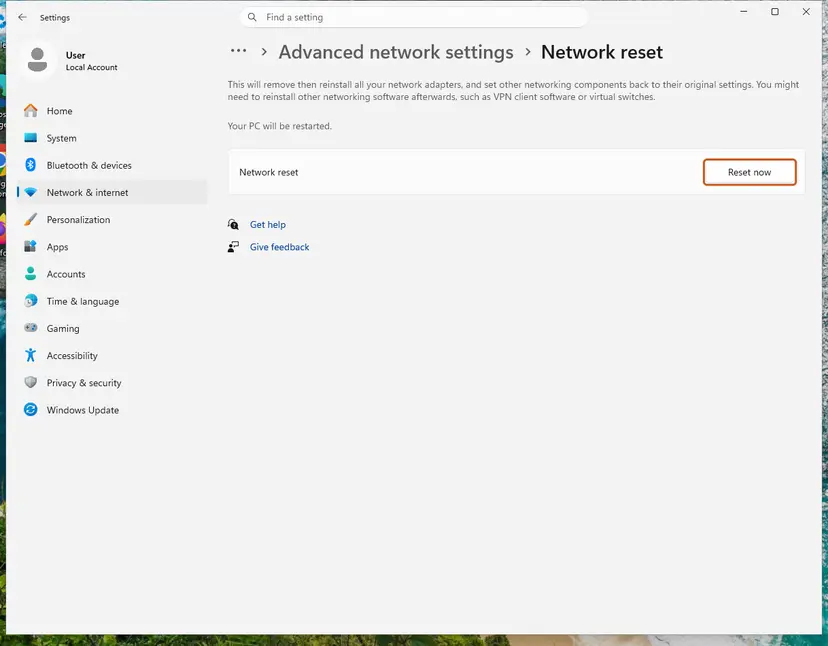
Network reset warns that VPN software or virtual switches may need to be reinstalled. Screenshot: Windows 11 26H2. - Reconnect. After the restart, connect to your Wi-Fi network again (you will need its password) and reinstall or reconfigure VPN software if it stopped working.
These steps were written for Windows 11 24H2 and later. The full page with the other versions and what each result means: Reset the network and flush DNS
It worked if: After the restart you reconnect to Wi-Fi, the icon shows Connected without flipping, and netprofm stays quiet after wake.
If not: Reinstall the VPN app if it stopped working, then go on with Fix 7.
Fix 7. Install all Windows updates, including optional driver updates
20 to 40 minutesLow riskWindows has not been updated for a month or more, or optional driver updates are waiting.
Network List Service is part of Windows, so any change to it arrives only through Windows Update. Optional updates also carry network drivers from the PC maker.
- Press Win + I and select Windows Update (Windows 10: Update & Security > Windows Update).
- Select Check for updates and install everything offered.
- Open Advanced options > Optional updates and install network driver updates if any are listed.
- Restart the PC when Windows asks, then test after a sleep as in Fix 1.
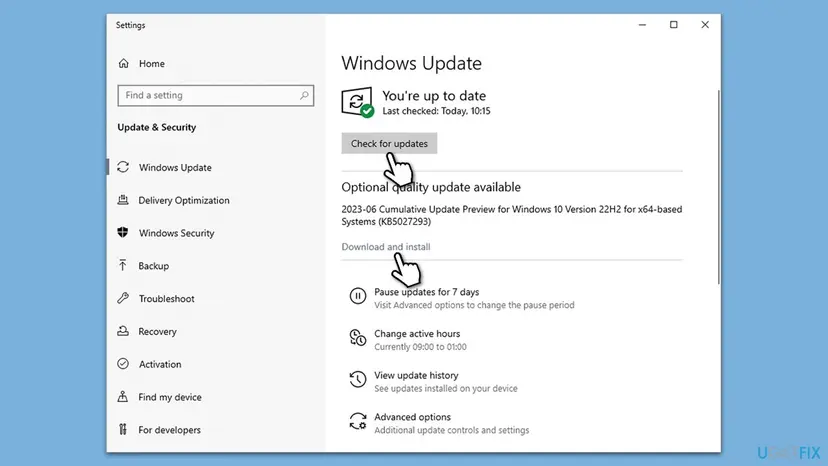
Windows 10 left support on 14 October 2025. Only PCs enrolled in Extended Security Updates still get fixes, so on other Windows 10 PCs this method can no longer bring anything new.
It worked if: Windows Update says You're up to date and the spike after wake is gone.
If not: If an update fails to install, see Reset Windows Update components. If it installs and the load stays, go to Fix 8.
Fix 8. Repair Windows system files with SFC and DISM
20 minutesNo riskWindows is up to date, the adapters are clean, and netprofm or other services still misbehave.
netprofm.dll is a Windows system file. If it or the component store is damaged, the service can fail and restart in a loop, which shows up as steady CPU use. SFC and DISM replace damaged system files with good copies.
- Open an elevated command window. Right-click Start and select Terminal (Admin), or type cmd in the search box, right-click Command Prompt and select Run as administrator. Select Yes when Windows asks for permission.
- Run DISM first. Type the command below and press Enter. DISM downloads clean copies of damaged components from Windows Update, so it can take several minutes. Wait until it says The operation completed successfully.
DISM.exe /Online /Cleanup-Image /RestoreHealth - Run System File Checker. In the same window, type the command below and press Enter. Do not close the window until the verification reaches 100%.
sfc /scannow - Read the result and restart. Compare the last message with the table below this guide, then restart the PC so that repaired files are loaded.
These steps were written for Windows 11 24H2 and 25H2. The full page with the other versions and what each result means: Run DISM and SFC to repair Windows system files
It worked if: SFC reports that it repaired corrupt files, or found no integrity violations, and the service settles after a restart.
If not: If SFC cannot repair some files even after DISM, try the clean boot in Fix 9, then read what to do when nothing helped.
Fix 9. Find a conflicting program with a clean boot
15 minutesLow riskThe load stays with Windows up to date and the adapters clean.
Firewalls, network monitors, VPN services and tools from the PC maker can watch every network change and trigger new ones. A clean boot starts Windows with only Microsoft services, so you can see whether one of them is behind it.
- Open System Configuration. Select Search on the taskbar, type msconfig and select System Configuration from the results.
- Hide Microsoft services. On the Services tab, select the Hide all Microsoft services check box. Only services from other companies stay in the list.
- Disable the remaining services. Select Disable all, then select Apply.
- Open Task Manager. On the Startup tab of System Configuration, select Open Task Manager.
- Disable the startup apps. On the Startup apps tab in Task Manager, select each item whose status is Enabled and select Disable. Write down or take a screenshot of the items you disable: you need the list to turn them back on.
- Confirm the changes. Close Task Manager. On the Startup tab of System Configuration, select OK.
- Restart and test. Restart the PC. Windows now starts in a clean boot environment: try again the thing that failed (run the app, install the update, uninstall the program).
These steps were written for Windows 11 25H2 and 26H2. The full page with the other versions and what each result means: How to perform a clean boot in Windows
It worked if: In the clean boot netprofm stays quiet after wake, which proves another program caused the load. Turn services back on in halves until it returns.
If not: If netprofm is busy even in a clean boot, the cause is in Windows or the hardware. Read the next section.
Network List Service still uses high CPU: what to check next
If the adapters are clean, the driver is current and a clean boot did not help, collect evidence before you reinstall anything. Microsoft has not documented a log of its own for this service, so you need what Windows records around it.
- Event Viewer: press Win + R, type
eventvwr.msc, open Windows Logs > System and filter for Service Control Manager. A line such as "The netprofm service terminated with the following error" shows the service crashing rather than working. - Power events: in the same log, look at the minutes after a wake. A Q&A user found many power errors at every wake; that points to the adapter's or the PC's sleep drivers, so check the PC maker's site for chipset and BIOS updates.
- Reliability Monitor: type reliability in Start and open View reliability history. A red cross on the day the load began often names the update or app behind it.
- Feedback Hub: press Win + F and report it under Network and Internet, with the build number from
winver. - Repair install: as a last step, reinstall Windows over itself and keep your files and apps: Reinstall Windows without losing files.
If the load follows one Wi-Fi card on every Windows install, or a USB Wi-Fi or Ethernet adapter, try another adapter or the cable. A card that keeps dropping its link is a hardware fault the service only reports.
How to keep Network List Service from flaring up again
- Install network drivers from the PC or adapter maker, and check for new ones after each Windows feature update.
- Uninstall VPN clients and virtualisation tools you no longer use, so their adapters do not stay behind.
- Look at Network adapters in Device Manager with hidden devices shown after a big update, and remove failed leftovers.
- Keep Windows Update on and install the monthly update.
- Do not disable netprofm or the services around it to save resources. The network icon, network profiles and apps that check for internet depend on it.
Frequently asked questions
What is netprofm?
netprofm is the service name of Network List Service, a built-in Windows service. Microsoft describes it as the service that collects and stores properties for connected networks and notifies applications when those properties change. It is what tells Windows and your apps that you are on your home Wi-Fi, a public hotspot or a wired network. Its default startup type is Manual, so Windows starts it when needed. On Windows 11 it also hosts the Network Connectivity Status Indicator, which decides whether the network icon shows internet access.
What is netprofm.dll and is it safe?
netprofm.dll is the program file of Network List Service. It is part of Windows and runs inside a svchost.exe process, which is why Task Manager shows Service Host: Network List Service. The real svchost.exe is always in C:\Windows\System32. If Go to details and Open file location in Fix 1 lead anywhere else, treat it as malware and run a full scan with Microsoft Defender. Do not download netprofm.dll from DLL sites; if it is damaged, SFC and DISM in Fix 8 restore the original.
Why does Network List Service use high CPU after sleep?
Because waking from sleep is exactly when Windows has to find out again which network it is on. The adapter reconnects, the service identifies the network and, on Windows 11, runs the internet check. That should take seconds. When it takes minutes, something keeps repeating the work: a failed or duplicate adapter, a driver that drops the link, or a VPN adapter going up and down. Users on Microsoft Q&A report the load stopped after removing an extra adapter, and that it did not happen with Wi-Fi off.
Can I disable Network List Service?
We do not recommend it. Microsoft's table of system services gives no guidance for disabling netprofm, unlike some services it marks as OK to disable. On Windows 11 the connectivity check behind the network icon runs inside it, and apps ask it whether you are online and which network profile applies. Disabling it can leave the icon wrong and confuse apps that check for internet. Restart it instead, as in Fix 2, and remove the trigger with Fix 3 to Fix 5.
Why does netprofm use a lot of memory?
The same triggers that raise its CPU use can raise its memory, because the service keeps information about every network and adapter it sees. Many leftover adapters or saved networks mean more to keep track of. Microsoft publishes no normal memory figure for the service. If memory keeps growing after each wake, restart the service as in Fix 2, then remove extra adapters in Fix 3 and forget old networks in Fix 5. Memory that keeps climbing after all that is worth reporting through Feedback Hub.
What does "The netprofm service terminated with the following error: The device is not ready" mean?
It is a Service Control Manager entry in Event Viewer under Windows Logs > System. It says the Network List Service stopped unexpectedly, and the text after the colon is the Windows error that came with it. We could not find a Microsoft explanation for this exact combination. Look at what happened in the same minute: a wake from sleep, an adapter being removed or a driver error. Fix 3 and Fix 4 deal with the adapter, and Fix 8 repairs the system files if the service keeps crashing.
Is Network List Service the same as Network Location Awareness?
No, they are two services that work together. Network List Service (netprofm, Manual by default) stores the properties of connected networks and tells apps when they change. Network Location Awareness (NlaSvc, Automatic by default) collects and stores network configuration information and notifies programs when it changes. On Windows 10 the internet check ran in Network Location Awareness; Microsoft says that as of Windows 11 it is hosted in Network List Service instead. That is why netprofm is busier on Windows 11 PCs.
Is high CPU from Network List Service a virus?
Almost never. The service is part of Windows and a short spike when the network changes is normal. Malware sometimes uses the svchost.exe name, so check the file location once: in Task Manager, open the Services tab, right-click netprofm, select Go to details, then Open file location. It must be C:\Windows\System32. If it is not, or if the CPU stays high with the service stopped, run a full scan as described in How to scan for malware with Microsoft Defender.
Does the old network troubleshooter fix this?
Rarely. The network troubleshooter checks whether you can connect, not why a service uses CPU, so it usually finds nothing while the load goes on. The older version of this guide put it first; we moved the specific checks ahead of it. If your connection itself drops or shows No internet, the network reset in Fix 6 is the stronger repair. Step by step for checking the connection: How to check your internet connection in Windows.
Sources
- Microsoft Learn: Guidance on configuring system services (Network List Service, Network Location Awareness, Network Store Interface Service) (learn.microsoft.com)
- Microsoft Learn: Network Connectivity Status Indicator overview for Windows (learn.microsoft.com)
- Microsoft Q&A: Service Host: Network List Service hogging CPU (user reports) (learn.microsoft.com)
Did this fix work?
One click, no account. It tells the next reader which guides are worth their time.
Questions and experiences: fix Network List Service (netprofm.dll) high CPU in Windows
Still broken, or found a fix we did not cover? Ask here: members and our editors answer. Reading is open; writing needs a free account.
…