
How to fix the Netwsw00.sys BSOD in Windows

Prefer to fix it yourself? The manual steps follow.
- 7methods
- 10 to 60 minutes
- Easy to intermediate
Applies to Windows 10 and Windows 11 laptops and desktops with an older Intel Centrino Wi-Fi card, such as the Wireless-N 1000, Advanced-N 6205, Advanced-N 6230 or Ultimate-N 6300
7 methods in this guide
Hi, my PC keeps randomly crashing and I am not sure what to do. The referenced file is Netwsw00.sys, and it always comes with a Blue Screen of Death.
netwsw00.sys is the Intel Wireless WiFi Link driver used by older Intel Centrino Wi-Fi cards. When a stop screen names it, that Wi-Fi driver crashed Windows. Reinstall the adapter with the driver Windows supplies first; if every driver crashes, the card itself is the problem.
netwsw00.sys is the driver of an older Intel Centrino Wi-Fi card, and the blue screen means that driver crashed. Uninstall the Intel Wi-Fi adapter in Device Manager with its driver and restart, so Windows installs its own driver again (Fix 1). If the crashes began after an update, pick the older driver (Fix 2). If every driver crashes, use a USB Wi-Fi adapter instead (Fix 4).
| Error | A stop screen with What failed: Netwsw00.sys, most often with DRIVER_IRQL_NOT_LESS_OR_EQUAL or KMODE_EXCEPTION_NOT_HANDLED. |
|---|---|
| Where it appears | While the Wi-Fi connects or is in use. The PC restarts by itself and crashes again soon after. A cable connection is often stable. |
| Main cause | A damaged or unsuitable copy of the Intel Centrino Wi-Fi driver, or a Wi-Fi card that is failing. |
| Fastest fix | Uninstall the Intel Wi-Fi adapter with its driver and let Windows install it again (Fix 1). |
| Also written as | netwsw00, netwsw00 sys, netwsw00.sys error, Netwsw00.sys blue screen. Related names: netwsw02.sys, Netwtw04.sys, Netwtw06.sys, Netwtw08.sys, netwns64.sys. |
| Who makes it | Intel. The crash report names it Intel Wireless WiFi Link Driver, Intel Corporation. It is not a Windows file and not a virus. |
| Affects | Mostly Windows 10 PCs from around 2010 to 2013. Windows 10 left support on 14 October 2025. |
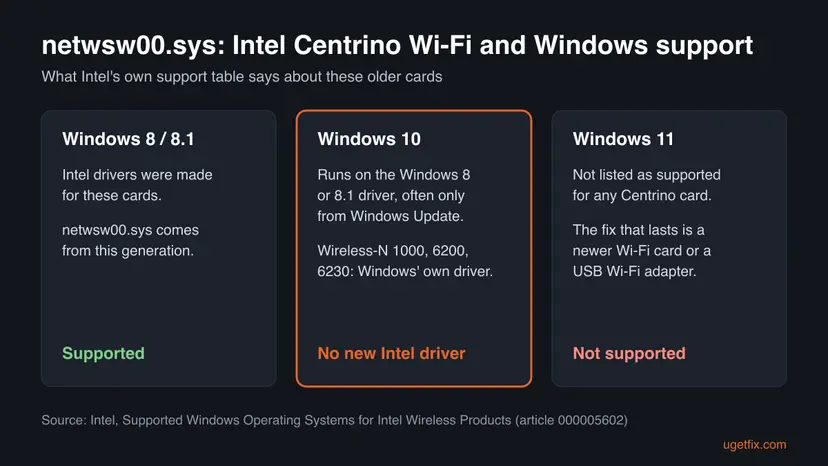
| Vendor status | Intel lists the Centrino cards as discontinued. On Windows 10 they run on Windows 8 or 8.1 drivers, some only from Windows Update. No Centrino card is listed for Windows 11. |
| Where the cause is logged | C:\Windows\Minidump, one .dmp file per crash. |
| Time to fix | 10 to 20 minutes for the driver fixes, up to an hour if Windows no longer starts. |
Facts checked on 15 October 2026. Steps written for Windows 11 (25H2 and 26H2) and Windows 10 22H2.
What netwsw00.sys is and why it stops Windows
netwsw00.sys is the kernel driver of older Intel Centrino Wi-Fi cards. Crash reports name it Intel Wireless WiFi Link Driver, Intel Corporation. It turns up with cards such as the Centrino Wireless-N 1000, Advanced-N 6230 and Ultimate-N 6300: laptops and desktops from the Windows 7 and Windows 8 years that were later moved to Windows 10.
The driver runs inside the Windows kernel, so Windows cannot catch its mistakes. When it touches memory it should not, Windows stops the PC and shows the driver's name under the stop code. On Windows 11 24H2 and later the stop screen is black, not blue.
| What you see | What it means |
|---|---|
| What failed: Netwsw00.sys | The Intel Centrino Wi-Fi driver was running when Windows stopped. The file name is the same in any letter case. |
| Stop code: DRIVER IRQL NOT LESS OR EQUAL | A driver touched memory it is not allowed to use at that moment. This is the code in the most recent public report, from a Lenovo laptop on Windows 10. |
KMODE_EXCEPTION_NOT_HANDLED | A driver in the kernel hit an error that nothing handled. Same driver, same fixes. |
| Different stop codes each time | Users on Intel's forum report that the code changes while the faulting file stays netwsw00.sys. What matters is the file name, not the code. |
netwsw02.sys, Netwtw04.sys, Netwtw06.sys, Netwtw08.sys, netwns64.sys | Intel Wi-Fi driver files with similar names. We could not confirm from Intel which card uses which file; the fixes below work the same way. |
The genuine netwsw00.sys sits in C:\Windows\System32\drivers and is signed by Intel. Deleting it only takes your Wi-Fi away. Never download it from a DLL or driver download site.
Why netwsw00.sys crashes: the causes, most common first
The cards behind netwsw00.sys are more than ten years old, and Intel no longer writes drivers for them. That changes the order of causes compared with a new Wi-Fi card: an unsuitable driver and a failing card are both common.
| How often | Cause | Sign | Fix |
|---|---|---|---|
| Most often | A damaged or half-updated copy of the Intel Wi-Fi driver | Crashes at random while on Wi-Fi | Fix 1 |
| Often | A driver version that does not suit your card | Crashes began after an update, or only on one hotspot | Fix 2 |
| Often | A driver from a download site or an updater tool, made for another card | The driver came from somewhere other than Windows Update or the PC maker | Fix 3 |
| Often on old PCs | The Wi-Fi card is failing | Every driver crashes, but a cable connection is stable | Fix 4 |
| Rarely | Unstable memory or an overclock | Many different files named on the stop screen | Fix 6 |
| Rarely | Damaged Windows system files | SFC finds files it cannot repair | Fix 7 |
Fix 1 and Fix 2 take the Wi-Fi away for a few minutes. Keep an Ethernet cable or a phone with USB tethering at hand, in case Windows needs to download the driver again.
Check which Wi-Fi card you have and that netwsw00.sys is to blame
The stop screen shows the file name only for a moment. These checks name your card and the driver version, which you need for every fix below.
- Right-click Start, select Device Manager and expand Network adapters. Look for a name starting with Intel(R) Centrino(R), such as Intel(R) Centrino(R) Wireless-N 1000 or Advanced-N 6205.
- Right-click it, select Properties and open the Driver tab. Note Driver Provider, Driver Date and Driver Version.
- Right-click Start, select Terminal (Admin) (on Windows 10: Windows PowerShell (Admin)) and check that the driver is loaded.
driverquery /v | findstr /i netwsw00 - Open
C:\Windows\Minidump. Windows writes one small dump file per crash there, named by date. - To read a dump, install Microsoft's debugger with
winget install Microsoft.WinDbg, open the newest.dmpfile and run!analyze -v. IMAGE_NAME: netwsw00.sys confirms the Intel driver.
Turn the Wi-Fi off and use an Ethernet cable for a day. If the crashes stop, the Wi-Fi driver or card is the cause. In the Microsoft Q&A case the laptop was stable on a cable and crashed only on Wi-Fi.
How to fix the netwsw00.sys blue screen
Start with Fix 1, which costs nothing. Fix 2 and Fix 3 pick the right driver version. Fix 4 is the lasting answer when every driver crashes, which is common on these old cards. Fix 5 gets a PC out of a crash loop. Fixes 6 and 7 rule out memory and Windows itself.
| What you see or what your PC has | Start with | Then |
|---|---|---|
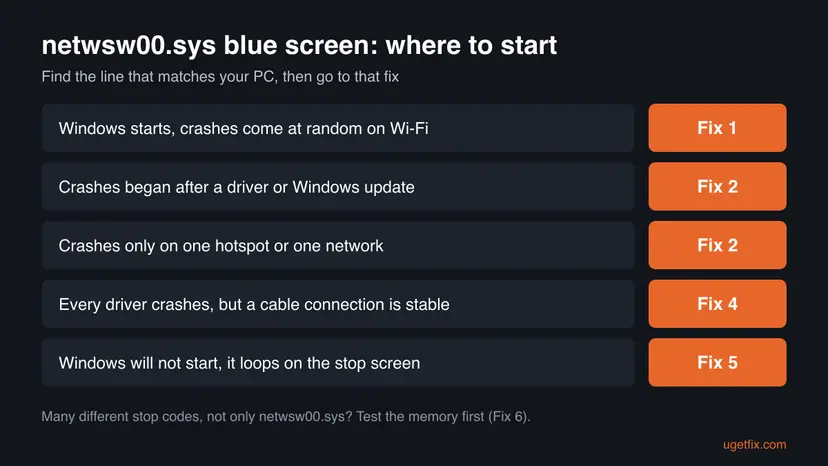
| Windows starts, and the crash comes at random on Wi-Fi | Fix 1 | Fix 3 |
| The crashes began right after a driver or Windows update | Fix 2 | Fix 1 |
| It crashes only on one hotspot or one network | Fix 2 | Fix 4 |
| The driver came from a download site or a driver updater | Fix 3 | Fix 1 |
| Every driver crashes, but a cable connection is stable | Fix 4 | Fix 6 |
| Windows will not start at all, it loops on the stop screen | Fix 5 | Fix 1 |
| Many different stop codes and files, not only netwsw00.sys | Fix 6 | Fix 7 |
Fix 1. Reinstall the Intel Wi-Fi adapter with a fresh driver
10 minutesLow riskWindows starts and you can open Device Manager. This is the right first step for most readers.
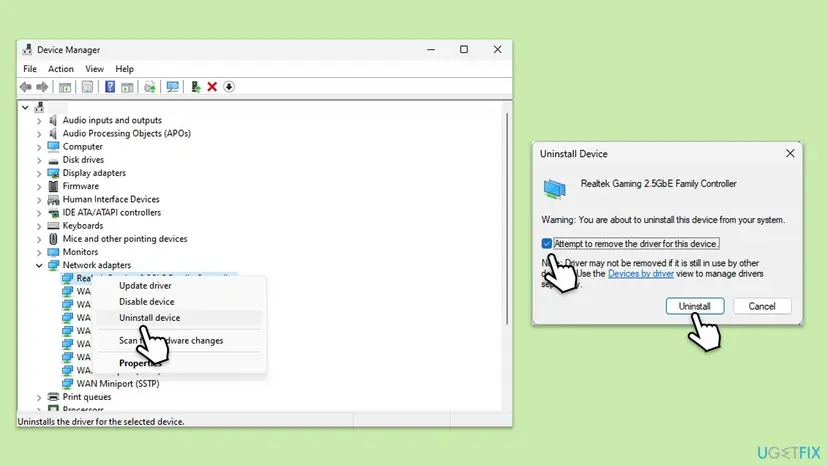
Removing the device together with its driver package throws away every file of the current netwsw00.sys. At the next start Windows installs the driver again from its own store or from Windows Update, which for most Centrino cards is the only driver available on Windows 10.
- Right-click Start, select Device Manager and expand Network adapters.
- Right-click the Intel(R) Centrino(R) Wi-Fi adapter and select Uninstall device.
- Tick Attempt to remove the driver for this device (on Windows 10: Delete the driver software for this device) and select Uninstall.
- Restart the PC. Windows finds the card and installs a driver on its own.
- If the adapter does not come back, open Device Manager, select Action > Scan for hardware changes, or connect a cable and run Windows Update.
- Use the PC normally on Wi-Fi, including what you did when it crashed.
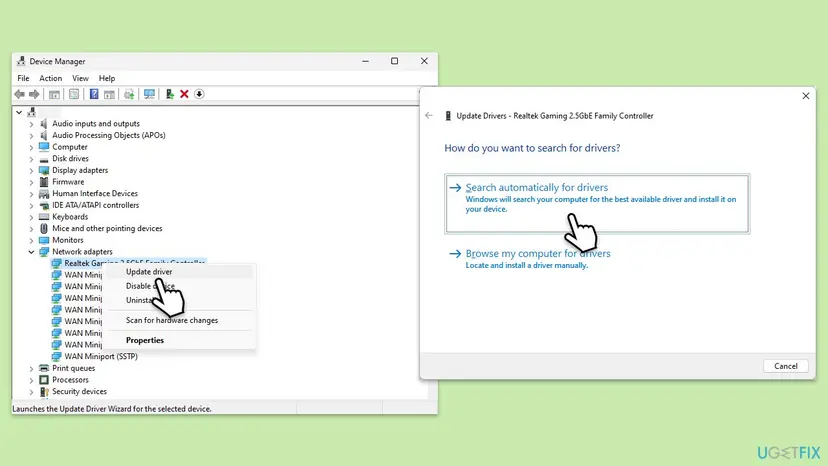
Every way to update, roll back or reinstall a driver, with screenshots: Update, roll back or reinstall a driver
It worked if: The Wi-Fi connects, the Driver tab shows a driver from Intel or Microsoft, and no new file appears in C:\Windows\Minidump over the next days.
If not: If the crashes started after an update or happen on one network only, try an older driver with Fix 2.
Fix 2. Pick an older Intel Wi-Fi driver that Windows still has
10 minutesLow riskThe crashes began after a driver or Windows update, or the PC crashes only when it joins one hotspot or router.
Windows keeps older driver versions in its driver store. A user on Intel's forum reported that a newer driver for the Advanced-N 6230 crashed in netwsw00.sys when joining one phone hotspot, while the older driver that came with Windows 8 did not. Going back to a version that worked removes the faulty code.
- In Device Manager, right-click the Intel Wi-Fi adapter and select Properties.
- Open the Driver tab and select Roll Back Driver if it is available. Choose a reason, select Yes and restart.
- If Roll Back Driver is greyed out, close the window, right-click the adapter and select Update driver.
- Select Browse my computer for drivers, then Let me pick from a list of available drivers on my computer.
- Each line shows a version number. Pick a different one from the version you have now, select Next and restart.
- Test the network that used to crash the PC.
Note the version that is stable. If Windows Update later offers a different Intel Wi-Fi driver under Optional updates, skip it.
It worked if: The Driver tab shows the version you picked, the Wi-Fi works on every network, and the stop screen does not return.
If not: If only one version is listed, or every version crashes, go to Fix 3 for a clean driver from a trusted place, then Fix 4.
Fix 3. Get the driver only from Windows Update or your PC maker
10 minutesLow riskThe driver came from a download site or a driver updater tool, or Fix 1 left the adapter without a driver.
Intel says the Centrino cards run on Windows 10 with Windows 8 or 8.1 drivers, and that some are only on Windows Update. For the Wireless-N 1000, Advanced-N 6200 and 6230, Intel lists the driver built into Windows. A package from another source may be made for another card and crash netwsw00.sys.
- Connect an Ethernet cable, or share your phone's connection over USB.
- Open Settings > Windows Update > Advanced options > Optional updates (on Windows 10: Settings > Update & Security > Windows Update > View optional updates).
- Open Driver updates, tick the Intel network entry if there is one, select Download & install and restart.
- If nothing is offered, open your laptop or PC maker's support page, enter the model and look for a WLAN or Wireless LAN driver for Windows 10 or Windows 8.1.
- Run the maker's setup, restart and test the Wi-Fi.
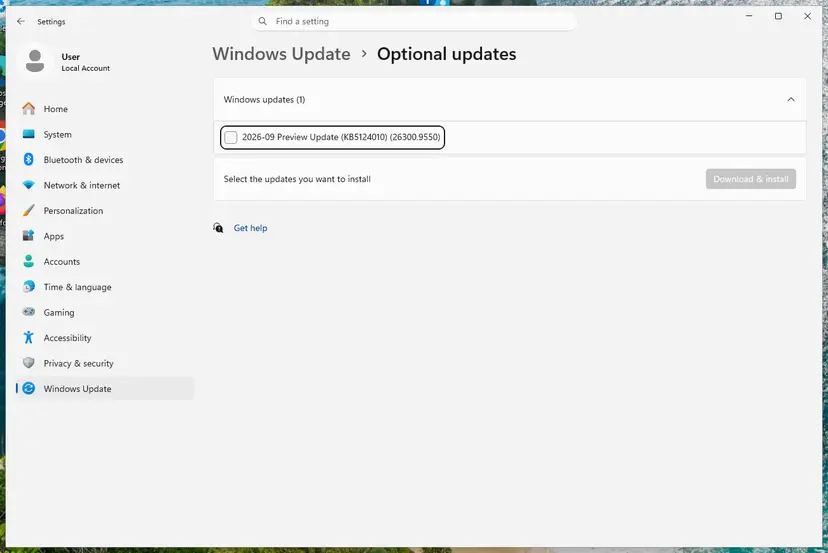
Driver updater tools and file-sharing links can install a package made for another card. For these old cards, Windows Update and the PC maker are the only safe sources.
It worked if: The Driver tab shows a driver from Intel or Microsoft with a version you can match to Windows Update or the maker's page, and the crashes stop.
If not: If every source gives a driver that crashes, the card or its driver cannot be made stable. Go to Fix 4.
Fix 4. Switch to a USB Wi-Fi adapter or a newer Wi-Fi card
15 minutesLow riskEvery driver crashes, the PC is stable on a cable, and neither Intel nor the PC maker offers anything newer.
In the Microsoft Q&A case, a Lenovo laptop with a Centrino Wireless-N 1000 crashed in netwsw00.sys after a driver reinstall, SFC and DISM, a clean boot and even a Windows reset. Disabling the Centrino card and using a USB Wi-Fi adapter ended the problem. Intel lists no Centrino card for Windows 11, so a new adapter is the fix that lasts.
- In Device Manager, right-click the Intel(R) Centrino(R) adapter and select Disable device, then Yes.
- Plug in a USB Wi-Fi adapter of another brand. Windows 10 and Windows 11 install drivers for most of them on their own.
- Select the network icon on the taskbar and connect to your Wi-Fi with the new adapter.
- Use the PC for a few days. If no stop screen appears, the old card was the cause.
- On a desktop or a laptop with a removable card, you can also replace the internal Wi-Fi card with a current one. Check the slot type and the maker's list of allowed cards first.
Disabling keeps Windows from loading netwsw00.sys while leaving the card in place. You can enable it again any time from the same menu.
It worked if: The new adapter connects, Device Manager shows the Intel card as disabled, and the netwsw00.sys stop screen does not come back.
If not: If the PC still crashes with the Intel card disabled, the dump will name another file. Test the memory with Fix 6.
Fix 5. Get Windows started again with Safe Mode or System Restore
20 to 40 minutesRead the warningWindows no longer starts and shows the netwsw00.sys stop screen every time.
Safe Mode starts Windows without the Wi-Fi driver, so you can disable the card or change the driver from inside. System Restore returns drivers and settings to a day before the crashes began.
System Restore removes apps, drivers and updates installed after the restore point. Your documents and photos stay, but programs installed since then must be installed again. Its preview lists them before you confirm.
- Switch the PC off fully, then on. If the stop screen returns, let it fail twice; Windows opens the blue Choose an option screen on the third start.
- Select Troubleshoot > Advanced options > Startup Settings > Restart, then press 4 for Safe Mode. Full steps: Start Windows or a Mac in Safe Mode
- In Safe Mode, do Fix 1 (uninstall the adapter with its driver) or disable the card as in Fix 4, then restart normally.
- If Safe Mode does not start either, go back to Advanced options and select System Restore.
- Tick Show more restore points, pick one dated before the first crash, select Next and Finish. Full steps: Undo recent changes with System Restore
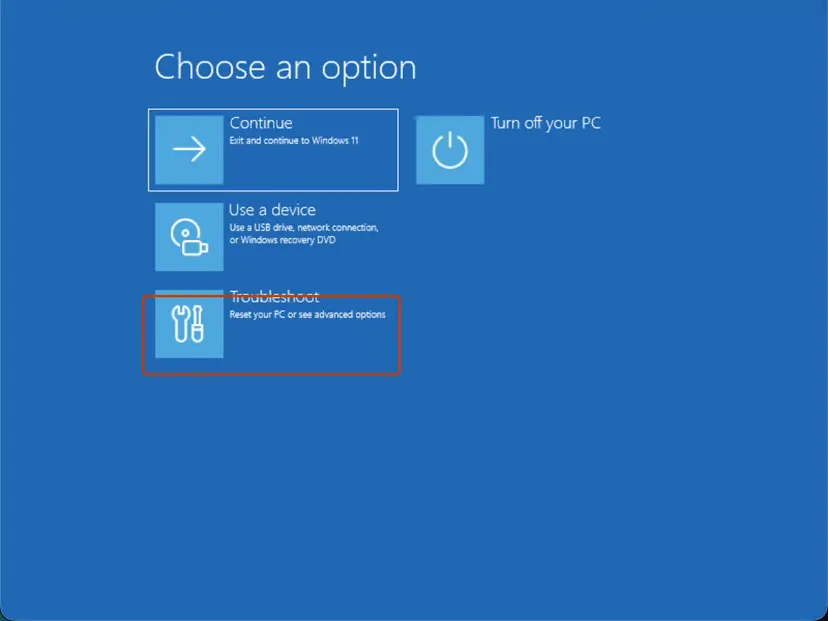
It worked if: Windows starts normally. After a restore, the Driver tab shows the older Wi-Fi driver.
If not: If neither works, try Startup Repair from the same screen: Run Startup Repair Then read the section on what to do when it still crashes.
Fix 6. Rule out unstable memory and overclocking
30 to 60 minutesLow riskYou see many different stop codes, or the dumps name a different file each time.
A bad memory module can corrupt the data any driver reads, and the Wi-Fi driver, busy all the time, is often the one that trips. On a PC this old, memory faults are worth ruling out before you buy anything.
- Undo any CPU or memory overclock, and set the memory profile in the BIOS to its default as a test.
- Test the memory with the tool built into Windows: How to test your RAM with Windows Memory Diagnostic
- After the restart, read the result in the notification or in Event Viewer > Windows Logs > System, source MemoryDiagnostics-Results.
It worked if: The memory test reports no errors, and the PC runs without a stop screen at default speeds.
If not: If the test finds errors, replace the RAM. If not, run Fix 7.
Fix 7. Repair Windows system files as a last check
20 minutesNo riskThe fixes above did not help, or SFC has never run on this PC.
netwsw00.sys is an Intel file, so this cannot repair the driver itself. It rules out damaged Windows network components that the driver works with, which is why it comes last. In the Microsoft Q&A case it did not stop the crashes.
DISM fetches clean copies of Windows components and SFC replaces damaged system files. Step by step with screenshots: Run DISM and SFC to repair Windows system files
In Terminal (Admin), one after the other:
DISM.exe /Online /Cleanup-Image /RestoreHealth
sfc /scannow
It worked if: SFC reports that it found no integrity violations or repaired them, and the PC runs without a stop screen.
If not: Collect the dumps and read the next section.
Still crashing: what to check and whom to ask
If the dumps still name netwsw00.sys after Fixes 1 to 3, the card is the likely cause, not Windows. A Windows reset will not help with that: in the Microsoft Q&A case it did not. Disabling the card and using another adapter (Fix 4) is the reliable way out.
- Zip the three newest
.dmpfiles fromC:\Windows\Minidump. - Note your Windows edition and version from Settings > System > About.
- Note the Wi-Fi adapter's name, Driver Date and Driver Version from Device Manager.
- Note the PC model and what you were doing at each crash, for example joining a certain hotspot.
| Where to ask | When |
|---|---|
| The laptop or PC maker's support | The PC is still listed on its support page |
| Microsoft Q&A, with the dump files | The dumps name a Windows file, or different files each time |
| A repair shop | Memory tests report errors, or you want the internal Wi-Fi card replaced |
How to keep the netwsw00.sys blue screen from coming back
- Note the Wi-Fi driver version that is stable on your PC.
- Get Intel Wi-Fi drivers only from Windows Update or your PC maker.
- Keep restore points turned on for drive C.
- Plan to replace a Centrino card if you move the PC to Windows 11.
- Delete or rename netwsw00.sys to stop the crash.
- Download netwsw00.sys from DLL or driver sites.
- Use driver updater programs for the Wi-Fi driver.
- Reset Windows hoping it fixes a failing card.
Windows 10 left support on 14 October 2025. Intel does not list any Centrino Wi-Fi card for Windows 11, so a PC with one of these cards will not get a new Wi-Fi driver from Intel again.
Frequently asked questions
What is netwsw00.sys?
netwsw00.sys is the Windows driver of older Intel Centrino Wi-Fi cards, which crash reports name as the Intel Wireless WiFi Link Driver from Intel Corporation. It runs in the Windows kernel and handles everything your Wi-Fi card sends and receives. You find it on PCs with cards such as the Centrino Wireless-N 1000, Advanced-N 6230 or Ultimate-N 6300. It is not part of Windows itself, and newer Intel cards use other driver files.
Is netwsw00.sys a virus?
No. The genuine file is a signed Intel driver in C:\Windows\System32\drivers. To check your copy, right-click it, select Properties and open the Digital Signatures tab. If the tab is missing, or the file sits in another folder such as your user folder or Temp, scan the PC with Microsoft Defender before you do anything else. A blue screen alone is not a sign of malware.
How do I fix netwsw00.sys on Windows 10?
Uninstall the Intel Centrino Wi-Fi adapter in Device Manager with Attempt to remove the driver ticked, then restart so Windows installs its own driver again. If the crashes began after an update, pick an older driver with Browse my computer for drivers. Intel says these cards run on Windows 10 with Windows 8 or 8.1 drivers, some only from Windows Update, so do not hunt for a newer one on download sites. If nothing helps, use a USB Wi-Fi adapter.
Can I just delete netwsw00.sys?
You can, but you lose Wi-Fi and gain nothing. Windows may put the driver back from its store at the next start, and a missing file can leave the device in an error state. If you want Windows to stop loading it, disable the Intel Wi-Fi adapter in Device Manager instead (Fix 4). That is reversible, and you can use a USB Wi-Fi adapter or a cable in the meantime.
What does KMODE_EXCEPTION_NOT_HANDLED with netwsw00.sys mean?
It means the Intel Wi-Fi driver hit an error in the Windows kernel that nothing handled, so Windows stopped the PC. The same driver can also show DRIVER_IRQL_NOT_LESS_OR_EQUAL, which means it touched memory it may not use at that moment. Users on Intel's forum report that the stop code changes between crashes while the file stays the same. Treat both the same way: start with Fix 1.
Does Intel still make drivers for these cards?
No new ones. Intel lists the Centrino Wi-Fi cards as discontinued. Its support table says they run on Windows 10 with Windows 8 or 8.1 drivers, that some are only on Windows Update, and that cards such as the Wireless-N 1000 and Advanced-N 6230 use the driver built into Windows. No Centrino card is listed for Windows 11. In the Microsoft Q&A case, neither Intel nor Lenovo offered any driver for the laptop.
What are netwsw02.sys, Netwtw04.sys, Netwtw08.sys and netwns64.sys?
They are Intel Wi-Fi driver files with names built the same way, used by other generations of Intel cards. A netwsw02.sys blue screen on an HP laptop, or a Netwtw04.sys or Netwtw06.sys failed message, is the same kind of crash. We could not confirm from Intel which card uses which file. The fixes on this page apply the same way: reinstall the adapter, try an older driver, get drivers only from Windows Update or the PC maker.
Why does it crash only on one Wi-Fi network?
A user on Intel's forum reported that an Advanced-N 6230 crashed in netwsw00.sys only when joining one phone hotspot, while other hotspots and the home router worked. Going back to the older driver that shipped with Windows 8 stopped the crashes. If you see the same pattern, try an older driver with Fix 2, or avoid that network until you replace the card.
Will resetting Windows fix the netwsw00.sys blue screen?
Usually not. A reset reinstalls Windows, but it installs the same Intel Wi-Fi driver again, and it cannot repair a failing card. In the Microsoft Q&A case, the owner reset Windows and the crashes continued; a USB Wi-Fi adapter ended them. Try Fixes 1 to 4 before you consider a reset, and back up your files first if you still do it.
I searched in another language. Is this the right page?
Yes, if the stop screen names netwsw00.sys. Readers asking in Arabic ("كيف حل المشكلة") or Polish ("jak go naprawic") want the same steps. Uninstall the Intel Wi-Fi adapter with its driver and restart. Try an older driver if the crashes began after an update, and use a USB Wi-Fi adapter if every driver crashes. The table above the fixes shows where to start.
Sources
- Intel: Supported Windows Operating Systems for Intel Wireless Products (article 000005602) (intel.com)
- Microsoft Q&A: DRIVER IRQL NOT LESS OR EQUAL, What failed: Netwsw00.sys (Centrino Wireless-N 1000) (learn.microsoft.com)
- Intel Community: Bug report, netwsw00.sys (6230, v15.3.x) BSOD on Windows 8 x64 (community.intel.com)
Did this fix work?
One click, no account. It tells the next reader which guides are worth their time.
Questions and experiences: fix the Netwsw00.sys BSOD in Windows
Still broken, or found a fix we did not cover? Ask here: members and our editors answer. Reading is open; writing needs a free account.
…