
How to fix "No supported DirectX version found" in Avatar: Frontiers of Pandora?

Prefer to fix it yourself? The manual steps follow.
- 7methods
- 5 to 30 minutes
- Easy
Applies to Avatar: Frontiers of Pandora on PC (Ubisoft Connect, Epic Games Store and Steam) on Windows 11 and Windows 10, 64-bit
7 methods in this guide
Right after the Avatar: Frontiers of Pandora release, I bought it and was looking forward to playing it. Unfortunately, I can't. Whenever I try to launch the game, I get a "No supported DirectX version found" error. Is there anything I can do to be able to play it?
"No supported DirectX version found" means Avatar: Frontiers of Pandora could not start its DirectX 12 renderer. Your DirectX is almost never missing: Windows 10 and 11 already include DirectX 12. Add the -dx12 launch argument first, then turn off compatibility mode.
The game failed to start DirectX 12, the only version it supports. Reinstalling DirectX does not help, because Windows 10 and 11 already include DirectX 12. Add -dx12 as a launch argument in Ubisoft Connect, Epic Games or Steam (Fix 1). If the box returns, turn off compatibility mode on the game and Ubisoft Connect files (Fix 2), then install your graphics card maker's driver (Fix 3).
| Error | A box titled Unsupported DirectX version: "No supported DirectX version found. Please download and install the most recent DirectX End-User Runtime." One OK button. |
|---|---|
| Where it appears | Right after you press Play, before the game window opens. The game shows it, not Windows. |
| Main cause | The game could not start its DirectX 12 renderer: a launcher or compatibility setting, an old or generic graphics driver, or a card below the minimum. |
| Fastest fix | Add -dx12 to the launch arguments (Fix 1), then remove compatibility mode (Fix 2). |
| Also written as | Unsupported DirectX version; avatar frontiers of pandora unsupported directx version; no direct x version found. |
| Affects | PC copies on Ubisoft Connect, Epic Games Store and Steam, on Windows 10 and 11. Players report the same box in Star Wars Outlaws. |
| Game requirement | Ubisoft lists DirectX 12, 64-bit Windows 10 or 11, and at least an AMD RX 5700, Intel Arc A750 (ReBAR on) or NVIDIA GeForce GTX 1070 with 8 GB. |
| Vendor status | Not a Windows bug. Microsoft says DirectX 12 ships with Windows 10 and 11, updates come only through Windows Update, and there is no stand-alone package. |
| Not the fix | The DirectX SDK. The End-User Runtime the box asks for is harmless, but Microsoft says it makes no change to your version of DirectX. |
| Time to fix | 2 minutes for the launch argument, 10 to 15 minutes for a driver, longer to verify 90 GB of game files. |
Facts checked on 15 October 2026. Steps written for Windows 11 (25H2 and 26H2) and Windows 10 22H2.
What "No supported DirectX version found" means in Avatar: Frontiers of Pandora
Ubisoft's system requirements list only one DirectX version for this game: DirectX 12. When the game starts, it tries to open a DirectX 12 device on your graphics card. If that fails, it shows the box below and closes.
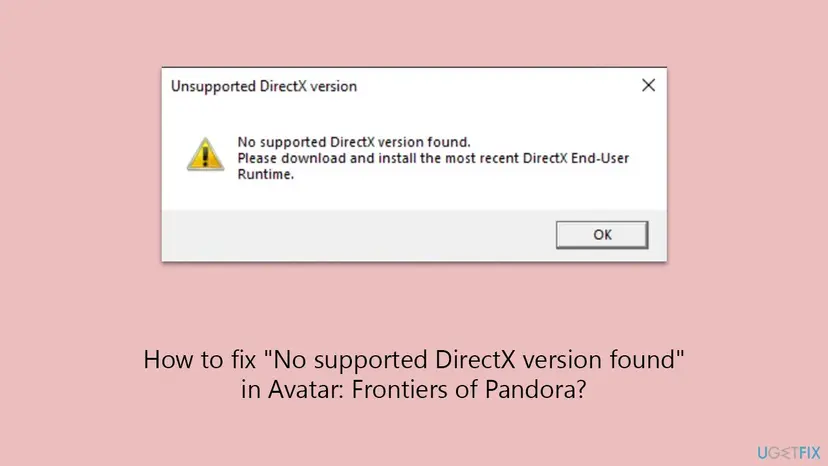
The wording is misleading. You do not need to download DirectX 12: Microsoft states that DirectX 11.3 and 12 are included with Windows 10 and 11 and that there is no stand-alone package. The box means the game could not use DirectX 12 in the way it was started, on the card and driver it found.
Players with an RTX 4090 report the same message. On such PCs the cause is not the hardware but how the game is started: a missing DirectX 12 switch, an old compatibility setting copied from another game, or a launcher conflict. That is why Fixes 1 and 2 come first.
Why Avatar says no supported DirectX version was found, most common cause first
The table ranks the causes by how often they come up in player reports and Ubisoft's own advice, each with the fix to start with.
| How often | Cause | How to spot it | Fix |
|---|---|---|---|
| Most often | The game does not start in DirectX 12 mode | No launch argument is set; the box appears on a modern card | Fix 1 |
| Often | Compatibility mode is on for the game or Ubisoft Connect | The Compatibility tab of the .exe shows Run this program in compatibility mode for ticked | Fix 2 |
| Often | An old or generic graphics driver, or the game runs on an integrated chip | dxdiag shows Microsoft Basic Display Adapter or Intel or AMD integrated graphics | Fix 3 |
| Sometimes | Windows is missing updates | Windows Update shows pending or failed updates | Fix 4 |
| Sometimes | Damaged or incomplete game files after a patch | It worked before on the same PC | Fix 5 |
| Rarely | An overlay, tuning tool or other startup program blocks the renderer | The box stops in a clean boot | Fix 6 |
| Rarely | The card is below Ubisoft's minimum | Older than a GTX 1070, RX 5700 or Arc A750 | Still broken section |
Check that your PC meets the DirectX 12 requirement
One minute in the DirectX Diagnostic Tool tells you whether the problem is settings or hardware. Read the card name and the driver, not only the DirectX version on the first tab.
- Press Win + R, type
dxdiagand press Enter. - On the System tab, DirectX Version shows DirectX 12 on every Windows 10 and 11 PC. This line describes Windows, not your card.
- Open the Display tab (on some PCs Display 1, Display 2 or Render). Read Name under Device: it must be your real graphics card.
- Under Drivers, check that Direct3D DDI shows 12 and Feature Levels starts with a 12_x value.
- Compare the card name with Ubisoft's minimum: AMD RX 5700, Intel Arc A750 or NVIDIA GeForce GTX 1070, each with 8 GB.
Windows is using a generic driver and the game cannot reach your card. Go straight to Fix 3.
How to fix "No supported DirectX version found" in Avatar: Frontiers of Pandora
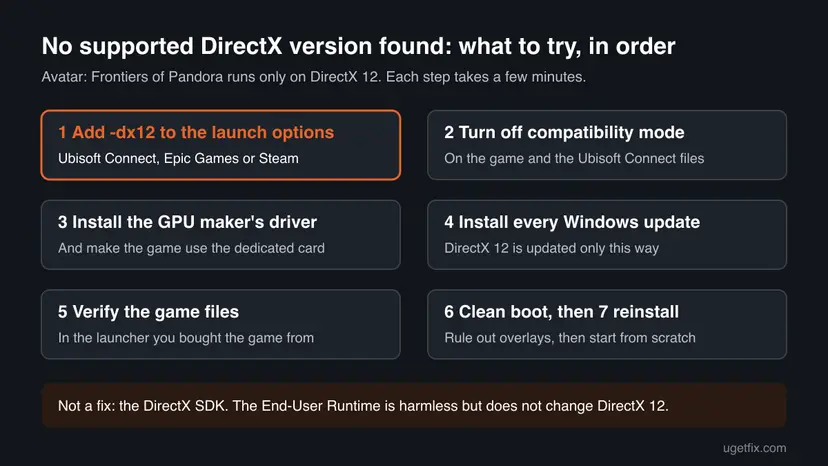
Start with Fix 1 on any PC whose card meets the minimum. Fixes 2 and 3 cover most of the rest. Fixes 4 to 7 are for PCs where the launch argument, settings and driver already look right.
| What you see or what your PC has | Start with |
|---|---|
| A card that meets the minimum and no launch argument set | Fix 1 |
| The game or Ubisoft Connect was ever set to run in compatibility mode | Fix 2 |
| After -dx12, a second message: "The requested render type is not available" | Fix 2, then Fix 3 |
| dxdiag shows Microsoft Basic Display Adapter, or a laptop with two graphics chips | Fix 3 |
| Windows Update shows pending updates | Fix 4 |
| The game worked before and broke after a patch | Fix 5 |
| A card older than a GTX 1070 or RX 5700 | Still broken section |
Fix 1. Start Avatar: Frontiers of Pandora with the -dx12 launch argument
2 minutesNo riskEvery PC whose card meets the minimum. This is the first thing Ubisoft Support and most players suggest.
The argument tells the game to start its DirectX 12 renderer directly. Players report that it removes the box when the game picks the wrong path on its own.
Ubisoft Connect:
- Close the game and open Ubisoft Connect.
- Open Games and select Avatar: Frontiers of Pandora.
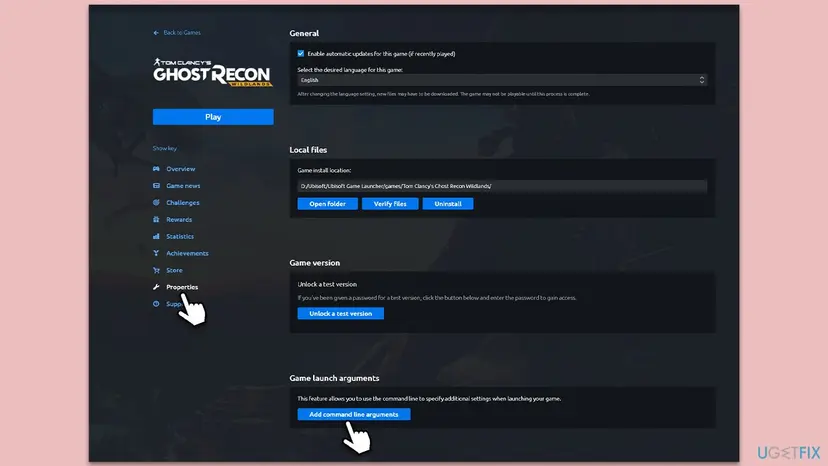
- Select Properties in the left menu.
- Under Game launch arguments, select Add command line arguments.
- Type
-dx12, save, and press Play.
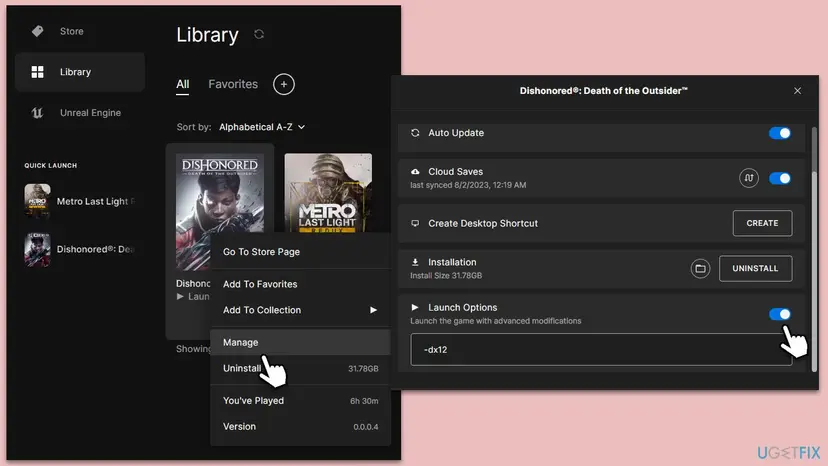
Epic Games Store: open Library, select the three dots or right-click Avatar: Frontiers of Pandora, choose Manage, turn on Launch Options and type -dx12.
Steam: right-click the game in your Library, select Properties, and on the General tab type -dx12 in Launch Options. Steam copies still open Ubisoft Connect, so if the box stays, add the argument there too.
It worked if: The game passes the Ubisoft Connect splash and opens its own window without the box.
If not: If you now see "The requested render type is not available", or the same box, go to Fix 2.
Fix 2. Turn off compatibility mode for the game and Ubisoft Connect
5 minutesNo riskYou ever set compatibility mode for an older Ubisoft game, or you see "The requested render type is not available" after Fix 1.
Compatibility mode makes Windows report an older version to the program. A DirectX 12 game told it runs on an older Windows may decide DirectX 12 is not there.
- Close the game and quit Ubisoft Connect, Epic Games or Steam from the tray icon.
- Open the game's install folder, right-click the game's .exe file and select Properties.
- Open the Compatibility tab.
- Untick Run this program in compatibility mode for, then select Apply and OK.
- Repeat for
UbisoftConnect.exe,UbisoftExtension.exe,UbisoftGameLauncher.exeandUbisoftGameLauncher64.exein the Ubisoft Connect folder. - Start the game again.
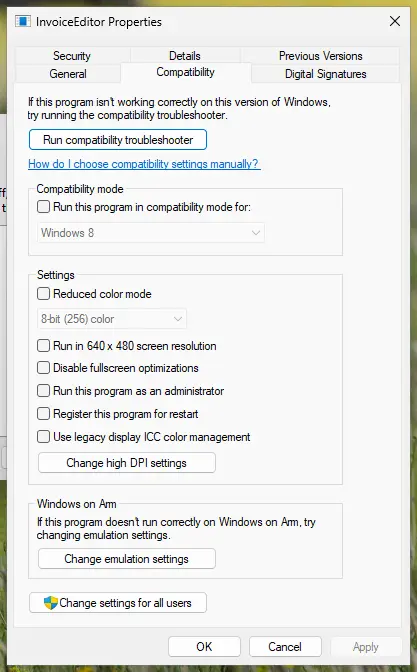
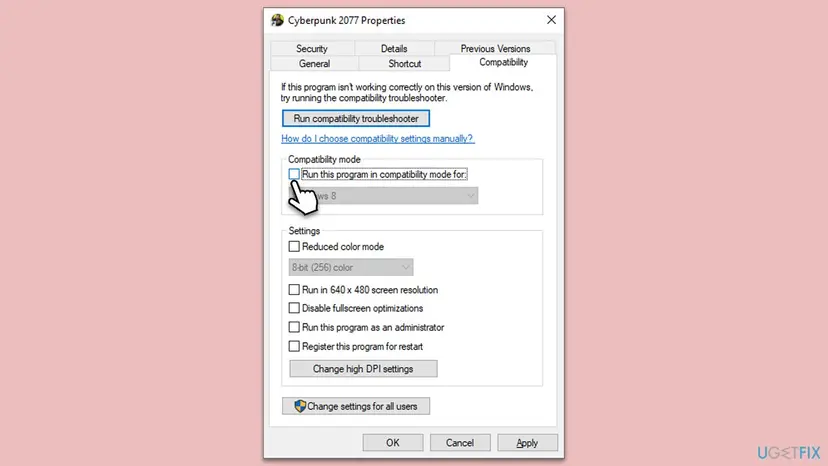
More on this tab: How to run a program as administrator or in compatibility mode.
It worked if: The Compatibility tab of every file shows the box unticked, and the game starts.
If not: If the box still appears with every compatibility box unticked, the driver is the next suspect: go to Fix 3.
Fix 3. Install the graphics driver from NVIDIA, AMD or Intel
10 to 15 minutesLow riskdxdiag shows Microsoft Basic Display Adapter or an old driver date, or a laptop has integrated and dedicated graphics.
The game reaches DirectX 12 through the graphics driver. A generic driver, or an integrated chip the game lands on, cannot give it the DirectX 12 device it needs.
- Download the current driver from your card maker: NVIDIA, AMD or Intel. On a laptop, the laptop maker's support page has the tested version.
- Right-click Start and select Device Manager, then expand Display adapters.
- If your card has a down arrow on its icon, right-click it and select Enable device.
- Run the driver installer you downloaded and restart the PC.
- Open dxdiag again and check that Name shows your real card.

Removing and reinstalling a driver step by step: Update, roll back or reinstall a driver. On a laptop, also set the game to the dedicated card; the Windows graphics setting is shown in our guide to the DirectX 11 features error.
It worked if: dxdiag shows your card by name, Direct3D DDI 12, and the game starts.
If not: If dxdiag shows the right card and driver but the box stays, install the missing Windows updates in Fix 4.
Fix 4. Install all Windows updates to update DirectX 12
10 to 30 minutesLow riskWindows Update shows pending or failed updates, or the PC was offline for a long time.
DirectX 12 is part of Windows. Microsoft says its updates come only through Windows Update, so this is the real way to update DirectX for this game.
- Press Win + I and open Windows Update (on Windows 10: Update & Security > Windows Update).
- Select Check for updates and install everything offered.
- Restart the PC, even if Windows does not ask you to.
Windows 10 left support on 14 October 2025. Ubisoft still lists it, but a PC that no longer gets updates may also stop getting driver support.
If an update fails: Install an update from the Microsoft Update Catalog.
It worked if: Windows Update says you are up to date and the game starts.
If not: If Windows is up to date and the game still fails, check the game files themselves with Fix 5.
Fix 5. Verify the game files in your launcher
10 to 30 minutesNo riskThe game worked before, or broke after a patch or an interrupted download.
A damaged or missing renderer file can make the DirectX 12 start fail. Verifying downloads only the files that do not match the originals.
Ubisoft Connect: open the game, select Properties, and under Local files select Verify files. Steam and Epic Games steps are in the procedure below.
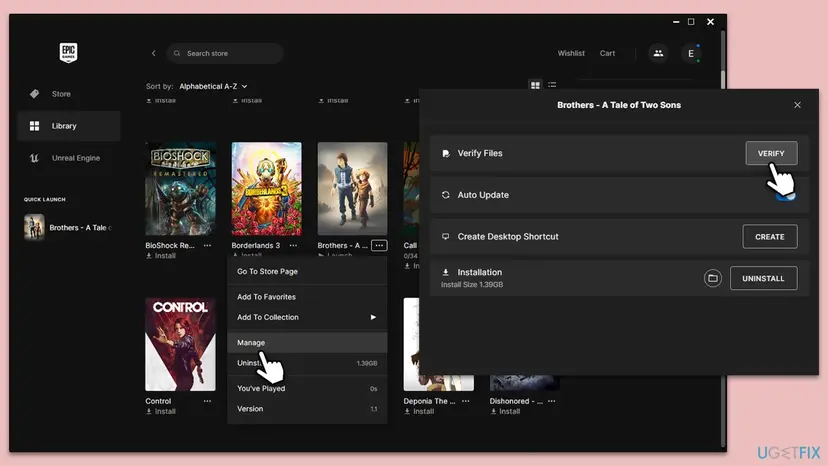
- Restart and open Steam. Restart your computer and launch Steam.
- Open the game's menu. Right-click the game in your Library, or open the game's Library page and select the gear icon on the far right.
- Open Properties. Select Properties in the menu.
- Verify the files. Select the Installed Files tab and select Verify integrity of game files.
- Wait for the result. Steam checks the game's files. This can take several minutes.
These steps were written for Steam on Windows. The full page with the other versions and what each result means: How to verify game files in Steam, Epic Games, Xbox app, EA app, Battle.net and GOG Galaxy
It worked if: The launcher reports that the files were checked and, if needed, repaired.
If not: If the launcher finds nothing to repair and the box returns, test for a conflicting program with Fix 6.
Fix 6. Start Windows with a clean boot to rule out overlays
15 minutesLow riskFixes 1 to 5 did not help, and you use overlays, GPU tuning tools, recording software or RGB tools.
Ubisoft Support has asked players to clean boot so that only the game and Ubisoft Connect run. A program that hooks into DirectX can break the renderer start.

- Open System Configuration. Select Search on the taskbar, type msconfig and select System Configuration from the results.
- Hide Microsoft services. On the Services tab, select the Hide all Microsoft services check box. Only services from other companies stay in the list.
With Hide all Microsoft services ticked, only third-party services stay in the list. Screenshot: Windows 11 26H2. - Disable the remaining services. Select Disable all, then select Apply.
- Open Task Manager. On the Startup tab of System Configuration, select Open Task Manager.

The Startup tab only links to Task Manager. Screenshot: Windows 11 26H2. - Disable the startup apps. On the Startup apps tab in Task Manager, select each item whose status is Enabled and select Disable. Write down or take a screenshot of the items you disable: you need the list to turn them back on.

Select an app, then Disable. Screenshot: Windows 11 26H2. - Confirm the changes. Close Task Manager. On the Startup tab of System Configuration, select OK.
- Restart and test. Restart the PC. Windows now starts in a clean boot environment: try again the thing that failed (run the app, install the update, uninstall the program).
These steps were written for Windows 11 25H2 and 26H2. The full page with the other versions and what each result means: How to perform a clean boot in Windows
It worked if: If the game starts in the clean boot, turn the services and startup apps back on in small groups to find the one that blocks it.
If not: Undo the clean boot as the procedure shows, then go to Fix 7.
Fix 7. Reinstall Avatar: Frontiers of Pandora
1 hour or moreLow riskEverything above failed on a card that meets the minimum.
A full reinstall removes leftover settings and files that verifying does not touch.
- Uninstall the game in the launcher you bought it from.
- Restart the PC.
- Install the game again; Ubisoft lists 90 GB of free SSD space.
- Add
-dx12as in Fix 1 before the first start.
Ubisoft Connect keeps cloud saves for this game when cloud sync is on. Check that it is on before you uninstall.
It worked if: The fresh install starts without the box.
If not: If a fresh install shows the same box, read the still-broken section below and contact Ubisoft Support with your dxdiag report.
Still broken: hardware limits and what to send to Ubisoft
If dxdiag shows a card older than Ubisoft's minimum, such as a GTX 1060 or RX 580, the game is not supported on it. We could not confirm that every such card shows this exact box, but no setting adds what the game needs.
- No download fixes a hardware limit. Microsoft says the DirectX End-User Runtime changes nothing in your DirectX version.
- Your options are a card at or above the minimum, a cloud service that offers the game, or a refund request if you bought it recently.
- If the card meets the minimum, open a ticket with Ubisoft Support. In dxdiag select Save All Information and attach the text file, with your Windows version from
winver.
If none of the fixes helped and the game still shows the box, say so in the ticket and list every fix you tried by number. That saves a round of the same advice.
How to keep the error from coming back
- Keep
-dx12in the launch arguments, and add it again after a reinstall or a move to another launcher. - Do not set compatibility mode on new games or on Ubisoft Connect.
- Install graphics drivers from the card maker, not through old driver tools.
- Let Windows Update finish before a big game patch.
- After a new graphics driver, start the game once before you change other settings, so you know which change caused a problem.
If the box comes back after a driver or Windows update, try Fix 1 and Fix 2 again first. A reinstall clears the launch argument, and a two-minute check is cheaper than a reinstall.
Frequently asked questions
What does "Unsupported DirectX version" mean in Avatar: Frontiers of Pandora?
It means the game could not start its DirectX 12 renderer and closed. The box says "No supported DirectX version found", but your PC almost always has DirectX 12: Microsoft includes it in Windows 10 and Windows 11. The real cause is usually how the game was started, a compatibility setting, or the graphics driver. Add -dx12 to the launch arguments first, as in Fix 1.
Should I install the DirectX End-User Runtime the message asks for?
It does no harm, but it rarely fixes this error. Microsoft's page says the runtime installs older libraries for some games and makes no change to your version of DirectX or Direct3D 11. Avatar needs DirectX 12, which only Windows Update updates. The old advice to install the DirectX SDK is wrong as well: that package is for developers.
Does the same fix work for Star Wars Outlaws?
Players report the same Unsupported DirectX version box in Star Wars Outlaws, another Ubisoft game that needs DirectX 12. The same order of fixes is a good start: the -dx12 launch argument, no compatibility mode, the card maker's driver and all Windows updates. Check that game's own minimum requirements on Ubisoft's help site, as they differ from Avatar's.
What graphics card does Avatar: Frontiers of Pandora need?
Ubisoft lists an AMD RX 5700, an Intel Arc A750 with ReBAR on, or an NVIDIA GeForce GTX 1070, each with 8 GB, as the minimum for 1080p at 30 frames per second. It also lists 64-bit Windows 10 or 11, 16 GB of dual-channel RAM, 90 GB on an SSD and DirectX 12. Laptop versions of these cards may work if their performance is similar.
I added -dx12 and now see "The requested render type is not available". What now?
Players report this second message after adding the argument. It points to the same problem from another side: the game still cannot open DirectX 12 on the card it found. Turn off compatibility mode on the game and the Ubisoft Connect files (Fix 2), then install the card maker's driver and make sure the game runs on the dedicated card (Fix 3).
How do I check which DirectX version I have?
Press Win + R, type dxdiag and press Enter. The System tab shows DirectX Version, which reads DirectX 12 on every Windows 10 and 11 PC. For this game the more useful lines are on the Display tab: the card Name and Feature Levels. A real card name with feature levels starting at 12_x means your hardware has DirectX 12.
What does "DirectX 12 is not supported on your system, try running without the -dx12 or -d3d12" mean?
That is a different message from other DirectX 12 games, shown when the game was told to use DirectX 12 but the card or driver cannot. Remove the argument and check dxdiag. Avatar has no DirectX 11 mode, so for this game the answer is the right driver or a card that meets the minimum, not removing -dx12.
It did not help. What else can I try?
Go through the fixes in order and do not skip the clean boot (Fix 6): overlays and tuning tools are a common hidden cause. If the card meets Ubisoft's minimum and nothing works, save the dxdiag report with Save All Information and open a ticket with Ubisoft Support. If the card is below the minimum, no setting will make the game start.
What DirectX version does pekora.zip need?
This page is about Avatar: Frontiers of Pandora, not Pekora. We could not find an official requirement for that file, and we do not cover downloads from unknown sources. For any program, the DirectX version on Windows 10 and 11 is already 12, and updates come only through Windows Update, so a separate DirectX download is never needed.
Sources
- Ubisoft Help: System requirements for Avatar: Frontiers of Pandora (ubisoft.com)
- Microsoft Support: How to install the latest version of DirectX (support.microsoft.com)
Did this fix work?
One click, no account. It tells the next reader which guides are worth their time.
Questions and experiences: fix "No supported DirectX version found" in Avatar: Frontiers of Pandora
Still broken, or found a fix we did not cover? Ask here: members and our editors answer. Reading is open; writing needs a free account.
…