
How to fix NVIDIA LocalSystem Container stopped working in Windows?

Prefer to fix it yourself? The manual steps follow.
- 7methods
- 5 to 30 minutes
- Easy
Applies to Windows 11, Windows 10; PCs with an NVIDIA graphics card and the NVIDIA app or GeForce Experience
7 methods in this guide
Hello. Recently, I noticed in Reliability History that the NVIDIA LocalSystem Container stopped working. Is there a way to fix this? I tried to find out myself, but it didn't go anywhere and I'm still stuck with the problem.
NVIDIA LocalSystem Container (NvContainerLocalSystem) is a background service of the NVIDIA app, and when it crashes, Reliability Monitor says it stopped working. Windows restarts it on its own, so one entry needs no fix. Open Services first and check that it runs again.
Press Win + R, run services.msc and find NVIDIA LocalSystem Container. If it shows Running and nothing else is broken, Windows already restarted it after the crash and you can leave it (Fix 1). If it is stopped, start it and set it to Automatic (Fix 2). If it is missing or fails with Error 14109, uninstall the NVIDIA app and install it again (Fix 3).
| Error | NVIDIA LocalSystem Container stopped working (Reliability Monitor), or "The NVIDIA LocalSystem Container service terminated unexpectedly" (Event Viewer). |
|---|---|
| Where it appears | Reliability Monitor (perfmon /rel) as a red entry, and the System log of Event Viewer as a Service Control Manager event. Usually there is no window on the screen. |
| Main cause | The NVIDIA service program crashed once and Windows restarted it. Repeated crashes point to a damaged NVIDIA app or driver install. |
| Fastest fix | Check in Services that it runs again (Fix 1). If it does not, restart it and set it to Automatic (Fix 2). |
| Also written as | NVIDIA Local System Container, NvContainerLocalSystem, "Container service for NVIDIA root features", NVIDIA container stopped working. |
| Related error | "Windows could not start the NVIDIA LocalSystem Container service on Local Computer." with Error 14109 (0x371D). |
| Sister service | NVIDIA Display Container LS belongs to the graphics driver and can crash in the same way. |
| Affects | Windows 11 and Windows 10 with the NVIDIA app or GeForce Experience installed. |
| Time to fix | 2 minutes when the service runs again, up to 30 minutes for a full NVIDIA reinstall. |
Facts checked on 15 October 2026. Steps written for Windows 11 (25H2 and 26H2) and Windows 10 22H2.
What NVIDIA LocalSystem Container is and what "stopped working" means
NVIDIA LocalSystem Container is the display name of a Windows service whose short name is NvContainerLocalSystem. In the Services window its description reads "Container service for NVIDIA root features", and its startup type is normally Automatic. It runs in the background under the LocalSystem account and serves the NVIDIA app or GeForce Experience, not the graphics driver itself.
"Stopped working" is the wording of Reliability Monitor. It means the service's program closed without a clean stop. The matching entry in Event Viewer says that the service "terminated unexpectedly" and which recovery action Windows takes. The full text of that entry looks like this:
Event Viewer, Windows Logs > System, source Service Control Manager
The NVIDIA LocalSystem Container service terminated unexpectedly. It has done this 1 time(s). The following corrective action will be taken in 6000 milliseconds: Restart the service.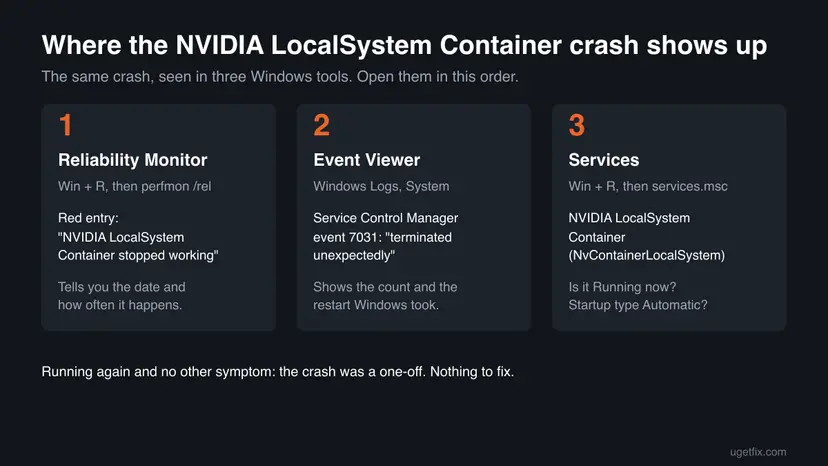
"It has done this 1 time(s)" and "Restart the service" mean Windows started the service again 6 seconds later. If the service now shows Running and the NVIDIA app works, nothing is left to repair.
Why NVIDIA LocalSystem Container stops or will not start
Most often the service crashed once, for example during an NVIDIA app or driver update, and Windows restarted it. Less often the service is stopped or disabled and stays down. Rarely the NVIDIA software is damaged or half removed, so the service is missing or fails to start with Error 14109.
| Cause | How often | How to tell | Fix |
|---|---|---|---|
| A single crash, already recovered by Windows. | Most often | One red entry in Reliability Monitor, the service shows Running. | Fix 1 |
| The service is stopped, set to Manual or Disabled (by you, a tweak tool or a game booster). | Often | Services shows an empty Status column or Disabled. | Fix 2 |
| The NVIDIA app or GeForce Experience install is damaged, or was removed only in part. | Sometimes | The service is missing, or starting it gives Error 14109. | Fix 3 |
| The graphics driver package is damaged, often after a failed update. | Sometimes | NVIDIA Display Container LS crashes too. | Fix 4 |
| Another program that hooks into games or the screen clashes with NVIDIA's software. | Rarely | The crash happens when one program runs. | Fix 5 |
| Windows files or updates are damaged. | Rarely | Other services crash as well. | Fix 6, Fix 7 |
NVIDIA has published no article that explains crashes of this service, and we found no known-issue entry for it. NVIDIA does describe failures of its installer as often caused by "an incorrect system state", and its reset for that state is the base of Fix 3.
Windows could not start the NVIDIA LocalSystem Container service: Error 14109
This message appears when you press Start on the service in Services, or after Windows tried to recover it. Microsoft's list of system error codes gives 14109 (0x371D) the name ERROR_GENERIC_COMMAND_FAILED and the text "A generic command executable returned a result that indicates failure."
The message in Services
Windows could not start the NVIDIA LocalSystem Container service on Local Computer.
Error 14109: A generic command executable returned a result that indicates failure.
So Windows did not fail by itself: a helper program reported a failure back. A 2021 security write-up found that NVIDIA's services had a recovery setting that runs C:\Windows\NvContainerRecovery.bat after the service crashes more than 2 times. That fits a command that returns failure, but we could not confirm that current NVIDIA software still uses this file.
You can read what your PC does on a crash: open the service's Properties and the Recovery tab. If Subsequent failures is set to Run a Program, the program named there is the one that failed. Reinstalling the NVIDIA app (Fix 3) puts the service and its settings back.
How to fix NVIDIA LocalSystem Container stopped working
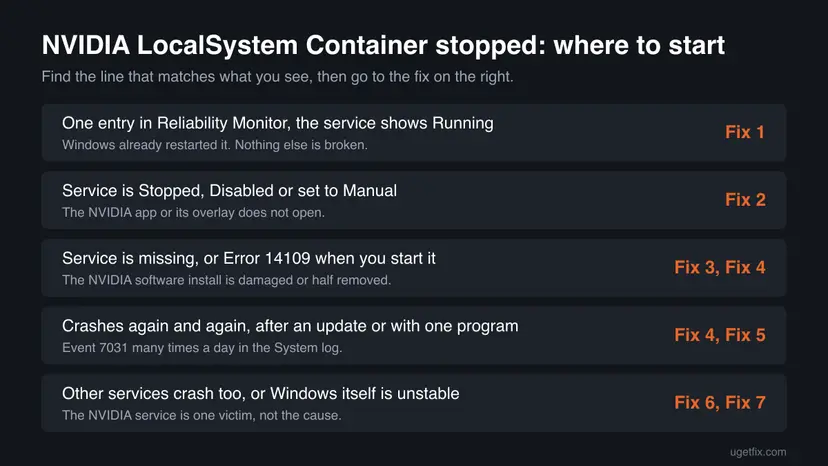
Fixes 1 and 2 take a few minutes and solve most cases. Fixes 3 and 4 reinstall NVIDIA's software when the service is missing or keeps crashing. Fixes 5 to 7 are general checks for the rare cases that remain.
| What you see | Start with |
|---|---|
| One entry in Reliability Monitor, the service shows Running now. | Fix 1 |
| The service is Stopped, Manual or Disabled, or the NVIDIA app overlay does not open. | Fix 2 |
| The service is missing from Services, or starting it gives Error 14109. | Fix 3 |
| NVIDIA Display Container LS crashes too, or the problem began after a driver update. | Fix 4 |
| It crashes only while one game or program runs. | Fix 5 |
| Several unrelated services crash, or Windows Update has failed. | Fix 6, then Fix 7 |
Fix 1. Check whether Windows already restarted the service
2 minutesNo riskYou found one or a few "stopped working" entries in Reliability Monitor and the PC works normally.
The event text itself says Windows restarts this service 6 seconds after a crash. Before you change anything, confirm that the restart worked and how often the crash happens.
- Press Win + R, type
perfmon /reland press Enter. Reliability Monitor opens. - Select the day with the red mark and find NVIDIA LocalSystem Container in the list below the chart. Note how many days show it.
- Press Win + R, type
services.mscand press Enter. - Find NVIDIA LocalSystem Container under the letter N.
- Read the Status and Startup Type columns. Running and Automatic are the normal values.
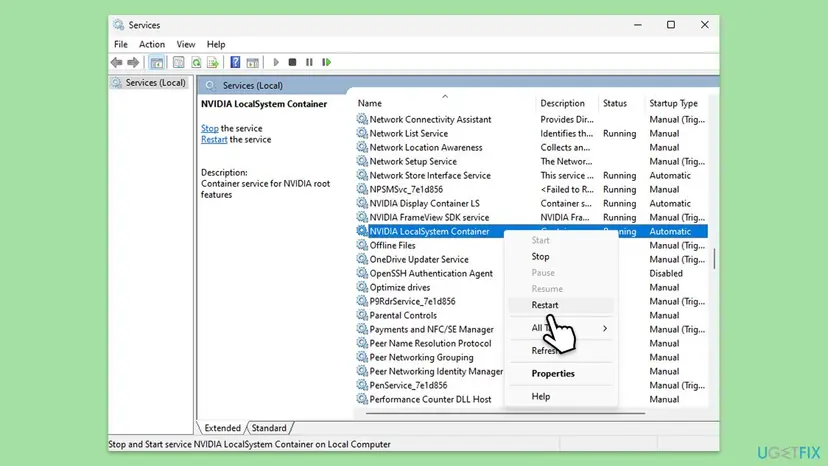
For the exact count, open Event Viewer, go to Windows Logs > System, select Filter Current Log and type 7031 in the event ID box. Each entry is one crash.
It worked if: The service shows Running, and the crash appears on one day or a few scattered days. You can stop here.
If not: If the service is not running, go to Fix 2. If it crashes every day, go to Fix 3.
Fix 2. Restart the NVIDIA container services and set them to Automatic
3 minutesNo riskThe service is stopped, set to Manual or Disabled, or the NVIDIA app or its overlay will not open.
A stopped or disabled service does not come back by itself, and tweak tools or guides on "disabling NVIDIA telemetry" often switch it off. Starting it and restoring Automatic gives the NVIDIA app its background part again.
- Press Win + R, type
services.mscand press Enter. - Double-click NVIDIA LocalSystem Container.
- Set Startup type to Automatic and select Apply.
- Select Start under Service status and wait until it shows Running, then select OK.
- Right-click NVIDIA Display Container LS and select Restart.
- Restart the PC and check both services again.
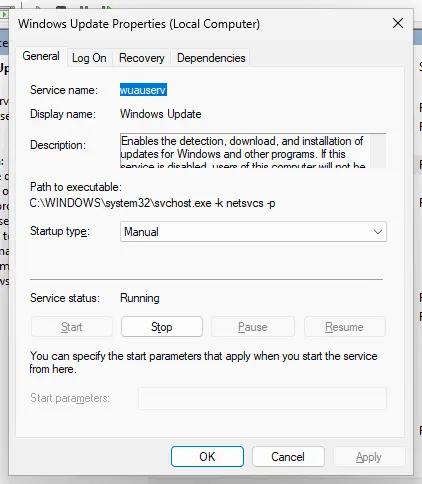
Step by step with both Windows versions: Check and restart Windows services
It worked if: Both NVIDIA services show Running after the restart, and the NVIDIA app opens.
If not: If the service stops again right away or Start gives Error 14109, go to Fix 3.
Fix 3. Uninstall the NVIDIA app, reset NVIDIA's state and install it again
20 minutesLow riskThe service is missing, fails with Error 14109, or crashes every day.
The service is installed by the NVIDIA app or GeForce Experience. NVIDIA's own reset for a broken install is: uninstall, restart, stop NVIDIA services and processes, delete two Logging keys and install again. A fresh install also writes the service and its recovery settings anew.
- Right-click Start, open Settings and go to Apps > Installed apps.
- Find NVIDIA App, select the three dots next to it and select Uninstall. Do the same for GeForce Experience if it is listed.
- Restart the PC.
- Run
services.mscand stop every service whose name starts with NVIDIA that is still running. - Open Task Manager and end the processes whose names start with
nvorNVIDIA. - Delete the two Logging keys shown below, if they exist (back up the registry first).
- Open NVIDIA's app page, select Download Now and run the file.
A wrong deletion in the registry can stop programs from starting. Export a backup and delete only the two keys named here: Back up the registry before editing it
The two keys from NVIDIA's article on installer issues
HKEY_LOCAL_MACHINE\SOFTWARE\NVIDIA Corporation\Logging
HKEY_LOCAL_MACHINE\SOFTWARE\Wow6432Node\NVIDIA Corporation\Logging
If the NVIDIA installer itself stops with error 0xE6000000, your card needs a different app version: How to fix NVIDIA Installer cannot continue error code 0xE6000000.
It worked if: After the install, NVIDIA LocalSystem Container is back in Services, shows Running and starts without Error 14109.
If not: If it still crashes, the graphics driver may be damaged too. Go to Fix 4.
Fix 4. Reinstall the NVIDIA graphics driver
20 minutesLow riskNVIDIA Display Container LS crashes too, the problem began after a driver update, or Fix 3 did not help.
The display container belongs to the driver package, and the app's service talks to the driver. A driver that was updated only in part leaves the two out of step, and a full driver reinstall puts matching files back.
Download the driver for your card from NVIDIA's driver page before you remove the old one, so the installer is ready on the disk.
- Right-click Start and select Device Manager.
- Expand Display adapters, right-click your NVIDIA card and select Uninstall device.
- Tick Attempt to remove the driver for this device and select Uninstall.
- Restart the PC. The screen runs with a basic Windows driver for now.
- Run the driver file you downloaded and choose the option with the NVIDIA app.
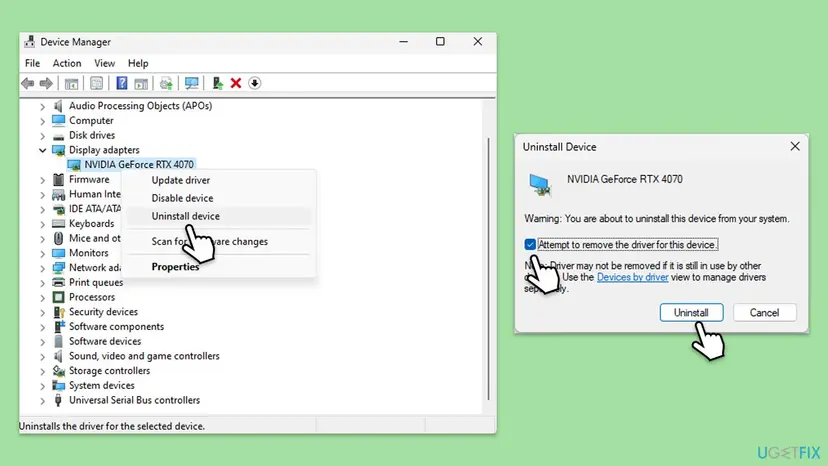
Updating, rolling back and reinstalling drivers on Windows 11 and Windows 10: Update, roll back or reinstall a driver
It worked if: Device Manager shows the card by name, both NVIDIA container services run, and no new 7031 events appear for a day or two.
If not: If the crashes come back only while one program runs, go to Fix 5.
Fix 5. Find a program that clashes with NVIDIA's software with a clean boot
30 minutesLow riskThe crash happens at the same moment every time, for example when one game, overlay or monitoring tool starts.
A clean boot starts Windows with only Microsoft's services and no startup apps. If NVIDIA LocalSystem Container stops crashing then, a background program causes it, and you find it by turning items back on in halves.
Leave the NVIDIA services on during the test: in the Services tab of System Configuration, tick the NVIDIA entries again after Disable all. Do not tick Safe boot on the Boot tab, because Safe Mode loads no NVIDIA driver at all.
- Open System Configuration. Select Search on the taskbar, type msconfig and select System Configuration from the results.
- Hide Microsoft services. On the Services tab, select the Hide all Microsoft services check box. Only services from other companies stay in the list.

With Hide all Microsoft services ticked, only third-party services stay in the list. Screenshot: Windows 11 26H2. - Disable the remaining services. Select Disable all, then select Apply.
- Open Task Manager. On the Startup tab of System Configuration, select Open Task Manager.

The Startup tab only links to Task Manager. Screenshot: Windows 11 26H2. - Disable the startup apps. On the Startup apps tab in Task Manager, select each item whose status is Enabled and select Disable. Write down or take a screenshot of the items you disable: you need the list to turn them back on.

Select an app, then Disable. Screenshot: Windows 11 26H2. - Confirm the changes. Close Task Manager. On the Startup tab of System Configuration, select OK.
- Restart and test. Restart the PC. Windows now starts in a clean boot environment: try again the thing that failed (run the app, install the update, uninstall the program).
These steps were written for Windows 11 25H2 and 26H2. The full page with the other versions and what each result means: How to perform a clean boot in Windows
It worked if: The crashes stop in the clean boot and come back when one item is turned on again. Update or remove that program.
If not: If the service crashes in a clean boot too, return to normal startup and go to Fix 6.
Fix 6. Install pending Windows updates
15 minutesNo riskWindows Update shows waiting updates, or several services crash besides the NVIDIA one.
A half-installed update can leave system parts that services rely on in a mixed state. Installing what is waiting and restarting finishes it.
- Right-click Start, open Settings and select Windows Update.
- Select Check for updates, or Install all if updates are waiting.
- Restart the PC when asked, then check the NVIDIA service again.
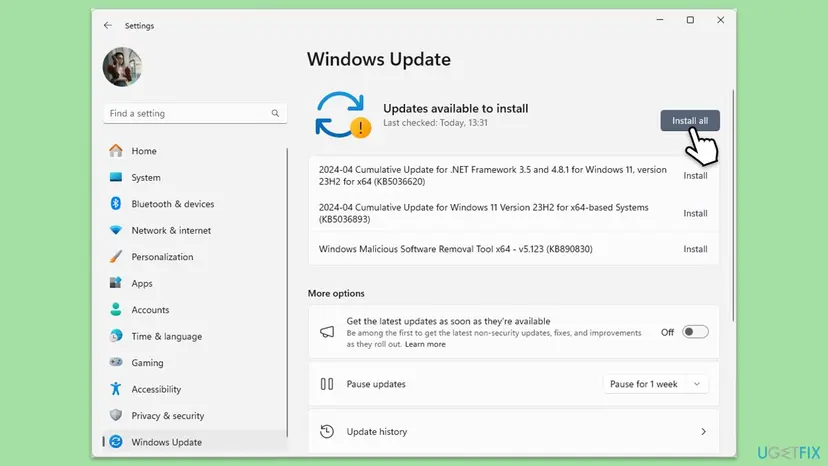
Windows 10 left support on 14 October 2025, so keep it updated as far as Windows Update still offers. If Windows Update is stuck: Run the Windows Update troubleshooter
It worked if: Windows Update shows that you are up to date and the NVIDIA service stays running.
If not: If the service still crashes after the updates, go to Fix 7 and repair the Windows system files.
Fix 7. Repair Windows system files with DISM and SFC
20 minutesNo riskOther services crash too, or the fixes above did not stop the crashes.
NVIDIA does not name this step for its service. It makes sense when several services crash, because then the shared Windows parts, not NVIDIA's files, are the likely cause.
- Open an elevated command window. Right-click Start and select Terminal (Admin), or type cmd in the search box, right-click Command Prompt and select Run as administrator. Select Yes when Windows asks for permission.

Search for cmd and choose Run as administrator. Screenshot: Windows 11 26H2. - Run DISM first. Type the command below and press Enter. DISM downloads clean copies of damaged components from Windows Update, so it can take several minutes. Wait until it says The operation completed successfully.
DISM.exe /Online /Cleanup-Image /RestoreHealth
DISM /RestoreHealth running. Screenshot: Windows 11 26H2. - Run System File Checker. In the same window, type the command below and press Enter. Do not close the window until the verification reaches 100%.
sfc /scannow
sfc /scannow at 100%. Screenshot: Windows 11 26H2. - Read the result and restart. Compare the last message with the table below this guide, then restart the PC so that repaired files are loaded.

The result line tells you what SFC did. Screenshot: Windows 11 26H2.
These steps were written for Windows 11 24H2 and 25H2. The full page with the other versions and what each result means: Run DISM and SFC to repair Windows system files
It worked if: SFC reports that it found no problems or that it repaired files, and the 7031 events stop.
If not: Collect the information under "If NVIDIA LocalSystem Container still crashes" and contact NVIDIA support.
If NVIDIA LocalSystem Container still crashes
Look at what happens at the same second as the crash. Reliability Monitor and the Application log often name the program file that failed, which tells you whether it is NVIDIA's own file or something that hooked into it.
- In Reliability Monitor, double-click the NVIDIA entry and read Faulting Module Name or the technical details, if they are shown.
- In Event Viewer, open Windows Logs > Application and look for an Application Error entry at the same time.
- Open the service's Properties > Recovery tab and note what is set for each failure.
- Note your NVIDIA app and driver version and your Windows version (run
winver).
- What to send to NVIDIA support: the 7031 entries, the Application Error entry, the recovery settings and the versions above. NVIDIA's support page offers a chat and a question form.
- When the faulting module is not NVIDIA's: the named program is the cause. Update or remove it, then test again.
- When it is hardware: if the PC also freezes, the screen goes black or Reliability Monitor shows hardware errors, the service is a victim. Test the memory with How to test your RAM with Windows Memory Diagnostic and check the card's power and seating.
How to keep NVIDIA LocalSystem Container from crashing again
- Update the driver and the NVIDIA app through the app or from nvidia.com, and restart the PC after each update.
- Close games and overlays before a driver update.
- Keep the startup type of both NVIDIA container services at Automatic.
- Check Reliability Monitor now and then: one entry a month is normal noise.
- Do not use tweak tools that disable NVIDIA services unless you know which app features you lose.
- Do not delete files from the NVIDIA Corporation folders by hand.
- Do not install NVIDIA software taken from sites other than nvidia.com.
Frequently asked questions
What is NVIDIA LocalSystem Container?
It is a background service that NVIDIA's software installs on PCs with an NVIDIA graphics card. Its short name is NvContainerLocalSystem, and in the Services window its description reads "Container service for NVIDIA root features". It runs under the LocalSystem account and serves the NVIDIA app or GeForce Experience, for example the overlay and updates. It is not the graphics driver itself: the driver has its own service, NVIDIA Display Container LS. If you never installed the NVIDIA app or GeForce Experience, you may not have this service at all.
Do I need NVIDIA LocalSystem Container running?
You need it if you use the NVIDIA app or GeForce Experience. Without it the app's background features do not work. Your games and the screen keep working without it, because the graphics driver runs on its own. We could not find an NVIDIA list of exactly which features stop, so the safe advice is to leave it on Automatic. If you never open the NVIDIA app, uninstalling the app is a cleaner choice than disabling its service.
Is it okay to disable NVIDIA LocalSystem Container?
It is possible, and Windows will not break, but it is not a fix for a crash. Users on NVIDIA's forum report that some NVIDIA app hotkeys stop working when it is disabled, and one user on Microsoft's forum reports that disabling it brought back Discord notification banners. Those are user reports, not NVIDIA statements. If you disable it, set it back to Automatic before you update the NVIDIA app, because a stopped service can make the update fail. To turn it on again, use Fix 2.
The NVIDIA LocalSystem Container service terminated unexpectedly. Should I worry?
Not if it happened once or twice. This is event 7031 in the System log, and its text tells you that Windows restarts the service after 6000 milliseconds. Check in Services that it shows Running again (Fix 1). Worry only when the entries appear every day, when the service stays stopped, or when the NVIDIA app stops working. Then go through Fix 2 and Fix 3. The same event exists for NVIDIA Display Container LS, the driver's own service.
What does Error 14109 mean for NVIDIA LocalSystem Container?
Microsoft's list of system error codes names 14109 (0x371D) ERROR_GENERIC_COMMAND_FAILED: "A generic command executable returned a result that indicates failure." So a helper program that Windows ran for the service reported a failure. On NVIDIA's services this is most likely the recovery command set in the service's Recovery tab, but we could not confirm that for current versions. The fix is the same either way: uninstall the NVIDIA app, reset NVIDIA's state and install it again (Fix 3).
NVIDIA LocalSystem Container is missing from Services. What now?
The service is installed by the NVIDIA app or GeForce Experience, so a missing service means that software is not installed, or was removed only in part. Check Settings > Apps > Installed apps for NVIDIA App. If it is not there and you want its features, install it from NVIDIA's app page. If it is there, uninstall it, restart, and install it again as in Fix 3. If you do not use the app, a missing service is not a problem: the driver still works.
Is nvcontainer.exe a virus?
The real nvcontainer.exe is NVIDIA's program behind the NVIDIA container services. To check yours, open the service's Properties and read Path to executable: it should point into an NVIDIA folder under Program Files. We did not confirm the exact folder for every version. A file of that name in a user folder or in Temp is suspicious, and then you should run a full scan with Microsoft Defender: How to scan for malware with Microsoft Defender. NVIDIA patched a 2021 security flaw in GeForce Experience version 3.22 that involved this service, so keep NVIDIA's software up to date.
What is the difference between NVIDIA LocalSystem Container and NVIDIA Display Container LS?
NVIDIA Display Container LS belongs to the graphics driver package. NVIDIA LocalSystem Container belongs to the NVIDIA app or GeForce Experience. In the Services window they sit next to each other, both start automatically and both can show up as stopped working in Reliability Monitor. When only the LocalSystem Container crashes, start with the app (Fix 3). When the Display Container crashes too, the driver is the more likely cause, so reinstall the driver (Fix 4).
What about the NVIDIA NetworkService Container?
This page is about the LocalSystem Container. Older GeForce Experience versions also installed NVIDIA NetworkService Container, a separate service. If you still have it and it will not start, the most likely cause is the same as here: an old or damaged GeForce Experience install. Uninstall GeForce Experience and install the current NVIDIA app instead, as described in Fix 3. If the old service is gone after that, nothing else is needed, because the current app does not depend on it as far as we could confirm.
How do I stop the NVIDIA container?
To stop it for this session, open Services with services.msc, right-click NVIDIA LocalSystem Container and select Stop. It starts again after the next restart because its startup type is Automatic. To stop it for good, set the startup type to Manual or Disabled, which also stops the NVIDIA app's background features. Stopping it does not affect your games or the picture on the screen. If the container uses a lot of processor time, update the NVIDIA app first rather than turning it off.
Sources
- NVIDIA Support: Solving NVIDIA Installer Issues (article 4223) (nvidia.custhelp.com)
- Microsoft Learn: System Error Codes (12000-15999), error 14109 (learn.microsoft.com)
- YLabs: Chaining Bugs: NVIDIA GeForce Experience (GFE) Command Execution (CVE-2021-1079) (labs.yarix.com)
Did this fix work?
One click, no account. It tells the next reader which guides are worth their time.
Questions and experiences: fix NVIDIA LocalSystem Container stopped working in Windows
Still broken, or found a fix we did not cover? Ask here: members and our editors answer. Reading is open; writing needs a free account.
…