
How to fix "We can't start this add-in because it isn't set up properly" in Office?

Prefer to fix it yourself? The manual steps follow.
- 7methods
- 5 to 30 minutes
- Beginner
Applies to Office Add-ins and COM add-ins in Excel, Word, PowerPoint and Outlook for Windows
7 methods in this guide
I've installed a new add-in in Excel that I'd like to use for my project, but every time I want to insert it, I receive the error "We can't start this add-in because it isn't set up properly." Any tips would be helpful.
We can't start this add-in because it isn't set up properly. appears when Excel, Word, PowerPoint or Outlook tries to open an add-in and cannot load it. The add-in itself is rarely broken: most often Office is out of date or its add-in cache holds a damaged copy. Close every Office app, open it again, then update Office.
Close every Office app, check Task Manager that none is left running, and open the app again (Fix 1). If the add-in still fails, update Office from File > Account > Update Options > Update Now (Fix 2): Microsoft's own fix for add-ins that could not be started. Then clear Office's add-in cache (Fix 3) and remove and add the add-in again (Fix 4).
| Error | We can't start this add-in because it isn't set up properly. Close relatives: This add-in could not be started. Close this dialog to ignore the problem or click "Restart" to try again. and The add-in could not be started. Please restart all Office applications and try again. |
|---|---|
| Where it appears | In Excel, Word, PowerPoint or Outlook, when you select an add-in under Insert > My Add-ins or Home > Add-ins, or when its task pane opens on the right. |
| Main cause | An Office build that is out of date, or a damaged copy of the add-in in Office's add-in cache. Less often a wrong date on the PC, a COM add-in that failed to install, or an admin policy. |
| Fastest fix | Close all Office apps and open them again (Fix 1), then Update Now in File > Account (Fix 2). |
| Also written as | We can't start this add-in because it isn't setup properly, This add-in could not be started, APP ERROR: This app could not be started, Add-in error. |
| Affects | Excel, Word, PowerPoint and Outlook in Microsoft 365, Office 2024, 2021, 2019 and 2016 on Windows 11 and Windows 10. |
| Microsoft's status | Microsoft's add-in troubleshooting page answers the "could not be started" message with one step: install the latest Office updates. We found no Microsoft page that quotes the "isn't set up properly" wording itself. |
| Time to fix | 2 minutes for a restart, 5 to 10 minutes for an update or a cache reset, up to 30 minutes for Online Repair. |
Facts checked on 15 October 2026. Steps written for Microsoft 365, Office 2024, 2021, 2019 and 2016 on Windows 11 (25H2 and 26H2) and Windows 10 22H2, read against Microsoft's documentation.
What "We can't start this add-in because it isn't set up properly" means
An add-in is a small extra program inside Office: a tab, a button or a task pane on the right side of Excel, Word, PowerPoint or Outlook. The message comes when Office tries to start one and stops halfway. The add-in stays greyed out or its pane stays empty.
There are two kinds of add-in, and they fail in different places. Office Add-ins come from the store under Insert > Get Add-ins and are web pages that Office runs inside a built-in browser. COM add-ins are installed with their own setup program and live under File > Options > Add-ins.
| What you see | Kind of add-in | Where to look first |
|---|---|---|
| We can't start this add-in because it isn't set up properly. | Usually an Office Add-in from the store | Fix 1 to Fix 4 |
| This add-in could not be started. Close this dialog to ignore the problem or click "Restart" to try again. | Office Add-in | Fix 2, then Fix 3 |
| The add-in could not be started. Please restart all Office applications and try again. | Office Add-in | Fix 1, then Fix 2 |
| Error loading add-ins in the status bar | Office Add-in being installed | Fix 5, then Fix 4 |
| ADD-IN INFORMATION box saying add-ins are not allowed | Any, blocked by your organisation | Still broken section |
| The add-in is missing from its tab, no message | COM add-in | Fix 6 |
Office words this failure in several ways depending on the app and the build. Microsoft's own troubleshooting page lists the "could not be started" form and answers it with an Office update. We treat all three spellings as one problem, because the same steps fix them.
What causes the add-in error, from the most common to the rare
Microsoft's add-in troubleshooting page and its page on the Office cache name the causes below. The order follows how often each fits the reports we read: a single failed start first, Office's own state next, and settings outside Office last.
| How often | Cause | Typical sign | Fix |
|---|---|---|---|
| Most often | An Office process left running from a failed start | The message asks you to restart all Office applications. | Fix 1 |
| Most often | Office is not up to date | Every store add-in fails, in more than one app. | Fix 2 |
| Often | A damaged copy in the add-in cache (the Wef folder) | It began after an update of the add-in, or one add-in fails while others work. | Fix 3 |
| Often | A broken install or a broken link to your account | Only one add-in fails, and only on this PC. | Fix 4 |
| Less often | A wrong date or time on the PC | Error loading add-ins while you install it. | Fix 5 |
| Less often | A COM add-in that is turned off or half installed | The add-in came with its own setup program. | Fix 6 |
| Rarely | Damaged Office program files | Other Office features misbehave too. | Fix 7 |
| Rarely | An admin policy, a firewall or antivirus | A box names your admin, the store, or E_ACCESSDENIED. | Still broken section |
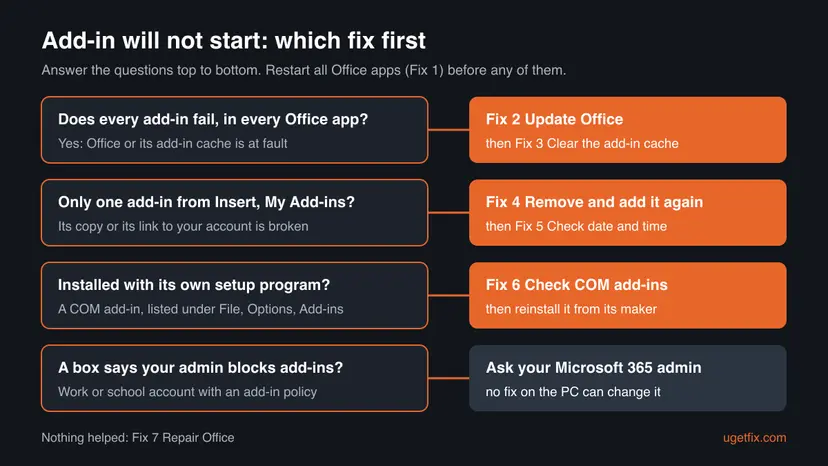
How to fix "We can't start this add-in" in Excel, Word and Outlook
The fixes start with the ones that cost a minute and work most often, and end with a repair of Office. After each fix open the app and start the add-in again. When its pane loads and shows its own content, you are done.
| Your case | Start with | Then |
|---|---|---|
| The message says to restart all Office applications | Fix 1 | Fix 2 |
| Every add-in fails, in Excel and Word alike | Fix 2 | Fix 3 |
| One store add-in fails, others work | Fix 3 | Fix 4 |
| You see Error loading add-ins while installing it | Fix 5 | Fix 4 |
| The add-in came with its own setup program | Fix 6 | Fix 7 |
| Nothing above helped | Fix 7 | Still broken section |
Fix 1. Close all Office apps, end what is left and open the app again
2 minutesNo riskEveryone, first. Above all when the message itself asks you to restart all Office applications.
Office add-ins run in a helper process that Office shares between its apps. If one start failed, that process can stay in a bad state until every Office app is closed, so closing only Excel is not enough.
- Save your work and close Excel, Word, PowerPoint, Outlook and OneNote.
- Press Ctrl + Shift + Esc to open Task Manager.
- On the Processes tab look for any Office app still listed, such as Microsoft Excel or Microsoft Outlook.
- Select each one and choose End task.
- Open the app again and start the add-in from Insert > My Add-ins or Home > Add-ins.
If an app refuses to close, Task Manager ends it the hard way: Close a frozen app (Task Manager, Force Quit). When the error appeared right after a Windows or Office update, restart the whole PC instead of only the apps.
It worked if: The add-in's pane opens on the right and shows its own sign-in screen or content.
If not: If the same message returns, update Office with Fix 2.
Fix 2. Update Office from File > Account
5 to 10 minutesLow riskThe restart did not help, or every store add-in fails.
Microsoft's add-in troubleshooting page gives one resolution for the message that an add-in could not be started: verify that the latest Office updates are installed. New add-ins often rely on features that an older Office build does not have.
- Open Excel, Word or PowerPoint and select File > Account.
- Under Product Information select Update Options.
- Select Update Now and wait until Office says it is up to date.
- Close every Office app when the updater asks you to, and let it finish.
- Open the app and start the add-in again.
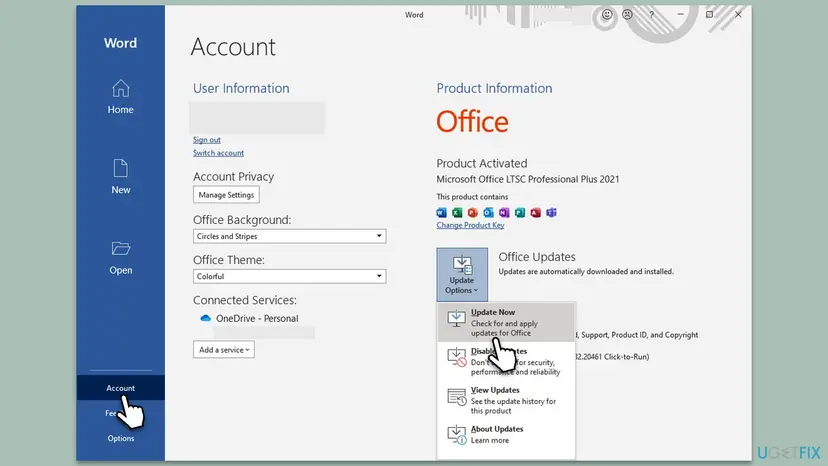
If Update Options is missing, your work or school manages Office updates, and IT decides the version. Check Windows Update too, under Settings > Windows Update, because Office add-ins on Windows run in the Microsoft Edge WebView2 component that Windows keeps current.
It worked if: Office reports that updates were installed or that you are up to date, and the add-in loads after the restart.
If not: If Office is current and the add-in still fails, clear the add-in cache with Fix 3.
Fix 3. Clear the Office add-in cache
5 minutesLow riskOffice is up to date, but one or more store add-ins still refuse to start.
Office keeps a local copy of every add-in it has started in the Wef cache. Microsoft lists clearing it as the step to take when you want to resolve issues or errors when running an add-in, because Office then fetches a fresh copy.
The easy way works in Excel, Word and PowerPoint on Office version 2108 or later. Office clears the cache the next time it starts.
- In Excel, Word or PowerPoint select File > Options > Trust Center.
- Select Trust Center Settings and then Trusted Add-in Catalogs.
- Check Next time Office starts, clear all previously-started web add-ins cache.
- Select OK twice and close every Office app.
- Open the app again and start the add-in.
For Outlook, or if the check box is missing, clear the folder by hand. Close every Office app first, then press Win + R, paste the path below and press Enter:
%LOCALAPPDATA%\Microsoft\Office\16.0\Wef\- Press Ctrl + A to select everything in the Wef folder and press Delete.
- If this folder exists, empty it too:
%userprofile%\AppData\Local\Packages\Microsoft.Win32WebViewHost_cw5n1h2txyewy\AC\#!123\INetCache\ - Open the Office app and start the add-in again.
Microsoft warns that deleting single manifest files from the cache can stop all add-ins from loading, so clear it completely. Add-ins that you sideloaded from a file are removed with the cache and must be added again. Add-ins from the store stay listed under My Add-ins in your account.
It worked if: The add-in loads more slowly once while Office downloads it again, then opens normally.
If not: If only this add-in still fails, remove it and add it again with Fix 4.
Fix 4. Remove the add-in and add it again
5 minutesLow riskOne add-in from the store fails while others work, or it broke right after you installed it.
For add-ins that fail at install, Microsoft's advice is to install the add-in again, and to download it again if the package was damaged. Removing it also resets its link to your Microsoft account on this PC.
- Open the app where the add-in fails and select Insert > My Add-ins (in newer builds Home > Add-ins > More Add-ins).
- Find the add-in under MY ADD-INS.
- Select the ... menu on its tile and choose Remove.
- Confirm with Remove in the box that appears.
- Close every Office app, open the app again and select STORE in the same window.
- Search for the add-in by name and select Add.
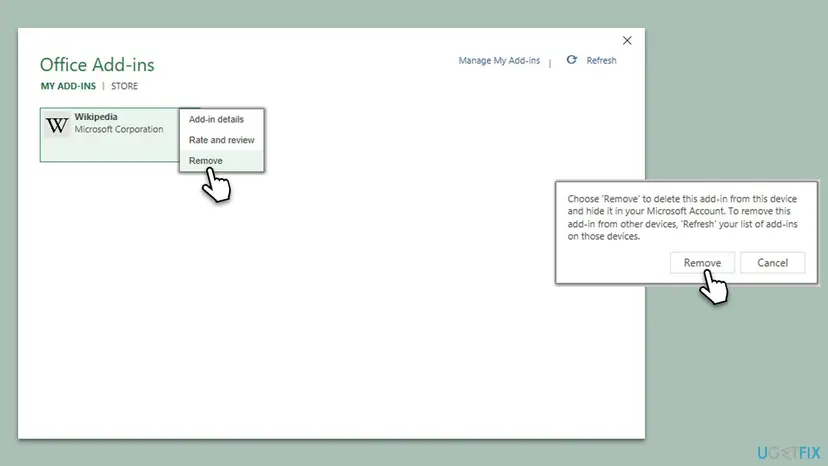
Removing it here also hides it in your Microsoft account. On your other PCs select Refresh in the same window so they forget the old copy too.
It worked if: The add-in installs again and its pane opens without the message.
If not: If the store shows Error loading add-ins while it installs, check the date and time with Fix 5.
Fix 5. Set the correct date and time
2 minutesNo riskYou see Error loading add-ins in the status bar, or the PC's clock was wrong after a battery change or a dual boot.
Microsoft names an incorrect date and time as a cause of add-in errors, because Office checks the add-in's manifest when it installs it. A clock that is days off makes that check fail.
- Open Date & time. Select Start > Settings > Time & language > Date & time.
- Turn on automatic time. Make sure Set time automatically is On.
- Check the time zone. A clock that is wrong by exactly one or more hours has the wrong time zone. Turn Set time zone automatically On, or turn it Off and pick your zone in the list next to Time zone.
- Sync the clock now. Under Additional settings, select Sync now. Windows asks the time server for the current time and corrects the clock.
- Open Command Prompt as administrator. If Sync now fails or the clock is still wrong, resync the Windows Time service by hand. Select Search, type command prompt, select Run as administrator, then select Yes.
- Start the service and resync. Type the two commands below and press Enter after each. The first starts the Windows Time service. If Windows answers that the service is already started, go on. The second tells the PC to resynchronize its clock as soon as possible.
net start w32time w32tm /resync - Set the time by hand as the last step. If the PC has no internet connection, turn Set time automatically Off and select Change next to Set the date and time. Enter the date and time and select Change.
These steps were written for Windows 11 25H2 and 26H2. The full page with the other versions and what each result means: How to fix the date and time in Windows
After the clock is right, close Office, open it again and repeat Fix 4. Microsoft's next steps for the same message are to restart the add-in and install it again.
It worked if: The add-in installs without Error loading add-ins and starts.
If not: If the add-in came with its own setup program, check it in Fix 6. Otherwise go to Fix 7.
Fix 6. Check that the COM add-in is turned on and loads at startup
5 minutesLow riskThe add-in was installed with its own setup program, for example a tool from your bank, a reference manager or a company plug-in.
A COM add-in is not managed by the store. Office lists it under its own Options page with a load behaviour. If Office turned it off after a crash, or the setup did not finish, it will not start until it is turned on or installed again.
- Select File > Options > Add-ins.
- At the bottom, set Manage to COM Add-ins and select Go.
- Find the add-in in the list and select it. Read Location and Load Behavior below the list.
- If its box is clear, check it and select OK.
- Close the app, open it again and test the add-in.
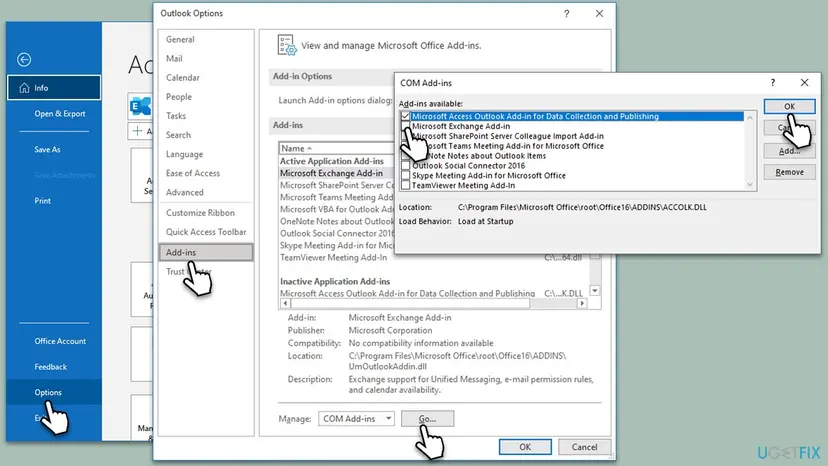
Also set Manage to Disabled Items and select Go. If the add-in is listed there, select it and choose Enable. If it is missing from both lists, or turns itself off again, uninstall it with Uninstall a program or app in Windows and install the current version from its maker's site, choosing the one for your Office version.
It worked if: The add-in stays checked after a restart and its tab or button works.
If not: If a fresh install of the add-in fails too, repair Office with Fix 7 and contact the add-in's maker.
Fix 7. Repair Office: Quick Repair first, Online Repair second
5 to 30 minutesLow riskUpdates, the cache and a reinstall of the add-in did not help, or other Office features misbehave as well.
The add-in loads through Office's own program files. If those are damaged, no add-in can start, whatever you do with the add-in. A repair replaces Office's files and leaves your documents and add-in list alone.
- Open Installed apps. Right-click the Start button and select Installed apps.
- Find Microsoft 365 or Office. Find your Microsoft 365 or Office product in the list. If you have a standalone app such as Visio or Project, search for it by its own name.
- Open the repair window. Select the three dots next to the product and select Modify.
- Start with Quick Repair. In the repair window, select Quick Repair, then Repair. It is the faster option: it finds damaged files and replaces them.
- Finish and test. Follow the instructions on the screen until the repair is done. Restart the PC if you are asked to, then open the app that had the problem.
- Run Online Repair if the problem is still there. Open the same repair window again and select Online Repair, then Repair. Microsoft recommends this option to make sure everything gets fixed. It takes longer than Quick Repair.
These steps were written for Windows 11 25H2 and 26H2. The full page with the other versions and what each result means: How to repair Microsoft 365 or Office
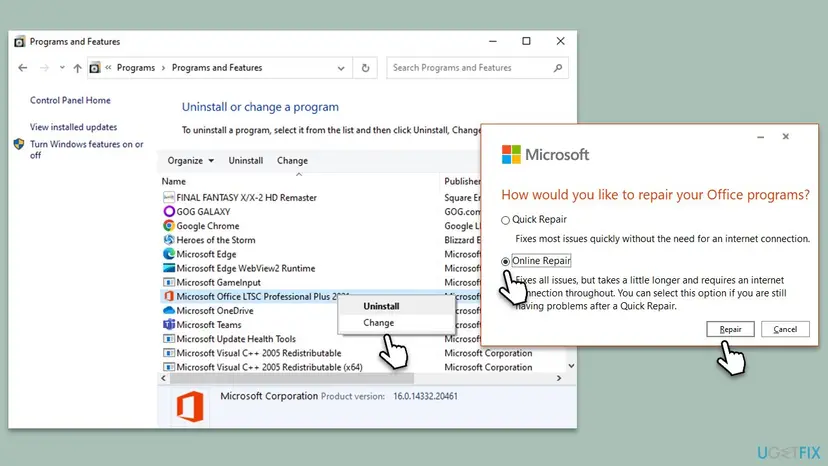
It worked if: The repair finishes, and after a restart the add-in starts.
If not: If Online Repair changes nothing, read the next section before you reinstall Office.
If the add-in still will not start: what to check next
When Office is current, repaired and the add-in freshly added, the block usually sits outside Office: in your organisation's settings, in the network or in security software. These checks tell them apart.
- An ADD-IN INFORMATION box at the top of the pane saying that Microsoft 365 has been configured to prevent individual acquisition and execution of Office Store Add-ins. Microsoft says this is not a fault of the add-in but of how your organisation set up add-ins. Only your Microsoft 365 admin can change it.
- App error: Catalog could not be reached. Office cannot reach Microsoft Marketplace, where store add-ins come from. Microsoft points to the firewall. Test the connection with How to check your internet connection in Windows and ask IT whether a proxy blocks the store.
- Error: Access denied. E_ACCESSDENIED (0x80070005). Microsoft says antivirus can stop Office from creating the WebView2 process that runs add-ins. The fix is an exclusion for Office's own folder,
C:\Program Files\Microsoft Office\root\Office16, set by you or by IT. Do not turn the antivirus off for good. - Another Windows account. Add-ins and their cache are stored per user. If the add-in starts in a second account on the same PC, your profile's settings are the cause: Create a new user account to test a problem.
Send the add-in's maker or your IT the full text of the message, the app and its version from File > Account > About, the add-in's name, and whether it works in Excel or Word for the web. Microsoft also asks for reports through Help > Feedback > Report a problem in the app.
If the add-in works in Office for the web at office.com but not on the PC, the cause is on the PC. If it fails on the web too, it is the add-in's service or your account, and only its maker can fix that.
How to keep add-ins starting
Most failures follow an Office build that fell behind or a cache that holds an old copy. A few habits keep both in order.
- Keep Office on automatic updates. Leave Update Options on Enable Updates, and let updates finish before you shut down.
- Keep Windows updated. Windows 10 left support on 14 October 2025, so a Windows 10 PC no longer gets fixes for the parts add-ins rely on. Windows 11 25H2 and 26H2 do.
- Install add-ins from the store or the maker only. Microsoft notes that a package changed before install fails with Error loading add-ins.
- Remove add-ins you no longer use under My Add-ins or COM Add-ins. Fewer add-ins mean fewer things to load at every start.
- Keep the clock on automatic time. A wrong date breaks the add-in's check at install.
Frequently asked questions
What does "The add-in could not be started. Please restart all Office applications and try again" mean?
It means the same as the "isn't set up properly" message: Office began to load the add-in and gave up. The text tells you the first fix. Close Excel, Word, PowerPoint, Outlook and OneNote, check in Task Manager that none of them is still running, and open the app again. If it comes back, update Office from File > Account > Update Options > Update Now, which is Microsoft's own resolution for add-ins that could not be started.
What does "This add-in could not be started. Close this dialog to ignore the problem or click Restart to try again" mean?
Office could not start a store add-in in its pane. Select Restart once. If the same box returns, Microsoft's troubleshooting page says to verify that the latest Office updates are installed. After the update, clear the add-in cache with Fix 3. Users report that this box can appear for every add-in at once even after a repair, and in that case the cache and the update are the steps that matter.
Why does every add-in fail, in Excel and Word alike?
When all add-ins fail in every app, the add-ins are not the cause: Office, its add-in cache, or a block outside Office is. Update Office first, then clear the Wef cache. If you use a work or school account, look for a box that says your organisation blocks store add-ins, or a message that the catalog could not be reached. Both come from settings that only your IT can change.
Will clearing the add-in cache delete my add-ins or files?
It does not touch your documents. Add-ins from the store stay in your account and download again when you start them. Add-ins you sideloaded from a manifest file are removed and must be added again, which Microsoft states plainly. Empty the whole Wef folder, not single files inside it: Microsoft warns that deleting single manifest files can stop all add-ins from loading.
Does turning off the antivirus fix the add-in error?
Do not turn it off as a fix. Microsoft documents one case where antivirus is involved: the message Error: Access denied. E_ACCESSDENIED (0x80070005), when security software stops Office from starting the WebView2 process that runs add-ins. The remedy it gives is an exclusion for Office's own program folder, not a disabled antivirus. On a work PC, IT sets that exclusion.
"Something happened and we couldn't install a feature" or "Office encountered an error during setup": is that the same problem?
No. Those messages come from the Office installer, not from an add-in. They appear while Office itself installs or updates. This page is about add-ins that fail to start inside a working Office. For the setup message, see our guide to Office encountered an error during setup. Generic searches such as setup error or setup problem usually mean that installer message.
Is the add-in error a problem with my Microsoft 365 licence?
Usually not. The add-in error appears in an Office that opens and works. A licence problem shows its own message about activation or sign-in. Some add-ins need their own subscription with the add-in's maker, and those show the maker's sign-in screen inside the pane, not the Office error. If Office itself shows a sign-in error, a code such as [Something went wrong [7q6ch]](/fix/how-to-fix-something-went-wrong-error-tag-7q6ch-in-microsoft-office/) has its own guide.
Can I use the add-in while the desktop app refuses it?
Often yes. Sign in at office.com, open the file in Excel or Word for the web and start the add-in from the same Add-ins button. Store add-ins that support the web run there without the desktop app's cache or WebView2. If the add-in works on the web, the problem is on your PC and the fixes above apply. If it fails on the web too, contact the add-in's maker.
What does "ini apa", "ما مشكلة" or "como resolver esse erro" mean on this page?
They are searches from people who use Windows in other languages. Ini apa is Indonesian for what is this, ما مشكلة is Arabic for what is the problem, and como resolver esse erro is Portuguese for how to solve this error. The add-in message and its fixes are the same in every language: restart all Office apps, update Office, clear the add-in cache, then add the add-in again. Only the menu names differ.
Sources
- Microsoft Learn: Troubleshoot user errors with Office Add-ins (learn.microsoft.com)
- Microsoft Learn: Clear the Office cache (learn.microsoft.com)
- Microsoft Q&A: Office Add-ins "This add-in could not be started" (user reports) (learn.microsoft.com)
Did this fix work?
One click, no account. It tells the next reader which guides are worth their time.
Questions and experiences: fix "We can't start this add-in because it isn't set up properly" in Office
Still broken, or found a fix we did not cover? Ask here: members and our editors answer. Reading is open; writing needs a free account.
…