
How to fix the RandGrid.sys blue screen (BSOD) in Windows

Prefer to fix it yourself? The manual steps follow.
- 6methods
- 10 to 60 minutes
- Intermediate
Applies to Windows 11 and Windows 10 PCs with Call of Duty (Black Ops 7, Black Ops 6, Warzone, Modern Warfare III, Modern Warfare II) from Steam, Battle.net or the Xbox app
6 methods in this guide
Hello, I have constant BSOD crashes when I'm trying to launch CoD: Modern Warfare II. The referenced file is Randgrid.sys. What can I do to fix this?
RandGrid.sys is the kernel driver of RICOCHET Anti-Cheat, which Call of Duty installs on every PC. When a blue screen or a file not found message names it, the anti-cheat failed, not Windows. Update and repair the game first, then check the atvi-randgrid service.
RandGrid.sys belongs to RICOCHET, the anti-cheat of Call of Duty, and it runs only while the game runs. Close the game, install its updates and verify its files in Steam, Battle.net or the Xbox app (Fix 1). If the game will not start or a log says the file is not found, remove the broken atvi-randgrid service and repair the game again (Fix 2).
| Error | A stop screen (blue, or black on Windows 11 24H2 and later) with What failed: randgrid.sys, or a launch failure with Failed to open and the path of randgrid.sys in the game's log. The stop code above it varies. |
|---|---|
| Where it appears | While a Call of Duty title starts, shows the RICOCHET logo on the loading screen, or runs a match. The PC freezes, shows the stop screen and restarts. |
| Main cause | A damaged or outdated copy of the RICOCHET driver, or a Windows service entry that points to a missing or moved randgrid.sys. |
| Fastest fix | Update the game and verify its files in the launcher, then start it with administrator approval (Fix 1). |
| Also written as | Randgrid.sys, randgrid sys, rangrid.sys, randgrid. The service names are atvi-randgrid_sr (Steam) and atvi-randgrid_msstore (Xbox app and PC Game Pass). |
| Who makes it | Activision, as the PC kernel driver of RICOCHET Anti-Cheat. It is not a Windows file and you cannot opt out of it to play. |
| Affects | Black Ops 7, Black Ops 6 and Warzone (full RICOCHET), plus Modern Warfare III, Modern Warfare II and Vanguard. Windows 10 left support on 14 October 2025. |
| Vendor status | Activision publishes no public fix list for the driver. It says the driver was tested across a large range of PCs and is updated after launch, so each game update can bring a new build. |
| Where the cause is logged | bootstrapper.log in the game folder for launch failures, and C:\Windows\Minidump for blue screens. |
| Time to fix | 10 to 20 minutes for Fix 1 or 2. A full reinstall takes as long as the download of the game. |
Facts checked on 15 October 2026. Steps written for Windows 11 (25H2 and 26H2) and Windows 10 22H2.
What RandGrid.sys is and why it can stop Windows
RandGrid.sys is the PC driver of RICOCHET Anti-Cheat, the anti-cheat system Activision built for Call of Duty. Activision's support page says every PC player of the protected titles gets a kernel-level driver developed in-house, that it installs automatically with the game and that it is required to play. You see the RICOCHET logo on the loading screen when it starts.
A kernel driver runs with the rights of Windows itself. That is how it can watch programs that try to touch the game. It is also why a fault in it cannot be caught: Windows stops with a bug check and, when it knows the culprit, writes What failed: and the driver's file name under the stop code.
| Name | What it is | Where you meet it |
|---|---|---|
randgrid.sys | The RICOCHET kernel driver file | Stop screen, crash dumps, the game folder |
atvi-randgrid_sr | The Windows service that loads the driver for the Steam copy of the game | bootstrapper.log, sc.exe output, the registry |
atvi-randgrid_msstore | The same service for the Xbox app and PC Game Pass copy | bootstrapper.log, sc.exe output |
bootstrapper.log | The game's launch log, next to the game files | The game folder, for example Call of Duty HQ |
| file not found: randgrid.sys | The service exists but the file it points to is missing or moved | Launch logs and scan tools |
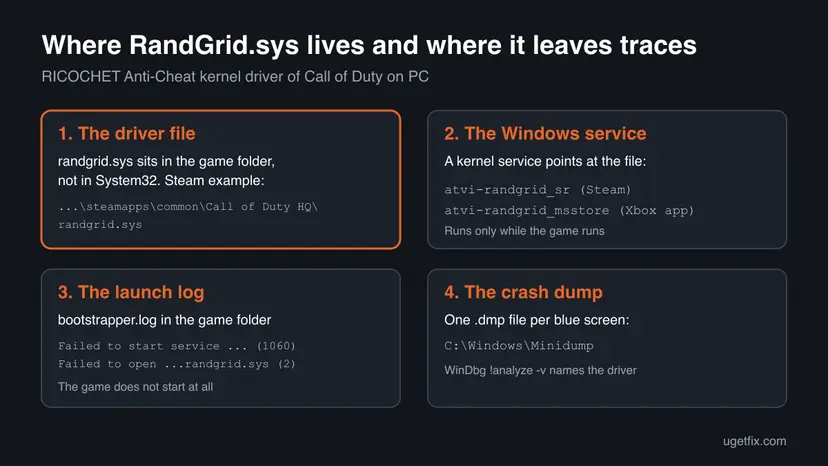
Activision says the driver turns on when you start a protected game and shuts down when you exit it. A blue screen that names randgrid.sys therefore happens while Call of Duty is starting or running, never on an idle PC.
Why RandGrid.sys crashes or blocks the game: the causes, most common first
Two different failures carry the same file name. A blue screen means the driver loaded and then failed inside Windows. A game that does not start, with no window and no sound, usually means the driver never loaded because its service is missing or points to the wrong place. The table ties each cause to a fix.
| How often | Cause | Sign | Fix |
|---|---|---|---|
| Most often | An outdated or damaged copy of the driver from an interrupted update | Crashes started after a game update or a failed download | Fix 1 |
| Often | The atvi-randgrid service is missing or points to an old folder | The game does not start; bootstrapper.log shows error 1060 or 2 | Fix 2 |
| Often | The game was moved to another drive, so the service path is stale | Problems began right after Move install folder | Fix 2, then Fix 3 |
| Less often | A clash with another kernel driver: other anti-cheats, RGB, fan and overclocking tools, security suites | Crashes stop in a clean boot | Fix 4 |
| Rarely | Unstable hardware: overclock, memory profile, old BIOS, failing RAM | Blue screens also in games without RICOCHET, or random stop codes | Fix 5 |
| Rarely | Damaged Windows system files | SFC reports files it could not repair | Fix 6 |
Deleting randgrid.sys stops the crash only because the anti-cheat no longer loads, and Activision requires the driver to play. The service then points to a missing file and the game refuses to start. Fix 2 repairs the service the clean way.
Read the launch log and the crash dump first
Two minutes with the logs tell you which fix to start with. For a game that will not launch, one player's write-up shows the cause in bootstrapper.log, the file the game writes next to its own files.
- In Steam, right-click Call of Duty and select Manage > Browse local files. In the Xbox app, select the game in My Collection and then Manage.
- Open
bootstrapper.logwith Notepad and search forrandgrid. - Failed to start service atvi-randgrid_sr (1060) or Failed to open service means the service does not exist. Microsoft defines error 1060 as: The specified service does not exist as an installed service.
- (1058) means the service is turned off. Microsoft's text for 1058: The service cannot be started, either because it is disabled or because it has no enabled devices associated with it.
- Failed to open followed by a path to
randgrid.sysand (2) means the file is not where the service expects it. Error 2 is file not found. - For a blue screen, open
C:\Windows\Minidump. Windows writes one dump per crash there, named by date.
Install WinDbg with winget install Microsoft.WinDbg, open the newest dump and run !analyze -v. If IMAGE_NAME says randgrid.sys, the anti-cheat crashed. If it names a graphics, storage or network driver, RICOCHET was only running at that moment: start with Fix 4 and Fix 5.
Is RandGrid.sys a virus, and can you download it
The real file is part of Call of Duty and comes with the game from Steam, Battle.net or the Xbox app. It sits in the game's own folder. A randgrid.sys anywhere else, on a PC that never had Call of Duty, deserves a closer look.
- Right-click the file, select Properties and open Digital Signatures. A missing tab or an unknown company is a warning sign. We could not confirm the exact signer name from an official source, so compare it with the name your launcher's own copy shows after a file check.
- Never download
randgrid.sysfrom a DLL or driver site. A copy from such a site is not matched to your game build and can carry malware. The launcher's file check in Fix 1 is the only safe download. - If you doubt the file, scan the PC with Microsoft Defender: How to scan for malware with Microsoft Defender
How to fix the RandGrid.sys blue screen and file not found error
Start with Fix 1 for a blue screen during play. Start with Fix 2 when the game does not open at all or the log says the service or file is missing. Fixes 4 to 6 are for PCs where the driver is healthy but something around it is not.
| What you see | Start with | Then |
|---|---|---|
| Blue screen naming randgrid.sys while Call of Duty loads or plays | Fix 1 | Fix 4 |
| The game shows nothing when you press Play; the log shows error 1060 or 1058 | Fix 2 | Fix 3 |
| file not found: randgrid.sys or Failed to open with error 2 | Fix 2 | Fix 1 |
| Problems started after you moved the game to another drive | Fix 2 | Fix 3 |
| The game was repaired and reinstalled, and the blue screen still returns | Fix 4 | Fix 5 |
| Blue screens also happen in other games or apps | Fix 5 | Fix 6 |
Fix 1. Update Call of Duty, verify its files and let RICOCHET start normally
10 to 20 minutesNo riskThe blue screen comes while Call of Duty loads or runs, often after a game update.
The driver ships inside the game files and changes with game updates. A file check replaces a damaged or half-updated randgrid.sys with the copy that matches your game build.
- Close Call of Duty and its launcher, then restart the PC so the driver is fully unloaded.
- Open the launcher you bought the game in and install every pending update for Call of Duty.
- In Steam, right-click the game, select Properties > Installed Files and select Verify integrity of game files.
- In Battle.net, select Call of Duty, select the gear icon next to Play and choose Scan and Repair, then Begin Scan.
- In the Xbox app, open the game's Manage page and use Verify and repair. All launchers step by step: How to verify game files in Steam, Epic Games, Xbox app, EA app, Battle.net and GOG Galaxy
- Start the game. When User Account Control asks to allow changes, select Yes, so the driver can install.
- Play until the point where it used to crash.
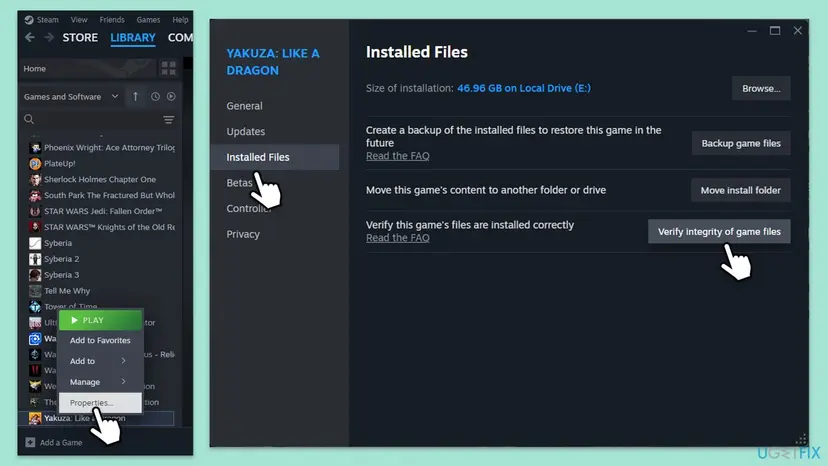
It worked if: The launcher reports that files were checked or reacquired, the RICOCHET logo shows on the loading screen and no new file appears in C:\Windows\Minidump after a match.
If not: If the game does not start at all, or the log shows error 1060, 1058 or 2, go to Fix 2. If it starts and still crashes, go to Fix 4.
Fix 2. Repair the atvi-randgrid service that loads the driver
15 minutesRead the warningThe game does not open, bootstrapper.log shows error 1060, 1058 or 2, or you moved the game to another drive.
Windows loads randgrid.sys through a kernel service. When that service is missing, turned off or still points to an old folder, the driver cannot load and Call of Duty stops before its window appears.
Deleting the service removes its registry entry. No game files or saves are touched, and the game needs the service back before it runs. Create a restore point first and see Back up the registry before editing it if you want a registry backup too.
- Close Call of Duty and the launcher. Right-click Start and select Terminal (Admin), or Windows PowerShell (Admin) on Windows 10.
- Check the service for your launcher. Use
atvi-randgrid_msstorefor the Xbox app copy.sc.exe query atvi-randgrid_sr sc.exe qc atvi-randgrid_sr - If the answer is The specified service does not exist as an installed service, the service is missing: skip to the last step.
- If START_TYPE says DISABLED, that is error 1058. Run
sc.exe config atvi-randgrid_sr start= demand, then start the game. - If BINARY_PATH_NAME points to a folder where the game no longer is, the path is stale. Note the real game folder from your launcher.
- Remove the stale entry and restart the PC.
sc.exe delete atvi-randgrid_sr - Verify the game files again as in Fix 1, start the game and allow the UAC prompt. If the game still does not open, reinstall it with Fix 3: Activision says every new install of the game includes the driver.
Forums pass around batch files that recreate atvi-randgrid_sr with sc create and then rewrite its permissions with sc sdset. The author of one such write-up says it worked for him, but the permission strings do not come from Activision. We could not confirm them, so this guide uses the game's own install instead.
It worked if: sc.exe query atvi-randgrid_sr shows the service once the game is running, the RICOCHET logo appears and bootstrapper.log no longer shows error 1060, 1058 or 2.
If not: If the service does not come back after a file check, go to Fix 3 for a clean reinstall.
Fix 3. Reinstall Call of Duty so the driver and service are installed fresh
1 hour or more, depending on download speedLow riskFix 1 and Fix 2 did not help, or the game was moved between drives and still fails.
Activision states that uninstalling a RICOCHET game removes the kernel driver, and that the next install includes it again. A reinstall therefore rebuilds both the file and the service in one go.
- In Steam, right-click Call of Duty and select Manage > Uninstall. In Battle.net or the Xbox app, use the game's own uninstall option. All ways to remove a program: Uninstall a program or app in Windows
- Restart the PC.
- Open Terminal (Admin) and run
sc.exe query atvi-randgrid_sr. If the service is still there, remove it withsc.exe delete atvi-randgrid_srand restart again. - Install the game again to its default library folder.
- Start it, allow the UAC prompt and wait for the RICOCHET logo.
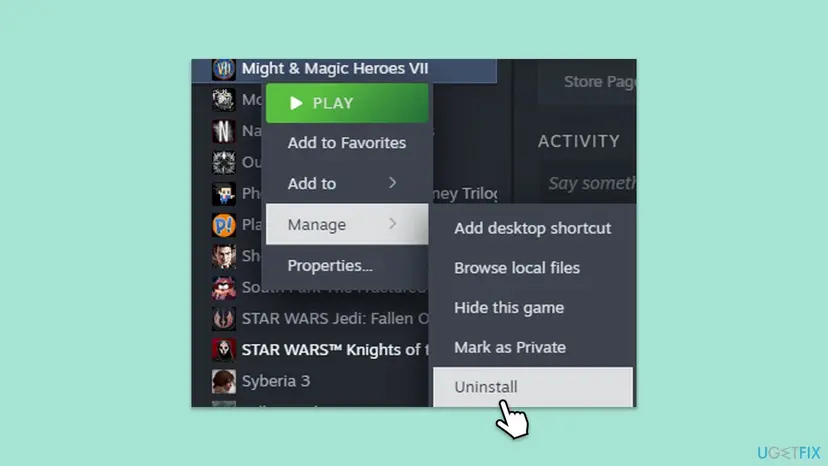
It worked if: The new install starts normally, the RICOCHET logo shows and the game survives a full match.
If not: If the blue screen comes back with a fresh install, something else on the PC clashes with the driver. Go to Fix 4.
Fix 4. Find the program whose driver clashes with RICOCHET
30 minutesLow riskThe game was repaired or reinstalled and still crashes with randgrid.sys on the stop screen.
RICOCHET watches every program that touches the game from inside the kernel, and so do other anti-cheats, RGB and fan tools, overclocking utilities and security suites. Two such drivers at once is a common source of kernel crashes.
- Start Windows with only Microsoft services and no startup apps. Step by step: How to perform a clean boot in Windows
- Restart and play Call of Duty until the point where it used to crash.
- If it no longer crashes, turn the other services back on in groups of five, restarting and playing after each group.
- When the crash returns, the last group holds the culprit. Narrow it down to one program.
- Update that program or uninstall it. Disabling its service is not enough when it also loads a kernel driver.
- To test a third-party antivirus, pause it for one session and turn it back on afterwards: Turn off Microsoft Defender protection for a moment
- Return to a normal start in System Configuration when you are done.

It worked if: Call of Duty runs a full match in the clean boot, and after you update or remove the one program it also runs in a normal start.
If not: If the crash happens even in a clean boot, the clash is not with a service. Go to Fix 5.
Fix 5. Rule out unstable hardware: overclocks, BIOS, drivers and memory
60 minutes or moreLow riskBlue screens also happen outside Call of Duty, or every fix above has failed.
An anti-cheat driver reads a lot of memory while the game runs, so it is often the first code to hit an unstable CPU or RAM setting and take the blame on the stop screen.
- Reset every overclock to default, and switch off the memory profile (XMP or EXPO) in the BIOS for the test.
- Install the newest BIOS and chipset driver from your PC or motherboard maker's support page, after reading its release notes.
- Update the graphics driver, or roll back one that arrived just before the crashes: Update, roll back or reinstall a driver
- Test the RAM with the tool built into Windows: How to test your RAM with Windows Memory Diagnostic
- Play Call of Duty again with the default settings.
Errors in the memory test, many different stop codes, or crashes in programs without any anti-cheat point to hardware. RandGrid.sys then only reveals the fault, and fixing or replacing the part is the cure.
It worked if: The memory test finds no errors and the game survives a long session at default clocks.
If not: If the memory test reports errors, the RAM needs replacing. If not, run the Windows file repair in Fix 6.
Fix 6. Repair Windows system files as a last check
20 minutesNo riskSFC has never run on this PC, or the dumps also name Windows files.
RandGrid.sys is not a Windows file, so this repair cannot fix the driver itself. It rules out damaged Windows components the driver calls into, which is why it comes last.
DISM fetches clean copies of Windows components and SFC replaces damaged system files. Step by step with screenshots: Run DISM and SFC to repair Windows system files
In Terminal (Admin), one after the other:
DISM.exe /Online /Cleanup-Image /RestoreHealth
sfc /scannow
It worked if: SFC reports no integrity violations or that it repaired them, and the next match ends without a stop screen.
If not: Collect the logs and contact Activision support as described in the next section.
Still crashing: what to send and to whom
Only Activision can fix a bug inside randgrid.sys. If none of the fixes worked, give their support team what they need to reproduce the problem. Their support site lets you open a case per Call of Duty title, and asks Steam and Battle.net players to contact the platform for account verification issues.
- The three newest
.dmpfiles fromC:\Windows\Minidump, zipped. - The
bootstrapper.logfile from the game folder. - Your Windows edition and version from Settings > System > About.
- The game, the launcher, and the exact moment of the crash: start-up, the RICOCHET logo, the menu or a match.
- Any other anti-cheats, RGB, fan, overclocking or security tools you found in Fix 4.
| Where to report | When |
|---|---|
| Activision Support, the case form for your Call of Duty title | Always first: they ship the driver |
| Steam or Battle.net support | Download, install or account problems in the launcher |
| Your PC maker or a hardware shop | Memory test errors or crashes outside games |
How to keep the RandGrid.sys blue screen from coming back
- Let the launcher finish every Call of Duty update before you press Play.
- Allow the UAC prompt when the game starts.
- Move the game only with the launcher's own tool, then verify its files.
- Keep the BIOS, chipset and graphics drivers current.
- Delete or rename randgrid.sys while you still play the game.
- Run several kernel anti-cheats and overclocking tools at the same time.
- Turn off memory integrity or other Windows protections to make the crash stop.
- Download randgrid.sys from DLL or driver sites.
Windows 10 left support on 14 October 2025. A PC that can run Windows 11 gets the security fixes that new game and anti-cheat builds are tested against. For a similar crash caused by another game's anti-cheat, see our guide to the ACE-BASE.sys blue screen.
Frequently asked questions
What is randgrid.sys?
RandGrid.sys is the kernel-level driver of RICOCHET Anti-Cheat, the anti-cheat Activision developed for Call of Duty on PC. It installs with the game, starts when you launch a protected title and shuts down when you exit. Activision says it monitors programs that try to interact with the game. It is not part of Windows and you cannot play the protected titles without it. Questions such as "what is it" or "is it really not a virus" in other languages ask the same thing.
Is randgrid.sys a virus?
No, the real file is Activision's anti-cheat driver and comes with Call of Duty. It lives in the game's folder and only runs while the game runs. A copy outside a Call of Duty folder, or on a PC that never had the game, is worth a scan with Microsoft Defender. Do not judge by a detection name alone: check where the file is, which program installed it and what its Digital Signatures tab says.
Where can I download randgrid.sys?
Nowhere except your game launcher. The driver is matched to the game build, so the only safe copy is the one Steam, Battle.net or the Xbox app puts back when you verify the game files (Fix 1) or reinstall the game (Fix 3). DLL and driver download sites offer files of unknown origin and version. A wrong copy will not load, and a tampered one can harm the PC.
What does file not found: randgrid.sys mean?
It means Windows still has the atvi-randgrid service registered, but the driver file it points to is not there. This usually happens after the game was moved to another drive, after a broken update, or after someone deleted the file by hand. Check the path with sc.exe qc atvi-randgrid_sr, remove the stale entry with sc.exe delete, restart and repair or reinstall the game, as in Fix 2 and Fix 3.
Which Call of Duty games use randgrid.sys?
Activision lists Black Ops 7, Black Ops 6 and Warzone with the full RICOCHET backend, and says its systems also protect Modern Warfare III, Modern Warfare II and Vanguard. All listed titles on PC use the kernel-level driver for all players. The reader's question on this page is about Modern Warfare II, and the same fixes apply to every one of these games.
Can I delete randgrid.sys to stop the blue screen?
You can, but the game will not run without it, because Activision requires the driver to play. Deleting it also leaves the service pointing to a missing file, which is exactly the file not found error. If you no longer play, uninstall Call of Duty: Activision says that removes the driver. If you still play, repair it with Fix 1 or Fix 2 instead.
Does uninstalling Call of Duty remove randgrid.sys?
According to Activision, yes: uninstalling a game that uses RICOCHET removes the kernel-level driver, and a new install brings it back. To be sure on your PC, run sc.exe query atvi-randgrid_sr in Terminal (Admin) after the uninstall and a restart. If the service still exists, remove it with sc.exe delete atvi-randgrid_sr.
Does randgrid.sys run all the time?
No. Activision states that the driver operates only while you play a RICOCHET game, turns on when you start the game and shuts down when you exit it. If you see a blue screen naming randgrid.sys while Call of Duty is closed, read the crash dump first: another driver may be the real cause, or the stop screen may come from a game that was still closing.
Is brynhildr.sys the same as randgrid.sys?
We could not confirm what brynhildr.sys is from an official source, so this page does not treat it as the RICOCHET driver. If a stop screen names it, check where the file lives and which program installed it, look at its Digital Signatures tab and scan it with Microsoft Defender. The fixes on this page are only for randgrid.sys.
I tried everything and nothing worked. What now?
If none of the fixes did anything ("no hace nada", "não funcionou nenhum"), collect the newest crash dumps and bootstrapper.log and open a case with Activision Support, as the still crashing section explains. Run the memory test in Fix 5 too, since hardware faults often hide behind an anti-cheat crash. This page is about the genuine game: a pirated game or a modified copy without a working RICOCHET install is not covered.
Sources
- Activision Support: RICOCHET Anti-Cheat, Call of Duty's anti-cheat initiative (support.activision.com)
- Microsoft Learn: System Error Codes (1000-1299) (learn.microsoft.com)
- A player's write-up on the atvi-randgrid service and bootstrapper.log (Medium) (medium.com)
Did this fix work?
One click, no account. It tells the next reader which guides are worth their time.
Questions and experiences: fix the RandGrid.sys blue screen (BSOD) in Windows
Still broken, or found a fix we did not cover? Ask here: members and our editors answer. Reading is open; writing needs a free account.
…