
How to fix Service Control Manager Error 7001 in Windows?

Prefer to fix it yourself? The manual steps follow.
- 7methods
- 5 minutes to find the failed service, 5 to 30 minutes to fix it
- Intermediate
Applies to Windows 11, Windows 10
7 methods in this guide
Hello. My laptop does not run normally and gives me Error 7001. I have read that this is a service or server error, but the fixes I have found do not help in my case. Do you have any suggestions?
Event ID 7001 is logged by Service Control Manager when a service cannot start because another service it depends on failed first. The service named first is only a victim. Follow the chain to the last failed service and fix the error written at the end of the event.
Event 7001 says that service A could not start because service B, which A needs, failed. Open the event in Event Viewer, note service B and the error on the second line, and follow the chain until you reach a service that fails with its own error (Fix 1). Most often that service is disabled, so set its startup type back to Automatic or Manual and start it (Fix 2).
| Error | Event ID 7001, source Service Control Manager, level Error, in Windows Logs > System: "The <A> service depends on the <B> service which failed to start because of the following error:" and a second line with the reason. |
|---|---|
| Where it appears | Only in Event Viewer or a log monitoring tool. Windows shows no window for it; you find it while you look for the cause of a freeze, a network problem or a feature that stopped working. |
| Main cause | A service lower in the chain is set to Disabled (error 1058). Less often its own dependency failed (1068), a DLL or program file is missing (126 or 2), or its account cannot sign in (1069). |
| Fastest fix | Find the last failed service with Event Viewer and sc qc (Fix 1), set its Startup type back and start it (Fix 2). |
| Also written as | Event 7001, eventid 7001, 7001 event id, Windows event ID 7001, Service Control Manager 7001, Service Control Manager error 7001, error 7001, error code 7001. |
| Often seen with | Event 7000 (a service failed to start by itself) and event 7003 (a service depends on a service that is not installed). Microsoft shows 7001, 7000 and 7003 together in its service startup troubleshooting. |
| Is it serious? | As serious as the services in the chain. A network service chain that fails means no internet; an optional service that fails changes nothing you notice. |
| Microsoft's status | Not a bug. Microsoft's advice is to find which dependency failed and correct its startup type, its registry values, its files or its registry permissions. |
| Time to fix | 5 minutes to find the failed service. 5 minutes for a startup type change, up to 30 minutes to repair Windows files. |
Facts checked on 15 October 2026. Steps written for Windows 11 (25H2 and 26H2) and Windows 10 22H2.
What Event ID 7001 from Service Control Manager means
Service Control Manager is the part of Windows that starts and stops services. Many services need other services to run first; this list is called dependencies and is shown on the Dependencies tab of each service in Services. When Windows starts a service and one of its dependencies fails, it logs Event ID 7001 for the service that could not start.
An Event ID 7001 entry from Microsoft's documentation (the names and the second line change)
Log Name:      System
Source:        Service Control Manager
Event ID:      7001
Level:         Error
The DHCP Client service depends on the Network Store Interface service which failed to start because of the following error:
The service cannot be started, either because it is disabled or because it has no enabled devices associated with it.
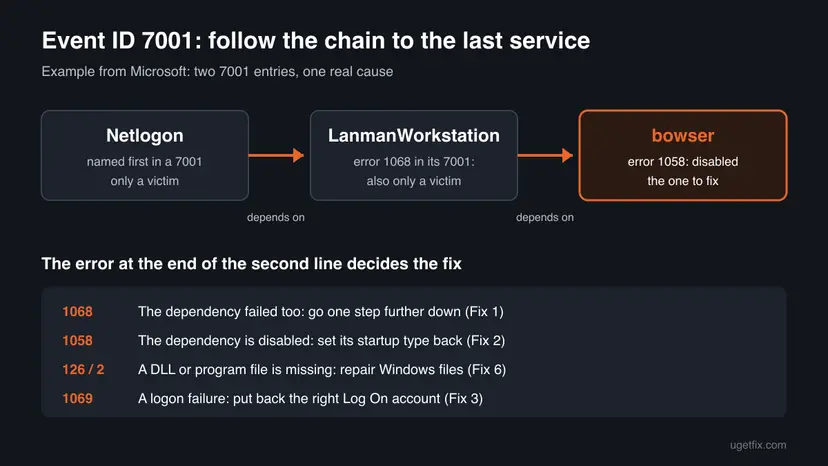
Read it from right to left. The first service, DHCP Client here, did nothing wrong. The second one, Network Store Interface, is the one that failed, and the second line gives its reason. In this example the reason is error 1058: the service is disabled.
| Second line of the event | Code | What it means |
|---|---|---|
| The dependency service or group failed to start. | 1068 | The named dependency failed because of its own dependency. Look one step further down the chain. Fix 1. |
| The service cannot be started, either because it is disabled or because it has no enabled devices associated with it. | 1058 | The dependency is set to Disabled. Fix 2. |
| The service did not start due to a logon failure. | 1069 | The dependency runs under an account that cannot sign in. Fix 3. |
| The specified module could not be found. | 126 | A DLL the dependency loads is missing or damaged. Fix 6. |
| The system cannot find the file specified. | 2 | The program file of the dependency is missing or its path is wrong. Fix 6. |
Other programs and Windows parts also use the number 7001. This page is about the entry whose Source is Service Control Manager. An event 7001 from another source, an app error code 7001 or a 0x803F7001 activation error are different problems.
Why Event ID 7001 appears, most common cause first
Most often a service in the chain was set to Disabled, by a "speed up Windows" tweak, a privacy tool or a guide that listed services to turn off. Less often the dependency runs but cannot sign in, or its files are damaged. Rarely a security program or malware keeps switching a service off.
| Cause | How it looks | Fix |
|---|---|---|
| A dependency is set to Disabled. | Error 1058 on the second line, at every start. | Fix 2 |
| The named dependency failed because of its own dependency. | Error 1068, often two or three 7001 entries at the same second. | Fix 1, then the fix for the last service |
| A dependency runs under an account whose password changed. | Error 1069, a logon failure. | Fix 3 |
| The network chain is broken: Network Store Interface, IP Helper, DHCP Client. | No network or no internet, several 7001 entries naming network services. | Fix 4 |
| Something keeps disabling a security or update service. | The service goes back to Disabled after you turn it on. | Fix 5 |
| Windows files are damaged. | Error 126 or 2, or many Microsoft services fail at once. | Fix 6, then Fix 7 |
Event 7001 is a record of a failed start, not a process that runs. If the PC freezes, as in the question at the top, the 7001 entry is a clue only when the failed chain belongs to something the PC needs, such as networking or sign-in. A freeze with no such failure needs its own check, see the last section.
How to fix Service Control Manager Event ID 7001
Fix 1 shows in five minutes which service at the end of the chain really fails and why. Every other fix depends on that answer, so start there and use the table to jump.
| What Fix 1 showed | Go to |
|---|---|
| The last service in the chain is Disabled, or the error is 1058. | Fix 2 |
| The last service fails with a logon failure (1069). | Fix 3 |
| The chain is made of network services and the PC has no internet. | Fix 4 |
| A service you turned on goes back to Disabled. | Fix 5 |
| The error is 126 or 2, or many Windows services fail at once. | Fix 6 |
| Nothing helped, and the errors began after a change. | Fix 7 |
Fix 1. Find the last failed service in the chain with Event Viewer and sc
5 minutesNo riskEveryone with Event ID 7001, before changing anything.
Microsoft's advice for dependency failures is to find which service is responsible for the failures of all the others. The 7001 entry names only the next link, and that link may itself be a victim.
- Press Win + R, type
eventvwr.mscand press Enter. - Open Windows Logs > System, select Filter Current Log, type
7000,7001,7003in the <All Event IDs> box and select OK. - Open the 7001 entries from the same start. Note the second service in each first line and the error on the second line.
- If the error is 1068, the second service also failed because of its own dependency. Find the 7001 or 7000 entry that names it as the first service.
- Stop at the service whose error is not 1068. That is the one to fix.
- Open an administrator Command Prompt and run
sc qcwith its service name to see START_TYPE, BINARY_PATH_NAME, DEPENDENCIES and SERVICE_START_NAME.
Microsoft's example: two 7001 entries from one start, read from the bottom up
The Netlogon service depends on the LanmanWorkstation service which failed to start because of the following error:
The dependency service or group failed to start.

The LanmanWorkstation service depends on the bowser service which failed to start because of the following error:
The service cannot be started, either because it is disabled or because it has no enabled devices associated with it.
Microsoft's example: sc qc lists a service's dependencies; then check each one
sc qc netlogon
sc query LanmanWorkstation
net start LanmanWorkstation
sc query shows whether a dependency is RUNNING or STOPPED. net start on a stopped one prints its own error, which is the fastest way to reach the end of the chain. The same list in PowerShell: Get-WinEvent -FilterHashtable @{LogName='System'; Id=7001} -MaxEvents 20 | Format-List TimeCreated, Message.
It worked if: You know the last failed service, its startup type, its account and its own error, for example a disabled service with error 1058.
If not: If the chain ends with event 7003, which says a service "depends on the following service" that "might not be installed", a dependency does not exist. That usually comes from a removed program: repair or reinstall the program that owns the service, or go to Fix 6.
Fix 2. Turn the disabled dependency back on in Services
5 minutesLow riskThe last service in the chain is set to Disabled, or the error is 1058.
A disabled service can never start, so every service that needs it fails with 7001 at each boot. In Microsoft's example the Workstation service was Disabled; setting it to Automatic and starting it brought the whole chain back.
- Press Win + R, type
services.mscand press Enter. - Find the service from Fix 1. The Startup Type column shows Disabled.
- Right-click it and select Properties.
- Set Startup type to Automatic, or to Manual if the service is normally started on demand, and select Apply.
- Select Start and check that Service status shows Running.
- Start the service named first in the 7001 entry the same way, or restart the PC.
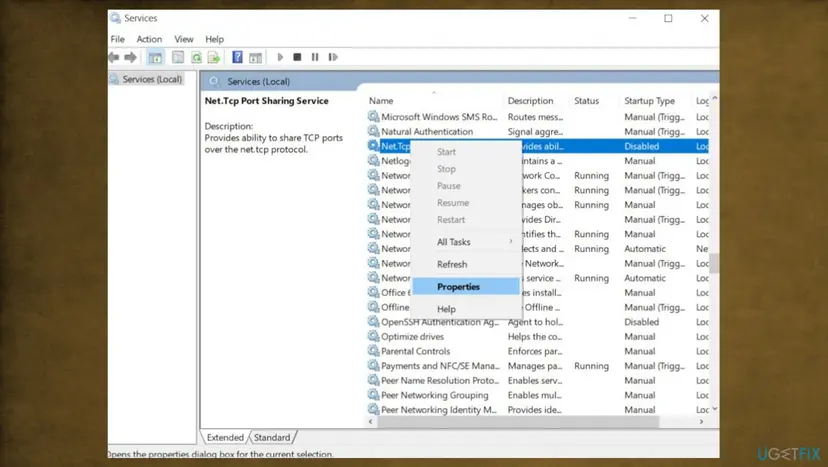
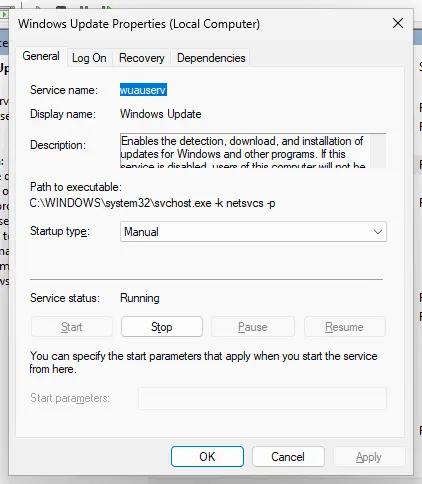
Opening Services, starting a service and changing its startup type: Check and restart Windows services The same with commands, as Microsoft shows it for the Network Store Interface service: sc config NSI start= auto, then sc start NSI (keep the space after start=).
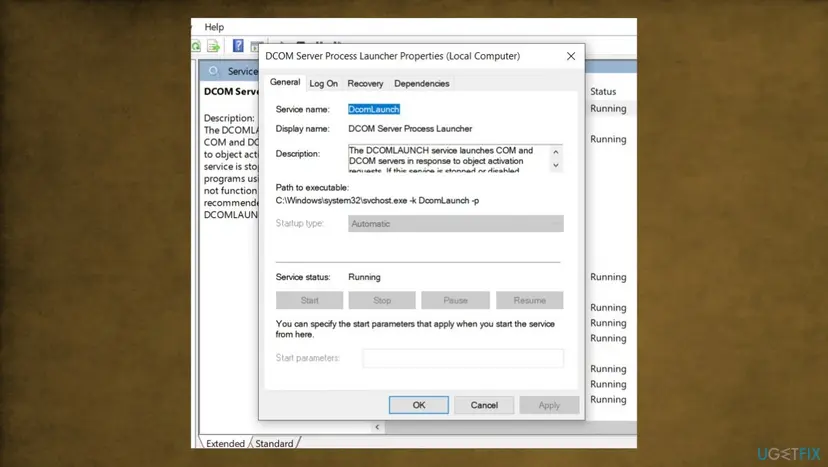
Do not set a list of services to Automatic "just in case", for example Net.Tcp Port Sharing Service. Turn on the service the chain ends with, and note its old startup type first. If its Startup type is greyed out, as for DCOM Server Process Launcher or Remote Procedure Call (RPC), Windows protects it; when such a core service is not Running, go to Fix 6.
It worked if: The service shows Running, the service named first starts too, and no new 7001 entry appears after a restart.
If not: If the service now fails with a logon failure, go to Fix 3. If it goes back to Disabled after a restart, go to Fix 5. If it fails with another error, read that error with net start and look it up in the table above.
Fix 3. Put back the Log On account of a dependency that fails with error 1069
5 to 10 minutesLow riskThe last service in the chain fails with "The service did not start due to a logon failure." (1069).
Some services sign in with a named account and a saved password. When the password changes, the service cannot sign in, and every service that depends on it fails with 7001.
- In Services, open the failed service's Properties and select the Log On tab.
- If This account is selected with a user name, type the account's current password in both password boxes and select Apply.
- If it is a Windows service that should run as Local System, Local Service or Network Service, check
sc qcon a working PC with the same Windows version, and put back that account. - Select OK, start the service, then start the service named first in the 7001 entry.
Some old guides add the LocalService or Service account to the Administrators group. That gives every service on the PC administrator rights and is not a fix. Put back the account the service should have, nothing more.
The same steps for a dependency chain, with more detail on accounts and the Log on as a service right: error 1068: the dependency service or group failed to start.
It worked if: The service starts with its account, and the 7001 entries that named it stop.
If not: If you do not know which account is right, repair or reinstall the program the service belongs to, or go to Fix 6 for a Windows service.
Fix 4. Get the network service chain running again
10 minutesLow riskThe 7001 entries name network services such as DHCP Client, IP Helper, Network Store Interface or Workstation, and the PC has no network or no internet.
Windows networking is one long chain. Microsoft documents that when the Network Store Interface service (NSI) does not run, DHCP Client logs 7001 and the machine cannot be reached, because everything above NSI fails too.
- Open Command Prompt as administrator.
- Run
sc query NSI. If it shows STOPPED, runsc start NSI. - If NSI is disabled, run
sc config NSI start= auto, thensc start NSI, thensc query NSIagain. - If NSI fails because of a dependency, do the same with the dependency it names.
- Run
sc query Dhcpandsc query iphlpsvcand start any that are stopped the same way. - Restart the PC and test the internet.
Microsoft's commands for the Network Store Interface service
sc query NSI
sc config NSI start= auto
sc start NSI
sc query NSI
If all services run but the network still fails, reset the network stack: Reset the network and flush DNS
It worked if: NSI, DHCP Client and IP Helper show RUNNING, the network connects, and the network 7001 entries stop.
If not: If NSI hangs on starting or crashes, its files or registry key may be damaged: go to Fix 6. If a VPN or firewall program was installed just before, remove it and test again.
Fix 5. Scan for malware when a service keeps going back to Disabled
15 to 30 minutesNo riskYou turned a service on with Fix 2 and it is Disabled again after a restart, especially a security, update or firewall service.
Some malware switches off Windows Security, Windows Update or firewall services so it is not removed. Every service that depends on them then logs 7001. A tweak tool set to run at startup can do the same.
- Open Windows Security. Select Start, type Windows Security and open the app.
- Open Virus & threat protection. Select Virus & threat protection. Under Current threats you see when the last scan ran, how long it took and how many files it checked.
- Run a quick scan. Select Quick scan. If Windows Security thinks a deeper scan is needed, it tells you when the quick scan is done.
- Open Scan options. If the quick scan finds nothing and you still suspect an infection, select Scan options under Current threats.
- Run a full scan. Select Full scan and start it. It checks every file and program on the device, so it takes much longer than a quick scan. Leave the PC on until it ends.
- Or scan one folder. To check only a download or a USB drive, select Custom scan in Scan options and choose the folder. You can also right-click a file or folder in File Explorer and select Scan with Microsoft Defender. On Windows 11 you may have to select Show more options first.
- Read Protection history. Go back to the first page of Windows Security and select Protection history. Select a card to expand it and see the details.
These steps were written for Windows 11 25H2 and 26H2, Windows 10 22H2. The full page with the other versions and what each result means: How to scan for malware with Microsoft Defender
Then check Settings > Apps > Startup (Windows 10: Settings > Apps > Startup too) for a "PC optimizer" or privacy tool that changes services, and remove it if you do not need it.
It worked if: The scan is clean or removes threats, and the service stays at the startup type you set.
If not: If the service still turns itself off, start Windows with a clean boot to find the program that does it: How to perform a clean boot in Windows
Fix 6. Repair Windows system files with DISM and SFC
15 to 30 minutesNo riskThe error is 126 (the specified module could not be found) or 2 (the system cannot find the file specified), or a core Windows service is not running.
Microsoft's resolution for a dependency that fails with "The specified module could not be found" is a System File Checker scan. DISM first repairs the store SFC copies from.
- Open an elevated command window. Right-click Start and select Terminal (Admin), or type cmd in the search box, right-click Command Prompt and select Run as administrator. Select Yes when Windows asks for permission.
- Run DISM first. Type the command below and press Enter. DISM downloads clean copies of damaged components from Windows Update, so it can take several minutes. Wait until it says The operation completed successfully.
DISM.exe /Online /Cleanup-Image /RestoreHealth - Run System File Checker. In the same window, type the command below and press Enter. Do not close the window until the verification reaches 100%.
sfc /scannow - Read the result and restart. Compare the last message with the table below this guide, then restart the PC so that repaired files are loaded.
These steps were written for Windows 11 24H2 and 25H2. The full page with the other versions and what each result means: Run DISM and SFC to repair Windows system files

For a service of an installed program, not of Windows, check that the file in BINARY_PATH_NAME exists, and repair or reinstall the program if it does not.
It worked if: SFC reports no integrity violations or says it repaired them, and the chain starts after a restart.
If not: If SFC could not repair everything, or the chain still fails after a restart, go to Fix 7.
Fix 7. Go back to a restore point or repair Windows
30 to 90 minutesRead the warningSeveral chains broke on the same day, you cannot tell which settings were right, or Fix 6 found damage it could not repair.
A restore point puts back service settings, drivers and system files from a day when the chain worked. A repair install writes Windows again and keeps your files and apps.
System Restore removes programs, drivers and updates installed after the restore point; your documents stay. A repair install keeps files and most apps, but back up your files first in case it fails: Back up your files (Windows Backup, File History, Time Machine)
- Press Win + R, type
rstruiand press Enter. - Select Next, tick Show more restore points and pick one dated before the first 7001 entry in Fix 1.
- Select Scan for affected programs to see what will be removed, then Next and Finish.
- After the restart, check the System log for new 7001 entries.
Step by step: Undo recent changes with System Restore
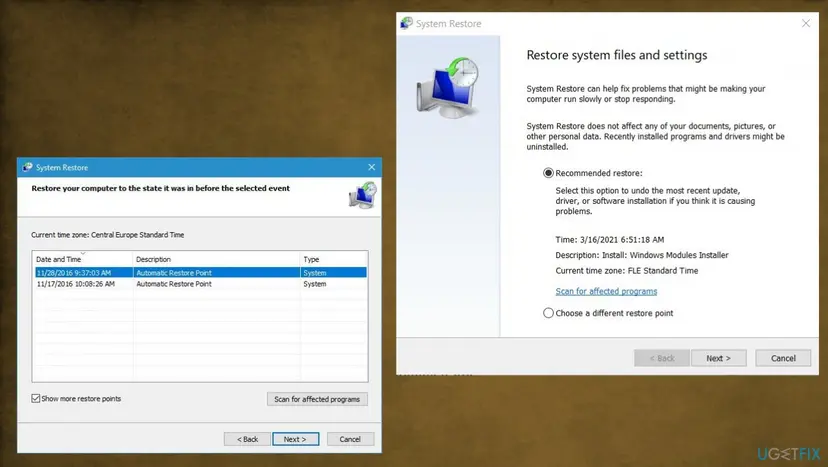
If there is no restore point: Reinstall Windows without losing files
It worked if: After the restore or repair, the services in the chain start and no new 7001 entry appears.
If not: Collect the details in the next section and ask in Microsoft's forum or a technician.
If Event ID 7001 keeps coming back: what to read and what to collect
Before you ask for help, collect these. They answer the first questions anyone will ask.
- The full text of every 7001, 7000 and 7003 entry from the same start, both lines, from the General tab.
- The output of
sc qcfor the last failed service and for the service named first. - The output of
net startwith the last failed service's name: its own error. - What changed. Run
perfmon /relto open Reliability Monitor, which lists installs, updates and removals by day. - Your Windows version and build. Press Win + R, type
winverand note both.
| Sign | What it means |
|---|---|
| The PC freezes, restarts by itself or shows blue screens, and 7001 is only one of many entries. | 7001 is a side effect. Look for event 41 or 6008 and check memory and disk. |
| A service starts by hand but always fails at boot. | It is slow at startup. See Event ID 7000 and its timeout fix. |
| The service registry key cannot be read, or the service starts and stops at once. | Microsoft names restrictive registry permissions: no Deny entries for SYSTEM or Administrators. This needs a technician or a repair install. |
| Many Microsoft services fail with different errors. | Windows is damaged. Fix 6, then Fix 7. |
Windows 10 left support on 14 October 2025. The event and the fixes are the same on Windows 10 22H2, but a Windows 10 PC no longer gets security fixes, so damaged system files there will not be repaired by updates.
How to avoid Event ID 7001 in the future
- Change only the services a guide names for your exact event, and note their old startup type first.
- Uninstall programs with their own uninstaller, so their services and dependencies go too.
- Update the password on the Log On tab when you change the password of an account a service uses.
- Keep System Protection on for drive C:, so a restore point exists before big changes.
- Do not use "disable unneeded services" lists or tweak tools.
- Do not add service accounts to the Administrators group.
- Do not delete folders under
C:\Windows\ServiceProfilesby hand. - Do not set every service to Automatic; it adds start time and new failures.
Frequently asked questions
What does Event ID 7001 mean in Service Control Manager?
Event ID 7001 means a service could not start because a service it depends on failed to start first. It is logged in Event Viewer under Windows Logs > System with the level Error. The first line reads "The A service depends on the B service which failed to start because of the following error:", and the second line gives B's error. Service A is only a victim. Fix service B, or the service at the end of the chain if B also failed because of a dependency.
What is the difference between Event ID 7000 and 7001?
Event 7000 says a service failed to start because of its own problem, such as being disabled or a missing file. Event 7001 says a service could not start because another service it needs failed. They often appear together at the same second: one 7000 entry for the service that really failed, and one or more 7001 entries for the services that needed it. Fix the service in the 7000 entry, or the last one in the 7001 chain, and the others follow. See our guide on Event ID 7000 for its own errors.
Is Event ID 7001 harmful, or can I ignore it?
It depends on the chain. If the failed services belong to something you use, such as networking, file sharing or sign-in, that feature does not work until you fix the last service. If the services belong to a feature you never use and nothing on the PC is broken, the entry is only noise. The event itself does not slow the PC or damage anything; it records that a start failed.
What does "The dependency service or group failed to start" mean in event 7001?
It is Windows error 1068. The service named second in the 7001 entry did not fail by itself; it also needed a service that failed. Microsoft's example shows two 7001 entries: Netlogon failed because of LanmanWorkstation, and LanmanWorkstation failed because the bowser service was disabled. Follow the entries down until the error is not 1068, and fix that service. Our error 1068 guide covers this chain in detail.
Which services should be enabled to fix Service Control Manager error 7001?
Only the service the chain ends with. There is no fixed list. Old guides tell you to set DCOM Server Process Launcher, RPC Endpoint Mapper, Remote Procedure Call, Security Accounts Manager, Server and Net.Tcp Port Sharing to Automatic. Most of these are core services whose startup type Windows does not let you change, and the rest are needed only when a 7001 entry names them. Turn on what the event names, as Fix 2 shows.
Can Event ID 7001 make my computer freeze?
Not by itself. A service that failed to start does not run, so it cannot freeze anything. A freeze and 7001 entries can have one common cause, for example damaged Windows files or a broken driver, and a failed network chain can make apps hang while they wait for the network. Check Fix 6 for damaged files, and look for events 41 and 6008 and blue screens if the PC also restarts by itself.
Is Event ID 7001 different on Windows 11 and Windows 10?
No. The event text, Service Control Manager, Event Viewer, Services and the sc commands are the same on Windows 11 and Windows 10, and the fixes on this page work on both. Older guides say it appears mainly on Windows 10; it appears on any Windows version where a dependency fails. Windows 10 left support on 14 October 2025, so a Windows 10 PC no longer gets fixes for its own services.
Why do I get "Access is denied" or "Windows was unable to open service control manager"?
Changing services needs administrator rights. Open Command Prompt or Services as administrator: type cmd in the search box, right-click Command Prompt and select Run as administrator, then run the sc commands again. If the message stays in an administrator window, Windows files or registry permissions may be damaged; run DISM and SFC as Fix 6 shows. This is a different message from event 7001, but it often stops people while fixing it.
I see Event 7001 from a different source or error 7001 in another language. Is it the same?
Check the Source field first. This page covers Event ID 7001 from Service Control Manager, whatever the language of Windows: an Italian, German or Russian system shows the same event ID with translated text, and the fixes are the same. An event 7001 from another source, a program's own error code 7001, a smart card reader error 7001 or the Microsoft Store error 0x803F7001 are different problems with their own fixes.
Sources
- Microsoft Learn: Troubleshoot Netlogon service startup failures (Event ID 7001 and 7003 examples, dependency chain, sc qc, disabled dependency, SFC for missing module, registry permissions) (learn.microsoft.com)
- Microsoft Learn: Network Store Interface (NSI) service isn't starting (Event ID 7001 for DHCP Client, sc query, sc config NSI start= auto, sc start NSI) (learn.microsoft.com)
Did this fix work?
One click, no account. It tells the next reader which guides are worth their time.
Questions and experiences: fix Service Control Manager Error 7001 in Windows
Still broken, or found a fix we did not cover? Ask here: members and our editors answer. Reading is open; writing needs a free account.
…