
How to fix Service Host DCOM high CPU usage in Windows?

Prefer to fix it yourself? The manual steps follow.
- 9methods
- 5 minutes to find the trigger, 15 to 40 minutes for a clean boot, updates and repairs
- Intermediate
Applies to The DCOM Server Process Launcher service (DcomLaunch) and its Service Host process on Windows 11 and Windows 10
9 methods in this guide
For some reason, Service Host DCOM is using high CPU on my Windows machine. I can't think of anything that could have caused it, although I did notice this phenomenon just a few days ago, and it's making my PC so slow. Any advice would be appreciated.
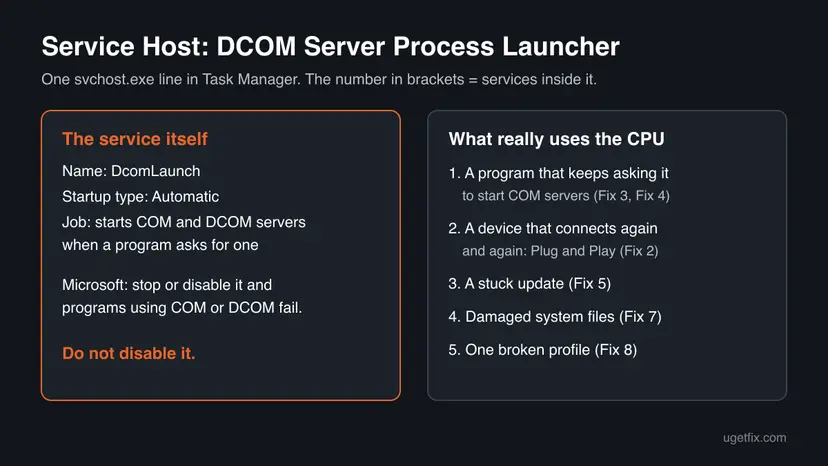
Service Host: DCOM Server Process Launcher is the Windows service (DcomLaunch) that starts COM and DCOM servers when a program asks for one. It rarely uses CPU for its own sake: a program, a device or a stuck update keeps calling it. Find the trigger in Task Manager first, then remove it.
Do not disable DCOM Server Process Launcher: Microsoft says programs that use COM or DCOM stop working without it. Expand its line in Task Manager to see which services it holds and what runs with it (Fix 1). Unplug external devices to test Plug and Play (Fix 2), then use a clean boot to find the program that keeps calling it (Fix 3).
| Error | No error message. Task Manager shows Service Host: DCOM Server Process Launcher high in the CPU column, sometimes with high memory, fans running and games dropping frames. |
|---|---|
| Where it appears | Task Manager on Windows 11 and Windows 10, Processes tab. The Services tab and services.msc name the service DcomLaunch. |
| Main cause | Something else keeps it busy: a program that starts COM servers in a loop, a device that connects and disconnects, or an update that is stuck. |
| Fastest fix | Unplug external devices (Fix 2), then run a clean boot to find the program behind it (Fix 3). |
| Also written as | Service Host: DCOM, Service Host DCOM Server, DcomLaunch, DCOM Launch, svchost.exe -k DcomLaunch, DCOM service. Translated Task Manager: 服務主機: DCOM 伺服器處理程序啟動程式, 서비스 호스트: DCOM Server Process Launcher. |
| Microsoft's status | Microsoft Learn lists DcomLaunch as Always installed, startup type Automatic, and highly recommends letting it run. We found no Microsoft known issue note for high CPU. |
| Safe to disable? | No. Stopping it breaks every program that uses COM or DCOM, which includes large parts of Windows itself. |
| Time to fix | 5 minutes to check devices and Task Manager, 15 to 40 minutes with a clean boot, updates and system file repair. |
Facts checked on 15 October 2026. Steps written for Windows 11 (25H2 and 26H2) and Windows 10 22H2, with the service details read from Microsoft Learn's system services guidelines.
What Service Host: DCOM Server Process Launcher is
DCOM Server Process Launcher is a built-in Windows service. Its service name is DcomLaunch, it is always installed and it starts automatically. Microsoft describes its job like this: it launches Component Object Model (COM) and Distributed Component Object Model (DCOM) servers in response to object activation requests. In plain words, when a program asks Windows for a component, this service starts it.
It runs inside a shared Service Host (svchost.exe) process, so Task Manager shows Service Host: DCOM Server Process Launcher. The number in brackets after the name, such as (4), is how many services share that process. That matters: the CPU you see belongs to the whole group, not only to DcomLaunch.
| What you see | Where | What it is |
|---|---|---|
| Service Host: DCOM Server Process Launcher (4) | Task Manager, Processes tab | The svchost.exe process that holds DcomLaunch and the services grouped with it. |
DcomLaunch | Task Manager Services tab, sc commands | The short service name. |
| DCOM Server Process Launcher | services.msc | The display name, startup type Automatic. |
| Plug and Play, Power and others | Inside the expanded group | Other services that can share the same Service Host. Plug and Play reacts to hardware changes, Power handles power policy. |
| DCOM, DCOM server | Search, Event Viewer | The technology itself: a way for programs to use components, also across a network. |
When you sign in, plug in a device or start a program, the line can jump for a few seconds. That is the service doing its job. Constant load of 20 % or more for minutes with nothing happening is not.
Why DCOM Server Process Launcher uses high CPU, from most to least common
Microsoft publishes no statistics for this, so the order comes from what the service does and the user reports we read. Most often another program or a device is behind it. Less often an update or damaged system files. Rarely one user profile or malware.
| Cause | How often | How to tell | Fix |
|---|---|---|---|
| A device that keeps connecting and disconnecting, so Plug and Play in the same group reacts again and again. Users of the earlier version of this page reported the load ended after they unplugged phones, printers or network drives. | Often | The load starts or stops with a device, or Windows plays the connect sound again and again. | Fix 2 |
| A third-party program, service or startup item that asks for COM servers in a loop. | Most often | The load is gone in a clean boot. | Fix 3 |
| Laptop maker tools, optimizers, third-party firewalls. A Microsoft community support answer names these first. | Often, on laptops | The PC came with many maker apps, or you installed a tune-up tool. | Fix 4 |
| A Windows update that is stuck or keeps retrying, or a preview (Insider) build. | Sometimes | Windows Update shows failed or pending updates, or you are in the Insider program. | Fix 5 |
| Windows 10 live tiles that refresh content all the time. | Sometimes, Windows 10 only | Your Start menu has many live tiles. Windows 11 has none. | Fix 6 |
| Damaged system files. | Less often | High CPU even in a clean boot and on another account. | Fix 7 |
| A damaged user profile. | Rarely | Another account on the same PC is fine. | Fix 8 |
| Malware using the svchost.exe name. | Rarely | The file is not in C:\Windows\System32. | Fix 9 |
How to fix Service Host DCOM Server Process Launcher high CPU usage
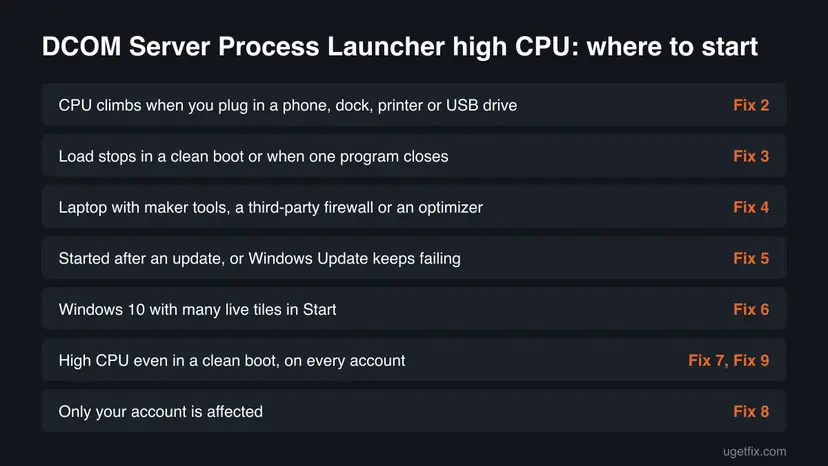
Fix 1 takes three minutes and shows where to go. Fix 2 to Fix 4 remove the device or program that keeps the service busy, which solves most cases. Fix 5 to Fix 9 deal with updates, Windows 10 tiles, system files, your profile and malware.
| What you see or have | Start with |
|---|---|
| CPU climbs when you plug in a phone, dock, printer, USB drive or network drive. | Fix 2 |
| The load stops when one program closes, or you do not know what triggers it. | Fix 3 |
| A laptop with many maker apps, a third-party firewall or a tune-up tool. | Fix 4 |
| The load began after an update, Windows Update keeps failing, or you run an Insider build. | Fix 5 |
| Windows 10 with many live tiles in Start. | Fix 6 |
| High CPU even in a clean boot, on every account. | Fix 7, then Fix 9 |
| Only your account is affected. | Fix 8 |
Fix 1. Check what is inside the Service Host and what runs with it
3 minutesNo riskEveryone, before changing anything. It shows whether a device, a program or Windows is behind the load.
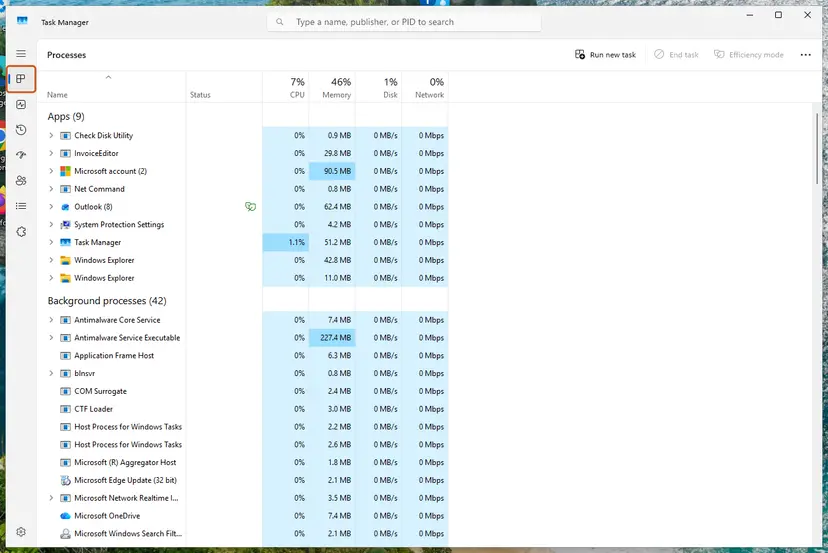
The Service Host line holds several services, and DcomLaunch only does work when something asks for it. Seeing which services are inside and what else is busy at the same moment tells you whether a device, a program or Windows itself is behind the load.
- Press Ctrl + Shift + Esc to open Task Manager. On Windows 10, select More details if you see a short list.
- On the Processes tab, select the CPU column header so the busiest process is on top.
- Select the arrow next to Service Host: DCOM Server Process Launcher and write down the services listed inside, such as Plug and Play or Power.
- Look at what else is busy at the same time: a program you just opened, a sync or backup tool, a game, a maker app or Windows Update.
- Close that program, or unplug a device you just connected, and watch the CPU column for two minutes.
- Open the Services tab, right-click
DcomLaunchand select Go to details. Right-click the highlighted svchost.exe, select Open file location and check that it isC:\Windows\System32.
| What you see | Go to |
|---|---|
| Load starts or stops with a device | Fix 2 |
| Load stops when one program closes | Fix 3 |
| Nothing else is busy, load stays for minutes | Fix 3, then Fix 5 |
svchost.exe opens from a folder other than C:\Windows\System32 | Fix 9 |
It worked if: You know whether the load follows a device, a program or nothing in particular, and that the svchost.exe file is the real one.
If not: If the busy line is another Service Host, not DCOM Server Process Launcher, note its name and search for that service instead.
Fix 2. Unplug external devices and look for one that keeps reconnecting
10 minutesLow riskThe load comes and goes with a device, or you have phones, docks, printers, game controllers or network drives connected.
Plug and Play can share this Service Host. Microsoft says it lets Windows recognize and adapt to hardware changes. A device that drops and returns every few seconds, through a loose cable, a weak hub or a bad driver, makes it work all the time. Users of the earlier version of this page reported the load ended once they unplugged such devices.
- Save your work and unplug every external device except the keyboard and mouse: phones, USB drives, docks, hubs, printers, card readers and controllers.
- Disconnect mapped network drives in File Explorer if you use a NAS.
- Watch Task Manager for two minutes. If the load drops, plug the devices back one at a time and wait a minute after each.
- When the load returns, you have found the device. Try another port and another cable, without a hub.
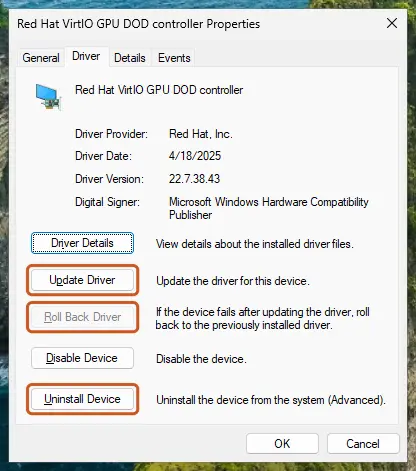
- Press Win + X, select Device Manager and look for a device that appears and disappears or shows a yellow warning sign.
- Update or reinstall the driver of that device as in Update, roll back or reinstall a driver.
It worked if: With the faulty device or cable gone, the Service Host drops to near 0 % CPU when the PC is idle.
If not: If the load stays with every device unplugged, a program is the likely cause. Go to Fix 3.
Fix 3. Find the program behind it with a clean boot
20 minutesLow riskFix 1 did not point to one device, or you do not know which program triggers the load.
DcomLaunch starts COM servers for any program that asks, so a third-party service or startup app can keep it busy without showing up by name. A clean boot starts Windows with Microsoft services only. If the load is gone there, a third-party item causes it, and you switch items back on in halves to find it.
- Open System Configuration. Select Search on the taskbar, type msconfig and select System Configuration from the results.
- Hide Microsoft services. On the Services tab, select the Hide all Microsoft services check box. Only services from other companies stay in the list.
- Disable the remaining services. Select Disable all, then select Apply.
- Open Task Manager. On the Startup tab of System Configuration, select Open Task Manager.
- Disable the startup apps. On the Startup apps tab in Task Manager, select each item whose status is Enabled and select Disable. Write down or take a screenshot of the items you disable: you need the list to turn them back on.
- Confirm the changes. Close Task Manager. On the Startup tab of System Configuration, select OK.
- Restart and test. Restart the PC. Windows now starts in a clean boot environment: try again the thing that failed (run the app, install the update, uninstall the program).
These steps were written for Windows 11 25H2 and 26H2. The full page with the other versions and what each result means: How to perform a clean boot in Windows

The earlier version of this page also ticked Safe boot on the Boot tab. That is Safe Mode, not a clean boot: many drivers do not load, so the test tells you less. Leave Safe boot off.
It worked if: In the clean boot the Service Host stays calm. Switching items back on in halves shows the one that brings the load back; update or remove it.
If not: If the load is still high in a clean boot, the cause is in Windows itself. Go to Fix 5, then Fix 7.
Fix 4. Remove tune-up tools, maker helper apps and third-party firewalls you do not need
15 minutesLow riskThe clean boot pointed to a maker app or security suite, or your laptop came with many preinstalled tools.
A Microsoft community support answer to a user with constant 100 % CPU from this service named third-party optimizers and laptop maker bloatware first. Such tools hook deep into Windows, poll hardware and services and call COM components all the time.
- Press Win + I and open Apps > Installed apps (Windows 10: Apps > Apps & features).
- Sort by Install date or by name and find tune-up tools, registry cleaners, driver updaters and maker apps you do not use.
- Select the three dots next to each one and select Uninstall.
- If you use a third-party security suite with its own firewall, update it to the newest version first. Remove it only if the clean boot pointed at it; Microsoft Defender and Windows Firewall turn on again by themselves.
- Restart the PC and watch Task Manager.

Full steps with Windows 10 paths: Uninstall a program or app in Windows.
It worked if: After the restart the Service Host stays low while the PC is idle.
If not: If nothing third-party is left and the load stays, go to Fix 5.
Fix 5. Finish Windows updates and reset the update components
20 to 40 minutesLow riskThe load began after an update, Windows Update shows failed or pending updates, or you are on an Insider preview build.
Windows Update uses COM components, so an update that fails and retries again and again keeps calling this service. The Microsoft community support answer advised resetting the update components and pointed at Insider Dev builds as a common source of such loops.
- Press Win + I and select Windows Update (Windows 10: Update & Security > Windows Update).
- Select Check for updates, install everything offered and restart.
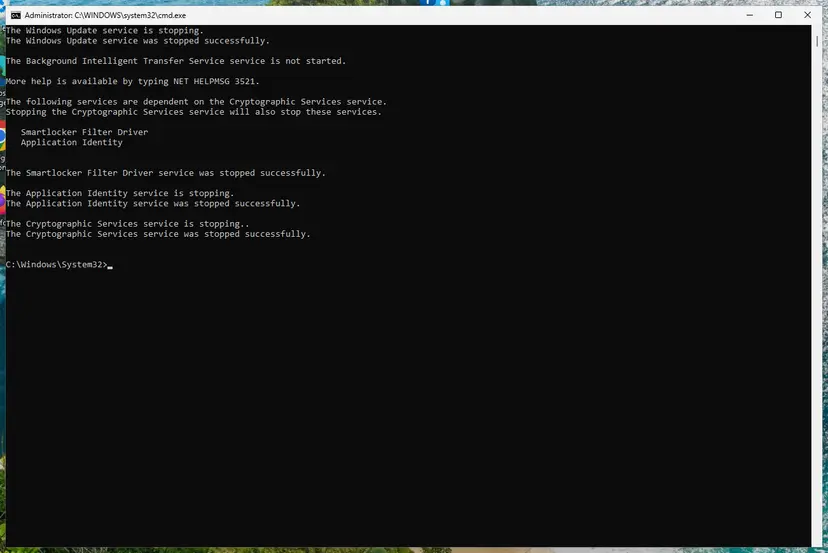
- If an update fails again and again, reset the update components as in Reset Windows Update components.
- If you joined the Insider program by mistake, open Windows Update > Windows Insider Program and stop getting preview builds. Going back to a stable build may need a clean install.
Windows 10 22H2 left support on 14 October 2025. Only PCs in Extended Security Updates still get monthly fixes, so a bug in a Windows 10 build may never be fixed there.
It worked if: Windows Update shows that you are up to date, and the Service Host settles after a restart.
If not: If updates install but the load stays, go to Fix 6 on Windows 10 or Fix 7 on Windows 11.
Fix 6. Windows 10: unpin live tiles from Start
5 minutesNo riskWindows 10 only, with many live tiles in the Start menu. Windows 11 has no live tiles; skip this fix there.
Live tiles refresh their content in the background through app components. Users of the earlier version of this page reported that unpinning them ended the load. We could not confirm this from a Microsoft page, so treat it as a quick test, not a sure fix.
- Open the Start menu.
- Right-click a tile and select Unpin from Start, or More > Turn live tile off to keep the tile but stop it updating.
- Do this for every live tile, then restart the PC.
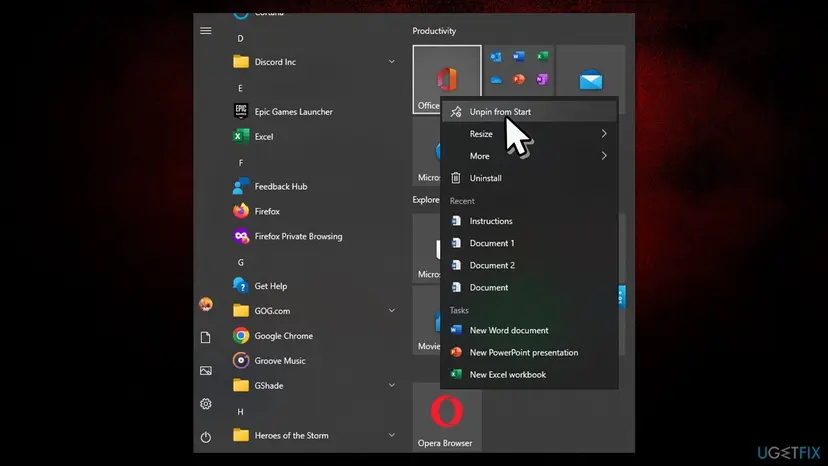
It worked if: With the tiles off, the Service Host stays low after a restart.
If not: If nothing changes, pin the tiles back and go to Fix 7.
Fix 7. Repair Windows system files with DISM and SFC
20 minutesNo riskThe load is high even in a clean boot, with every device unplugged.
DcomLaunch and the components it starts are Windows files. If those files or the component store are damaged, activation requests can fail and retry in a loop. DISM repairs the store and SFC replaces damaged files with good copies.
- Open an elevated command window. Right-click Start and select Terminal (Admin), or type cmd in the search box, right-click Command Prompt and select Run as administrator. Select Yes when Windows asks for permission.
- Run DISM first. Type the command below and press Enter. DISM downloads clean copies of damaged components from Windows Update, so it can take several minutes. Wait until it says The operation completed successfully.
DISM.exe /Online /Cleanup-Image /RestoreHealth - Run System File Checker. In the same window, type the command below and press Enter. Do not close the window until the verification reaches 100%.
sfc /scannow - Read the result and restart. Compare the last message with the table below this guide, then restart the PC so that repaired files are loaded.
These steps were written for Windows 11 24H2 and 25H2. The full page with the other versions and what each result means: Run DISM and SFC to repair Windows system files
It worked if: SFC reports that it repaired corrupt files or found no integrity violations, and the load drops after a restart.
If not: If SFC cannot repair some files even after DISM, test a new account in Fix 8, then read the still broken section.
Fix 8. Test with a new user account
15 minutesLow riskFixes 2 to 7 did not help, and you want to know whether your profile is the problem.
Per-user startup items and app registrations live in your profile. A Tom's Hardware forum member suggested that a damaged account can keep this service busy; a new account tells you in minutes whether to move to it or keep repairing Windows.
- Open Other users. Open Settings > Accounts > Other users. You can also press Windows key + R and run the command below.
ms-settings:otherusers - Add an account. Next to Add other user, select Add account.
- Skip the Microsoft account. Select I don't have this person's sign-in information.
- Choose a local account. Select Add a user without a Microsoft account.
- Name the account. Type a user name and, if you want one, a password. If you set a password, Windows also asks for answers to security questions. Select Next.
- Make it an administrator (optional). Back in Other users, select the new account, then Change account type next to Account options. Choose Administrator and select OK. For testing a problem, a standard account is usually enough.
- Sign in to the new account. Open Start, select your account picture and choose the new account. The first sign-in takes a few minutes while Windows sets up the profile.
These steps were written for Windows 11 24H2, 25H2 and 26H2. The full page with the other versions and what each result means: Create a new user account to test a problem
It worked if: In the new account the Service Host stays calm. Then the problem is your old profile: move your files and use the new account.
If not: If the new account has the same load, the cause is in Windows or a driver. Go to Fix 9, then the still broken section.
Fix 9. Scan for malware with Microsoft Defender
15 to 60 minutesNo riskFix 1 found a svchost.exe outside C:\Windows\System32, or the CPU stays high after every other fix.
Malware likes the svchost.exe name because many copies of it run on every PC, and a hidden miner shows up as constant CPU load. Forum helpers on Tom's Hardware advised a malware scan first. A full Microsoft Defender scan rules it out.
- Open Windows Security. Select Start, type Windows Security and open the app.
- Open Virus & threat protection. Select Virus & threat protection. Under Current threats you see when the last scan ran, how long it took and how many files it checked.
- Run a quick scan. Select Quick scan. If Windows Security thinks a deeper scan is needed, it tells you when the quick scan is done.
- Open Scan options. If the quick scan finds nothing and you still suspect an infection, select Scan options under Current threats.
- Run a full scan. Select Full scan and start it. It checks every file and program on the device, so it takes much longer than a quick scan. Leave the PC on until it ends.
- Or scan one folder. To check only a download or a USB drive, select Custom scan in Scan options and choose the folder. You can also right-click a file or folder in File Explorer and select Scan with Microsoft Defender. On Windows 11 you may have to select Show more options first.
- Read Protection history. Go back to the first page of Windows Security and select Protection history. Select a card to expand it and see the details.
These steps were written for Windows 11 25H2 and 26H2, Windows 10 22H2. The full page with the other versions and what each result means: How to scan for malware with Microsoft Defender
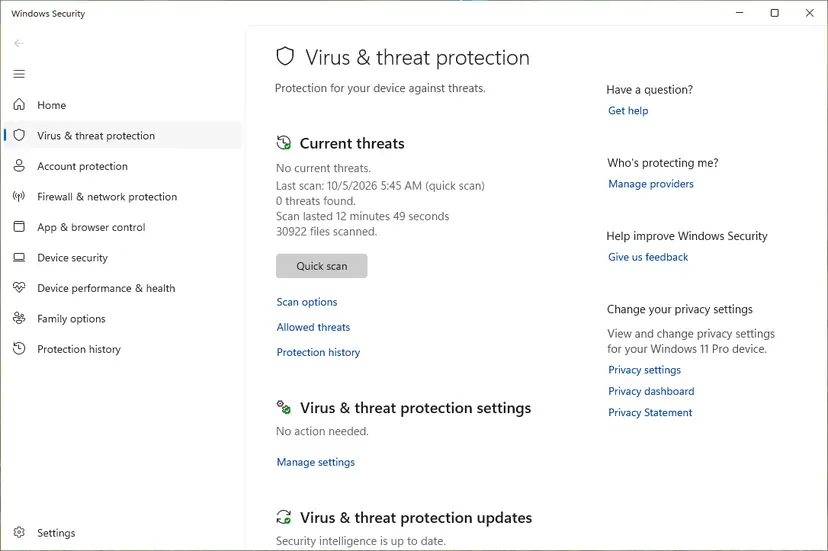
It worked if: Defender finds no threats and the svchost.exe file is in System32, so the load is not malware.
If not: If Defender finds a threat, remove it and run the offline scan before any other fix. If it finds nothing, read the still broken section.
Service Host DCOM still uses high CPU: what to check next
If devices, programs, updates, system files and malware are ruled out, find the exact component that keeps the service busy before you reinstall anything. Task Manager shows only the Service Host, not the program that asks it for work.
- Event Viewer: press Win + R, type
eventvwr.mscand open Windows Logs > System. Filter by source DistributedCOM. Repeated events name the component and the app ID that fail. Event ID 10010 is covered in Event ID 10010 DistributedCOM error. - Reliability Monitor: type reliability in Start and open View reliability history. A red cross on the day the load began often names the update, driver or app behind it.
- Windows Performance Recorder: a Tom's Hardware forum member pointed out that only a performance trace shows which app or service is behind the DCOM load. Record a CPU trace while the load is high and open it in Windows Performance Analyzer, or send it to support.
- BIOS and chipset drivers: a forum helper also advised checking for a BIOS update from the PC maker. Install chipset and USB drivers from the maker's support page if Fix 2 pointed at USB.
- Repair install: as a last step, reinstall Windows over itself and keep your files and apps: Reinstall Windows without losing files.
The service itself is software only. But a failing USB port, hub or cable that keeps reconnecting a device shows up here through Plug and Play. If the load always follows one port, the fault is the port or the device, not Windows.
How to keep DCOM Server Process Launcher from flaring up again
- Keep Windows Update on and let updates finish before you shut down.
- Do not install system optimizers, registry cleaners or driver updaters. Windows does not need them, and they often keep services busy.
- Use short, good cables and plug devices straight into the PC instead of a chain of hubs.
- Leave the Insider program on a PC you depend on.
- Never disable DcomLaunch or change its startup type to save resources. Microsoft highly recommends letting it run.
Frequently asked questions
What is Service Host: DCOM Server Process Launcher?
It is the svchost.exe process that runs the DCOM Server Process Launcher service, service name DcomLaunch. Microsoft describes the service as the one that launches COM and DCOM servers in response to object activation requests. In plain words, when a program or part of Windows needs a component, this service starts it. It is always installed and starts automatically. The number in brackets after its name in Task Manager shows how many services share the same process.
What is a DCOM server?
DCOM stands for Distributed Component Object Model. A DCOM server is a program or component that offers its functions to other programs, on the same PC or across a network. COM is the same idea on one PC. Windows itself uses thousands of such components: for updates, apps, search, devices and more. The DCOM Server Process Launcher service starts these servers when they are asked for, so it is busy whenever something asks a lot.
Can I disable DCOM Server Process Launcher?
No. Microsoft says that if you stop or disable it, programs using COM or DCOM are unable to function properly, and it highly recommends letting it run. Large parts of Windows use COM, so the PC can fail to start normally without it. The fix is to find what keeps it busy, as in Fix 1 to Fix 4, not to switch it off. Restarting the PC is the safe way to reset it.
Why does DCOM Server Process Launcher use high memory?
For the same reasons as high CPU. The Service Host holds several services, and a program or device that keeps asking for components makes the group allocate more memory over time. A few hundred megabytes on a busy PC is not unusual. Memory that grows hour by hour points to a leak in something that uses it: run a clean boot (Fix 3), unplug devices (Fix 2) and install updates (Fix 5). If it still grows, record a trace as in the still broken section.
Why is DCOM Server Process Launcher high on Windows 11?
The causes are the same as on Windows 10: a program, a device or an update keeps it busy. Windows 11 has no live tiles, so Fix 6 does not apply there. Users with Insider preview builds report the load more often, and a Microsoft community support answer called those builds unstable. On a normal Windows 11 25H2 or 26H2 PC, start with Fix 2 and Fix 3, then install the latest update in Fix 5.
Is DCOM Server Process Launcher a virus?
The real service is part of Windows and runs from C:\Windows\System32\svchost.exe. Malware can use the same file name in another folder. Check it as in the last step of Fix 1: if Open file location opens System32, it is the Windows file. If it opens anywhere else, or the load stays after every fix, run a full Microsoft Defender scan as in Fix 9.
What does shell service host DCOM error mean?
People often mean DistributedCOM warnings in Event Viewer, not the CPU problem on this page. Those events say a component did not start, did not register in time, or lacks a permission. Most are harmless and appear on healthy PCs. If one repeats many times a minute, it can explain the CPU load here. Our guides on Event ID 10010 and DistributedCOM error 10005 explain them.
Should I change visual effects to Adjust for best performance?
It will not fix this service. The earlier version of this page suggested it, but visual effects have nothing to do with starting COM servers. Turning effects off only makes a slow PC feel a little lighter while the real cause keeps running. Find the device or program that keeps the service busy instead, as in Fix 1 to Fix 4.
Does this guide apply to other languages of Windows?
Yes. Task Manager translates the name, for example 服務主機: DCOM 伺服器處理程序啟動程式 in Traditional Chinese or 서비스 호스트: DCOM Server Process Launcher in Korean, but the service name DcomLaunch stays the same everywhere. The fixes on this page work in any language of Windows 11 and Windows 10. This page itself is in English.
Sources
- Microsoft Learn: Security guidelines for system services (DCOM Server Process Launcher, Plug and Play, Power) (learn.microsoft.com)
- Microsoft Q&A: DCOM server process launcher uses up ridiculous amount of CPU (user report and community support answer) (learn.microsoft.com)
- Tom's Hardware Forum: How to fix 100% service host: dcom server process launcher (user reports) (forums.tomshardware.com)
Did this fix work?
One click, no account. It tells the next reader which guides are worth their time.
Questions and experiences: fix Service Host DCOM high CPU usage in Windows
Still broken, or found a fix we did not cover? Ask here: members and our editors answer. Reading is open; writing needs a free account.
…