
How to fix Event ID 10010 DistributedCOM error in Windows?

Prefer to fix it yourself? The manual steps follow.
- 7methods
- 5 minutes to identify, 10 to 30 minutes to fix the app
- Intermediate
Applies to Windows 11, Windows 10
7 methods in this guide
I was getting freezes and similar issues on my PC and, after checking the Event Log, I noticed multiple errors with Event ID 10010 - DistributedCOM. How do I fix this?
Event ID 10010 from DistributedCOM means Windows started a COM server for an app, and that server did not report back within the time limit. On most PCs it is noise from a background part of a Store or system app and breaks nothing. Find which server the event names first, then fix that app only if it really fails.
Event 10010 says that one app's COM server was too slow to start, not that Windows is damaged. Read the server name in the event (Fix 1). If every app works, you can leave it. If the named app fails, update it, then repair or reset it (Fix 2 and Fix 3). The event does not cause freezes; look for Kernel-Power 41 instead.
| Error | Source DistributedCOM (Microsoft-Windows-DistributedCOM), Event ID 10010, level Error: The server {CLSID} did not register with DCOM within the required timeout. |
|---|---|
| Where it appears | Event Viewer, Windows Logs > System. Often several rows at startup, after an app update, or each time a particular app opens. |
| Main cause | A COM server, usually a background part of a Store app such as Xbox Game Bar, Microsoft Store, Photos or Cortana, was launched and did not register in time. |
| Fastest fix | Identify the server (Fix 1). If nothing is broken, no repair is needed. If the named app fails, update it and then repair or reset it (Fix 2, Fix 3). |
| Also written as | DCOM 10010, DistributedCOM 10010, error 10010, event 10010, "did not register with DCOM within the required timeout", in German "konnte innerhalb des angegebenen Zeitabschnitts mit DCOM nicht registriert werden". |
| Affects | Windows 11 and Windows 10. Reports go back to Windows 8.1 in 2013 and continue on Windows 11 25H2 in 2026. |
| Microsoft's status | No Microsoft article documents event 10010 for home PCs. Waves of reports followed updates: Xbox Game Bar and KB5031445 on Windows 10 in October 2023, KB5079473 on Windows 11 25H2 in March 2026. |
| Time to fix | 5 minutes to identify the server. 10 to 30 minutes when an app really needs a repair. |
Facts checked on 15 October 2026. Steps written for Windows 11 (25H2 and 26H2) and Windows 10 22H2.
What Event ID 10010 DistributedCOM means
COM (Component Object Model) lets one program use a piece of another program, called a COM server. When an app asks for such a server, Windows starts the server's process and waits for it to register itself. If the process does not register before the time limit runs out, the DistributedCOM source writes event 10010 to the System log.
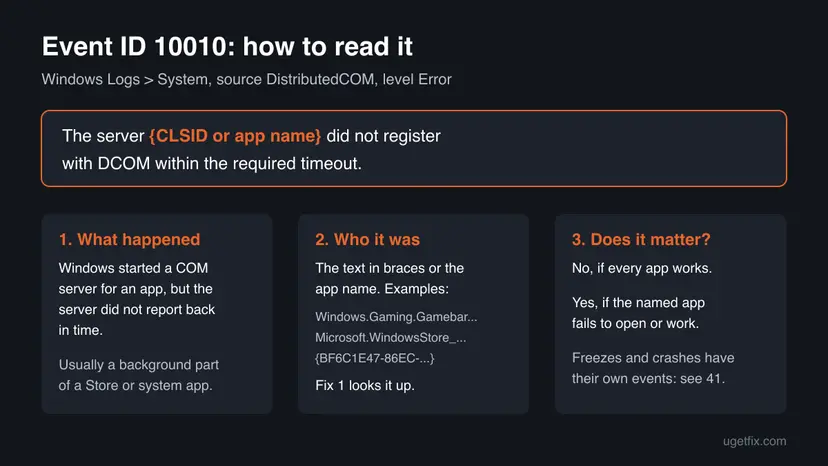
The event has one line of text. The part after "The server" changes from row to row. It is either a class ID in braces or the name of an app component. These are real examples posted on Microsoft Q&A:
Event 10010, source DistributedCOM (examples reported by users)
The server {BF6C1E47-86EC-4194-9CE5-13C15DCB2001} did not register with DCOM within the required timeout.

The server Windows.Gaming.Gamebar.PresenceServer.Internal.PresenceWriter
did not register with DCOM within the required timeout.

The server Microsoft.Windows.Cortana_1.13.0.18965_neutral_neutral_cw5n1h2txyewy!Cortana.ActionUris.ActionUri did not register with DCOM within the required timeout.- Log Name: System, Source: DistributedCOM, Event ID: 10010, Level: Error, Keywords: Classic. On the Details tab the provider is
Microsoft-Windows-DistributedCOMwith the event source nameDCOM. param1on the Details tab holds the server name. This is the value Fix 1 groups and looks up.- "within the required timeout" means the server was late, not that it is missing or blocked. Other DistributedCOM numbers, such as 10016 or 10005, are different events.
- Error level in Event Viewer only says how the source rated it. It does not mean you saw any effect, and many users report none.
Why DistributedCOM 10010 appears, most common cause first
The trigger is always the same: a server was asked for and did not register in time. The server name tells you which of these cases you have, and each case has its own fix.
| Cause | How it looks | Fix |
|---|---|---|
| A background part of a Store app was started and closed or suspended before it registered. Most common. | Server names with Gamebar, WindowsStore, Photos, Cortana or a package name with an underscore. Nothing visibly breaks. | Fix 1, then usually nothing |
| An app or Windows update changed the app. Reported for Xbox Game Bar after the October 2023 updates. | The rows start on the day of an update and repeat each time a game or the app opens. | Fix 2, then Fix 3 |
| The named app is damaged. | The app named in the event will not open, closes at once or misses features. | Fix 3, then Fix 6 |
| A program from another company registered its own COM server. | A class ID whose LocalServer32 path points to Program Files, not to C:\Windows. | Fix 4 |
| A slow or busy start: the server was launched while the PC was still loading. | Rows only in the first minutes after switching on, and not every day. | Fix 1, Fix 4 (fewer startup apps) |
| Damaged DCOM settings or system files. Rare. | Many different servers time out and several apps fail to start. | Fix 5, Fix 6, Fix 7 |
Nothing we read ties it to freezes or crashes. One Windows 10 user who tracked the Game Bar rows noted that they did not even appear in Reliability History. If your PC freezes or restarts, the events to read are Kernel-Power 41 and EventLog 6008, see Event ID 6008.
When you can ignore event 10010 and when it points to a real problem
- Every app works, including the one the server name points to.
- The rows come in a few bursts, at startup or when one app opens.
- You found them while looking through the log for something else.
- The app named in the event fails to open or loses features at the same time as the rows.
- Many different servers time out every day and several apps fail.
- The rows started with a third-party program that now misbehaves.
If you came here because of freezes, as in the question above, check the time stamps. A 10010 row a few minutes after startup and a freeze an hour later are two separate events. Fix 1 lists the rows so you can compare them with the moment of the freeze.
How to fix Event ID 10010 DistributedCOM error
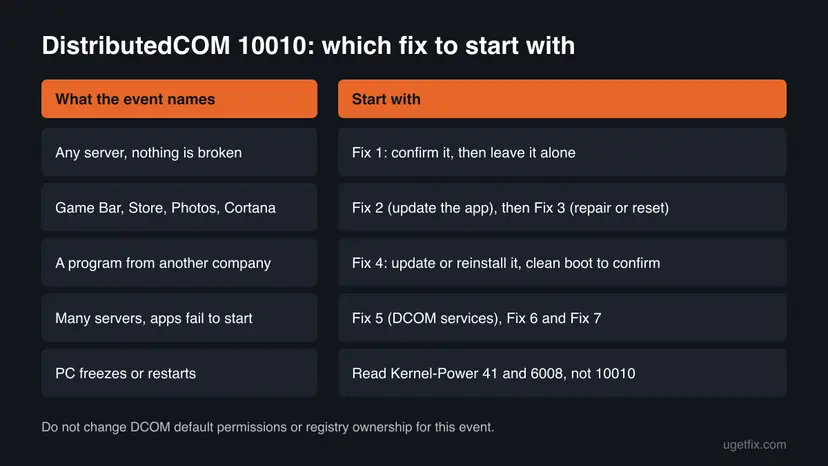
Fix 1 takes five minutes and tells you which app is involved and whether anything is broken. Fix 2 and Fix 3 handle the common Store app case. Fix 4 is for a program from another company. Fix 5 to Fix 7 are for the rare case where many apps fail.
| What you see | Start with |
|---|---|
| Rows in the log, but every app works. | Fix 1, then stop |
| The server name contains Gamebar, WindowsStore, Photos or Cortana. | Fix 2, then Fix 3 |
| The rows began right after a Windows or app update. | Fix 2 |
| Fix 1 shows a path under Program Files. | Fix 4 |
| Many servers time out and several apps will not start. | Fix 5, Fix 6, then Fix 7 |
| The PC freezes or restarts. | The still-broken section: read Kernel-Power 41 first |
Fix 1. Find out which server times out and whether anything is broken
5 minutesNo riskEveryone who found these errors, before changing anything.
Event 10010 has one variable, the server name, and it decides the fix. Grouping the rows shows whether one app or many are involved, and the registry lookup turns a class ID into a program you can recognise.
- Right-click Start and select Terminal (Admin). On Windows 10, search for
PowerShell, right-click Windows PowerShell and select Run as administrator. - Run the first command below. It counts the 10010 rows of the last 30 days by server name.
- Note the server with the highest count. A name such as
Windows.Gaming.GamebarorMicrosoft.WindowsStore_already tells you the app. - For a class ID in braces, put it in the second command and run it. It reads the registry and changes nothing.
- Open the app or program that the name or path points to and check whether it works.
PowerShell: 10010 rows of the last 30 days, grouped by server
Get-WinEvent -FilterHashtable @{ LogName='System'; ProviderName='Microsoft-Windows-DistributedCOM'; Id=10010; StartTime=(Get-Date).AddDays(-30) } |
  Group-Object { $_.Properties[0].Value } |
  Sort-Object Count -Descending |
  Format-Table Count, Name -AutoSize
PowerShell: what a class ID belongs to (read only)
$id = '{BF6C1E47-86EC-4194-9CE5-13C15DCB2001}'
Get-ItemProperty "Registry::HKEY_CLASSES_ROOT\CLSID\$id" | Select-Object '(default)', AppID
Get-ItemProperty "Registry::HKEY_CLASSES_ROOT\CLSID\$id\LocalServer32" -ErrorAction SilentlyContinue| What you find | What it means | Next |
|---|---|---|
| An app name, and the app works | A background part of the app was late. Nothing to repair. | Stop here |
| An app name, and the app fails | The app itself has a problem. | Fix 2, Fix 3 |
A LocalServer32 path under Program Files | A program from another company. | Fix 4 |
| No result for the class ID | The server is not registered the classic way. We could not confirm one place that lists every such server. | Search the class ID together with "CLSID", then Fix 2 |
We had no PC with these errors to run the commands against. Check their output against Event Viewer once: the Details tab of a 10010 row shows the same value as param1.
It worked if: You know which app each row belongs to, and that app works, so there is nothing left to fix.
If not: If the named app fails, go to Fix 2. If the path points to a program from another company, go to Fix 4.
Fix 2. Update the app named in the event and install pending Windows updates
10 minutesLow riskThe server name points to Xbox Game Bar, Microsoft Store or another Store app, or the rows started right after an update.
The best known waves of 10010 rows followed updates: Game Bar's presence server after the October 2023 Store and Windows updates, and more rows after KB5079473 on Windows 11 25H2. A newer version of the same app or Windows build is the cleanest way out.
- Open Microsoft Store and select Library at the bottom left.
- Select Get updates (on newer Store versions Check for updates) and let every app update, including Xbox Game Bar and Microsoft Store itself.
- Open Settings > Windows Update (Windows 10: Settings > Update & Security > Windows Update) and select Check for updates.
- Install everything offered and restart the PC.
- Open the app that triggered the rows, for example a game for Game Bar, and run the Fix 1 command again.
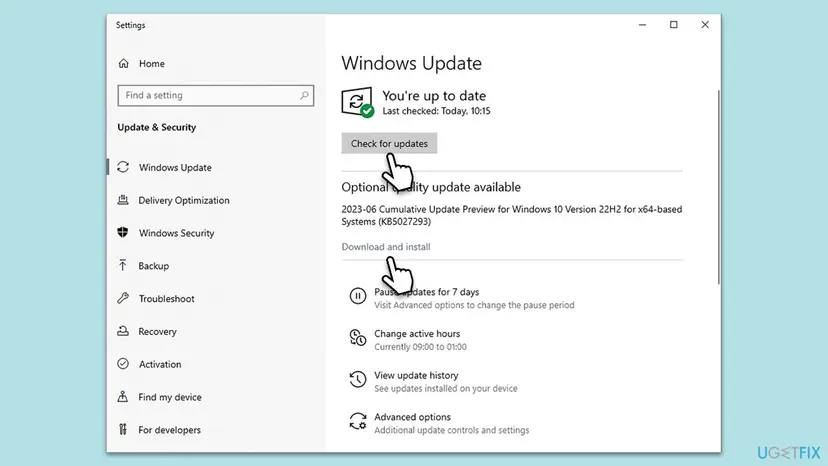
If Windows Update itself fails, the step by step guide is here: Install an update from the Microsoft Update Catalog
It worked if: The Fix 1 command shows no new rows for that server after the restart, or the app that failed works again.
If not: If rows keep coming and the app fails, repair or reset it with Fix 3. If rows keep coming but the app works, you can stop: Windows users reported this case on Microsoft Q&A without any effect on their PCs.
Fix 3. Repair or reset the app whose server times out
5 minutesRead the warningThe app named in the event fails to open or misses features, and Fix 2 did not help.
A damaged app package can start its background server too slowly or not at all. Repair rebuilds the app's files while keeping its data, and Reset puts the whole app back to a clean state, which also re-registers its background parts.
Repair keeps your data. Reset removes the app's settings, sign-in and local files, such as Game Bar settings. Try Repair first, and note what you need to set up again before you select Reset.
- Open Installed apps. Select Start > Settings > Apps > Installed apps.
- Open the app's advanced options. Find the app in the list, select the three dots next to it and select Advanced options. Some apps do not have this option: for those, see the section about desktop programs below.
- Repair first. On the page that opens, select Repair if it is there. The app's data stays. Open the app and check whether it works.
- Reset if Repair did not help. Select Reset. This deletes the app's data on this PC, including sign-in details and settings. Open the app and set it up again.
These steps were written for Windows 11 25H2 and 26H2. The full page with the other versions and what each result means: How to repair or reset an app in Windows

It worked if: The app opens and works, and Fix 1 shows no new rows for its server after you use it.
If not: If several Store apps are affected, re-register them with Fix 6. If one app still fails, uninstall it and install it again from Microsoft Store.
Fix 4. Update or reinstall the third-party program, and confirm it with a clean boot
15 to 20 minutesLow riskFix 1 shows a LocalServer32 path under Program Files, or the rows appear only in the first minutes after you switch on.
Programs from other companies can register their own COM servers. An old version or a busy startup with many programs makes the server late, and a clean boot shows whether that program is the source.
- Note the program from the
LocalServer32path in Fix 1. - Install the program's latest version from its maker, or uninstall and install it again: Uninstall a program or app in Windows
- Restart and check for new rows with the Fix 1 command.
- If rows still appear at startup, do a clean boot so only Microsoft services run, as shown below.
- If the rows stop in the clean boot, turn the services and startup apps back on in groups until they return.
- Open System Configuration. Select Search on the taskbar, type msconfig and select System Configuration from the results.
- Hide Microsoft services. On the Services tab, select the Hide all Microsoft services check box. Only services from other companies stay in the list.
- Disable the remaining services. Select Disable all, then select Apply.
- Open Task Manager. On the Startup tab of System Configuration, select Open Task Manager.
- Disable the startup apps. On the Startup apps tab in Task Manager, select each item whose status is Enabled and select Disable. Write down or take a screenshot of the items you disable: you need the list to turn them back on.
- Confirm the changes. Close Task Manager. On the Startup tab of System Configuration, select OK.
- Restart and test. Restart the PC. Windows now starts in a clean boot environment: try again the thing that failed (run the app, install the update, uninstall the program).
These steps were written for Windows 11 25H2 and 26H2. The full page with the other versions and what each result means: How to perform a clean boot in Windows

Fewer startup apps also help when the rows appear only at startup: Stop apps from opening at startup
It worked if: After the update or reinstall, or with the program left out of startup, no new rows for its server appear.
If not: If the rows also appear in a clean boot, the server is part of Windows. Go to Fix 5.
Fix 5. Check the DCOM services and the Enable Distributed COM setting
5 minutesLow riskMany different servers time out and several apps fail to start.
Every COM server is launched through the DCOM Server Process Launcher and the RPC services. If one of them is not running, or Distributed COM was turned off in Component Services, servers cannot be started properly at all.
- Open Terminal (Admin) and run the command below.
- Check that DcomLaunch, RpcSs and RpcEptMapper all show Running and Automatic. If one does not, open Services and set it as shown in Check and restart Windows services.
- Press Win + R, type
dcomcnfgand press Enter. - Open Component Services > Computers, right-click My Computer and select Properties.
- On the Default Properties tab, check that Enable Distributed COM on this computer is ticked, then select OK and restart.
PowerShell: state of the three DCOM and RPC services
Get-Service DcomLaunch, RpcSs, RpcEptMapper | Format-Table Name, DisplayName, Status, StartType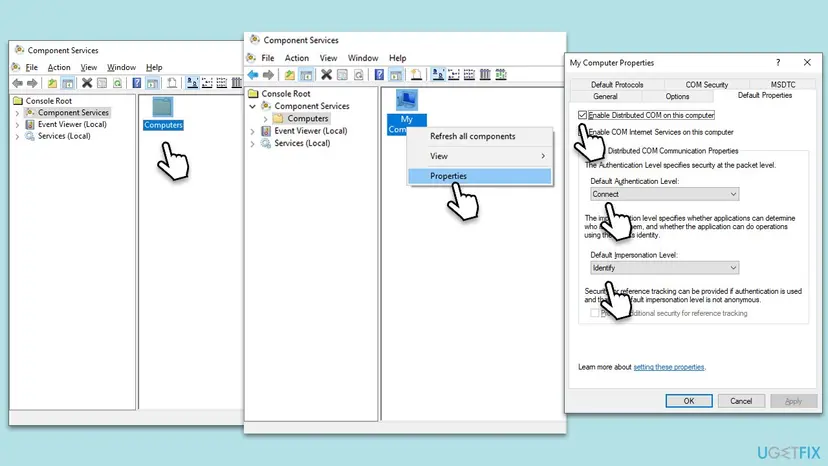
Older guides, including the earlier version of this page, also told you to set the authentication and impersonation levels and edit the COM Security permissions. The picture shows Connect and Identify, but we could not confirm from a Microsoft page that these are the defaults. Change nothing else here.
It worked if: All three services run, Distributed COM is enabled, and after a restart the number of different servers in Fix 1 drops.
If not: If the services and setting were already correct, go to Fix 6.
Fix 6. Re-register the built-in Store apps
10 minutesLow riskMany Windows apps time out at once (Store, Photos, Camera, Maps, Feedback Hub) and several of them fail to open.
When the servers of many built-in apps time out together, their app registrations are a likely common point. Registering the packages again rebuilds them for your account without removing your files.
- Open PowerShell. Select Start, type PowerShell and select Windows PowerShell. Open it the normal way, not as administrator: in an administrator window the app is registered to the administrator account instead of yours.
- Find the app's package. Type the command below with a part of the app's name between the asterisks and press Enter. If the app is installed, PowerShell prints its details, including Name and InstallLocation. If nothing is printed, the app is not installed for your account: see the section below.
Get-AppxPackage -Name '*WindowsCalculator*' - Re-register the app. Paste the three commands below, with the same name between the asterisks, and press Enter. They read the folder the app is installed in and register its manifest again. If no red text appears, it worked.
$InstallLocation = Get-AppxPackage -Name '*WindowsCalculator*' | Select-Object -ExpandProperty InstallLocation $ManifestPath = $InstallLocation + '\Appxmanifest.xml' Add-AppxPackage -Path $ManifestPath -Register -DisableDevelopmentMode - Open the app. Close PowerShell and start the app from Start. If it still fails, restart the PC and try once more.
These steps were written for Windows 11 25H2 and 26H2, Windows 10 22H2. The full page with the other versions and what each result means: How to re-register Microsoft Store apps with PowerShell
If Microsoft Store itself will not open, reset it first: Reset the Microsoft Store
It worked if: The built-in apps open again, and Fix 1 shows fewer different servers after a restart.
If not: If the apps still fail, repair the system files with Fix 7.
Fix 7. Repair Windows system files with DISM and SFC
15 to 30 minutesNo riskSeveral apps still fail after Fix 5 and Fix 6.
Damaged system files can slow or stop the processes that host Windows COM servers. DISM restores the component store and SFC then replaces damaged files from it. On a PC where only the log shows rows, it will not change much.
- Open an elevated command window. Right-click Start and select Terminal (Admin), or type cmd in the search box, right-click Command Prompt and select Run as administrator. Select Yes when Windows asks for permission.
- Run DISM first. Type the command below and press Enter. DISM downloads clean copies of damaged components from Windows Update, so it can take several minutes. Wait until it says The operation completed successfully.
DISM.exe /Online /Cleanup-Image /RestoreHealth - Run System File Checker. In the same window, type the command below and press Enter. Do not close the window until the verification reaches 100%.
sfc /scannow - Read the result and restart. Compare the last message with the table below this guide, then restart the PC so that repaired files are loaded.
These steps were written for Windows 11 24H2 and 25H2. The full page with the other versions and what each result means: Run DISM and SFC to repair Windows system files

It worked if: SFC reports that it found no integrity violations, or that it repaired them, and the apps work after a restart.
If not: If apps still fail, go back to a restore point from before the trouble: Undo recent changes with System Restore As a last step, reinstall Windows while keeping your files: Reinstall Windows without losing files
If the PC still freezes or apps still fail: what to read and what to collect
Event 10010 is rarely the cause of the problem you noticed. Look at what happened at the moment of the freeze or failure, then collect these facts before you ask Microsoft or the program's maker for help.
- Freezes and restarts. In Windows Logs > System, find Kernel-Power 41 or EventLog 6008 and read the errors in the minute before it. A 10010 row minutes earlier is not the cause.
- App crashes. In Windows Logs > Application, look for Application Error 1000 with the app's name next to the 10010 rows.
- The full event. Open a 10010 row, select Details > XML View and copy the XML. It holds the server in
param1and the process ID. - What changed. Reliability Monitor (
perfmon /rel) shows installs, updates and crashes day by day. - The Windows version and build. Press Win + R, type
winverand note both.
| Sign | What to look at instead |
|---|---|
| The PC freezes or restarts with no warning. | Kernel-Power 41, EventLog 6008 and any BugCheck 1001 event. |
| Freezes also happen in Safe Mode. | The drive and the memory: Check a disk for errors (chkdsk) and How to test your RAM with Windows Memory Diagnostic. |
| One app crashes and names a module. | Application Error 1000 for that app, then repair or reinstall it. |
| Remote Desktop or a server role stops answering. | The service of that role. Admins report 10010 rows next to such hangs, but the hung service is what needs the restart. |
How to keep DistributedCOM 10010 rows from turning into real problems
- Keep Store apps updated, including Xbox Game Bar and Microsoft Store itself.
- Install Windows updates and restart soon after, so apps and Windows match.
- Keep the startup list short so background servers are not started in a crowd.
- Filter the System log by time when you hunt for a freeze, so routine rows do not distract you.
- Keep System Protection on for drive C:, so a restore point exists before updates.
- Do not take ownership of
HKEY_CLASSES_ROOT\AppIDkeys or give accounts Full Control to stop the rows. It changes Windows security for good. - Do not add Everyone or remote access to the COM Security defaults. Those settings protect every COM server on the PC.
- Do not disable DCOM Server Process Launcher or Remote Procedure Call (RPC).
- Do not reset Windows because of these events alone. They are not a fault on their own.
Frequently asked questions
What does DistributedCOM error 10010 mean?
It means Windows started a COM server for an app and the server did not register within the time limit. The full text is "The server {CLSID} did not register with DCOM within the required timeout." The part in braces, or an app name in its place, tells you which component was late. Most often it belongs to a background part of a Store or system app, such as Xbox Game Bar, Microsoft Store or Cortana. If the app works, nothing on the PC is broken.
Is event 10010 harmful, and can I ignore it?
In most cases you can ignore it. The event records that a component was late, and many users on Microsoft Q&A report no visible effect, even when the rows come every day. One user noted that the rows did not appear in Reliability History at all. Act only when the app named in the server field fails at the same time, or when many different servers time out and several apps stop working. Fix 1 tells you which case you have.
Can DCOM 10010 cause freezes, crashes or restarts?
Nothing we read ties event 10010 to freezes or restarts. Users who see both usually find the 10010 rows minutes away from the actual freeze, or as the last rows before an unexpected restart, which only says the log stopped there. For a freeze or a restart, read Kernel-Power 41 and EventLog 6008 and the errors just before them. Our guide to Event ID 6008 shows how. Test the drive and the memory if freezes also happen in Safe Mode.
How do I fix event ID 10010 on Windows 11?
Find the server name first with the PowerShell command in Fix 1. On Windows 11 the common names are Xbox Game Bar, Microsoft Store and other built-in apps. Update them in Microsoft Store and install the latest Windows update (Fix 2), then repair or reset the app if it really fails (Fix 3). A wave of reports followed KB5079473 on Windows 11 25H2 in March 2026. We could not confirm a later update that stopped those rows, so check after each monthly update.
Is event 10010 different on Windows 10?
No. The text, the source and the cause are the same, and so are the fixes; only the Settings paths differ, and the steps give both. The best known Windows 10 case was Windows.Gaming.Gamebar.PresenceServer.Internal.PresenceWriter after the Game Bar and KB5031445 updates of October 2023, logged each time a game such as Solitaire opened. Windows 10 left support on 14 October 2025, so it no longer gets security fixes, and a timing bug in it will not be fixed any more.
Why does the server name mention Gamebar PresenceWriter?
PresenceWriter belongs to Xbox Game Bar. It reports which game you play, so Windows starts it when a game opens. Users on Microsoft Q&A traced the rows to the Game Bar update and Windows updates of October 2023. Removing Game Bar with a third-party cleaner did not stop the rows for one user, and turning off Game Bar features did not either for another. Update Game Bar (Fix 2) and repair it (Fix 3). If games work, the rows are harmless.
Should I change DCOM permissions or registry ownership to stop it?
No. Some guides tell you to take ownership of the AppID key in the registry and give LOCAL SERVICE Full Control, or to give Everyone access in COM Security. Event 10010 is about time, not permission, so this rarely helps. It also changes who may start and use COM servers on the PC, and it stays that way. If you changed such settings already and something broke, a restore point from before the change is the safest way back.
What is the difference between DCOM events 10010, 10016, 10005 and 10001?
They are different DistributedCOM events with their own text. Event 10010 means a server started but did not register in time. Event 10016 is usually discussed as a permission event, and we did not research it for this page. Event 10005 means DCOM got an error while trying to start a service, with a Windows error code in quotes. Code 1084 there, for example, means Safe Mode: see our DCOM error 1084 guide. For event 10001, read the error code in its own text. This page covers 10010 only.
I see event 10010 from Restart Manager, not DistributedCOM. Is it the same?
No. Restart Manager is a different event source, and the same number from another source means something else. This page is about event 10010 from DistributedCOM in the System log. Check the Source column in Event Viewer before you follow any guide. If it says RestartManager, the event comes from the part of Windows that installers use to close and restart programs. We did not research that event here, so do not apply the fixes on this page to it.
I see this error in another language. Is it the same?
Yes. The text is translated with Windows, but the event ID 10010 and the source DistributedCOM stay the same. In German it reads "Der Server konnte innerhalb des angegebenen Zeitabschnitts mit DCOM nicht registriert werden", and Russian searches such as "distributedcom 10010 windows 10 как исправить" ask about the same event. This page is in English, but the cause and every fix apply. The PowerShell commands in Fix 1 work in any language.
Sources
- Microsoft Q&A: Event Error 10010 (full event text and XML of DistributedCOM 10010, user reports since Windows 8.1) (learn.microsoft.com)
- Microsoft Q&A: Getting Event 10010 Errors since update of Microsoft.XboxGamingOverlay, MS Store, KB5031445 and KB5031904 (user reports) (learn.microsoft.com)
- Kapil Arya (Microsoft MVP): The server did not register with DCOM within the required timeout in Windows 11/10 (KB5079473 note) (kapilarya.com)
Did this fix work?
One click, no account. It tells the next reader which guides are worth their time.
Questions and experiences: fix Event ID 10010 DistributedCOM error in Windows
Still broken, or found a fix we did not cover? Ask here: members and our editors answer. Reading is open; writing needs a free account.
…