
How to fix SSL_ERROR_HANDSHAKE_FAILURE_ALERT error in Windows?

Prefer to fix it yourself? The manual steps follow.
- 7methods
- 2 to 20 minutes
- Easy
Applies to Mozilla Firefox and other browsers built on Mozilla's NSS security library on Windows 11 and Windows 10; the same code and causes in Firefox on macOS, Linux and Android; owners of websites that show it to visitors
7 methods in this guide
I can't open some websites, and instead I see the error code SSL_ERROR_HANDSHAKE_FAILURE_ALERT. It does not always happen, so I don't even see a pattern. How can I resolve this? I am using Chrome on Windows.
SSL_ERROR_HANDSHAKE_FAILURE_ALERT is a Firefox error code: the website, or a device between you and it, refused to agree on how to encrypt the connection. Most often the site wants a login certificate, or a VPN, proxy or HTTPS scanning breaks the handshake. Open the address on mobile data and in another browser first to see where the fault is.
"Error code: SSL_ERROR_HANDSHAKE_FAILURE_ALERT" appears in Firefox, not Chrome, when the other side sends a handshake failure alert. Test the address on mobile data and in Edge (Fix 1). A company, school or bank portal usually wants a login certificate (Fix 2). If it opens elsewhere, check the VPN, proxy and HTTPS scanning (Fix 3), then reset changed TLS settings (Fix 4). If it fails everywhere, only the site owner can fix it.
| Error | SSL_ERROR_HANDSHAKE_FAILURE_ALERT, Mozilla NSS error -12227: "SSL peer was unable to negotiate an acceptable set of security parameters." |
|---|---|
| Where it appears | In a Firefox tab on the Secure Connection Failed page, under the line "An error occurred during a connection to" and the site's name, with a Try Again button. |
| Main cause | The server, or a filter, VPN or antivirus in the middle, answered Firefox's hello with a TLS alert called handshake_failure. Firefox only reports it. |
| Fastest fix | Open the address on mobile data and in another browser (Fix 1). For a work, school or bank portal, give Firefox your login certificate (Fix 2). |
| Also written as | Error code: SSL_ERROR_HANDSHAKE_FAILURE_ALERT, ssl error handshake failure alert, "SSL peer was unable to negotiate", "ssl handshake failed". |
| Affects | Firefox on Windows 11, Windows 10, macOS, Linux and Android, and other browsers that use Mozilla's NSS library. Chrome and Edge show their own codes for the same failure. |
| Mozilla's status | Not a Firefox bug with a patch date. Mozilla's help says a Secure Connection Failed page has no exception to bypass it and asks you to contact the website owners. |
| Not the cause | A wrong PC clock or an expired certificate. Those show a Warning: Potential Security Risk Ahead page with other codes. |
| Time to fix | 2 minutes to find where the fault is. Up to 20 minutes for a certificate, a VPN or security software. A broken website waits for its owner. |
Facts checked on 15 October 2026. Steps written for Firefox on Windows 11 (25H2 and 26H2) and Windows 10 22H2.
What SSL_ERROR_HANDSHAKE_FAILURE_ALERT means
Before an https:// page loads, the browser and the server run a TLS handshake. Firefox sends a hello that lists the TLS versions and ciphers it can use. The server picks one of each and, on some sites, asks the browser for a login certificate. If the server cannot accept anything Firefox offered, it sends back a short message called an alert, and the alert's name here is handshake_failure.
Mozilla's NSS library, which does the encryption inside Firefox, turns that alert into the code SSL_ERROR_HANDSHAKE_FAILURE_ALERT, number -12227. Its official text is "SSL peer was unable to negotiate an acceptable set of security parameters." The peer is the other side of the connection. So the code does not say that Firefox broke: it says the other side said no.
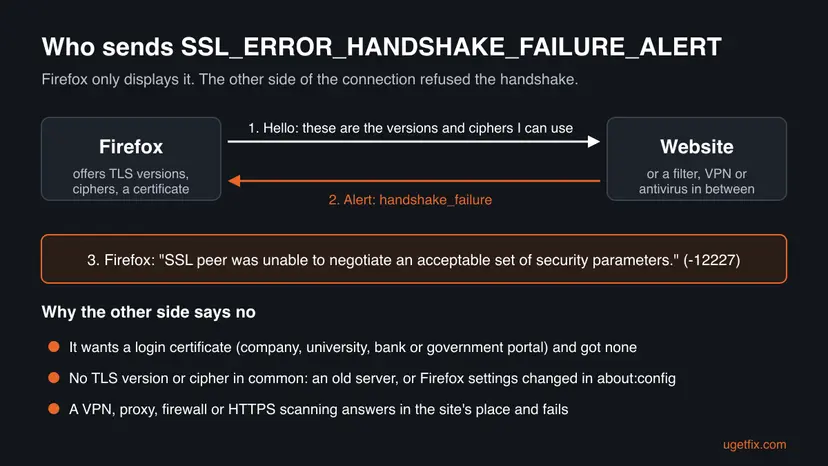
| What you see | Where | What it tells you |
|---|---|---|
Secure Connection Failed, "SSL peer was unable to negotiate an acceptable set of security parameters.", Error code: SSL_ERROR_HANDSHAKE_FAILURE_ALERT | A Firefox tab on Windows, macOS, Linux or Android | The other side refused the handshake. Mozilla's page adds that the authenticity of the received data could not be verified. |
"didn't accept your login certificate", ERR_BAD_SSL_CLIENT_AUTH_CERT | Chrome or Edge, same site | The site wants a login certificate. This is Chrome's wording for the most common case of this error. |
"uses an unsupported protocol", ERR_SSL_VERSION_OR_CIPHER_MISMATCH | Chrome or Edge, same site | No TLS version or cipher in common. Chrome has no code with the Firefox name. |
| "SSL handshake failed" in a download manager, game launcher or script | Other apps on Windows | The same kind of refusal, reported by that app's own library. The fixes for the network and the server apply; the Firefox steps do not. |
The reader's question above says Chrome. Chrome and Edge never print SSL_ERROR_HANDSHAKE_FAILURE_ALERT: it is a Mozilla NSS name. If you see this exact code, the page was opened in Firefox or in a browser built on it. The fixes below are written for Firefox on Windows, with the Chrome codes named where they differ.
What causes SSL_ERROR_HANDSHAKE_FAILURE_ALERT, from most to least likely
Google's first page for this code is a list of company and university portals that sign people in with a certificate, which matches the most common cause. Next come networks and programs that sit in the middle of HTTPS traffic, which Mozilla names for every secure connection failure. A Firefox with changed TLS preferences and an outdated server are the rarer cases.
| Cause | How often | How to tell | Fix |
|---|---|---|---|
| The site asks for a client (login) certificate or a smart card, and Firefox has none or offers the wrong one. | Most often | A work, school, bank, tax or government portal. Colleagues with the certificate get in. | Fix 2 |
| A VPN, proxy, DNS over HTTPS, company firewall or antivirus HTTPS scanning answers in place of the site and fails. | Often | The site opens on mobile data or with the VPN off. Several sites fail on this PC. | Fix 3 |
TLS preferences in Firefox were changed in about:config, so Firefox offers versions or ciphers the server refuses. | Sometimes | The site opens in Edge or Chrome on the same PC but not in Firefox. | Fix 4 |
| An old Firefox, an extension or a damaged profile. | Rarely | Troubleshoot Mode or a fresh profile opens the site. | Fix 5, Fix 6 |
| The server accepts only old ciphers, or its client certificate setup is wrong. | When it fails for everyone | Every device, network and browser fails. | Fix 7 |
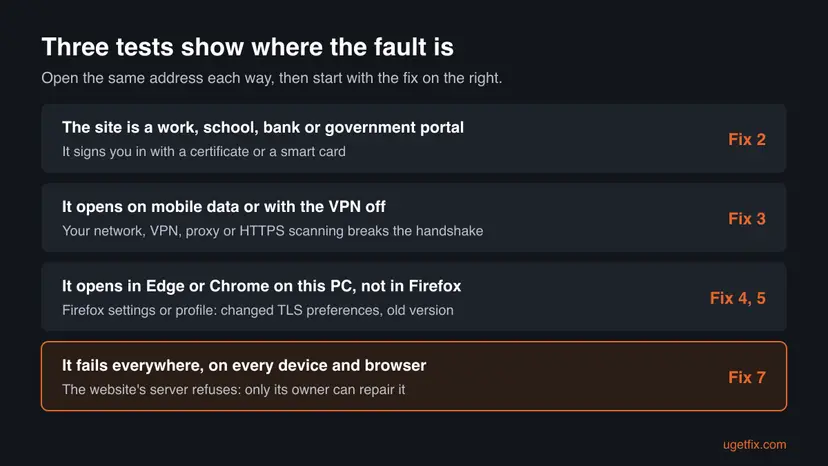
Mozilla documents what the code means, not how often each cause occurs, and no vendor publishes such numbers. The order above follows the kinds of sites in Google's results for this code and Mozilla's own list of causes for secure connection failures.
Similar Firefox SSL error codes and how they differ
Firefox has a whole family of codes that end in _ALERT. Each one names the alert the other side sent, so the name already points at the cause. The descriptions below are Mozilla's own texts from the NSS error list.
| Code | Mozilla's description | What to do |
|---|---|---|
SSL_ERROR_NO_CYPHER_OVERLAP (-12286) | "Cannot communicate securely with peer: no common encryption algorithm(s)." | The same mismatch, found by Firefox itself. Fix 4, then Fix 7. |
SSL_ERROR_UNSUPPORTED_VERSION (-12279) | Mozilla's help: the website uses an outdated TLS version, and you can't fix it in Firefox. | Contact the website owner. |
SSL_ERROR_DECODE_ERROR_ALERT (-12193) | "Peer could not decode an SSL handshake message." | Often a middlebox that rewrites traffic. Fix 3. |
SSL_ERROR_INTERNAL_ERROR_ALERT (-12188) | "Peer reports it experienced an internal error." | A server fault, for example a web server such as Caddy with no certificate for the name you typed. Fix 7. |
SSL_ERROR_UNRECOGNIZED_NAME_ALERT (-12182), in Chrome ERR_SSL_UNRECOGNIZED_NAME_ALERT | "SSL peer has no certificate for the requested DNS name." | Check the address for typing mistakes. Otherwise the site's setup is wrong: Fix 7. |
SSL_ERROR_ACCESS_DENIED_ALERT (-12194) | "Peer received a valid certificate, but access was denied." | Your login certificate was read and refused. Ask the site's support. |
SSL_ERROR_RX_MALFORMED_SERVER_HELLO | The server's first answer could not be read. | Usually a VPN, proxy or filter answering in the site's place. Fix 3. |
SEC_ERROR_UNKNOWN_ISSUER, MOZILLA_PKIX_ERROR_... codes | Certificate problems, shown on a Warning: Potential Security Risk Ahead page. | Not this error. For time related codes use How to fix the date and time in Windows. |
NS_ERROR_OFFLINE | Not a TLS code: Firefox has no connection to use. | How to check your internet connection in Windows |
How to fix SSL_ERROR_HANDSHAKE_FAILURE_ALERT
Fix 1 is a two minute test that tells you whether to work on your PC or leave the repair to the site. Fix 2 is for sites that sign you in with a certificate. Fixes 3 to 6 are for a PC or network that breaks the handshake, and Fix 7 is for website owners.
| What you see or have | Start with |
|---|---|
| One website shows the error and you do not know why. | Fix 1 |
| The site belongs to your employer, university, bank, tax office or a government service. | Fix 2 |
| The site opens on mobile data, or works only with the VPN off. | Fix 3 |
| Several HTTPS sites fail in Firefox and the error comes and goes. | Fix 3, then Fix 5 |
| The site opens in Edge or Chrome on this PC, but not in Firefox. | Fix 4, then Fix 6 |
| Visitors report the error on your own website. | Fix 7 |
| The site fails on every network, device and browser, and it is not yours. | Tell the owner: see "If the error is still there" |
Fix 1. Open the site on another network, device and browser
2 minutesNo riskYou see the error and want to know whose fault it is before changing anything.
The error page cannot tell whether the server or something in the middle sent the alert. Mozilla's own advice for a problem with the website is to try it in another browser, and another network separates your connection from the site.
- Select Try Again on the error page once, and check the address for typing mistakes.
- Open another HTTPS site in a new tab. Note whether one site fails or many.
- Open the same address in Microsoft Edge on the same PC.
- On a phone, turn off Wi-Fi so it uses mobile data, and open the address there.
- If you use a VPN, disconnect it and select Try Again in Firefox.
- Read your result in the table below and go to the fix it names.
| Result | What it means | Next |
|---|---|---|
| The site opens on mobile data, but not on any device on your Wi-Fi. | Your network or provider filters the site or breaks the handshake. | Fix 3 |
| The site opens with the VPN off. | The VPN's servers or filtering refuse the handshake. | Fix 3 |
| Edge opens it, Firefox does not. | Firefox settings, profile or version. | Fix 4, then Fix 5 and Fix 6 |
| Edge says the site did not accept your login certificate. | The site wants a certificate you have not given it. | Fix 2 |
| Every device, browser and network fails. | The website's server refuses the handshake. | Tell the owner, or use Fix 7 if the site is yours. |
The reader above saw no pattern. An error that appears on some loads and not on others points at something in the middle, such as a VPN changing servers or a security program that scans only some connections. A server that refuses everyone refuses every time.
It worked if: You know which row of the table you are in: this PC, this network, a login certificate or the website itself.
If not: If the results are mixed or change from minute to minute, treat it as a network problem and go to Fix 3.
Fix 2. Give Firefox the login certificate the site asks for
5 to 10 minutesLow riskThe site is a company, university, bank, tax or government portal that signs people in with a certificate or a smart card.
A server that requires a client certificate ends the handshake when the browser sends none. Firefox keeps its own certificate store, separate from Windows, so a certificate that works in Edge may still be missing in Firefox.
- Find the certificate file your organization gave you, usually a
.p12or.pfxfile, and its password. - In Firefox, open the menu (three lines at the top right) and select Settings.
- Select Privacy & Security on the left and scroll down to Certificates.
- Select View Certificates and open the Your Certificates tab.
- Select Import, choose the file and enter its password.
- For a smart card or token, select Security Devices in the same section and load the module your organization names.
- Close Firefox completely, open it again and load the site. Pick the certificate when Firefox asks.
- The certificate is in Windows only. If Edge signs you in, the certificate sits in the Windows store. Export it from there with its private key, or ask your IT team for a file, and import it into Firefox.
- Firefox did not ask which certificate to use. Then it found none that the site accepts. Check that the certificate has not expired and was issued for this portal.
- The certificate was read and refused. That gives a different code,
SSL_ERROR_ACCESS_DENIED_ALERT. Only the site's support can change it.
A login certificate is like a password. Import only the file your employer, school, bank or the government service gave you. Never install a certificate that a pop-up or an unknown website offers as a fix.
It worked if: Firefox asks which certificate to send, and the portal opens or shows its own sign-in page.
If not: If the site is not a certificate portal, or the error stays after the import, go to Fix 3.
Fix 3. Rule out the VPN, the proxy, DNS over HTTPS and HTTPS scanning
10 to 20 minutesLow riskThe site opens on another network or device, or several HTTPS sites fail on this PC.
Mozilla lists VPN software, DNS over HTTPS, antivirus that scans encrypted traffic, proxy settings and firewalls as the usual reasons a secure connection fails. Each of them can answer Firefox's hello in the site's place and refuse it.
Each switch below is off for one page load only. If the site works with HTTPS scanning off, the cure is an update of the security program or an exclusion for this one site, not a PC left without protection.
- Disconnect the VPN, if one is on, and select Try Again.
- In Firefox, open Settings, stay on General, scroll to Network Settings and select Settings.
- Check which proxy option is selected. If a manual proxy is set that you did not set up, choose Use system proxy settings. On a work PC, ask the administrator first.
- Open Settings > Privacy & Security and scroll to DNS over HTTPS. Set it to Off for one test, or add the site to Exceptions.
- Open your antivirus and find the HTTPS or encrypted connection scanning setting. Turn it off, reload the page and turn it back on at once.
- If the page loaded with scanning off, update the antivirus to its latest version and test again with scanning on.
- Set DNS over HTTPS back to the level you had, unless the test showed it was the cause.
| Program | Setting to look for |
|---|---|
| Avast and AVG | Enable HTTPS Scanning in the Web Shield settings |
| Bitdefender | Encrypted Web Scan (older versions: Scan SSL) |
| ESET | SSL/TLS protocol filtering |
| Kaspersky | Do not scan encrypted connections. Mozilla adds that Kaspersky 2019 and later contain fixes for this problem. |
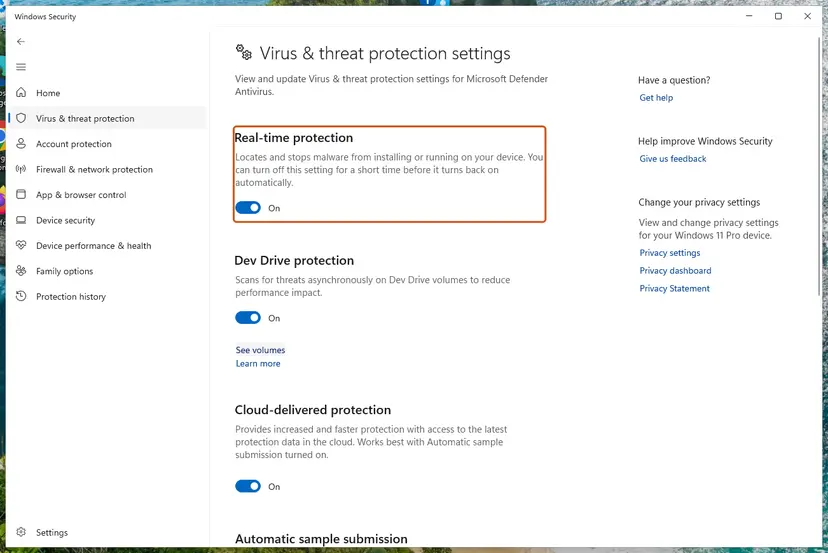
How to pause Microsoft Defender for a single test and switch it back on: Turn off Microsoft Defender protection for a moment. On a company network, a firewall that inspects HTTPS is the network's rule, and only its administrator can change it.
It worked if: The page loads after one of the switches, so you know which program or device refused the handshake.
If not: If nothing changes and the site still opens in Edge, the cause is in Firefox: go to Fix 4.
Fix 4. Reset changed TLS settings in about:config
5 minutesLow riskThe site opens in Edge or Chrome on this PC, but Firefox shows the error.
Guides and tools sometimes tell people to change Firefox's TLS version range or switch off ciphers. If Firefox then offers nothing the server accepts, the server answers with exactly this alert.
- Type
about:configin the address bar and press Enter. - Select Accept the Risk and Continue on the warning page.
- Type
security.tls.versionin the search box. - Look for lines in bold: those were changed from the default. Select the reset arrow at the end of each bold line.
- Search for
security.ssl3and reset any bold line there too. These switch single ciphers on and off. - Close the tab, close Firefox completely, open it again and load the site.
| Preference | Default | What it means |
|---|---|---|
security.tls.version.min | 3 | The lowest version Firefox offers. 3 is TLS 1.2. |
security.tls.version.max | 4 | The highest version Firefox offers. 4 is TLS 1.3. |
Setting the minimum to 1 lets Firefox talk to servers that offer only TLS 1.0. Mozilla's help says an outdated TLS version is no longer considered secure and cannot be fixed in Firefox. Ask the site's owner to update the server instead.
It worked if: No line is bold any more, and the site loads after Firefox restarts.
If not: If nothing was bold, your preferences are the defaults. Go to Fix 5.
Fix 5. Update Firefox and delete its cached data
5 minutesLow riskFirefox has not updated for a while, or the error started on a site that used to work in Firefox.
An old Firefox may lack the ciphers a current server requires. Mozilla also notes that Firefox can keep an outdated certificate, and clearing stored site data removes old connection details for that site.
- Open the menu (three lines), select Help and then About Firefox.
- Wait while Firefox checks for updates and downloads one.
- Select Restart to update Firefox if the button appears.
- Clear the cache for the site with the steps below. Start with the cache only.
- Open Clear browsing data and cookies. Press Ctrl + Shift + Delete. Or open the menu (three lines) > Settings > Privacy & Security and select the clear button in the section for cookies and browsing data.
- Choose how far back to delete. Next to When:, choose a range. Choose Everything to clear the whole cache.
- Choose what to delete. Check Temporary cached files and pages. Check Cookies and site data too if a site will not sign you in. Uncheck the rest if you want to keep it.
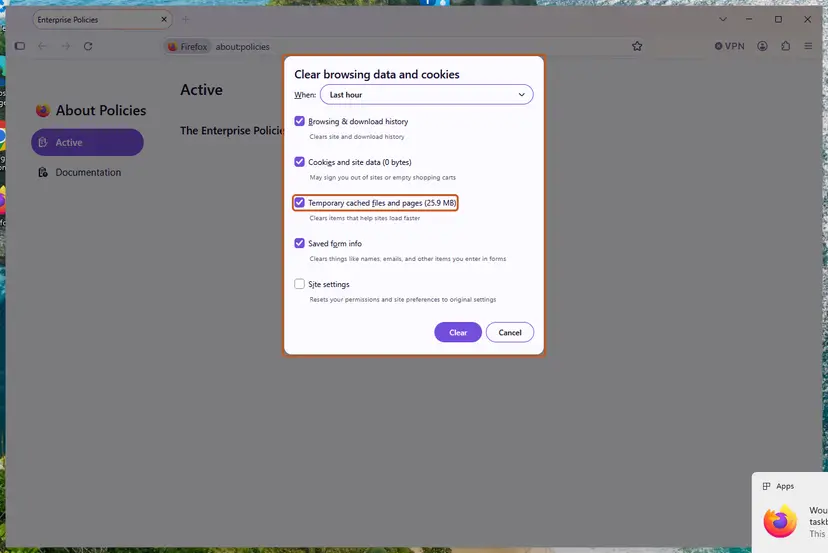
Firefox: Temporary cached files and pages is the cache. Screenshot: Windows 11 26H2. - Delete the data. Click Clear.
These steps were written for Firefox for Windows (screenshot: Windows 11 26H2). The full page with the other versions and what each result means: Clear the browser cache and cookies
Step by step for every browser: Clear the browser cache and cookies. If the site uses a certificate you added yourself, open Settings > Privacy & Security > Certificates > View Certificates, select the outdated one and select Delete or Distrust, as Mozilla describes.
It worked if: About Firefox says Firefox is up to date, and the site loads after the cache was cleared.
If not: If the error stays in Firefox only, test the profile with Fix 6.
Fix 6. Test in Troubleshoot Mode, then refresh Firefox
10 minutesRead the warningOnly Firefox fails on this PC, and Fixes 4 and 5 did not help.
Troubleshoot Mode starts Firefox without extensions and with default settings for one session. If the site opens there, something in your profile refuses or rewrites the handshake, and a refresh builds a clean profile.
- Open the menu (three lines), select Help and then Troubleshoot Mode.
- Select Restart, then Open in the small window.
- Load the site. If it opens, the cause is an extension or a setting in your profile.
- Restart Firefox normally, open Add-ons and themes with Ctrl + Shift + A and switch extensions off one by one until the site loads.
- If no extension is the cause, type
about:supportand select Refresh Firefox, then confirm.
Refresh Firefox keeps bookmarks, history, passwords, cookies and open tabs, but it removes extensions, themes and custom settings. Certificates you imported may need to be imported again. Note your extensions and keep your certificate file before you refresh.
It worked if: The site loads in Troubleshoot Mode, and in normal mode after the extension is off or the refresh is done.
If not: If it fails in Troubleshoot Mode too, the profile is not the cause. Go back to Fix 3, or collect the details under "If the error is still there".
Fix 7. On your own website: accept current TLS and set client certificates right
15 to 30 minutesLow riskThe site is yours, and visitors with Firefox report the error, or it fails everywhere in Fix 1.
When every visitor fails, the server sends the alert. It cannot agree on a version or cipher with a current Firefox, or it requires a client certificate that ordinary visitors do not have.
- Test the site with the SSL Labs server test, which Mozilla's help names for site owners, and read the protocol and cipher lists.
- Make sure the server offers TLS 1.2 and TLS 1.3 with current ciphers. Firefox's default range is exactly these two versions.
- Run the command below from a PC outside your network and check that a certificate chain is printed.
- If the site should not ask every visitor for a certificate, make client authentication optional or limit it to the sign-in path.
- Check that the server has a certificate for every name visitors use, with and without
www. - Fix any "Chain issues: Incomplete" result in the test, then reload the server and test again in Firefox.
Check the handshake from outside (replace example.com)
openssl s_client -connect example.com:443 -servername example.comIf a CDN, load balancer or reverse proxy such as Caddy stands in front of the server, the visitor's handshake is with that service. Check its TLS and certificate settings first, because the alert comes from whatever answers on port 443.
It worked if: The test shows TLS 1.2 and 1.3 with no chain issues, and Firefox opens the site on an outside connection.
If not: If only some visitors fail, ask one of them for the details listed under "If the error is still there" and work through Fix 3 with them.
If the error is still there: what to check and what to send
Mozilla's page for this kind of error says plainly that there is no option to add a security exception, and it asks you to contact the website owners. Without a finished handshake there is no encrypted connection to continue on, so no setting in Firefox removes the message on a site that refuses everyone.
- What to send to the website: the exact address, the date and time, the full error text and your Firefox version from Help > About Firefox. Add your Windows version, your security software, and whether you use a VPN, a proxy or a company network.
- When it is not your PC: the site fails on mobile data, on other devices and in other browsers. Only the owner can repair the server.
- When it is the network's rule: one site fails on one network and works elsewhere. A filter at work, at school or at the provider decides that.
- When it is a certificate portal: your organization's IT or the portal's helpdesk can check whether your certificate is valid and issued for this site.
- When many sites fail with many codes: start with How to check your internet connection in Windows, and use Reset the network and flush DNS only if that page points at Windows.
Mozilla notes that some malware intercepts secure connections. If many HTTPS sites fail in every browser and you did not install a VPN or security program, run a full scan with Microsoft Defender before you change more settings.
How to keep SSL_ERROR_HANDSHAKE_FAILURE_ALERT from coming back
- Keep Firefox and your security program updated, so both handle TLS 1.3.
- Keep your login certificate file and its password safe, and renew it before it expires.
- Test a failing site on mobile data before you change settings on the PC.
- On your own site, test with SSL Labs after every change to the server, the certificate or the CDN.
- Do not leave HTTPS scanning, the VPN filter or the antivirus off after a test.
- Do not change TLS preferences in
about:configbecause a forum post says so. - Do not lower Firefox's minimum TLS version to reach an old server.
- Do not install a certificate that a pop-up or a stranger's website offers as a fix.
Most of this error is decided outside your PC, by the server or by a device on the way. What you control is the two minute test that shows where the refusal comes from, the certificate your organization gave you, and Firefox's settings left at their defaults.
Frequently asked questions
What does error code SSL_ERROR_HANDSHAKE_FAILURE_ALERT mean?
It means the other side of the connection refused the TLS handshake. Firefox offered its TLS versions and ciphers, and the server, or a filter or VPN in the middle, answered with an alert called handshake_failure. Mozilla's NSS library lists the code as -12227 with the text "SSL peer was unable to negotiate an acceptable set of security parameters." The most common reason is a site that wants a login certificate. Other reasons are a program that intercepts HTTPS, changed Firefox TLS settings, or a server with an outdated setup.
Why do I see SSL_ERROR_HANDSHAKE_FAILURE_ALERT in Chrome?
You almost certainly do not: Chrome and Edge do not use this code. It is a name from Mozilla's NSS library, so the page was opened in Firefox or a browser built on it. Chrome shows its own codes for the same refusal, for example ERR_BAD_SSL_CLIENT_AUTH_CERT when a site wants a login certificate, or ERR_SSL_VERSION_OR_CIPHER_MISMATCH when there is no common cipher. If Chrome shows "sent an invalid response", read our guide to ERR_SSL_PROTOCOL_ERROR.
How do I fix SSL_ERROR_HANDSHAKE_FAILURE_ALERT in Firefox?
First find out where the refusal comes from. Open the address on mobile data and in Edge. If the site is a work, school, bank or government portal, import your login certificate under Settings, Privacy & Security, Certificates, View Certificates, Your Certificates. If it opens on another network or with the VPN off, check the VPN, the proxy, DNS over HTTPS and HTTPS scanning. If it opens in Edge only, reset bold TLS lines in about:config, update Firefox and test Troubleshoot Mode. If it fails everywhere, tell the site's owner.
Can I bypass SSL_ERROR_HANDSHAKE_FAILURE_ALERT and open the site anyway?
No. Mozilla's help says there is no option to add a security exception for a Secure Connection Failed page. The page is not a warning placed in front of a working connection: the handshake did not finish, so no encrypted connection exists to continue on. You need a connection that works: the right login certificate, another network if yours interferes, or a server fixed by its owner. Lowering Firefox's TLS settings to force a connection weakens your security and usually does not help with this alert.
Why does the error come and go on the same site?
A server that refuses the handshake usually refuses it every time, for everyone. An error that appears on some loads only points at something in the middle. A VPN that switches servers, a security program that scans some connections, a busy company firewall or a provider filter can all behave this way. Disconnect the VPN and test on mobile data a few times. If the error never appears there, work through Fix 3 on your own network and programs.
Does a wrong date and time on the PC cause this error?
Not this one. Mozilla's help says an incorrect system clock makes Firefox treat a website's certificate as expired or invalid, and Firefox shows that on a Warning: Potential Security Risk Ahead page with time related codes. SSL_ERROR_HANDSHAKE_FAILURE_ALERT comes from the other side refusing the handshake, before any certificate date is judged. If you do see a time related warning, set the clock to update automatically in Windows and reload the page.
Do the TLS boxes in Windows Internet Options fix this error?
Not for Firefox. Firefox encrypts connections with Mozilla's own NSS library and keeps its own certificate store and TLS settings. The Use TLS 1.2 and Use TLS 1.3 boxes in Windows Internet Options belong to Windows' own security components, which Firefox does not use for its connections. Firefox's version range is set in about:config, and its defaults are TLS 1.2 and TLS 1.3. Leave the Windows boxes as they are, and use Fix 4 if Firefox's settings were changed.
What is the difference between SSL_ERROR_HANDSHAKE_FAILURE_ALERT and SSL_ERROR_NO_CYPHER_OVERLAP?
Both say the two sides found no common ground, but they come from different sides. SSL_ERROR_NO_CYPHER_OVERLAP is Firefox's own finding: "no common encryption algorithm(s)". SSL_ERROR_HANDSHAKE_FAILURE_ALERT is the server's refusal, sent as an alert, and it can also mean the server wanted a login certificate. For both, reset changed TLS settings in Firefox first. If Firefox runs with default settings, the server's cipher list needs to be updated by its owner.
I see "SSL handshake failed" in another app, such as a download manager. Is it the same error?
It is the same kind of failure but not the same code. Download managers, game launchers and scripts use their own TLS libraries and write their own messages, such as SSL handshake failed or a Python SSLError. The checks that do not depend on Firefox still apply: test another network, disconnect the VPN, test the antivirus's HTTPS scanning for one page load, and update the app. This page covers the Firefox code and its fixes.
What does خطای ssl_error_handshake_failure_alert mean?
It is the same Firefox error written with the Persian word for error. Google sends searches in other languages to this English page. The meaning does not change with the language: the website, or something between you and it, refused the secure handshake. The steps above work the same in Firefox in any language, though menu names are translated. Start with Fix 1, which needs no menus: open the address on mobile data and in another browser to see where the fault is.
Sources
- Mozilla NSS documentation: sslerr, NSS and SSL error codes (SSL_ERROR_HANDSHAKE_FAILURE_ALERT -12227 and related alerts) (nss-crypto.org)
- Mozilla Support: Secure connection and security warning error pages in Firefox (support.mozilla.org)
- Mozilla Support: Troubleshoot security error codes on secure websites (antivirus HTTPS scanning settings) (support.mozilla.org)
Did this fix work?
One click, no account. It tells the next reader which guides are worth their time.
Questions and experiences: fix SSL_ERROR_HANDSHAKE_FAILURE_ALERT error in Windows
Still broken, or found a fix we did not cover? Ask here: members and our editors answer. Reading is open; writing needs a free account.
…